












So, search for a pair of shoes once online. Close the tab. By evening, those same shoes are sitting on your news site, your video app, and even your recipe blog. Nobody placed them there by chance. A cookie did. Well, yes! Cookies are small files that websites place on your device while you browse. […]
Auslogics Duplicate File Finder: Full Review and User Guide
A computer quietly gathers clutter over time. This includes duplicate photos, repeated downloads, and forgotten backups hiding in random folders. This buildup slowly eats away at storage and can make even a fast PC feel sluggish.
Manually finding and deleting duplicates is tedious. It means checking every folder, comparing file names, and guessing which copies are safe to remove. Most people give up halfway through because it’s simply too time-consuming.
That’s where a dedicated cleanup tool proves its worth. In this review, we take a close look at Auslogics Duplicate File Finder, exploring its features, performance, and whether it’s a smart choice for keeping your computer organized and efficient.
Part 1: Brief Overview: Auslogics Duplicate File Finder
Auslogics Duplicate File Finder is a lightweight app. It is made to find and remove duplicate files from your PC. It scans folders, drives, and even external storage to spot copies of the same file. Once it finds them, it lets you review and delete the ones you do not need.
The tool is made by Auslogics, a company known for PC cleanup software. It works on Windows systems and fits well with other Auslogics tools if you already use them. You do not need any special skills to run a scan.
What makes this app stand out is the way it checks for duplicates. It checks the actual content of files, so it can catch copies even if they have different names. This makes the results more accurate than a basic search.
Top Features include:
- Deep scan that checks file content, not just names
- Support for photos, music, videos, documents, and archives
- Preview option before deleting anything
- Filters to sort results by file type or folder
- Safe delete mode that avoids removing important system files
- Option to scan external drives and network folders
- Simple, clean interface for beginners
Part 2: Why Choose Auslogics Duplicate File Finder?
Cleaning up a messy drive can feel like a chore. You open folder after folder, trying to remember which file is the original and which one is a copy. This tool takes that stress away by doing the checking for you. Here is why many users pick it over other options.
- Accurate scanning: The tool looks at the actual content of each file, not just the name. This makes it possible to spot real duplicates even when the filenames are different. A simple name check would miss those, but content matching ensures they get flagged.
- Time-saving: A full scan finishes in minutes instead of hours of manual checking. What would normally take an entire afternoon of opening folders one by one gets handled automatically. The process runs in the background while you focus on other tasks.
- Beginner-friendly: The layout is clean, with clear buttons and steps. You do not need any technical background to figure out what to click next, since the whole process is laid out in a straight line.
- Flexible scanning: You can scan a single folder or your whole drive. This gives you control, so you can do a quick check on your Downloads folder one day and a full drive scan another day.
- File type support: It handles photos, videos, music, and documents well. Whether your clutter is old vacation photos, downloaded songs, or repeated PDF files, the tool sorts through all of it without trouble.
- Preview before delete: You get to preview each file before deleting, so nothing disappears unexpectedly. This extra step lets you double‑check and be sure before committing to permanent removal.
- Regular updates: The company keeps improving the tool with small updates over time. This means bugs get fixed, and scanning gets better, instead of the tool staying stuck the way it was on day one.
Part 3: Key Features Explained: Auslogics Duplicate File Finder
After using Auslogics Duplicate File Finder on my PC, I found several features that were genuinely helpful. Many tools make big claims but fail to deliver. This one mostly lived up to its promises.
The features that stood out were the ones that saved time and effort. The preview pane made it simple to check files before deleting. The group selection option let me clear duplicates quickly without going through each file one by one.
Here is a closer look at the functions that proved most useful during real use.
Content-based scanning
Instead of relying on file names, the scan checks what is actually inside each file. This means two photos with different names but the same content will still show up as duplicates. I tested this with a folder of downloaded images, and it caught copies that a simple name search would have missed.
Folder and drive selection
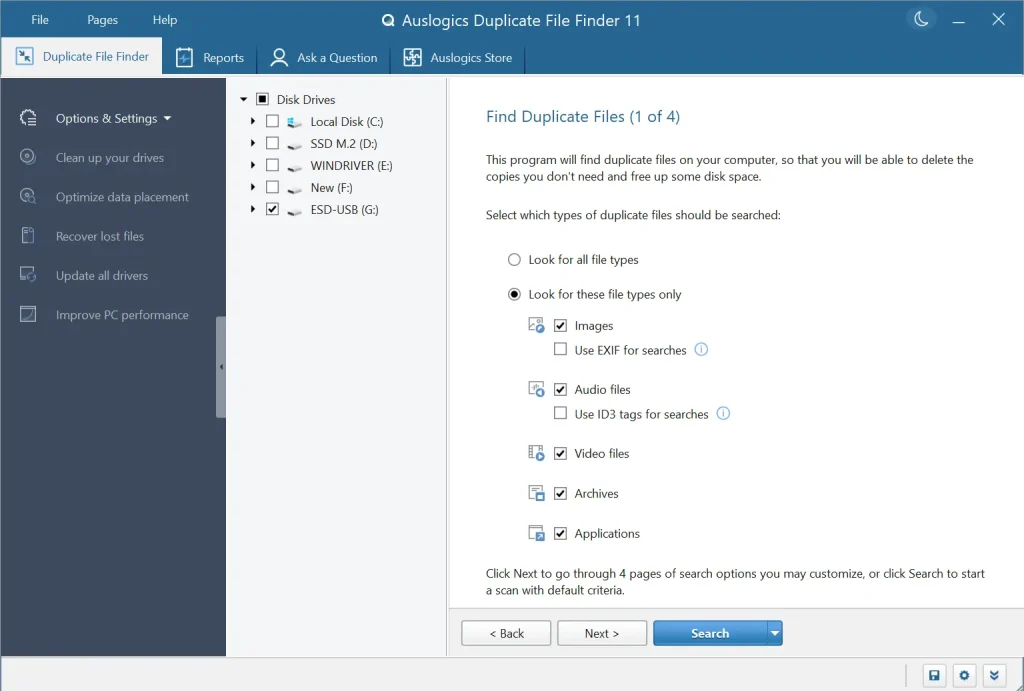
You can pick the exact location to scan. This is useful if you only want to check your Downloads folder instead of the whole PC. I tried it on my external hard drive, and it finished quickly without touching the main system drive.
File type filters
Once the scan is done, you can filter results by type, like images, videos, or documents. This makes it easier to focus on one category at a time. I found this useful when I only wanted to clean up duplicate photos without wading through document duplicates too.
Preview pane
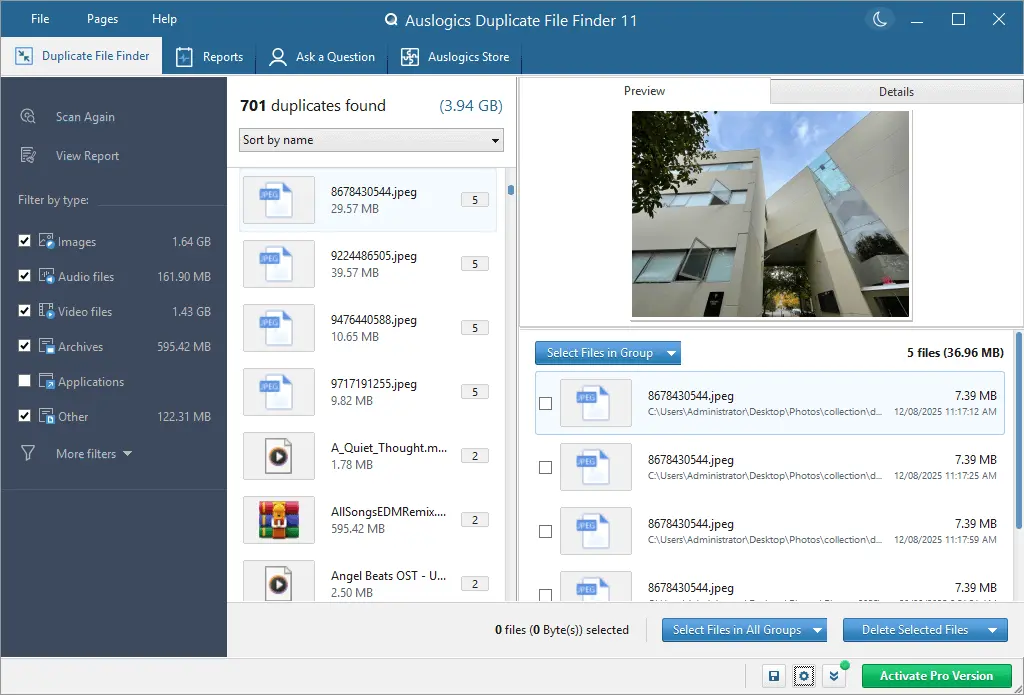
Before deleting anything, you can preview the file. For photos and videos, this is a small thumbnail. For documents, it shows basic details. This step gave me confidence that I was not deleting something important by mistake.
Safe delete option
The tool has a setting that keeps one copy of each duplicate group and only removes the extras. This is a smart default for anyone nervous about losing files. I kept this turned on during my tests, and it worked exactly as expected.
Scan speed
On my PC, a scan of about 50,000 files took just a few minutes. It is not instant, but it is fast enough that you do not need to walk away and come back later.
Ignore list
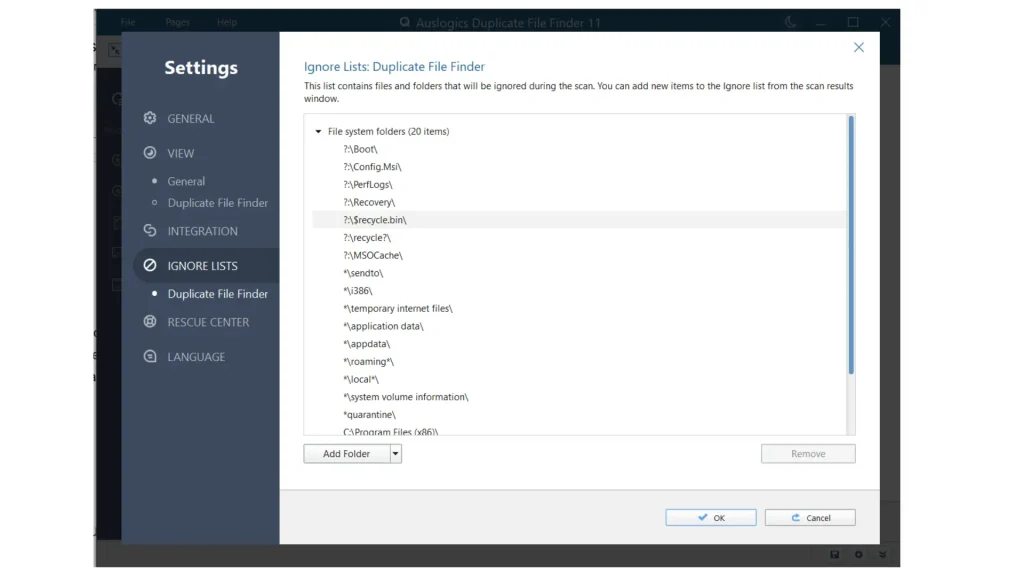
You can mark certain folders to be skipped during scans. I added my work project folder to this list, since I did not want the tool touching those files at all. This gave me extra peace of mind.
Simple results screen
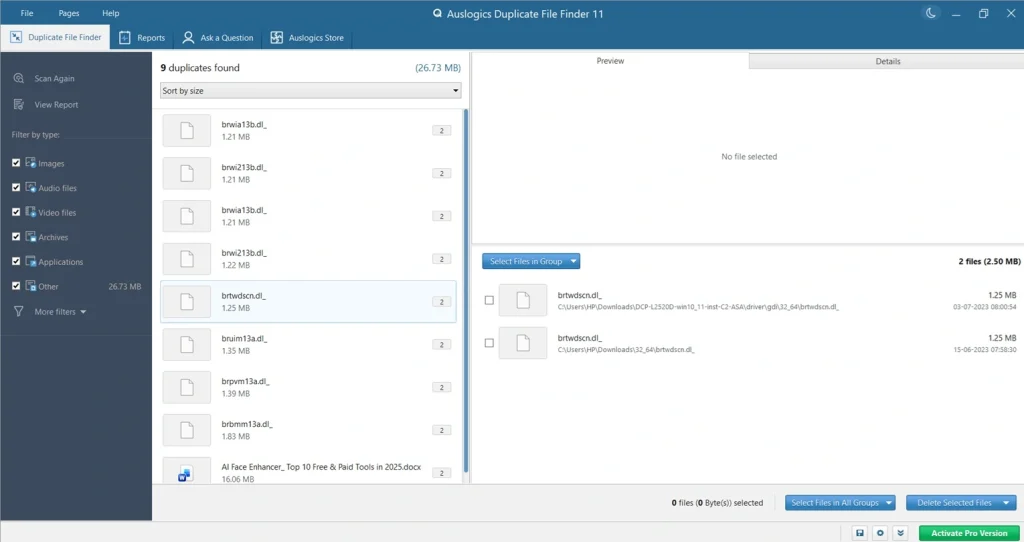
The results are grouped by duplicate sets, with checkboxes to select what you want to remove. It is easy to scan through and make quick decisions without feeling overwhelmed by a long list.
Part 4: How to Use Auslogics Duplicate File Finder: Step-by-Step Guide
Getting started with this tool does not take long. The setup is quick, and the scanning process is mostly automatic. Here are the three main steps to follow.
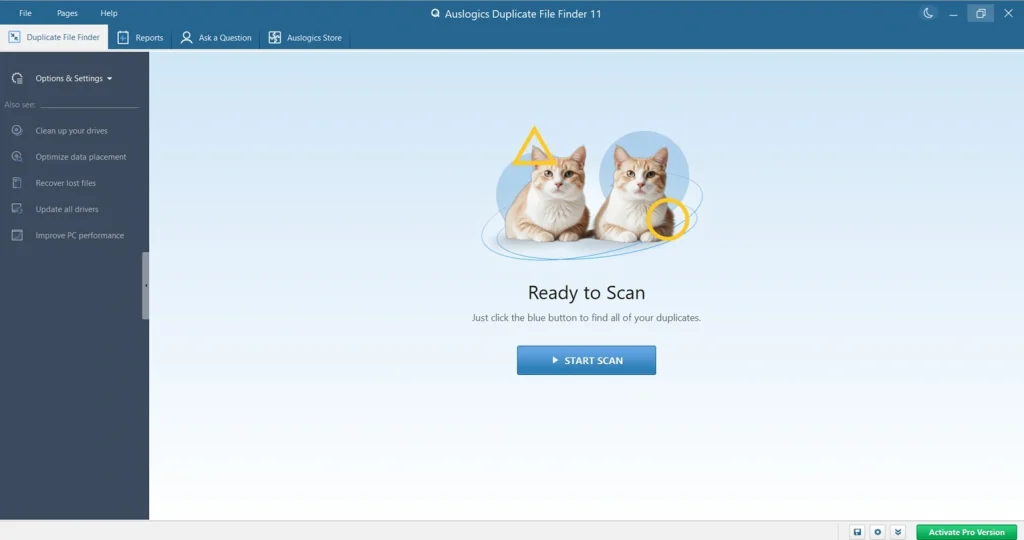
Step 1: Download the installer from the official Auslogics website. Run it and follow the on-screen prompts to complete setup. Once installed, open the app from your desktop or start menu. Click the Start Scan button.
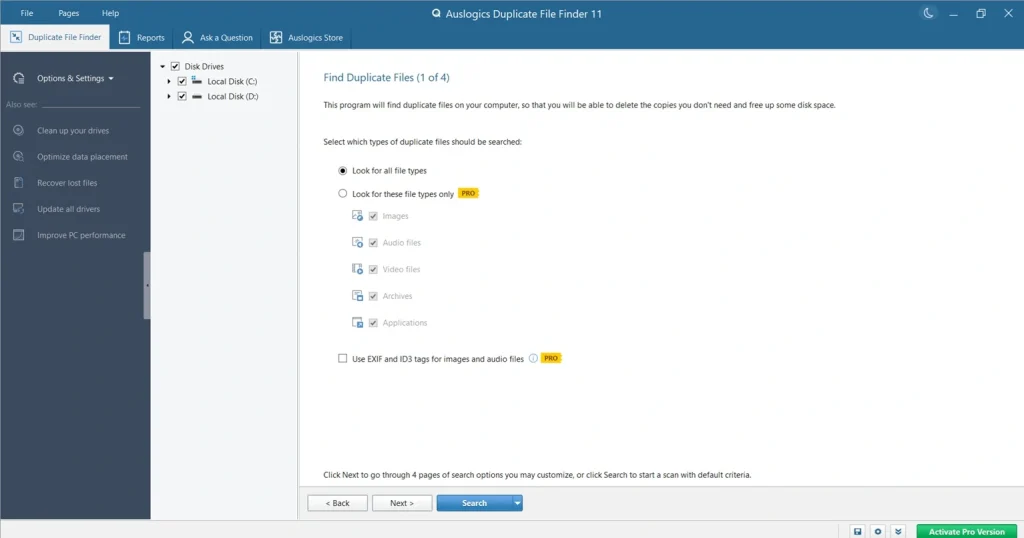
Step 2: Choose the drive or folder you want to check. You can pick your entire PC or narrow it down to a specific folder, like Downloads or Pictures. Set up all search criteria. Once selected, click the Next button to start.
Step 3: When the scan finishes, you will see a list of duplicate files grouped together. Go through each group, use the preview if needed, and select the copies you want to delete. Click Delete Selected Files to clear them from your drive.
Part 5: Pros and Cons: Auslogics Duplicate File Finder
No tool is perfect, and this one has its share of strengths and weak points. Based on regular use, here is an honest breakdown of what stood out, both good and bad.
Pros
- Fast scanning – The tool scanned my Documents and Pictures folders quickly, even with thousands of files. Results came back in minutes without slowing down the PC.
- Clear interface – The layout is simple and easy to follow. Duplicate results are neatly listed, so I didn’t feel lost or overwhelmed while reviewing them.
- Preview option – I could check files before deleting, which gave me confidence that I wasn’t removing something important.
- Smart auto-selection – The auto-select rules (like keeping the newest file) saved me time. I didn’t have to manually tick every duplicate.
- Folder exclusions – I could exclude certain folders from scans in seconds. This was handy for keeping work files or system folders untouched.
- Lightweight performance – The app didn’t hog system resources. I could run scans while working on other tasks without noticing any slowdown.
Cons
- Clunky auto-select – The auto-select feature sometimes picked files I wanted to keep. I had to review important folders, which slowed things down manually. It’s helpful, but not always reliable.
- No scheduling option – I couldn’t set it to run scans automatically. Every cleanup had to be started manually, which felt inconvenient when duplicates kept piling up.
- Basic filtering – Filters like file type and size are useful, but they felt limited. I wished for more advanced options, like excluding certain file extensions or prioritizing large duplicates first.
Part 6: Pricing Plans Explained: Auslogics Duplicate File Finder
Auslogics Duplicate File Finder offers both a free version and a Pro plan, with the paid license currently priced at around $25.46 (discounted from $29.95) or $40/year depending on the vendor.
The free edition lets you scan and preview duplicates, while the Pro unlocks unlimited cleanup, updates, and multi-PC licensing.
Free Version
- Free plan: Scan your PC and view duplicate results at no cost.
- Limitations: Cleanup is restricted; you can see duplicates but cannot fully remove them without upgrading.
- Ideal for: Users who want to test the tool before committing.
Paid (Pro) Version
- Pro plan: Unlocks full cleanup features, removes restrictions, and provides regular updates.
- Price:
- $25.46 (discounted from $29.95) one-time license.
- $40/year subscription (includes 3-PC license).
- Benefits:
- Unlimited duplicate removal.
- Smart auto-selection of duplicates.
- Safe deletion with Rescue Center recovery.
- Regular updates and support.
Multi-PC License
- Multi-PC license: Available with the $40/year subscription, covering up to 3 computers.
- Useful for households or small offices with multiple devices.
Pricing Comparison Table
| Plan | Features | Price | Best For |
| Free | Scan & view duplicates only | $0 | Casual users testing the tool |
| Pro One-Time | Full cleanup, updates, single PC | $25.46 (discounted) | Individual users needing full features |
| Pro Subscription | Full cleanup, updates, 3-PC license | $40/year | Families or small offices |
Key Considerations
- One-time vs. subscription: The one-time license is cheaper upfront, but the subscription covers multiple PCs and ensures ongoing updates.
- Free version limitations: You’ll only be able to preview duplicates, not remove them effectively.
- Discounts: Auslogics often runs promotions (like the current 15% off), so checking the official site before purchase is wise.
If you just want to see how much space duplicates are taking up, the free version is enough. But if you actually want to clean up your drive properly, the paid plan is the better choice. It removes the limits and gives you full control over the cleanup process.
Part 7: My Honest Take on Auslogics Duplicate File Finder
One of the most useful parts of Auslogics Duplicate File Finder is the preview feature. Before deleting anything, I could open a preview right inside the app to confirm whether files were truly identical. This gave me confidence that I wasn’t removing something important, especially when dealing with photos or documents that looked similar at first glance.
I also appreciated the group selection options. Instead of ticking duplicates one by one, the tool let me select entire groups at once. For example, I could keep the newest version of a file and mark all older copies for deletion in a single click. This saved a lot of time compared to manual cleanup.
Finally, the overall cleanup workflow felt streamlined. Results were displayed clearly, with checkboxes and sorting options that made it easy to manage large batches of duplicates.
Part 8: Tips for Getting the Most Out of Your Cleanup
Smart Habits for a Cleaner, Faster PC
A duplicate finder works best when you use it the right way. A few small habits can help you get better results and avoid mistakes. Here are some tips worth keeping in mind.
- Scan regularly: Run a scan once a month to stop duplicates from piling up again.
- Use the ignore list: Add folders you never want touched, like work projects.
- Check the preview: Always look at a file before deleting, especially photos and documents.
- Start with one folder: If you are new to the tool, try a small folder first before scanning your whole drive.
- Back up important files: Keep a backup elsewhere before doing a big cleanup.
- Sort by file type: Focus on one category at a time, like photos, to stay organized.
- Empty recycle bin after: Duplicates removed by the tool often go to the recycle bin first, so clear it to free real space.
- Update the tool: Keep it updated so scans stay accurate and fast.
Why This Review Can Be Trusted
This review comes from real use, not theory. I installed Auslogics Duplicate File Finder on my own PC and tested its features during everyday cleanup tasks. Everything described here — from the preview pane to the auto‑select rules and safe delete options — was tried directly, not just read about online.
The goal was to give a fair, balanced perspective. I’ve highlighted where the tool worked smoothly and where it felt limited. No software is flawless, and an honest review should reflect both strengths and weaknesses instead of painting an overly positive picture.
There’s no sponsorship or paid promotion behind this write‑up. The opinions shared are based entirely on personal experience, with the intent to help you decide whether this tool fits your needs. It’s not about convincing you one way or the other, but about sharing what actually happened when I used it.
Conclusion
Cleaning up duplicate files does not have to be a painful task. With the right tool, it becomes quick and almost effortless. Auslogics Duplicate File Finder handles this job well, especially for anyone who wants a simple, no-fuss way to free up space.
It is not without flaws. The free version is limited, and there is no mobile support. But for a Windows PC user dealing with clutter, it gets the core job done accurately and safely.
If you have been putting off a proper cleanup, this tool is worth trying. Start with the free version to see how much space you could save, then decide if the paid plan makes sense for your needs.
FAQs
Is Auslogics Duplicate File Finder safe to use
Yes, it is generally safe. The tool avoids flagging system files, so you won’t accidentally delete anything critical. It also includes a preview option, letting you check files before removal. The Rescue Center recovery adds another layer of protection. Still, as with any cleanup tool, it’s smart to back up important files first.
Does the free version work well enough?
The free version lets you scan and view duplicate results, which is useful for understanding how much space duplicates are taking. It works well for identifying clutter and testing the tool’s accuracy. However, cleanup is limited, so you can’t fully remove duplicates. For complete storage recovery, the paid plan is usually necessary.
Can it scan external drives?
Yes, it supports scanning external hard drives and USB drives along with your main system drive. This makes it handy for cleaning up backup drives, old storage devices, or portable media. It ensures duplicates aren’t just removed from your PC but across all connected storage.
Author Bio:
Dinesh Lakhwani 

Dinesh Lakhwani, the entrepreneurial brain behind “TechCommuters,” achieved big things in the tech world. He started the company to make smart and user-friendly tech solutions. Thanks to his sharp thinking, focus on quality and the motto of never giving up, TechCommuters became a top player in the industry. His commitment to excellence has propelled the company to a leading position in the industry.
Popular Post
Recent Post

How To Disable Background Apps In Windows: 4 Quick Methods
A slow PC rarely gives a warning. One day, it simply takes longer to start. Apps open late. The fan runs loud, even when the screen is almost empty. Most people blame old hardware. Often, that is not the real reason. The real reason is hiding in plain sight. Windows keeps many apps active in […]

How to Activate Windows with a Product Key for Windows 11 & Windows 10
It always shows up at the worst time. You are halfway through a report, or about to join a video call. Then you spot it in the bottom right corner of the screen. Activate Windows. Go to Settings to activate Windows. Initially, an unactivated copy of Windows may seem like a minor inconvenience. Over time, […]

Is Easy Duplicate Finder Worth It? Honest Review
The photos folder looked normal at first glance. Then the storage warning popped up. One trip photo appeared four times. A tax PDF sat in three different folders. Two old setup files were still in Downloads, and each one was over 500 MB. Nobody plans this mess. Copies pile up slowly. A download runs twice. […]

Wise Duplicate Finder Review: Real Results from Wise Duplicate Finder
Read my honest Wise Duplicate Finder review. See features, pricing, pros and cons, and real PC test results. Find out if this free duplicate cleaner can free up your Windows storage.

How to Recover Deleted Files from Pen drive, USB Drive, SD Card
Introduction: On tech forums, you’ll often see posts like this: “I connected my pen drive to my laptop this morning, but the folder was empty. All my college project files had vanished. I don’t have a backup. Can someone help me?” Stories like this are very common. Pen drives, USB drives and SD cards are […]

How To Recover Files Deleted from the Recycle Bin [Windows 11]
Losing a file can happen in seconds. You clear your desktop, hit Delete, and empty the Recycle Bin. Then, just when you need that file again, it seems to have vanished. This guide will walk you through ways to restore files removed from the Recycle Bin. We will begin with simple fixes, then look at […]

Disk Drill Data Recovery Tool Explained: Full Review and Guide
It happens in a split second. You delete a folder by mistake. Your drive stops showing up. A photo album from your last trip just vanishes. And your stomach drops. Lost files feel personal. They are not just data. They are memories, work hours, and sometimes years of effort packed into a few gigabytes. When […]

Recover Deleted Files In Windows 11 With Software & Without
Introduction What is the first thing that goes through your mind the second an important file vanishes from a Windows 11 PC? For most people, it is a mix of panic and disbelief, followed by a frantic click through every folder that file could possibly be hiding in. It happens in a split second: one […]

EaseUS Data Recovery Wizard: Everything To Know
Data loss does not always come from a big disaster either. Most cases start small and boring. A drive gets formatted by mistake. A laptop freezes mid-save and restarts on its own. A memory card stops showing up after being pulled out too fast. None of these feel like emergencies at first, until you realize […]

