












So, search for a pair of shoes once online. Close the tab. By evening, those same shoes are sitting on your news site, your video app, and even your recipe blog. Nobody placed them there by chance. A cookie did. Well, yes! Cookies are small files that websites place on your device while you browse. […]
How To Disable Cookies in Browser [Complete Guide]
So, search for a pair of shoes once online. Close the tab. By evening, those same shoes are sitting on your news site, your video app, and even your recipe blog. Nobody placed them there by chance. A cookie did. Well, yes!
Cookies are small files that websites place on your device while you browse. Some make your online experience easier by remembering your login details or saving items in your cart. Others are designed to collect information about your browsing habits. They can record what you click, which pages you visit, and how long you stay there. This data may be used by advertising companies to learn more about your interests. For this reason, many people prefer to turn off cookies in their browser.
Every major browser has a cookie switch. It takes about a minute to find. Below are the steps for Chrome, Edge, Firefox, Safari, Opera, and Brave.
Some sites act a little odd once cookies are off. We cover that too, so nothing catches you by surprise.
What Are Cookies?
A cookie is just a simple text file. A website saves it on your device when you visit. The file holds a few simple facts. It may store your login status, your language, or the items in your shopping cart.
When you come back to a website, your browser shows the tag. The site reads it and says, “Oh, I know this visitor.” That is how a site remembers you.
Cookies were made to make the web easier. Without them, you would need to log in again on every page. A shopping cart would empty each time you clicked a new link. So cookies do serve a real purpose.
Problems can arise when cookies are used to track your online activity. Tracking cookies can monitor your browsing as you move between different websites. They may collect details about the pages you visit, the things you search for, and the amount of time you spend on a site. Companies can use this information to deliver ads based on your interests, and in some cases, the collected data may also be shared or sold to others.
Types of Cookies You Should Know
Not every cookie works the same way. Knowing the main types helps you decide what to block.
- First-party cookies. These come from the site you are visiting. They handle useful jobs like keeping you logged in. Most of them are safe and helpful.
- Third-party cookies. These come from other companies, not the site you are on. Ad networks and social media widgets often set them. They are the main tool for cross-site tracking. These are the cookies most people want to block.
- Session cookies. These last only while your browser is open. When you close the browser, they vanish. They are low risk.
- Persistent cookies. These stay on your device for days, months, or even years. They are useful for remembering settings. But they can also be used for long-term tracking.
- Tracking and advertising cookies. These collect data about your habits. Their goal is to show you ads that match your interests.
- Necessary cookies. These keep a site working. Login pages and payment pages need them. If you block them, parts of the site may break.
Why Should You Disable Cookies in Your Browser?
There are many good reasons to turn cookies off. Here are the most common ones.
- Better privacy. Blocking cookies stops many companies from tracking your visits. Your browsing habits stay more private.
- Fewer targeted ads. If trackers cannot follow you, ads become less personal. You will not see the same product chasing you around the web.
- Less data sharing. Many sites share cookie data with partners. Blocking cookies cuts down how much of your data moves around.
- Safer shared computers. Maybe you use a library PC, an office desktop, or a family laptop. Cookies can leave traces of your logins and visits. Blocking them lowers that risk.
- Protection from some attacks. If a hacker steals a login cookie, they may gain access to your account. This is called session hijacking. Fewer cookies mean fewer chances for this to happen.
- More control. Some people just like to decide what gets saved on their device. Blocking cookies puts that choice in your hands.
What Happens When You Turn Off Cookies?
Before you block everything, know what to expect. The web will feel a bit different.
First, you may need to log in often. Sites will not remember you. Every visit may start with a fresh login screen.
Second, shopping carts may not work well. Some stores lose your items when you move between pages. Checkout may fail.
Third, some sites may not load at all. A few pages show an error that says cookies are required. Banking sites and streaming services often work this way.
Fourth, your settings will not stick. Language choices, dark mode, and location settings may reset each time.
Fifth, you may see more cookie pop-ups. Some sites ask again and again because they cannot save your choice.
Do not worry, though. You do not have to choose between all or nothing. Every browser lets you block only third-party cookies. This keeps most sites working while stopping most trackers. You can also allow cookies for sites you trust. We will cover both options below.
How To Block Cookies in Google Chrome on Desktop
Chrome is the most used browser in the world. Here is how to change its cookie settings on a Windows PC or Mac.
- Open Chrome. Click the three dots in the top right corner. Click Settings.
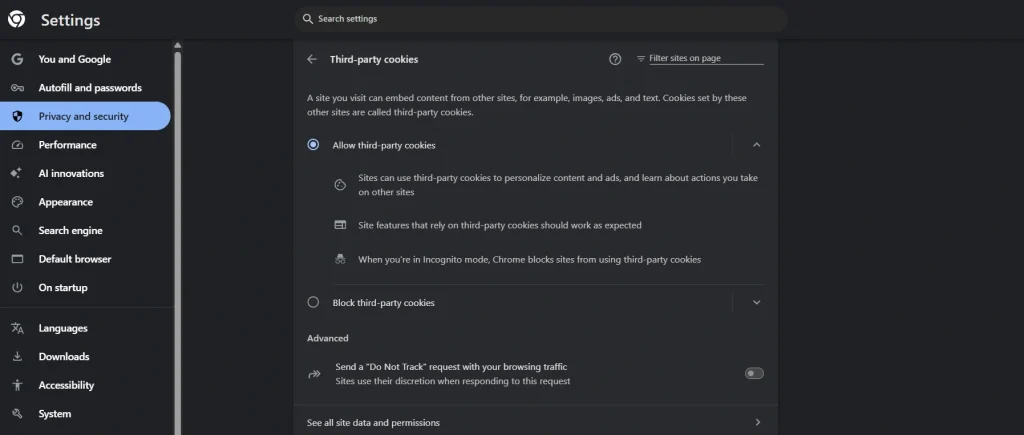
- Select Privacy and security from the left menu. Click Third-party cookies. Pick the option you want.
You will usually see these choices:
- Allow third-party cookies
- Block third-party cookies in Incognito
- Block third-party cookies
To stop cross-site tracking, choose Block third-party cookies. If your version also shows a Block all cookies option, you can pick that for the strongest protection. Be ready for some sites to stop working.
Chrome menus change from time to time. The labels on your screen may look a little different. If you cannot find the page, type “cookies” in the search box at the top of Settings.
Chrome also has a quick shortcut. Type chrome://settings/cookies in the address bar and press Enter. This takes you straight to the cookie page.
How To Block Cookies in Microsoft Edge
Edge uses toggles instead of radio buttons. This makes it simple to use.
- Open Edge. Click the three dots at the top right. Click Settings. Click Privacy, Search, and permissions.
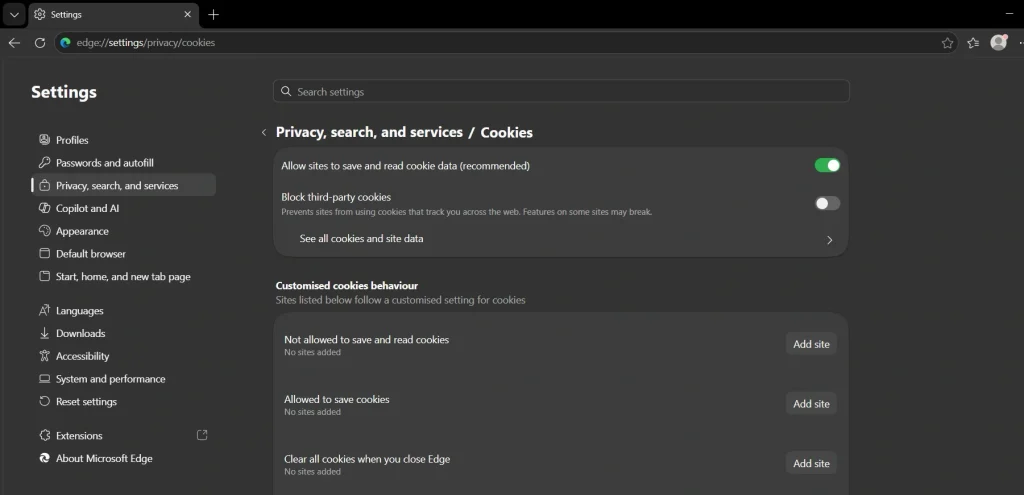
- Click Cookies. Turn off the switch that says Allow sites to save and read cookie data.
That one switch blocks all cookies. If you want a lighter option, leave that switch on. Then turn on the switch named Block third-party cookies. This stops trackers but keeps normal sites working.
Edge also has a tool called Tracking prevention. You can find it under Privacy, search, and services. It has three levels: Basic, Balanced, and Strict. Strict blocks the most trackers. Balanced is the default. It works well for most people.
How To Block Cookies in Mozilla Firefox
Firefox is known for strong privacy tools. It gives you more detailed control than most browsers.
- Open Firefox. Click the menu icon with three lines. Click Settings. Select Privacy and Security.
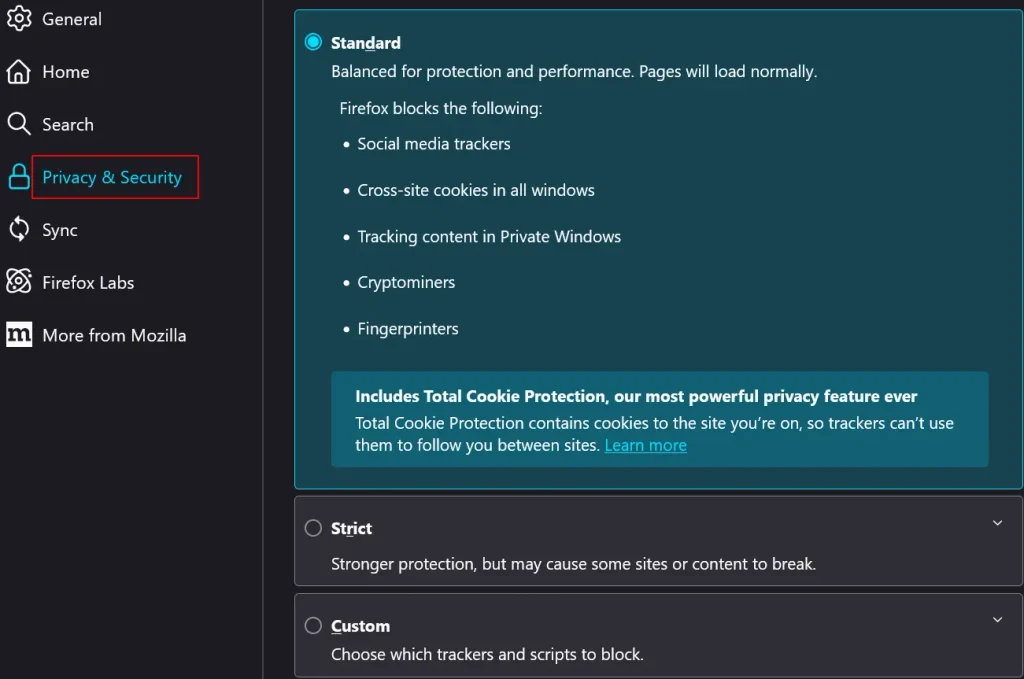
- Under Enhanced Tracking Protection, choose Custom. Tick the box next to Cookies. Pick a cookie type from the drop-down list.
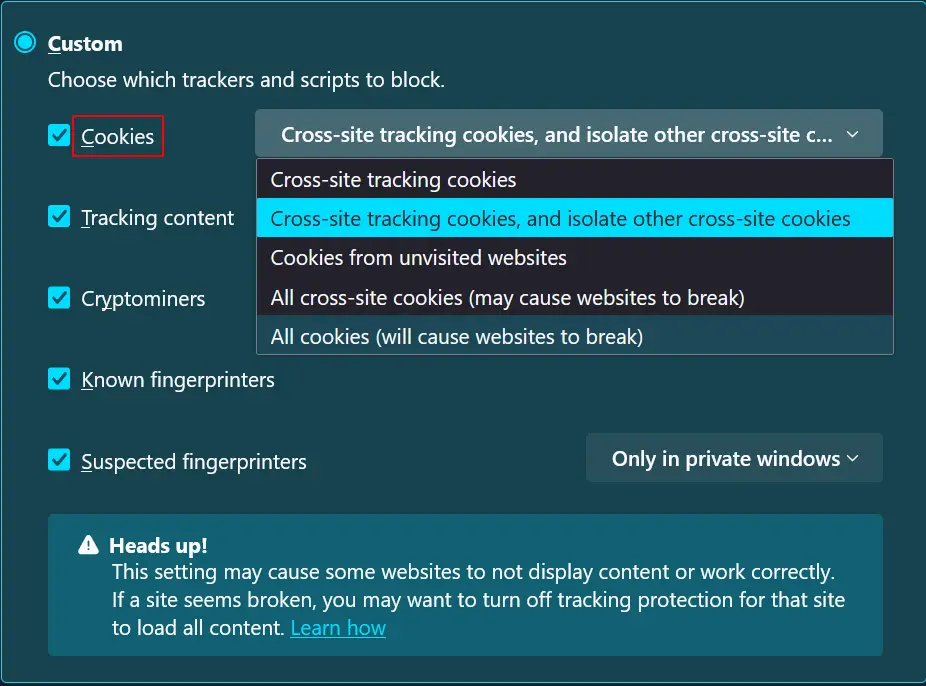
The list gives you these choices:
- Cross-site tracking cookies
- Cookies from unvisited websites
- All third-party cookies
- All cookies
The last option blocks everything. Firefox warns that this will cause websites to break. That warning is fair. Most people do better with Cross-site tracking cookies or All third-party cookies.
Firefox also offers a Strict mode. It sits above Custom on the same page. Strict mode blocks trackers and isolates cookies per site. This is a good pick if you do not want to fiddle with details.
How To Block Cookies in Safari on Mac
Safari blocks many trackers by default. Still, you can go further.
- Open Safari. Click Safari in the top menu bar. Click Settings.
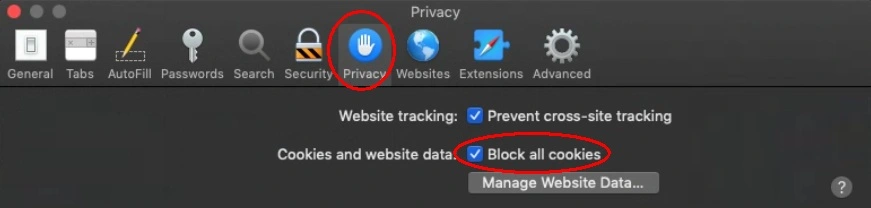
- Open the Privacy tab. Tick the box next to Block all cookies.
Safari will show a warning. It says some sites may not work. Click Block All to confirm.
If you want a softer approach, leave that box unticked. Make sure Prevent cross-site tracking is turned on. This stops third-party trackers while letting normal sites work.
How to Block Cookies in Safari on iPhone and iPad
The steps are slightly different on iOS.
- Open the Settings app. Scroll down and tap Apps. Tap Safari.
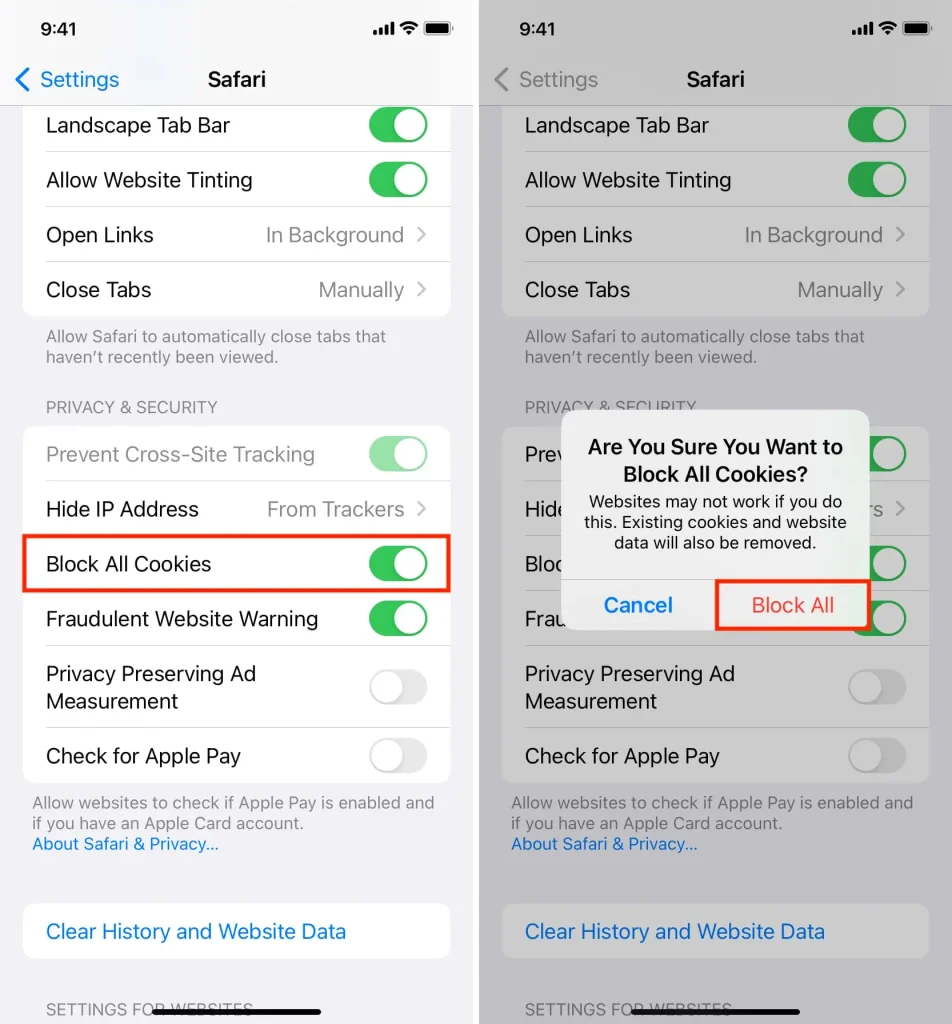
- Scroll to the Privacy and Security section. Turn on Block All Cookies.
On older iOS versions, Safari sits directly in the main Settings list. You will not need to tap Apps first.
Here is a useful note. Other browsers on iPhone, such as Chrome, run on Apple’s web engine. So Safari settings may affect how they handle cookies too. If a cookie option seems missing in another iPhone browser, check Safari first.
How To Block Cookies in Opera
Opera keeps its cookie settings in a clear spot.
- Open Opera. Click the Opera icon at the top left, or open Settings from the sidebar. Go to Privacy and security.
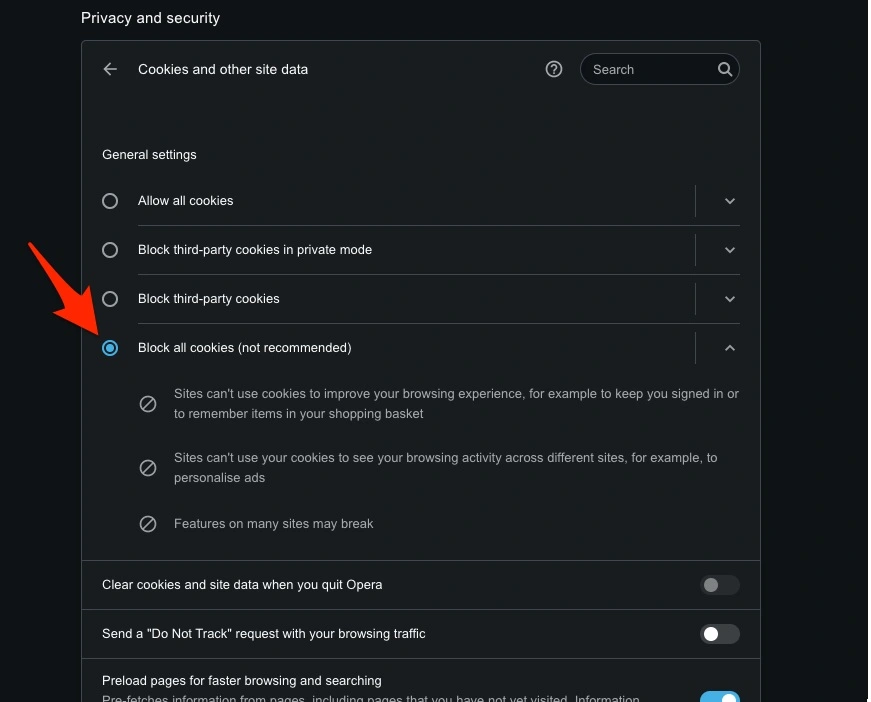
- Click Cookies and other site data. Choose Block all cookies or Block third-party cookies.
Opera also has a built-in ad blocker and tracker blocker. You can turn them on in the same Settings area. They add another layer of protection.
How To Block Cookies in Brave
Brave was built with privacy in mind. It already blocks many trackers when you install it. Still, you can tune the cookie settings.
- Open Brave. Click the menu icon at the top right. Click Settings. Click Privacy and security.
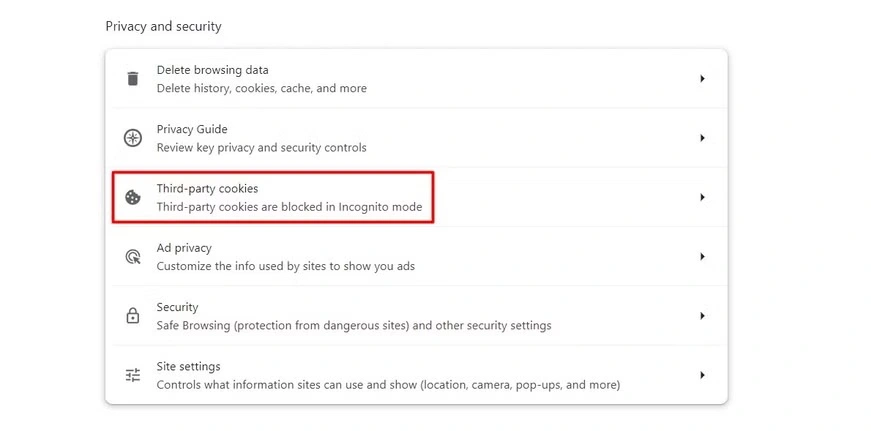
- Click Cookies and other site data. Select Block third-party cookies or Block all cookies.
Brave also has a feature called Shields. Click the lion icon in the address bar to see it. Shields let you change the cookie blocking level for each site. This is handy when one site needs cookies, and the rest do not.
Block Third Party Cookies or Block All Cookies?
This is the big question. Let us look at each choice.
Blocking only third-party cookies is the best choice for most people. It stops most tracking. Yet it keeps logins, carts, and settings working. You get strong privacy with very little hassle.
Blocking all cookies gives the most privacy. But it also causes the most trouble. You will log in again and again. Many sites will break. Some will refuse to load.
If you are new to this, start with third party cookies only. Use the web for a few days. If you want more privacy later, you can block everything.
How To Delete Cookies That Are Already Saved
Blocking cookies stops new ones from being saved. It does not erase the old ones. Your browser may already hold hundreds of cookies. To fully clean up, delete them too.
In Chrome:
- Press Ctrl, Shift, and Delete together. On Mac, press Command, Shift, and Delete.
- Choose a time range. Pick All time for a full clean.
- Tick Cookies and other site data.
- Click Delete data.
In Edge:
- Press Ctrl, Shift, and Delete.
- Choose All time.
- Tick Cookies and other site data.
- Click Delete now.
In Firefox:
- Press Ctrl, Shift, and Delete.
- Choose Everything as the time range.
- Tick Cookies.
- Click OK.
In Safari on Mac:
- Open Safari Settings.
- Go to the Privacy tab.
- Click Manage Website Data.
- Click Remove All.
Be aware of one thing. Deleting cookies logs you out of most sites. Keep your passwords handy before you start.
Extra Tips To Protect Your Privacy
Blocking cookies is a great first step. But tracking can happen in other ways too. These tips help you stay safer.
- Use private browsing. Incognito or Private mode deletes cookies when you close the window. It is useful on shared devices.
- Clear cookies on exit. Most browsers let you wipe cookies each time you close the browser. In Chrome, this is under Third-party cookies and site data settings. In Firefox, tick Delete cookies and site data when Firefox is closed.
- Install a tracker blocker. Add-ons like uBlock Origin and Privacy Badger stop many trackers. They work even on sites that ignore your cookie settings.
- Say no to cookie popups. When a site asks for consent, click Reject all or Manage settings. Do not just click Accept.
- Use a privacy-focused search engine. Search engines like DuckDuckGo do not track your searches.
- Keep your browser updated. Updates fix bugs and add new privacy tools. Turn on automatic updates if you can.
- Check your settings now and then. Browsers sometimes reset options after a big update. Take a minute every few months to check that your choices are still in place.
Final Thoughts
Cookies power much of the modern web. They help sites work well. But they also help companies follow you around the internet. Now you know how to disable Cookies in Browser settings on every major browser. You also know what to expect after you do it.
Start small. Block third party cookies first. Add exceptions for sites you trust. Delete old cookies from time to time. If you want stronger privacy, move to blocking all cookies and see how it feels.
Your browser is your window to the web. You should decide what it keeps. A few minutes of setup can give you much more control over your privacy.
Frequently Asked Questions
1. Is it safe to turn off cookies?
Yes, it is safe. Turning off cookies does not harm your device or your browser. The only downside is convenience. You may need to log in more often. Some sites may not load as expected. If that happens, you can allow cookies for those sites only.
2. Will blocking cookies stop all online tracking?
No, it will not stop everything. Blocking cookies stops a big part of tracking. But some sites use other methods. One example is browser fingerprinting. It identifies you by your device and browser details. To reduce this, use a privacy-focused browser and a tracker blocker along with your cookie settings.
3. Can I turn cookies back on later?
Yes, you can. Go back to the same settings page in your browser. Then pick Allow all cookies or switch off the block option. The change takes effect right away. You may need to restart the browser or reload open tabs. Your old cookies will not return, but new ones will be saved again.
Author Bio:
Dinesh Lakhwani 

Dinesh Lakhwani, the entrepreneurial brain behind “TechCommuters,” achieved big things in the tech world. He started the company to make smart and user-friendly tech solutions. Thanks to his sharp thinking, focus on quality and the motto of never giving up, TechCommuters became a top player in the industry. His commitment to excellence has propelled the company to a leading position in the industry.
Popular Post
Recent Post

How To Disable Background Apps In Windows: 4 Quick Methods
A slow PC rarely gives a warning. One day, it simply takes longer to start. Apps open late. The fan runs loud, even when the screen is almost empty. Most people blame old hardware. Often, that is not the real reason. The real reason is hiding in plain sight. Windows keeps many apps active in […]

How to Activate Windows with a Product Key for Windows 11 & Windows 10
It always shows up at the worst time. You are halfway through a report, or about to join a video call. Then you spot it in the bottom right corner of the screen. Activate Windows. Go to Settings to activate Windows. Initially, an unactivated copy of Windows may seem like a minor inconvenience. Over time, […]

Is Easy Duplicate Finder Worth It? Honest Review
The photos folder looked normal at first glance. Then the storage warning popped up. One trip photo appeared four times. A tax PDF sat in three different folders. Two old setup files were still in Downloads, and each one was over 500 MB. Nobody plans this mess. Copies pile up slowly. A download runs twice. […]

Wise Duplicate Finder Review: Real Results from Wise Duplicate Finder
Read my honest Wise Duplicate Finder review. See features, pricing, pros and cons, and real PC test results. Find out if this free duplicate cleaner can free up your Windows storage.

How to Recover Deleted Files from Pen drive, USB Drive, SD Card
Introduction: On tech forums, you’ll often see posts like this: “I connected my pen drive to my laptop this morning, but the folder was empty. All my college project files had vanished. I don’t have a backup. Can someone help me?” Stories like this are very common. Pen drives, USB drives and SD cards are […]

How To Recover Files Deleted from the Recycle Bin [Windows 11]
Losing a file can happen in seconds. You clear your desktop, hit Delete, and empty the Recycle Bin. Then, just when you need that file again, it seems to have vanished. This guide will walk you through ways to restore files removed from the Recycle Bin. We will begin with simple fixes, then look at […]

Disk Drill Data Recovery Tool Explained: Full Review and Guide
It happens in a split second. You delete a folder by mistake. Your drive stops showing up. A photo album from your last trip just vanishes. And your stomach drops. Lost files feel personal. They are not just data. They are memories, work hours, and sometimes years of effort packed into a few gigabytes. When […]

Recover Deleted Files In Windows 11 With Software & Without
Introduction What is the first thing that goes through your mind the second an important file vanishes from a Windows 11 PC? For most people, it is a mix of panic and disbelief, followed by a frantic click through every folder that file could possibly be hiding in. It happens in a split second: one […]

EaseUS Data Recovery Wizard: Everything To Know
Data loss does not always come from a big disaster either. Most cases start small and boring. A drive gets formatted by mistake. A laptop freezes mid-save and restarts on its own. A memory card stops showing up after being pulled out too fast. None of these feel like emergencies at first, until you realize […]

