












Introduction: On tech forums, you’ll often see posts like this: “I connected my pen drive to my laptop this morning, but the folder was empty. All my college project files had vanished. I don’t have a backup. Can someone help me?” Stories like this are very common. Pen drives, USB drives and SD cards are […]
How to Recover Deleted Files from Pen drive, USB Drive, SD Card
Introduction:
On tech forums, you’ll often see posts like this: “I connected my pen drive to my laptop this morning, but the folder was empty. All my college project files had vanished. I don’t have a backup. Can someone help me?”
Stories like this are very common. Pen drives, USB drives and SD cards are small and easy to carry. People trust them with family photos, office files, school notes, and videos. But these little devices are also easy to damage. A single careless click can wipe out a folder. Pulling the drive out too soon can damage its file system. A virus can hide every file in seconds. The fear that comes next is very real. Many people freeze when a drive that was full opens with nothing inside.
Here is the good news. In most cases, the files are not gone yet.
This guide covers six simple methods. It also explains why files disappear, what to avoid, and how to protect your data in the future.
Is it Possible to Recover Deleted Files from a Pen Drive/USB Drive/SD Card?
Yes, in many cases it is possible. To see why, you need to know what happens when you delete a file. The drive does not erase the data right away. It only marks that space as free and removes the file name from its list.
The real data stays where it was. It stays there until new data is written on top of it. This is why recovery tools can find deleted items. They read the raw space on the drive and look for data that is still there.
Chances of Successful Recovery
1. Time matters most.
Every new file you save can overwrite old data. Once that happens, no recovery tool can bring it back.
2. Type of problem.
- A simple delete → usually easy to fix.
- A quick format → often still recoverable.
- A cracked chip or burnt controller → much harder to repair.
3. Same goal, different devices.
Whether you want to recover deleted files from a pen drive, a USB drive, or an SD card, the steps remain the same:
- Stop using the device immediately.
- Choose a safe recovery method.
- Start as early as possible.
Common Scenarios: Why Files Vanish From Your Pen Drive, USB Drive or SD Card

Here are the most common situations:
- Accidental deletion: This is the top cause. A person selects files and presses Delete or Shift plus Delete. Files on a removable drive skip the Recycle Bin, so they vanish at once.
- Quick format by mistake: Some people format the wrong drive. Others format to fix an error message. A quick format clears the file table, so the drive looks empty even though the data may still be there.
- Unsafe removal: Pulling out a drive during copying is unsafe. The file system may not finish updating. Files or folders can vanish or stop opening.
- Virus or malware attack: Some viruses hide files and show fake shortcuts instead. Others delete data on purpose. A drive shared between many computers is at a higher risk.
- File system corruption: A corrupted file system can make a drive show up as RAW.
- Sudden power loss: A power cut or a laptop crash during a transfer can damage the file table. Files being moved at that moment are most at risk.
- Bad sectors and physical damage: Flash memory wears out over time. Water, heat, drops, and bent connectors can also harm a drive. Parts of the data may become unreadable.
- Errors in cameras and phones: A camera can show a card error after a low battery or a rough removal. A phone or camera may also format the card on its own. Photos and videos then seem lost.
Precautions to Take When Recovering Files: Protect Your Data Before You Try Anything
The first steps you take decide how much data you get back. A wrong move can turn an easy recovery into a lost cause. So slow down. Read these precautions before you click anything. They take only a few minutes. They can save your files.
- Do not format the drive: Windows may say the disk needs formatting before use. Choose Cancel. Formatting makes recovery harder, even if it looks like a quick solution.
- Save recovered files somewhere else: Always pick a different drive or folder as the destination. Saving back to the same drive can overwrite the very files you want to get back.
- Use only trusted tools: Download software from the official site of the maker. Cracked or unknown tools may carry malware. They can also damage the drive further.
- Check the connection first: Try another USB port, cable, or card reader. Avoid loose hubs. A weak connection can stop a scan halfway and confuse the results.
- Recover first, repair later: Tools like CHKDSK fix drive errors by changing data. This can lower recovery chances. Restore your files before running any repair command
- Protect the drive from harm: Keep it away from heat, water, and shocks. If the drive is bent or wet, do not plug it in again. Power can cause more damage.
- Make a copy if the drive is weak: If the drive is slow, hot, or makes the PC freeze, create a disk image first. Many recovery tools can do this. Then run the recovery on the image and keep the original safe.
How to Recover Files From Pen Drive/USB Drive/SD Card: 6 Simple Methods
Now comes the main part. Below are six methods, from the easiest to the most advanced. Start with Method 1 and move down the list. Some methods take two minutes. Others need more time. The steps are written for Windows 10 and Windows 11. Keep the drive connected, and do not save anything new on it while you work.
Method 1: Show Hidden Files in File Explorer
Sometimes files are not deleted at all. They are only hidden. This often happens after a virus attack or an unsafe removal. The drive looks empty, but its space is still full. That is why this is the first thing to check.
Windows can hide a file or folder when it carries a hidden tag. A virus may add this tag on purpose. The change is small, and it takes only a few clicks to see the truth. You do not need to install anything or pay for anything.
If the drive shows used space in its properties but no files inside, this method is a strong fit. It also helps when you see odd shortcuts in place of your folders. Try it before you try anything else.
Why use this method?
- It is free and needs no download.
- It takes less than two minutes.
- It is safe because it does not write data to the drive.
- It works well after virus attacks.
Step 1: Connect the drive and open File Explorer. Click the drive name in the left pane. Then click the View tab at the top and turn on Hidden items.
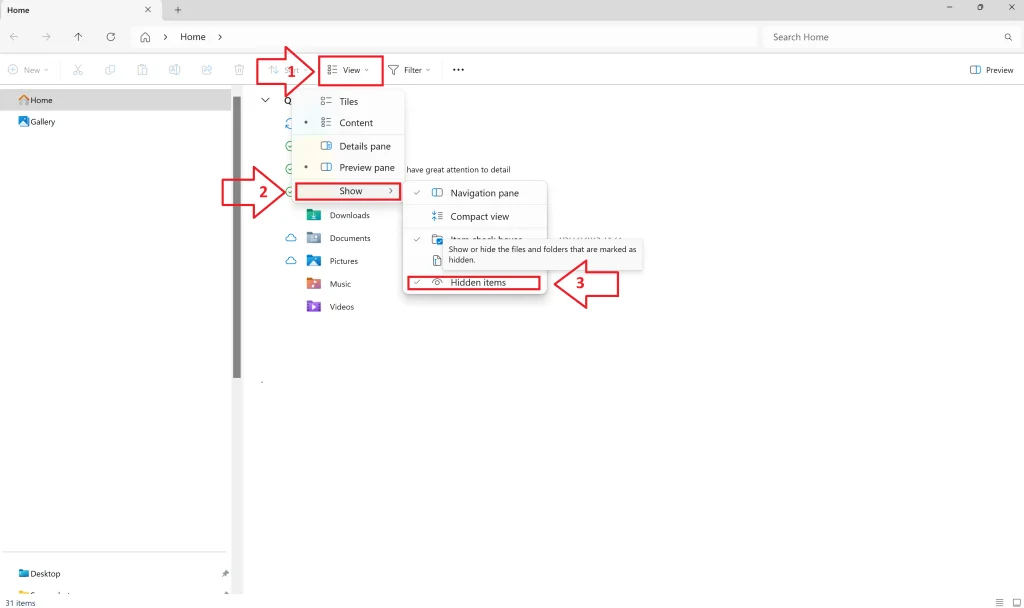
Step 2: Look for faded files or folders. Right-click one and choose Properties. Remove the tick from Hidden and click Apply. Your files will now show as normal.
Method 2: Unhide Files Using Command Prompt
Method 1 does not work in every case. Some viruses set extra tags on files, such as system and read-only. These files stay hidden even when Hidden items is on. The Command Prompt can remove all these tags in one go.
This method uses a built-in command called attrib. It changes file tags. It does not copy, move, or delete anything. It only changes what Windows shows. That makes it safe to try on a drive that looks empty.
It is the best pick when your folders turn into shortcuts. It also helps when the drive looks empty after use on a shared computer. Type the command with care. One wrong letter can point to the wrong drive.
Why use this method?
- It is free and built into Windows.
- It removes hidden, system, and read-only tags together.
- It works on all folders and subfolders at once.
- It fixes the common shortcut virus problem.
Step 1: Press the Windows key and type cmd. Right-click Command Prompt and choose Run as administrator. Click Yes if Windows asks for permission.
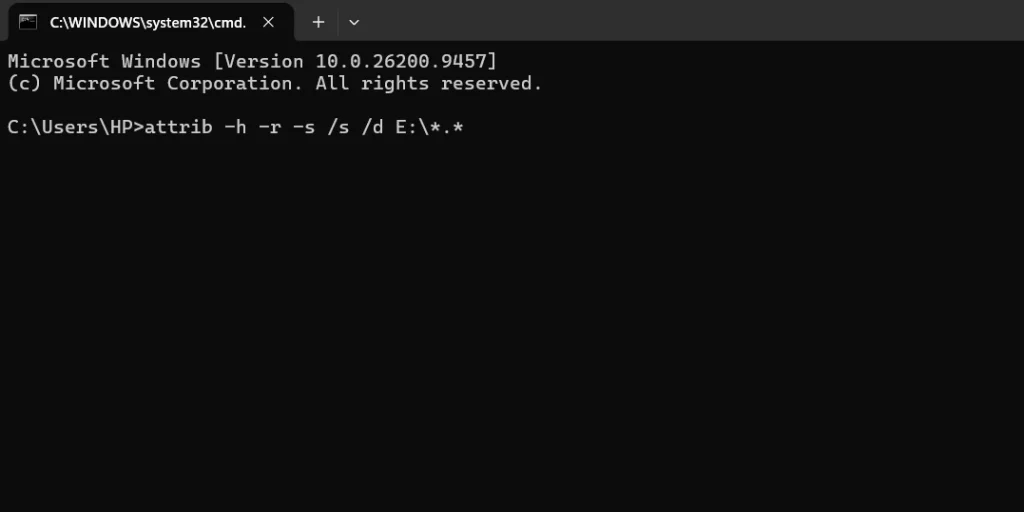
Step 2: Type the command below and press Enter. Replace E with the letter of your drive. Wait for it to finish, then open the drive.
attrib -h -r -s /s /d E:\*.*
Method 3: Use Windows File Recovery from Microsoft
Windows File Recovery is a free tool from Microsoft. It runs from the command line, so it looks plain. But it is strong. It can bring back photos, documents, videos, and more from many types of storage.
It is a good choice when you want to recover deleted files from pen drive storage without paying for software. It works on Windows 10 version 2004 and newer, and on Windows 11. Microsoft suggests Extensive mode for drives that use FAT or exFAT. Most pen drives and SD cards use these formats.
The tool is text-based, so type each command with care. You also need a second drive to hold the recovered files. Never use the same drive as the destination. That could overwrite the data you want to save.
Why use this method?
- It is free and made by Microsoft.
- It is trusted, so there is no risk of hidden malware.
- It works on pen drives, USB drives, and SD cards.
- Extensive mode scans deeply for lost files.
Step 1: Open the Microsoft Store, search for Windows File Recovery, and install it. Open it from the Start menu. Click Yes when Windows asks for permission. A Command Prompt window will open.
Step 2: Type the command below and press Enter. E is your pen drive. D is a different drive that will hold the recovered files. Press Y to start. When the scan ends, open the destination and look for a folder named Recovery followed by a date and time.
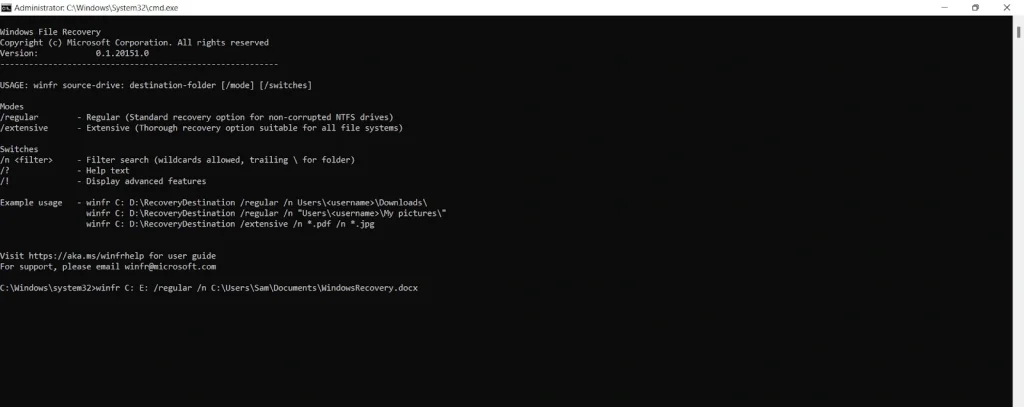
winfr E: D:\Recovered /extensive
Method 4: Try Data Recovery Software
Data recovery software is the most popular way to get files back. These tools scan the drive at a deep level. They find files that File Explorer cannot see. Well-known names include Recuva, Disk Drill, EaseUS Data Recovery Wizard, and Stellar Data Recovery.
If you want to recover deleted files from USB drive sticks after a format or a RAW error, this method is a strong fit. Most tools show a preview, so you can check a photo or a document before you save it. Many also let you filter results by file type. That saves a lot of time.
Free versions often set a limit on how much data you can save. Check this before you start. Always install the tool on your PC’s main drive. Never install it on the drive you are trying to fix.
Why use this method?
- It works after deletion, formatting, and RAW errors.
- It is easy to use, with simple screens.
- The preview shows what can be recovered.
- It supports many file types, from photos to zip files.
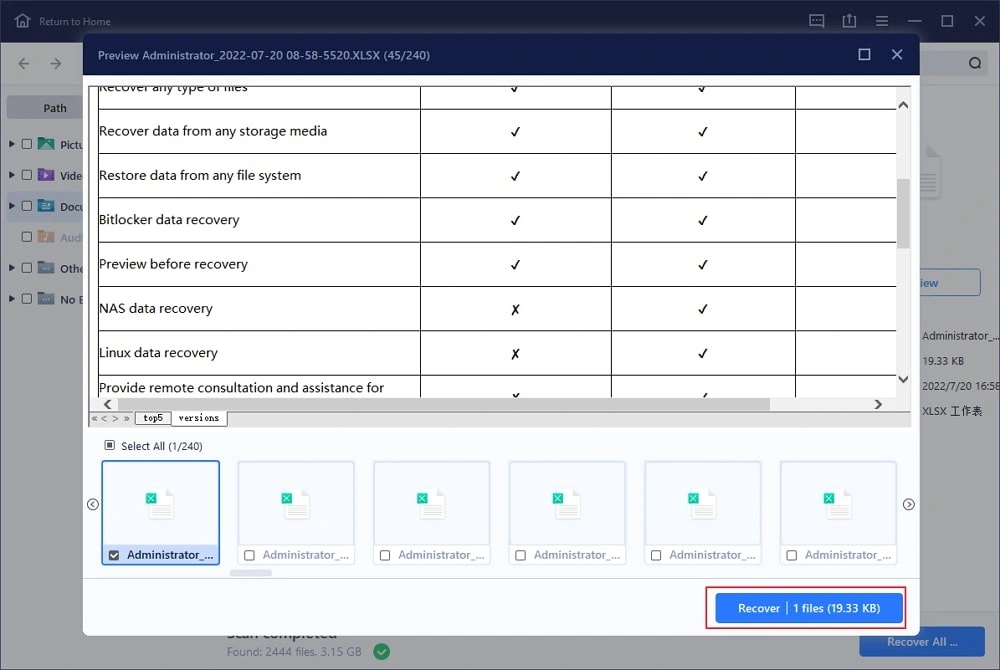
Step 1: Download the tool from the official site and install it on your PC. Connect the drive. Open the tool, pick the drive from the list, and start a scan. Choose deep scan or full scan if the quick scan finds nothing.
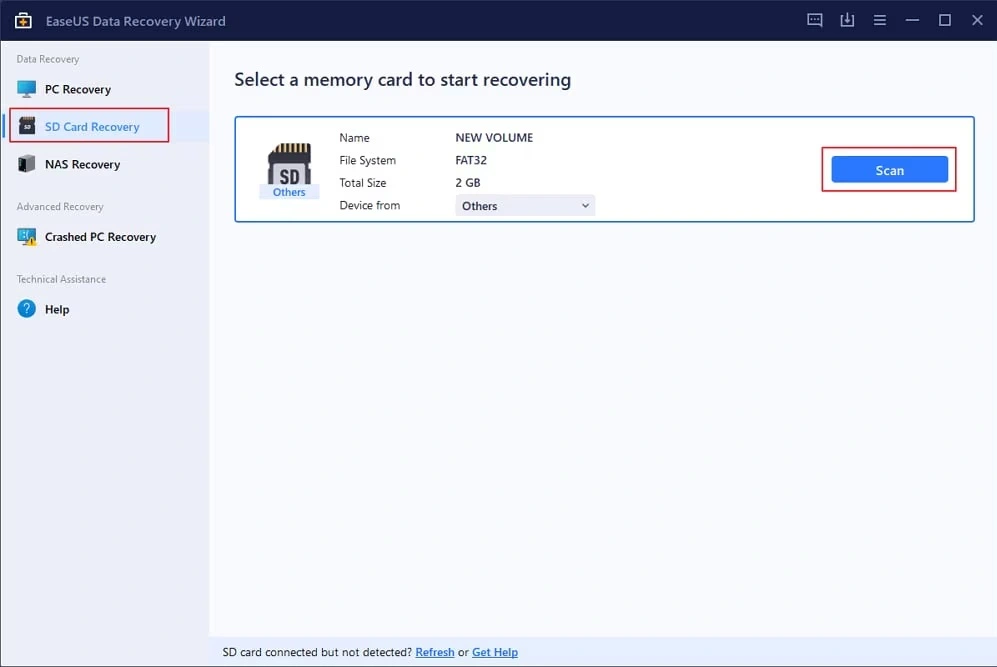
Step 2: When the scan ends, use the preview to check your files. Tick the ones you need. Click Recover and save them to a different drive.
Method 5: Restore Files from Backup or Cloud Storage
You may already have a copy of your files. Many people forget this. Cloud apps often sync files in the background. Phones and cameras may back up photos on their own. A copy may be sitting in a place you have not checked yet.
Google Drive, OneDrive, Dropbox, and Google Photos all keep a Trash or Recycle Bin. Deleted items stay there for a limited time, often about 30 days. Email is another good place to look. Sent items and attachments can hold old documents.
This method is best when scans find nothing or the drive is badly damaged. It needs no tools and carries no risk for the drive. Check it early, because trash folders clear out on their own.
Why use this method?
- It carries no risk for the damaged drive.
- It gives back whole files, with no broken parts.
- It can be done from any device.
- It costs nothing.
Step 1: Sign in to your cloud account in a browser. Open the Trash or Recycle Bin. Look for your files by name or date.
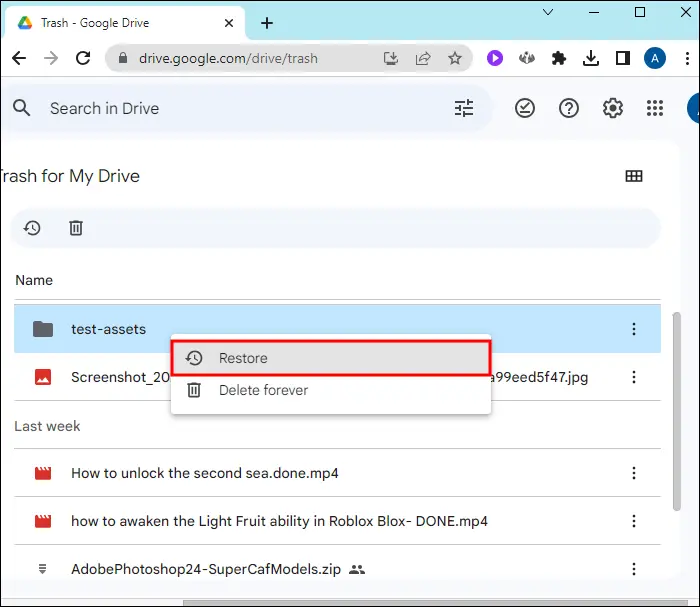
Step 2: Select the files and click Restore, or download them. Also check File History on your PC, your phone gallery, old emails, and chat apps such as WhatsApp.
Method 6: Ask a Professional Data Recovery Service
Sometimes software cannot help. The drive may not show up on any computer. It may be bent, burnt, or soaked in water. In such cases, a professional data recovery lab is the safest option.
These labs use special tools and clean rooms. They can read memory chips directly, even when the controller has failed. This costs more than software. But it gives the best chance when the damage is physical.
Use this method when your data is very important, and other methods have failed. Do not try to open the device yourself. Stop all attempts and keep the drive as it is.
Why use this method?
- It handles physical damage that software cannot.
- Experts can read data at the chip level.
- Many labs give a free quote first.
- Some labs follow a no data, no fee rule.
Step 1: Search for a trusted lab with good reviews. Ask about the fee, the time needed and the privacy policy. Ask if they follow a no data, no fee rule.
Step 2: Pack the drive in soft padding and send it or hand it over. Approve the quote. Get your files back on a new drive. Then open and check every file to be sure.
Tips for Efficient Recovery: Small Habits That Save Time and Data
A few simple habits can raise your success rate. They also save time. Say you need to recover deleted files from SD card storage after a trip, or you need to fix a work drive. These tips help in both cases. Use them with any method above.
- Run a deep scan when a quick scan fails: Quick scans check only the file list. Deep scans read every sector. They take longer, but they find more.
- Use the preview feature: Before saving, open the preview. If a photo shows clearly or a document reads well, it can likely be saved in full. A broken preview can be a sign of damage.
- Use a card reader for SD cards: A reader is faster and steadier than a camera or phone cable. It also removes battery problems from the picture.
- Try another port or computer: A loose port or a weak driver can make a drive act dead. Use a port at the back of a desktop. Avoid hubs.
- Filter by file type: If you need only photos or Word files, set a filter. The scan ends sooner, and the result list is shorter.
- Sort and rename after recovery: Recovered files often lose their names and folders. Take time to sort them. Save the important ones in two places.
- Follow the three, two, one backup rule: Keep three copies of key data. Store them on two types of media. Keep one copy in another place, such as the cloud.
- Eject safely and check drive health: Use Safely Remove Hardware every time. Scan the drive for viruses. Replace it if it fails often. Old drives wear out.
Conclusion
Losing files from a small drive can feel like a big disaster. But it does not have to end in regret. As you saw, deleted files stay on the drive until new data replaces them. That gives you a window of time to act.
Start with the free and simple steps. Show hidden files, use the attrib command and try Windows File Recovery. If those fail, move to a trusted recovery tool. Check your cloud backups too. For damaged drives, ask a professional lab. Follow the precautions each time. Never save new files on the drive, and never format it in a hurry. The steps to recover deleted files from pen drive storage and to recover deleted files from SD card devices are much the same.
Once your files are safe, make a plan for next time. Back up your data on a schedule. Eject drives the right way. Replace old drives before they fail. A little care today saves a lot of stress later. Now go and try Method 1. Your files may be closer than you think.
FAQs
Q1. Can I recover files from a pen drive after a format?
Yes, often you can. A quick format only clears the file list. The data stays until new files replace it. Stop using the drive and run a deep scan with a recovery tool. You can also use Windows File Recovery in Extensive mode. A full format is harder because it can wipe more data. The chances are lower in that case, but a scan is still worth a try.
Q2. Can I recover deleted files from a USB drive without software?
Yes, in some cases. Show hidden files first. Then try the attrib command. Both are built into Windows. You can also use Windows File Recovery, which is a free tool from Microsoft. Check your cloud storage and backups as well. If your files were only hidden, the first two steps will solve it. For files that are truly deleted, a recovery tool usually gives better results.
Q3. Can I get back photos from an SD card after taking new pictures?
Sometimes, but the chances drop. New photos may overwrite the space used by the deleted ones. Some old photos may still be safe if the card had a lot of free space. Stop shooting right away. Take the card out of the camera, connect it with a card reader, and run a deep scan. The preview will show you what is left.
Author Bio:
Dinesh Lakhwani 

Dinesh Lakhwani, the entrepreneurial brain behind “TechCommuters,” achieved big things in the tech world. He started the company to make smart and user-friendly tech solutions. Thanks to his sharp thinking, focus on quality and the motto of never giving up, TechCommuters became a top player in the industry. His commitment to excellence has propelled the company to a leading position in the industry.
Popular Post
Recent Post

How To Recover Files Deleted from the Recycle Bin [Windows 11]
Losing a file can happen in seconds. You clear your desktop, hit Delete, and empty the Recycle Bin. Then, just when you need that file again, it seems to have vanished. This guide will walk you through ways to restore files removed from the Recycle Bin. We will begin with simple fixes, then look at […]

Disk Drill Data Recovery Tool Explained: Full Review and Guide
It happens in a split second. You delete a folder by mistake. Your drive stops showing up. A photo album from your last trip just vanishes. And your stomach drops. Lost files feel personal. They are not just data. They are memories, work hours, and sometimes years of effort packed into a few gigabytes. When […]

Recover Deleted Files In Windows 11 With Software & Without
Introduction What is the first thing that goes through your mind the second an important file vanishes from a Windows 11 PC? For most people, it is a mix of panic and disbelief, followed by a frantic click through every folder that file could possibly be hiding in. It happens in a split second: one […]

EaseUS Data Recovery Wizard: Everything To Know
Data loss does not always come from a big disaster either. Most cases start small and boring. A drive gets formatted by mistake. A laptop freezes mid-save and restarts on its own. A memory card stops showing up after being pulled out too fast. None of these feel like emergencies at first, until you realize […]

Recuva Data Recovery Tool: Is it Actually Worth it?
When I first tried Recuva Data Recovery, I wanted to see if it could really bring back lost files. The tool is free, small in size, and promises quick recovery, which made me curious enough to test it on my own PC. The setup was fast, and the wizard guided me step by step. I […]

GetData Recover My Files Data Recovery Tool: Honest Review
A hard drive error brings a special kind of silence. Well, yes! The screen freezes, then a message appears saying the drive can’t be found or must be formatted. In that moment, years of photos and work files feel at risk. It never happens at a good time. Coffee spills near a laptop, a memory […]
Windows File Recovery: A Complete Review [Tried & Tested]
Imagine this. You spend hours perfecting a video project. You hit save. Then your laptop freezes, reboots, and when the screen comes back. The file is gone. Your stomach sinks. It’s not just you. Lost files happen all the time. A dropped hard drive, a bad update, an accidental delete, or a corrupted partition can […]

5 Best Data Recovery Software For Windows 11 and Windows 10
Introduction: A crashed drive can ruin a whole day. One minute your photos, work files, and tax records sit safe on your PC. The next minute they are gone. A power cut, a bad update, or one wrong click can wipe out years of memories and months of work in seconds. That sinking feeling is […]
How To Update NVIDIA Drivers On Windows 11/10 PC
Learn how to update NVIDIA drivers on Windows 11/10 with simple methods, safety tips, and easy steps for smoother gaming and better PC performance.

