










Learn how to update NVIDIA drivers on Windows 11/10 with simple methods, safety tips, and easy steps for smoother gaming and better PC performance.
How To Update NVIDIA Drivers On Windows 11/10 PC
Your graphics card is the heart of your gaming and creative work. But even the heart needs regular care. Drivers act like small update packages. They tell your NVIDIA card how to talk to Windows. Without fresh drivers, games may crash. Videos may lag. Colors may look dull on screen.
Many users skip driver updates for months. They think old drivers still work fine. This is a common mistake. Old drivers slow down performance. They also miss out on bug fixes. New games often need the latest driver support to run smoothly. Even everyday tasks like watching videos or editing photos can feel slower with an outdated driver.
This guide will walk you through every method for how to update NVIDIA drivers. It covers safety steps, reasons to update, and simple methods anyone can follow. Whether you are a gamer, editor, or casual user, this guide has something for you.
Safety First: Things To Check Before You Begin
Before jumping into any update, a little care goes a long way. Rushing through driver updates can sometimes cause more harm than good. These small steps will keep your system safe and stable during the process.
- Backup your current driver — Always keep a copy of your working driver saved somewhere safe. If the new one causes issues, you can roll back fast without losing your stable setup.
- Save your work — Close all open files and programs first. A restart is often needed after driver updates, and unsaved work can be lost during this step.
- Check your GPU model — Know your exact graphics card name and series. This avoids installing the wrong driver version, which can lead to display problems.
- Update Windows first — Make sure your Windows system is fully updated before touching drivers. This reduces the chances of driver conflicts during installation.
- Disable antivirus temporarily — Some antivirus tools mistakenly block driver installation files. Turning them off for a few minutes can prevent installation errors.
- Use a stable internet connection — Driver files can be large, sometimes several hundred megabytes. A weak or dropping connection may cause failed or corrupted downloads.
- Create a system restore point — This lets you undo changes if something goes wrong after the update. It only takes a minute to set up and offers real peace of mind.
- Avoid third-party driver tools — Stick to official NVIDIA sources only. Random tools found online may install harmful software along with the driver.
Why Update NVIDIA Drivers: The Real Benefits
Updating your graphics driver is not just a routine task. It brings real changes to how your PC performs daily. Here are the top reasons why this small step matters so much for both gaming and general use.
- Better gaming performance — New drivers often boost frame rates in popular games. This gives smoother visuals and less stutter during long play sessions.
- Bug fixes — NVIDIA regularly patches small errors found in older driver versions. This makes your system more stable across different apps and games.
- Improved security — Old drivers can carry hidden security gaps. Updated versions close these gaps and keep your PC safer from exploits.
- Support for new games — Many new game titles need the latest driver to run properly. Without it, games may crash, freeze, or refuse to open at all.
- Better display quality — Fresh drivers can improve color accuracy and screen sharpness. This helps both gamers and video editors who rely on true colors.
- Reduced screen tearing — Updated drivers often fix screen tearing issues. This makes fast motion scenes in games and videos look much cleaner.
- Enhanced multitasking — New drivers help your GPU handle multiple apps at once. This is especially useful for streamers and content creators running several programs together.
- Longer hardware life — A well-updated driver reduces overheating risks by managing power more efficiently. This can help your graphics card last longer over time.
The Doubts Most Users Have But Never Ask
These are the questions users often search but rarely find clear answers for. Let us clear the confusion here with straightforward explanations.
Do I need to update NVIDIA drivers if my PC runs fine?
Yes, even a smooth-running PC benefits from updates. Many issues stay hidden until you open a new game or heavy software that pushes your GPU harder. Updated drivers also patch small bugs you may not notice yet in daily use. Regular updates keep your system future-ready and secure against newer threats.
Will updating drivers delete my saved games or files?
No, driver updates only affect how your graphics card communicates with Windows. Your personal files, games, and saved data remain completely untouched during the process. However, it is still wise to save your work before starting any update. This simply avoids any accidental loss during the required restart.
How often should I update my NVIDIA driver?
There is no fixed rule, but checking every month is a good habit to build. Gamers may want to update right before playing a major new release. Casual users can check every few months without much worry. NVIDIA often releases updates around big game launches, so timing updates near these events helps.
What happens if I install the wrong driver version?
Installing a mismatched driver can cause display errors or unexpected crashes. Your screen may flicker or show a black screen briefly after installation. In most cases, uninstalling the wrong driver and installing the correct one fixes this quickly. Always confirm your exact GPU model before downloading any driver file.
How To Update NVIDIA Drivers On Windows 11/10 PC
There are several ways to update your graphics driver on Windows. Some methods are automatic, while others need manual steps and a bit more patience. Below are the most trusted and simple methods anyone can use, ranked from easiest to most hands-on.
Method 1: Using NVIDIA App
The NVIDIA App is the newer official tool from NVIDIA. It replaces the older GeForce Experience for most users going forward. This app scans your system and finds the right driver automatically, without you needing to search anything.
It also gives extra features like game optimization and performance tracking built right in. The interface is clean and easy for beginners to understand, even on a first try. Once installed, it keeps checking for new updates quietly in the background.
This method is one of the fastest ways to update NVIDIA drivers without any technical knowledge. It saves time and avoids manual searching through websites entirely.
Step 1: Download and open the NVIDIA App from the official NVIDIA website, then sign in or skip login if asked.
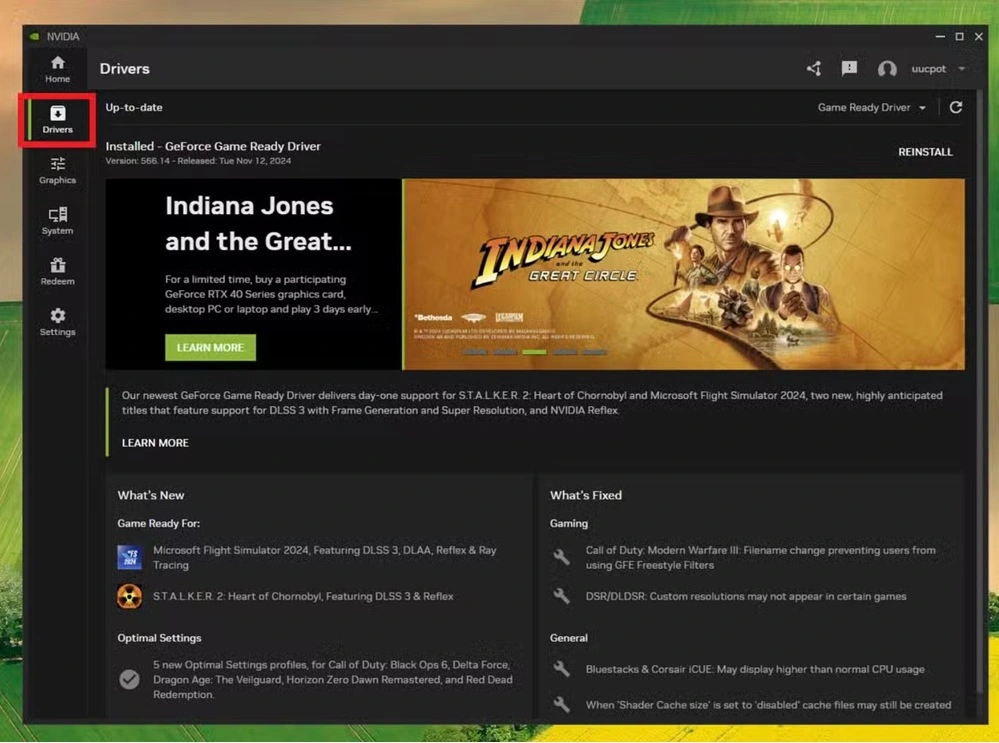
Step 2: Go to the Drivers tab, click Check for Updates, and select Download to install the latest version.
Method 2: Using Device Manager
Device Manager is a built-in Windows tool that comes with every copy of Windows. It does not need any extra download or account setup. This method works well for users who prefer sticking to basic Windows settings only.
It is a bit more manual compared to the NVIDIA App approach. But it still gets the job done for simple, routine updates. This method is useful if you cannot install extra software due to storage limits or company policy.
Many users prefer this way because it feels safe and native to Windows itself. It also avoids extra background apps running silently on your PC.
Step 1: Right-click the Start button, select Device Manager, then expand Display Adapters and right-click your NVIDIA card.
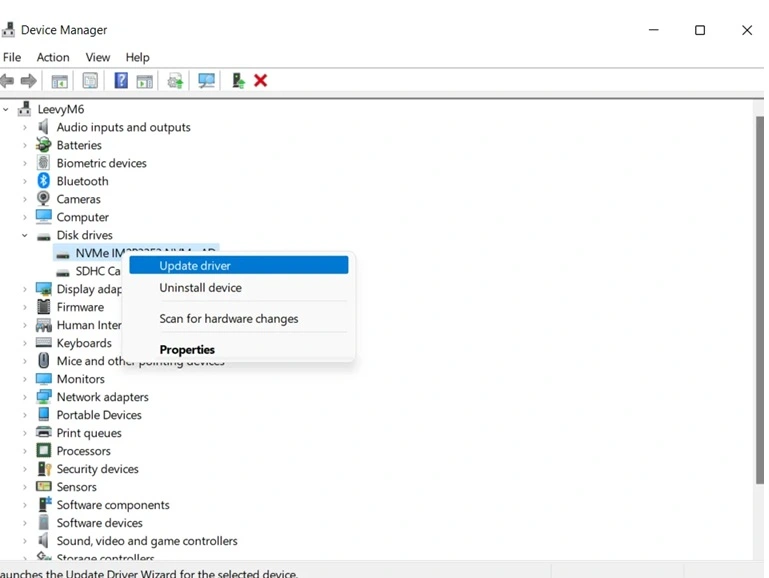
Step 2: Click Update Driver, then choose Search Automatically For Drivers and let Windows install the update.
Method 3: Downloading Manually From NVIDIA Website
This method gives full control over which exact driver version you install. It works well when you already know your specific GPU model and series. Advanced users often prefer this method because it offers precise control over the outcome.
It also helps when automatic tools fail to detect updates properly, which does happen occasionally. The official website always lists both the latest stable and beta versions clearly. This reduces the risk of installing fake or harmful driver files from unofficial sources.
This is a reliable path for how to update NVIDIA drivers manually without relying on any extra background software.
Step 1: Visit the official NVIDIA driver download page, select your GPU model and operating system, and click Search.
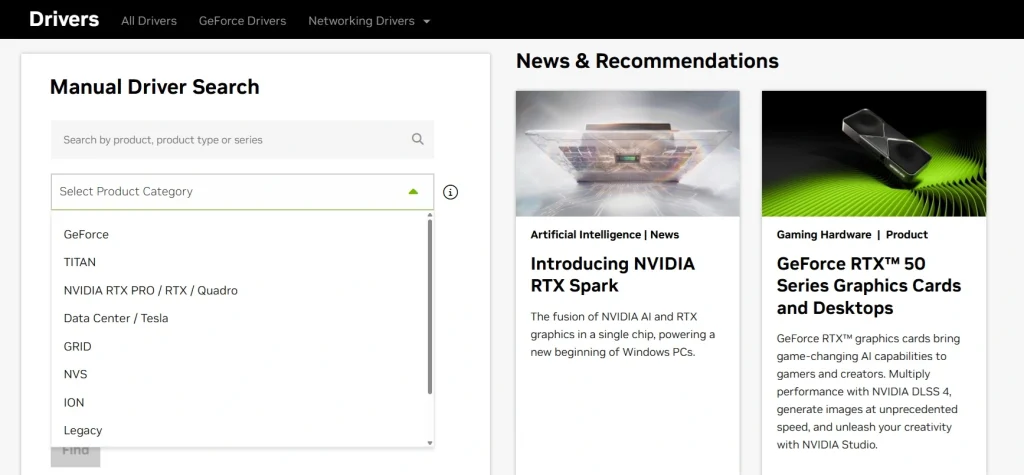
Step 2: Download the listed driver file, run the installer, and follow the on-screen instructions to complete setup.
Method 4: Using Windows Update
Windows Update sometimes includes NVIDIA driver updates in its optional update list. This method is simple but not always the fastest option available. Updates here can lag behind the official NVIDIA release schedule by weeks or longer.
Still, it is a good backup method for casual users who rarely game. It requires no extra downloads outside the standard Windows system tools. This makes it a safe and familiar choice for beginners who feel unsure about other methods.
This method works best when combined with occasional manual checks through the NVIDIA website for major releases.
Step 1: Open Settings, go to Windows Update, then click View Optional Updates or Advanced Options.
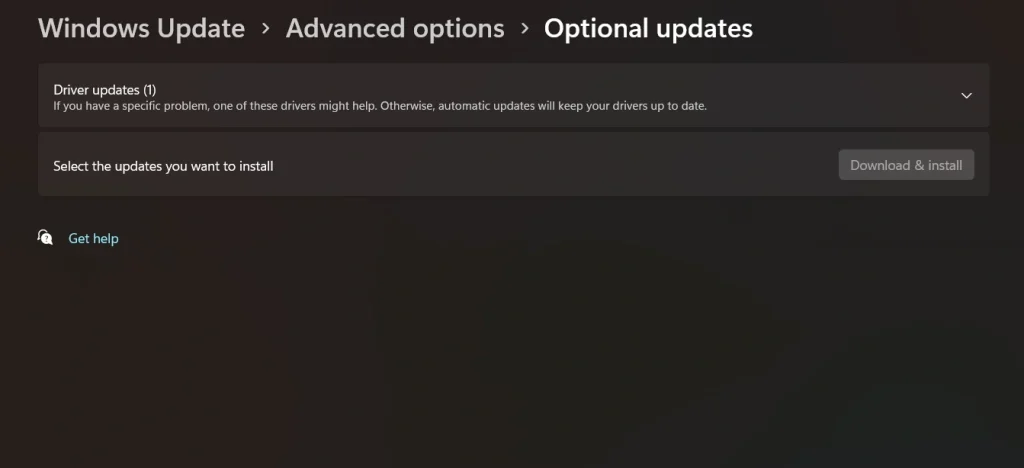
Step 2: Look under Driver Updates, select the NVIDIA driver if listed, and click Download and Install.
Author’s Tip: Small Habits That Make A Big Difference
A little extra care can save a lot of trouble later on. These personal tips come from real experience with driver updates handled over time.
- Restart after every update — Always restart your PC once the driver installs fully. This helps all new settings apply correctly across your system.
- Choose clean installation — When using NVIDIA App, pick the clean install option each time. This removes old leftover files that can cause conflicts.
- Avoid updating during important tasks — Never update drivers while running heavy software or during a live stream or recording session.
- Keep a driver history note — Write down which driver version worked best for your specific setup. This helps a lot during any future rollback.
- Update GPU and Windows together — Try to update both around the same time whenever possible. This avoids compatibility issues between the two systems.
- Check GPU temperature after update — Some updates change fan behavior and power settings. Monitor temperature for the first few hours of use.
- Read release notes — NVIDIA often lists bug fixes and known issues in each release. A quick read before updating saves confusion later.
- Do not skip too many versions — Updating regularly avoids large version jumps that can sometimes cause installation errors or conflicts.
Conclusion
Keeping your graphics driver fresh is one of the easiest ways to boost your PC performance. It does not take much time, yet the benefits are large and noticeable. From smoother gaming to better security, updated drivers touch nearly every part of your daily computer use.
This guide covered every trusted method for how to update NVIDIA drivers, from the official NVIDIA App to manual downloads and Windows Update. Each method suits a different comfort level, so pick the one that feels easiest and safest for you personally.
Make driver updates a small monthly habit going forward. Your PC will thank you with better speed, safer performance, and fewer random errors along the way. A few minutes spent today can save hours of frustration and troubleshooting later.
FAQs
Is it safe to update NVIDIA drivers?
Yes, updating drivers through official NVIDIA sources is completely safe for your system. Just make sure to download from the correct website or the trusted NVIDIA App. Avoid third-party tools that promise faster updates but often carry hidden risks or bundled software.
Can I update NVIDIA drivers without internet?
No, you need an active internet connection to download the latest driver files first. Once the file is downloaded, the actual installation process does not require internet access at all.
Do laptop and desktop NVIDIA drivers differ?
Yes, laptop GPUs often need special drivers made specifically for that laptop model and manufacturer. Desktop GPUs usually work fine with the general driver listed on the official NVIDIA website.
What if my driver update fails midway?
Restart your PC and try running the installation again from the start. If it keeps failing, download the driver fresh from the official website and retry the process once more.
Related Articles:
Author Bio:
Dinesh Lakhwani 

Dinesh Lakhwani, the entrepreneurial brain behind “TechCommuters,” achieved big things in the tech world. He started the company to make smart and user-friendly tech solutions. Thanks to his sharp thinking, focus on quality and the motto of never giving up, TechCommuters became a top player in the industry. His commitment to excellence has propelled the company to a leading position in the industry.
Popular Post
Recent Post
Top AI Features Hidden Inside Windows 11
Explore the top AI features in Windows 11, from Copilot to Recall, plus safety tips and simple steps to use each tool the right way.

Customize Your Screen Saver Settings in Windows [Easy Steps]
Learn how to customize screen saver settings in Windows 11 with easy steps, safety tips, and simple tricks to personalize your PC screen.
Driver Easy Windows Driver Updater Tool Review: Tried & Tested
In-depth information about Driver Easy’s functions and features can be found in our review. Learn how to update drivers more easily with this tool for a more seamless computer experience.
Is Avast Driver Updater Worth It? A Hands-On Analysis
A full review of Avast Driver Updater covering features, setup steps, pricing, pros and cons, and real PC results, to help you decide if it is worth buying.
IObit Driver Booster 13 (PRO) Review: [Tried & Tested]
IObit Driver Booster 13 is built for one purpose: keeping your PC drivers up to date. Well, yes! Outdated drivers can cause crashes, slowdowns, and hardware issues. This tool scans fast and updates with one click. The interface is simple. Even beginners can use it without confusion. Updates are pulled from a huge database, covering […]
Auslogics Driver Updater: A Detailed Walkthrough [2026]
This comprehensive review covers the key features, pros, and cons, pricing, and a final verdict on Auslogics’ driver update utility. Learn how it stacks up against manual driver maintenance.

5 Best Driver Updater Tools for Windows to Use (Free and Paid)
Introduction: Most people blame their PC for problems that a driver caused. A driver works like a bridge between your hardware and your operating system. When this bridge cracks, strange things start to happen. Screens flicker without reason. Printers go silent mid-task. Games freeze or crash out of nowhere. Manually finding the right driver is […]
Fixing Lock Screen Timeout – Screen Timeout Settings
Your Windows screen does not stay on forever. After a certain amount of idle time, it turns off or locks automatically. This is a normal feature found on both laptops and desktop PCs. It helps save battery power and reduces electricity use. It also keeps your files and personal information safe when you step away […]
How to Recover Unsaved Word Document? [Complete Guide]
It can be frustrating when a Word document suddenly disappears. You may have spent hours writing a report, assignment, or letter. Then your computer crashes, the power cuts out, or Word closes before you save the file. In that moment, it may seem like all your work is gone. This happens more often than most […]

