










Imagine this. You spend hours perfecting a video project. You hit save. Then your laptop freezes, reboots, and when the screen comes back. The file is gone. Your stomach sinks. It’s not just you. Lost files happen all the time. A dropped hard drive, a bad update, an accidental delete, or a corrupted partition can […]
Windows File Recovery: A Complete Review [Tried & Tested]
Imagine this. You spend hours perfecting a video project. You hit save. Then your laptop freezes, reboots, and when the screen comes back. The file is gone. Your stomach sinks.
It’s not just you. Lost files happen all the time. A dropped hard drive, a bad update, an accidental delete, or a corrupted partition can erase years of photos, work, or school projects in seconds. Panic comes first, solutions second. And that search for help often points straight to a tool built by Microsoft itself.
That tool is Windows File Recovery. Free, official, and designed to bring back files that look gone for good. But does it really deliver? Is it simple enough for everyday users, or is it a command-line chore meant for coders? This review breaks down what it can and can’t do before you trust it with your lost data.
Part 1: Brief Overview: Windows File Recovery
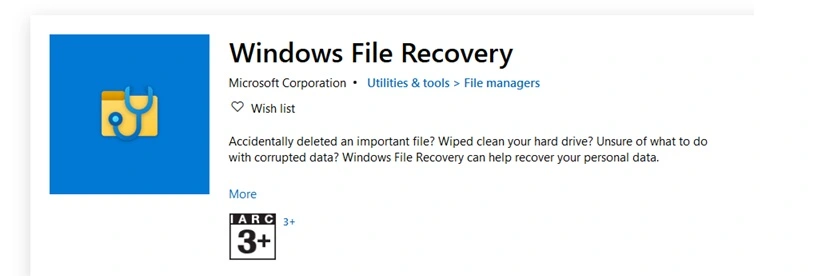
Windows File Recovery is a free app made by Microsoft. It was built to help users recover files that got deleted by accident. This can happen after a permanent delete, a formatted drive, or even a corrupted storage device. The tool works on Windows 10 and Windows 11.
You can download it straight from the Microsoft Store, so there is no need to visit a random website or worry about unsafe downloads.
The tool is different from most recovery software because it runs through command lines, not a normal click-and-scan window. This makes it fast and light on your system. But it also means new users may need a bit of guidance before they feel comfortable using it.
Here are some key features worth knowing:
- Free download from the official Microsoft Store
- Works with hard drives, SSDs, USB drives, and memory cards
- Supports common file types like photos, videos, documents, and zip files
- Offers different recovery modes for different situations
- Built directly into the Windows ecosystem for better safety
- No hidden fees or trial limits.
Quick Facts About Windows File Recovery
- File size: 2–2.3 MB (lightweight, minimal system footprint).
- Latest version: v0.1.20151.0 (released May 2, 2024).
- Release history: First launched January 2020, only two tracked releases since.
- Supported OS: Windows 10 version 2004 (build 19041) and later, including Windows 11.
- Developer: Microsoft Corporation.
- Interface: Command-line only (no GUI).
- Recovery modes:
- Regular mode: NTFS deleted-file recovery with filenames preserved.
- Extensive mode: Signature-based scanning for FAT, exFAT, ReFS, formatted drives.
- File types supported: JPEG, PNG, PDF, MP3, MP4, Office files, ZIP, and more (~50 formats).
- Storage devices: HDD, SSD (limited by TRIM), USB drives, memory cards.
- Availability: Free download via Microsoft Store.
- Approximate rating: 2.8/5 on Microsoft Store (52 ratings).
Part 2: Top Reasons Why People Turn to Windows File Recovery
Losing a file feels like losing a piece of work you cannot get back. That fear is exactly why so many people search for a fix the moment something disappears. Windows File Recovery has become a common answer to that fear, mostly because it comes from a name people already trust.
Here are the top reasons people choose this tool when files go missing.
- It comes from Microsoft directly, so users trust it more than random third-party apps found online.
- It is completely free, which matters a lot when you are already dealing with a stressful data loss situation.
- It supports many file formats, including photos, videos, PDFs, and Office documents.
- It works on many types of drives, not just the main system drive, but also USB sticks and SD cards.
- It offers multiple recovery modes, so users can pick the method that fits their situation best.
- It does not require installing extra unknown software, since it lives inside the Microsoft Store.
- It gets regular updates from Microsoft, which helps it stay compatible with newer systems.
- It can recover files after a format or corruption, not just a simple delete.
Part 3: Key Features Explained: Windows File Recovery PC Cleaner Tool
Windows File Recovery is not a flashy tool with a colorful interface. It focuses on function over form. Below are the main features that make this app useful for people trying to bring back lost files, along with what each one actually means for you.
Multiple Recovery Modes:
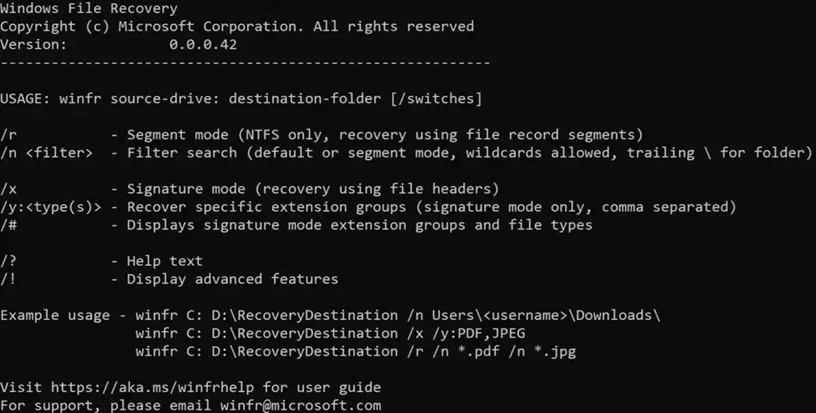
The tool offers different modes such as Default, Segment, and Signature. Each mode targets a different kind of file loss. Default mode works best for recently deleted files. Segment mode helps when the file system remembers some file record details.
Signature mode is used when the drive has been formatted or badly damaged. Having these options means the tool can adjust to many different loss scenarios instead of using one method for everything.
Command Line Based Operation:
Unlike most recovery tools, this one runs through Windows Terminal. You type specific commands to search, filter, and recover files. This might feel odd at first, but it also means the tool uses very few system resources. It runs fast and does not slow down your computer while scanning.
Support for Many File Systems:
The tool works with NTFS, FAT, and ReFS file systems. This wide support means it can handle recovery on a large range of storage devices, from your main hard drive to smaller USB sticks and SD cards.
Filter Options During Recovery:
You can filter searches by file type, file name, or even file extension. This becomes very helpful when you only want to recover a specific photo or document instead of scanning your entire drive for every lost file.
Safe Recovery to a Different Drive:
The tool always asks you to recover files to a separate drive or folder, not the same spot where they were lost. This protects the original data from being overwritten during the recovery process, which increases your chance of success.
Free and Official Microsoft Support:
Since it comes from the Microsoft Store, you get official support and regular updates. There is no risk of malware hidden inside the installer, which is a common problem with random recovery software found through search engines.
Works Without Internet Connection:
Once downloaded, the tool works fully offline. This matters if your internet is down or if you prefer not to expose sensitive files to any online process during recovery.
Part 4: How to Use Windows File Recovery Tool: Step-by-Step Guide
Using Windows File Recovery is simpler than it looks once you understand the basic pattern. The whole process runs through typed commands rather than mouse clicks, but each command follows a clear structure. Once you know the pattern, you can repeat it for almost any recovery situation.
Below is a simple three-step guide that walks you through downloading the tool, running a scan, and recovering your lost files safely.
Step 1: Download and Install the Windows File Recovery Tool. Open the Microsoft Store on your computer and search for Windows File Recovery. Click Install and wait for the download to finish.
Step 2: Once installed, open Windows Terminal, since this is where all commands will run. You may need administrator access to use the tool properly.
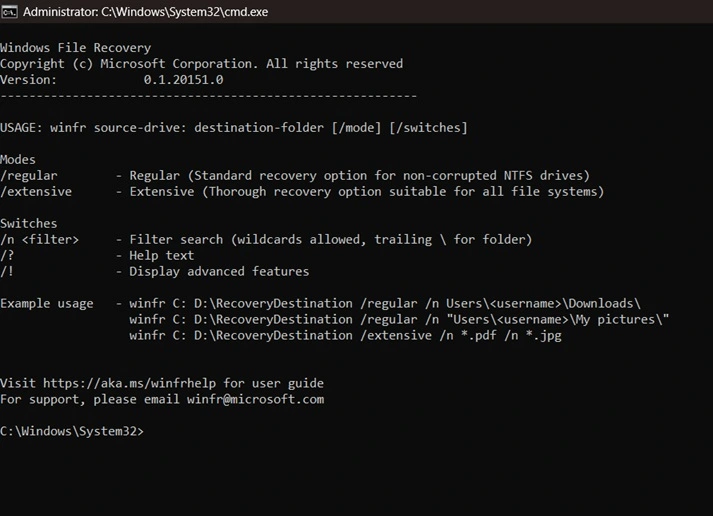
Step 3: Run a Recovery Command. Type a command using this basic pattern: winfr source-drive: destination-drive: /mode /filter
- Replace source-drive with the drive where files were deleted (e.g., C:)
- Replace destination-drive with another drive to save recovered files (e.g., D:)
- Choose a mode: /regular for NTFS undeletes, /extensive for deeper scans
- Add a filter: /n *.jpg for photos, /n *.docx for Word files.

Example Command for Photos
Recover deleted photos from the C drive and save them to the D drive.
winfr C: D: /regular /n *.jpg
This scans the C drive for deleted JPG files. Recovered files are stored in a folder on the D drive. Press Enter to run the scan
Step 4: Check the Recovered Files. Once the scan finishes, go to the destination folder you chose earlier. Open it and look through the recovered files.
NOTE: Some recovery attempts bring back perfect copies, while others may show partial or damaged files depending on how much time has passed since deletion. If needed, try a different mode and repeat the process.
Part 5: Weighing the Good and the Bad: Pros and Cons of Windows File Recovery
No tool is perfect, and Windows File Recovery is no exception. It does some things really well, but it also has a few rough edges that catch new users off guard. Knowing both sides helps you decide if this tool fits your comfort level before you actually need it in an emergency.
Pros:
- It is completely free, so there is no cost pressure when trying to save your files.
- It comes from Microsoft, which adds a strong layer of trust and safety.
- It supports many file types, covering photos, videos, and documents.
- It works on multiple drive types, including internal, external, and removable storage.
Cons:
- The command line format feels intimidating for users who are not used to typing commands.
- There is no visual preview of files before recovery, unlike many paid tools.
- Success rates can drop sharply if too much time has passed after deletion.
- It lacks a simple graphical interface, which many casual users expect from modern software.
Part 6: Pricing Plans: Windows File Recovery Tool
Windows File Recovery is one of the rare recovery tools that does not ask for any payment at all. Microsoft offers it completely free through the Microsoft Store, with no trial period, no locked features, and no upgrade prompts. This makes it very different from most competing recovery software, which usually locks full recovery behind a paid plan.
- Free Plan: Full access to all recovery modes, no cost, available directly from the Microsoft Store
- No Premium Plan: There is currently no paid tier or subscription option for this tool
- No Trial Limits: Every feature is unlocked from the moment you install it
| Feature | Free Version (Windows File Recovery) | Typical Paid Recovery Tool |
| Cost | Free forever | Often 40 to 100 dollars per year |
| File Preview Before Recovery | Not available | Usually available |
| Interface Type | Command line only | Graphical interface |
| File Type Support | Photos, videos, documents, zip files | Photos, videos, documents, emails, and more |
| Drive Support | Internal, external, USB, SD cards | Internal, external, USB, SD cards, and cloud in some cases |
| Customer Support | Community and Microsoft support pages | Dedicated live support in most cases |
| Recovery Modes | Default, Segment, Signature | Often just one automated scan mode |
Part 7: Honest Feedback of Using Windows File Recovery on My PC
I tested this tool after accidentally deleting a folder of work documents from my desktop. My first reaction was panic, followed by a quick search that led me straight to Windows File Recovery. Since it was already sitting in the Microsoft Store, I had it installed within a couple of minutes. The download felt light and did not slow down my system at all, which was a nice start.
The command line part was honestly a bit confusing at first. I am used to normal recovery apps where you just click scan and wait. Typing out the Winfr command with the right drive letters and filters took a few tries to get right. I made a small typo the first time and had to redo it. Once I got the command correct, the scan itself moved pretty fast for a folder of that size, and I did not have to wait long to see results.
The results were mixed but mostly positive. About eighty percent of my documents came back in usable condition, though two files were partially corrupted and would not open properly. For a free tool with no monthly cost, I felt this was a fair trade. It saved me from losing most of my work, even if it was not a flawless experience from start to finish. I would use it again for a quick emergency recovery, though I would probably pair it with a proper backup habit going forward.
Reputation Check: How the World Rates Windows File Recovery
Windows File Recovery is widely seen as a basic, free, but limited tool: praised for being lightweight and safe (since it’s from Microsoft), but criticized for its command-line interface, weak recovery performance outside NTFS, and lack of modern features. Expert reviews average around 2.5–3 out of 5, showing it’s useful only in narrow cases like recently deleted NTFS files.
Global Reputation Snapshot
Strengths
- Free & official: Distributed via Microsoft Store, no hidden costs or malware risk.
- Lightweight: Only a few MB, runs on Windows 10 (2004+) and Windows 11.
- Solid NTFS recovery: Works best for recently deleted files on NTFS drives, preserving filenames and folder structure.
- Two modes: Regular (filesystem-aware) and Extensive (signature-based for formatted/non-NTFS drives).
Weaknesses
- No GUI: Command-line only, intimidating for non-technical users.
- Limited file type support: ~50 formats vs 400+ in advanced tools.
- No previews or full-disk scans: Recovery is blind and restricted to partitions.
- Poor performance on SSDs: TRIM often wipes deleted data blocks.
- Mixed reliability: Crashes on exFAT, weak signature scans, no support for cloud/RAID.
Review Comparison
| Source | Rating | Verdict | Key Notes |
| Handy Recovery | 5/5 (but only 2 votes) | Free but struggles even on NTFS | “Worth trying if no alternatives.” |
| CleverFiles | No numeric score | Useful only for NTFS deletions | Highlights ease of install but major feature gaps. |
| Aggregated 2026 Review | 2.5/5 | Bare-minimum utility | Good for “Recycle Bin panic,” bad for formatted/corrupted drives. |
Reputation Summary
- Experts: Call it a “first try” tool, not a professional solution.
- Users: Appreciate that it’s free and safe, but most complain about difficulty and poor results.
- Overall: Rated average to below-average compared to dedicated recovery apps like PhotoRec, Disk Drill, or EaseUS.
Risks & Trade-offs
- Risk of wasted time: If files are critical, relying solely on this tool may fail.
- No safety net: No preview means recovered files may be corrupted or incomplete.
- Better alternatives exist: Paid tools offer higher success rates, GUI, and broader format support.
Bottom Line
Windows File Recovery is best for tech-savvy users needing a free, quick attempt at NTFS recovery. For formatted drives, SSDs, or complex cases, third-party tools are far more reliable.
Conclusion
Windows File Recovery earns its place as a strong first option when files go missing on a Windows machine. It is free, it comes from a trusted source, and it covers a wide range of file types and storage devices. For anyone comfortable typing a few commands, it can feel like a lifesaver during a stressful moment.
That said, it is not built for everyone. Casual users who expect a simple click-and-scan process may find the command line setup frustrating at first. There is also no visual file preview, which some paid tools offer as standard. These small gaps matter for people who want a smoother, more guided experience.
Overall, Windows File Recovery is worth trying before spending money on other software. It handles many common recovery situations well, and the price of free is hard to beat. Just go in knowing it takes a small learning curve, and keep a backup habit going forward so you rely on it less often.
FAQs
Is Windows File Recovery really free to use?
Yes, it is completely free and available directly through the Microsoft Store. There are no hidden charges, no trial limits, and no premium version that unlocks extra features. Every recovery mode is available the moment you install it.
Does Windows File Recovery work on external drives like USB sticks?
Yes, the tool supports external drives, USB sticks, and SD cards, along with internal hard drives and SSDs. This makes it useful for recovering files lost from many different types of storage devices, not just your main system drive.
Can Windows File Recovery bring back files after a full format?
In many cases, yes. The Signature mode is designed for situations where a drive has been formatted or badly damaged. Success is not always guaranteed, but this mode gives you a real chance at recovering files even after a format.
Author Bio:
Dinesh Lakhwani 

Dinesh Lakhwani, the entrepreneurial brain behind “TechCommuters,” achieved big things in the tech world. He started the company to make smart and user-friendly tech solutions. Thanks to his sharp thinking, focus on quality and the motto of never giving up, TechCommuters became a top player in the industry. His commitment to excellence has propelled the company to a leading position in the industry.
Popular Post
Recent Post

5 Best Data Recovery Software For Windows 11 and Windows 10
A crashed drive can ruin a whole day. One minute your photos, work files, and tax records sit safe on your PC. The next minute they are gone. A power cut, a bad update, or one wrong click can wipe out years of memories and months of work in seconds. That sinking feeling is why […]
How To Update NVIDIA Drivers On Windows 11/10 PC
Learn how to update NVIDIA drivers on Windows 11/10 with simple methods, safety tips, and easy steps for smoother gaming and better PC performance.

Top AI Features Hidden Inside Windows 11
Explore the top AI features in Windows 11, from Copilot to Recall, plus safety tips and simple steps to use each tool the right way.

Customize Your Screen Saver Settings in Windows [Easy Steps]
Learn how to customize screen saver settings in Windows 11 with easy steps, safety tips, and simple tricks to personalize your PC screen.

Driver Easy Windows Driver Updater Tool Review: Tried & Tested
In-depth information about Driver Easy’s functions and features can be found in our review. Learn how to update drivers more easily with this tool for a more seamless computer experience.

Is Avast Driver Updater Worth It? A Hands-On Analysis
A full review of Avast Driver Updater covering features, setup steps, pricing, pros and cons, and real PC results, to help you decide if it is worth buying.

IObit Driver Booster 13 (PRO) Review: [Tried & Tested]
IObit Driver Booster 13 is built for one purpose: keeping your PC drivers up to date. Well, yes! Outdated drivers can cause crashes, slowdowns, and hardware issues. This tool scans fast and updates with one click. The interface is simple. Even beginners can use it without confusion. Updates are pulled from a huge database, covering […]

Auslogics Driver Updater: A Detailed Walkthrough [2026]
This comprehensive review covers the key features, pros, and cons, pricing, and a final verdict on Auslogics’ driver update utility. Learn how it stacks up against manual driver maintenance.

5 Best Driver Updater Tools for Windows to Use (Free and Paid)
Introduction: Most people blame their PC for problems that a driver caused. A driver works like a bridge between your hardware and your operating system. When this bridge cracks, strange things start to happen. Screens flicker without reason. Printers go silent mid-task. Games freeze or crash out of nowhere. Manually finding the right driver is […]

