












It always shows up at the worst time. You are halfway through a report, or about to join a video call. Then you spot it in the bottom right corner of the screen. Activate Windows. Go to Settings to activate Windows. Initially, an unactivated copy of Windows may seem like a minor inconvenience. Over time, […]
How to Activate Windows with a Product Key for Windows 11 & Windows 10
It always shows up at the worst time. You are halfway through a report, or about to join a video call. Then you spot it in the bottom right corner of the screen. Activate Windows. Go to Settings to activate Windows.
Initially, an unactivated copy of Windows may seem like a minor inconvenience. Over time, however, the restrictions become more noticeable. You may lose access to wallpaper and theme customization, while activation reminders continue to appear on the screen.
Here is the good news. The fix takes about five minutes, and all it needs is a valid product key. In this guide, you will learn how to activate Windows with Product key with Windows 11 in plain, simple steps. The same goes for Windows 10, so you will also see how to activate Windows with Product key with Windows 10. We will cover other methods, common errors, and easy fixes too.
Grab your key, and let’s get started.
Fix the Watermark Fast: Activate Windows with Product key with Windows 11 and 10
Part 1: What Is a Windows Product Key and Why Does It Matter?
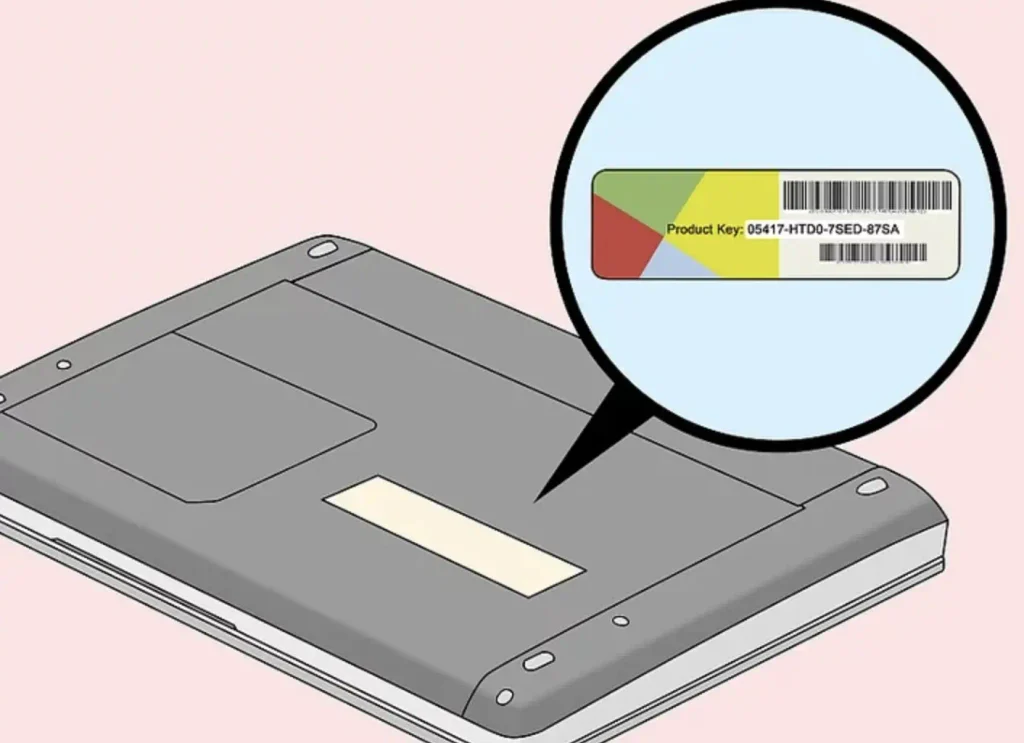
Image name: how-to-activate-windows-with-product-key-02.jpg
Image alt:
A Windows product key is a unique 25-character code arranged into five groups of five characters. It combines letters and numbers and is used by Microsoft to verify and activate a legitimate copy of Windows.
Not all keys are the same. Here are the main types:
- Retail license: This type of Windows license is purchased separately through Microsoft or an authorized retailer. Depending on the license terms, it can usually be transferred to another computer.
- OEM license: This license is supplied with a new computer from manufacturers such as Dell, HP, or Lenovo. It is generally tied to the original device and cannot be moved to another PC.
- Volume license: Designed for organizations such as businesses, schools, and other institutions. It allows Windows to be activated across multiple computers under a single licensing agreement.
- Digital license: Windows can also be activated without entering a visible product key. The license is associated with the device’s hardware and Microsoft account or activation servers, allowing Windows to activate automatically when the system is reinstalled or recognized.
Why does activation matter? First, you get every feature. You can change the wallpaper, colours and themes. Second, the watermark goes away. Third, you stay on the right side of the Microsoft licence rules.
An unactivated PC still runs. But it feels incomplete. Some settings stay locked. The reminder keeps popping up. Over time, it gets annoying.
Most people never see their key. On many new laptops, it is stored in the firmware. On others, it is tied to a Microsoft account. Even so, it helps to know what kind of licence you have. That makes things much easier if something goes wrong later.
Part 2: Things to Check Before You Start
A little prep saves a lot of trouble. Run through this short list first.
- Confirm your internet connection. Windows must be connected to the internet to verify its activation status with Microsoft’s servers. If your internet connection is weak or keeps disconnecting, the activation process may not complete successfully. Open a website in your browser to make sure your internet connection is stable and working correctly.
- Verify your Windows edition. A product key must match the edition installed on your computer. For example, a Home key cannot activate Windows Pro, and a Pro key cannot activate Home. Press Windows + I, select System, and open About. Check the Windows specifications section to find your edition.
- Keep the product key nearby. If you purchased Windows online, check the confirmation email from the seller. For a boxed copy, look at the card or packaging. On some older computers, the key may be printed on a sticker attached to the device. Enter each character carefully because similar-looking letters and numbers can easily lead to mistakes.
- Sign in with an administrator account. Certain activation settings require administrator access. If the computer has multiple user accounts, make sure you are using an account with administrator privileges.
- Install available Windows updates. Pending updates can sometimes cause system issues, including activation problems. Go to Windows Update. Install any updates that are waiting.
- Purchase keys from reliable sources. Be cautious with unusually cheap product keys sold through unfamiliar websites. Some may be unauthorized or become invalid later. Buying directly from Microsoft or a reputable retailer is a safer option.
Once these checks are done, you are ready to move on.
Part 3: How to activate Windows with Product key with Windows 11
Windows 11 keeps all activation options in one place. The steps are the same for Home, Pro, and other editions. Take them one at a time.
- Press the Windows key and I together. This opens Settings. Click System on the left side. Scroll down and click Activation.
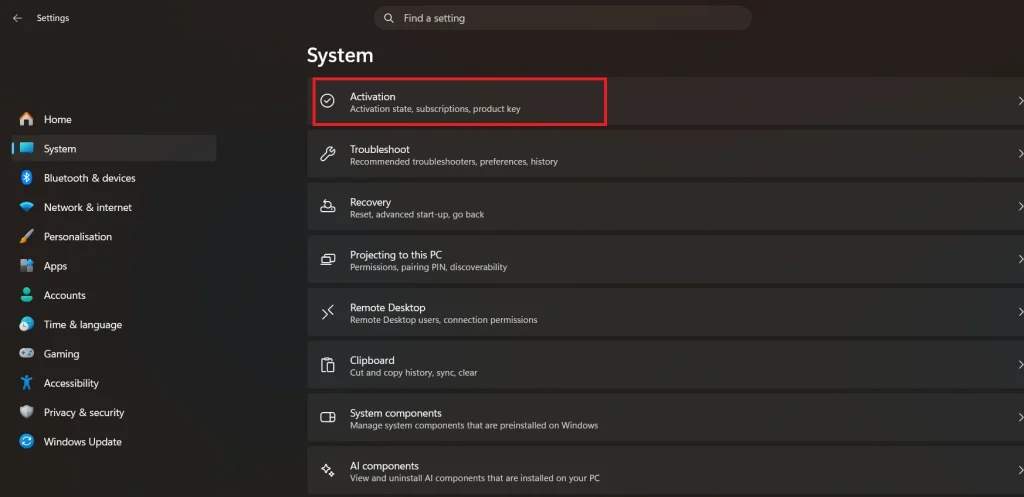
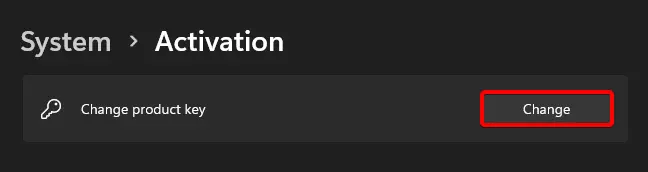
- Look at the Activation state. If it says Not active, click Change product key to open that section. Then click the Change button.
- Type your 25-character key in the box. Type it without any gaps. Click Next.
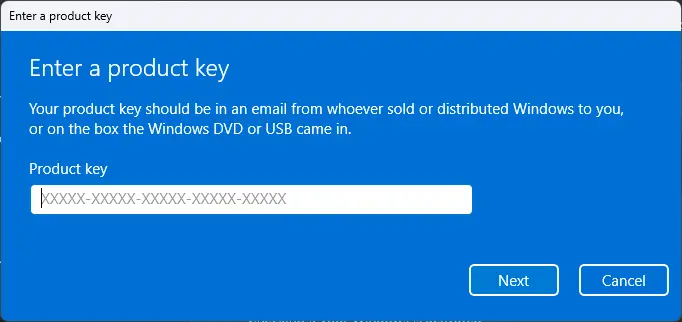
- Select Activate and allow the process a few moments to complete. Once activation is successful, a confirmation message will appear indicating that Windows is activated.
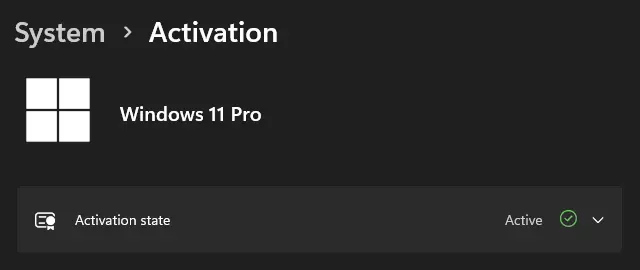
Now check the result. Go back to the Activation page. You should see a tick next to Active. Some PCs You may also see the message “Windows is activated with a digital license.” This indicates that Microsoft’s activation servers have already linked the license to your device.
Cannot find the Change button? Make sure you are signed in with administrator privileges. If the PC belongs to a company, school, or organization, some settings may be hidden or locked by policy.
If you want to switch from Windows Home to Windows Pro, use the Activation page and enter your Pro product key. Windows will upgrade the edition automatically. Multiple restarts can occur during the process, so save your work beforehand to avoid losing any unsaved changes.
Part 4: How to activate Windows with Product key in Windows 10
Windows 10 has a slightly different layout. The idea is the same. One note first. Microsoft ended regular support for Windows 10 in October 2025. If your PC can run Windows 11, think about moving over. Until then, here is how to activate Windows 10.
- Click Start, then click the gear icon. This opens Settings. You can also press the Windows key and I together. Click Update and Security. Click Activation on the left side. Read the status line. If it says Windows is not activated, carry on. Click Change product key.
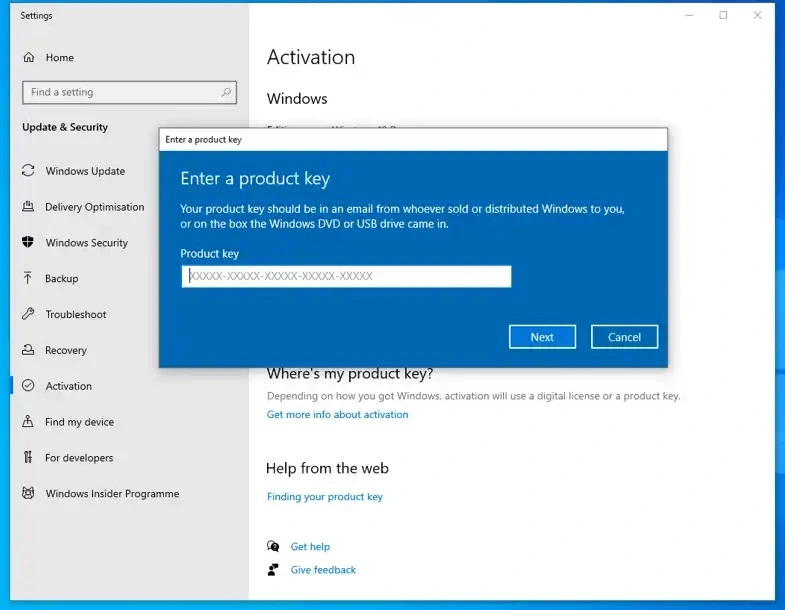
- Type the 25-character key. Click Next. Click Activate. Wait for the message that says Windows is activated. Restart if asked.
These steps work for Windows 10 Home and Pro. Use them each time you need to activate Windows with a product key with Windows 10 on a new or rebuilt PC.
After activation, add your Microsoft account. On the same Activation page, look for Add an account. Sign in with your email and password. This links the digital license to your account. It is a smart move. If you change your hardware later, you can sign in and fix activation quickly.
Do you have an old key from Windows 7 or Windows 8? Some of these keys may still work on Windows 10. Results vary, so do not count on it. If the key fails, you will need a new one.
Also note that Windows 10 and Windows 11 keys are not always swappable. A key sold for one version may be rejected by the other. Read the seller details before you buy.
Part 5: Other Easy Ways to Activate Windows
The Settings app is not the only way. These options help when the normal route fails or the button is missing.
Method 1: Use the slui 3 command.
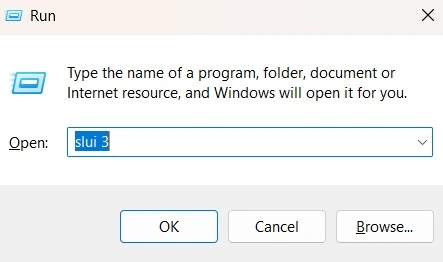
Press the Windows key and R together. Type slui 3 and press Enter. A small window opens and asks for a key. Type it in and click Next. This is handy when the Settings page acts up.
Method 2: Use Command Prompt.
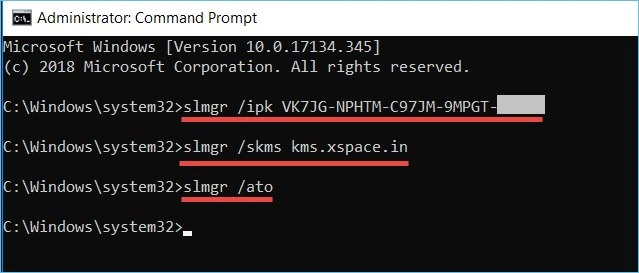
Type cmd in the search box. Right-click Command Prompt and choose Run as administrator. Now type slmgr /ipk, add a space, then type your key. Press Enter.
A message will say the key was installed. Next, type slmgr /ato and press Enter. This tells Windows to activate online. To see the result, type slmgr /dli. It shows the licence status. You can also type slmgr /xpr to see if activation is permanent.
Method 3: Use phone activation.
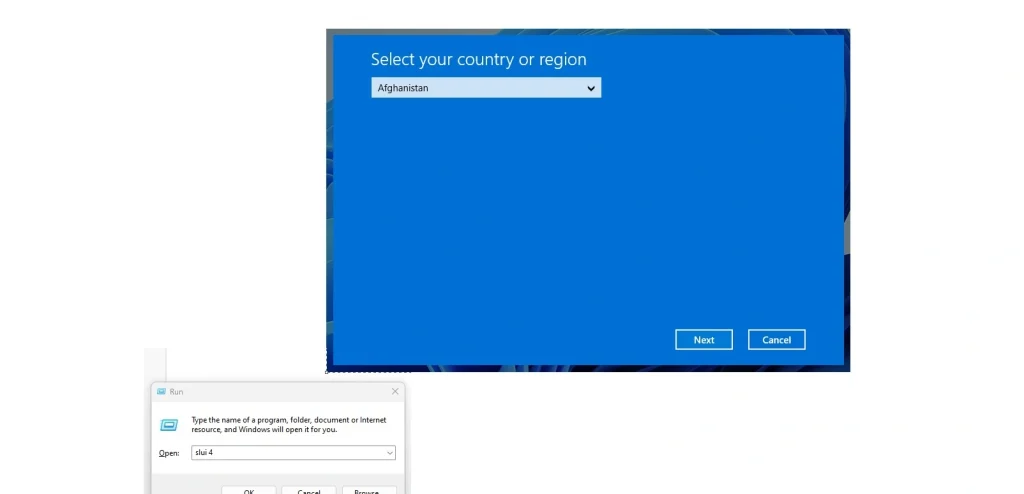
This works when the internet method fails. Press the Windows key and R together. Type slui 4 and press Enter. Pick your country. A phone number and an installation ID will show up. Call the number and read out the ID. You will get a confirmation ID in return. Type it in and finish the process.
Method 4: Use a digital license after a clean install.
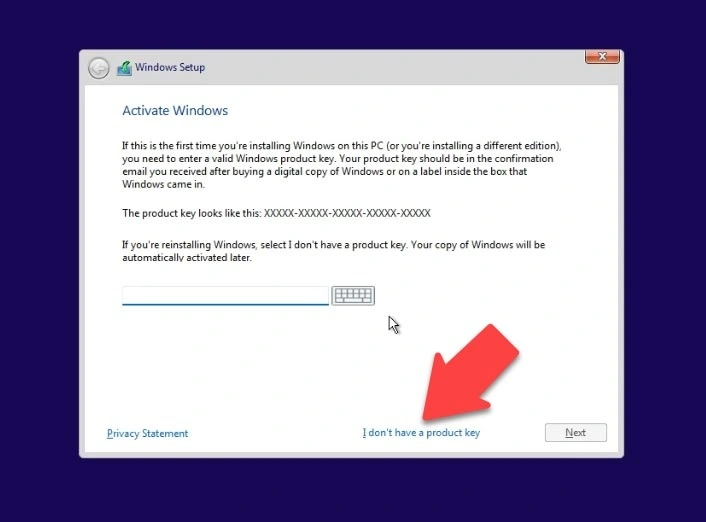
During setup, Windows may ask for a key. If your PC was activated before, choose I don’t have a product key. Finish the install. Once you are online, Windows may activate by itself. This works because Microsoft remembers your hardware.
Part 6: Common Errors and How to Fix Them
Sometimes things go wrong. Do not worry. Most errors have simple fixes. If you fail to activate Windows with a product key with Windows 10, try these fixes first. The same fixes help on Windows 11.
Here are the errors you may see most often:
- 0xC004F050: Windows says the key is not valid. You may have made a typo. You may also have the wrong edition. Retype the key slowly. Check that it matches your edition.
- 0xC004C003: The key is blocked. This often happens with keys sold at very low prices. Ask the seller for a refund. Then buy a fresh key from a trusted store.
- 0xC004F074: Windows cannot reach the activation server. This usually shows up on work or school PCs. Connect to the organisation network. Or ask your IT team for help.
- 0x803F7001: Windows cannot find a valid license. Enter a working key. Or sign in with the Microsoft account linked to your license.
- 0x8007007B: This often means a volume key was used on a home PC. Use a retail or OEM key instead.
If none of these match, try the general fixes below.
First, restart your PC and try again. A restart clears many small glitches. Second, run Windows Update. Missing updates can block activation. Third, check the date and time. A wrong clock can break the link to Microsoft servers. Fourth, run the activation troubleshooter from the Activation page.
You can also repair system files. Open Command Prompt as admin. Type sfc /scannow and press Enter. Wait for the scan to finish. Restart the PC and try again.
Sometimes the problem is on the Microsoft side. Servers can be busy or down. If that is the case, wait a few hours and try again. If the error stays, contact Microsoft support. Keep your key and proof of purchase ready. They can often fix the issue on their end.
Part 7: Smart Tips to Keep Windows Activated
Activation is not a one-time worry. A few good habits keep it safe for years.
- Save your key. Store it in a password manager. You can also keep a written copy in a safe place. Take a clear photo of the sticker or card too.
- Link your Microsoft account. This is the best backup. Your digital license stays tied to your account. It makes reinstalling much easier.
- Say no to cracks. Free activators may look tempting. But they often carry malware. They can steal data or slow down the PC. They also break the licence rules. A real key is cheaper than a cleanup.
- Plan before hardware changes. A new hard drive or more memory is usually fine. A new motherboard is different. Windows may see it as a new PC. Link your account before the change.
- Check status now and then. Type slmgr /xpr in Command Prompt. It tells you if activation is permanent.
- Buy from trusted sellers. Choose Microsoft or a known store. Keep the receipt.
Let’s wrap up. Activation is simple once you know the steps. You now know how to activate Windows with Product key with Windows 11 from the Settings app. The Windows 10 steps are just as easy. You also have backup options like the slui command, Command Prompt, and phone activation.
If an error shows up, stay calm. Check the key. Check the edition. Check your internet. Then try the fixes from Part 6. In most cases, one of them will do the job.
A genuine and activated PC feels better to use. The watermark is gone. Every setting is open. And you can work without that nagging reminder. Take five minutes today and get it done.
Conclusion
Activation does not have to be hard. Now you know how to activate Windows with product key in Windows 11 from the Settings app. The Windows 10 steps are just as simple. If the normal route fails, you have backups too. You can use the slui command, Command Prompt, or phone activation. One of them will usually get the job done.
If an error shows up, stay calm. Check the key, the edition, and your internet. Then try the fixes from Part 6. After that, keep your key in a safe place and link your Microsoft account.
Skip cracks and shady sellers. A genuine and activated PC is safer, smoother, and free of that nagging watermark. Take five minutes today and get it done.
FAQs:
Q1. Can I use one product key on more than one PC?
Not usually. A retail key works on one PC at a time. You can move it to a new PC later, but only after you stop using it on the old one. An OEM key stays with the machine it came with. Volume keys are meant for offices and schools, and they follow different rules. If you use the same key on many PCs, Microsoft may block it. Buy one key for each PC to stay safe.
Q2. Will I lose my files when I activate Windows?
No. Activation only changes the licence status of Windows. Your files, apps, and settings stay as they are. If you move from Home to Pro, the PC will restart a few times. Your data normally stays safe in that case too. Still, it is smart to back up important files before you make any big change.
Q3. What should I do if I lost my product key?
Do not panic. First, check the email from the seller or the retail box. On older laptops, look for a sticker on the bottom. Next, sign in to your Microsoft account and check your order history. If your PC has a digital license, you may not need a key at all. Reinstall Windows, sign in, and let it activate on its own. If nothing works, contact the seller or Microsoft support. Keep your proof of purchase ready.
Author Bio:
Dinesh Lakhwani 

Dinesh Lakhwani, the entrepreneurial brain behind “TechCommuters,” achieved big things in the tech world. He started the company to make smart and user-friendly tech solutions. Thanks to his sharp thinking, focus on quality and the motto of never giving up, TechCommuters became a top player in the industry. His commitment to excellence has propelled the company to a leading position in the industry.
Popular Post
Recent Post

Is Easy Duplicate Finder Worth It? Honest Review
The photos folder looked normal at first glance. Then the storage warning popped up. One trip photo appeared four times. A tax PDF sat in three different folders. Two old setup files were still in Downloads, and each one was over 500 MB. Nobody plans this mess. Copies pile up slowly. A download runs twice. […]

Wise Duplicate Finder Review: Real Results from Wise Duplicate Finder
Read my honest Wise Duplicate Finder review. See features, pricing, pros and cons, and real PC test results. Find out if this free duplicate cleaner can free up your Windows storage.

How to Recover Deleted Files from Pen drive, USB Drive, SD Card
Introduction: On tech forums, you’ll often see posts like this: “I connected my pen drive to my laptop this morning, but the folder was empty. All my college project files had vanished. I don’t have a backup. Can someone help me?” Stories like this are very common. Pen drives, USB drives and SD cards are […]

How To Recover Files Deleted from the Recycle Bin [Windows 11]
Losing a file can happen in seconds. You clear your desktop, hit Delete, and empty the Recycle Bin. Then, just when you need that file again, it seems to have vanished. This guide will walk you through ways to restore files removed from the Recycle Bin. We will begin with simple fixes, then look at […]

Disk Drill Data Recovery Tool Explained: Full Review and Guide
It happens in a split second. You delete a folder by mistake. Your drive stops showing up. A photo album from your last trip just vanishes. And your stomach drops. Lost files feel personal. They are not just data. They are memories, work hours, and sometimes years of effort packed into a few gigabytes. When […]

Recover Deleted Files In Windows 11 With Software & Without
Introduction What is the first thing that goes through your mind the second an important file vanishes from a Windows 11 PC? For most people, it is a mix of panic and disbelief, followed by a frantic click through every folder that file could possibly be hiding in. It happens in a split second: one […]

EaseUS Data Recovery Wizard: Everything To Know
Data loss does not always come from a big disaster either. Most cases start small and boring. A drive gets formatted by mistake. A laptop freezes mid-save and restarts on its own. A memory card stops showing up after being pulled out too fast. None of these feel like emergencies at first, until you realize […]

Recuva Data Recovery Tool: Is it Actually Worth it?
When I first tried Recuva Data Recovery, I wanted to see if it could really bring back lost files. The tool is free, small in size, and promises quick recovery, which made me curious enough to test it on my own PC. The setup was fast, and the wizard guided me step by step. I […]

GetData Recover My Files Data Recovery Tool: Honest Review
A hard drive error brings a special kind of silence. Well, yes! The screen freezes, then a message appears saying the drive can’t be found or must be formatted. In that moment, years of photos and work files feel at risk. It never happens at a good time. Coffee spills near a laptop, a memory […]

