












So, search for a pair of shoes once online. Close the tab. By evening, those same shoes are sitting on your news site, your video app, and even your recipe blog. Nobody placed them there by chance. A cookie did. Well, yes! Cookies are small files that websites place on your device while you browse. […]
Update Guide: Latest Windows 11 Updates
Introduction
Windows 11 is Microsoft’s latest operating system, built with a sleek look and more refined functionality. It continues to evolve through frequent updates that enhance performance, resolve issues, and occasionally introduce new features.
If you are using Windows 11, you should always stay updated. Updates keep your system safe, fast, and reliable. This guide will help you understand why updates matter, how to install them, and what to do if you face problems.
We will also look at the latest Windows 11 updates and the features they bring.
Why Windows 11 Updates Are Important?
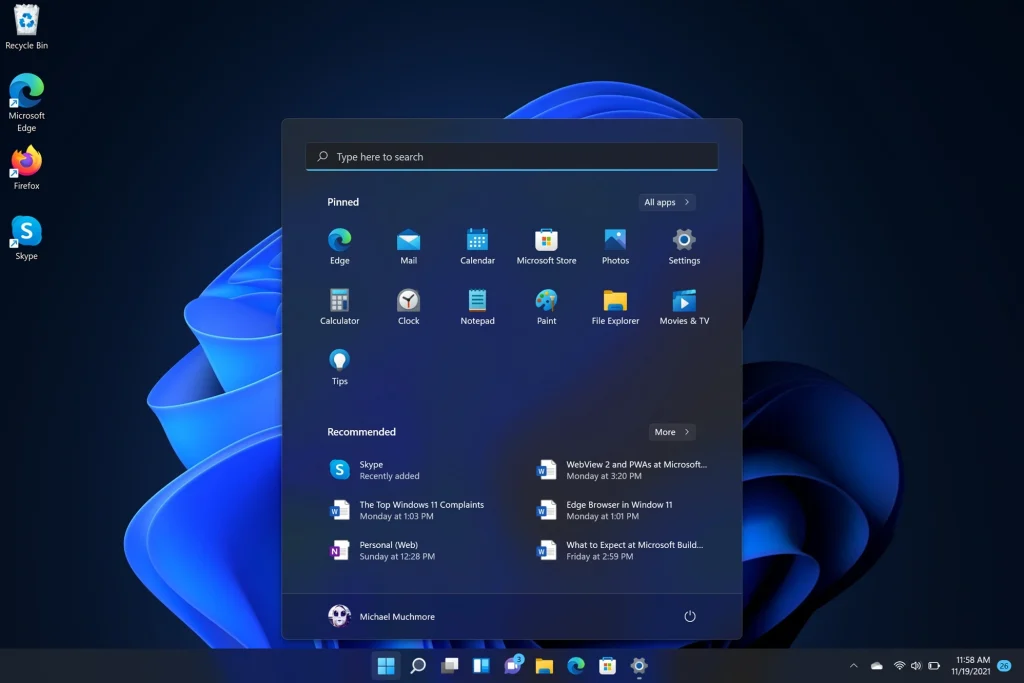
Updates may look simple. But they do much more than most people realize. Every update brings changes that protect, improve, or upgrade your PC. Missing them can slow your system or leave it unsafe.
Here are the main reasons why updates matter:
- They fix security risks. Hackers often target known flaws in software. Microsoft closes these flaws through security patches. Without them, your PC is open to attacks.
- They improve system speed. Some updates include code changes that make the system faster. Apps open quicker, and the PC feels more responsive.
- They fix software bugs. Programs may crash or freeze due to small errors. Updates repair these bugs so apps run without issues.
- They add new features. Microsoft often introduces new tools, design options, or settings. This keeps Windows 11 fresh and modern.
- They improve design and interface. Updates polish the look of menus, icons, and the taskbar. They make your PC easier to use.
- They keep drivers up to date. Hardware like printers, graphics cards, and Wi-Fi adapters need drivers. Updates ensure they work with Windows 11.
- They improve battery life. On laptops, updates may optimize background processes. This helps your battery last longer.
- They prepare your PC for the future. Updates keep your system ready for bigger upgrades. Without them, your PC may not support future features.
How to Check for Windows 11 Updates?
Checking for updates is easy, but many users never open the update menu. Microsoft tries to install updates in the background, but manual checks give you control.
Here is how you can check:
- Click the Start button on the taskbar. Open Settings. The gear icon is easy to spot. On the left side, click Windows Update. On the right side, click Check for updates.
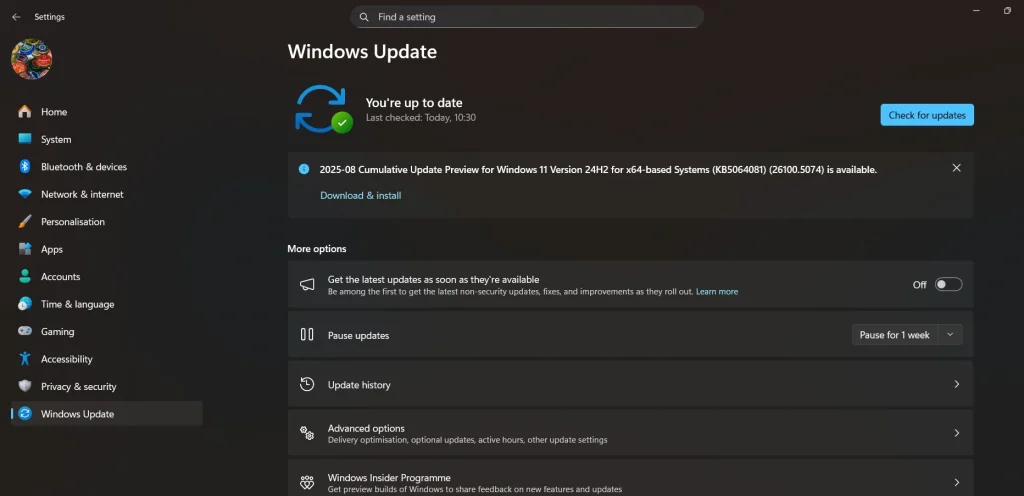
- Windows will search for new updates. If updates are available, you will see a list. Click Download and install. Restart your PC when the system asks.
If you see “You’re up to date,” your PC already has the latest updates. If updates do not appear, wait a few hours and try again. Sometimes Microsoft rolls out updates in stages.
You can also change settings for updates. You can pause them if you are busy. You can choose active hours to avoid restarts while working. These options give you more control.
Latest Windows 11 Updates: Update Guide
Chronological List of Windows 11 Updates:
| Release Date | KB Number | OS Build | Type | Key Highlights |
| April 14, 2026 | KB5083769 | 26100.8246 | Patch Tuesday | Smart App Control toggle, Narrator for all PCs, Secure Boot status alerts, device reset fix |
| March 31, 2026 | KB5086672 | 26100.8117 | Out-of-band | Fixed installation error (0x80073712) from March 26 preview |
| March 26, 2026 | KB5079391 | 26100.8116 | Preview Update | Narrator image descriptions on all Windows 11 PCs, WUSA installer fix |
| March 21, 2026 | KB5085516 | 26100.8039 | Out-of-band | Emergency fix for Microsoft account sign-in failures in Teams Free and OneDrive |
| March 10, 2026 | KB5079473 | 26100.8037 | Patch Tuesday | Security fixes, Secure Boot certificate prep, known sign-in issue introduced |
| February 10, 2026 | KB5077181 | 26100.7840 | Patch Tuesday | Gaming fix, WPA3 Wi-Fi fix, Secure Boot device targeting data added |
| January 13, 2026 | KB5074109 | 26100.7623 | Patch Tuesday | First 2026 security update, Windows Server 2025 gets separate KB identifiers |
| December 9, 2025 | KB5072033 | 26100.7462 | Patch Tuesday | Copilot/Click to Do fix, VM networking fix, standardized update title format introduced |
| December 1, 2025 | KB5070311 | 26100.7309 | Preview Update | File Explorer dark mode polish, Virtual Workspaces toggle, Desktop Spotlight options |
| November 11, 2025 | KB5068861 | 26100.7171 | Patch Tuesday | Redesigned Start menu, removable Recommended feed, lock screen battery icons |
| October 28, 2025 | KB5067036 | 26100.7019 | Preview Update | Click to Do Copilot prompt box, Start menu, and battery icon rollout continues |
| October 14, 2025 | KB5066835 | 26100.6899 | Patch Tuesday | Browser print preview fix, gamepad sign-in fix, security patches |
| September 29, 2025 | KB5065789 | 26100.6725 | Preview Update | AI actions in File Explorer, Notification Center on secondary monitors, and passkey manager |
| September 9, 2025 | KB5065426 | 26100.6584 | Patch Tuesday | Taskbar policy, redesigned Windows Hello, Lock Screen widgets, Copilot+ AI actions |
| August 29, 2025 | KB5064081 | 26100.5074 | Preview Update | Recall homepage, voice access improvements, redesigned settings |
| August 13, 2025 | KB5063878 | 26100.4946 | Patch Tuesday | Secure Boot updates, performance fixes |
| July 22, 2025 | KB5062660 | 26100.4770 | Preview Update | Copilot+ enhancements, Notification Center updates |
| July 13, 2025 | KB5064489 | 26100.4656 | Out-of-band | Emergency security patch |
| July 8, 2025 | KB5062553 | 26100.4652 | Patch Tuesday | Security fixes, compatibility updates |
| June 25, 2025 | KB5060829 | 26100.4484 | Preview Update | Early rollout of Recall, Click to Do, and UI tweaks |
Here’s a complete and chronological breakdown of the latest Windows 11 (24H2) updates from April 2026 to June 2025, starting with the most recent.
KB5083769 — OS Build 26100.8246
Released: April 14, 2026 | Type: Patch Tuesday
The April Patch Tuesday brought significant accessibility improvements, hardware enhancements, and quality-of-life additions across Settings and File Explorer.
- Smart App Control can now be toggled on/off without a clean reinstall.
- Narrator image descriptions now work on all Windows 11 PCs, not just Copilot+.
- Secure Boot certificate status is now visible in the Windows Security app with badge alerts.
- Fixed device reset failure after installing the March 2026 Hotpatch update.
KB5086672 — OS Build 26100.8117
Released: March 31, 2026 | Type: Out-of-band Update
This out-of-band release fixed a critical installation error from the March 26 preview and carried forward all its improvements.
- Fixed update installation error (0x80073712) from the March 26 preview.
- Includes all fixes from KB5079473, KB5085516, and KB5079391.
- Recommended immediately for any device that failed the March 26 update.
KB5079391 — OS Build 26100.8116
Released: March 26, 2026 | Type: Preview Update
This preview expanded Narrator’s image description capability to all Windows 11 PCs and fixed several installer issues.
- Narrator image descriptions now available on all Windows 11 devices.
- Fixed WUSA installer error when updating from network shares.
- General reliability improvements ahead of the April Patch Tuesday.
KB5085516 — OS Build 26100.8039
Released: March 21, 2026 | Type: Out-of-band Update
An emergency release to fix a sign-in failure introduced by the March 10 Patch Tuesday.
- Resolved Microsoft account sign-in failures for Teams Free, OneDrive, and related apps.
- Fixed WUSA update installer error on network shares with multiple .msu files.
- Immediate installation is recommended for all affected users.
KB5079473 — OS Build 26100.8037
Released: March 10, 2026 | Type: Patch Tuesday
Standard monthly security update, followed by two emergency out-of-band releases to fix newly introduced issues.
- Monthly security patches across core Windows components.
- Quality improvements carried forward from the February preview.
- Known issue: Microsoft account sign-in failures in Teams Free and OneDrive — fixed by KB5085516.
- Secure Boot certificate preparation continued ahead of the June 2026 expiration.
KB5077181 — OS Build 26100.7840
Released: February 10, 2026 | Type: Patch Tuesday
A security-focused update that also addressed gaming, Wi-Fi connectivity, and Secure Boot certificate readiness.
- Fixed device eligibility detection for the full-screen gaming experience.
- Resolved WPA3-Personal Wi-Fi connection failure introduced by KB5074105.
- Added Secure Boot device targeting data to prepare for June 2026 certificate expiration.
- Continued rollout of redesigned Start menu and lock screen battery icons.
KB5074109 — OS Build 26100.7623
Released: January 13, 2026 | Type: Patch Tuesday
First Patch Tuesday of 2026, with security fixes and a notable change to how update identifiers are structured.
- Standard security patches across core Windows components.
- Windows Server 2025 now has its own KB identifiers, separate from Windows 11 24H2/25H2.
- Known issue: Some apps had cloud storage errors after this update — fixed by KB5078127 on January 24.
KB5072033 — OS Build 26100.7462
Released: December 9, 2025 | Type: Patch Tuesday
December’s security update also introduced a cleaner, standardized naming format for all Windows updates going forward.
- Fixed Ask Copilot not bringing the Click to Do window to the foreground.
- Fixed File Explorer flashing white when navigating between pages.
- Fixed virtual switches losing NIC bindings after host restart, breaking VM network connectivity.
- Introduced a simplified, standardized update title format across all Windows updates.
KB5070311 — OS Build 26100.7309
Released: December 1, 2025 | Type: Preview Update
A polish-focused preview update improving dark mode consistency and adding new system controls.
- File Explorer dark mode is now consistently applied to copy, move, and delete dialogs.
- Virtual Workspaces toggle added under Settings > System > Advanced for Hyper-V and Windows Sandbox.
- Desktop Spotlight context menu now includes “Learn more” and “Next background” options.
- Settings search shows more results with a scroll bar and faster inline adjustment.
KB5068861 — OS Build 26100.7171
Released: November 11, 2025 | Type: Patch Tuesday
One of the most visually notable updates of the year, delivering a redesigned Start menu and lock screen improvements.
- Redesigned Start menu with an option to remove the Recommended feed entirely.
- New Categories mode groups apps together in the Start menu.
- Battery icons with color indicators and percentage now appear on the lock screen.
- Admin policy added to apply Start menu pins once without locking user customization.
KB5067036 — OS Build 26100.7019
Released: October 28, 2025 | Type: Preview Update
This preview continued the rollout of the redesigned Start menu and added new Click to Do AI capabilities.
- Click to Do gained a custom Copilot prompt box with AI-suggested actions via Phi-Silica.
- Continued gradual rollout of the redesigned Start menu.
- Lock screen battery icons with color and percentage are now rolling out to more devices.
- General reliability improvements ahead of November Patch Tuesday.
KB5066835 — OS Build 26100.6899
Released: October 14, 2025 | Type: Patch Tuesday
A stability-focused security update with targeted bug fixes and no major new features.
- Fixed print preview freezing in Chromium-based browsers.
- Fixed sign-in failure when using only a Gamepad at the lock screen.
- Core security vulnerabilities were addressed across Windows components.
- Groundwork laid for Start menu redesign and battery icon rollout in the coming weeks.
KB5065789 — OS Build 26100.6725
Released: September 29, 2025 | Type: Preview Update
A feature-rich preview update introducing AI actions in File Explorer, passkey improvements, and expanded Voice Access support.
- AI image actions added to File Explorer right-click menu: Visual Search, Blur Background, Erase Objects, and Remove Background.
- Notification Center is now available on secondary monitors.
- Voice Access natural language commands expanded to Intel and AMD Copilot+ PCs.
- Plugin passkey manager integration added via Settings > Accounts > Passkeys.
KB5065426 — OS Build 26100.6584
Released: September 9, 2025 | Type: Patch Tuesday
This major update delivered a wide range of enhancements across the Windows experience, especially for Copilot+ PCs. It refined the UI, added new admin controls, and expanded AI-powered features.
- New taskbar policy to prevent repinning of unpinned apps.
- Redesigned Windows Hello and Lock Screen widgets.
- Added AI actions in File Explorer for Copilot+ PCs.
- Improved voice access, Settings, and Notification Center.
KB5064081 — OS Build 26100.5074
Released: August 29, 2025 | Type: Preview Update
This preview update focused on Copilot+ PC usability, introducing a Recall homepage and interactive tutorials to help users get more from AI features.
- Launched the Recall homepage with recent snapshots and app usage.
- Introduced the Click to Do tutorial for new users.
- Refined voice access and typing controls.
- Updated Windows Backup and Settings UI.
KB5063878 — OS Build 26100.4946
Released: August 13, 2025 | Type: Patch Tuesday
A security-focused update that strengthened system integrity and addressed key vulnerabilities, including updates to Secure Boot.
- Updated Secure Boot certificate handling.
- Fixed performance and reliability issues.
- Strengthened system security across services.
- Improved update installation stability.
KB5062660 — OS Build 26100.4770
Released: July 22, 2025 | Type: Preview Update
This update expanded Copilot+ features and polished the user interface, especially in Windows Search and Notification Center.
- Added grid view to Windows Search results.
- Improved Notification Center layout and responsiveness.
- Enhanced Copilot+ PC features like Recall and Click to Do.
- Continued performance tuning and bug fixes.
KB5064489 — OS Build 26100.4656
Released: July 13, 2025 | Type: Out-of-band Update
An emergency release to patch a critical security flaw, especially affecting enterprise systems.
- Resolved a high-risk security vulnerability.
- Targeted enterprise configurations and network stability.
- No major feature changes.
- Urged immediate installation for affected systems.
KB5062553 — OS Build 26100.4652
Released: July 8, 2025 | Type: Patch Tuesday
This monthly security update focused on system stability and compatibility, laying the foundation for future feature rollouts.
- Addressed security vulnerabilities across core components.
- Improved third-party software compatibility.
- Updated Windows Defender definitions.
- General bug fixes and performance enhancements.
KB5060829 — OS Build 26100.4484
Released: June 25, 2025 | Type: Preview Update
The first major preview of the summer, this update introduced Recall and Click to Do, setting the stage for Copilot+ PC innovations.
- Introduced Recall and Click to Do for Copilot+ PCs.
- Enhanced voice access and typing experience.
- Improved performance and responsiveness.
- Minor tweaks to UI and accessibility settings.
Pro Tips: Install Windows 11 Updates Safely
Installing updates may look simple. But small mistakes can create problems. A few steps of care will ensure smooth installation.
Here are smart tips for safe updating:
- Backup files. Back up your important files—like documents, pictures, or videos—to an external drive or cloud storage. That way, if something goes wrong, you won’t lose them.
- Connect to power. Laptops should always be plugged in. A shutdown during an update can cause errors.
- Check storage space. Updates need free space. Delete junk files or move data to an external drive.
- Use a stable internet connection. Slow or unstable Wi-Fi may interrupt downloads. Use wired internet if possible.
- Pause other downloads. Stop big downloads or streaming while updating. This makes the process faster.
- Update drivers first. Old drivers may cause update errors. Install driver updates before system updates.
- Restart your PC once. A clean restart clears memory. This helps the update install without issues.
- Do not interrupt updates. Never turn off your PC mid-update. Wait until the restart finishes.
Troubleshooting Common Issues During Update
Even with care, problems may appear. Updates may get stuck, or your PC may act slowly. Do not worry. Most issues have simple solutions.
Here are common issues and how to solve them:
- Update is stuck at a percentage. This happens when the system is busy. Wait at least an hour. If stuck, restart and try again.
- Slow download. Switch to faster Wi-Fi or connect with a cable. Slow networks delay updates.
- Low storage. Use Disk Cleanup or delete temporary files. You can also move files to USB storage.
- Driver errors. Update drivers from the Device Manager. If errors remain, reinstall the driver.
- PC freezes during restart. Perform a hard restart by holding the power button. The update will continue after the reboot.
- The update service is not working. Open Settings, go to Troubleshoot, and use the Windows Update troubleshooter.
- Error codes. Microsoft provides guides for each error code. Search the exact code for steps.
- Apps are not working after the update. Update the app from the Microsoft Store or reinstall it.
Author’s Tip
Many users delay updates because they feel updates slow down work. But updates are not the enemy. They are the reason your computer remains secure. Hackers search daily for weak points. Updates close these gaps. Skipping them leaves you at risk.
Plan updates smartly. Let your PC update when you are not working. You can even set active hours. This way, restarts will not disturb your projects. If you travel often, update your PC before leaving. You will not face problems on the road.
Also, remember backups. Cloud storage like OneDrive or Google Drive can keep your files safe. A backup is your shield. Even if a rare update error happens, your files remain safe. This peace of mind is priceless.
Conclusion
Windows 11 is always changing. Microsoft releases updates to fix, secure, and improve the system. The latest Windows 11 updates are proof of this. They improve speed, security, and daily use.
Take a few minutes each month to check for updates. Install them with care, follow safe steps, and solve issues if they appear. Your computer will remain fast, safe, and ready for the future. Updates are not just optional. They are part of keeping your PC alive and healthy.
FAQs:
1. How long does a Windows 11 update take?
The time depends on many things. Small updates may take 15 minutes. Larger updates may take an hour or more. Speed also depends on your PC hardware and the internet.
2. Can I stop an update once it starts?
It is not safe to stop an update in progress. Stopping it may corrupt files. Always let the update finish. If you do not want updates to start, pause them in Settings before downloading.
3. Will updates delete my files?
No, updates do not remove personal files. Your documents, photos, and apps stay safe. Still, it is wise to back them up. Updates only change system files, but errors may sometimes cause problems. A backup is the best safeguard.
Author Bio:
Dinesh Lakhwani 

Dinesh Lakhwani, the entrepreneurial brain behind “TechCommuters,” achieved big things in the tech world. He started the company to make smart and user-friendly tech solutions. Thanks to his sharp thinking, focus on quality and the motto of never giving up, TechCommuters became a top player in the industry. His commitment to excellence has propelled the company to a leading position in the industry.
Popular Post
Recent Post

How To Disable Background Apps In Windows: 4 Quick Methods
A slow PC rarely gives a warning. One day, it simply takes longer to start. Apps open late. The fan runs loud, even when the screen is almost empty. Most people blame old hardware. Often, that is not the real reason. The real reason is hiding in plain sight. Windows keeps many apps active in […]

How to Activate Windows with a Product Key for Windows 11 & Windows 10
It always shows up at the worst time. You are halfway through a report, or about to join a video call. Then you spot it in the bottom right corner of the screen. Activate Windows. Go to Settings to activate Windows. Initially, an unactivated copy of Windows may seem like a minor inconvenience. Over time, […]

Is Easy Duplicate Finder Worth It? Honest Review
The photos folder looked normal at first glance. Then the storage warning popped up. One trip photo appeared four times. A tax PDF sat in three different folders. Two old setup files were still in Downloads, and each one was over 500 MB. Nobody plans this mess. Copies pile up slowly. A download runs twice. […]

Wise Duplicate Finder Review: Real Results from Wise Duplicate Finder
Read my honest Wise Duplicate Finder review. See features, pricing, pros and cons, and real PC test results. Find out if this free duplicate cleaner can free up your Windows storage.

How to Recover Deleted Files from Pen drive, USB Drive, SD Card
Introduction: On tech forums, you’ll often see posts like this: “I connected my pen drive to my laptop this morning, but the folder was empty. All my college project files had vanished. I don’t have a backup. Can someone help me?” Stories like this are very common. Pen drives, USB drives and SD cards are […]

How To Recover Files Deleted from the Recycle Bin [Windows 11]
Losing a file can happen in seconds. You clear your desktop, hit Delete, and empty the Recycle Bin. Then, just when you need that file again, it seems to have vanished. This guide will walk you through ways to restore files removed from the Recycle Bin. We will begin with simple fixes, then look at […]

Disk Drill Data Recovery Tool Explained: Full Review and Guide
It happens in a split second. You delete a folder by mistake. Your drive stops showing up. A photo album from your last trip just vanishes. And your stomach drops. Lost files feel personal. They are not just data. They are memories, work hours, and sometimes years of effort packed into a few gigabytes. When […]

Recover Deleted Files In Windows 11 With Software & Without
Introduction What is the first thing that goes through your mind the second an important file vanishes from a Windows 11 PC? For most people, it is a mix of panic and disbelief, followed by a frantic click through every folder that file could possibly be hiding in. It happens in a split second: one […]

EaseUS Data Recovery Wizard: Everything To Know
Data loss does not always come from a big disaster either. Most cases start small and boring. A drive gets formatted by mistake. A laptop freezes mid-save and restarts on its own. A memory card stops showing up after being pulled out too fast. None of these feel like emergencies at first, until you realize […]

