












Read my honest Wise Duplicate Finder review. See features, pricing, pros and cons, and real PC test results. Find out if this free duplicate cleaner can free up your Windows storage.
Wise Duplicate Finder Review: Real Results from Wise Duplicate Finder
The red bar on the C drive is never a good sign. Space is almost gone. No big game was installed. No new movies were saved. So where did the storage vanish? Often the answer is simple. Duplicate files. Three copies of the same PDF. Five versions of one holiday photo. Two installer files downloaded twice and never used.
Nobody creates these copies on purpose. They build up slowly. A download repeats. A backup gets copied again. A phone sync adds the same photos. Each file looks small. Together they eat gigabytes. Finding them by hand takes time. It is also risky.
That is why people use a duplicate cleaner. In this review, I look at Wise Duplicate Finder. I will explain what it does, how it works, the price, and the limits. I will also share how it performed on my PC.
Wise Duplicate Finder Review: Everything That You Need To Know
Part 1: Brief Overview: Wise Duplicate Finder
Wise Duplicate Finder is a small Windows program made by WiseCleaner. The company behind this tool has been building PC utilities since 2006. You might already know some of its other apps, such as Wise Care 365 and Wise Disk Cleaner.
Wise Duplicate Finder has one clear purpose: it scans your folders, spots identical files, and helps you remove the extra copies.
There’s a free version that anyone can use for manual cleanup. For more convenience, the Pro plan adds features like auto-clean and file recovery.
Here is a quick look at what the app offers:
- Finds duplicate photos, videos, music, documents, and emails
- Gives three scan modes: name and size, partial match, and exact match
- Finds empty files and zero-size files
- Shows a preview panel so you can check files before deleting
- Offers backup and restore for removed duplicates
- Lets you pick unwanted copies with one click in the Pro plan
- Works with local folders and network drives.
Quick Info: Wise Duplicate Finder
- Latest Version: 2.1.9 (build 2.1.9.71)
- Release Date: November 21, 2025
- File Size: ~9.95 MB
- Supported OS: Windows 7, 8/8.1, 10, 11.
- License: Free version available; Pro plan adds auto-clean and restore features
- Developer: WiseCleaner
Why It Matters?
- Small footprint: At under 10 MB, it’s quick to install and doesn’t consume much disk space.
- Compatibility: Works across all modern Windows versions, making it versatile for most users.
- Upgrade path: The free plan is good for manual cleanup, while Pro unlocks automation and recovery.
Part 2: Smart Reasons to Let Wise Duplicate Finder Clean Your PC
- Frees up space fast: Duplicate photos, videos, and old downloads take up a lot of room. Removing them can give you back gigabytes in just a few minutes.
- Simple for beginners: The layout is clean. You pick a folder, press the scan button, and see the results.
- Flexible scan modes: You can choose a quick scan or a deep scan. This lets you decide between speed and accuracy, based on the job at hand.
- Safer deletion: Files can go to the Recycle Bin instead of vanishing. So a wrong click is not the end of the world.
- Finds empty files: Zero-size files waste time and clutter your folders. The app can find them and help you clear them out in one go.
- Free to start: The free version does the main job. You can test it on your own PC before you spend any money.
Part 3: Key Features Explained: Wise Duplicate Finder Tool
Wise Duplicate Finder looks simple on the surface. But there is more inside than most people expect. Below are the seven key features that matter most in daily use.
I have explained each one in plain words. This way, you know what to expect before you install it.
1. Three Scan Modes
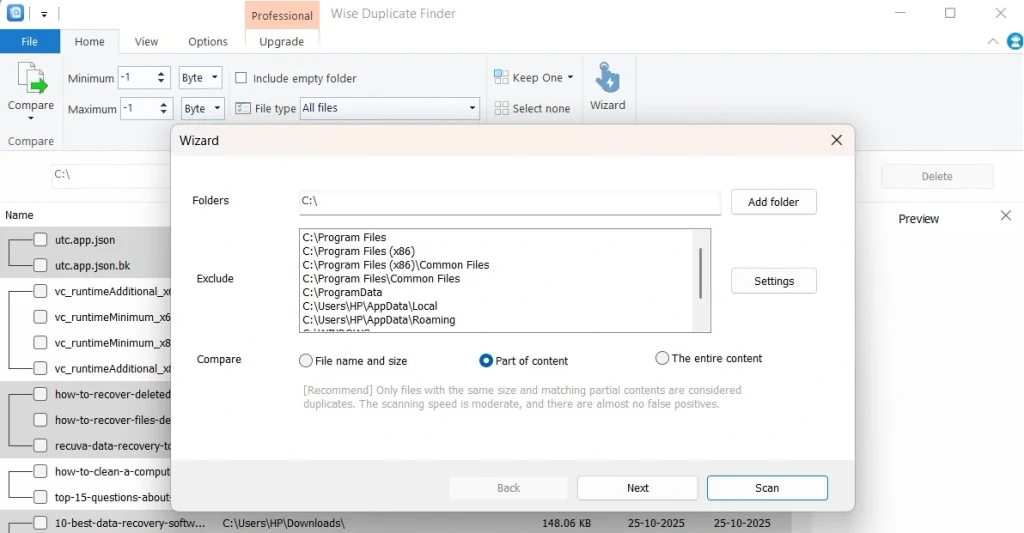
The app gives you three ways to compare files. The first compares by File Name and Size. It is the fastest because it checks only basic details.
The second is Part of Content. It looks at small blocks inside each file.
The third is Entire Content. It scans the full content and confirms that two files are truly the same. This mode is the slowest, but also the safest.
Pick the option that fits your time and your needs. For a quick cleanup, use the first one. For photos and important work files, choose the third.
2. Folder and Drive Selection
You decide where the app looks. Click the Select Folder button and add any folder or drive. You can also add a network drive by typing its address. This helps if you keep files on a shared box or an office server. You can scan one small folder or your whole disk. The app supports many file types, such as photos, videos, audio, documents, and emails. That means you do not need a separate cleaner for each kind of file.
3. Preview Panel
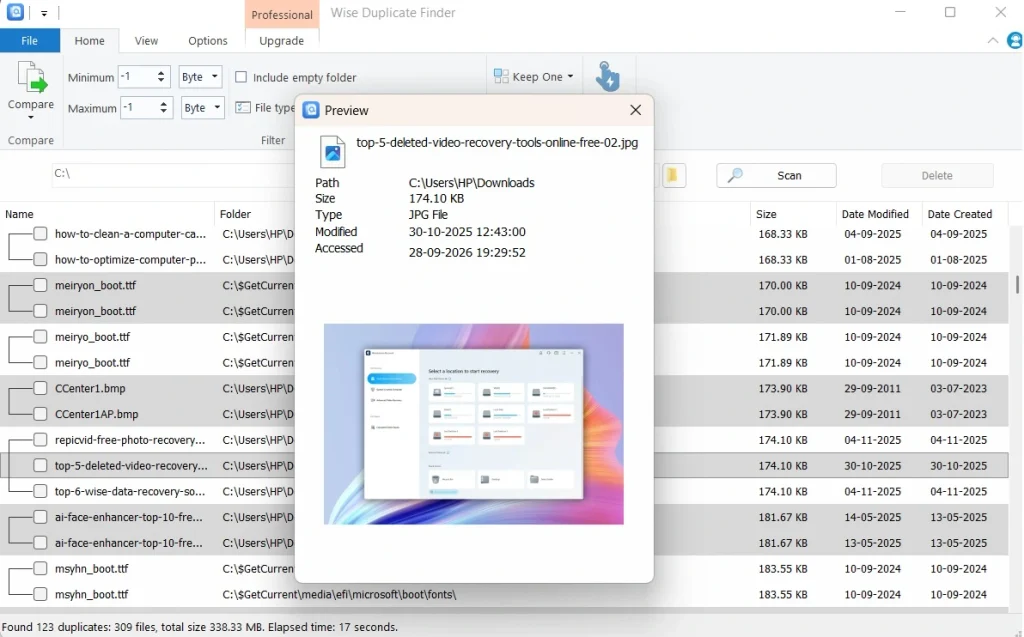
Deleting the wrong file is the biggest fear for most people. The preview panel helps with that. After that, click any file in the results and see it right away. You can check a photo or a document before you decide what to do. It is a small feature, but it adds a lot of confidence. You no longer need to open each file in a new window just to be sure.
4. One-Click Selection
After a scan, the results can be long. Picking files one by one takes a lot of time. The one-click selection feature solves this. It helps you mark the unwanted copies in each group, so you keep one file and remove the rest. If you are cleaning a big photo library, it can save you a lot of effort. Free users can still pick files by hand. It just takes longer.
5. Backup and Restore
This is the safety net. Before the app deletes a duplicate, it can make a backup. If you find out later that you needed that file, you can restore it. WiseCleaner lists this feature with the paid plan on its upgrade page. So check the current feature list before you rely on it. Even so, the idea is good. A cleaner should never leave you without a way back. This feature makes the app feel much safer to use.
6. Custom View and Safety Options
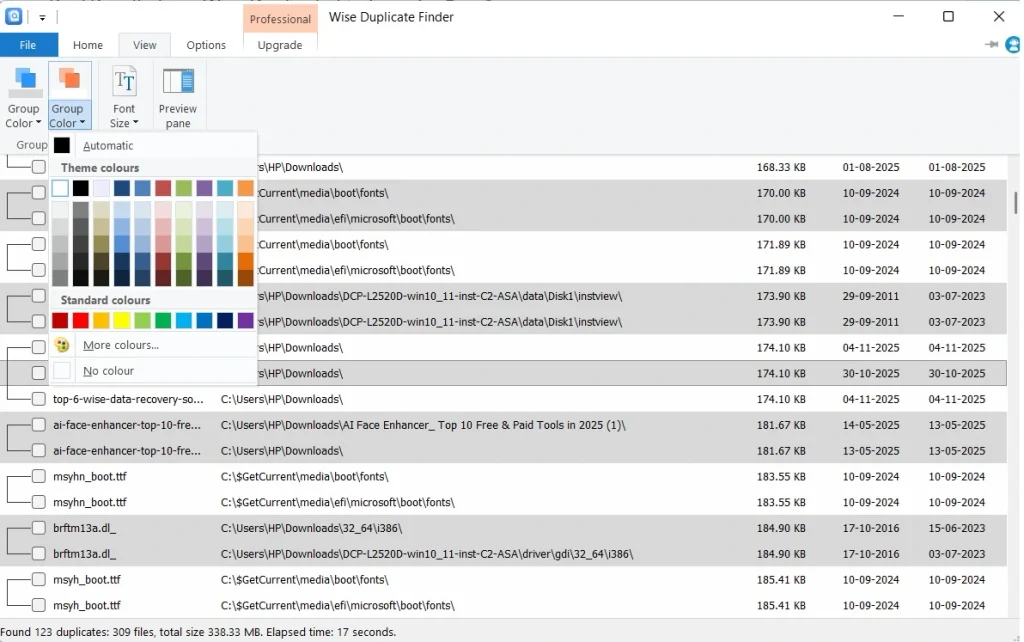
The app lets you change how results look. In the View tab, you can change the group color or the font size. This makes long lists easier to read. In the Options tab, you can choose to send deleted files to the Recycle Bin. You can also turn on the backup and restore option. These settings take only a minute to set. But they make every future scan calmer and safer. I would turn them on before the first scan.
Part 4: How to Use Wise Duplicate Finder Tool: Step-by-Step Guide
Using this app is easy. You do not need to read a long manual. The whole process takes three simple steps. Most people finish their first scan in a few minutes.
Before you begin, make a plan. Decide which folders you want to clean. Downloads, Pictures, and Documents are good places to start. Avoid system folders like Windows and Program Files. Deleting files from those places can break your PC. Now let us walk through the steps.
Step 1: Download and Install the App
Go to the official WiseCleaner website and download the free setup file. Once the install ends, launch the app. It opens in a clean window with a Select Folder option at the top. Click Select Folder and add the folders you planned to clean. You can add more than one.
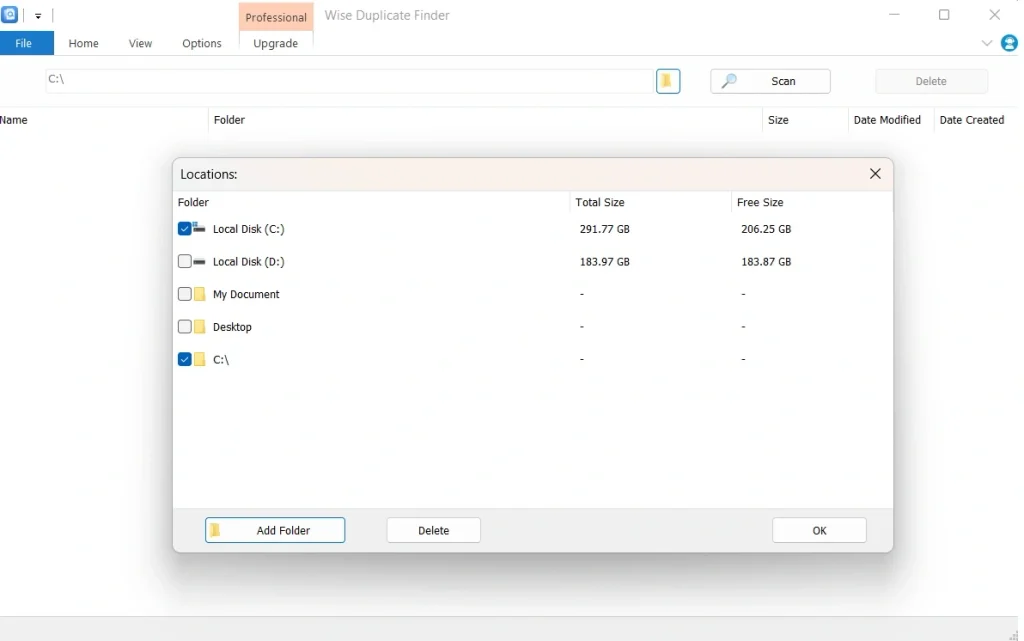
Step 2: Choose Folders and Start the Scan
Next, pick a scan mode. Choose Match Name and Size for speed. Choose Exact Match for safety. Before you scan, open the Options tab. Turn on the option to delete files to the Recycle Bin. Also turn on backup and restore if it is available. Now click the Scan button. A progress bar will show how far the scan has gone. Big folders take longer, so be patient.
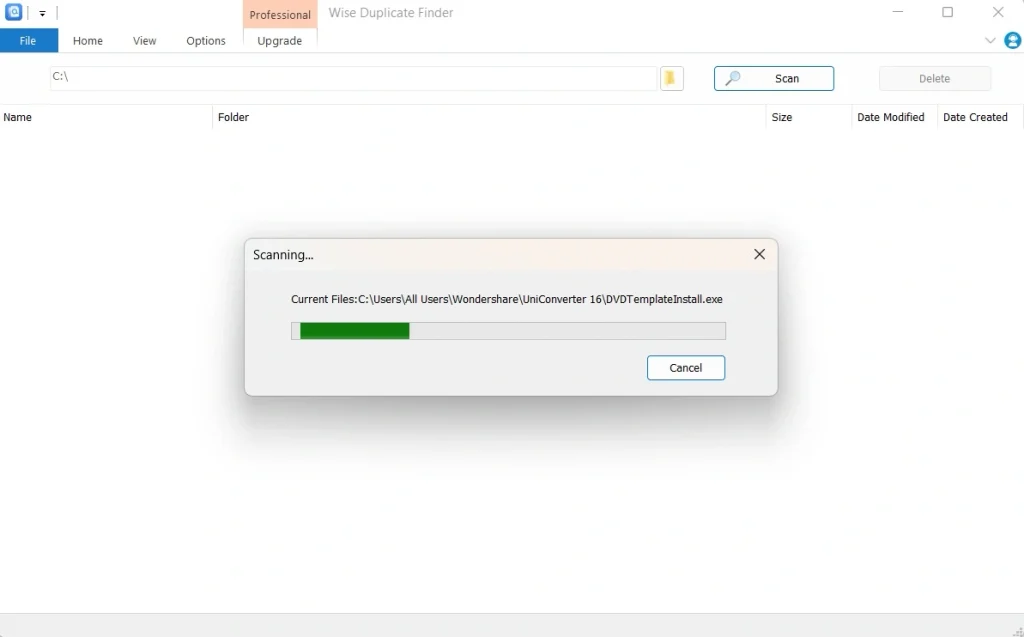
Step 3: Review the Results and Delete
When the scan ends, the app shows duplicates in groups. Each group holds files that match. Click a file and use the preview panel to check it. Keep one copy in each group and mark the rest. Pro users can use one-click selection to mark them fast. Free users can tick the boxes by hand. Read the list once more before you press Delete. Then click the Delete button. The app removes the marked files, and your free space grows. If you notice a mistake later, check the Recycle Bin or the restore option.
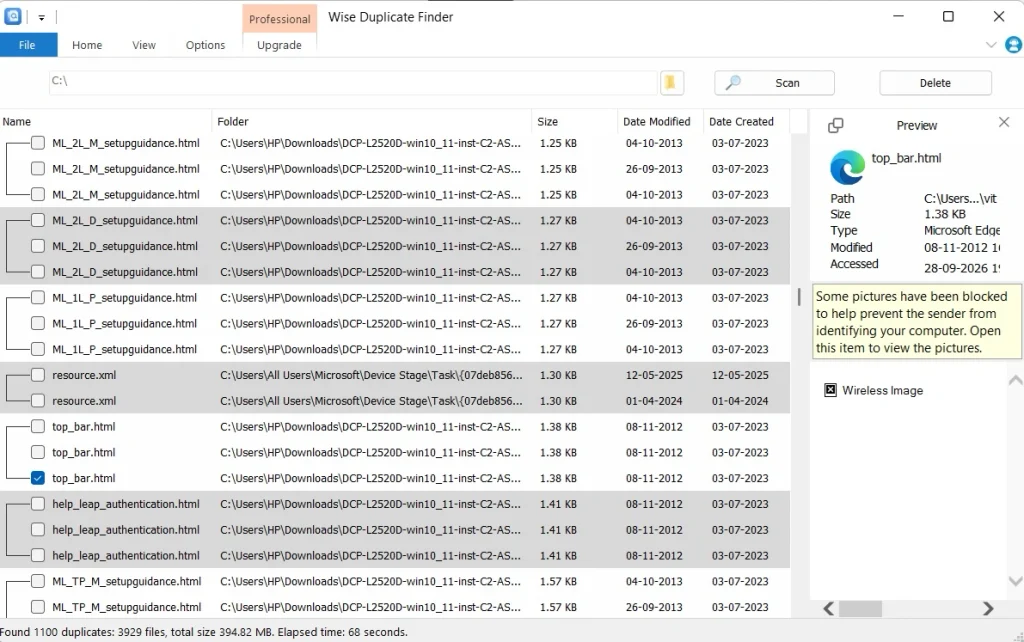
Part 5: Wise Duplicate Finder Pros and Cons: The Good and the Not So Good
No app is perfect. Wise Duplicate Finder does its main job well. But it has a few weak spots too. I think a fair review must show both sides. Here is a clear list of what I liked and what I did not like. Read it before you decide.
Pros
- Easy to use: The window is clean, and the steps are short. A new user can finish a scan without any help.
- Free version available: You can find and delete duplicates without paying. This makes the app easy to try.
- Safe deletion options: You can send files to the Recycle Bin and use the preview panel. These small tools stop many mistakes.
- Three scan modes: You get a fast option and a careful option. That gives you real control over the scan.
Cons
- Windows only: The app does not run on Mac or phones. Users on other systems need a different tool.
- Some comfort features need Pro: One-click selection, automatic updates, and premium support are listed under the paid plan. Free users must do more by hand.
- Exact Match is slow: Deep scans on big drives take time. You may need to wait a while.
- Yearly billing: The Pro plan is a subscription. It renews every year, so you must remember to manage it.
Part 6: Pricing Plans: Wise Duplicate Finder Tool
WiseCleaner keeps the pricing simple. There are two choices: a free plan and a paid plan. Here is what each one offers, based on the official upgrade page.
Free Version
- Cost: Free
- Features: Basic duplicate scanning and manual file removal.
- Limitations: No auto-clean, no advanced filters, no priority support.
Pro Version
- Price: $14.95/year (discounted from $29.95)
- Features: Auto-clean duplicates, advanced file matching, restore deleted files, priority support.
- Validity: 1 year, 1 PC license.
Lifetime License
- Price: $29.95-$49.95 (varies by promotion)
- Features: Permanent access to Pro features, lifetime updates, premium support.
- Best for: Long-term users who want one-time payment.
Here’s a detailed Free vs Paid Plan comparison table for Wise Duplicate Finder:
| Feature | Free Plan | Paid Plan |
| Duplicate Scan | ✅ Full system scan available | ✅ Full system scan available |
| Auto Clean | ❌ Manual deletion only | ✅ Automatic duplicate removal |
| File Restore | ❌ Not available | ✅ Restore deleted files easily |
| Advanced Filters | ❌ Basic file type matching | ✅ Deep match by name, size, and content |
| Speed & Performance | ⚠️ Slower scan on large drives | ✅ Optimized for faster scanning |
| Interface Customization | ❌ Limited options | ✅ Adjustable view and sorting |
| Customer Support | ❌ Community forum only | ✅ Priority email support |
| License Coverage | Free (no activation required) | 1 PC per license |
| Updates | ❌ Manual updates | ✅ Automatic updates included |
| Price | Free | $14.95/year or $29.95 lifetime |
Summary:
The Free Plan is suitable for occasional cleanup and manual duplicate removal. The Paid Plan adds automation, recovery, and advanced matching. It is ideal for regular maintenance or large storage drives.
Part 7: Cleaning My Drive with Wise Duplicate Finder: Real Test
I installed the app on my Windows 11 laptop. The setup took less than two minutes. I did not need to restart the PC. I picked my Downloads, Pictures, and Documents folders and used the exact match mode. The window felt clean and calm. I did not see any confusing buttons. As a person who works on this laptop all day, I liked that the app did not push me around.
The scan took a few minutes because I chose the slow mode. When it ended, the app had found many groups of duplicates. Most were old photos and downloaded PDFs. A few were files I had saved twice under different names. That surprised me. The preview panel was very helpful here. I checked each photo before I marked it. I kept the copy with the best name and removed the rest. In the end, I got back several gigabytes of space.
Was it perfect? No. The results list felt long when I scanned a big folder. Picking files by hand took some patience. One-click selection would have helped, and that is a Pro feature. I also wished for a few more filters. Still, the app never froze and never made me feel unsafe. I turned on the Recycle Bin option first, and that gave me peace of mind. For a free tool, I think it does what it promises. I would use it again every few months.
Part 8: What Users and Trusted Sites Say About Wise Duplicate Finder
Users generally find Wise Duplicate Finder easy to use and effective for basic duplicate cleanup, but trusted review sites note that it lacks advanced features like cloud storage support and requires a paid plan for bulk deletion.
Expert ratings average around 4.3/5, with praise for affordability and simplicity, but some criticism for limited functionality.
Expert Reviews
- Cisdem Review
- Highlights: Compatible with Windows 7+, scans photos, songs, and documents quickly.
- Pros: Fast scan speed, simple interface, one-click removal of duplicates.
- Cons: No cloud storage support, limited customization, subscription required for full features.
- Verdict: Good for average users, but advanced users may prefer alternatives.
- SoftwareHope Overview
- Rating: 4.3/5 (58 reviews), Trust Score 67%.Recognition: Ranked #16 in System Cleanup & Optimization, awarded “Best Value for Money” and “Easiest to Use.”Pricing: Budget-friendly, ~52% lower than category average.
- Strengths: Solid performance, uptime, verified buyer satisfaction.
User Feedback
- Verified User Reviews
- Overall rating: 4.3/5 from 57 verified users.
- Positive: Users appreciate its straightforward design and ability to quickly free up space.
- Negative: Some users report slower scans on large drives and wish for more advanced filters.
- Recommendation rate: ~86% of users recommend it.
Comparison Table: Expert vs User Sentiment
| Aspect | Expert Sites | User Reviews |
| Ease of Use | Praised as simple and beginner-friendly | Rated “Easiest to Use” award |
| Performance | Fast scans but limited features | Effective for small/medium drives |
| Advanced Features | Missing cloud storage, limited filters | Users want more customization |
| Pricing | Affordable compared to competitors | Seen as good value |
| Support | Priority support only in paid plan | Mixed feedback on responsiveness |
Key Takeaways
- Best for casual users who want a quick, affordable way to clean duplicates.
- Not ideal for power users needing cloud integration or advanced filtering.
- Free plan works for manual cleanup, but paid plan unlocks automation and recovery.
Conclusion
Wise Duplicate Finder is a small app with a clear goal. It finds copies of your files and helps you remove them. It does this in a simple way. The three scan modes give you control. The preview panel and Recycle Bin option add safety. For most home users, the free version is enough to get started.
The paid plan is worth a look if you have a large photo or file library. Wise Duplicate Finder Pro adds one-click selection, automatic updates, and premium support. At $19.95 a year for three PCs, the price is fair. With a discount, it is even better. Just remember that it renews every year.
If your drive is filling up and you want a friendly duplicate file finder, this app is a good place to start. Back up your important files first. Scan a small folder before you scan a big one. Keep the preview panel on. A few careful minutes can give you back a lot of space, and it will not cost you a cent to try.
FAQs
1. Is Wise Duplicate Finder free and safe to use?
Yes, there is a free version, and you can use it to find and delete duplicates. The app comes from WiseCleaner, a company that has made PC tools since 2006. Download it only from the official website. That way, you avoid changed files from other sites. Also, turn on the Recycle Bin option before you delete anything. This keeps a safety net in place while you learn the app.
2. Which scan mode should I pick?
It depends on your goal. Match Name and Size is the fastest, so it suits a quick cleanup. Partial Match sits in the middle. Exact Match checks the full content, so it is the most accurate. It is also the slowest. For photos, videos, and work files, I suggest Exact Match. It lowers the chance of removing a file that only looks the same.
3. Can I get back a file that I deleted by mistake?
Often, yes. If you sent the file to the Recycle Bin, you can restore it from there. The app also has a backup and restore option, which WiseCleaner lists with its paid plan. Turn it on before you scan. If you empty the Recycle Bin and have no backup, the file may be gone. So always review the list before you press Delete.
Author Bio:
Dinesh Lakhwani 

Dinesh Lakhwani, the entrepreneurial brain behind “TechCommuters,” achieved big things in the tech world. He started the company to make smart and user-friendly tech solutions. Thanks to his sharp thinking, focus on quality and the motto of never giving up, TechCommuters became a top player in the industry. His commitment to excellence has propelled the company to a leading position in the industry.
Popular Post
Recent Post

How to Recover Deleted Files from Pen drive, USB Drive, SD Card
Introduction: On tech forums, you’ll often see posts like this: “I connected my pen drive to my laptop this morning, but the folder was empty. All my college project files had vanished. I don’t have a backup. Can someone help me?” Stories like this are very common. Pen drives, USB drives and SD cards are […]

How To Recover Files Deleted from the Recycle Bin [Windows 11]
Losing a file can happen in seconds. You clear your desktop, hit Delete, and empty the Recycle Bin. Then, just when you need that file again, it seems to have vanished. This guide will walk you through ways to restore files removed from the Recycle Bin. We will begin with simple fixes, then look at […]

Disk Drill Data Recovery Tool Explained: Full Review and Guide
It happens in a split second. You delete a folder by mistake. Your drive stops showing up. A photo album from your last trip just vanishes. And your stomach drops. Lost files feel personal. They are not just data. They are memories, work hours, and sometimes years of effort packed into a few gigabytes. When […]

Recover Deleted Files In Windows 11 With Software & Without
Introduction What is the first thing that goes through your mind the second an important file vanishes from a Windows 11 PC? For most people, it is a mix of panic and disbelief, followed by a frantic click through every folder that file could possibly be hiding in. It happens in a split second: one […]

EaseUS Data Recovery Wizard: Everything To Know
Data loss does not always come from a big disaster either. Most cases start small and boring. A drive gets formatted by mistake. A laptop freezes mid-save and restarts on its own. A memory card stops showing up after being pulled out too fast. None of these feel like emergencies at first, until you realize […]

Recuva Data Recovery Tool: Is it Actually Worth it?
When I first tried Recuva Data Recovery, I wanted to see if it could really bring back lost files. The tool is free, small in size, and promises quick recovery, which made me curious enough to test it on my own PC. The setup was fast, and the wizard guided me step by step. I […]

GetData Recover My Files Data Recovery Tool: Honest Review
A hard drive error brings a special kind of silence. Well, yes! The screen freezes, then a message appears saying the drive can’t be found or must be formatted. In that moment, years of photos and work files feel at risk. It never happens at a good time. Coffee spills near a laptop, a memory […]
Windows File Recovery: A Complete Review [Tried & Tested]
Imagine this. You spend hours perfecting a video project. You hit save. Then your laptop freezes, reboots, and when the screen comes back. The file is gone. Your stomach sinks. It’s not just you. Lost files happen all the time. A dropped hard drive, a bad update, an accidental delete, or a corrupted partition can […]

5 Best Data Recovery Software For Windows 11 and Windows 10
Introduction: A crashed drive can ruin a whole day. One minute your photos, work files, and tax records sit safe on your PC. The next minute they are gone. A power cut, a bad update, or one wrong click can wipe out years of memories and months of work in seconds. That sinking feeling is […]

