












The photos folder looked normal at first glance. Then the storage warning popped up. One trip photo appeared four times. A tax PDF sat in three different folders. Two old setup files were still in Downloads, and each one was over 500 MB. Nobody plans this mess. Copies pile up slowly. A download runs twice. […]
Emptying the Recycle Bin In Windows: Complete Guide
Introduction:
When a file is deleted in Windows, it is not erased immediately. It is first sent to the Recycle Bin, where it stays until it is removed permanently. Clearing the Recycle Bin is a quick way to regain storage space. Many users do this often to keep their system clean and working properly.
Knowing how to empty the Recycle Bin is a basic but important skill for every Windows user. If you never clear it, the Bin can fill up with hundreds of files and take up gigabytes of space. Some files may also contain sensitive information that you want gone for good. When you permanently delete files from the Recycle Bin, those files are removed from your drive and cannot be recovered without special software.
This guide walks you through everything, from precautions to methods to frequently asked questions.
Stop Before You Delete: Precautions You Should Know
Emptying the Recycle Bin is permanent. Once done, you cannot undo it through normal means. Before you go ahead with emptying the Recycle Bin in Windows, take a moment to review these important precautions. They will help you avoid losing something you may need later.
• Check what is inside first: Open the Recycle Bin and look through the files before you empty it. You may find something you deleted by accident. Scroll through the list and make sure nothing important is sitting there.
• Recover files if needed: If you spot a file you want to keep, right-click on it and choose Restore. This sends the file back to its original location. Do this before you proceed to permanently delete files from the Recycle Bin.
• Do not empty during system tasks: Avoid emptying the Recycle Bin while Windows is updating or running a disk scan. Doing so can sometimes cause minor errors or slow down the process.
• Backup important data regularly: Get into the habit of backing up your files to an external drive or cloud storage. This way, even if you accidentally delete something and empty the bin, you have a copy saved elsewhere.
• Be careful with shared computers: If you share a computer with others, check with them before emptying the Recycle Bin. Someone else may have deleted a file they still need and planned to restore it.
• Know that recovery is difficult after emptying: Once you choose how to empty the Recycle Bin and confirm the action, those files are gone from standard view. Recovery tools can sometimes bring files back, but it is never guaranteed and can be costly.
Both Sides of the Coin: Advantages and Disadvantages
Like most actions on a computer, there are good reasons to clear your Recycle Bin and a few reasons to be careful. Here is a balanced look at what happens when you go ahead with emptying Recycle Bin in Windows. Understanding both sides helps you make smarter decisions.
Advantages
- Frees up disk space: Files in the Recycle Bin still use storage. Clearing them can recover space instantly.
- Keeps the system tidy: An empty bin helps maintain a cleaner and more organized system.
- Removes sensitive data: Permanently deleting files reduces easy access to private information.
- Improves performance in some cases: A full bin can affect certain disk tasks, so clearing it may help things run smoothly.
Disadvantages
- No easy undo: Once emptied, files are permanently removed and cannot be restored easily.
- Risk of losing important files: Skipping a quick check may lead to accidental deletion of useful data.
- Recovery is uncertain: Data recovery tools do not always work, especially if files are overwritten.
- Issues on shared systems: One user clearing the bin can remove files that another user still needs.
Answers to Questions You Might Still Have
Q1: Does emptying the Recycle Bin actually free up space?
Yes, it does. Files in the Recycle Bin still occupy space on your hard drive or SSD. Emptying Recycle Bin in Windows removes those files from your storage and gives that space back to the system. If your drive is nearly full, clearing the bin is one of the quickest ways to gain free space without buying new hardware.
Q2: Can I recover files after I permanently delete files from Recycle Bin?
It is very difficult but not impossible. Once you permanently delete files from Recycle Bin, the operating system marks that storage space as available. Until new data is written over it, a recovery tool like Recuva or Disk Drill may be able to retrieve the file. However, the longer you wait and the more you use the computer afterward, the lower your chances of a successful recovery.
Q3: How often should I empty the Recycle Bin in Windows?
There is no strict rule, but doing it once a week or once a month is a healthy habit for most users. If you work with large files like videos or design assets, you may want to clear it more often. Windows also lets you set a storage limit on the Recycle Bin so it clears automatically when it gets too full. Adjust this in the Recycle Bin Properties settings.
Q4: What happens if I skip how to empty Recycle Bin for a long time?
If you never clear the Recycle Bin, deleted files pile up and eat into your available storage. Over time, this can slow down your system, especially if you have a small drive. You might notice programs taking longer to load or your PC running sluggishly. While the bin itself does not cause major damage, keeping it clean is part of good system maintenance.
3 Methods to Empty the Recycle Bin on Windows
There is more than one way to go about emptying the Recycle Bin in Windows. Whether you like using the mouse, keyboard shortcuts, or built-in tools, Windows has an option for you. Below are three clear, easy-to-follow methods that work on Windows 10 and Windows 11.
Method 1: Empty the Recycle Bin Directly from the Desktop
This is the most common and straightforward way to empty the Recycle Bin. It takes just a few seconds and does not require opening any extra settings or menus. If you can see the Recycle Bin icon on your desktop, you are ready to go.
Step 1: Right-click the Recycle Bin on your desktop and select “Empty Recycle Bin.”
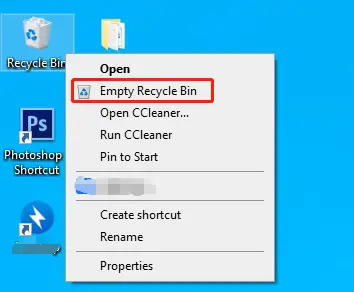
Step 2: Click “Yes” to confirm. Files will be deleted, and the icon will appear empty.
Method 2: Empty the Recycle Bin from Inside the Folder
This method is great if you want to review your deleted files before clearing them. Opening the Recycle Bin as a folder gives you full visibility into everything waiting to be deleted. It is the safest way to go about how to empty Recycle Bin if you are not sure what is stored inside.
Step 1: Open the Recycle Bin and review the files. Restore anything you need.
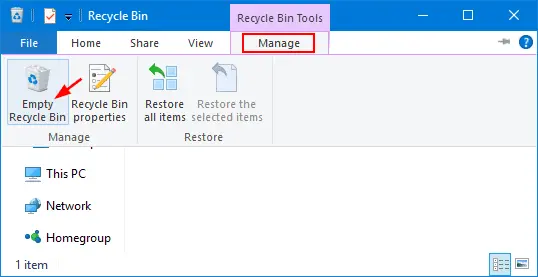
Step 2: Click “Empty Recycle Bin,” then confirm with “Yes.” Files will be permanently deleted.
Method 3: Use Windows Storage Sense or Settings to Auto-Empty
Windows 10 and 11 include a built-in feature called Storage Sense that can automatically manage your disk space. This tool can be set to handle how to empty the Recycle Bin on a schedule, no manual action needed. It is perfect for users who want a hands-off approach to permanently delete files from Recycle Bin over time.
Step 1: Open Settings > System > Storage and turn on Storage Sense.
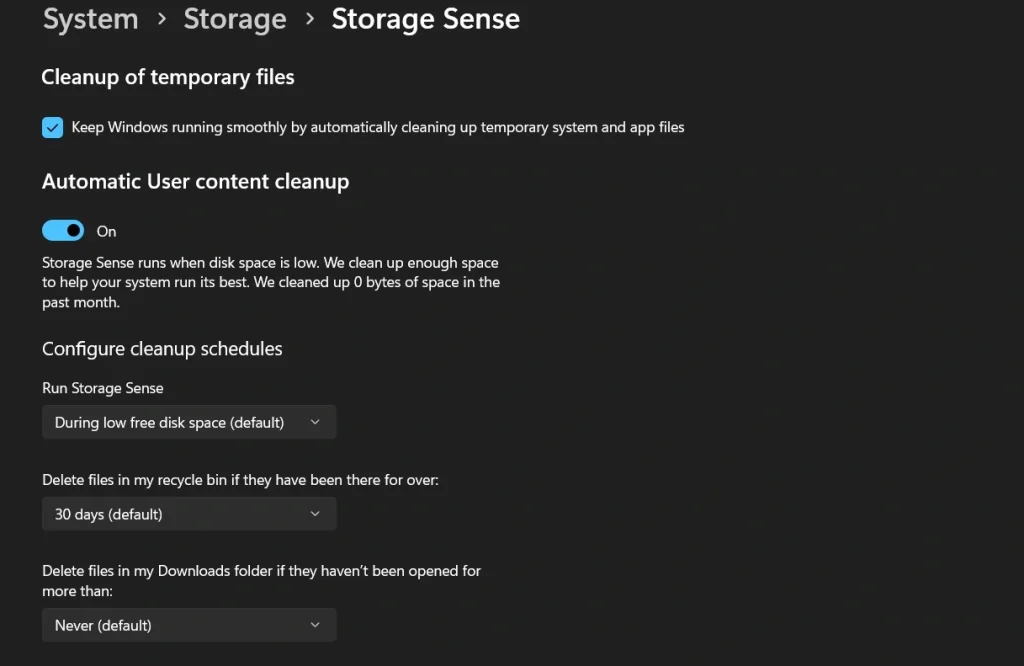
Step 2: Set how long files stay in the Recycle Bin. It will clean them automatically.
Author’s Tip
A useful habit is to check the Recycle Bin before clearing it. Open the folder and sort files by Date Deleted. This places the most recent items at the top, making it easier to catch anything removed by mistake. It only takes a few seconds and can help avoid losing important files.
For a hands-off approach, enable Storage Sense and set it to clear the Recycle Bin every 30 days. This gives enough time to restore files if needed while keeping storage free from old data. It runs automatically in the background.
For quicker access, pin the Recycle Bin to the Start menu or taskbar. Simple steps like these make regular system upkeep easier and more consistent.
Conclusion
The Recycle Bin is one of the most used yet least thought-about features in Windows. It catches all your deleted files and gives you a safety net before they are gone for good. Knowing the right way of emptying Recycle Bin in Windows means you are in full control of your storage and your data. You never have to worry about your drive filling up with old, unwanted files again.
All three methods covered in this guide are easy and work across Windows 10 and Windows 11. Whether you prefer a quick right-click on the desktop, a careful manual review inside the folder, or an automatic schedule through Storage Sense, there is a method that fits your style. Learning how to empty Recycle Bin in just a few clicks is a small skill with a big impact on system performance and privacy.
Take a moment today to open your Recycle Bin and see what is in there. You might be surprised by how much space is just sitting there unused. Once you permanently delete files from Recycle Bin that you no longer need, your computer will feel cleaner, faster, and more organized. Make it a regular part of your PC maintenance routine, and your Windows experience will be much better for it.
FAQs:
FAQ 1: Is there a keyboard shortcut for emptying the Recycle Bin in Windows?
There is no single universal keyboard shortcut that directly empties the Recycle Bin in one press. However, you can press Windows key + D to go to the desktop, then use the arrow keys to select the Recycle Bin icon, press the Application key (or Shift+F10) to open the context menu, and finally press ‘E’ to select Empty Recycle Bin. It takes a few keystrokes but works completely without a mouse once you get the hang of it.
FAQ 2: Can I set the Recycle Bin to automatically empty after a certain time?
Yes, and it is quite easy to do. Windows has a built-in feature called Storage Sense that can automatically handle how to empty the Recycle Bin on a schedule. Go to Settings, then System, then Storage, and turn on Storage Sense. From there, you can set the Recycle Bin to auto-clear after 1, 14, 30, or 60 days. Once configured, Windows takes care of it without you needing to remember.
FAQ 3: Does the Recycle Bin store files from all drives on my PC?
Yes, by default, Windows creates a hidden Recycle Bin folder on every drive connected to your PC. So if you delete files from your C: drive and your D: drive, both sets of files end up in what appears to be one Recycle Bin on your desktop. When you permanently delete files from the Recycle Bin, files from all drives are cleared together. Each drive maintains its own hidden folder, but they are all shown to you in a single unified view through the desktop icon.
Author Bio:
Dinesh Lakhwani 

Dinesh Lakhwani, the entrepreneurial brain behind “TechCommuters,” achieved big things in the tech world. He started the company to make smart and user-friendly tech solutions. Thanks to his sharp thinking, focus on quality and the motto of never giving up, TechCommuters became a top player in the industry. His commitment to excellence has propelled the company to a leading position in the industry.
Popular Post
Recent Post

Wise Duplicate Finder Review: Real Results from Wise Duplicate Finder
Read my honest Wise Duplicate Finder review. See features, pricing, pros and cons, and real PC test results. Find out if this free duplicate cleaner can free up your Windows storage.

How to Recover Deleted Files from Pen drive, USB Drive, SD Card
Introduction: On tech forums, you’ll often see posts like this: “I connected my pen drive to my laptop this morning, but the folder was empty. All my college project files had vanished. I don’t have a backup. Can someone help me?” Stories like this are very common. Pen drives, USB drives and SD cards are […]

How To Recover Files Deleted from the Recycle Bin [Windows 11]
Losing a file can happen in seconds. You clear your desktop, hit Delete, and empty the Recycle Bin. Then, just when you need that file again, it seems to have vanished. This guide will walk you through ways to restore files removed from the Recycle Bin. We will begin with simple fixes, then look at […]

Disk Drill Data Recovery Tool Explained: Full Review and Guide
It happens in a split second. You delete a folder by mistake. Your drive stops showing up. A photo album from your last trip just vanishes. And your stomach drops. Lost files feel personal. They are not just data. They are memories, work hours, and sometimes years of effort packed into a few gigabytes. When […]

Recover Deleted Files In Windows 11 With Software & Without
Introduction What is the first thing that goes through your mind the second an important file vanishes from a Windows 11 PC? For most people, it is a mix of panic and disbelief, followed by a frantic click through every folder that file could possibly be hiding in. It happens in a split second: one […]

EaseUS Data Recovery Wizard: Everything To Know
Data loss does not always come from a big disaster either. Most cases start small and boring. A drive gets formatted by mistake. A laptop freezes mid-save and restarts on its own. A memory card stops showing up after being pulled out too fast. None of these feel like emergencies at first, until you realize […]

Recuva Data Recovery Tool: Is it Actually Worth it?
When I first tried Recuva Data Recovery, I wanted to see if it could really bring back lost files. The tool is free, small in size, and promises quick recovery, which made me curious enough to test it on my own PC. The setup was fast, and the wizard guided me step by step. I […]

GetData Recover My Files Data Recovery Tool: Honest Review
A hard drive error brings a special kind of silence. Well, yes! The screen freezes, then a message appears saying the drive can’t be found or must be formatted. In that moment, years of photos and work files feel at risk. It never happens at a good time. Coffee spills near a laptop, a memory […]

Windows File Recovery: A Complete Review [Tried & Tested]
Imagine this. You spend hours perfecting a video project. You hit save. Then your laptop freezes, reboots, and when the screen comes back. The file is gone. Your stomach sinks. It’s not just you. Lost files happen all the time. A dropped hard drive, a bad update, an accidental delete, or a corrupted partition can […]

