











PCs feel fast on the first day. Every click is quick. Apps open right away. With time, things slow down. Programs take longer to load. Files open slowly. Fans get loud even during light use. This happens to almost every computer, no matter how careful you are. The reason is clear. Junk files build up […]
How to Update Wireless Network Driver in Windows 11 and 10
Your Wi-Fi keeps dropping. Pages load slowly. The connection feels unstable?
Well, you are not alone. Most of the time, the problem is not with your internet plan. It is with your wireless network driver. A driver is a small piece of software that helps your computer talk to its hardware. When it gets outdated, things stop working the way they should.
Knowing how to update wireless network driver on your PC can fix many common connectivity issues. It is one of the first things tech experts recommend when someone reports Wi-Fi problems. The process is not complicated. You do not need to be a tech professional to do it. With the right steps, anyone can get it done in a few minutes.
This article walks you through the entire process, including important preparation steps, different update methods, and practical tips to avoid common problems. The instructions work for both Windows 10 and Windows 11, with only minor differences between the two versions.
After reading, you will have a clear understanding of how to update your wireless network driver safely and correctly.
Before You Begin: Smart Steps to Take First
Updating a driver is usually straightforward, but taking a few precautions first can help you avoid unnecessary issues. Before you begin, make sure your important files are backed up and your system is ready for the update. These simple steps can save time and reduce the risk of problems later.
- Create a System Restore Point: Before touching any driver, create a restore point. If something goes wrong after the update, you can roll your system back to its current state. Go to the Start menu. Search for “Create a restore point”. Follow the on-screen instructions. It takes less than a minute and can save hours of trouble.
- Note Your Current Driver Version: Open Device Manager, find your wireless adapter, and right-click on it. Go to Properties. Then the Driver tab. Write down the current version number. This helps you compare before and after the update. It also helps if you ever need to roll back.
- Keep Your Laptop Plugged In: Do not update a driver on battery power. If the laptop shuts down mid-update, it can corrupt the installation. Plug it into a power source and keep it connected throughout the process.
- Have a Backup Internet Connection Ready: Once you start the update, your Wi-Fi may disconnect temporarily. Have a mobile hotspot or a wired Ethernet connection as a backup. This is especially useful if you are downloading the driver manually.
- Close Unnecessary Applications: Running too many programs during a driver update can interfere with the installation. Close your browser tabs, streaming apps, and background tools before you begin. This gives the update enough system resources to run cleanly.
- Download Drivers Only from Trusted Sources: If you are downloading a driver manually, always go to the official manufacturer’s website. Avoid third-party driver sites unless they are very well-known. Unofficial drivers can carry malware or cause system instability.
- Check Windows Update History: Sometimes Windows has already pushed a driver update, but it failed silently. Go to Settings, then Windows Update, then Update History. See if there is a failed driver update listed. Fix that first before trying other methods.
- Back Up Important Files: This is a general best practice before any system change. Use an external hard drive or a cloud service to back up documents, photos, and work files. It is a small effort that protects you from any unexpected data loss.
Things People Often Wonder About This:
Why does my wireless driver need updating?
Drivers are software, and like all software, they can become outdated. Hardware manufacturers release updated drivers to fix bugs, improve compatibility with new Windows versions, and boost performance. If your Wi-Fi keeps disconnecting or running slowly, an outdated driver is often the cause. Updating it brings in the latest fixes and improvements so your network adapter can work the way it is designed to.
Should You Update Your Wireless Network Driver?
Yes, it is generally safe. However, there are rare cases where a new driver update may cause issues, especially if the update is still new and not fully tested on all hardware. This is why creating a system restore point beforehand is important. If the new driver causes problems, you can roll back to the previous version easily. As long as you follow the steps carefully and use official sources, the update should go smoothly.
Can Installing the Wrong Driver Cause Problems?
Installing the wrong driver can cause your wireless adapter to stop working entirely. Your PC may fail to detect the Wi-Fi hardware, or the connection may become very unstable. In some cases, Windows will show an error in Device Manager with a yellow triangle. If this happens, go back to Device Manager, right-click the adapter, and choose Roll Back Driver if the option is available. If not, uninstall the driver and reinstall the correct one from the manufacturer’s site.
How often should I update the wireless network driver on my PC?
There is no fixed schedule. Most users do not need to update drivers unless something is not working correctly. However, it is good practice to check for driver updates every few months, especially after a major Windows update. Manufacturers sometimes release updated drivers alongside new Windows versions to ensure compatibility. If your connection is stable and fast, you can skip the update. If you notice performance drops or frequent disconnections, check for updates right away.
How to Update Wireless Network Driver: 3 Easy Methods
Before jumping into the steps, let’s go over the basics. Windows gives you more than one way to update wireless network driver. Each method has its strengths. Some are faster. Some are better for older hardware. You can choose whichever fits your situation.
Read through each option and pick the one that works best for you.
Method 1: Using Device Manager
Device Manager is built into Windows and gives you direct access to all your hardware drivers. It is the most commonly used tool for managing and updating drivers. You do not need to download anything extra. Everything is handled inside Windows itself.
This method works well when Windows already knows about the latest driver version from its own database. If your system is connected to the internet, Windows will search online and install the newest compatible driver. It is quick and straightforward.
Steps to follow:
- Open Device Manager > Network Adapters. Right-click your wireless adapter and select Update Driver. Choose Search automatically for drivers.
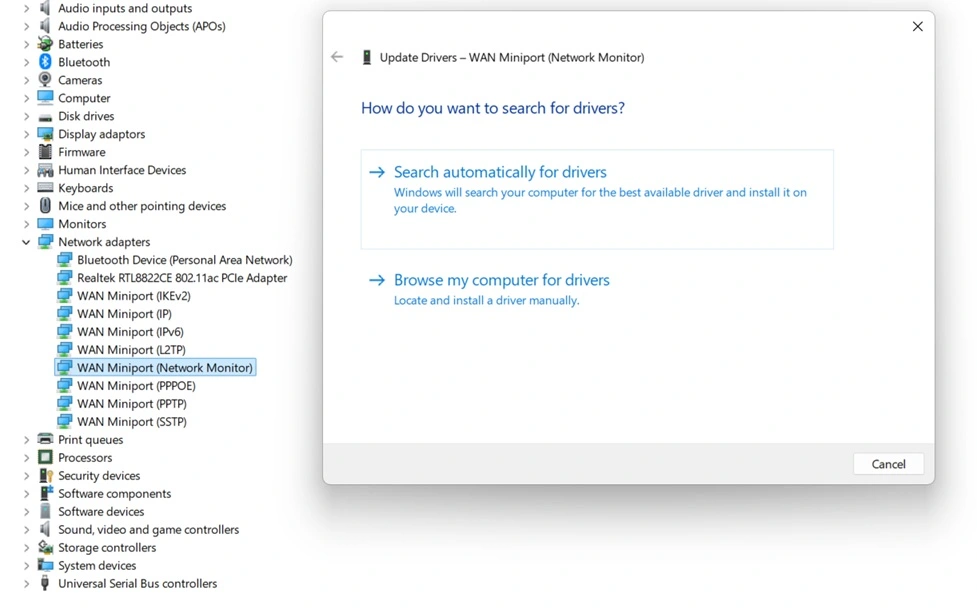
- If no update is found, select Browse my computer for drivers > Let me pick from a list, then install the newest driver available. Restart your PC if prompted.
Method 2: Through Windows Update
Windows Update does more than just patch the operating system. It also delivers driver updates for many common hardware components, including your wireless adapter. This method is ideal if you prefer letting Windows handle everything automatically.
Many users overlook this method. But it is actually one of the most reliable ways to get a tested and compatible driver. Microsoft and hardware makers work together to ensure the drivers delivered through Windows Update are stable and safe for your system.
Steps to follow:
- Press Windows + I to open Settings. Go to Windows Update and click Check for updates.
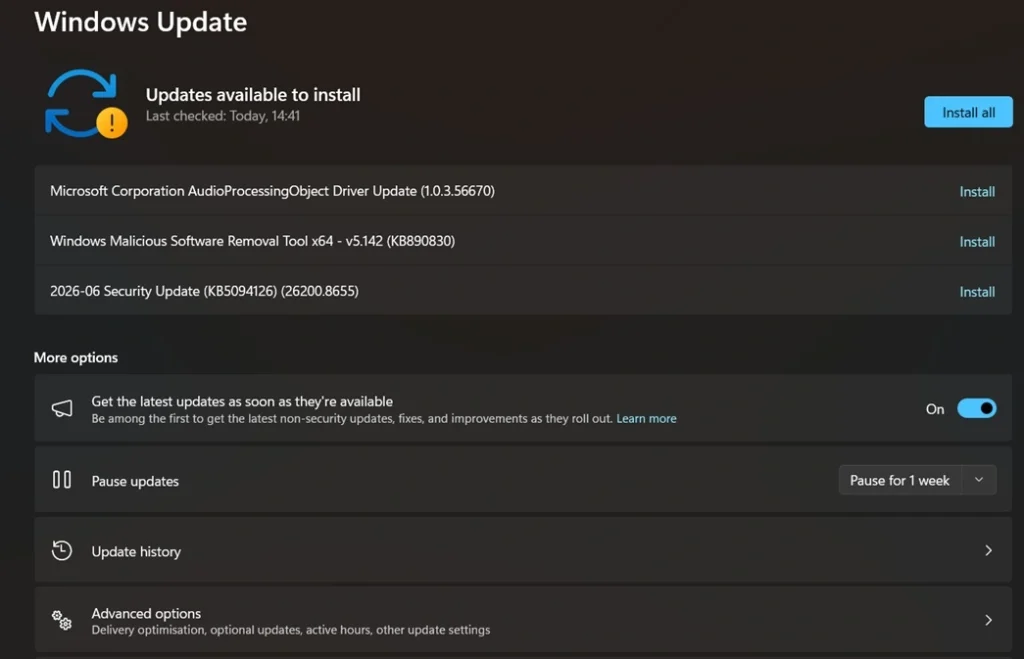
- If a wireless driver update appears under Optional Updates → Driver Updates, install it. Restart your PC when finished.
Method 3: Manual Download from the Manufacturer’s Website
Sometimes Windows Update and Device Manager do not have the latest driver. This happens with newer hardware or very specific adapter models. In those cases, going directly to the manufacturer’s website is the best option. You download the driver file yourself and install it manually.
This method gives you the most control. You can pick the exact version you want. It is also the right approach if you are troubleshooting a specific issue mentioned in the driver’s release notes. The download is free, and the installation takes just a few clicks.
Steps to follow:
- Find your wireless adapter model in Device Manager > Network Adapters. Visit the manufacturer’s website, download the latest driver for your Windows version, and run the installer.
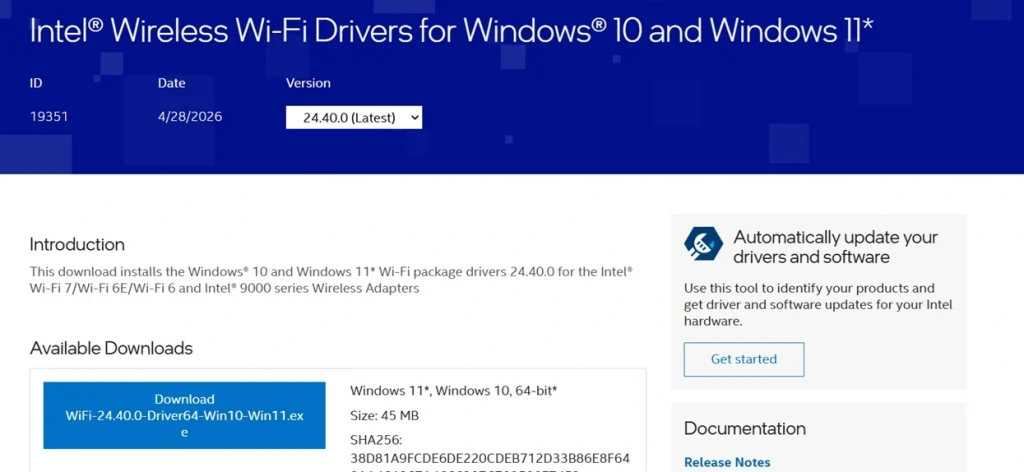
- Follow the on-screen steps, then restart your PC to apply the update.
Author’s Tip
One thing most guides do not tell you is this: after you update the wireless network driver, always check if the problem you had is actually fixed. Do not assume the update worked just because it installed without errors. Run your Wi-Fi for 30 minutes. Stream a video. Open multiple tabs. See if the connection holds. If things are still unstable, the issue may not be the driver at all.
Also, keep an eye on driver rollback. If a new driver causes more problems than the old one, you can go back. Open Device Manager, right-click your wireless adapter, go to Properties, and click the Driver tab. Hit Roll Back Driver if the option is active. This brings back the previous version without any fuss.
Lastly, if you manage multiple PCs at home or at work, consider using a trusted driver management tool to keep all drivers updated in one place. Tools like Driver Booster or Outbyte Driver Updater can scan your entire system and list outdated drivers. Always use the free version first to evaluate the software before spending money.
Conclusion
Wi-Fi issues are frustrating. But in most cases, the fix is simpler than people think. Learning how to update wireless network driver is one of the most effective first steps you can take when your connection is misbehaving. It does not require advanced technical knowledge. It just requires the right approach and a little patience.
The three methods covered in this guide work on both Windows 10 and Windows 11. Device Manager is the fastest route. Windows Update is the safest. The manufacturer’s website gives you the most control. Try them in the order that makes sense for your situation. You will likely find that one of them solves the problem quickly.
If none of the methods work, the issue might be hardware-related and not a software fix. In that case, consider consulting a technician. But for most users, taking the time to update the wireless network driver will bring their Wi-Fi back to full speed and stability. Start with the basics, follow the steps carefully, and you will be back online without much trouble.
FAQs
Q1. Can I update the wireless driver without an internet connection?
Yes, you can. If you have already downloaded the driver file on another device or a USB drive, you can transfer it to your PC and install it manually. Open Device Manager, right-click your wireless adapter, and choose Update Driver. Select Browse my computer for drivers and point it to the folder where the driver file is saved. Windows will pick it up and install it. This is a handy approach when the Wi-Fi is completely down, and you cannot connect online.
Q2. Will updating the driver delete my Wi-Fi saved passwords?
No. Updating a driver does not affect your saved Wi-Fi credentials. Your passwords are stored in Windows settings, not in the driver itself. After the update, your PC will reconnect to your saved networks automatically. If, for some reason, it does not, you may need to re-enter the password for that specific network. This is rare but possible after a fresh driver install, where old settings are cleared.
Q3. What if Device Manager shows no wireless adapter at all?
If you cannot see a wireless adapter in Device Manager, it means Windows is not detecting the hardware. This could be a driver issue or a hardware problem. First, check if the Wi-Fi is disabled in your BIOS settings. Also, check if there is a physical Wi-Fi toggle or function key on your laptop. If neither helps, try downloading the driver manually from the manufacturer’s site and installing it. If the adapter still does not appear after that, the hardware itself may be faulty and may need professional inspection.
Author Bio:
Dinesh Lakhwani 

Dinesh Lakhwani, the entrepreneurial brain behind “TechCommuters,” achieved big things in the tech world. He started the company to make smart and user-friendly tech solutions. Thanks to his sharp thinking, focus on quality and the motto of never giving up, TechCommuters became a top player in the industry. His commitment to excellence has propelled the company to a leading position in the industry.
Popular Post
Recent Post
Advanced SystemCare PC Cleanup Tool: A Detailed Review
You turn on your PC and wait. And wait. The same laptop that once opened apps in a snap now feels tired. This is not bad luck. It just happens over time. Files pile up. The registry gets messy. Old drivers stay installed long after they are useful. Junk data quietly eats up space on […]

Avast Cleanup PC Cleaner and Optimizer: Everything You Need to Know
A slow computer makes it hard to focus. Programs take too long to open. Free space keeps shrinking until the disk is almost full. This happens to most PC owners at some point. Even new machines can slow down after a while. That is the exact problem cleanup tools are built to solve. They comb […]

Fortect Software Review: The Ultimate PC & Mobile Cleaning, Optimization & Security Tool
Slow computers are a common problem for almost every Windows user. Well, yes! Over time, your PC picks up junk files. These files sit quietly in the background. They take up space and slow things down. Programs open slower. Windows takes longer to boot. Even simple tasks like opening a folder can feel sluggish. There […]

CCleaner PC Optimizer Review: A Complete Guide for Windows Users
If your computer has started to feel slow, you are not alone. Most Windows PCs slow down over time. Junk files pile up. The registry gets messy. Too many apps open when you start your PC. All this adds up and makes even a good machine feel tired. This is where a PC cleaner tool […]

5 Best PC Cleaners for Windows 11 & 10 | Top PC Optimizers
Remember when your PC felt fast? Every click was quick. Every app opened in seconds. Now it feels like a different machine. Windows takes forever to boot. Programs freeze for no reason. Even opening a browser feels like a chore. You are not alone in this. Almost every PC slows down over time. Files pile […]

Auslogics Duplicate File Finder: Full Review and User Guide
A computer quietly gathers clutter over time. This includes duplicate photos, repeated downloads, and forgotten backups hiding in random folders. This buildup slowly eats away at storage and can make even a fast PC feel sluggish. Manually finding and deleting duplicates is tedious. It means checking every folder, comparing file names, and guessing which copies […]

CCleaner Duplicate File Finder: Key Features, Pricing, Step-by-Step Guide and More
Every computer collects junk over time. Right? Well, yes! Photos often get copied twice. Documents get saved in two folders by mistake. Old downloads pile up and never get deleted. This slowly eats up your storage space, and most people do not even notice until their drive is almost full. That is where a duplicate […]

Duplicate File Finder Pro: A Complete Review, Everything You Should Know
Computers collect thousands of files over time. Well, yes! Many of them end up being duplicates created by backups, downloads, or accidental copies. These extra files take up valuable storage space and make it harder to keep everything organized. Finding and removing them manually can take hours. Right? Duplicate File Finder Pro is a tool […]

Top 3 Duplicate File Finder for Windows 11 & Windows 10
If your PC storage keeps filling up even after you delete big files, duplicate files could be the real reason. Most of us save the same photo twice, download a document more than once, or copy a whole folder by mistake. Over months and years, these duplicate files pile up quietly. You do not even […]

