










You turn on your PC and wait. And wait. The same laptop that once opened apps in a snap now feels tired. This is not bad luck. It just happens over time. Files pile up. The registry gets messy. Old drivers stay installed long after they are useful. Junk data quietly eats up space on […]
Common Windows 11 Problems and Solutions (2026 Version)
Windows 11 has become more polished over the years, but it is still not completely free from problems. Even after regular updates from Microsoft, many users continue to face issues like lagging performance, failed updates, audio troubles, random crashes, and network errors. Some problems appear after installing new features, while others develop gradually as the system gets older and more crowded with apps and background processes.
These issues can interrupt work, online classes, gaming, or even simple daily tasks. The good part is that most Windows 11 problems can be solved with a few basic steps and the right settings.
In this guide, we will go through the most common Windows 11 problems in 2026 along with easy and effective solutions to help improve your PC’s performance and stability.
11 Common Windows 11 Problems and Solutions (2026 Version)
Windows 11 is packed with useful features, but it is not always perfect. Many users still run into common issues like slow performance, update errors, WiFi problems, sound glitches, and apps crashing unexpectedly. Some problems appear after major updates, while others build up over time with regular use.
The good news is that most Windows 11 problems can be fixed without advanced technical skills. In this guide, we will cover the most common Windows 11 issues in 2026 and show you simple solutions that can help your PC run smoothly again.
1. Windows 11 Running Slow or Freezing
A slow PC is one of the most reported complaints. Windows 11 uses more resources than older versions. If your device has limited RAM or an older processor, slowdowns happen often. Apps take too long to open. The taskbar becomes unresponsive. Even simple tasks feel heavy.
Background apps are usually the main reason. Windows runs many processes without you knowing. Startup programs also add to the load. Over time, junk files and outdated drivers make things worse. A few quick changes can bring your PC back to speed.
Quick Steps:
- Press Ctrl + Shift + Esc. Open Task Manager. Close programs that are consuming too much CPU or RAM.
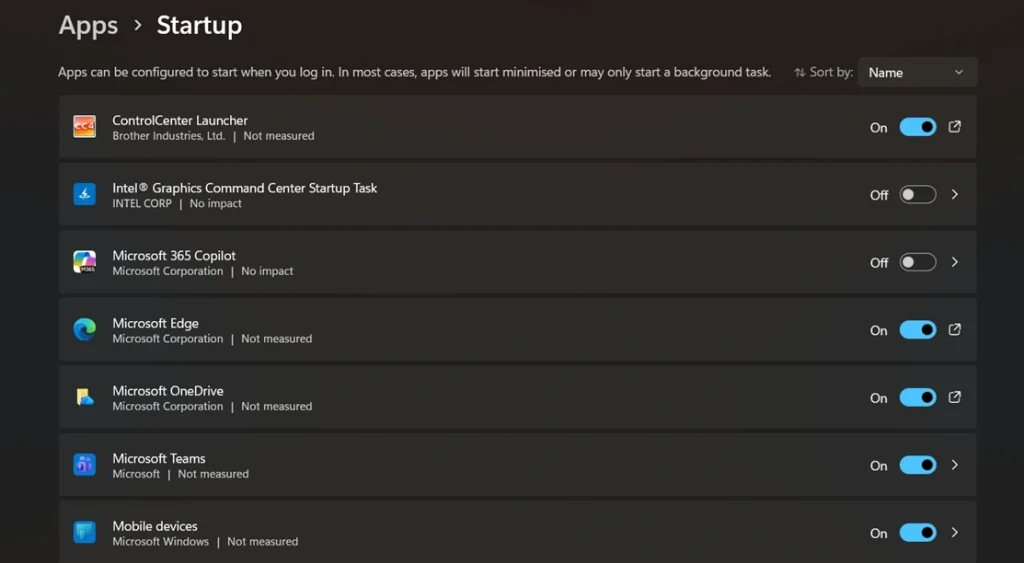
- Go to Settings > Apps > Startup. Turn off startup apps that you do not use regularly.
2. Windows Update Stuck or Failing
Windows Update issues are still one of the most common problems in Windows 11. In many cases, updates freeze midway during installation or fail with different error messages. Some systems repeatedly attempt to install the same update without success, which can prevent new security and performance updates from downloading properly.
Corrupted update files are often the cause. A poor internet connection can also interrupt the download. The Windows Update service itself may stop working in the background. Fixing this issue early prevents bigger security risks later.
Quick Steps:
- Open Settings > Windows Update > Advanced Options > Delivery Optimization.
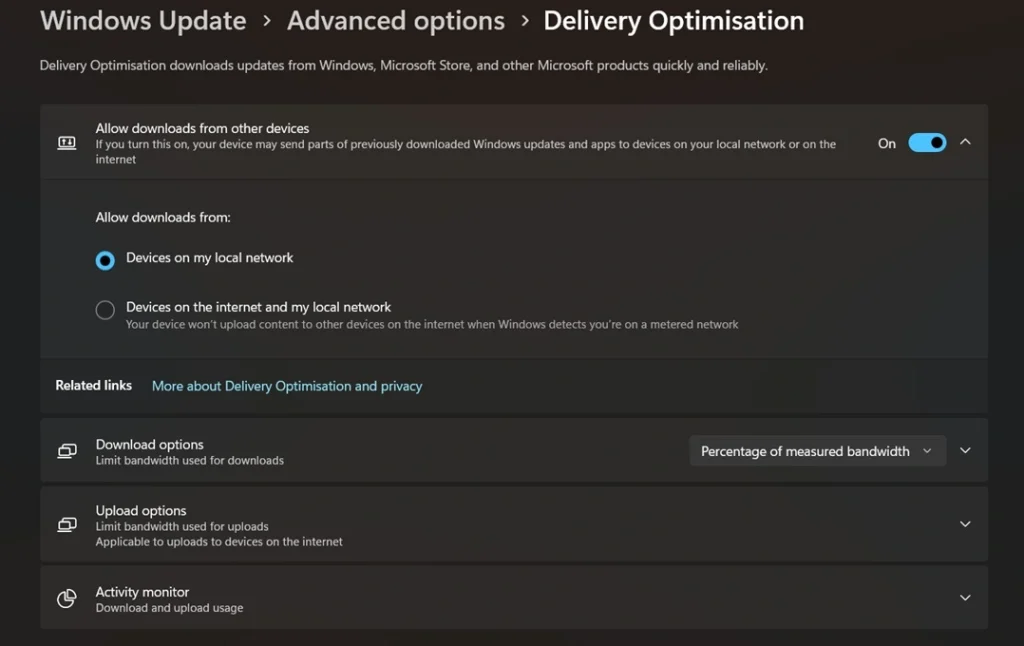
- Enable the “Devices on my local network” option.
3. Bluetooth Not Working
Bluetooth issues are a frequent pain point. Devices refuse to pair. Connected devices suddenly disconnect. Sometimes Bluetooth disappears from the settings menu entirely. This is one of the more annoying common Windows 11 problems and fixes users look for online.
Driver conflicts and outdated firmware cause most Bluetooth failures. A recent Windows update can sometimes break Bluetooth compatibility. Power management settings also force Bluetooth adapters to turn off to save battery.
Quick Steps:
- Go to Device Manager > Bluetooth.
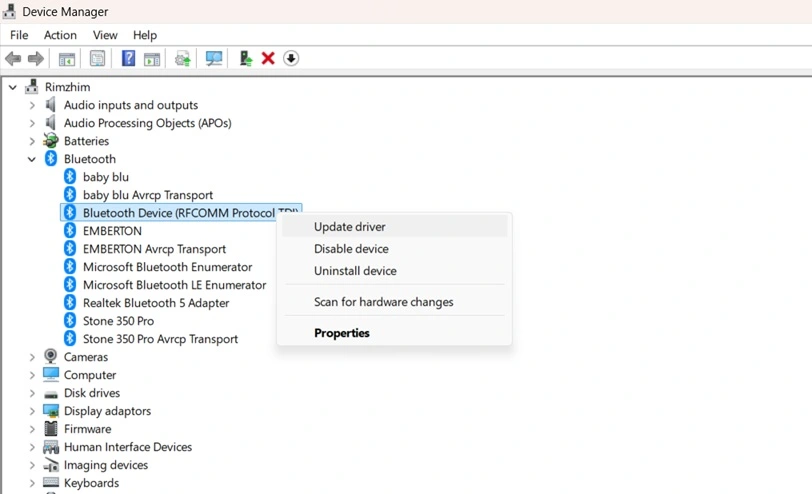
- Right-click your adapter and select Update Driver.
4. Wi-Fi Keeps Disconnecting
A dropping Wi-Fi connection is a serious problem for remote workers and students. The device connects, but then loses the signal after a few minutes. Sometimes it reconnects on its own. Other times, you have to do it manually every time.
This is a known issue with Windows 11 and certain network adapter drivers. Power-saving settings on the adapter cause it to go to sleep. DNS settings can also cause instability. Resetting the network stack usually helps in most cases.
Quick Steps:
- Open Command Prompt as Administrator.
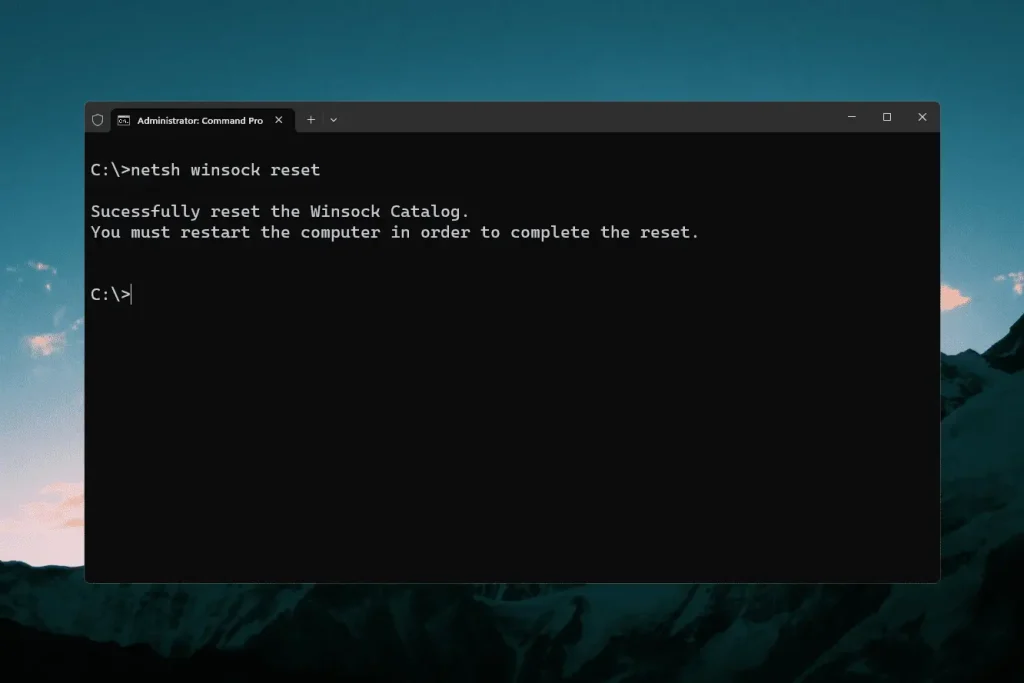
- Type netsh winsock reset and press Enter. Restart your PC.
5. Microsoft Store Apps Not Downloading or Updating
The Microsoft Store causes many headaches. Apps get stuck on “Pending.” Downloads stop without any error. Updates fail silently. Users trying to install apps like Netflix or Spotify often hit this wall.
In many cases, the problem is caused by a damaged Microsoft Store cache. Incorrect date and time settings can also stop apps from downloading properly. Sometimes, regional settings create conflicts with Store services as well. Clearing the Store cache and resetting the app usually helps restore normal downloads and updates.
Quick Steps:
- Press Win + R, type wsreset.exe, and press Enter.
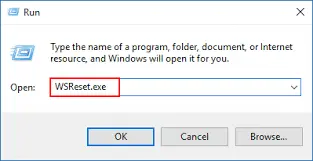
- This clears the Microsoft Store cache.
6. Black Screen After Update or Login
A black screen after signing into Windows 11 can feel alarming, especially when the desktop never appears. In some cases, only the mouse pointer is visible, while in others, the screen stays completely blank. Many users report this issue after updates or sudden system changes, making it one of the most discussed Windows 11 problems in online support communities.
This issue is usually linked to a faulty display driver, a failed Windows update, or damaged system files. Certain antivirus programs and startup apps can also interfere with the loading process and prevent the desktop from opening correctly. Booting into Safe Mode, uninstalling recent updates, or disabling problematic startup programs often helps fix the problem and restore normal startup behavior.
Quick Steps:
- Press Ctrl + Alt + Del on the black screen.
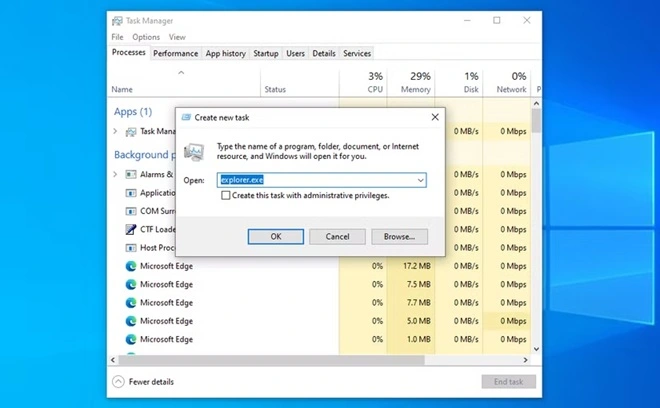
- Open Task Manager > File. Select Run New Task. Type explorer.exe and press Enter.
7. Audio Not Working or Sound Distortion
Audio problems in Windows 11 can appear in different ways. Some users experience complete sound loss, while others hear distorted or crackling audio during videos, music, or calls. In certain cases, the sound cuts off randomly, or connected headphones fail to get detected after being plugged in. These issues can affect both internal speakers and external audio devices.
Windows audio service crashes can cause complete silence. Driver updates sometimes break audio profiles. Exclusive mode settings in audio properties can also block sound from coming through. The good news is that audio fixes are usually straightforward.
Quick Steps:
- Right-click the speaker icon in the taskbar.
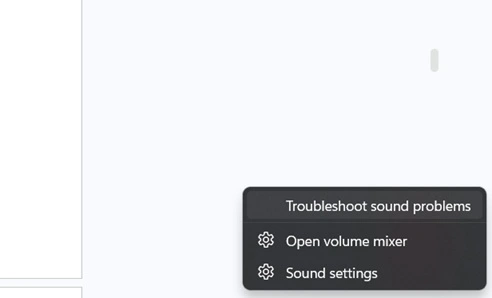
- Select Troubleshoot Sound Problems and follow the steps.
8. Taskbar Not Working or Disappearing
The Windows 11 taskbar has a new design. But it comes with new bugs too. The taskbar freezes and does not respond to clicks. Icons disappear. The Start Menu stops opening. Right-clicking on the taskbar does nothing.
This usually happens after a Windows update. A background Windows Explorer crash causes the taskbar to stop working. Sometimes a corrupted system file is responsible. Restarting Explorer or running a system scan fixes most cases quickly.
Quick Steps:
- Open Task Manager > Processes.
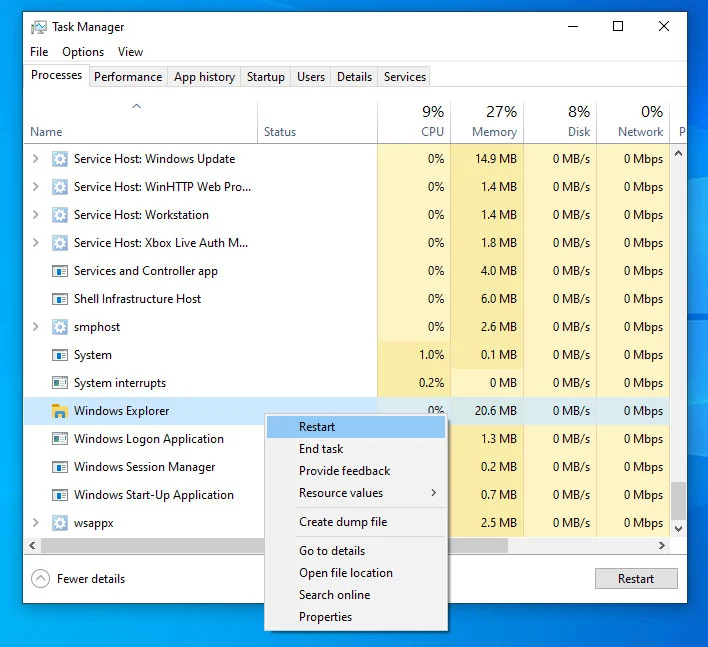
- Find Windows Explorer, right-click it, and select Restart.
9. PC Not Waking from Sleep
Sleep mode issues are very frustrating. The PC goes to sleep but will not wake up. The screen stays black. Pressing keys or moving the mouse does nothing. Sometimes, only a hard restart brings it back. This is one of the common Windows 11 problems and fixes tied to power settings.
Hybrid sleep and fast startup settings are common culprits. Some USB devices prevent the system from waking properly. Certain driver updates disable the wake-on-device feature. Adjusting power plan settings usually resolves this without any data loss.
Quick Steps:
- Go to Settings > System > Power & Sleep > Additional Power Settings.
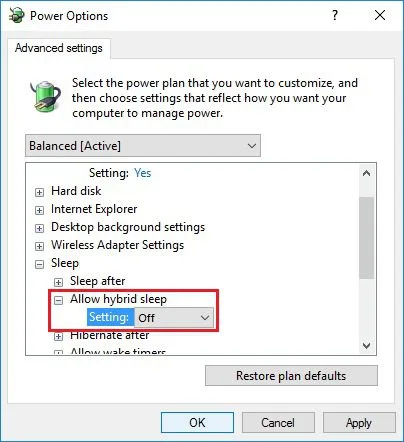
- Click “Change plan settings” and then “Change advanced power settings.” Disable Hybrid Sleep.
10. File Explorer Crashing or Freezing
File Explorer crashes are more common than people think. You open a folder and nothing loads. The window closes on its own. Navigating to a drive causes the whole Explorer to freeze. This interrupts your workflow completely.
A corrupted thumbnail cache is a major reason. Third-party shell extensions added by software installs can destabilize Explorer. A full Quick Access history can also slow things down. Clearing the cache and disabling problematic extensions helps a lot.
Quick Steps:
- Open Command Prompt as Administrator.
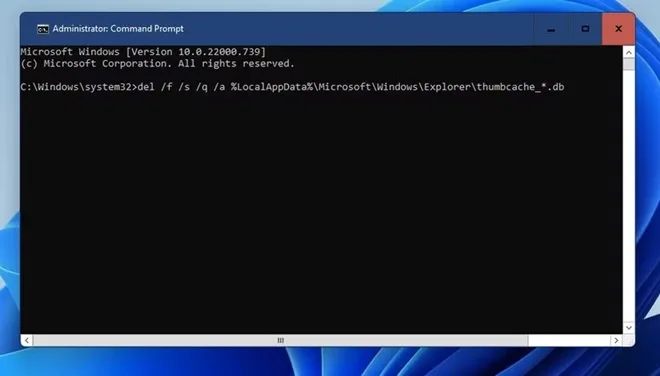
- Type del /f /s /q %LocalAppData%\Microsoft\Windows\Explorer\thumbcache_*.db and press Enter. Restart.
11. Printer Not Detected or Not Printing
Printer problems never seem to go away. Windows 11 sometimes fails to detect a connected printer. Print jobs get stuck in the queue. The printer goes offline even though it is on. Driver conflicts after updates make things worse.
The Print Spooler service often stops in the background. Outdated or incompatible drivers cause detection failures. USB ports sometimes stop recognizing the printer if the power settings interfere. Restarting the service and reinstalling drivers usually solves the issue.
Quick Steps:
- Press Win + R, type services.msc, and press Enter.
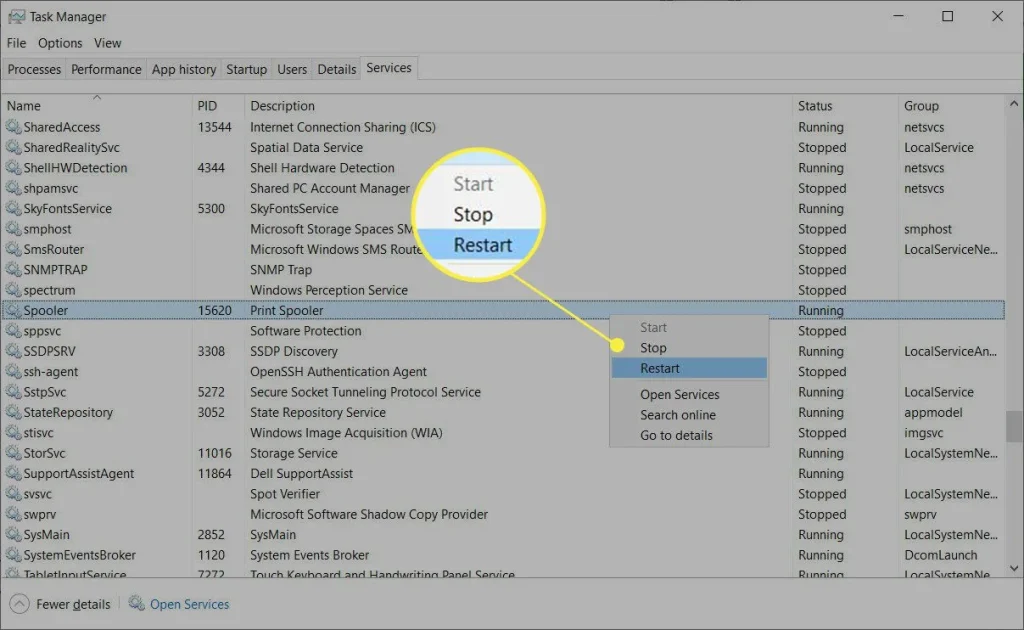
- Find Print Spooler, right-click, and select Restart.
When to Reset or Reinstall Windows 11
Sometimes fixes stop working. You try every solution, and the problems keep coming back. Your PC slows down again after a few days. Errors return without warning. At that point, a reset or clean reinstall may be the best path forward. Windows 11 has built-in options that make this easier than ever. You do not lose your files if you choose the right settings. Knowing when to take this step saves you hours of repeated troubleshooting.
- Back up your data first. Copy important files to an external drive or cloud storage before starting any reset. This protects your work no matter what goes wrong during the process.
- Use the built-in Reset option. Go to Settings > System > Recovery > Reset this PC. Choose “Keep my files” to reinstall Windows without deleting personal data.
- Choose “Remove everything” for a full clean slate. If your PC is heavily infected or severely corrupted, removing everything gives you a fresh and stable starting point.
- Use Windows 11 installation media for a deep clean. Download the Media Creation Tool from Microsoft’s official site. This option removes all leftover junk that a standard reset sometimes misses.
- Reinstall only when other fixes fail. Do not jump to a reset for minor issues. Try driver updates, SFC scans, and troubleshooters first before going this route.
- Check your license before reinstalling. Windows 11 activation is tied to your hardware. Your license restores automatically after reinstall, as long as you use the same device.
- Reinstall drivers after the process. Once Windows is fresh, update all drivers immediately. This prevents old driver conflicts from coming back and causing the same problems again.
- Run Windows Update right after setup. A clean install may be missing recent patches. Updating immediately after reinstall closes security gaps and improves overall system stability.
Conclusion
Windows 11 is a powerful operating system. But no OS is free from bugs. The problems listed here are the most common ones users face in 2026. Most of them have simple fixes that take just a few minutes. You do not need professional help for most of these issues. Going through the steps carefully is enough. Understanding common Windows 11 problems and solutions helps you act fast when something goes wrong.
The key is to stay updated and not ignore small issues. A slow PC today can become a broken one tomorrow. Keep your drivers updated. Run the system file checker regularly. Manage your startup programs. These small habits prevent most of the common Windows 11 problems and fixes listed in this guide.
With the right approach, your Windows 11 experience can be smooth and trouble-free all year long.
FAQs
Q1. Why does Windows 11 keep crashing after a recent update?
Updates sometimes ship with bugs that affect specific hardware. A crash after an update usually points to a driver conflict or a corrupted system file. Go to Settings > Windows Update > Update History. Find the recent update and uninstall it. Then run sfc /scannow in Command Prompt to repair system files. If the issue continues, use System Restore to go back to a stable point before the update was installed.
Q2. How do I fix a frozen Start Menu in Windows 11?
A frozen Start Menu is often caused by a corrupted Windows shell or a failed background process. The quickest fix is to open Task Manager and restart Windows Explorer. If that does not work, open PowerShell as Administrator and run Get-AppXPackage -AllUsers | Foreach {Add-AppxPackage -DisableDevelopmentMode -Register “$($_.InstallLocation)\AppXManifest.xml”}. This re-registers all built-in apps, including the Start Menu, and usually restores full functionality within a minute.
Q3. Is it safe to use Windows 11 without installing updates?
Skipping updates is risky. Microsoft regularly releases patches for security vulnerabilities. Without these, your PC is exposed to malware and data threats. Performance improvements and bug fixes also come with updates. If you are avoiding updates because of past bad experiences, use the “Pause Updates” option instead of skipping them entirely. This gives you time to wait for stable versions while still staying reasonably protected.
Author Bio:
Dinesh Lakhwani 

Dinesh Lakhwani, the entrepreneurial brain behind “TechCommuters,” achieved big things in the tech world. He started the company to make smart and user-friendly tech solutions. Thanks to his sharp thinking, focus on quality and the motto of never giving up, TechCommuters became a top player in the industry. His commitment to excellence has propelled the company to a leading position in the industry.
Popular Post
Recent Post

Avast Cleanup PC Cleaner and Optimizer: Everything You Need to Know
A slow computer makes it hard to focus. Programs take too long to open. Free space keeps shrinking until the disk is almost full. This happens to most PC owners at some point. Even new machines can slow down after a while. That is the exact problem cleanup tools are built to solve. They comb […]

Fortect Software Review: The Ultimate PC & Mobile Cleaning, Optimization & Security Tool
Slow computers are a common problem for almost every Windows user. Well, yes! Over time, your PC picks up junk files. These files sit quietly in the background. They take up space and slow things down. Programs open slower. Windows takes longer to boot. Even simple tasks like opening a folder can feel sluggish. There […]

CCleaner PC Optimizer Review: A Complete Guide for Windows Users
If your computer has started to feel slow, you are not alone. Most Windows PCs slow down over time. Junk files pile up. The registry gets messy. Too many apps open when you start your PC. All this adds up and makes even a good machine feel tired. This is where a PC cleaner tool […]

5 Best PC Cleaners for Windows 11 & 10 | Top PC Optimizers
Remember when your PC felt fast? Every click was quick. Every app opened in seconds. Now it feels like a different machine. Windows takes forever to boot. Programs freeze for no reason. Even opening a browser feels like a chore. You are not alone in this. Almost every PC slows down over time. Files pile […]

Auslogics Duplicate File Finder: Full Review and User Guide
A computer quietly gathers clutter over time. This includes duplicate photos, repeated downloads, and forgotten backups hiding in random folders. This buildup slowly eats away at storage and can make even a fast PC feel sluggish. Manually finding and deleting duplicates is tedious. It means checking every folder, comparing file names, and guessing which copies […]

CCleaner Duplicate File Finder: Key Features, Pricing, Step-by-Step Guide and More
Every computer collects junk over time. Right? Well, yes! Photos often get copied twice. Documents get saved in two folders by mistake. Old downloads pile up and never get deleted. This slowly eats up your storage space, and most people do not even notice until their drive is almost full. That is where a duplicate […]

Duplicate File Finder Pro: A Complete Review, Everything You Should Know
Computers collect thousands of files over time. Well, yes! Many of them end up being duplicates created by backups, downloads, or accidental copies. These extra files take up valuable storage space and make it harder to keep everything organized. Finding and removing them manually can take hours. Right? Duplicate File Finder Pro is a tool […]

Top 3 Duplicate File Finder for Windows 11 & Windows 10
If your PC storage keeps filling up even after you delete big files, duplicate files could be the real reason. Most of us save the same photo twice, download a document more than once, or copy a whole folder by mistake. Over months and years, these duplicate files pile up quietly. You do not even […]

Monitor Screen Calibration Guide: Everything You Should Know
Your monitor shows colors every single day. But are those colors actually correct? Most people never stop to check this. They just use the screen as it comes out of the box. This habit can lead to wrong colors in photos, videos, and work files. Colors may look too warm or too cold without you […]

