












A slow computer makes it hard to focus. Programs take too long to open. Free space keeps shrinking until the disk is almost full. This happens to most PC owners at some point. Even new machines can slow down after a while. That is the exact problem cleanup tools are built to solve. They comb […]
Avast Cleanup PC Cleaner and Optimizer: Everything You Need to Know
A slow computer makes it hard to focus. Programs take too long to open. Free space keeps shrinking until the disk is almost full. This happens to most PC owners at some point. Even new machines can slow down after a while.
That is the exact problem cleanup tools are built to solve. They comb through your system, find files quietly wasting space, and clear them out so you get that room back. Avast, better known for its antivirus lineup, has its own take on this kind of tool too. It is called Avast Cleanup Premium, though most people simply type in PC cleanup software when looking for it.
The real question is whether it lives up to the claims or just adds another icon to your desktop. That is what we are here to find out. This review walks through exactly what the tool does, how smooth it is to use, what it will cost you, and whether that cost is justified. We will get into the features, the pricing structure, what works well, what does not, and how it holds up in real, everyday use.
Stick with us to the end, and you will have a clear answer on whether this tool belongs on your PC.
Part 1: Brief Overview: Avast PC Cleanup Tool
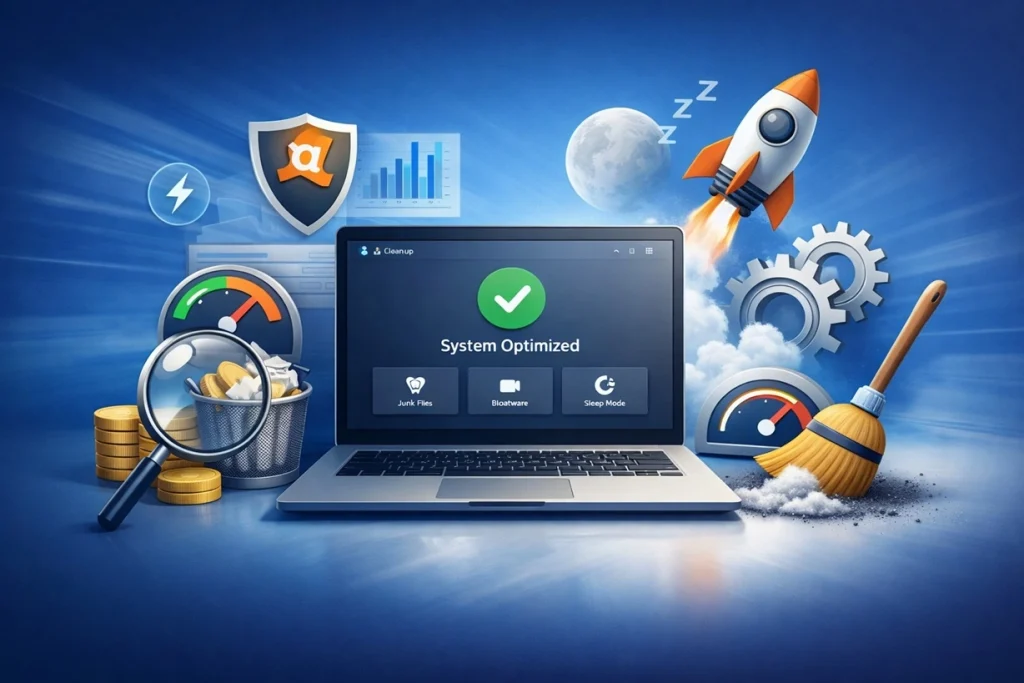
Avast Cleanup Premium is a system maintenance tool made by Avast Software. The company has been active for over three decades and is well known in the security space. This tool is built to clear out junk files, speed up slow programs, and manage storage on your PC.
The tool works on Windows, and Avast also offers versions for Mac and Android. It is not free forever. You get a 30-day free trial, and after that you need to pay to keep using it. It has a simple, clean interface that most users find easy to follow, even without technical knowledge.
Quick features at a glance:
- Junk file and cache cleaner
- App uninstaller with a safe uninstall simulator
- Sleep Mode for background apps
- Registry cleaner with backup
- Startup program manager
- Automatic maintenance scheduling
- Browser cleanup tools
- Duplicate and large file finder
Part 2: Why Use Avast PC Cleanup Tool? Real Reasons to Consider It
Not everyone needs a cleanup tool. But if your PC has slowed down over time, or if you are running low on storage, a tool like this can genuinely help. Here are the main reasons people choose to use it.
- Time-saving scans: Instead of manually searching through folders for junk files, the tool locates and removes them in a single, efficient scan.
- Storage recovery: Many users are surprised by how much space they reclaim. Often several gigabytes. From leftover files created by apps, browsers, and Windows itself.
- Speed boost: By putting idle background apps to sleep, your PC gains more memory and CPU power for the tasks you’re actively using.
- Safe program removal: The built-in uninstaller identifies unused programs and removes them completely, leaving no residual files behind.
- Startup control: Slow boot times are often caused by too many programs launching at once. This feature lets you manage startup items easily.
- Registry cleaning: The registry cleaner clears outdated entries and automatically backs them up, ensuring you can undo changes if needed.
- Automated maintenance: Once configured, the tool performs regular cleanups automatically, keeping your system optimized without manual effort.
- Trusted developer: Backed by Avast’s long-standing reputation in cybersecurity, users can rely on proven expertise rather than an unknown developer.
Part 3: Key Features Explained: Avast PC Cleanup Tool and Optimizer Tool
Avast Cleanup Premium bundles several tools into one dashboard. Below, we break down the six features that matter most and explain what each one actually does for your PC.
Disk Cleaner
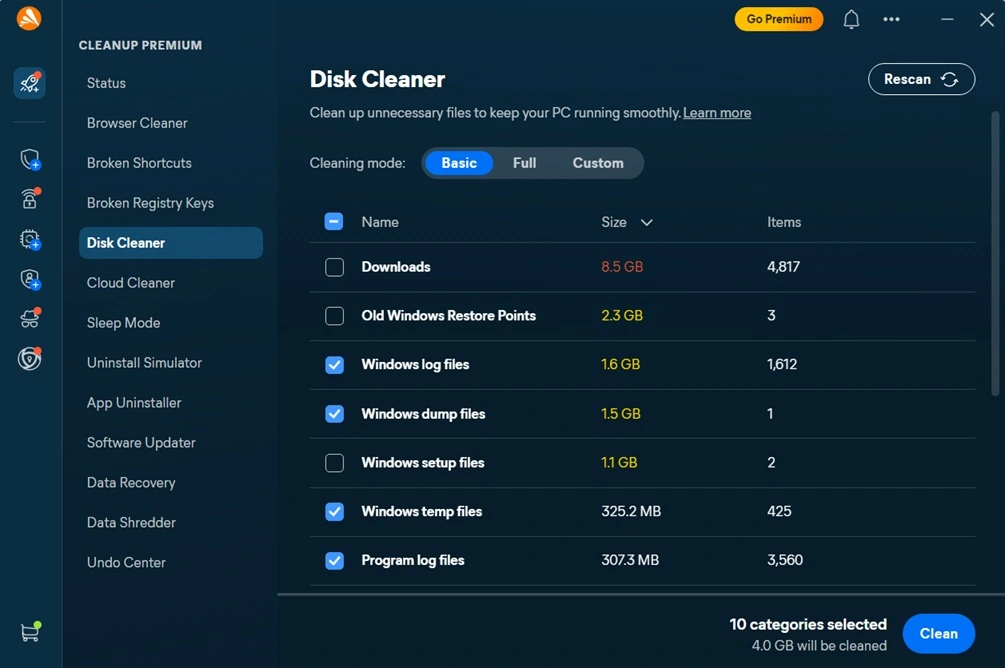
This is the core of the tool. It scans your entire PC, including browsers and hundreds of common apps, for leftover junk files. These are files that serve no real purpose but still take up space. The scan shows you exactly how much space you can recover before you approve the cleanup, so nothing gets deleted without your say.
Sleep Mode
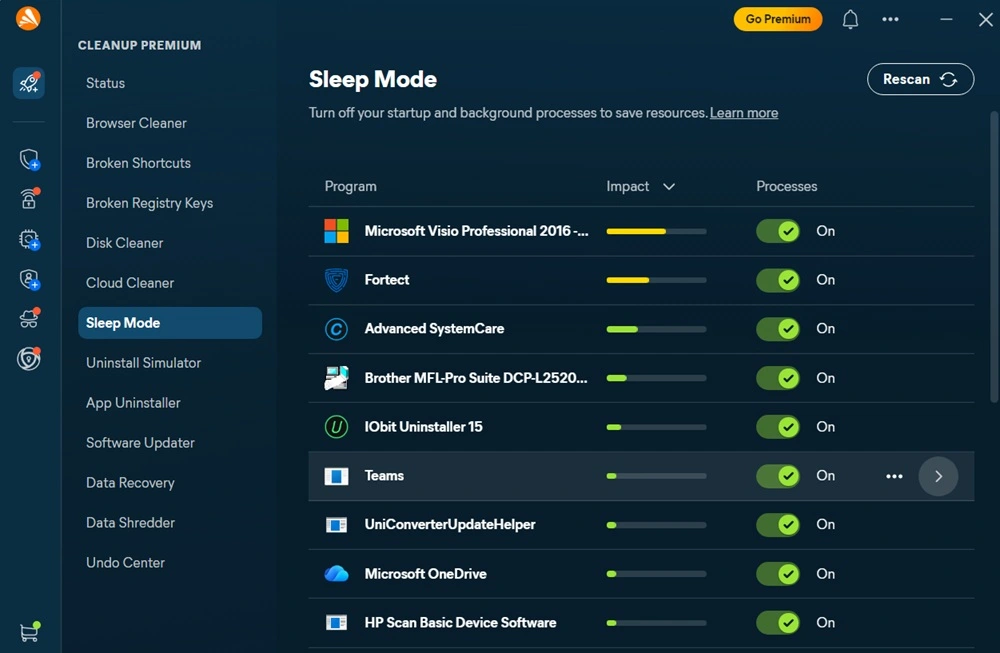
Sleep Mode is one of the more unique parts of this tool. Instead of just closing background programs, it hibernates apps that are using resources but sitting idle. This frees up RAM and CPU without fully shutting the app down, so it wakes up fast when you need it again.
App Uninstaller
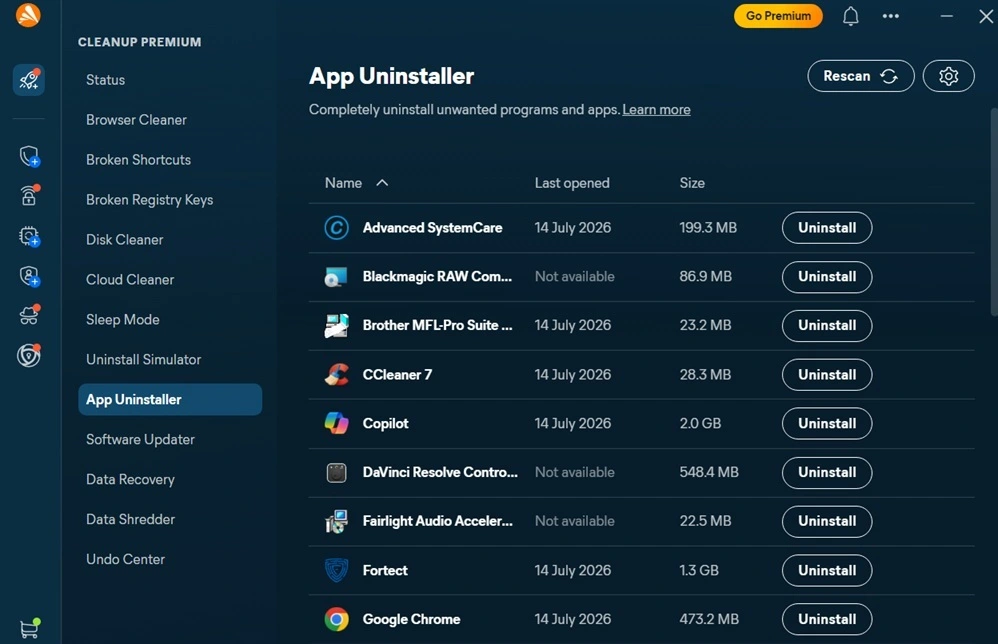
Many PCs carry old software that nobody uses anymore. This feature scans for those programs and flags the ones taking up the most space. If you are unsure about removing something, the Uninstall Simulator lets you temporarily disable it first, so you can test the results before deleting it for good.
Registry Cleaner
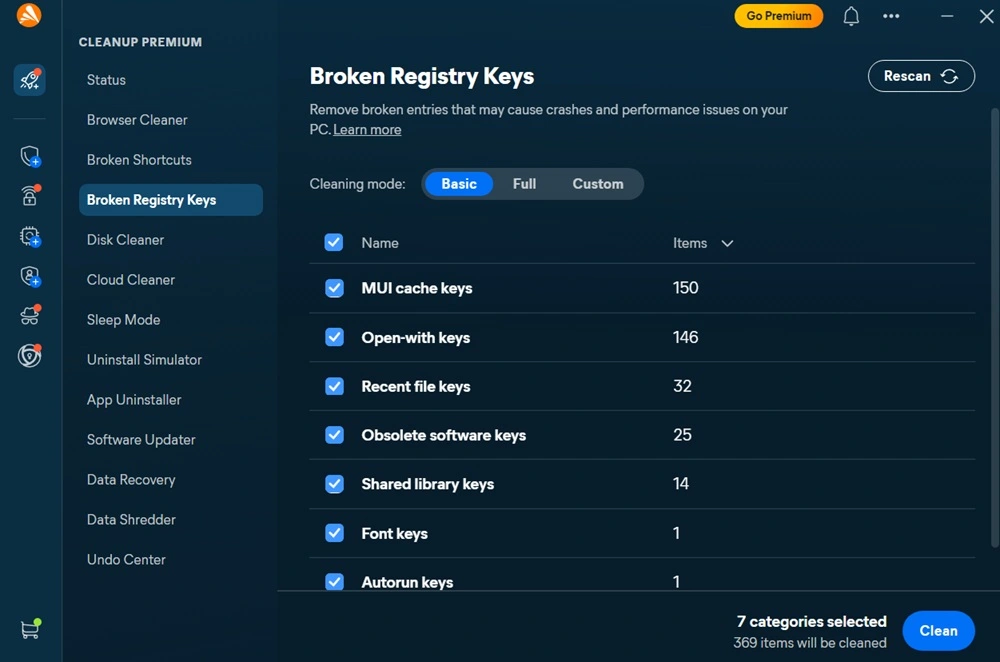
Over time, the Windows registry collects broken or outdated entries. This can slow things down in small ways. The registry cleaner in this tool scans for these entries and clears them out. It also creates a backup first, which is a smart safety step in case anything goes wrong.
Data Recovery
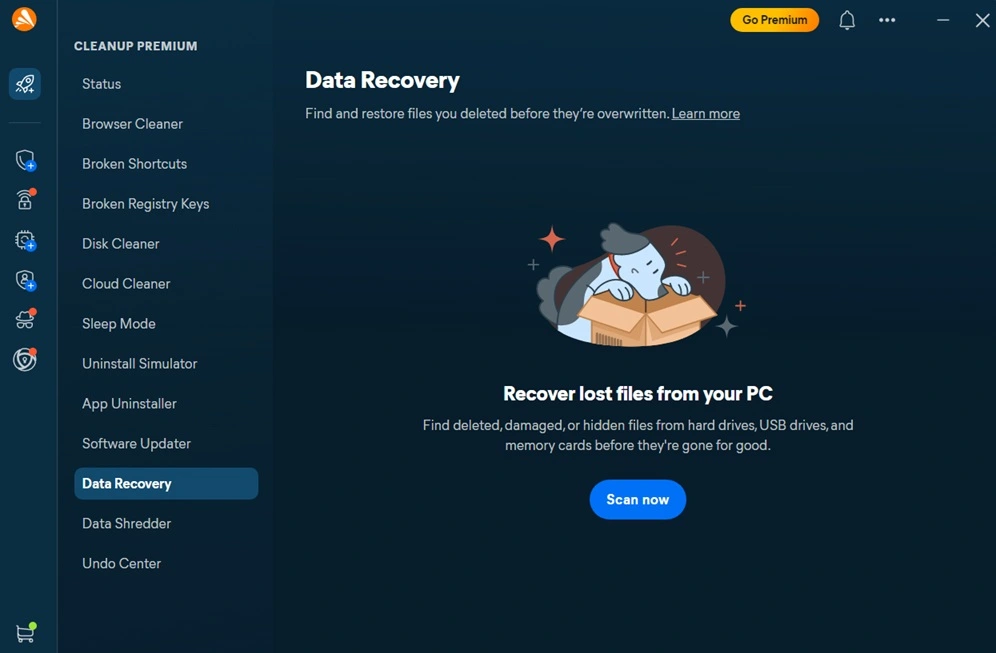
Deleted a file by mistake? This feature helps you recover files that were lost or accidentally removed from your PC. It scans your drive for recoverable data and walks you through getting it back, which can be a real lifesaver when something important disappears without warning.
Data Shredder
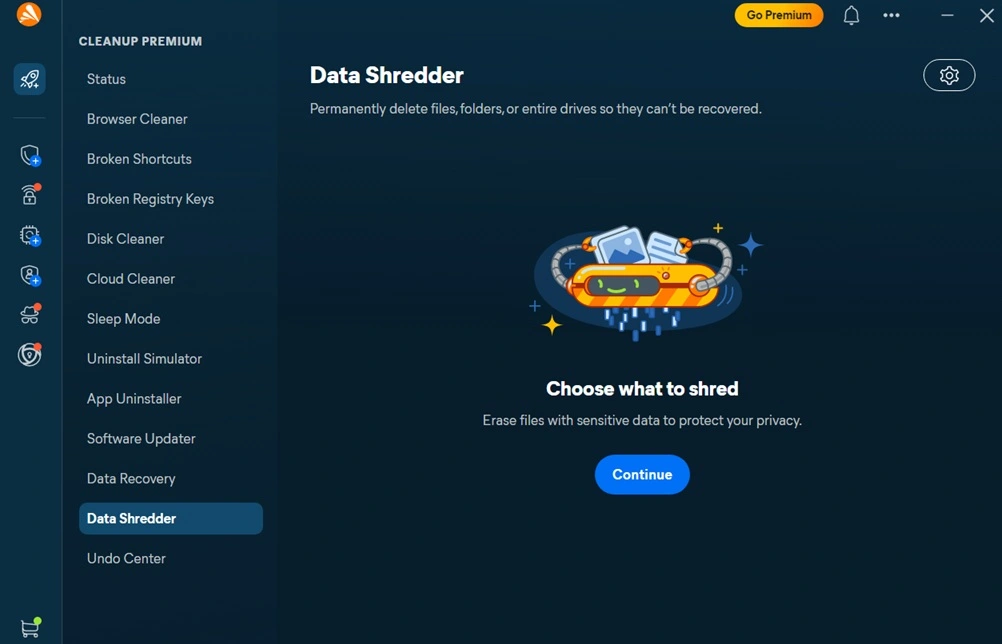
Simply deleting a file does not always erase it completely. The Data Shredder permanently destroys sensitive files so they cannot be recovered by anyone, even with recovery software. This is useful for anything you want gone for good, like financial documents or personal records.
Undo Center
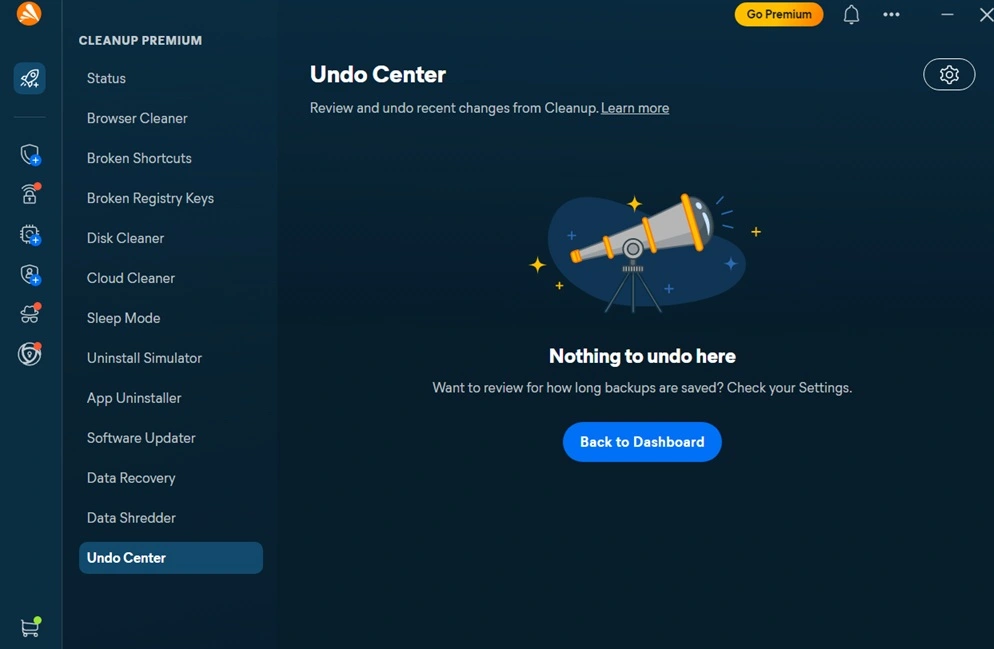
Cleanup tools can feel risky if you are worried about deleting something important. The Undo Center gives you peace of mind by letting you reverse recent cleanup actions. If you realize you needed a file that got removed, you can restore it from here without much hassle.
Part 4: How to Use Avast PC Cleanup Tool: Step-by-Step Guide
Getting started with this tool is not complicated, even if you have never used a cleanup utility before. The process is designed for regular users, not just tech experts.
Before you begin, close any programs you do not need open. This gives the tool a clearer view of your system and helps the scan run faster. Once that is done, you are ready to install and run your first scan.
Step 1: Go to the official Avast website and download Avast Cleanup Premium. Run the installer and follow the on-screen instructions. Open the app after installation. It will prompt you to start a scan right away. Wait for the scan. This scan checks your disk, registry, startup items, and installed apps. It usually takes a few minutes, depending on how much data is on your PC.
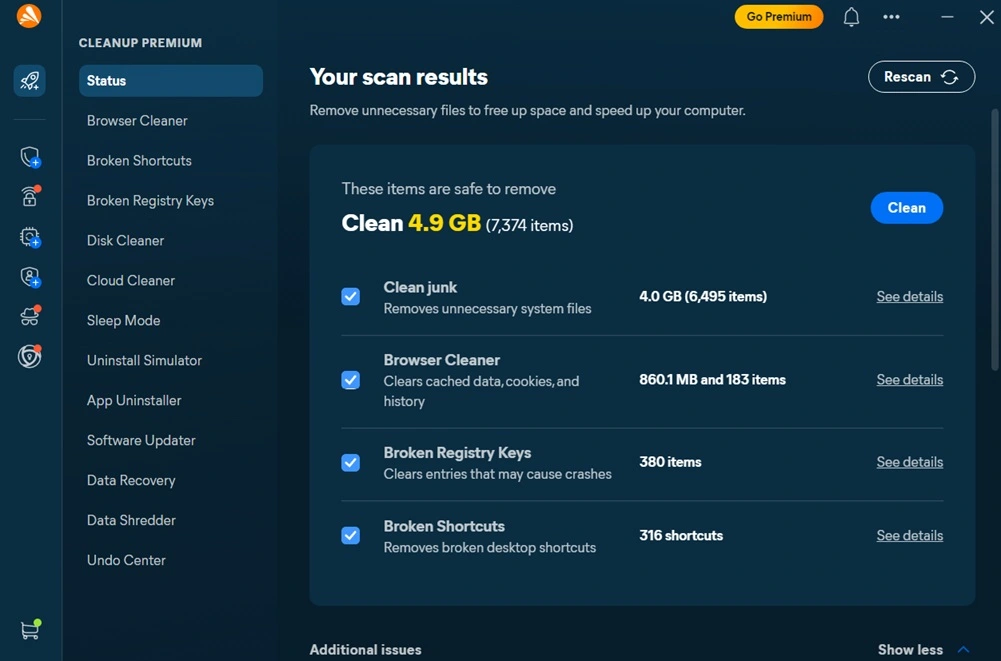
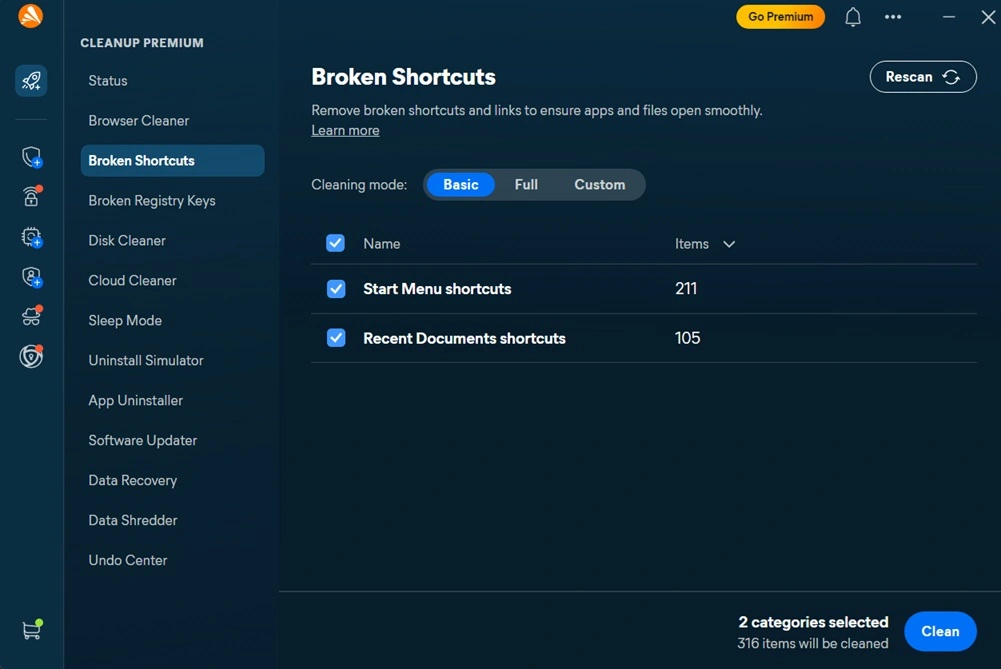
Step 2: Once the scan finishes, you will see a breakdown of junk files, unused apps, and other issues found. Click on “See Details”. Review the list, uncheck anything you want to keep, and click Clean. The tool will handle the rest and show you how much space was recovered.
Part 5: Pros and Cons Explained: What Avast Cleanup Gets Right and Wrong
No tool is perfect, and this one is no exception. Below is an honest breakdown of where Avast Cleanup Premium shines and where it falls short, based on its features and how it compares to other tools in this space.
Pros:
- Easy to use, even for people with no technical background at all.
- Sleep Mode genuinely helps free up system resources in real time.
- The registry cleaner backs up entries before making any changes.
- It comes from a well-established, trustworthy security company.
- The interface is clean and does not feel cluttered or confusing.
- The free trial lets you test the full product before paying anything.
- A 30-day money-back guarantee gives you a safety net after purchase.
Cons:
- There is no permanently free version, only a limited time trial.
- It lacks a driver updater, which must be purchased separately.
- 24 by 7 phone support requires an extra paid add-on.
Part 6: Pricing Plans: Avast PC Cleanup Tool
Avast Cleanup Premium operates on a subscription model, offering flexible plans based on the number of devices you want to protect. There’s no lifetime free version, but users can start with a 30‑day full‑feature trial to explore everything before committing.
Subscription Plans:
| Plan | First‑Year Price | Renewal Price (per year) | Coverage |
| 1‑Device Plan | ≈ $29.88 USD | $65.99 USD | Single PC |
| 10‑Device Plan | ≈ $34.68 USD | $79.99 USD | Up to 10 PCs or devices |
| Bundled Option | Included in Avast One and Avast Ultimate suites | Varies by bundle | Comprehensive security and cleanup package |
Trial Information
- Free Trial: 30 days of full access to all features.
- No credit card required to start the trial.
- Trial includes complete functionality — junk cleanup, Sleep Mode, registry repair, and automatic maintenance.
Free VS Paid Plan: Which is Better?
| Feature | Free Trial | Premium Plan |
| Duration | 30 days | Ongoing subscription |
| Disk Cleaner | Yes | Yes |
| Sleep Mode | Yes | Yes |
| App Uninstaller | Yes | Yes |
| Registry Cleaner | Yes | Yes |
| Automatic Maintenance | Limited | Full access |
| Devices covered | 1 | 1 or 10, depending on plan |
| Money back guarantee | Not applicable | 30 days |
| Renewal price | Not applicable | 65.99 to 79.99 dollars per year |
Part 7: Performance in Practice: How the Tool Handled My PC?
I installed Avast Cleanup Premium on my Windows laptop after noticing it had become slower over the past few months. Boot time had crept up, and I was running low on storage without knowing exactly why. The install process was quick, and I appreciated that the trial did not ask for payment details right away.
The initial scan took just about two minutes, and the findings were eye‑opening. Avast Cleanup Premium detected nearly 4.9 GB of junk files I hadn’t realized were there. Mostly leftover cache and temporary files from browsers and a few seldom‑used apps.
What stood out was the broken shortcut detection. This is a relatively rare feature among cleanup tools, and it flagged invalid shortcuts cluttering the system.
Sleep Mode was the feature that impressed me the most. I had a few background apps running that I never fully closed, and putting them to sleep noticeably freed up memory. My laptop felt faster within the same session.
Part 8: Trust, Reviews, and Ratings Worldwide of Avast PC Cleanup Software
Avast Cleanup Premium benefits from the global reputation of Avast, a company that has been active in the cybersecurity industry for over three decades. This established presence gives the software a level of credibility that many lesser-known PC optimization tools lack.
Global Trust and Reputation
- Established brand trust: With more than 30 years in the security industry, Avast is widely recognized and trusted worldwide.
- Privacy transparency: The company openly discloses its data handling practices in its privacy policy, though privacy-conscious users often review these details carefully.
Reviews from Tech Publications
- Positive coverage: Major tech sites generally praise Avast Cleanup Premium for its intuitive interface and effective features like Sleep Mode, which helps improve system performance by disabling background apps.
- Ease of use: Reviewers highlight that even non-technical users can navigate the tool easily.
User Feedback Worldwide
- Pricing concerns: A recurring frustration among users is the price increase after the first year of subscription.
- Rare uninstall issues: A small number of users report system hiccups after uninstalling the software, though these cases appear uncommon.
- Overall satisfaction: Most users rate the product as good to very good, especially appreciating its performance optimization features.
Ratings Across Platforms
- Independent review platforms consistently place Avast Cleanup Premium in the good to very good range, reflecting a balance of trust in the brand, satisfaction with features, and occasional criticism of pricing.
Conclusion
Avast Cleanup Premium is a solid, well-built tool for anyone struggling with a slow or cluttered Windows PC. It combines several useful features, like Sleep Mode, disk cleaning, and startup management, into one simple dashboard. For most regular users, that convenience is worth something.
That said, it is not the cheapest option out there. The renewal price is noticeably higher than the first year discount, and there is no permanent free version to fall back on. If you are budget-conscious, it is worth comparing it against free tools before committing long-term.
Overall, if you want an easy, trustworthy way to keep your PC running smoothly without digging through settings yourself, this tool does the job well. Just use the free trial first, and decide with full information before you pay for a full year.
FAQs
Is Avast Cleanup Premium safe to use on my PC?
Yes, it is considered safe. It comes from an established security company, and its cleanup actions are either reversible or shown to you for approval before anything is deleted, including a backup step for registry changes.
Does Avast Cleanup Premium have a free version?
There is no permanent free plan. You get a 30-day free trial with full features, and after that you need to subscribe to keep using the premium tools.
Can I use Avast Cleanup Premium on more than one device?
Yes. There is a plan that covers a single device and another that covers up to ten devices, which works well for households with multiple computers.
Author Bio:
Dinesh Lakhwani 

Dinesh Lakhwani, the entrepreneurial brain behind “TechCommuters,” achieved big things in the tech world. He started the company to make smart and user-friendly tech solutions. Thanks to his sharp thinking, focus on quality and the motto of never giving up, TechCommuters became a top player in the industry. His commitment to excellence has propelled the company to a leading position in the industry.
Popular Post
Recent Post

Fortect Software Review: The Ultimate PC & Mobile Cleaning, Optimization & Security Tool
Slow computers are a common problem for almost every Windows user. Well, yes! Over time, your PC picks up junk files. These files sit quietly in the background. They take up space and slow things down. Programs open slower. Windows takes longer to boot. Even simple tasks like opening a folder can feel sluggish. There […]

CCleaner PC Optimizer Review: A Complete Guide for Windows Users
If your computer has started to feel slow, you are not alone. Most Windows PCs slow down over time. Junk files pile up. The registry gets messy. Too many apps open when you start your PC. All this adds up and makes even a good machine feel tired. This is where a PC cleaner tool […]

Auslogics Duplicate File Finder: Full Review and User Guide
A computer quietly gathers clutter over time. This includes duplicate photos, repeated downloads, and forgotten backups hiding in random folders. This buildup slowly eats away at storage and can make even a fast PC feel sluggish. Manually finding and deleting duplicates is tedious. It means checking every folder, comparing file names, and guessing which copies […]

CCleaner Duplicate File Finder: Key Features, Pricing, Step-by-Step Guide and More
Every computer collects junk over time. Right? Well, yes! Photos often get copied twice. Documents get saved in two folders by mistake. Old downloads pile up and never get deleted. This slowly eats up your storage space, and most people do not even notice until their drive is almost full. That is where a duplicate […]

Duplicate File Finder Pro: A Complete Review, Everything You Should Know
Computers collect thousands of files over time. Well, yes! Many of them end up being duplicates created by backups, downloads, or accidental copies. These extra files take up valuable storage space and make it harder to keep everything organized. Finding and removing them manually can take hours. Right? Duplicate File Finder Pro is a tool […]

Top 3 Duplicate File Finder for Windows 11 & Windows 10
If your PC storage keeps filling up even after you delete big files, duplicate files could be the real reason. Most of us save the same photo twice, download a document more than once, or copy a whole folder by mistake. Over months and years, these duplicate files pile up quietly. You do not even […]

Monitor Screen Calibration Guide: Everything You Should Know
Your monitor shows colors every single day. But are those colors actually correct? Most people never stop to check this. They just use the screen as it comes out of the box. This habit can lead to wrong colors in photos, videos, and work files. Colors may look too warm or too cold without you […]

How To Check Installed RAM and RAM Slots [Complete Guide]
RAM plays an important role in how smoothly a computer runs. Short for Random Access Memory, it stores the data and instructions that Windows and active applications need at any given moment. From opening multiple browser tabs to running games and productivity software, RAM helps keep everything responsive. A system with limited memory may experience […]

What is Microsoft Autopilot Everything You Need To Know
Technology has changed the way companies manage computers. Well, yes! Employees now work from offices, homes, and remote locations. Setting up devices manually for every worker takes time and effort. It can also create mistakes that slow down productivity. This is where Microsoft Autopilot becomes useful. It helps businesses prepare and deploy Windows devices with […]

