












So, search for a pair of shoes once online. Close the tab. By evening, those same shoes are sitting on your news site, your video app, and even your recipe blog. Nobody placed them there by chance. A cookie did. Well, yes! Cookies are small files that websites place on your device while you browse. […]
Duplicate File Finder Pro: A Complete Review, Everything You Should Know
Computers collect thousands of files over time. Well, yes! Many of them end up being duplicates created by backups, downloads, or accidental copies. These extra files take up valuable storage space and make it harder to keep everything organized.
Finding and removing them manually can take hours. Right?
Duplicate File Finder Pro is a tool built to fix this exact problem. It scans your drives from top to bottom. It finds copies of the same file, no matter where they are hiding. Then it lets you remove them in a safe and simple way. This saves storage space and keeps your system running smoothly.
Many users do not even know how much space duplicates take up. Some people find several gigabytes of wasted space on their very first scan. This is common with photos, downloaded files, and old backups. In this article, we will look at this tool in full detail. We will cover its features, pricing, pros, cons, and more.
By the end, you will know if this tool fits your needs.
Part 1: What is Duplicate File Finder Pro?
Duplicate File Finder Pro is a software tool available on the Microsoft Store made to find repeated files on your computer. It checks your folders and drives one by one. Then it shows you which files are exact copies of each other. You can then choose to delete, move, or keep them, based on what fits your needs.
The tool works on many file types. This includes photos, videos, documents, music, and more. It does not just check file names to find matches. It looks at the actual content inside each file. This means it can find duplicates even when file names are different. Here comes the best part? A photo saved as “IMG001” and another saved as “Vacation Pic” can still be flagged as duplicates if their content matches.
Many people use this tool to free up storage space on a full hard drive. Others use it to organize messy folders that have grown out of control over the years. It is built for both home users and office use, since both groups deal with duplicate files often.
The interface is simple, so even users with no tech background can operate it with ease. You do not need to be an expert to clean up your system with this tool.
Part 2: Why Use Duplicate File Finder Pro: Top Reasons to Give It a Try
There are many duplicate finder tools in the market today. So why should you pick this one over the others? Here are the top reasons users choose Duplicate File Finder Pro for their cleanup needs.
- Saves Storage Space: Duplicate files eat up space without you noticing it. Over time, they can take up several gigabytes. This tool finds and removes them, giving you back valuable free room on your drive.
- Fast Scanning Speed: The scan process is quick and efficient. Even large drives with thousands of files get scanned within a matter of minutes, not hours.
- Content-Based Search: The tool checks file content, not just file names. This means it catches duplicates that other basic tools might completely miss.
- Safe Deletion Process: Before deleting anything, the tool shows a clear preview. This helps you avoid removing files you actually need or want to keep.
- Supports Many File Types: It works with images, videos, music, documents, and more. You do not need separate tools for each different file type on your system.
- Simple User Interface: The layout is clean and very easy to follow. You do not need any technical skill or training to use this tool well.
- Custom Scan Options: You can choose which folders or drives to scan at any time. This gives you full control over the entire cleanup process.
- Regular Software Updates: The software gets updated often by its developers. This means new features and bug fixes keep arriving over time, making the tool better with each version.
Part 3: Key Features Explained: Duplicate File Finder Pro
This tool comes packed with features that make duplicate cleanup easy and stress-free. Below, we explain each feature in detail so you know exactly what to expect before you start using it.
Smart Scan Engine
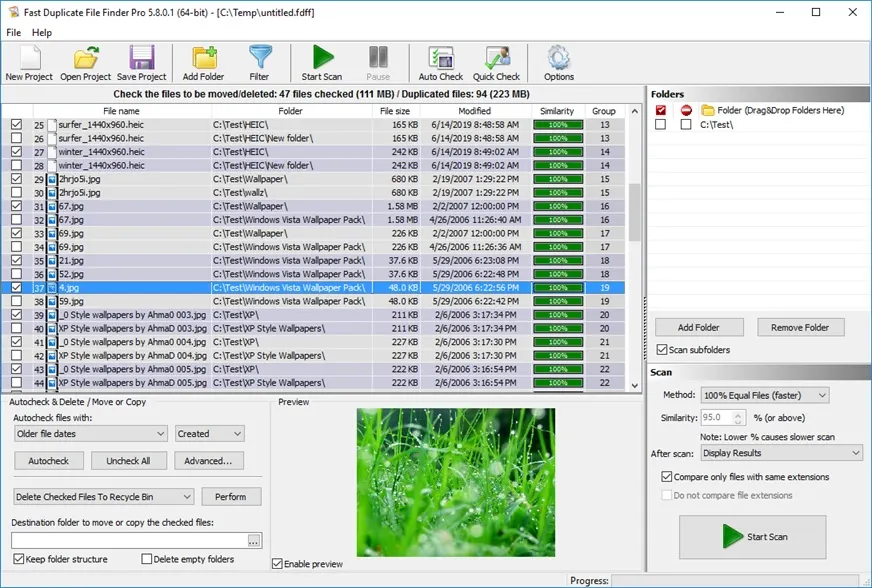
The scan engine is the true core of this tool. It uses a smart method to compare files against each other. Instead of just checking file names, it studies the actual data inside each file. This makes the results far more accurate than basic name-matching tools.
Preview Before Delete
Nobody wants to lose an important file by mistake during a cleanup. This feature shows you a clear preview of each duplicate before you delete it. You can view images, check file size, and confirm everything before taking any final action.
Multiple Folder Selection
You are not stuck scanning just one folder at a time. This feature lets you pick several folders or drives all at once. The tool then scans all of them together in a single run, saving you time and effort.
Auto Selection Rules
This feature saves a lot of time during cleanup work. You can set rules like keep the newest file or keep the largest file. The tool then automatically selects duplicates for removal based on the rule you choose.
Exclude List
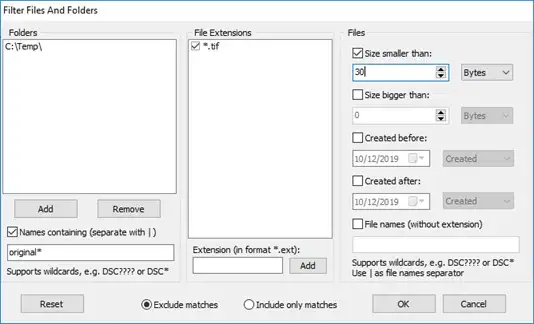
Sometimes you want certain folders left completely alone during a scan. The exclude list lets you mark folders that should never be touched. This keeps important system files and personal folders safe from accidental changes.
Detailed Scan Reports
After each scan finishes, you get a full and clear report. This shows how many duplicates were found, how much space they took up, and what action was taken on them. It helps you track your cleanup progress over time.
Scheduled Scans
You do not have to remember to run scans manually every time. This feature lets you set up a fixed schedule. The tool will then scan your system automatically at the times you choose, without needing your input each time.
Part 4: How to Use Duplicate File Finder Pro: Step-by-Step Guide
Using this tool is not hard at all, even for beginners. The whole process is broken down into a few simple steps that anyone can follow. Even first-time users can complete a full scan and cleanup without any real trouble or confusion.
Before you start, make sure the tool is properly installed on your system.
Once installed, open the application and get ready to run your very first scan. It helps to close other heavy programs first, so the scan runs faster and smoother.
Step 1: Open the Duplicate File Finder tool. Hit the Start Scan button to get started.
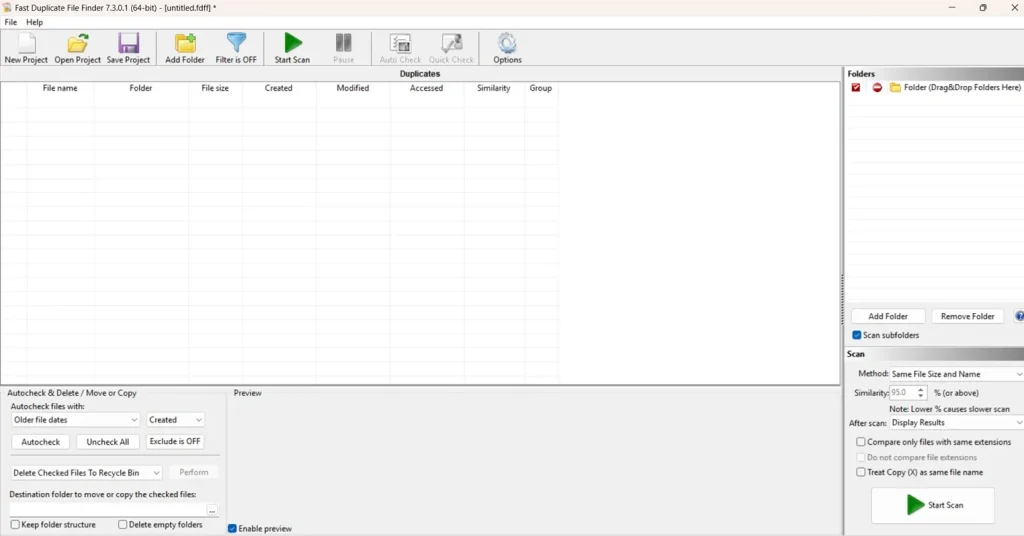
Step 2: Choose the drives or folders you want to check for duplicates. You can pick your whole system for a deep scan, or just specific folders like Downloads or Pictures if you want a quicker result.
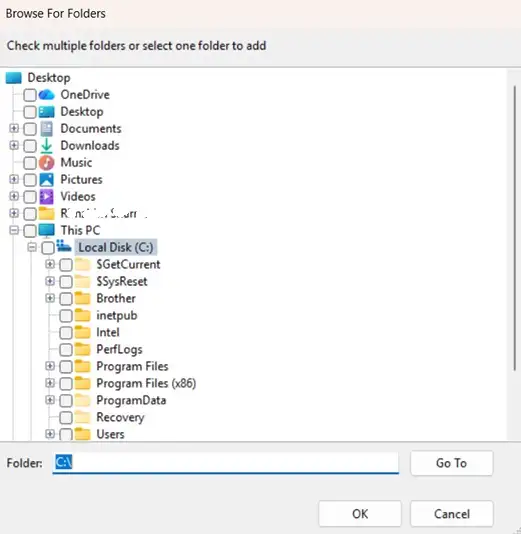
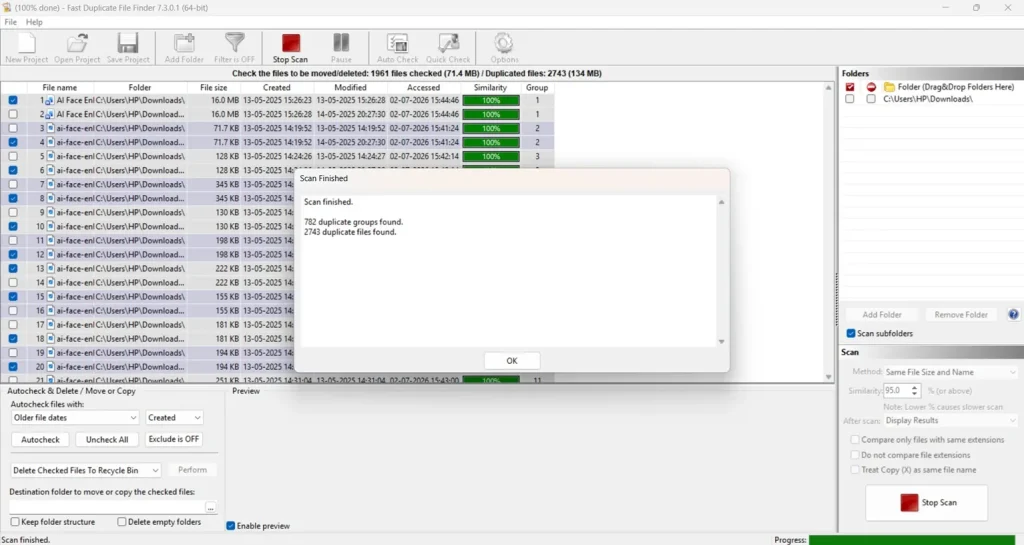
Step 3: Wait for the process to finish running. Once done, the tool will show you a list of duplicate files grouped neatly together. Review this list carefully before moving forward with any deletion.
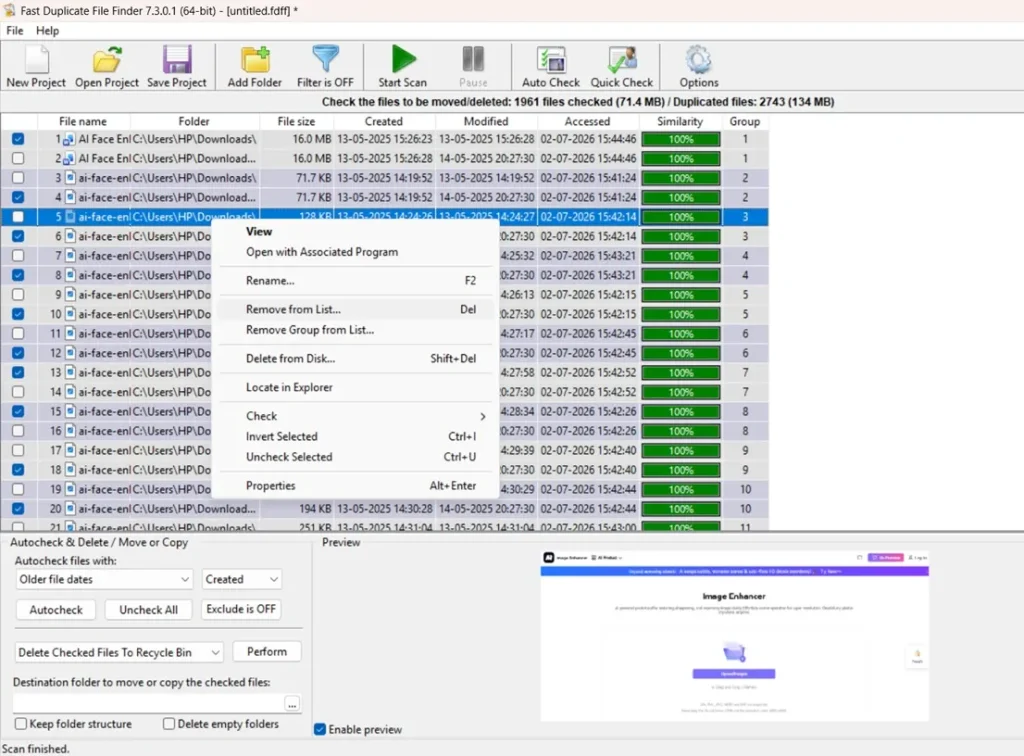
Step 4: Select the files you want to remove from your system. You can also choose to move them to a backup folder instead of deleting them right away, just to stay safe. The Preview feature of the tool can prove useful here. Once confirmed, the tool clears the selected files and frees up space on your drive instantly.
Part 5: Pros and Cons of Duplicate File Finder Pro
Every tool has its strengths and its weak points. Here is an honest and balanced look at what works well with this tool, and what could still be improved.
Pros
- Easy to Use: The interface is simple and clean. Even users with no tech background can operate it without any confusion at all.
- Accurate Results: The content-based scan method gives very accurate duplicate detection, which greatly reduces the chance of missed files during a scan.
- Wide File Support: It handles many file types, from documents to media files, all within one single tool, saving you the hassle of using multiple apps.
- Safe Delete Options: The preview and backup features reduce the risk of losing important files, which gives users real peace of mind during cleanup.
Cons
- Free Version is Limited: The free plan only allows a limited number of scans each month, which may not suit heavy users with large amounts of data.
- Large Scans Take Time: Scanning very large drives with millions of files can take longer than expected, especially on older or slower systems.
- Confusing Naming: The tool is listed as Duplicate File Finder Pro on the Microsoft Store, but once downloaded, it shows up as Fast Duplicate Finder. This mismatch can confuse users who are looking for it by name later on.
- No Mobile App: The tool currently works only on desktop systems. There is no mobile version available yet for phones or tablets.
Part 6: Pricing Plans Explained: Duplicate File Finder Pro
Duplicate File Finder Pro, developed by Mind EMS and available through the Microsoft Store, offers both a free version and a paid upgrade.
The free version includes basic scanning features, while the paid version unlocks unlimited duplicate file removal and additional tools.
Pricing Plans
- Free Plan
- Scan your PC for duplicate files. View duplicate file results. Limited file removal features.Ideal for trying the software before upgrading.
- Does not support preview functionality for all file types.
- Pro (Paid) Plan
- $8.99 (one-time purchase on the Microsoft Store). Remove unlimited duplicate files. Scan internal and external drives. Find duplicate photos, videos, music, documents, and other file types. Simple, ad-free interface.
- Regular updates through the Microsoft Store.
Free vs Paid Plan Comparison
| Feature | Free Plan | Pro Plan ($8.99) |
| Price | Free | $8.99 (one-time purchase) |
| Scan for duplicate files | ✅ | ✅ |
| View scan results | ✅ | ✅ |
| Delete duplicate files | Limited | ✅ Unlimited |
| Scan external drives | ✅ | ✅ |
| Find duplicate photos, videos, and documents | ✅ | ✅ |
| Ads | May be shown | Ad-free |
| Updates via Microsoft Store | ✅ | ✅ |
The free version is suitable for basic duplicate file scanning. If you regularly clean your PC or need unlimited duplicate removal, the Pro version offers better value with a one-time purchase instead of a recurring subscription.
Part 7: Is Duplicate File Finder Pro Actually Efficient: First-Hand Experience
So, yes! I decided to test this tool myself before writing this review. I installed it on my personal laptop, which had years of saved files piling up in random folders. I was curious to see how well it would actually handle the mess I had created over time without realizing it.
The first scan took about 3 minutes (maybe less) to cover my whole system from start to finish. I was genuinely surprised by the number of duplicate photos it found in different folders. Many were old backups I had completely forgotten about, sitting quietly and taking up space. The preview feature helped me feel safe while deleting files, since I could see each one clearly before removing it for good. I never once felt like I was deleting something blind.
After using it for about a while now, I noticed my system felt noticeably faster during everyday tasks. I also freed up close to fifteen gigabytes of space, which was more than I expected going in. The process felt smooth from start to finish, and I did not run into any major issues or crashes along the way. Based on my own experience, I would honestly say this tool does what it promises, and it does it without much fuss.
Part 8: Tips to Make the Best Use of Duplicate File Finder Pro
To get the most out of this tool, keep these simple tips in mind. They will help you use it in a smarter and more careful way, especially if you are new to it.
- Start with Small Folders: If you are new to the tool, begin with just one folder before scanning your entire system. This helps you learn how the tool works.
- Use the Exclude List Wisely: Add system folders to the exclude list to avoid any accidental changes to important files that your computer needs to run.
- Set Auto Selection Rules: Save time by setting rules like keep newest file, so you do not have to check each and every duplicate by hand.
- Backup Before Big Deletes: For large cleanups, move files to a backup folder first instead of deleting them right away, just to be extra safe.
- Run Scheduled Scans: Set up regular scans so duplicates do not pile up again over time and turn into a bigger problem later.
- Check Reports Regularly: Review the scan reports often to understand your storage habits and spot patterns in how duplicates are forming.
- Connect Cloud Storage Carefully: Follow the setup steps closely when linking cloud accounts to avoid any connection errors during the process.
- Update the Tool Often: Keep the software updated at all times to get the latest features and the best overall performance from it.
Conclusion
Duplicate File Finder Pro is a solid and reliable tool for anyone dealing with cluttered storage on their computer. It offers accurate scanning, safe deletion, and support for many different file types, all within one simple package. The interface is easy enough for total beginners, yet powerful enough to satisfy more advanced users as well.
Based on our full review and hands-on testing, the tool delivers on its promises without much trouble. It saves time, frees up real storage space, and keeps your files organized in a way that feels manageable. The free plan is a good starting point for casual users, while the paid plans unlock more power for people who scan often.
If you are tired of duplicate files quietly taking up space on your system, this tool is genuinely worth trying out. It brings a simple and effective fix to a common problem that almost every computer user faces sooner or later, whether they realize it yet or not.
FAQs
Is Duplicate File Finder Pro safe to use?
Yes, the tool is safe to use for most people. It offers preview options before any deletion happens, so you always see exactly what you are about to remove before taking final action on it.
Does it work on both Windows and Mac?
The tool is built mainly for desktop systems, and exact support may vary depending on the version you download. It is best to check the official site for full system compatibility details before installing.
Can I recover files after deletion?
If you use the backup option before deleting, you can recover your files fairly easily afterward. Without a backup in place, recovery will depend on your own system’s recycle bin settings and habits.
Author Bio:
Dinesh Lakhwani 

Dinesh Lakhwani, the entrepreneurial brain behind “TechCommuters,” achieved big things in the tech world. He started the company to make smart and user-friendly tech solutions. Thanks to his sharp thinking, focus on quality and the motto of never giving up, TechCommuters became a top player in the industry. His commitment to excellence has propelled the company to a leading position in the industry.
Popular Post
Recent Post

How To Disable Background Apps In Windows: 4 Quick Methods
A slow PC rarely gives a warning. One day, it simply takes longer to start. Apps open late. The fan runs loud, even when the screen is almost empty. Most people blame old hardware. Often, that is not the real reason. The real reason is hiding in plain sight. Windows keeps many apps active in […]

How to Activate Windows with a Product Key for Windows 11 & Windows 10
It always shows up at the worst time. You are halfway through a report, or about to join a video call. Then you spot it in the bottom right corner of the screen. Activate Windows. Go to Settings to activate Windows. Initially, an unactivated copy of Windows may seem like a minor inconvenience. Over time, […]

Is Easy Duplicate Finder Worth It? Honest Review
The photos folder looked normal at first glance. Then the storage warning popped up. One trip photo appeared four times. A tax PDF sat in three different folders. Two old setup files were still in Downloads, and each one was over 500 MB. Nobody plans this mess. Copies pile up slowly. A download runs twice. […]

Wise Duplicate Finder Review: Real Results from Wise Duplicate Finder
Read my honest Wise Duplicate Finder review. See features, pricing, pros and cons, and real PC test results. Find out if this free duplicate cleaner can free up your Windows storage.

How to Recover Deleted Files from Pen drive, USB Drive, SD Card
Introduction: On tech forums, you’ll often see posts like this: “I connected my pen drive to my laptop this morning, but the folder was empty. All my college project files had vanished. I don’t have a backup. Can someone help me?” Stories like this are very common. Pen drives, USB drives and SD cards are […]

How To Recover Files Deleted from the Recycle Bin [Windows 11]
Losing a file can happen in seconds. You clear your desktop, hit Delete, and empty the Recycle Bin. Then, just when you need that file again, it seems to have vanished. This guide will walk you through ways to restore files removed from the Recycle Bin. We will begin with simple fixes, then look at […]

Disk Drill Data Recovery Tool Explained: Full Review and Guide
It happens in a split second. You delete a folder by mistake. Your drive stops showing up. A photo album from your last trip just vanishes. And your stomach drops. Lost files feel personal. They are not just data. They are memories, work hours, and sometimes years of effort packed into a few gigabytes. When […]

Recover Deleted Files In Windows 11 With Software & Without
Introduction What is the first thing that goes through your mind the second an important file vanishes from a Windows 11 PC? For most people, it is a mix of panic and disbelief, followed by a frantic click through every folder that file could possibly be hiding in. It happens in a split second: one […]

EaseUS Data Recovery Wizard: Everything To Know
Data loss does not always come from a big disaster either. Most cases start small and boring. A drive gets formatted by mistake. A laptop freezes mid-save and restarts on its own. A memory card stops showing up after being pulled out too fast. None of these feel like emergencies at first, until you realize […]

