











Explore the top AI features in Windows 11, from Copilot to Recall, plus safety tips and simple steps to use each tool the right way.
Advanced SystemCare PC Cleanup Tool: A Detailed Review
You turn on your PC and wait. And wait. The same laptop that once opened apps in a snap now feels tired. This is not bad luck. It just happens over time. Files pile up. The registry gets messy. Old drivers stay installed long after they are useful. Junk data quietly eats up space on your drive. Most people only notice once the lag becomes hard to ignore.
The good news is you do not have to live with a slow PC. Cleanup tools exist for exactly this problem. They scan your system and clear out what you do not need. They fix small errors before they turn into bigger ones. They help your PC start faster and run smoother, almost like giving it a fresh start. One name comes up again and again in this space, and that is Advanced SystemCare.
So does it actually live up to the talk? In this article, we dig into Advanced SystemCare PC Cleanup Tool in full detail. We will walk through its features, pricing, pros, cons, and how it holds up in real everyday use.
By the end, you will know exactly if this tool is worth a spot on your PC.
Part 1: Brief Overview: Advanced SystemCare PC Cleanup Tool
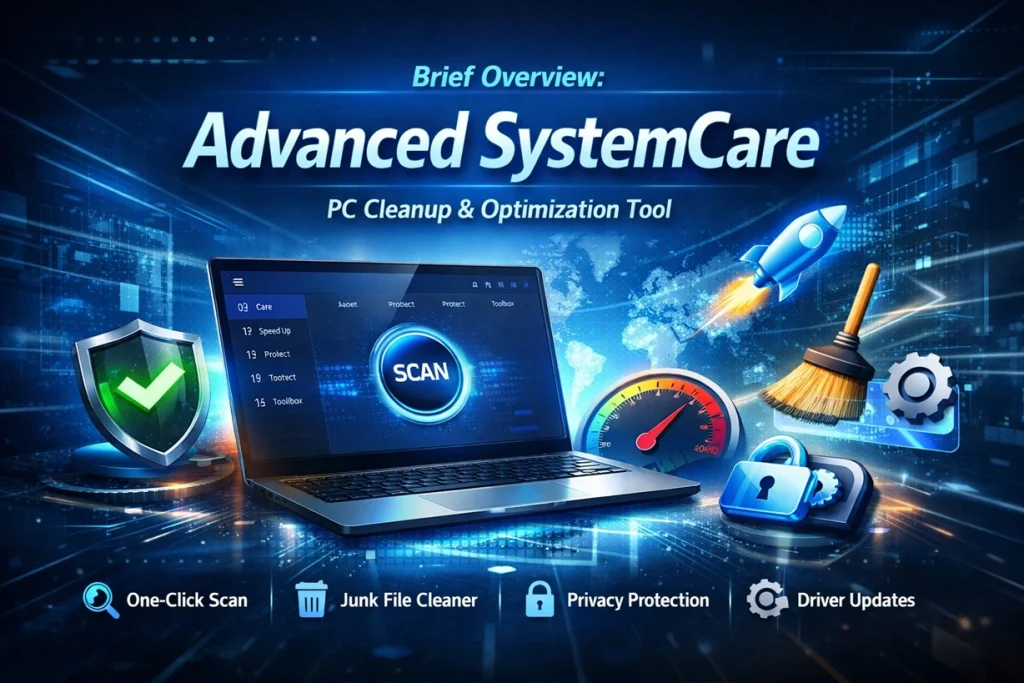
Advanced SystemCare is made by IObit. It is a tool built to clean, speed up, and protect Windows computers. It has been around for many years and has a large user base across the world. The tool works on old and new versions of Windows.
The software mixes several tools into one dashboard. You get junk file removal, registry repair, privacy cleaning, and basic security in a single app. It also uses AI to study your system and suggest the best fixes. This makes it useful for people who do not want to dig through settings on their own.
Quick features include:
- One-click scan for quick system repair
- Registry cleaner to fix errors and improve stability
- Junk file remover that clears cache and frees up space
- Startup manager to accelerate boot times
- Privacy sweep that erases browser history and traces
- Real-time monitor for system performance tracking
- Basic malware protection to guard against threats
- Driver update support for smoother hardware compatibility
Part 2: Why Trust Advanced SystemCare PC Cleanup Tool With Your PC Health
Many tools promise to clean your PC. Not all of them work well or feel safe to use. Advanced SystemCare stands out because it covers many tasks in one place. It also keeps things simple for users who are not tech experts. Here is why people choose it.
- Easy-to-use interface: The layout is clean and clear. You do not need any technical skill to find your way around.
- One-click scanning: You can scan your whole PC with a single click. The tool then shows you a full report of issues.
- Deep registry cleaning: It finds broken or old registry entries and removes them safely. This can reduce crashes and errors.
- Startup optimization: It shows you which apps slow down your boot time. You can disable them right from the dashboard.
- Regular updates: IObit updates the tool often. This keeps it working well with new Windows versions.
- Free version available: You can use many features without paying anything. This lets you test the tool first.
- Built-in protection: It has basic malware scanning built in. This adds a layer of safety along with cleanup.
- Large global user base: Millions of people use this tool. This shows a strong level of trust over time.
Part 3: Key Features Explained: Advanced SystemCare Tool PC Cleanup Tool
Advanced SystemCare packs many tools into one app. Below, we break down the main features so you know exactly what each one does.
AI Mode

This feature studies how you use your PC. It then builds a custom care plan based on your habits. Instead of running the same generic scan for everyone, it adjusts based on your system and usage pattern. This makes cleanup more precise.
When I tried Advanced SystemCare’s AI Mode, it felt like having a smart assistant built right into my PC. Instead of manually choosing what to clean or optimize, the AI analyzed my system and suggested actions based on how I actually use my computer. It noticed things like startup delays and unused background apps, then offered one-click fixes that genuinely made my system feel faster. I liked that it didn’t just guess. It learned from my usage patterns, so the recommendations felt personal rather than generic
Deep Optimization
This is the core cleaning feature. It removes junk files, temp data, and browser cache. It also checks the registry for broken links and old entries. The goal is to free up space and reduce small errors that slow your PC.
Startup Optimizer
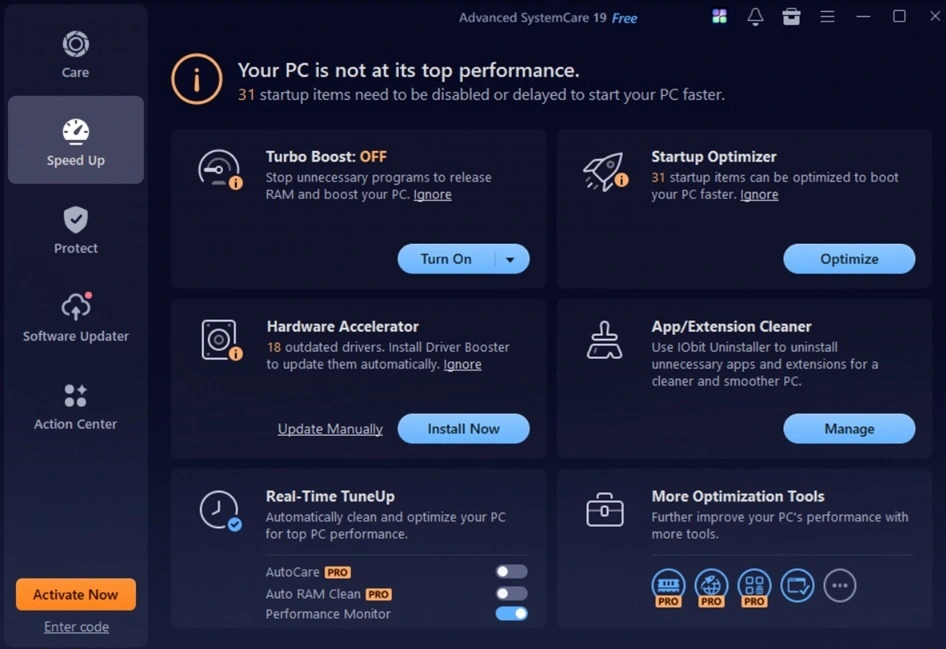
Some apps load automatically when your PC turns on. Many of these are not needed right away. This feature lets you see and manage them. Turning off unwanted startup apps can make your boot time much faster.
Privacy Sweep
This tool clears your browsing history, cookies, and saved form data. It works across most major browsers. This helps protect your personal data from being seen by others who use the same PC.
Software Updater
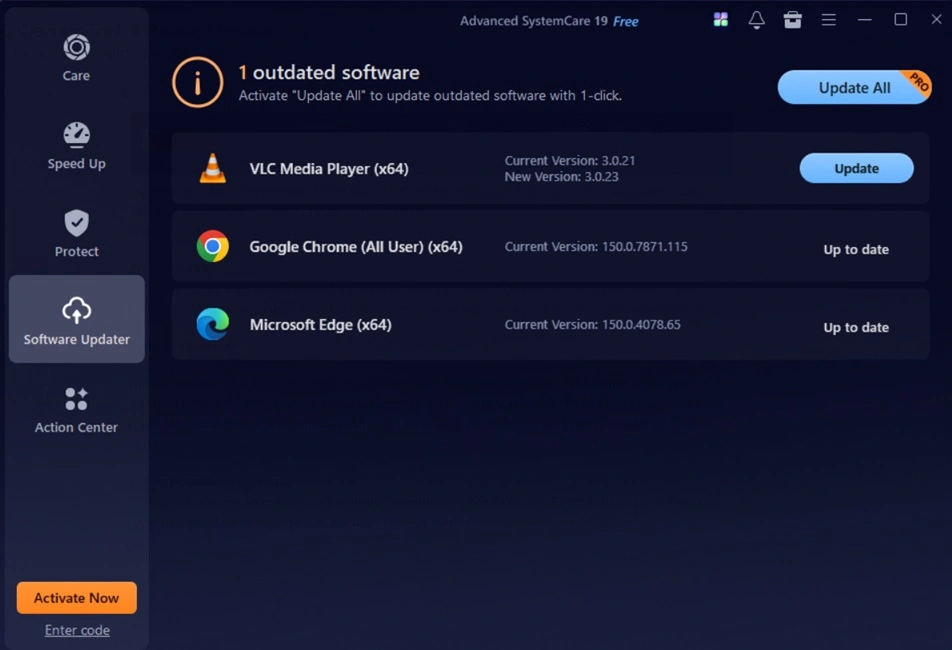
Old versions of your apps can slow things down and open security gaps. This feature scans your installed programs and checks for newer versions. It then lets you update outdated software directly from the dashboard, without hunting through each app one by one. This keeps your whole system current, not just your drivers.
Driver Booster Integration
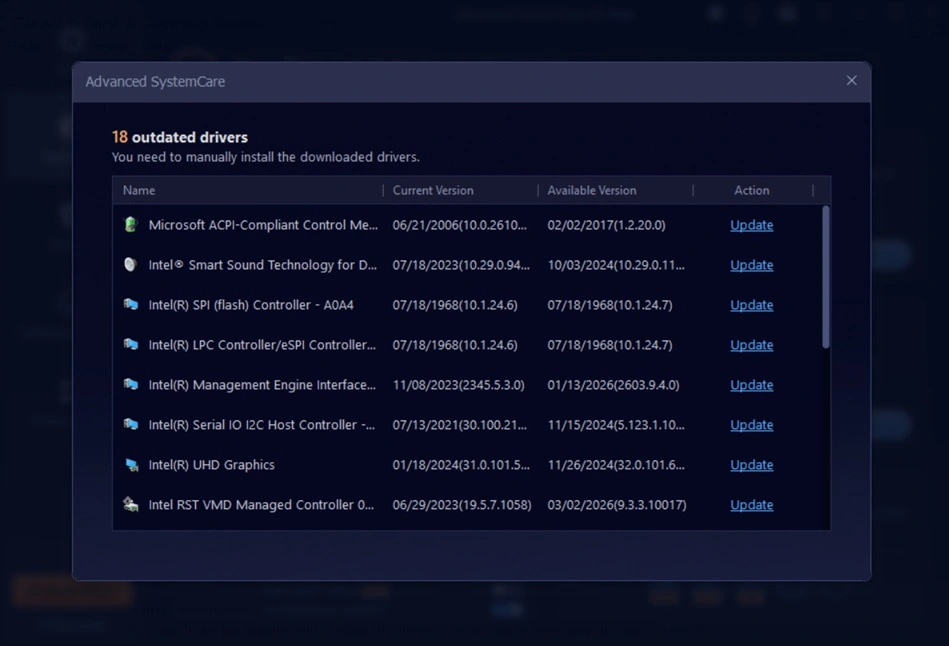
Old drivers can cause crashes and poor performance. This feature checks your drivers and flags the ones that need an update. Keeping drivers current helps your hardware run at its best.
Real-Time Protection
This runs in the background and watches for threats. It scans files as they open and blocks harmful ones. This adds a layer of security beyond a manual scan.
Performance Monitor
This shows live data about your CPU, memory, and disk use. You can watch which apps use the most resources. This helps you spot problems as they happen, not after your PC slows down.
Read Full Review on Driver Booster
Part 4: How to Use Advanced SystemCare Tool: Step-by-Step Guide
Getting started with this tool is simple. You do not need any special training to use it well. The setup takes just a few minutes on most systems.
Once installed, the app opens to a clean dashboard. From there, you can run your first scan and see what your PC needs. Below is a simple guide to help you begin.
Step 1: Download the Advanced SystemCare tool from the official website. Run the installer and follow the prompts. Once done, open the app. You will land on the main dashboard with a big scan button in the center. Click the scan button to begin.
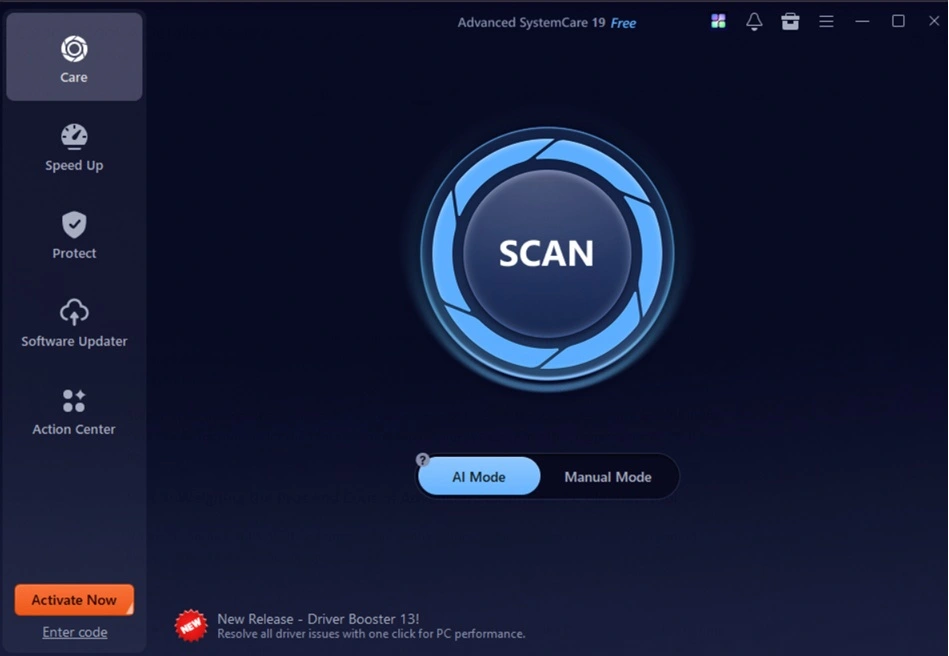
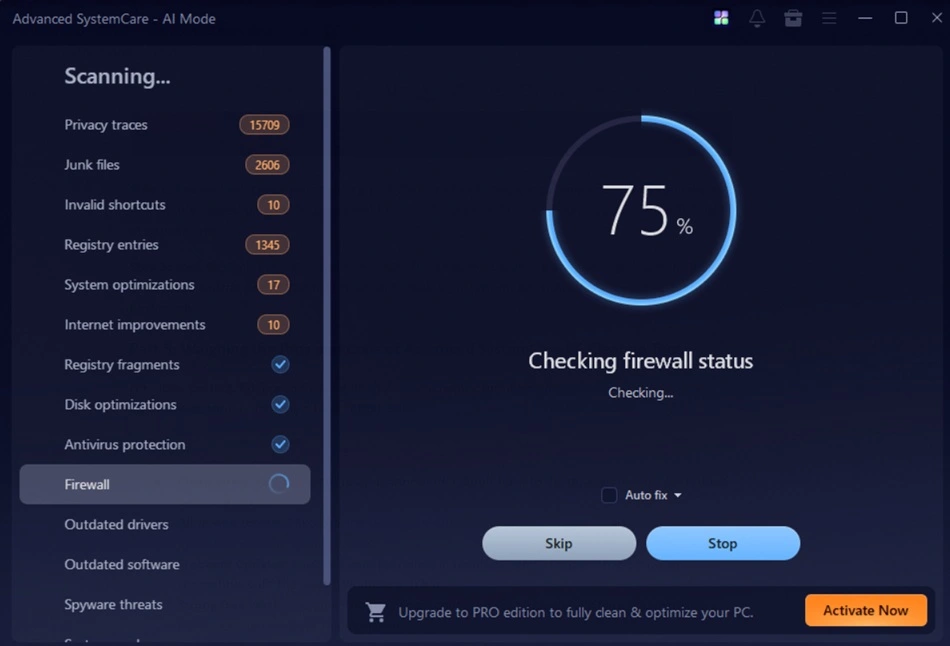
Step 2: The tool will check your registry, junk files, startup items, and privacy traces. This can take a few minutes based on your PC speed and how much data it holds. Once done, you will see a full list of issues found.
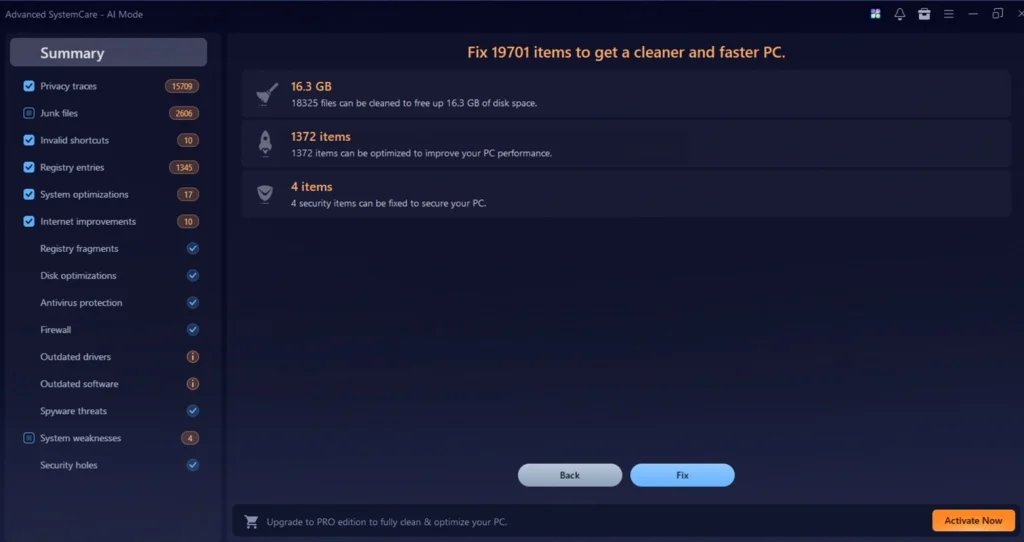
Step 3: Look through the scan results. You can choose to fix everything at once or pick specific items. Click the fix button and let the tool clean and repair your system. After this, restart your PC for the best results.
Part 5: Weighing the Pros and Cons of Advanced SystemCare PC Cleanup Tool
No tool is perfect. Advanced SystemCare has strong points, but it also has a few gaps you should know about. Here is an honest look at both sides.
Pros:
- Clean interface: The layout is straightforward. I didn’t have to dig through menus. Everything was easy to find.
- All-in-one toolkit: I liked having cleanup, security, and speed boosters bundled together instead of juggling separate apps.
- Frequent updates: I noticed updates rolling in regularly, which kept the tool stable and compatible with the latest Windows patches.
- Strong free version: Even without paying, I could run scans, clean junk files, and fix registry issues, enough for basic maintenance.
- AI recommendations: The AI mode gave me tailored tips, like disabling certain startup items, which noticeably sped up boot time.
- Driver updates: Updating drivers through the tool saved me from manually hunting them down. A big time-saver.
Cons:
- Upgrade prompts: On the free plan, I saw frequent pop-ups nudging me toward the Pro version, which got a bit distracting.
- Heavy scans on older PCs: When I ran a full scan on my older laptop, the system slowed down until the process finished.
- Limited antivirus protection: It caught basic threats, but I still needed a dedicated antivirus for complete security.
Part 6: Pricing Plans: Advanced SystemCare Tool
Advanced SystemCare offers a free plan and a few paid tiers. Pricing can change with seasonal deals, but here are the standard listed rates.
- Free Plan: No cost. Covers essential cleanup features like junk file removal, registry fixes, and basic optimization.
- Pro Plan (1 PC): About $19.99 per year. Unlocks deeper optimization, faster scans, and priority technical support for a single device.
- Pro Plan (3 PCs): About $29.99 per year. Same Pro features, but extended to cover up to three devices, ideal for households.
- Ultimate Plan (3 PCs): About $39.99 per year. Includes full antivirus protection alongside all Pro features, covering three devices.
- Monthly Option: Around $2.95 per month. Flexible payment choice for users who prefer smaller, recurring costs instead of annual billing.
| Feature | Free Version | Paid Version (Pro/Ultimate) |
| Junk file cleanup | Yes | Yes |
| Registry repair | Basic | Deep and full |
| Startup manager | Yes | Yes with more control |
| Privacy sweep | Basic | Full sweep across browsers |
| Driver updates | Limited | Full driver update support |
| Real-time protection | No | Yes (Ultimate plan) |
| Customer support | Standard | Priority support |
| Number of devices | 1 | 1 to 3 based on plan |
| Automatic scans | No | Yes |
| Price | Free | From 19.99 dollars per year |
Part 7: Honest Feedback of Using Advanced SystemCare Tool On My PC
I installed Advanced SystemCare on my own laptop after it started feeling sluggish. The install process was quick and did not ask for anything strange. Within a few minutes, I was on the main screen ready to run my first scan.
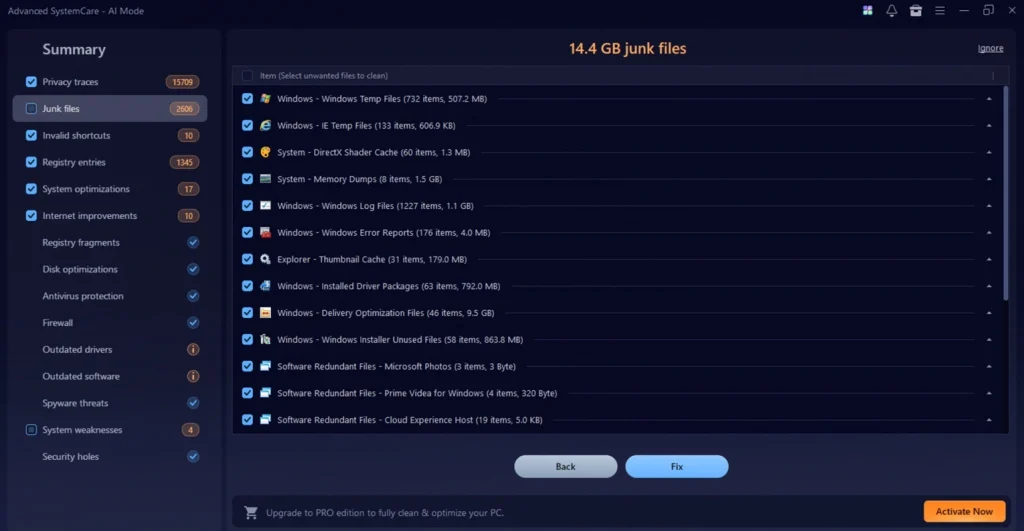
The first scan found about 14.4 GB of junk files and a few registry issues. I clicked Fix and let it run. After that, I noticed my PC opened apps a bit faster. Boot time also felt shorter once I turned off a few startup items using the built-in manager. The interface stayed easy to follow through the whole process.
Overall, the tool felt light on my system and did what it promised. For someone who wants a simple all-in-one care tool, my experience with Advanced SystemCare was mostly positive.
Part 8: How Advanced SystemCare Tool Is Viewed Around the World
Advanced SystemCare has earned recognition worldwide as a trusted PC optimization tool. Its reputation is shaped by longevity, user adoption, and consistent developer support. Here’s how it stands on the global stage:
- Decade-long presence: Over 10 years in the market, reinforcing credibility and reliability.
- Massive downloads: Millions of installations across leading software platforms highlight widespread adoption.
- High user ratings: Frequently scores 4 out of 5 stars or higher on major review sites.
- Engaged community: Active forums and support channels showcase loyal, long-term users.
- Regular updates: Continuous version releases demonstrate developer commitment and responsiveness.
- Global accessibility: Multi-language support ensures usability across diverse regions.
Part 9: Advanced SystemCare Tool vs Other PC Cleaners on the Market
The PC cleanup space has many players. Names like CCleaner and Fortect also come up often in this category. Knowing how Advanced SystemCare stacks up against them can help you pick the right fit for your needs.
- Feature range: Advanced SystemCare offers more built-in tools than most rivals, including driver updates and basic security in the same app.
- Ease of use: The interface stays simple and clean, close to what CCleaner offers, but with a bit more detail on screen.
- Pricing: It sits in the mid-range price point. It is not the cheapest option, but it costs less than many premium suites like Fortect.
- Free version depth: The free plan here gives more usable tools upfront compared to some competitors that limit free users heavily.
- AI-based scanning: This is one area where Advanced SystemCare stands out. Fewer cleaners offer a true AI mode that adjusts to your usage pattern.
- Update frequency: IObit pushes updates on a regular schedule, similar to CCleaner, which helps the tool stay current with new Windows builds.
If you want a tool that blends cleanup, speed, and light security in one place, Advanced SystemCare edges ahead. If you only want a fast, no-frills junk file cleaner, a lighter tool like CCleaner may feel simpler for that single task.
Advanced SystemCare: Comparison with Competitors
Choosing the right PC optimization software can be tricky with so many options available. Advanced SystemCare stands out for its balance of features, ease of use, and affordability. To help you decide, here’s a side-by-side comparison of Advanced SystemCare with other popular tools in the market.
| Feature | Advanced SystemCare | CCleaner | AVG TuneUp | Glary Utilities |
| System Cleanup | Yes | Yes | Yes | Yes |
| Real-Time Protection | Yes (Pro only) | No | Yes | No |
| Startup Optimization | Yes | Yes | Yes | Yes |
| Registry Cleaner | Yes | Yes | Yes | Yes |
| Privacy Protection | Yes | Limited | Yes | Limited |
| User Interface | Modern & intuitive | Simple | Clean | Basic |
| One-Click Optimization | Yes | Yes | Yes | Yes |
| Price (Annual Pro Plan) | ~$19.99 | ~$24.95 | ~$49.99 | ~$19.97 |
| Free Version Available | Yes | Yes | No | Yes |
Note: Features and pricing may vary depending on the version and region
Who Should Use Advanced SystemCare?
Ideal Users:
Beginners and Non-Tech Users: If you’re not comfortable with technical computer maintenance, Advanced SystemCare is perfect. The interface is simple and self-explanatory. You don’t need to understand what each tool does.
Owners of Older Computers: If your computer is 3+ years old, you’ll likely see good improvements. Older computers accumulate more junk files and registry errors. The optimization tools can restore lost performance.
Budget-Conscious Users: The free version provides good basic functionality. The Pro version is affordable compared to competitors. You get good value for money.
Users Who Want Convenience: If you want automated PC maintenance, Advanced SystemCare delivers. Set it up once, and it keeps your computer clean automatically.
Conclusion
Advanced SystemCare PC Cleanup Tool is a solid choice for anyone who wants a simple way to clean and speed up a PC. It handles junk removal, registry repair, startup control, and basic security in one app. This makes it useful for people who do not want to switch between different tools.
The free plan gives enough for casual use. Pro and Ultimate plans add deeper cleaning, driver updates, and antivirus protection. Prices stay fair compared to other tools. The yearly cost is easy to justify if you use your PC often.
Based on features, ease of use, and real testing, this tool earns a fair recommendation. It is not a fix for every PC issue, but it covers the basics well and adds real value for daily use.
FAQs
Is Advanced SystemCare safe to use on my PC?
Yes, Advanced SystemCare is generally considered safe for most users. It is developed by IObit, a well-known software company that has been offering PC maintenance and security tools for many years. The program is designed to scan for junk files, privacy traces, unnecessary startup items, and other issues that may affect system performance. However, it is always a good idea to back up important files before using deep cleaning or repair features for the first time. Y
Does the free version of Advanced SystemCare offer enough features?
The free version offers several useful tools for basic PC maintenance. It can help remove junk files, clean certain privacy traces, manage startup programs, and perform basic system optimization. For casual users who simply want to clean their PC and improve everyday performance, these features may be enough. However, users looking for deeper cleaning, automatic driver updates, advanced optimization tools, and additional security features may find more value in the paid plans.
Can Advanced SystemCare replace my antivirus software?
No. Although the Pro and Ultimate plans include several security and protection features, Advanced SystemCare should not be considered a complete replacement for a dedicated antivirus program. Its main purpose is PC cleanup, optimization, and maintenance. Some versions can provide an additional layer of protection against certain threats, but your computer should still have a reliable, dedicated antivirus solution for comprehensive real-time protection.
Do I really need Advanced SystemCare if I have Windows 10 or 11?
Modern Windows versions have built-in optimization tools that handle basic maintenance. Windows Defender provides good security protection. Disk Cleanup can remove junk files. However, Advanced SystemCare offers more comprehensive cleaning and convenience features. It’s most beneficial for older computers, users who want automated maintenance.
What’s the difference between the Advanced SystemCare Pro and Ultimate versions?
The Pro version ($19.99/year) focuses on system optimization with real-time protection, automatic cleaning, and advanced privacy tools. The Ultimate version ($39.99/year) adds full antivirus protection, firewall, driver updates, and security features like a password manager and file encryption. Choose Pro if you already have antivirus software and just need optimization.
Author Bio:
Dinesh Lakhwani 

Dinesh Lakhwani, the entrepreneurial brain behind “TechCommuters,” achieved big things in the tech world. He started the company to make smart and user-friendly tech solutions. Thanks to his sharp thinking, focus on quality and the motto of never giving up, TechCommuters became a top player in the industry. His commitment to excellence has propelled the company to a leading position in the industry.
Popular Post
Recent Post

Customize Your Screen Saver Settings in Windows [Easy Steps]
Learn how to customize screen saver settings in Windows 11 with easy steps, safety tips, and simple tricks to personalize your PC screen.

Driver Easy Windows Driver Updater Tool Review: Tried & Tested
In-depth information about Driver Easy’s functions and features can be found in our review. Learn how to update drivers more easily with this tool for a more seamless computer experience.

Is Avast Driver Updater Worth It? A Hands-On Analysis
A full review of Avast Driver Updater covering features, setup steps, pricing, pros and cons, and real PC results, to help you decide if it is worth buying.
IObit Driver Booster 13 (PRO) Review: [Tried & Tested]
IObit Driver Booster 13 is built for one purpose: keeping your PC drivers up to date. Well, yes! Outdated drivers can cause crashes, slowdowns, and hardware issues. This tool scans fast and updates with one click. The interface is simple. Even beginners can use it without confusion. Updates are pulled from a huge database, covering […]

Auslogics Driver Updater: A Detailed Walkthrough [2026]
This comprehensive review covers the key features, pros, and cons, pricing, and a final verdict on Auslogics’ driver update utility. Learn how it stacks up against manual driver maintenance.

5 Best Driver Updater Tools for Windows to Use (Free and Paid)
Introduction: Most people blame their PC for problems that a driver caused. A driver works like a bridge between your hardware and your operating system. When this bridge cracks, strange things start to happen. Screens flicker without reason. Printers go silent mid-task. Games freeze or crash out of nowhere. Manually finding the right driver is […]
Fixing Lock Screen Timeout – Screen Timeout Settings
Your Windows screen does not stay on forever. After a certain amount of idle time, it turns off or locks automatically. This is a normal feature found on both laptops and desktop PCs. It helps save battery power and reduces electricity use. It also keeps your files and personal information safe when you step away […]
How to Recover Unsaved Word Document? [Complete Guide]
It can be frustrating when a Word document suddenly disappears. You may have spent hours writing a report, assignment, or letter. Then your computer crashes, the power cuts out, or Word closes before you save the file. In that moment, it may seem like all your work is gone. This happens more often than most […]

What Is A Zero-Day Attack And How Can You Defend Against One?
Picture this. A hacker finds a secret crack in your favorite app. You don’t know it’s there. The company that built the app doesn’t know either. But the hacker does. And they use it right away, before anyone can stop them. This is the heart of a zero-day attack. It strikes when a flaw is […]

