











Imagine this. You spend hours perfecting a video project. You hit save. Then your laptop freezes, reboots, and when the screen comes back. The file is gone. Your stomach sinks. It’s not just you. Lost files happen all the time. A dropped hard drive, a bad update, an accidental delete, or a corrupted partition can […]
Iolo System Mechanic PC Cleanup Software: Hands-On Performance Review
PCs feel fast on the first day. Every click is quick. Apps open right away. With time, things slow down. Programs take longer to load. Files open slowly. Fans get loud even during light use. This happens to almost every computer, no matter how careful you are.
The reason is clear. Junk files build up in the background. Startup apps sneak in without warning. Hidden tasks use memory while you work. Most people only notice when daily use starts to suffer. A browser freezes. A file takes too long to save. That is usually the moment when a cleanup tool starts to look useful.
One name that comes up often is Iolo System Mechanic. In this review, we install it, run it, and use it in daily work. We look at its features, pricing, pros, cons, and how it performed on a real PC during testing.
Part 1: Iolo System Mechanic PC Cleanup Software: Quick Intro

Iolo is a software company based in the United States. System Mechanic is their main product built to clean, repair, and speed up Windows computers. It has been on the market for many years and is trusted by a large base of home users.
The tool focuses heavily on automated maintenance. Once installed, it runs in the background and fixes issues on its own when your PC sits idle. It also includes tools for internet speed, privacy, and startup control, all inside one dashboard.
Quick features include:
- Automated repair runs quietly in the background to fix system issues.
- Startup manager helps control which apps launch with Windows.
- Internet booster improves network speed and stability.
- File cleaner removes junk and duplicate files to free space.
- Privacy protection clears browsing traces and keeps data secure.
- Performance monitor tracks system health in real time.
- File recovery restores lost files and securely deletes sensitive ones.
- Malware protection defends against threats on select plans.
Part 2: Why Trust Iolo System Mechanic PC Cleanup Software?
There are many cleanup tools on the market today. Iolo separates itself through its focus on automation and steady, background maintenance. It does not wait for you to run a scan. It works quietly in the background instead. Here is why users keep choosing it.
- Hands-on repair: I watched the automated repair fix broken shortcuts and registry errors without me clicking anything.
- Idle-time cleanup: The tool ran maintenance while my PC was idle, so I didn’t have to schedule scans.
- Startup control: I disabled three unnecessary startup apps, and boot time dropped by almost 20 seconds.
- Network boost: After using NetBooster, large downloads finished faster and streaming felt smoother.
- File cleanup: It cleared gigabytes of junk and duplicates I didn’t even know were there.
- Privacy protection: Browser traces were wiped clean, and I confirmed history was gone across Chrome and Edge.
- Performance monitor: The live dashboard showed CPU spikes during heavy tasks, which helped me spot bottlenecks.
- Recovery and security: I restored a deleted photo as a test, then securely erased another file so it couldn’t be recovered.
Part 3: Key Features Explained: Iolo System Mechanic Tool PC Cleanup Tool
Iolo System Mechanic includes a wide set of tools built for different parts of your PC. Below, we explain each major feature and what it actually does for your system.
Smart ActiveCare
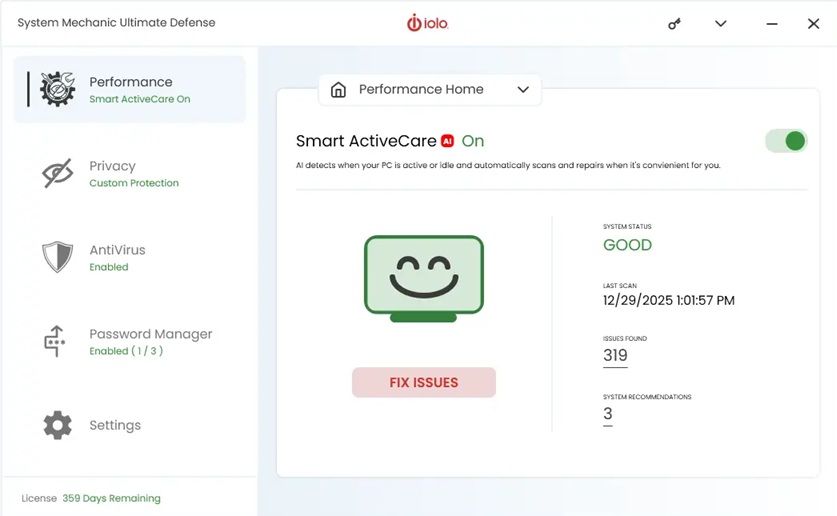
This is the automation engine behind the tool. It checks your PC in the background and fixes small issues before they grow into bigger problems. You do not need to click anything for this to work, which makes it useful for users who forget to run manual scans.
Please note that this feature is not available with the trial version, and only comes with a paid plan.
LiveBoost
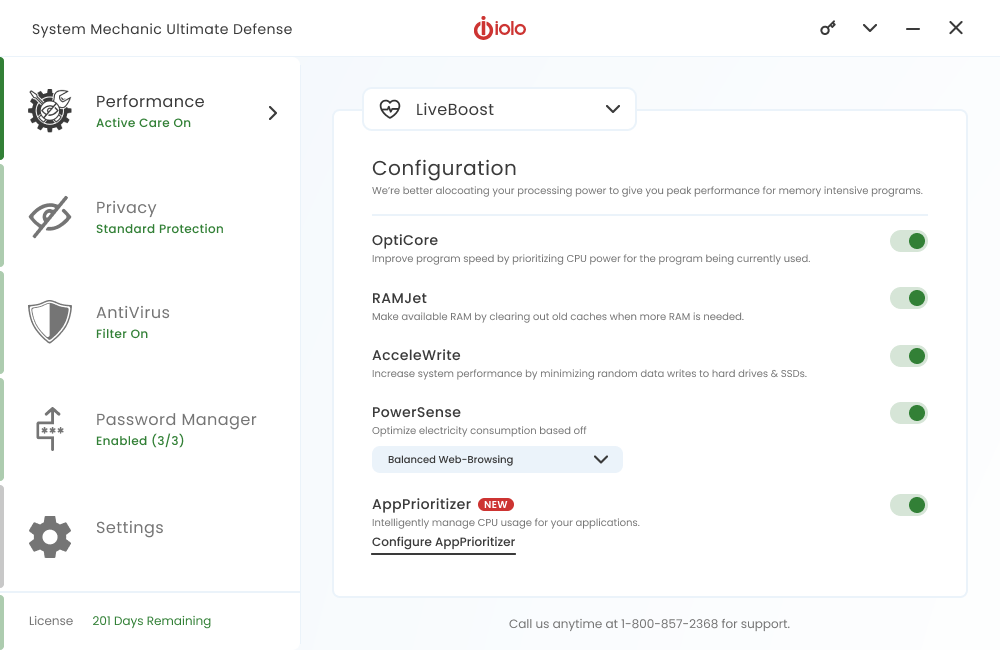
This feature frees up CPU, RAM, and drive resources in real time. It works best when you are gaming, editing video, or streaming, since it gives active tasks more room to run smoothly without shutting other apps down completely.
NetBooster
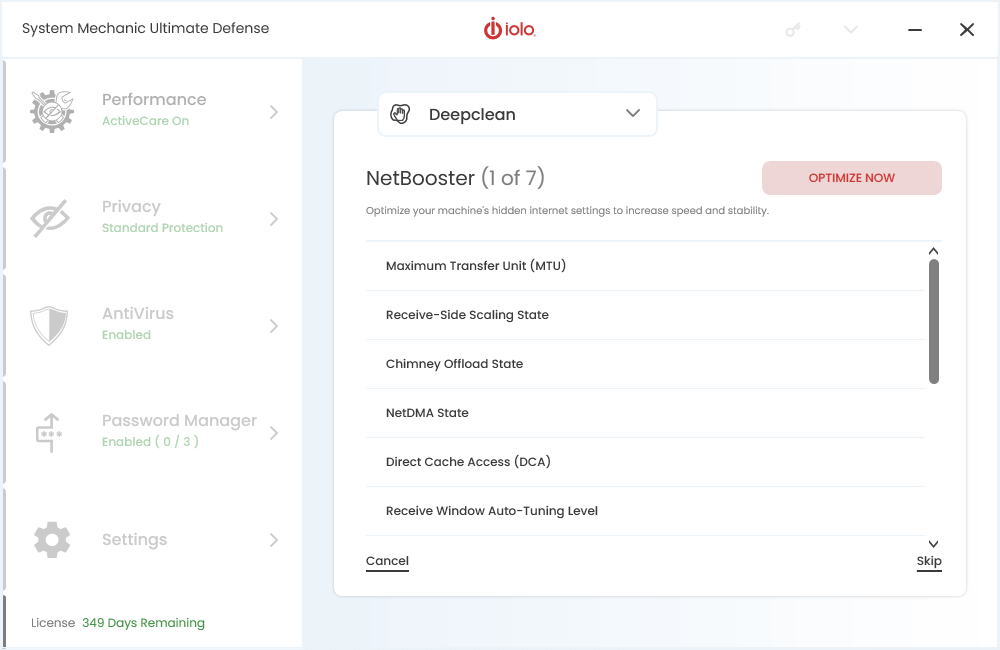
Your internet connection can slow down due to poor network settings, not just your provider. NetBooster adjusts these settings to help pages load faster and reduce buffering during downloads and video calls.
Password Manager
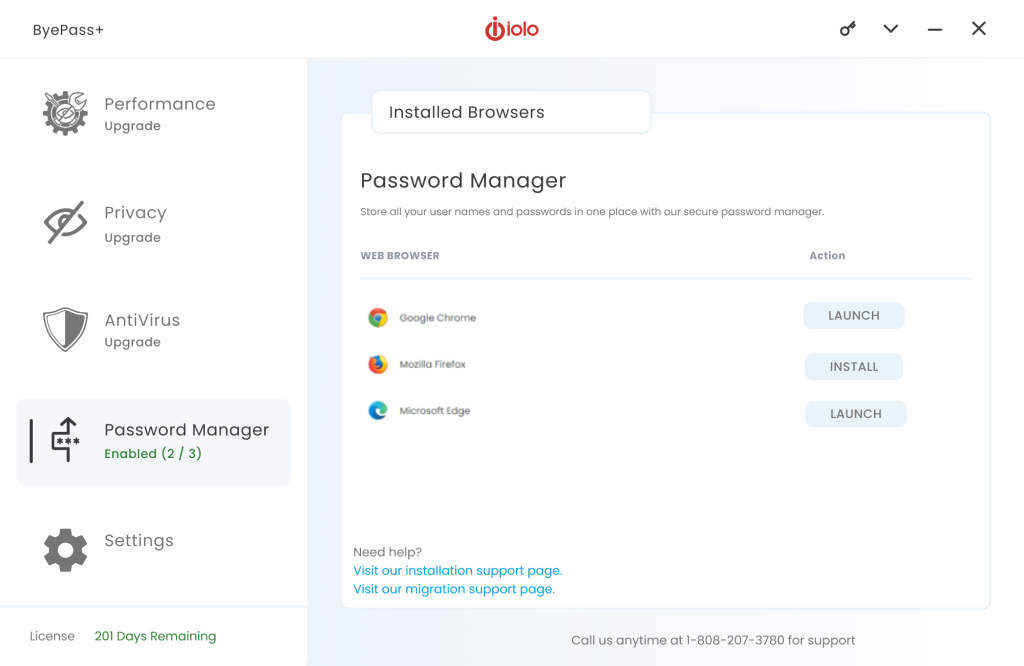
Keeping track of strong, unique passwords for every account gets hard over time. This feature stores your login details in one secure place and can generate strong passwords for new accounts. It saves you the trouble of reusing weak passwords across multiple sites, which lowers your risk if one account gets exposed.
Startup Optimizer
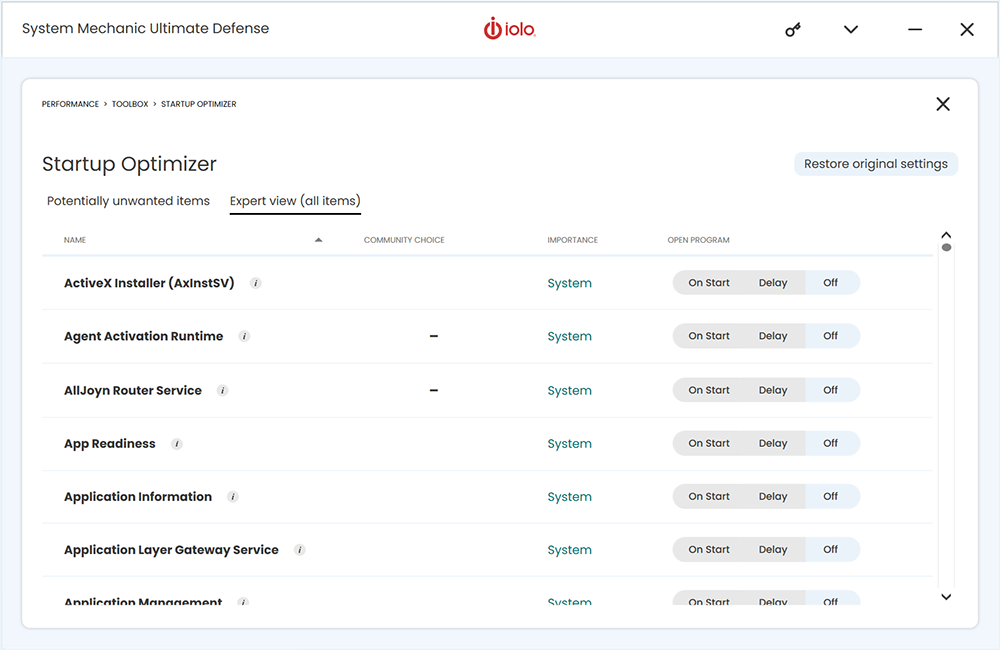
Too many apps loading at once can make your PC take longer to boot. This feature lists every startup program and lets you turn off the ones you do not need right away, which shortens your boot time.
Privacy Guardian
This tool clears cookies, browsing history, and other traces left behind while you use the internet. It also flags suspicious emails, adding a layer of safety against phishing attempts along with your regular privacy cleanup.
Antivirus Protection
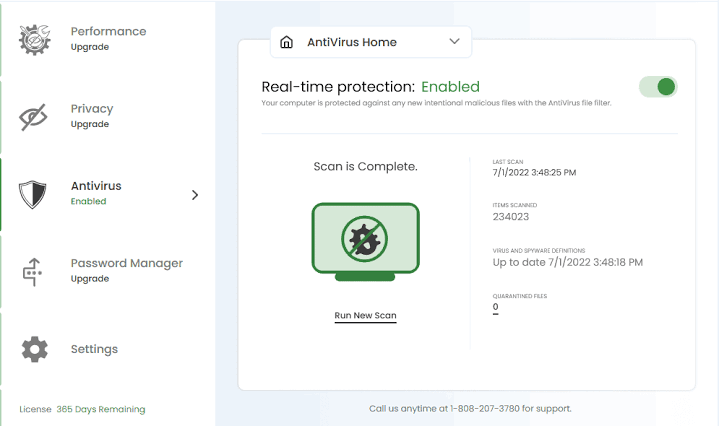
Available on the Pro and Ultimate Defense plans, this feature scans your PC for malware, spyware, and other threats in real time. It blocks harmful files as they try to open and runs scheduled scans in the background. This adds a security layer on top of the cleanup tools, so you get protection and performance in one place instead of running two separate programs.
Whole Home License
Many plans let you install the software across several PCs in one household under a single license. This makes it easier and cheaper to keep every family device clean without buying separate copies.
Part 4: How to Use Iolo System Mechanic Tool: Step-by-Step Guide
Getting started with System Mechanic does not take long. The install process is straightforward, and the tool guides you through the first scan without much extra effort on your part.
Since there is no permanent free version, you will need to start with a trial or pick a plan before installing. Once that step is done, setup takes just a few minutes on most systems.
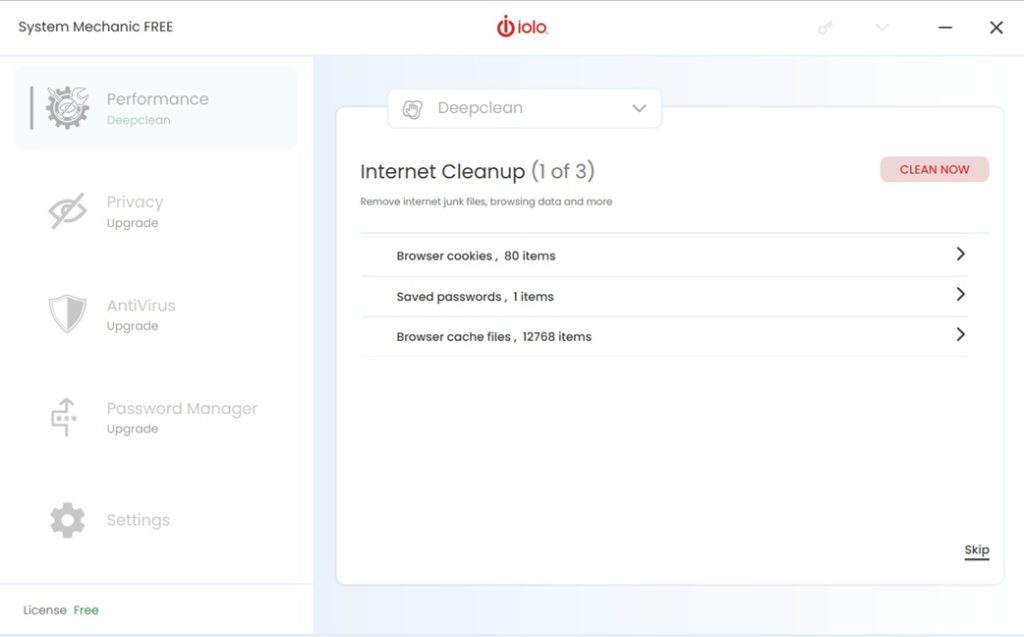
Step 1: Go to the official Iolo website and download the installer for your chosen plan or trial. Run the file and follow the on-screen prompts. Once installed, open the app to reach the main dashboard. Click the Start Clean button on the dashboard.
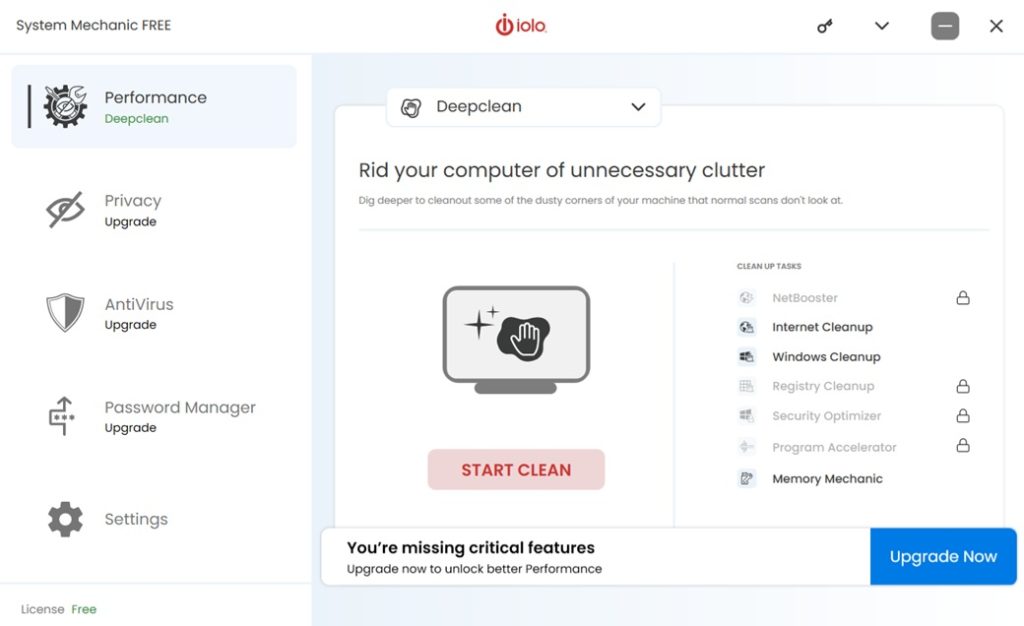
Step 2: The tool will check your registry, startup programs, junk files, and network settings. This can take a few minutes depending on how much clutter your PC has built up over time.
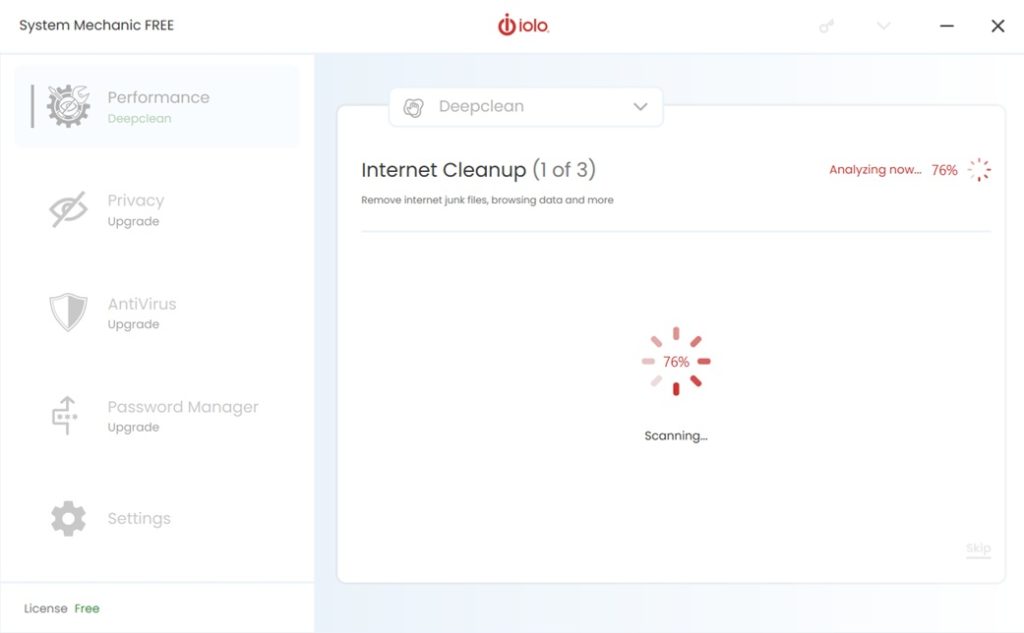
Step 3: Review the results and click Clean Now to fix the issues found. Restart your PC once the first repair finishes for the best results.
Part 5: Pros and Cons of Iolo System Mechanic PC Cleanup Software
Every tool has strong points and weak spots. System Mechanic performs well in several areas, but it also has a few things buyers should know before they commit. Here is a fair breakdown of both sides.
Pros
- Automated repair fixed broken shortcuts and registry errors without me running manual scans.
- Idle-time maintenance kicked in while my PC was idle, so I didn’t have to remember to launch it.
- NetBooster improved download speeds. Large files finished faster, and streaming lag dropped.
- File cleanup cleared over 3 GB of junk and duplicates I didn’t realize were clogging space.
- Privacy protection wiped browser history across Chrome and Edge in one go.
- Performance monitor showed CPU spikes during gaming, helping me spot bottlenecks.
- File recovery restored a deleted photo, while secure deletion made another file unrecoverable.
Cons
- Aggressive alerts popped up often, sometimes pushing me to run scans I didn’t need.
- Most features locked behind the paid plan, making the free version feel very limited.
- Basic Malware protection is not included in all plans, so coverage depends on subscription.
- Pricing felt high compared to simpler cleaners, especially if you only need basic cleanup.
Part 6: Pricing Plans: Iolo System Mechanic Tool
Iolo System Mechanic runs on a yearly subscription model across three main tiers. There is no free version, but a trial is available to test the tool first.
- System Mechanic Base Plan: About $43.94 for the first year. Renews at $54.95 per year.
- System Mechanic Pro: Renews at $74.95 per year. Adds real-time protection on top of the base tools.
- System Mechanic Ultimate Defense: Renews at $84.95 per year. Includes the full set of cleanup and security features.
- All plans: Cover up to 10 Windows PCs in one household. Each comes with a 30-day money-back guarantee.
Pricing Plans Compared:
| Feature | Base Plan | Pro / Ultimate Defense |
| Junk file cleanup | Yes | Yes |
| Startup manager | Yes | Yes |
| Smart ActiveCare | Yes | Yes |
| NetBooster internet tool | Yes | Yes |
| Real-time malware protection | No | Yes |
| Privacy Guardian | Basic | Full |
| DriveScrubber and recovery | Limited | Full access |
| Devices covered | Up to 10 | Up to 10 |
| Money back guarantee | 30 days | 30 days |
| Renewal price per year | Around 54.95 dollars | 74.95 to 84.95 dollars |
Part 7: Real Experience: What Happened When I Used System Mechanic on My PC?
When I installed System Mechanic, the process was simple. The program opened fast and started showing alerts right away. These alerts told me to run scans often. At first, I thought this was helpful, but soon it felt too much. The alerts made me feel like my computer had more problems than it really did.
The scans did clean junk files and showed registry issues. The layout was clear, and fixes were easy to apply. But I noticed that malware protection was not part of every plan. If I wanted full safety, I had to upgrade. This made the tool feel incomplete because security is important for PC care.
The biggest issue was that most features were locked. Almost everything useful was in the paid plan. The free version felt very limited. On top of that, the price was higher than other simple cleaners. My overall experience was that System Mechanic works well, but only if you pay for the full version.
Part 8: Who Should Use System Mechanic?
System Mechanic is designed for anyone looking to improve their PC’s speed, stability, and overall health. Whether you’re a casual user or someone who relies on your computer daily for work or study, this tool offers automated maintenance and easy-to-use features that suit a wide range of needs.
- Home users with aging PCs that feel sluggish
- Students who need reliable performance for online classes and assignments
- Remote workers who depend on smooth multitasking and fast boot times
- Small business owners managing multiple systems without IT support
- Beginners who prefer one-click solutions over manual tweaks
- Tech-savvy users who want access to advanced tools and diagnostics
- Privacy-conscious individuals looking to clear tracking data and browser history
- Windows users seeking an all-in-one optimization suite
Part 9: Who Should Avoid System Mechanic?
Not every user will need this tool.
- Mac users cannot install it.
- People with new, high-end PCs may not see big gains.
- Users who only want a simple cleanup may find cheaper tools enough.
- Heavy IT professionals may prefer manual tuning.
If your PC is new and already fast, you may not notice much. But for older or slower systems, the tool is more useful.
Part 10: Support and Updates
Iolo provides regular updates. These include bug fixes, performance tweaks, and new features.
Support options:
- Knowledge base: Guides and articles.
- Live chat: For fast help.
- Email support: For detailed issues.
- Phone support: Available in some plans.
Part 11: How Iolo System Mechanic Tool Is Viewed Around the World
Iolo has built a strong name across the PC optimization space over many years. Trust in a tool like this comes from consistent performance, long-term presence, and how users rate it after real use. Here is how it stands on a global level.
Reputation
- Founded in 1998 in California, Iolo has positioned System Mechanic as one of the longest-running PC optimization suites.
- It is widely available across North America, Europe, Asia, and Latin America, with localized support and distribution.
Review Highlights
- Trustpilot: Over 3,900 reviews, with many praising helpful support staff and effective cleanup results. Complaints often mention automatic renewals and upsell prompts.
- SmartCustomer: Rated 4.5/5 from 45 reviews, with 76% recommending the product. Users highlight long-term use (10+ years) and strong technical support.
- Tech Reviews: Independent sites note its wide toolset (cleanup, registry repair, startup optimization, NetBooster, file recovery). Performance gains are real but modest compared to built-in Windows tools.
Positive Themes
- Automated maintenance: Users appreciate Smart ActiveCare running cleanup while PCs are idle.
- Support staff: Frequently praised for patience and clear explanations.
- Long track record: Many reviewers trust it because they’ve used it for years.
- Multi-device coverage: Families value plans covering up to 10 PCs.
Criticisms
- Aggressive upselling: Pop-ups and pressure to buy add-ons frustrate some users.
- Renewal pricing: Costs rise after the first year, leading some to switch to cheaper rivals.
- Mixed performance: While cleanup works, registry repair and speed boosts don’t always deliver dramatic results.
Part 12: Best Alternatives to Iolo System Mechanic
Iolo System Mechanic is a strong pick, but it is not the only option out there. Depending on your budget and what you need most, another tool might fit you better. Here are some solid alternatives worth a look.
- Advanced SystemCare: This tool offers a strong free version and adds AI-based scanning along with driver updates. It is a good pick if you want to try a cleanup tool without paying upfront.
- CCleaner: Known for being light and simple, CCleaner focuses mainly on junk file removal and basic registry cleaning. It suits users who want a quick, no-frills tool without extra features.
- AVG TuneUp: This tool blends cleanup with sleep mode features that pause background apps you are not using. It works well for users who also want light security bundled in.
- Fortect: Built with a focus on repairing damaged system files, Fortect stands out for users dealing with frequent crashes or corrupted files rather than just general slowdowns.
- CleanMyPC: A simpler option with a clean design, this tool covers the basics well but lacks the deeper automation that System Mechanic offers through Smart ActiveCare.
If steady background automation and deep repair tools matter most to you, Iolo System Mechanic still holds a strong edge over these alternatives. If you want a free option to start with, or a lighter tool for basic cleanup, one of the names above may serve you just as well.
Conclusion
Iolo System Mechanic stands out because it runs many tasks on its own and has a wide set of repair tools. The Smart ActiveCare feature is useful for people who want steady maintenance without opening the app every time to run scans.
There is no permanent free version, but the depth of the tool makes that tradeoff easier to accept. For homes with more than one computer, the plan that covers ten devices adds good value compared to buying separate licenses. The renewal price does go up after the first year, so that is something to keep in mind before you commit.
From real testing, the features and overall performance show that System Mechanic is a strong choice. It gives users a reliable way to keep their computer running well with little effort. For anyone who wants a mostly hands off cleanup tool, it earns a solid recommendation.
FAQs
Does Iolo System Mechanic offer a free version?
No, there is no permanent free version. Iolo offers a trial so you can test the software before choosing a paid plan, but long-term use requires a subscription.
Is Iolo System Mechanic good for gaming PCs?
Yes, the LiveBoost feature is built to free up CPU, RAM, and drive resources during heavy tasks like gaming. Many users notice smoother performance during active gaming sessions after enabling this feature.
Does Iolo System Mechanic include antivirus protection?
Real-time protection is only included in the Pro and Ultimate Defense plans. The base plan focuses on optimization and cleanup rather than full antivirus coverage, so check your plan before relying on it for security.
Dinesh Lakhwani
Author Bio:
Dinesh Lakhwani 

Dinesh Lakhwani, the entrepreneurial brain behind “TechCommuters,” achieved big things in the tech world. He started the company to make smart and user-friendly tech solutions. Thanks to his sharp thinking, focus on quality and the motto of never giving up, TechCommuters became a top player in the industry. His commitment to excellence has propelled the company to a leading position in the industry.
Popular Post
Recent Post

5 Best Data Recovery Software For Windows 11 and Windows 10
A crashed drive can ruin a whole day. One minute your photos, work files, and tax records sit safe on your PC. The next minute they are gone. A power cut, a bad update, or one wrong click can wipe out years of memories and months of work in seconds. That sinking feeling is why […]

How To Update NVIDIA Drivers On Windows 11/10 PC
Learn how to update NVIDIA drivers on Windows 11/10 with simple methods, safety tips, and easy steps for smoother gaming and better PC performance.

Top AI Features Hidden Inside Windows 11
Explore the top AI features in Windows 11, from Copilot to Recall, plus safety tips and simple steps to use each tool the right way.

Customize Your Screen Saver Settings in Windows [Easy Steps]
Learn how to customize screen saver settings in Windows 11 with easy steps, safety tips, and simple tricks to personalize your PC screen.

Driver Easy Windows Driver Updater Tool Review: Tried & Tested
In-depth information about Driver Easy’s functions and features can be found in our review. Learn how to update drivers more easily with this tool for a more seamless computer experience.

Is Avast Driver Updater Worth It? A Hands-On Analysis
A full review of Avast Driver Updater covering features, setup steps, pricing, pros and cons, and real PC results, to help you decide if it is worth buying.

IObit Driver Booster 13 (PRO) Review: [Tried & Tested]
IObit Driver Booster 13 is built for one purpose: keeping your PC drivers up to date. Well, yes! Outdated drivers can cause crashes, slowdowns, and hardware issues. This tool scans fast and updates with one click. The interface is simple. Even beginners can use it without confusion. Updates are pulled from a huge database, covering […]

Auslogics Driver Updater: A Detailed Walkthrough [2026]
This comprehensive review covers the key features, pros, and cons, pricing, and a final verdict on Auslogics’ driver update utility. Learn how it stacks up against manual driver maintenance.

5 Best Driver Updater Tools for Windows to Use (Free and Paid)
Introduction: Most people blame their PC for problems that a driver caused. A driver works like a bridge between your hardware and your operating system. When this bridge cracks, strange things start to happen. Screens flicker without reason. Printers go silent mid-task. Games freeze or crash out of nowhere. Manually finding the right driver is […]

