










A slow computer makes it hard to focus. Programs take too long to open. Free space keeps shrinking until the disk is almost full. This happens to most PC owners at some point. Even new machines can slow down after a while. That is the exact problem cleanup tools are built to solve. They comb […]
New Features Coming in Windows 11 This Year [2026]
Microsoft is always working to make Windows better. This year is no exception. The company has announced and rolled out several exciting updates for its users. These updates touch almost every part of the operating system. From the Start menu to system settings, changes are arriving fast. If you use Windows daily, you will want to know what is new. Understanding these updates helps you get more out of your computer. This guide covers all the major Windows 11 new features you should know about in 2026.
Some updates are small quality-of-life improvements. Others are big changes that affect how you work. Microsoft has been listening to user feedback for years. Many of these updates are a direct result of that feedback. No matter if you use Windows for work, studying, or entertainment, you will find something useful here.
Keep reading to learn everything about the latest Windows 11 new features rolling out this year.
What to Expect From Windows in 2026?
Microsoft has lined up a major set of updates for this year. Most of them will arrive through Windows Update, so they should install automatically for many users. Since the rollout is happening gradually, some features may appear earlier for certain users than others.
You can check Windows Update to see what is available for your device. The focus this year is on AI, productivity, and better system performance.
Major New Features in Windows 11 This Year
1. Enhanced Hardware Reliability
Microsoft is addressing some long-standing hardware issues this year. Many users have experienced random Bluetooth disconnects, and that is finally being fixed. USB connections are also getting stability improvements, so devices stay connected more reliably. Camera and microphone behavior during video calls is being stabilized, too. These fixes matter a lot for people who work from home or attend regular online meetings.
You will notice fewer interruptions and a more consistent experience with your peripherals. These behind-the-scenes improvements are just as important as the visible new features.
2. Shared Audio for Bluetooth Devices
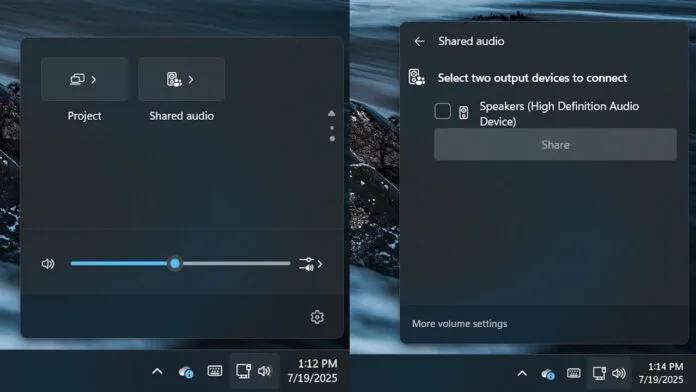
This is a fun and practical addition for many users. Windows 11 now includes a native Shared Audio feature. It lets you play system sound through two Bluetooth devices at the same time. For example, you and a friend can both listen to the same music or movie using your own headphones. You do not need any third-party app to make this work. It is built directly into Windows.
This is a great feature for travel, shared workspaces, or simply watching something together without disturbing others around you.
3. Copilot AI and Settings Agent Updates
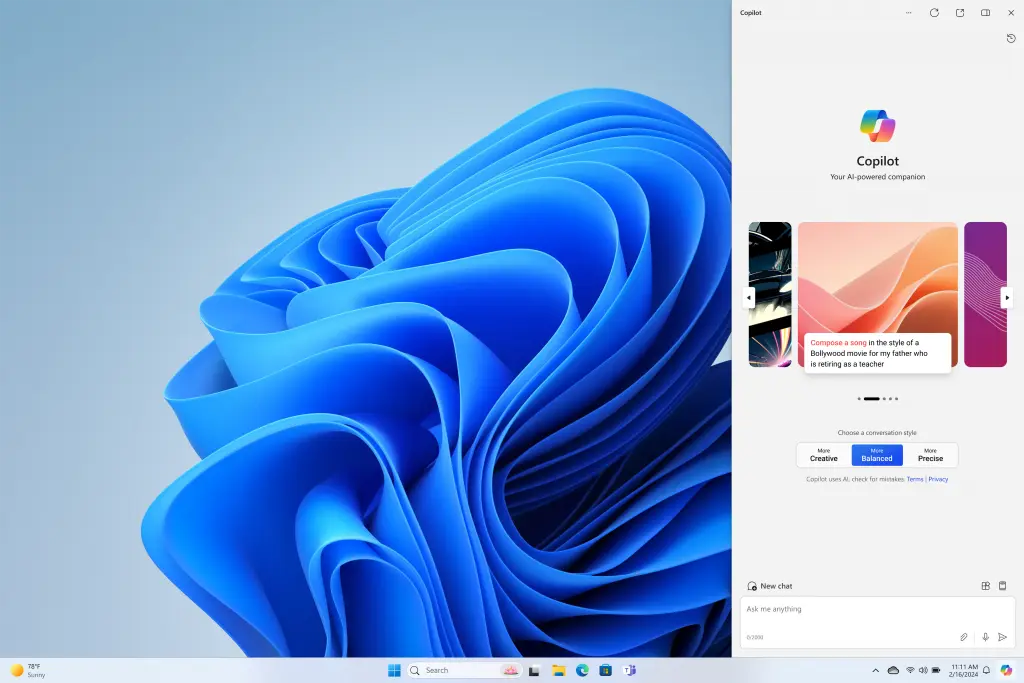
Copilot is becoming more deeply woven into the Windows experience this year. AI-driven Windows Search is getting smarter, giving you faster and more relevant results. A new natural-language settings agent is also being added. You can type or speak in plain language to find and change system settings.
For example, you can say something like “turn on dark mode” or “increase display brightness,” and Copilot will handle it. Voice Access users benefit from this too, making hands-free control of Windows much more practical. This is one of the most useful Windows 11 new features for everyday users.
4. Everyday Tool Improvements
Microsoft continues to refine the tools you use every single day. File Explorer is receiving ongoing updates to improve speed, stability, and usability. Navigation feels smoother, and common tasks are easier to complete. At the same time, Microsoft is continuing its effort to move legacy Control Panel settings into the modern Settings app. This transition makes the overall Windows experience more consistent and less confusing. Instead of jumping between two different interfaces, you will find everything in one clean location. These steady improvements show that Microsoft is paying attention to the small things that matter most.
5. Smarter Start Menu
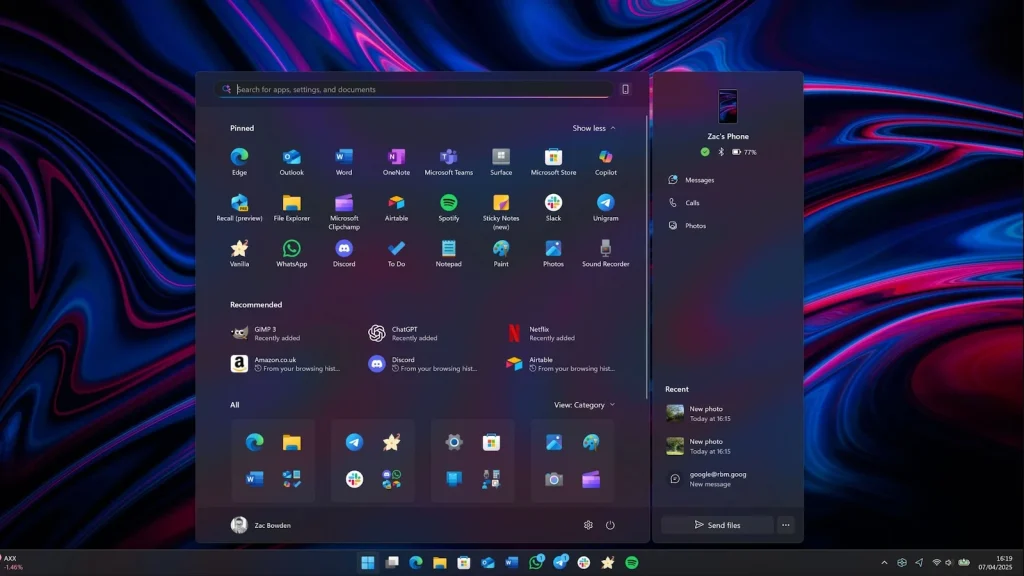
The Start menu is getting a big refresh. Microsoft is redesigning it to feel more personal and useful. You will see a recommendations section that learns from your habits. It will show apps and files you use most. Pinned apps can now be organized into folders, just like on a phone. The search bar inside the Start menu is also faster and more accurate. These changes make the Start menu less cluttered and easier to use.
6. AI-Powered Windows Search
Search on Windows is becoming much smarter this year. Microsoft is adding AI to the search experience. You can now type natural language queries and get better results. For example, you can search for a document by describing what it contains. The system understands context and gives you relevant results quickly. This is one of the most talked-about Windows 11 new features this year. It saves time and removes the frustration of not finding what you need.
7. Improved Taskbar Controls
The taskbar is also seeing changes. Microsoft is adding more customization options. You will be able to move app icons wherever you want on the taskbar. The notification area at the bottom right is getting a cleaner look. Quick settings, like Wi-Fi and Bluetooth toggles, are easier to access. There is also a new media playback control built right into the taskbar. These are small but meaningful improvements that many users have been requesting for a long time.
8. Snap Layouts and Multitasking Upgrades
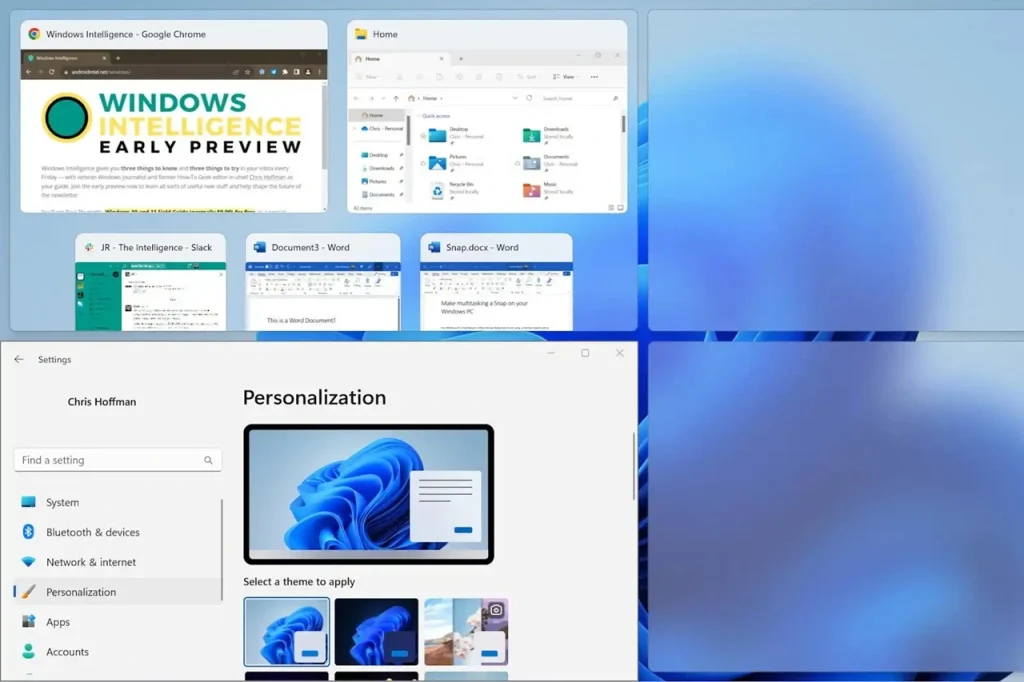
Snap Layouts were introduced in Windows 11, and users loved them. This year, Microsoft is making them even better. You can now save your snap layout as a named group. When you return to a task, your windows open exactly where you left them. There are more layout options available on smaller screens, too. This makes multitasking much smoother. Power users who work with multiple windows at once will benefit the most from this update.
9. Microsoft Copilot Improvements
Copilot is Microsoft’s AI assistant built into Windows. This year, it is getting much more capable. You can ask Copilot to help with writing, summarizing documents, or answering questions. It now integrates more deeply with Windows apps. For example, you can ask Copilot to change your system settings using plain language. It can also help you troubleshoot problems without needing to search the internet. These improvements make Copilot one of the standout Windows 11 new features of 2026.
10. Phone Link Upgrades
Phone Link lets you connect your Android or iPhone to your Windows PC. This year, the feature is getting major upgrades. You can now access your phone’s apps directly from your PC. Drag and drop between your phone and PC is also getting smoother. Notifications sync faster, and you can reply to messages without picking up your phone. iPhone users are getting better support than before, with more features added compared to last year.1
11. New File Explorer Design
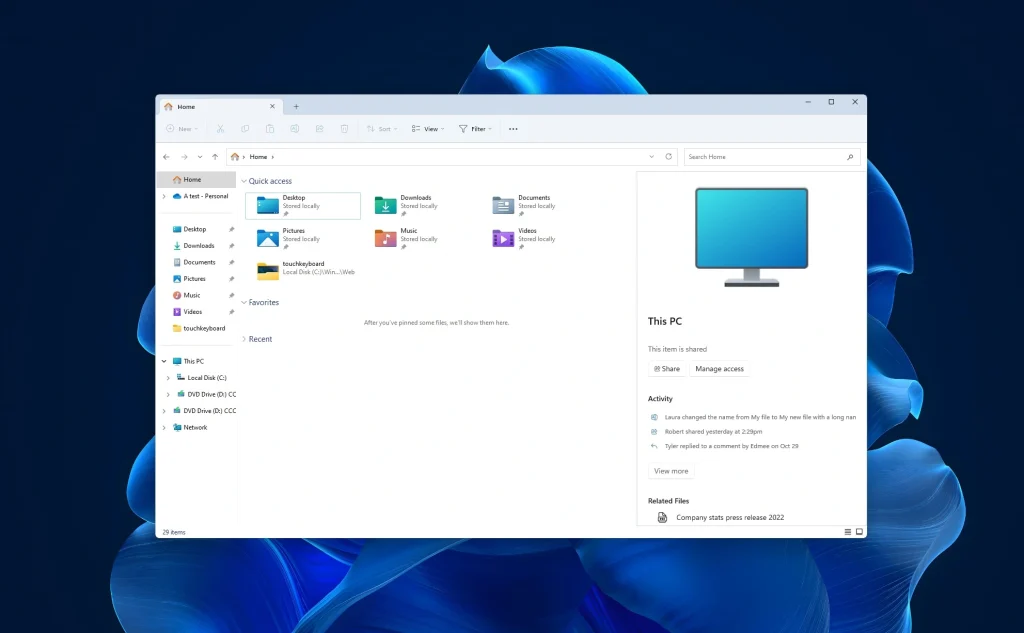
File Explorer is one of the most-used tools in Windows. Microsoft is updating it with a cleaner design this year. The toolbar is simplified, and icons look sharper. There is a new Gallery view that shows all your photos in one place. Tabs in File Explorer, which were added last year, are now more stable and feature-rich. You can pin folders to tabs, making it easier to jump between locations. These changes make managing files faster and less confusing.
12. Better Settings App
The Settings app is being reorganized this year. Microsoft is making it easier to find what you are looking for. Categories are now more clearly labeled. A new search bar inside Settings works much better than before. You can search for any setting using simple words and find it right away. Some advanced settings are also moving from the old Control Panel into the modern Settings app. This is part of Microsoft’s long-term plan to retire the legacy Control Panel.
How to Get New Windows 11 Updates?
Microsoft releases Windows updates regularly throughout the year. Most of the new features discussed above arrive through Windows Update. Some features roll out in phases, so your device may receive them at different times. Checking for updates manually ensures you do not miss anything important.
Getting these updates is simple and does not take much time. You do not need to be a tech expert to do it. Windows makes the process straightforward for all users. Just follow the two quick steps below to get started.
Step 1: Open Windows Update. Click the Start menu and open Settings. From there, select Windows Update from the left-side panel. You will see the current update status of your device on this screen.
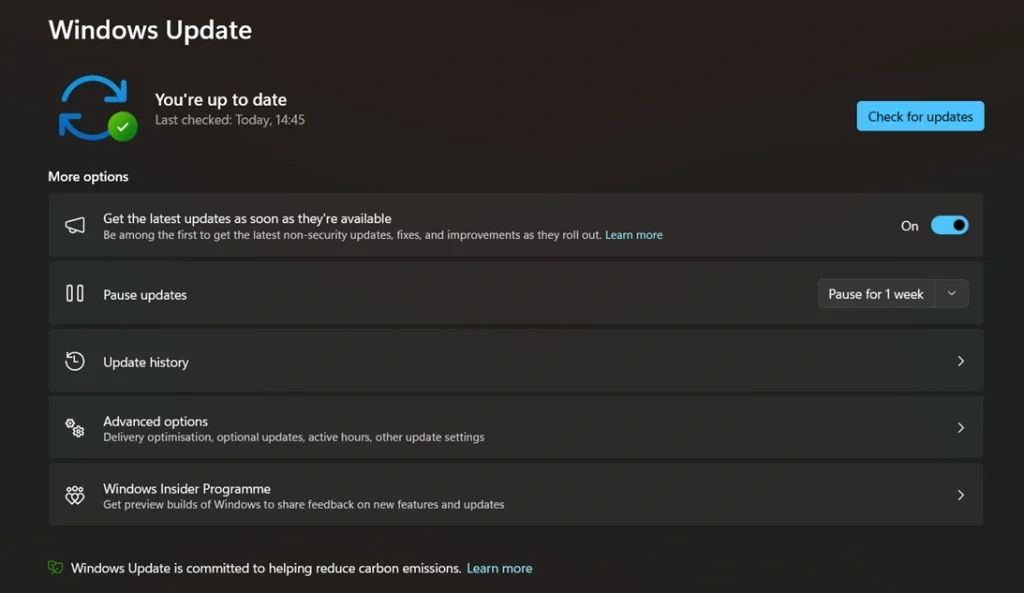
Step 2: Check and Install Updates. Click the Check for Updates button. Windows will scan for all available updates. If new features or patches are available, they will appear in a list. Click Download and Install to apply them. Some updates may ask you to restart your PC to finish the installation.
Precautions Before Updating Windows OS
Updating Windows is usually smooth, but a little preparation goes a long way. Taking a few simple steps before you start can save you from losing data or running into problems. These precautions are easy to follow and do not take much time. Make them a habit every time a major update is available.
- Back up your important files before starting any update. Use an external hard drive or a cloud service like OneDrive to store copies of your documents, photos, and videos.
- Free up storage space on your device. Windows updates need room to install. Make sure you have at least 20 GB of free space available before you begin.
- Plug in your laptop if you are not using a desktop. Updates can take time, and you do not want your device to shut down halfway through the process due to a low battery.
- Check app compatibility if you rely on specialized software for work or school. Visit the software developer’s website to confirm it supports the latest version of Windows.
- Pause non-essential work before starting the update. Some updates require a restart, and unsaved work can be lost if you are not prepared.
- Connect to a stable internet connection before downloading updates. A slow or interrupted connection can cause update errors or incomplete installations.
- Do not turn off your PC while an update is in progress. Interrupting an update can corrupt system files and cause serious problems with your device.
- Create a system restore point before installing a major update. This gives you a safe fallback option in case something goes wrong after the update is applied.
Conclusion
This year is shaping up to be an exciting one for Windows users. Microsoft is delivering a wide range of improvements that touch every corner of the operating system. From smarter AI tools to faster updates and better gaming, there is something for everyone. The new features make daily computing faster, safer, and more enjoyable. Whether you use your PC for work or play, these upgrades will have a positive impact.
Staying updated means you always get the best that Windows has to offer. The Windows 11 new features rolling out in 2026 reflect Microsoft’s commitment to making computing simple and powerful. Take some time to explore what has changed on your PC. You may discover tools that completely change how you work. Microsoft is not slowing down, and neither should you when it comes to keeping your Windows experience current.
FAQs
Q1. Are all the new features available for every Windows 11 device?
Not all features are available on every device right away. Microsoft rolls out updates in phases, meaning some users get new features before others. Some features also require specific hardware. For example, AI-based features like Windows Recall need a device with a Neural Processing Unit (NPU). If you do not see a feature yet, check Windows Update regularly. It will arrive on your device once it is cleared for your hardware and region. Keep your system updated to make sure you do not miss anything.
Q2. Is Windows Recall safe to use?
Windows Recall was initially met with privacy concerns. Microsoft listened and made significant changes before releasing it more widely. You can now fully control what Recall captures. You can exclude specific apps and websites from being recorded. All data is stored locally on your device and is encrypted. Microsoft does not send your snapshots to the cloud. You also have the option to pause or completely disable Recall at any time through the Settings app. With these controls in place, most users can feel comfortable using it safely.
Q3. Do I need to pay for these Windows 11 new features?
No, you do not need to pay separately for these updates. If you are already running a licensed copy of Windows 11, all these features come free through Windows Update. There is no subscription required for the core operating system updates. However, some features may be tied to services that have their own subscription, like Microsoft 365 or Xbox Game Pass. The operating system features themselves are free for all eligible Windows 11 users. Just keep your device updated, and you will receive everything automatically.
Author Bio:
Dinesh Lakhwani 

Dinesh Lakhwani, the entrepreneurial brain behind “TechCommuters,” achieved big things in the tech world. He started the company to make smart and user-friendly tech solutions. Thanks to his sharp thinking, focus on quality and the motto of never giving up, TechCommuters became a top player in the industry. His commitment to excellence has propelled the company to a leading position in the industry.
Popular Post
Recent Post

Fortect Software Review: The Ultimate PC & Mobile Cleaning, Optimization & Security Tool
Slow computers are a common problem for almost every Windows user. Well, yes! Over time, your PC picks up junk files. These files sit quietly in the background. They take up space and slow things down. Programs open slower. Windows takes longer to boot. Even simple tasks like opening a folder can feel sluggish. There […]
CCleaner PC Optimizer Review: A Complete Guide for Windows Users
If your computer has started to feel slow, you are not alone. Most Windows PCs slow down over time. Junk files pile up. The registry gets messy. Too many apps open when you start your PC. All this adds up and makes even a good machine feel tired. This is where a PC cleaner tool […]
Auslogics Duplicate File Finder: Full Review and User Guide
A computer quietly gathers clutter over time. This includes duplicate photos, repeated downloads, and forgotten backups hiding in random folders. This buildup slowly eats away at storage and can make even a fast PC feel sluggish. Manually finding and deleting duplicates is tedious. It means checking every folder, comparing file names, and guessing which copies […]
CCleaner Duplicate File Finder: Key Features, Pricing, Step-by-Step Guide and More
Every computer collects junk over time. Right? Well, yes! Photos often get copied twice. Documents get saved in two folders by mistake. Old downloads pile up and never get deleted. This slowly eats up your storage space, and most people do not even notice until their drive is almost full. That is where a duplicate […]
Duplicate File Finder Pro: A Complete Review, Everything You Should Know
Computers collect thousands of files over time. Well, yes! Many of them end up being duplicates created by backups, downloads, or accidental copies. These extra files take up valuable storage space and make it harder to keep everything organized. Finding and removing them manually can take hours. Right? Duplicate File Finder Pro is a tool […]
Top 3 Duplicate File Finder for Windows 11 & Windows 10
If your PC storage keeps filling up even after you delete big files, duplicate files could be the real reason. Most of us save the same photo twice, download a document more than once, or copy a whole folder by mistake. Over months and years, these duplicate files pile up quietly. You do not even […]
Monitor Screen Calibration Guide: Everything You Should Know
Your monitor shows colors every single day. But are those colors actually correct? Most people never stop to check this. They just use the screen as it comes out of the box. This habit can lead to wrong colors in photos, videos, and work files. Colors may look too warm or too cold without you […]
How To Check Installed RAM and RAM Slots [Complete Guide]
RAM plays an important role in how smoothly a computer runs. Short for Random Access Memory, it stores the data and instructions that Windows and active applications need at any given moment. From opening multiple browser tabs to running games and productivity software, RAM helps keep everything responsive. A system with limited memory may experience […]
What is Microsoft Autopilot Everything You Need To Know
Technology has changed the way companies manage computers. Well, yes! Employees now work from offices, homes, and remote locations. Setting up devices manually for every worker takes time and effort. It can also create mistakes that slow down productivity. This is where Microsoft Autopilot becomes useful. It helps businesses prepare and deploy Windows devices with […]

