












So, search for a pair of shoes once online. Close the tab. By evening, those same shoes are sitting on your news site, your video app, and even your recipe blog. Nobody placed them there by chance. A cookie did. Well, yes! Cookies are small files that websites place on your device while you browse. […]
Security Upgrades of Microsoft Windows in This Decade [Complete Guide]
Introduction
Microsoft has been working hard to make Windows safer every year. Cyberattacks are growing fast. Hackers are smarter now. They target millions of Windows users every single day. That is why Microsoft has added many powerful new security upgrades of Microsoft Windows since 2020. These upgrades protect your data, your identity, and your device from modern threats.
This decade brought the biggest security changes in Windows history. Microsoft moved away from software-only protection. It now uses hardware-level security at every layer. Whether you use Windows 10 or Windows 11, these changes affect you directly.
This guide breaks down every major upgrade in simple words so anyone can understand what changed and why it matters.
Windows Security: A Quick Look at the Numbers
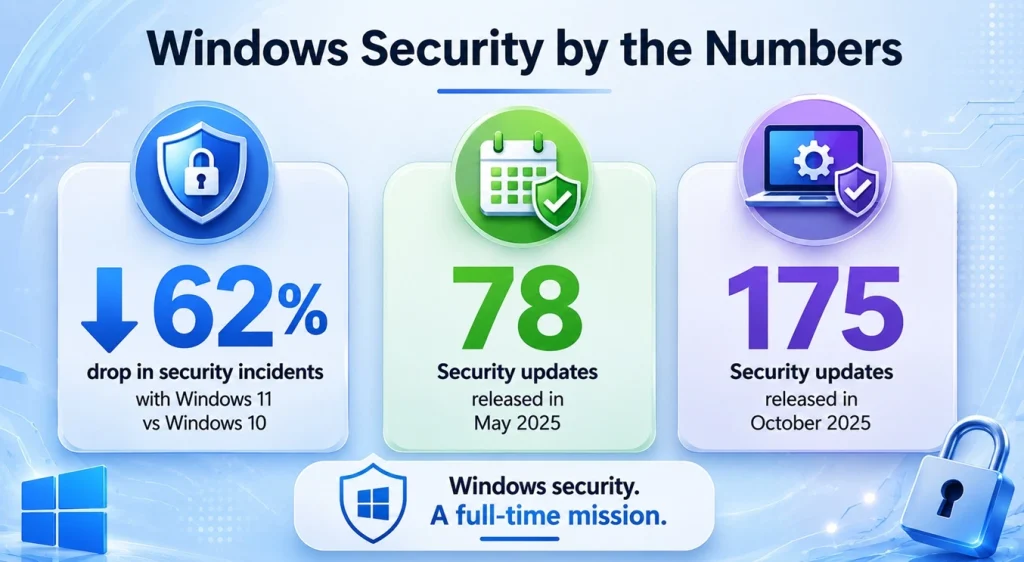
Before moving ahead, let us first look at a few important stats.
According to a Techaisle survey in September 2024, businesses using Windows 11 saw a 62% drop in security incidents compared to devices running Windows 10.
In May 2025 alone, Microsoft released 78 security updates for various products. That shows how active Microsoft is in keeping Windows secure.
In October 2025, Microsoft released a total of 175 security updates across its products. This was one of the biggest monthly patch releases in recent years.
These numbers show that Windows security is not a small effort. It is a full-time mission.
Why Windows Security Matters More Than Ever?
The internet is full of threats. Ransomware attacks are common. Phishing emails fool millions of people every day. Data breaches happen at companies big and small.
Windows is the most widely used desktop operating system across the world. Because of this, it attracts a huge number of cyberattacks. Microsoft constantly works to stay ahead of these threats. The Windows security improvements introduced during this decade are part of that effort to fight growing online risks.
Old security methods were not enough. Software-only protection had limits. Hackers found ways around it. That is why Microsoft moved to hardware-based security. This approach is much harder to break.
Precautions Before You Rely on Windows Security
Security upgrades help a lot. But you also need to be careful on your end. Here are a few important precautions you should remember.
- Keep Windows updated at all times. Updates patch known vulnerabilities. Do not skip them.
- Use a strong password or PIN for your Windows account. Weak passwords are easy to guess.
- Enable two-factor authentication wherever possible. This adds a second layer of protection.
- Do not download software from unknown websites. Even with built-in protection, risky downloads can cause harm.
- Be careful with email attachments. Always verify the sender details.
- Avoid using public Wi-Fi without a VPN. Public networks are easy to attack.
Key Security Upgrades of Microsoft Windows This Decade
Let us now look at the major changes Microsoft has made since 2020.
1. TPM 2.0 Became Mandatory
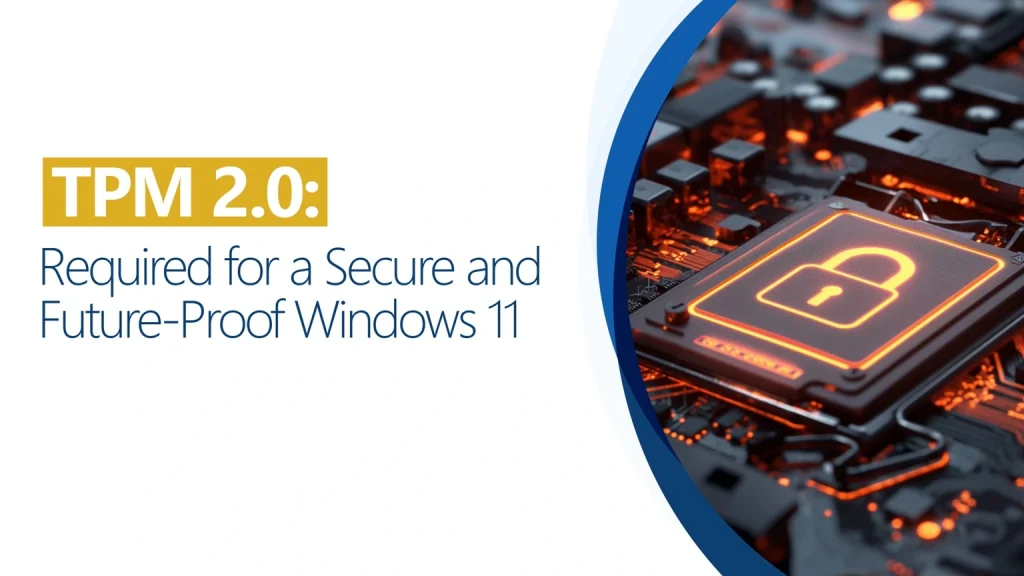
TPM stands for Trusted Platform Module. It is a dedicated chip built into the motherboard. TPM 2.0 helps protect sensitive data like passwords, encryption keys, and login details by storing them in a secure area that is separated from normal software processes.
When Microsoft released Windows 11 in 2021, TPM 2.0 became a mandatory requirement for supported devices. This marked a major change in Windows security standards. Earlier versions of Windows did not require hardware-level protection like this. With features such as TPM 2.0 and Secure Boot, Windows 11 added stronger defence against advanced cyber threats and modern attacks.
Why does this matter? Because a chip-level lock is harder to bypass than a software one. Hackers cannot simply install malware and steal your keys.
2. Secure Boot
Secure Boot is another hardware-based protection. It is integrated into UEFI firmware. Secure Boot ensures only trusted, digitally signed code can run during startup. This stops rootkits and bootkits before they ever launch.
This means no rogue software can quietly load when your PC starts. Everything that runs at boot is verified. If something is not trusted, it gets blocked right away.
3. Virtualization-Based Security
VBS is a powerful tool. Windows 11 uses VBS to isolate critical system components. This technology uses hardware virtualization to keep the Windows kernel and security solutions in a separate memory space.
Think of it as a secure box inside your PC. Even if your main system gets infected, the secure box stays protected. This is very useful against advanced attacks that target the operating system core.
4. BitLocker and Automatic Device Encryption

BitLocker has been around for a while. But this decade it got stronger. BitLocker Drive Encryption makes sure that if a device is stolen or exposed, data stays protected. It enables encryption for the OS, data, and removable data drives.
A major update came with Windows 11 24H2. Microsoft lowered the hardware requirements for automatic device encryption. This means even Home edition PCs can now be automatically encrypted by default.
This is a huge change. Before, full disk encryption was mainly for Pro users. Now it protects more people without any extra steps.
5. Windows Hello and Biometric Sign-In
Passwords are often easy to guess or reuse. Many people also forget them. Windows Hello offers a safer and simpler way to sign in. Instead of regular passwords, it allows users to unlock their device using facial recognition, a fingerprint, or a secure PIN.
Windows Hello is protected by TPM and VBS. These methods outperform traditional passwords for both security and convenience. In recent updates, Microsoft also added passkey support. This means you can sign in to websites using Windows Hello with no password at all.
6. Smart App Control
Smart App Control is a newer feature introduced with Windows 11 22H2. It checks every app you try to run. If an app is not trusted or verified, it gets blocked before it can do any damage.
It works in the background silently. You do not need to do anything. It just keeps bad software away from your system.
7. Enhanced Phishing Protection
Phishing is one of the most common attacks. Microsoft added enhanced phishing protection in Windows 11 22H2. It watches when you type your password.
If you type your Windows password into a website or app that is not trusted, it warns you immediately. Many people do not realize they are on a fake site. This feature catches that mistake before any damage is done.
8. Microsoft Pluton Security Processor
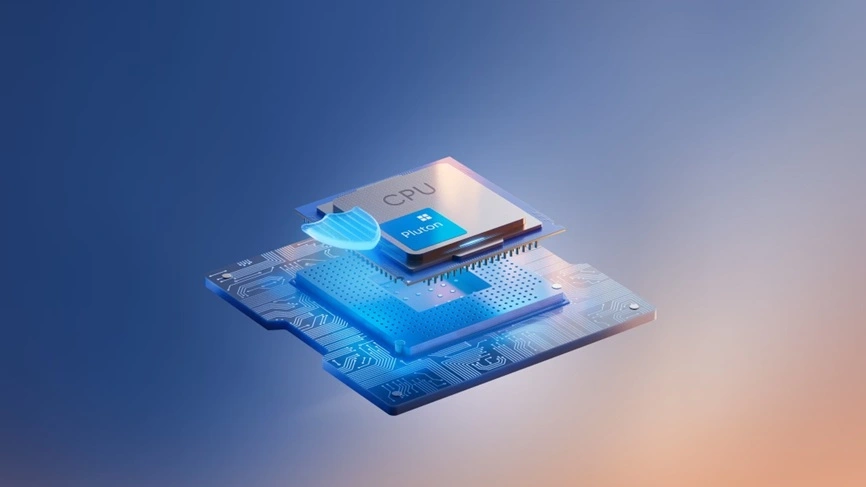
Pluton is a new generation of security chip. It is built directly into the CPU. This is different from TPM, which sits on the motherboard.
The Pluton security processor shields credentials and other sensitive data with powerful hardware-based protection. Copilot Plus PCs, which launched in 2024, come with Pluton built in. This is the most secure consumer hardware Microsoft has ever shipped with Windows.
9. Kernel Protection and Antivirus Outside the Kernel
In 2024, Microsoft announced a major change at its Ignite conference. Microsoft is moving antivirus processing outside kernel mode. This provides a high level of security while minimizing reliability risks. Crashes outside the kernel will only affect the antivirus app and not the entire Windows system.
This was partly triggered by the CrowdStrike outage in 2024, which crashed millions of Windows PCs globally. Moving security tools outside the kernel prevents such large-scale disasters from happening again.
10. Windows 10 Extended Security Updates
Not everyone could upgrade to Windows 11. Microsoft understood this. The Extended Security Updates program for Windows 10 provides customers with a more secure option to continue using their PCs after October 14, 2025. The program is free for private users and protects against malware and other threats until at least October 2026. Businesses can continue to receive updates for a fee for three years.
Advantages of Windows Security Upgrades
The security upgrades of Microsoft Windows bring many real benefits. Here is a quick look:
- Hardware-based security is much harder to bypass than software alone
- Attackers cannot easily reach your encryption keys stored in TPM
- BitLocker encryption protects your data even if your laptop is stolen
- Windows Hello removes the risk of stolen or guessed passwords
- Smart App Control blocks unknown apps before they can run
- Automatic updates mean you get patches faster with less manual effort
- VBS and kernel protection guard even the deepest parts of your system
- The ESU program ensures older machines stay protected during transitions
Disadvantages of Windows Security Upgrades
No system is perfect. There are some downsides too:
- TPM and Secure Boot requirements locked out millions of older PCs from Windows 11
- Smart App Control only works on fresh Windows 11 installs, not upgrades
- Hardware-based features require compatible processors and firmware settings
- Automatic BitLocker on Home PCs confused many users about recovery keys
- Heavy security features can slow down older or lower-end hardware
- Updates can occasionally introduce bugs or compatibility issues
- Not all users understand these features, leading to a false sense of full protection
Latest News: What Changed in 2025 and 2026
Microsoft has been very active recently. Here is a quick news roundup.
In August 2025, Microsoft released the Quick Machine Recovery feature. This helps IT teams fix Windows devices remotely, even when they will not boot. This was a direct response to the CrowdStrike crash of 2024.
Microsoft also extended the ESU program to include additional Windows versions beyond Windows 10. This targets companies that cannot upgrade immediately. Microsoft still recommends moving to Windows 11 25H2 or newer for long-term security.
In early 2026, antivirus partners began accessing a private preview of the new kernel-outside protection architecture. This will make Windows more stable and secure at the same time.
Monthly patch updates continue to be large. In July 2025, Microsoft released 130 security updates for its products. The pace shows no signs of slowing down.
Tips and Tricks to Maximize Windows Security
Here are some practical tips to get the most out of Windows built-in security features.
- Turn on Windows Security and check the status regularly. Go to Settings, then Privacy and Security, then Windows Security. Make sure everything shows a green checkmark.
- Enable Memory Integrity. Go to Windows Security, then Device Security, then Core Isolation Details. Toggle Memory Integrity on. It helps block advanced attacks on your system core.
- Use Windows Hello instead of a password. It is faster and much more secure. Set it up under Settings, Accounts, Sign-in options.
- Check if BitLocker is active. Go to Control Panel, System and Security, BitLocker Drive Encryption. Turn it on if it is not already enabled.
- Save your BitLocker recovery key to your Microsoft account or a USB drive. You will need it if something goes wrong during boot.
- Set Windows Update to automatic. Go to Settings, Windows Update, and make sure automatic updates are turned on.
- Review installed apps regularly. Remove anything you do not recognize or no longer use.
- Use the Microsoft Defender Firewall. Do not turn it off unless a trusted program requires it temporarily.
- Enable Secure Boot in your UEFI settings if it is not already on. Restart your PC and press the BIOS key during startup to check.
- Consider upgrading to Windows 11 if your hardware supports it. The security gap between Windows 10 and Windows 11 is very significant.
FLUQs (Frequently Left Unanswered Questions)
Does Windows Defender alone provide enough protection?
Windows Defender has improved a lot this decade. It is now a full antivirus solution. For most home users, it is enough when combined with other built-in features like Smart App Control and Secure Boot. But if you handle very sensitive data or work in a high-risk environment, a dedicated third-party security suite can add extra layers of protection.
What happens if I skip Windows updates for a long time?
Skipping updates leaves known security holes open. Hackers actively target unpatched systems. A single missing patch can expose you to ransomware or data theft. Always install updates as soon as they are available, especially critical and important ones.
Can a fully encrypted PC still get hacked?
Encryption protects your data when the device is off or stolen. But a running device that is logged in and connected to the internet can still be attacked. Encryption is one layer of defense, not a complete solution. You still need firewalls, antivirus, and safe browsing habits.
Is TPM 2.0 a guarantee that my PC is safe?
No. TPM 2.0 is a strong foundation. It protects keys and enables features like Secure Boot and BitLocker. But it does not protect you from phishing, social engineering, or weak passwords. Security always needs multiple layers working together.
What is the difference between Secure Boot and Trusted Boot?
Secure Boot runs before Windows loads. It checks that only trusted code starts at boot. Trusted Boot is a Windows-level check that happens after Secure Boot. It verifies the Windows bootloader and kernel. Both work together to block bootkits and rootkits at the deepest level.
Author’s Tip
The best security habit you can build is to restart and update your PC at least once a week. Many updates require a restart to fully apply. A PC that stays on for weeks without rebooting may not have the latest protections active. Make weekly restarts a routine. It takes two minutes and keeps your machine fully patched at all times.
Conclusion
This decade has seen the biggest jump in Windows security in the operating system’s history. Microsoft moved from software-based protection to hardware-backed security at every level. Features like TPM 2.0, Secure Boot, VBS, BitLocker, Windows Hello, and Smart App Control have made Windows much harder to attack. Stats show real results, with businesses seeing a 62% drop in security incidents after moving to Windows 11.
The security upgrades of Microsoft Windows are not just features. They are a complete rethink of how an operating system should protect its users. Stay updated, use the features available to you, and pair them with safe online habits.
FAQs
Q1. What is the biggest security upgrade Microsoft made in Windows 11?
The mandatory requirement of TPM 2.0 and Secure Boot is the biggest hardware-level change. It ensures that every Windows 11 device has a strong security foundation built in.
Q2. Is Windows 10 still safe to use in 2026?
Yes, if you are enrolled in the Extended Security Updates program. Microsoft is providing free security patches for Windows 10 Home users until October 2026.
Q3. What is Virtualization-Based Security in Windows?
VBS uses hardware virtualization to create an isolated memory space. It keeps critical system processes separate so that even if malware attacks your PC, it cannot reach the most sensitive parts.
Author Bio:
Dinesh Lakhwani 

Dinesh Lakhwani, the entrepreneurial brain behind “TechCommuters,” achieved big things in the tech world. He started the company to make smart and user-friendly tech solutions. Thanks to his sharp thinking, focus on quality and the motto of never giving up, TechCommuters became a top player in the industry. His commitment to excellence has propelled the company to a leading position in the industry.
Popular Post
Recent Post

How To Disable Background Apps In Windows: 4 Quick Methods
A slow PC rarely gives a warning. One day, it simply takes longer to start. Apps open late. The fan runs loud, even when the screen is almost empty. Most people blame old hardware. Often, that is not the real reason. The real reason is hiding in plain sight. Windows keeps many apps active in […]

How to Activate Windows with a Product Key for Windows 11 & Windows 10
It always shows up at the worst time. You are halfway through a report, or about to join a video call. Then you spot it in the bottom right corner of the screen. Activate Windows. Go to Settings to activate Windows. Initially, an unactivated copy of Windows may seem like a minor inconvenience. Over time, […]

Is Easy Duplicate Finder Worth It? Honest Review
The photos folder looked normal at first glance. Then the storage warning popped up. One trip photo appeared four times. A tax PDF sat in three different folders. Two old setup files were still in Downloads, and each one was over 500 MB. Nobody plans this mess. Copies pile up slowly. A download runs twice. […]

Wise Duplicate Finder Review: Real Results from Wise Duplicate Finder
Read my honest Wise Duplicate Finder review. See features, pricing, pros and cons, and real PC test results. Find out if this free duplicate cleaner can free up your Windows storage.

How to Recover Deleted Files from Pen drive, USB Drive, SD Card
Introduction: On tech forums, you’ll often see posts like this: “I connected my pen drive to my laptop this morning, but the folder was empty. All my college project files had vanished. I don’t have a backup. Can someone help me?” Stories like this are very common. Pen drives, USB drives and SD cards are […]

How To Recover Files Deleted from the Recycle Bin [Windows 11]
Losing a file can happen in seconds. You clear your desktop, hit Delete, and empty the Recycle Bin. Then, just when you need that file again, it seems to have vanished. This guide will walk you through ways to restore files removed from the Recycle Bin. We will begin with simple fixes, then look at […]

Disk Drill Data Recovery Tool Explained: Full Review and Guide
It happens in a split second. You delete a folder by mistake. Your drive stops showing up. A photo album from your last trip just vanishes. And your stomach drops. Lost files feel personal. They are not just data. They are memories, work hours, and sometimes years of effort packed into a few gigabytes. When […]

Recover Deleted Files In Windows 11 With Software & Without
Introduction What is the first thing that goes through your mind the second an important file vanishes from a Windows 11 PC? For most people, it is a mix of panic and disbelief, followed by a frantic click through every folder that file could possibly be hiding in. It happens in a split second: one […]

EaseUS Data Recovery Wizard: Everything To Know
Data loss does not always come from a big disaster either. Most cases start small and boring. A drive gets formatted by mistake. A laptop freezes mid-save and restarts on its own. A memory card stops showing up after being pulled out too fast. None of these feel like emergencies at first, until you realize […]

