












So, search for a pair of shoes once online. Close the tab. By evening, those same shoes are sitting on your news site, your video app, and even your recipe blog. Nobody placed them there by chance. A cookie did. Well, yes! Cookies are small files that websites place on your device while you browse. […]
21 Advanced Windows Security Settings: Latest Updates
Introduction:
Your computer holds a lot of important data. From personal photos to work files, everything sits on your Windows system. That is why protecting it properly matters more than ever. Windows security settings have come a long way. Microsoft keeps adding stronger layers of protection with every update.
Most users never go beyond the basic antivirus scan. But Windows 11 offers much more. There are powerful advanced security settings built right into the system. These tools help you control who accesses your data, how apps behave, and what gets through your network. Learning these features can make a real difference in your safety online.
This guide covers 21 advanced security settings that every Windows user should know. With the right steps, anyone can use them to stay safe.
Stay Safe First: What to Check Before Changing Security Settings
Before you start adjusting anything, a little preparation goes a long way. Changing the wrong setting can lock you out or affect how your apps work. Taking a few simple precautions helps you avoid problems and keeps your system running smoothly.
- Create a System Restore Point: Always make a restore point before changing advanced security settings. If something breaks, you can roll back your system to how it was before.
- Back Up Your Important Files: Copy your documents, photos, and other key files to an external drive or cloud storage. A backup protects you if anything goes wrong during changes.
- Make Sure Windows Is Updated: Run Windows Update before you start. Some advanced security settings only work properly on the latest version of Windows 11.
- Use an Administrator Account: Many security settings require admin rights. Log in with an administrator account to make sure you have full access to all options.
- Note Down Your Current Settings: Before changing anything, take a screenshot or write down your existing settings. This helps you undo changes easily if needed.
- Avoid Changing Multiple Settings at Once: Change one setting at a time. This way, if a problem appears, you will know exactly which change caused it.
- Check App Compatibility: Some advanced security settings can block certain apps. Make sure the software you use regularly will still work after you apply new restrictions.
- Have a Recovery Drive Ready: A USB recovery drive is useful if your system becomes unresponsive. It lets you repair or reset Windows without losing everything.
21 Advanced Windows Security Settings for Windows 11
Windows 11 comes loaded with built-in protection tools that most people never explore. These advanced security settings go beyond basic antivirus and give you real control over your system.
Let us walk through all 21 of them with clear steps.
1. Windows Defender Firewall
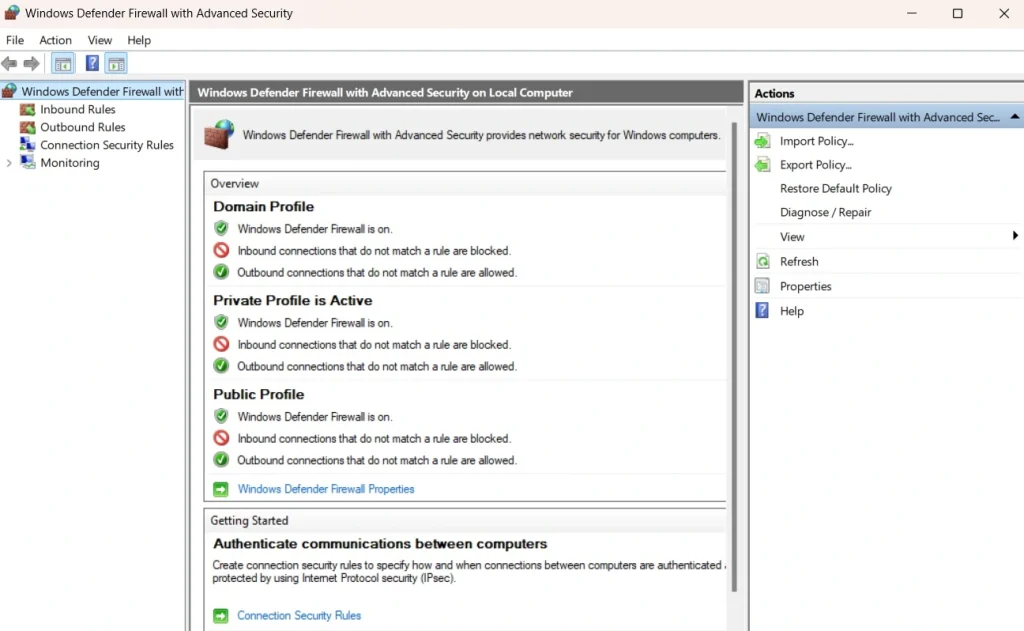
The Windows Defender Firewall monitors all incoming and outgoing network traffic. It blocks connections that look suspicious and keeps unauthorized programs from communicating freely.
You can set custom rules to control exactly which apps get network access. This is one of the most useful advanced security settings for anyone who wants control over their network.
Step 1: Go to Settings > Privacy and Security > Windows Security > Firewall and Network Protection.
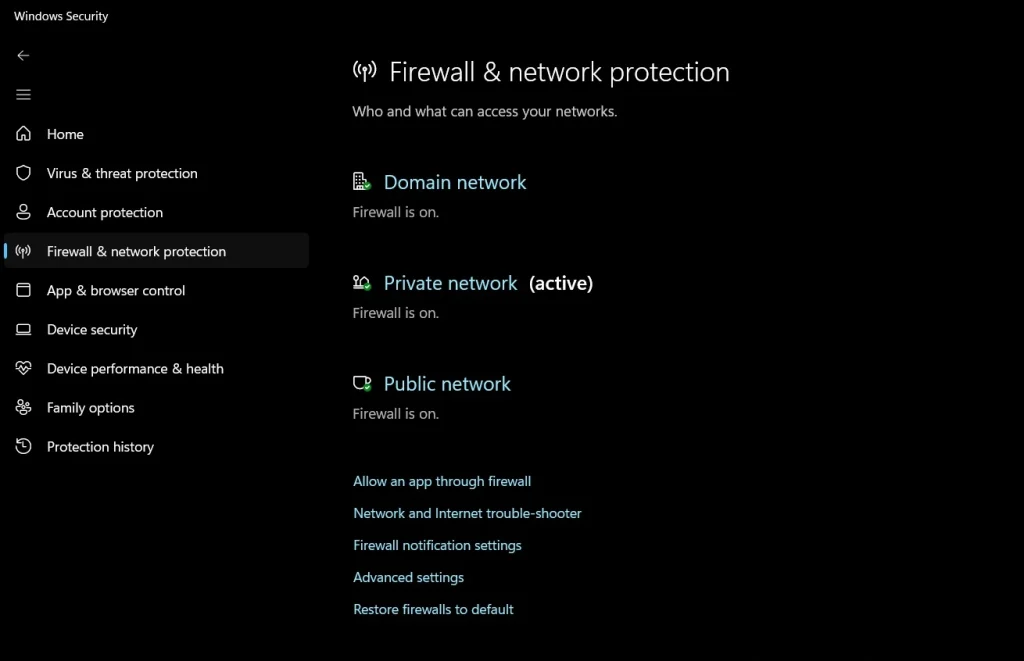
Step 2: Click on Advanced Settings and create inbound or outbound rules based on your needs.
2. BitLocker Drive Encryption
BitLocker encrypts your entire hard drive. Even if someone steals your laptop, they cannot read your files without the correct key.
This tool is part of Windows security settings designed for serious data protection. It is especially useful for professionals who carry sensitive data on their devices.
Step 1: Go to Control Panel > System and Security > BitLocker Drive Encryption.
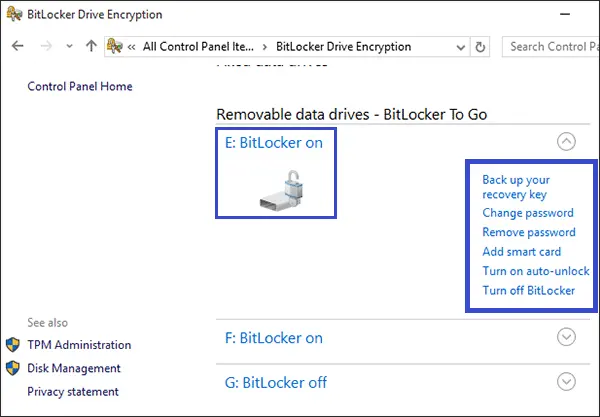
Step 2: Click Turn on BitLocker next to your drive and follow the setup wizard.
3. Microsoft Defender SmartScreen
SmartScreen checks websites and downloads against a list of known threats. It warns you before you open a dangerous file or visit a harmful site.
This feature works quietly in the background as part of your advanced security settings. It adds a strong layer of protection during everyday browsing and downloading.
Step 1: Go to Windows Security > App and Browser Control.
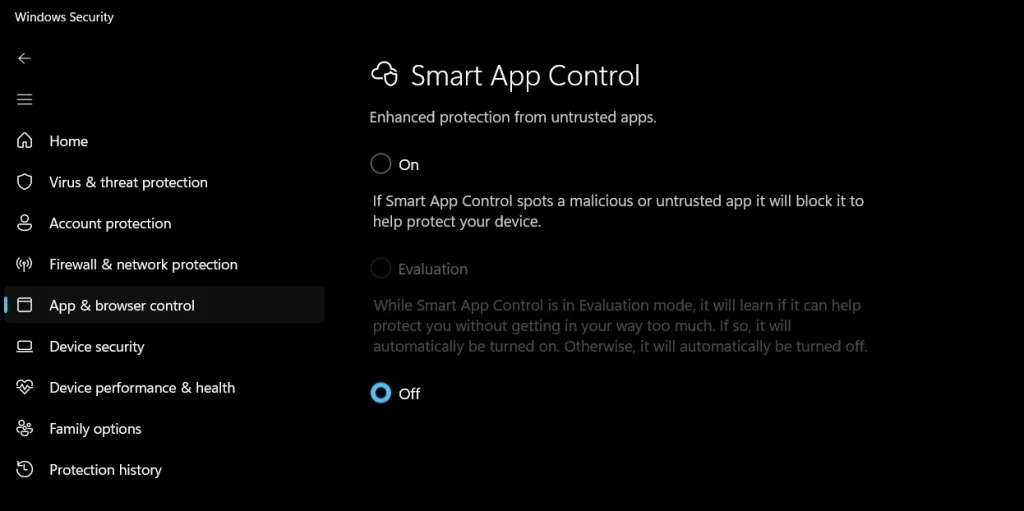
Step 2: Under SmartScreen for Microsoft Edge, set it to Warn or Block.
4. Controlled Folder Access
This feature stops unauthorized apps from making changes to your protected folders. It is excellent protection against ransomware attacks.
Controlled Folder Access is one of the smartest advanced security settings in Windows 11. It lets only trusted apps modify your important files.
Step 1: Open Windows Security > Virus and Threat Protection > Manage Ransomware Protection.
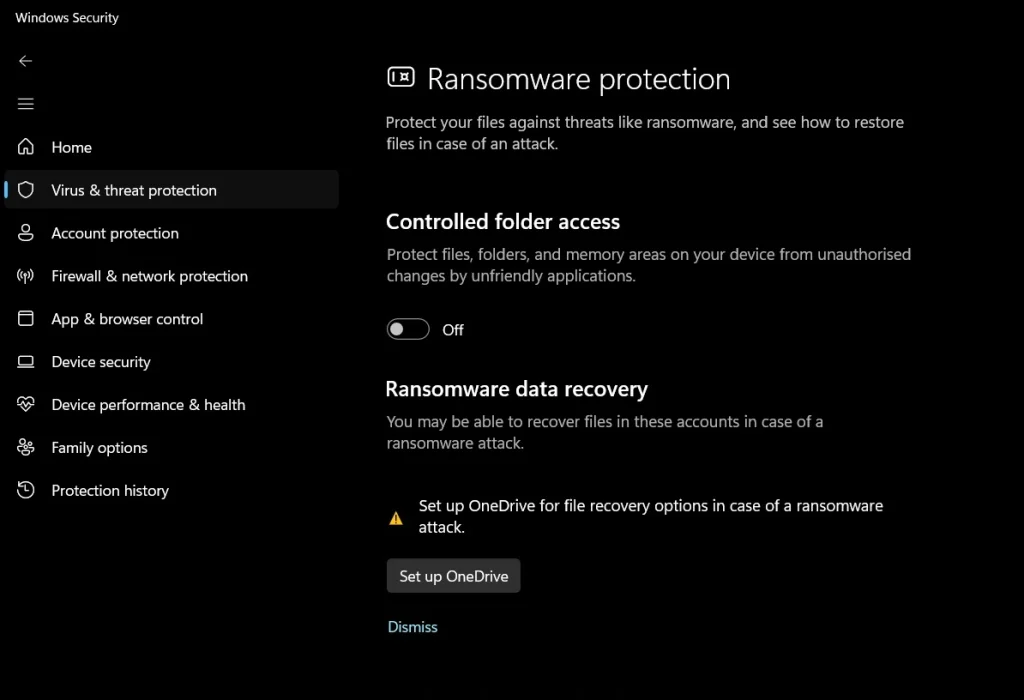
Step 2: Turn on Controlled Folder Access and add folders you want to protect.
5. User Account Control (UAC
UAC prompts you for permission before any app makes changes to your system. It prevents malware from silently installing or modifying settings.
Keeping UAC enabled is a core part of managing Windows security settings. Lowering it too much can leave your system open to quiet, background threats.
Step 1: Search for UAC in the Start menu and open Change User Account Control Settings.
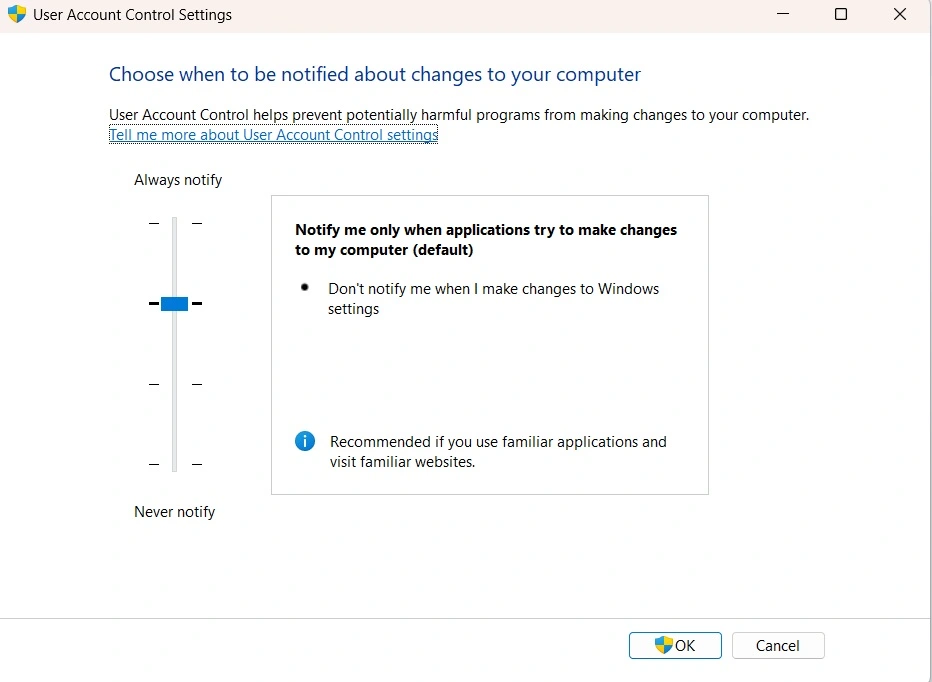
Step 2: Set the slider to Always Notify for the strongest protection level.
6. Windows Hello Biometric Authentication
Windows Hello lets you sign in using your face, fingerprint, or PIN. It replaces passwords with something harder to steal or guess.
This is a modern upgrade to traditional login methods and a key part of advanced security settings in Windows 11. It makes unauthorized access much harder.
Step 1: Go to Settings > Accounts > Sign-in Options.
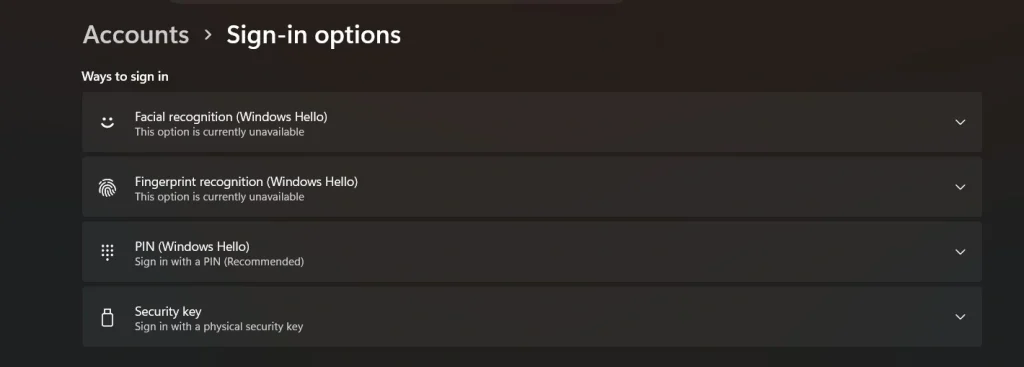
Step 2: Set up Face Recognition, Fingerprint, or PIN under the Windows Hello section.
7. App Permissions Management
You can control which apps access your camera, microphone, location, and contacts. This stops apps from collecting data without your knowledge.
Managing app permissions is a simple but powerful part of Windows security settings. It limits what each app can do on your system.
Step 1: Go to Settings > Privacy and Security > App Permissions.
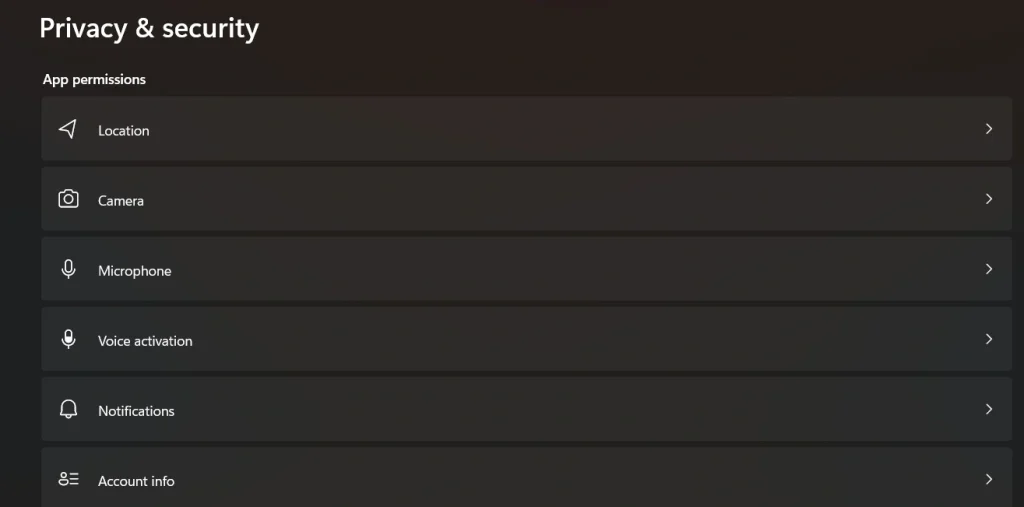
Step 2: Click each permission type and turn off access for apps that do not need it.
8. Exploit Protection
Exploit Protection applies security controls against specific attack methods. It helps stop vulnerabilities from being used against your system.
This is one of the more technically advanced security settings, but very effective. It works even when no patch is available for a known weakness.
Step 1: Open Windows Security > App and Browser Control > Exploit Protection Settings.
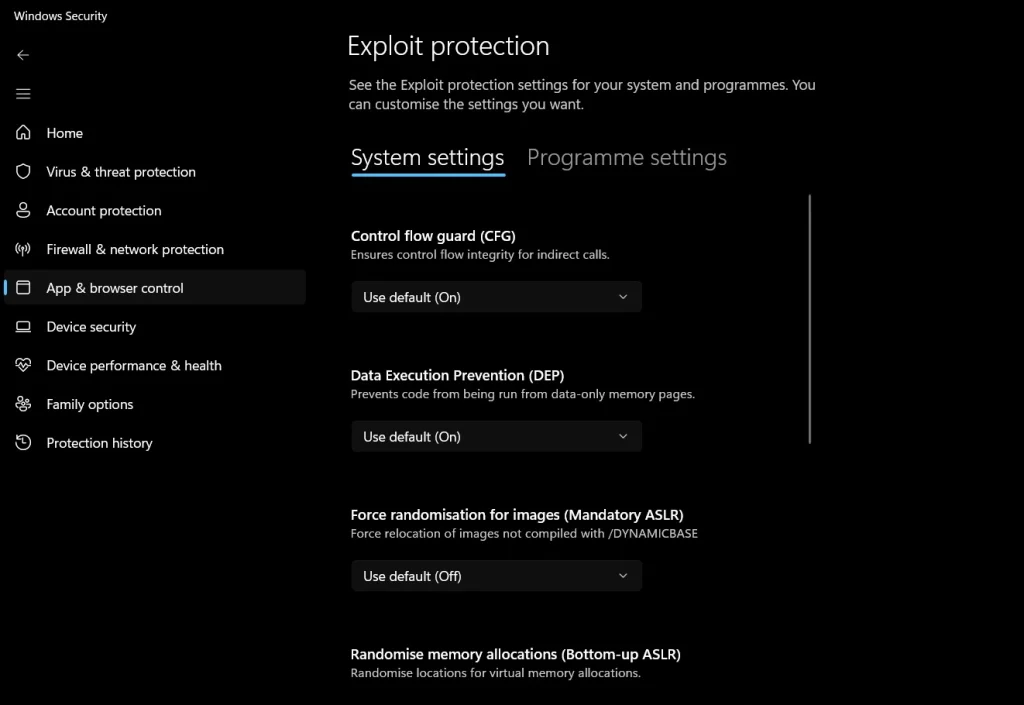
Step 2: Adjust system-level settings or apply custom settings to specific apps.
9. Secure Boot
Secure Boot prevents unauthorized software from loading when your PC starts. It checks that only trusted software runs during startup.
This feature is built into the firmware and is a foundational advanced security setting for Windows 11. It protects the boot process from rootkits and bootkits.
Step 1: Restart your PC. Enter BIOS or UEFI settings (usually by pressing F2 or Delete).
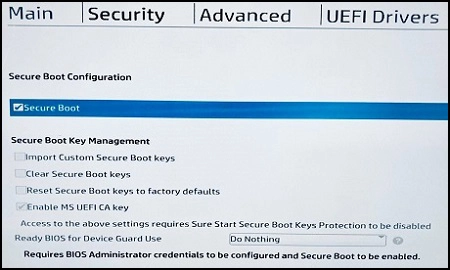
Step 2: Find the Secure Boot option and make sure it is enabled.
10. Virtualization-Based Security (VBS)
VBS uses hardware virtualization to create a protected region of memory. It isolates sensitive processes from the rest of the system.
This is one of the most powerful advanced security settings available in Windows 11. It protects credentials and core system processes from attack.
Step 1: Search for Core Isolation in the Start menu and open the result.
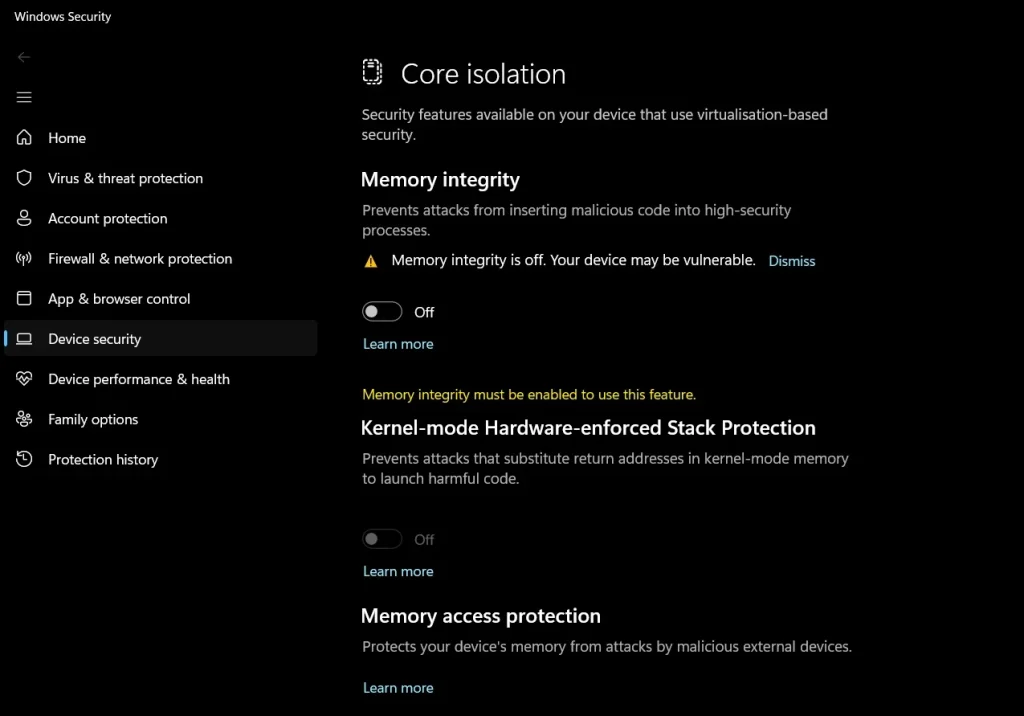
Step 2: Turn on Memory Integrity under the Core Isolation section.
11. DNS over HTTPS (DoH)
DoH encrypts your DNS queries so that nobody can spy on the websites you visit. Regular DNS is unencrypted and easy to intercept.
This is a newer addition to Windows security settings and a great privacy upgrade. It stops your internet provider or hackers from tracking your browsing.
Step 1: Go to Settings > Network and Internet > Wi-Fi or Ethernet > Hardware Properties.
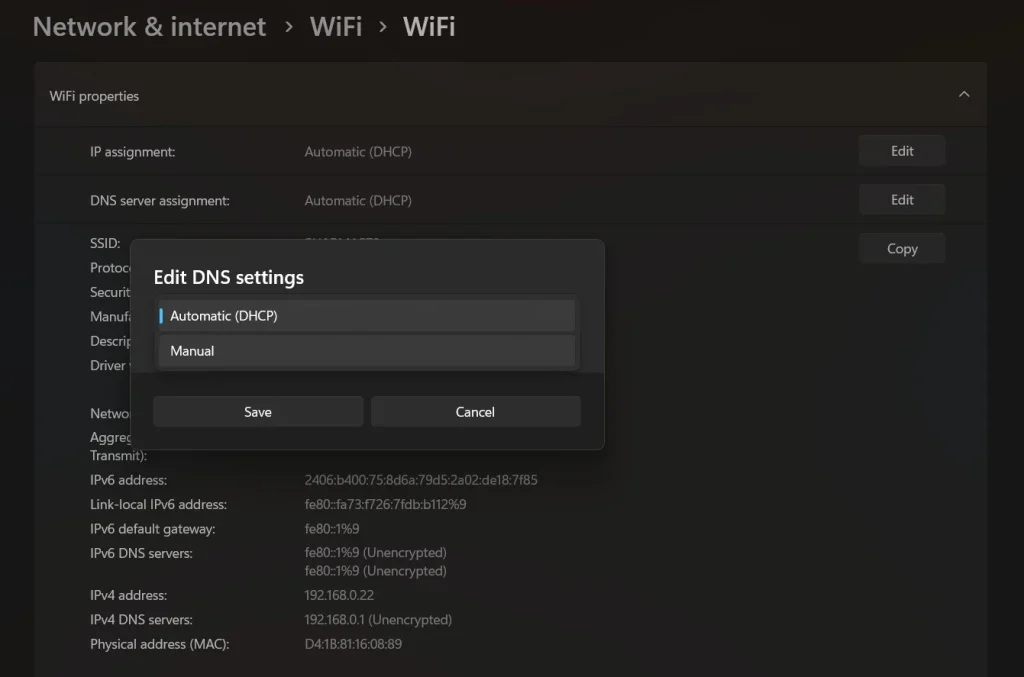
Step 2: Under DNS Server Assignment, click Edit and set Preferred DNS to a DoH-compatible server like 1.1.1.1.
12. Windows Sandbox
Windows Sandbox opens a temporary, isolated desktop environment. You can test suspicious software inside it without any risk to your main system.
It is one of the most practical advanced security settings for people who download a lot of software. Everything inside the sandbox disappears when you close it.
Step 1: Go to Control Panel > Programs > Turn Windows Features On or Off.
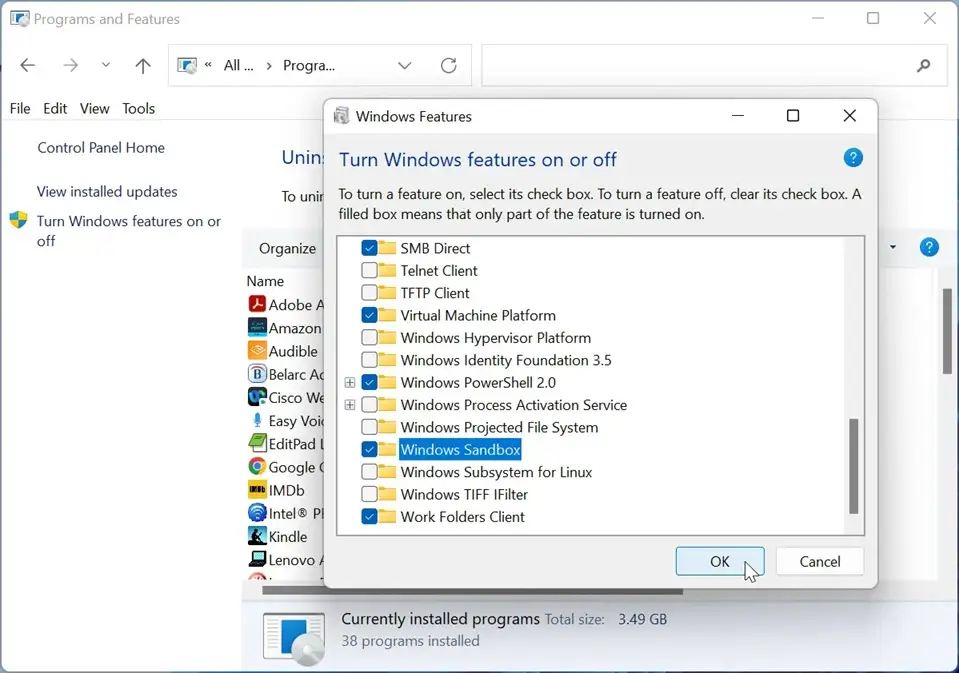
Step 2: Check Windows Sandbox and click OK, then restart your PC.
13. Credential Guard
Credential Guard protects your login credentials from being stolen. It uses virtualization to store credentials in a secure, isolated environment.
This is an enterprise-level feature that is also part of Windows security settings for Windows 11 Pro and Enterprise users. It blocks credential theft attacks like Pass-the-Hash.
Step 1: Open Group Policy Editor by typing gpedit.msc in the Run dialog.
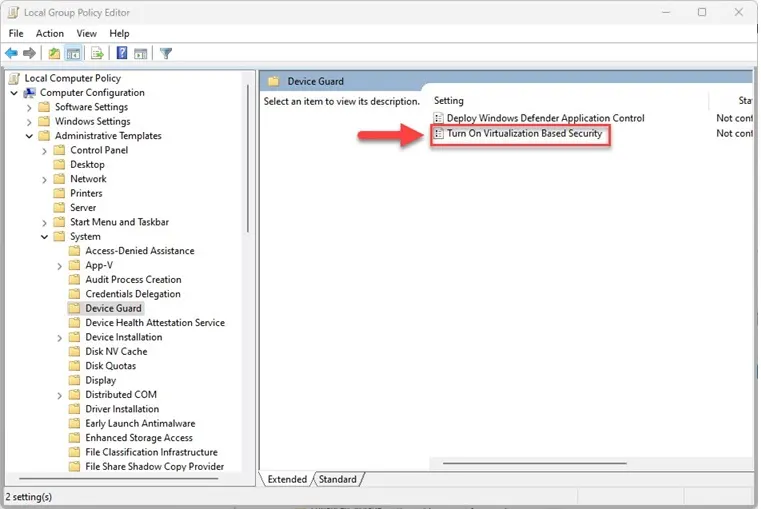
Step 2: Navigate to Computer Configuration > Administrative Templates > System > Device Guard and enable Credential Guard. You can do so by clicking on the “Turn On Virtualization Based Security” option.
14. Attack Surface Reduction (ASR) Rules
ASR rules block specific behaviors commonly used by malware. You can stop things like Office macros from launching child processes or scripts from running.
These rules are part of the deep advanced security settings inside Windows Defender. They are especially useful in business environments, but work well for home users too.
Step 1: Open Windows Security > Virus and Threat Protection > Manage Settings.
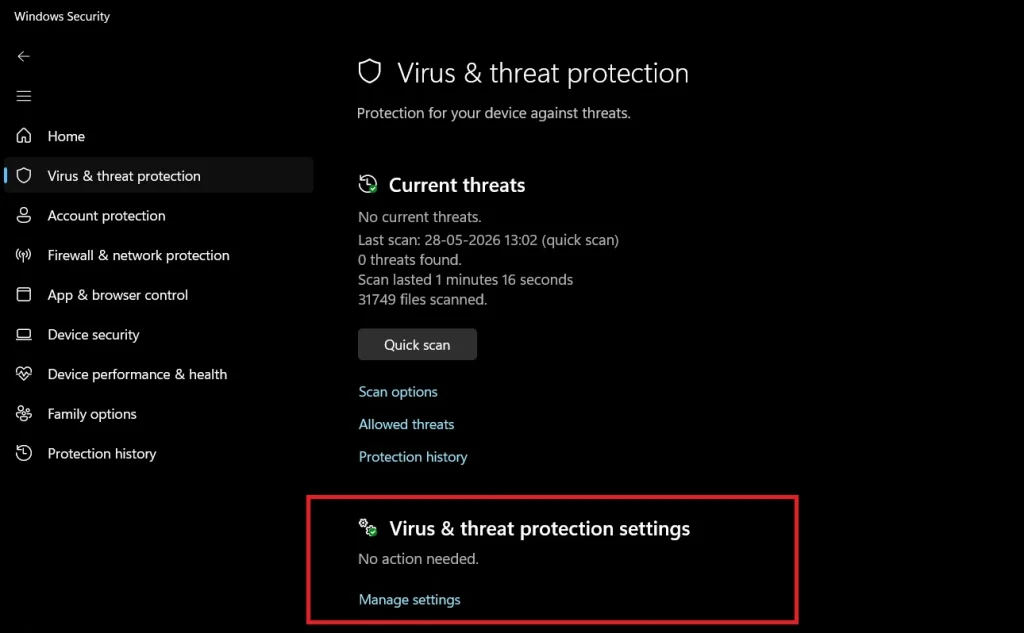
Step 2: Use PowerShell or Group Policy to enable specific ASR rules as needed.
15. Privacy Dashboard and Diagnostic Data Controls
You can limit how much data Windows sends to Microsoft. Reducing diagnostic data reduces your exposure and improves privacy.
This is an often-overlooked area of Windows security settings. Turning off optional data collection keeps more of your activity private.
Step 1: Go to Settings > Privacy and Security > Diagnostics and Feedback.
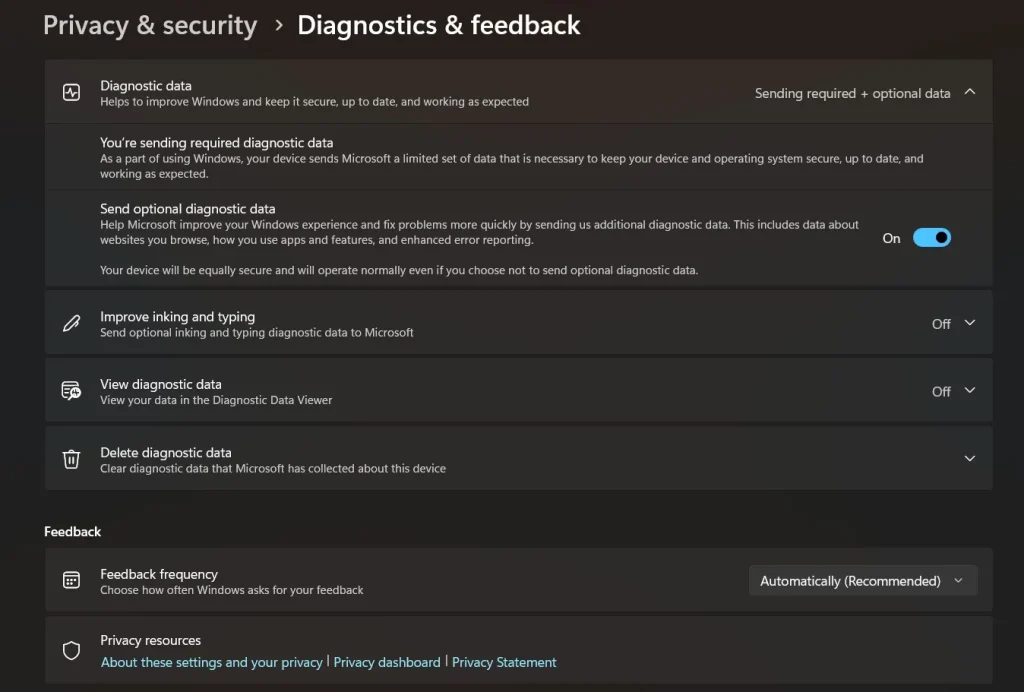
Step 2: Enable the “Send Optional Diagnostic Data” option.
16. Local Security Policy
Local Security Policy lets you set detailed rules for password requirements, account lockouts, and audit logging. It gives you fine control over how your system handles access.
This is a classic but still powerful set of advanced security settings available in Windows 11 Pro. It is useful for setting up stricter rules on shared or work computers.
Step 1: Type secpol.msc in the Run dialog and press Enter.
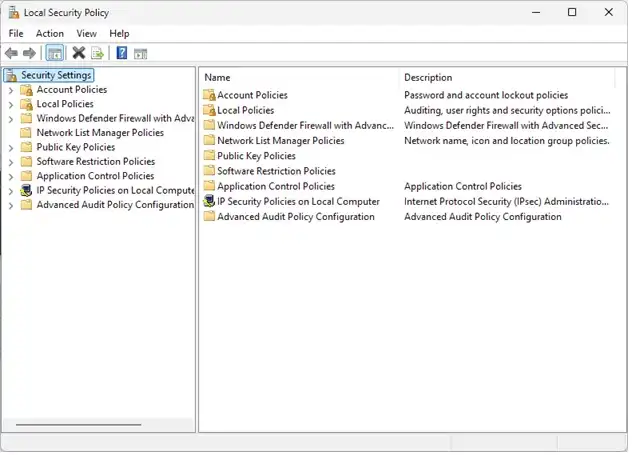
Step 2: Explore Account Policies and Local Policies to set rules that fit your needs.
17. Event Viewer for Security Auditing
Event Viewer logs security-related events on your computer. You can track failed login attempts, policy changes, and suspicious activity.
Reviewing logs regularly is a good habit and an important part of maintaining your Windows security settings. It helps you catch problems early.
Step 1: Search for Event Viewer in the Start menu and open it.
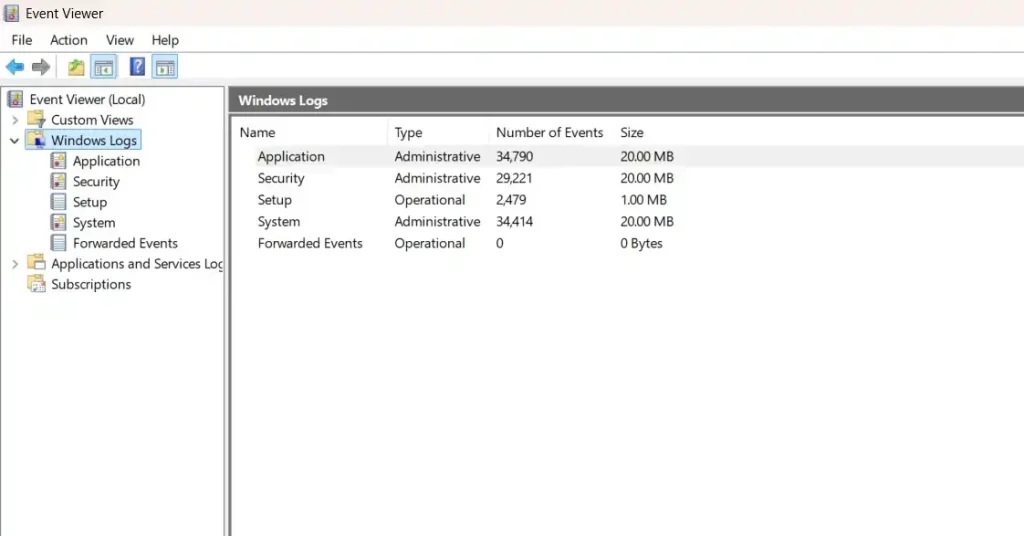
Step 2: Go to Windows Logs > Security to review recent security events.
18. Ransomware Protection via OneDrive
Windows 11 connects ransomware protection directly to OneDrive. If ransomware attacks your files, OneDrive can help you restore previous versions.
This integration is a smart part of Microsoft’s advanced security settings strategy. It gives you a recovery option when other defenses fail.
Step 1: Go to Windows Security > Virus and Threat Protection > Manage Ransomware Protection.
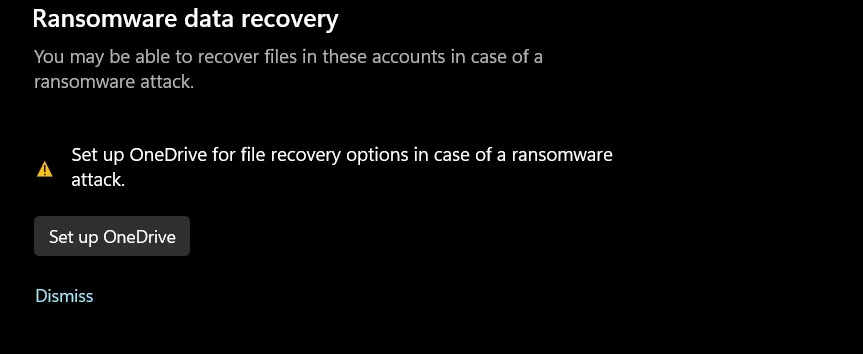
Step 2: Under Ransomware Data Recovery, sign in to OneDrive and enable the feature.
19. Network Protection
Network Protection blocks your device from connecting to known dangerous websites at the network level. It works even outside of a browser.
This feature extends your advanced security settings to cover all apps, not just Edge or Chrome. It is part of Microsoft Defender’s broader protection system.
Step 1: Open Windows Security > App and Browser Control > Reputation-Based Protection Settings.
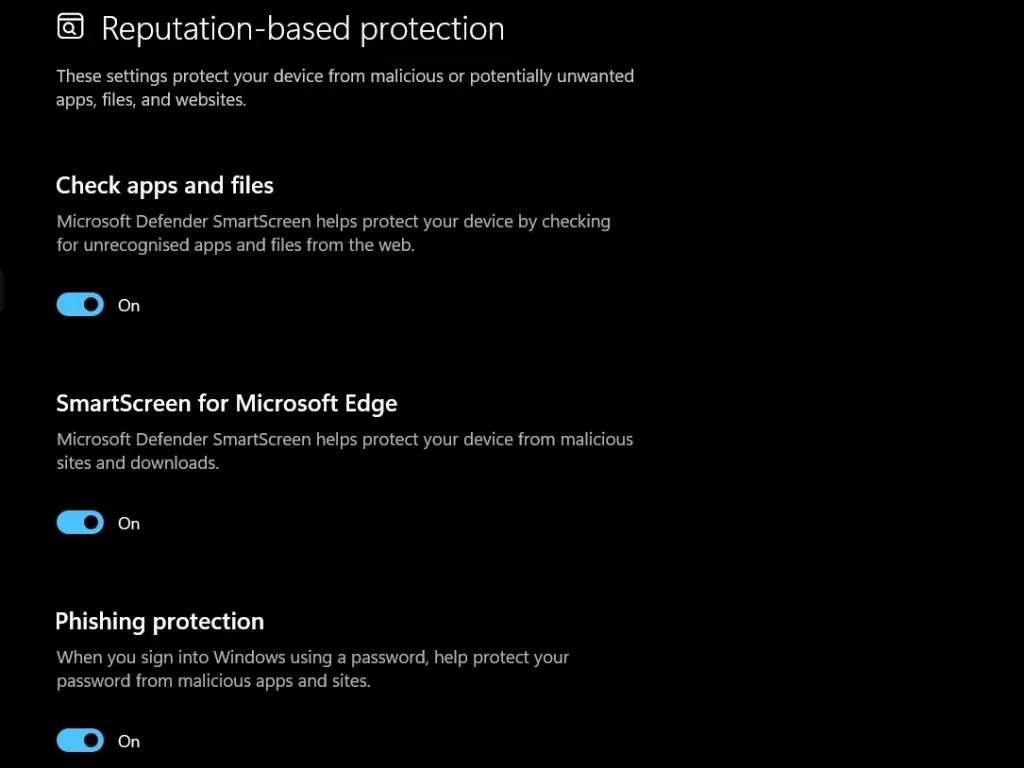
Step 2: Turn on all the available options.
20. Dynamic Lock
Dynamic Lock automatically locks your PC when your paired Bluetooth device moves away. It is a handy physical security feature.
This is a smart addition to Windows security settings for anyone who works in a shared space. Your PC locks itself when you step away.
Step 1: Pair your phone with your PC via Bluetooth under Settings > Bluetooth and Devices.
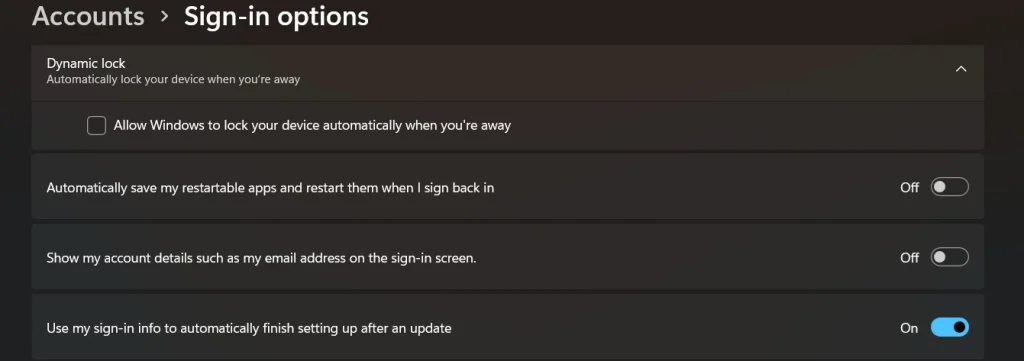
Step 2: Go to Settings > Accounts > Sign-in Options and enable Dynamic Lock.
21. Tamper Protection
Tamper Protection stops malicious apps from disabling your Windows Defender settings. It locks your security configuration in place.
This is one of the most important advanced security settings to keep enabled at all times. Without it, malware could turn off your antivirus quietly.
Step 1: Open Windows Security > Virus and Threat Protection > Manage Settings.
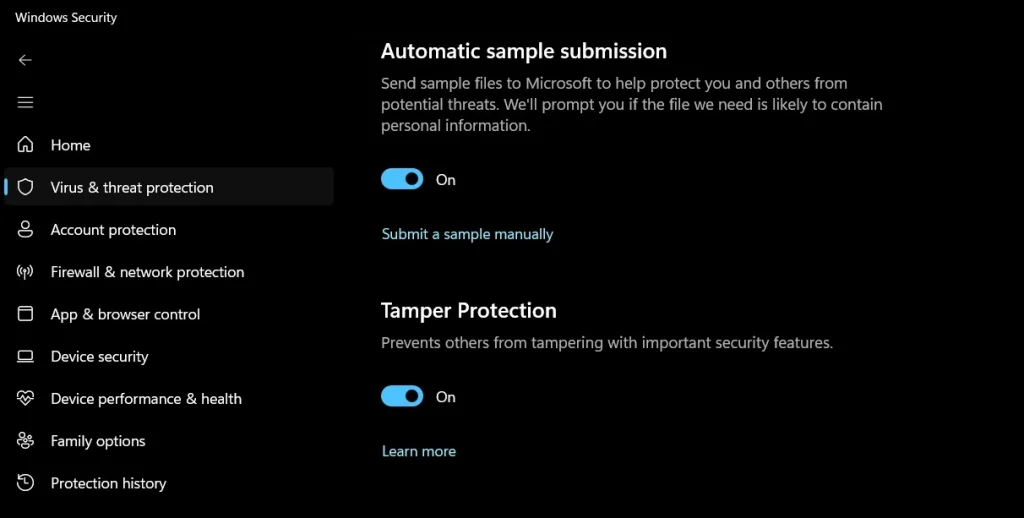
Step 2: Scroll down to Tamper Protection and make sure it is turned On.
Get the Best Results: Tips to Maximize Your Security Settings
Turning on security features is a great start. But getting the most from them takes a little more effort. These tips help you use Windows security settings more effectively every day.
- Review Settings Every Month: Security needs change over time. Make a habit of checking your advanced security settings once a month to make sure everything is still configured correctly.
- Keep Windows Updated Automatically: New updates often patch serious vulnerabilities. Keep automatic updates turned on so you always have the latest protection without extra effort.
- Use a Standard Account for Daily Tasks: Save your administrator account for system changes only. Using a standard account for everyday tasks limits what malware can do if it gets in.
- Enable Login Notifications: Set up alerts for sign-in activity on your Microsoft account. This helps you spot unauthorized access quickly before damage is done.
- Audit Your App Permissions Regularly: Check which apps have access to your camera, microphone, and location every few weeks. Remove access from any app that does not clearly need it.
- Test Your Firewall Rules: After setting up custom firewall rules, test them to make sure they work as expected. A rule that seems set up correctly can sometimes have gaps.
- Use a Password Manager Alongside Windows Hello: Windows Hello secures your device login. A good password manager secures all your online accounts. Together, they cover most of your exposure.
- Document Every Change You Make: Keep a simple log of the security settings you have changed and when. This makes troubleshooting much easier and helps if you need to rebuild your setup later.
Conclusion
Windows 11 gives you a powerful set of tools to protect your system. Most of them are already built in and just need to be turned on or adjusted. Going through these 21 advanced security settings puts you far ahead of the average user. You do not need to be a tech expert to use them. With clear steps and a little time, anyone can build a stronger, safer system.
Security is not something you set once and forget. Threats change, software updates, and habits shift over time. Keep revisiting your Windows security settings regularly. Stay updated, stay alert, and use what Windows gives you. A well-secured system is one of the best investments you can make for your digital life.
FAQs
Q1. Are these advanced security settings safe to use for regular home users?
Yes, most of these settings are completely safe for home users. Features like Tamper Protection, SmartScreen, and Controlled Folder Access are designed to work quietly in the background. They do not interfere with normal use. A few settings, like Group Policy edits, need more care. Always follow the steps carefully and create a restore point before making changes. If you are unsure about a specific advanced security setting, a quick search or Microsoft’s support page can guide you further.
Q2. Will enabling all these Windows security settings slow down my PC?
Most of these settings have very little impact on day-to-day performance. Features like Tamper Protection and SmartScreen use minimal resources. However, Virtualization-Based Security and Memory Integrity can slightly affect performance on older hardware. If your PC is running on older specs, enable these features one at a time and monitor performance. On modern hardware, all 21 advanced security settings can run together without any noticeable slowdown.
Q3. Do I need Windows 11 Pro to use all of these settings?
Most settings are available on both Windows 11 Home and Pro. However, a few features like Credential Guard, Local Security Policy, and Group Policy Editor are only available on Pro, Enterprise, or Education editions. If you are on Windows 11 Home, you can still use the majority of the Windows security settings covered in this guide. For full access to every advanced security setting listed here, upgrading to Windows 11 Pro is worth considering.
Author Bio:
Dinesh Lakhwani 

Dinesh Lakhwani, the entrepreneurial brain behind “TechCommuters,” achieved big things in the tech world. He started the company to make smart and user-friendly tech solutions. Thanks to his sharp thinking, focus on quality and the motto of never giving up, TechCommuters became a top player in the industry. His commitment to excellence has propelled the company to a leading position in the industry.
Popular Post
Recent Post

How To Disable Background Apps In Windows: 4 Quick Methods
A slow PC rarely gives a warning. One day, it simply takes longer to start. Apps open late. The fan runs loud, even when the screen is almost empty. Most people blame old hardware. Often, that is not the real reason. The real reason is hiding in plain sight. Windows keeps many apps active in […]

How to Activate Windows with a Product Key for Windows 11 & Windows 10
It always shows up at the worst time. You are halfway through a report, or about to join a video call. Then you spot it in the bottom right corner of the screen. Activate Windows. Go to Settings to activate Windows. Initially, an unactivated copy of Windows may seem like a minor inconvenience. Over time, […]

Is Easy Duplicate Finder Worth It? Honest Review
The photos folder looked normal at first glance. Then the storage warning popped up. One trip photo appeared four times. A tax PDF sat in three different folders. Two old setup files were still in Downloads, and each one was over 500 MB. Nobody plans this mess. Copies pile up slowly. A download runs twice. […]

Wise Duplicate Finder Review: Real Results from Wise Duplicate Finder
Read my honest Wise Duplicate Finder review. See features, pricing, pros and cons, and real PC test results. Find out if this free duplicate cleaner can free up your Windows storage.

How to Recover Deleted Files from Pen drive, USB Drive, SD Card
Introduction: On tech forums, you’ll often see posts like this: “I connected my pen drive to my laptop this morning, but the folder was empty. All my college project files had vanished. I don’t have a backup. Can someone help me?” Stories like this are very common. Pen drives, USB drives and SD cards are […]

How To Recover Files Deleted from the Recycle Bin [Windows 11]
Losing a file can happen in seconds. You clear your desktop, hit Delete, and empty the Recycle Bin. Then, just when you need that file again, it seems to have vanished. This guide will walk you through ways to restore files removed from the Recycle Bin. We will begin with simple fixes, then look at […]

Disk Drill Data Recovery Tool Explained: Full Review and Guide
It happens in a split second. You delete a folder by mistake. Your drive stops showing up. A photo album from your last trip just vanishes. And your stomach drops. Lost files feel personal. They are not just data. They are memories, work hours, and sometimes years of effort packed into a few gigabytes. When […]

Recover Deleted Files In Windows 11 With Software & Without
Introduction What is the first thing that goes through your mind the second an important file vanishes from a Windows 11 PC? For most people, it is a mix of panic and disbelief, followed by a frantic click through every folder that file could possibly be hiding in. It happens in a split second: one […]

EaseUS Data Recovery Wizard: Everything To Know
Data loss does not always come from a big disaster either. Most cases start small and boring. A drive gets formatted by mistake. A laptop freezes mid-save and restarts on its own. A memory card stops showing up after being pulled out too fast. None of these feel like emergencies at first, until you realize […]

