










It can be frustrating when a Word document suddenly disappears. You may have spent hours writing a report, assignment, or letter. Then your computer crashes, the power cuts out, or Word closes before you save the file. In that moment, it may seem like all your work is gone. This happens more often than most […]
How To Clean Up System Files On Windows PC: Step-by-Step
Your Windows PC stores many files over time. Some files help your computer work. Others just take up space. Learning to cleanup system files can make your PC faster and give you more storage space.
This guide will show you easy ways to clean your computer. You will learn what system files are and why cleaning them helps.
We will also share simple steps to remove files you don’t need.
Part 1: What Are System Files?
System files are essential components that enable Windows to function properly. They manage critical tasks like booting up your computer, launching applications, and communicating with hardware devices. These files are typically stored in key directories such as System32 and Windows.
Your computer creates temporary system files when you use it. These files help programs run faster. But over time, many of these temporary files become old and useless. They just sit on your hard drive, taking up space.
Windows also keeps backup files and old update files. These files can be very large. When you cleanup system files regularly, you remove these old files. This gives you more space for the files you actually need.
Part 2: System Files: Why Do You Need to Clean Them?
Cleaning system files helps your computer in many ways. Here are the main reasons why you should cleanup system files:
- Free up disk space – Old system files can take up gigabytes of storage space.
- Speed up your PC – Fewer files mean faster boot times and program loading.
- Fix disk errors – Removing corrupt temporary files can solve system problems.
- Improve performance – Your computer works better with clean system folders.
- Prevent crashes – Too many old files can cause Windows to freeze or crash.
- Save money – You won’t need to buy more storage space as quickly.
- Better updates – Windows updates install faster when there’s more free space.
- Reduce clutter – A clean system is easier to manage and troubleshoot.
Part 3: Simple Methods: Clean Up System Files on Windows PC
Windows gives you several built-in tools to clean your system. Each method removes different types of files. Using multiple methods will give you the best results.
Method 1: Disk Cleanup Tool
Disk Cleanup is a built-in utility in Windows designed to safely remove various types of system files. It’s been a core part of the operating system for years, helping users free up space and improve performance. Best of all, it’s readily available on any Windows computer—no need to download or install anything extra.
The tool examines your hard drive to identify unnecessary files. Before deleting anything, it presents a detailed list of what it plans to remove, giving you full control over the cleanup process. You can review the options and decide which file types you’d like to get rid of.
This method helps by targeting specific system files that take up the most space. Here’s how it benefits your computer:
- Removes temporary internet files – Clears browser cache.
- Deletes old Windows updates – Removes backup files from system updates
- Cleans system cache – Removes temporary files created by Windows programs
- Empties recycle bin – Permanently deletes files you already threw away
The process works quickly and can free up several gigabytes in minutes. Most users see 2-5 GB of space freed on their first cleanup.
Step 1: Press Windows key + R. Type “cleanmgr“. Press Enter.
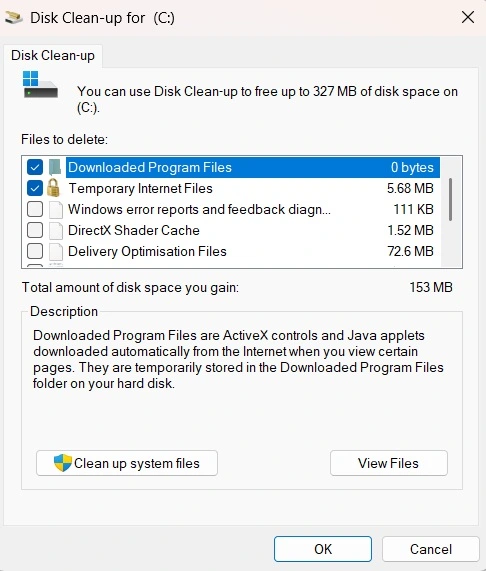
Image alt:
Step 2: Select your main drive (usually C:), check the boxes for files you want to delete, then click “Clean up system files” for more options.
Method 2: Storage Sense
Storage Sense is a newer Windows feature. It can clean files automatically on a schedule. You can set it to run weekly or monthly.
This tool helps by removing files in your recycle bin, downloads folder, and temporary files. It keeps your system clean without you having to remember to do it.
This automated cleaning method uses Windows’ built-in Storage Sense feature to manage and delete unnecessary files. Here’s how it helps your computer:
- Removes temporary files – Automatically deletes system and app temp files that accumulate over time
- Cleans Recycle Bin – Empties deleted items after a set period to free up space
- Manages Downloads folder – Clears out old files based on user-defined rules
- Optimizes OneDrive storage – Offloads unused cloud files locally to save disk space
Many users report that their devices feel cleaner and more responsive after turning it on, thanks to its automated file management.
Step 1: Go to Settings > System. Select Storage and turn on Storage Sense.
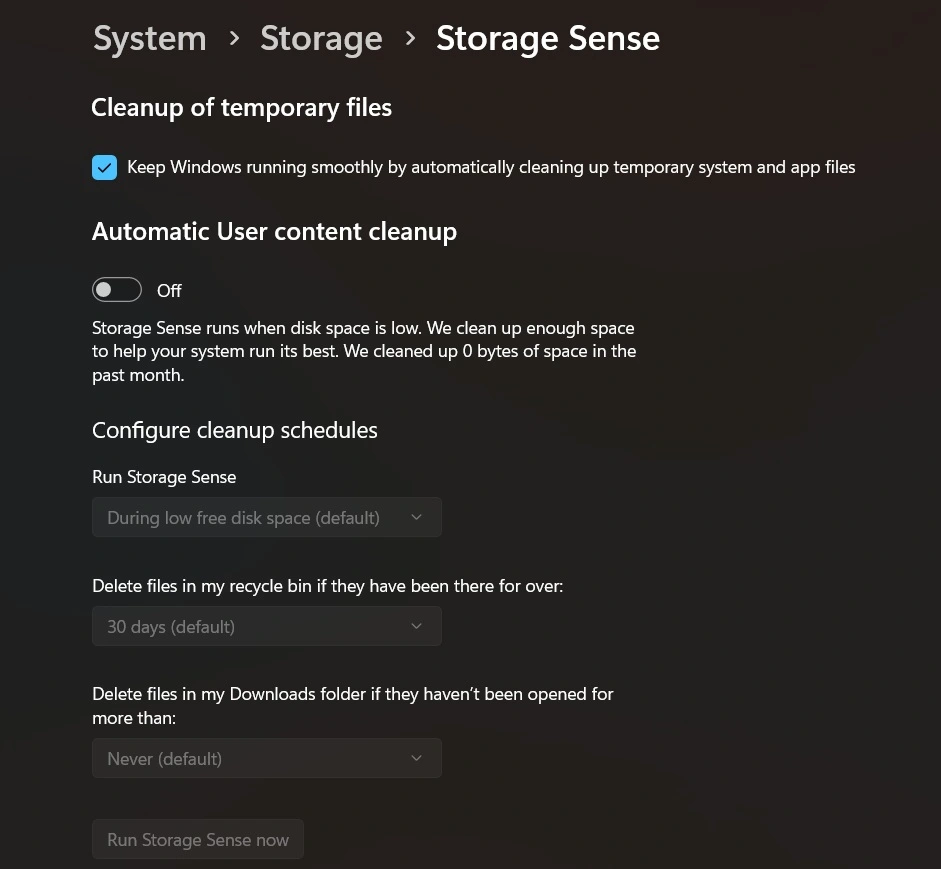
Step 2: Click “Configure Storage Sense” to choose what files to delete and how often to run it.
Method 3: Command Prompt Cleaning
The command prompt gives you more control over cleaning. You can target specific types of files. This method works well for advanced users.
This approach helps by clearing DNS cache, temporary files, and system logs. It can fix network problems and free up space that other tools might miss.
This advanced cleaning method uses the Deployment Imaging Service and Management Tool (DISM) via Command Prompt to repair and clean system components. Here’s how it helps your computer:
- Fixes system image corruption – Scans and restores damaged Windows system files
- Improves update reliability – Resolves issues that prevent updates from installing properly
- Cleans component store – Cleans the component store by deleting obsolete system files from the WinSxS directory.
- Boosts system stability – Ensures core Windows features run smoothly
This method can reclaim 500MB to 3GB of space, depending on system health. Users often report fewer crashes and smoother performance after running DISM cleanup.
Step 1: Right-click the Start button. Select “Windows PowerShell (Admin)” or “Command Prompt (Admin)”.
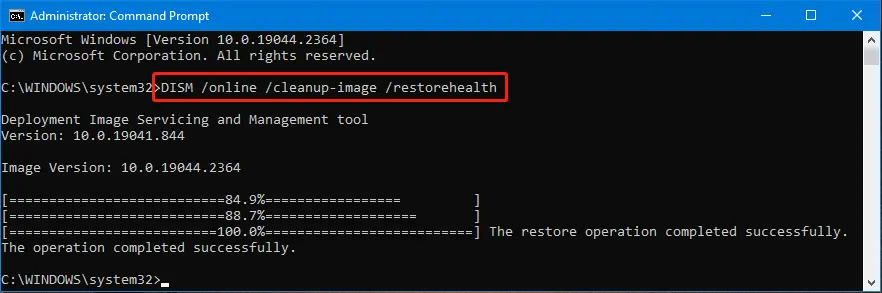
Step 2: Type these commands one by one: “sfc /scannow” and “DISM /Online /Cleanup-Image /RestoreHealth”.
Method 4: Reset Windows Update Components
Sometimes Windows Update files get stuck or corrupted. Cleaning these files can fix update problems. This method resets the update system.
This helps by removing broken update files and resetting Windows Update settings. Your computer will download fresh update files that work properly.
This specialized cleaning method targets Windows Update system files specifically. Here’s how it helps your computer:
- Removes stuck update files – Deletes partially downloaded updates that won’t install
- Fixes update errors – Resolves common Windows Update error codes and failures
- Clears download cache – Removes corrupted files from the update download folder
- Resets update settings – Restores Windows Update to the default working configuration
This method can free up 500MB to 2GB of space from stuck update files. Users often notice that Windows updates install much faster after this reset.
Step 1: Open Command Prompt as Administrator and stop update services with “net stop wuauserv” and “net stop cryptSvc”.
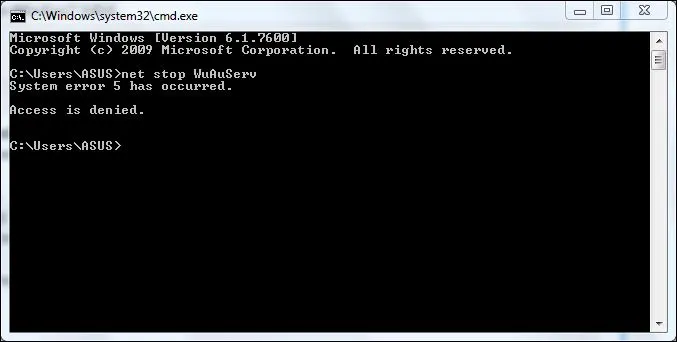
Step 2: Navigate to C:\Windows\SoftwareDistribution, delete all files in this folder, then restart the services with “net start wuauserv” and “net start cryptSvc”.
Method 5: System File Checker
System File Checker is Windows’ built-in repair tool for damaged system files. It scans every important Windows file on your computer for problems. The tool compares your files to clean backup copies stored on your system. This method can fix many mysterious Windows problems that other tools can’t solve.
The scanner works by checking digital signatures and file integrity. It automatically replaces bad files with good copies from a protected Windows folder. This process can take 30-60 minutes, but runs safely in the background. System File Checker has saved countless computers from needing a complete Windows reinstallation.
This diagnostic method helps by repairing the foundation files Windows needs to work properly. Here’s what it does for your system:
- Fixes corrupted system files – Replaces damaged Windows files with clean backup copies
- Repairs boot problems – Fixes files that prevent Windows from starting correctly
- Resolves program crashes – Fixes system files that cause applications to stop working
- Prevents blue screen errors – Repairs files that can cause system crashes and restarts
System File Checker doesn’t free up much disk space, but it dramatically improves system stability. Most users notice fewer crashes and faster program loading after running this tool.
Step 1: Open Command Prompt as Administrator.
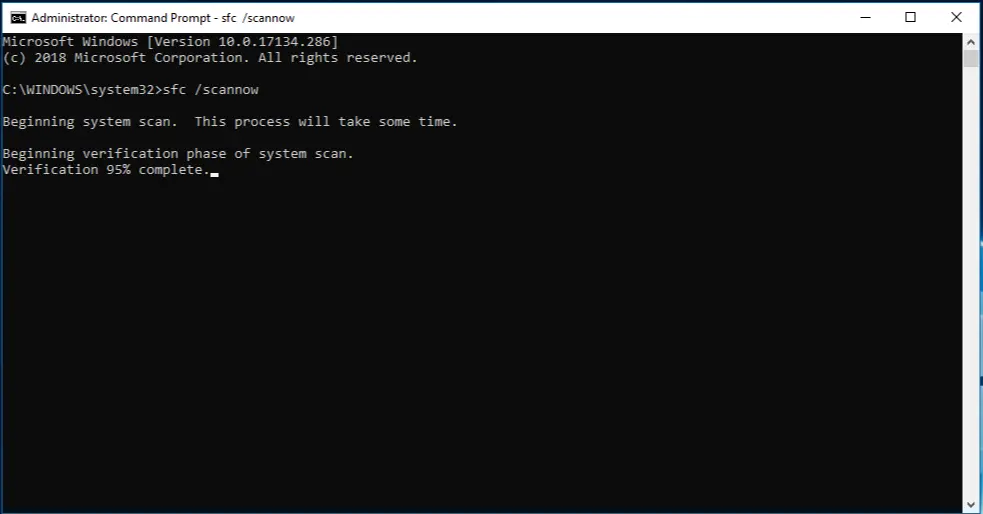
Step 2: Type “sfc /scannow” and wait for the scan to complete (this may take 30-60 minutes).
Author’s Tip
Always back up important files before you clean up system files. While these methods are safe, having a backup protects your data. Use Windows Backup or copy files to an external drive.
Run disk cleanup at least once a month. This keeps your system running smoothly. Don’t wait until your hard drive is almost full. Regular cleaning prevents problems before they start.
Be careful with third-party cleaning software. Some programs can delete important files by mistake. The built-in Windows tools are safer and work just as well. Stick to the methods we’ve shown you.
Conclusion
Learning to cleanup system files is an important computer skill. These simple methods can make your PC faster and more reliable. You don’t need to be a computer expert to use these tools.
Start with Disk Cleanup and Storage Sense. These are the easiest and safest methods. Once you’re comfortable with these, you can try the other methods for deeper cleaning.
Remember to clean your system files regularly. A few minutes of cleaning each month can save you hours of frustration later. Your computer will thank you with better performance and fewer problems.
FAQs
Q1: How often should I clean up system files on my Windows PC?
You should clean up system files at least once a month for best results. If you use your computer heavily or install many programs, consider cleaning it every two weeks. Regular cleaning prevents your system from getting too cluttered and keeps performance good.
Q2: Is it safe to delete all temporary system files?
Yes, it’s safe to delete temporary system files using Windows’ built-in tools. These tools are designed to remove only files that are no longer needed. However, avoid manually deleting files from system folders unless you know exactly what you’re doing.
Q3: Will cleaning system files make my computer faster?
Cleaning system files can improve your computer’s speed, especially if you haven’t cleaned it in a long time. You’ll notice faster boot times, quicker program loading, and more responsive performance. The improvement depends on how many unnecessary files were taking up space.
Author Bio:
Dinesh Lakhwani 

Dinesh Lakhwani, the entrepreneurial brain behind “TechCommuters,” achieved big things in the tech world. He started the company to make smart and user-friendly tech solutions. Thanks to his sharp thinking, focus on quality and the motto of never giving up, TechCommuters became a top player in the industry. His commitment to excellence has propelled the company to a leading position in the industry.
Popular Post
Recent Post

What Is A Zero-Day Attack And How Can You Defend Against One?
Picture this. A hacker finds a secret crack in your favorite app. You don’t know it’s there. The company that built the app doesn’t know either. But the hacker does. And they use it right away, before anyone can stop them. This is the heart of a zero-day attack. It strikes when a flaw is […]

Iolo System Mechanic PC Cleanup Software: Hands-On Performance Review
PCs feel fast on the first day. Every click is quick. Apps open right away. With time, things slow down. Programs take longer to load. Files open slowly. Fans get loud even during light use. This happens to almost every computer, no matter how careful you are. The reason is clear. Junk files build up […]

Advanced SystemCare PC Cleanup Tool: A Detailed Review
You turn on your PC and wait. And wait. The same laptop that once opened apps in a snap now feels tired. This is not bad luck. It just happens over time. Files pile up. The registry gets messy. Old drivers stay installed long after they are useful. Junk data quietly eats up space on […]

Avast Cleanup PC Cleaner and Optimizer: Everything You Need to Know
A slow computer makes it hard to focus. Programs take too long to open. Free space keeps shrinking until the disk is almost full. This happens to most PC owners at some point. Even new machines can slow down after a while. That is the exact problem cleanup tools are built to solve. They comb […]

Fortect Software Review: The Ultimate PC & Mobile Cleaning, Optimization & Security Tool
Slow computers are a common problem for almost every Windows user. Well, yes! Over time, your PC picks up junk files. These files sit quietly in the background. They take up space and slow things down. Programs open slower. Windows takes longer to boot. Even simple tasks like opening a folder can feel sluggish. There […]

CCleaner PC Optimizer Review: A Complete Guide for Windows Users
If your computer has started to feel slow, you are not alone. Most Windows PCs slow down over time. Junk files pile up. The registry gets messy. Too many apps open when you start your PC. All this adds up and makes even a good machine feel tired. This is where a PC cleaner tool […]

5 Best PC Cleaners for Windows 11 & 10 | Top PC Optimizers
Remember when your PC felt fast? Every click was quick. Every app opened in seconds. Now it feels like a different machine. Windows takes forever to boot. Programs freeze for no reason. Even opening a browser feels like a chore. You are not alone in this. Almost every PC slows down over time. Files pile […]

Auslogics Duplicate File Finder: Full Review and User Guide
A computer quietly gathers clutter over time. This includes duplicate photos, repeated downloads, and forgotten backups hiding in random folders. This buildup slowly eats away at storage and can make even a fast PC feel sluggish. Manually finding and deleting duplicates is tedious. It means checking every folder, comparing file names, and guessing which copies […]

CCleaner Duplicate File Finder: Key Features, Pricing, Step-by-Step Guide and More
Every computer collects junk over time. Right? Well, yes! Photos often get copied twice. Documents get saved in two folders by mistake. Old downloads pile up and never get deleted. This slowly eats up your storage space, and most people do not even notice until their drive is almost full. That is where a duplicate […]

