











Imagine this. You spend hours perfecting a video project. You hit save. Then your laptop freezes, reboots, and when the screen comes back. The file is gone. Your stomach sinks. It’s not just you. Lost files happen all the time. A dropped hard drive, a bad update, an accidental delete, or a corrupted partition can […]
Laptop Upgrade Ideas: How To Upgrade a Laptop
A laptop is more than just a machine. It is often the center of work, learning, entertainment, and communication. We use it for emails, video calls, research, design, and even games. As time passes, the laptop slows down. Applications may load slowly, storage space can become limited, and battery performance may decline—leading to reduced efficiency and a less comfortable user experience.
Buying a new device may seem like the only solution. But that can be costly. A better choice is to improve what you already have. Many users do not know that laptops allow upgrades.
This guide will share practical laptop upgrade ideas and show you how to make your laptop work like new.
Top Ideas: How To Upgrade a Laptop
Upgrading a laptop may sound complex, but most steps are simple and practical. With the right choices, you can improve speed, storage, and overall performance. Below are some of the best laptop upgrade ideas that anyone can try to give their device a fresh start.
1. Increase RAM for Smoother Multitasking
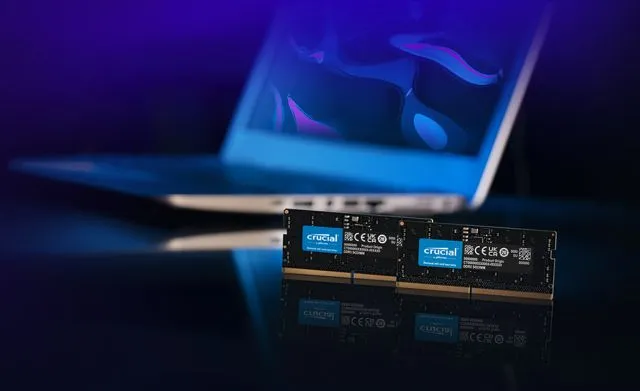
RAM, or memory, decides how many tasks your laptop can handle at once. When RAM is low, your device struggles with several apps open. For example, switching between a web browser, music player, and office software may cause freezing. Adding more RAM solves this. Most laptops allow easy RAM upgrades. You only need to check the type and maximum capacity your model supports. If your laptop has 4GB RAM, moving to 8GB or 16GB brings a huge difference.
2. Replace the Old Hard Drive with an SSD
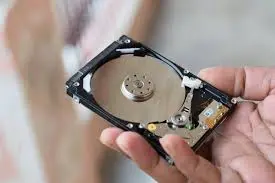
One of the best laptop upgrade ideas is moving from HDD to SSD. Hard disk drives are slow. They rely on moving parts. SSDs are much faster. They use flash memory instead. Upgrading to an SSD speeds up boot time. Files load quicker. Apps open almost instantly. Even old laptops feel new again. SSDs use less power. They stay cooler. This helps your battery last longer.
3. Use a Hybrid Storage Setup
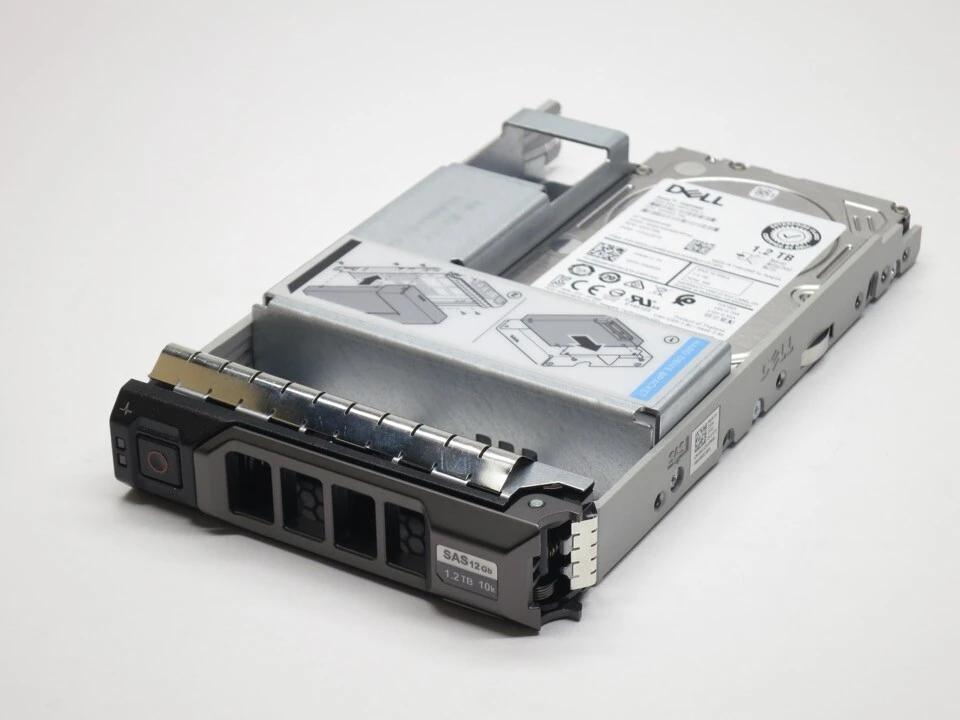
To get the best of both speed and storage capacity, use a combination of SSD and HDD. Install your operating system and frequently used applications on the SSD for faster performance, while saving larger files like photos, videos, and documents on the HDD. This setup delivers a great balance between quick responsiveness and ample space. Many laptops support dual-drive configurations, and in some cases, you can swap out the DVD drive slot for an additional hard drive bay.
4. Upgrade the Battery for Longer Life
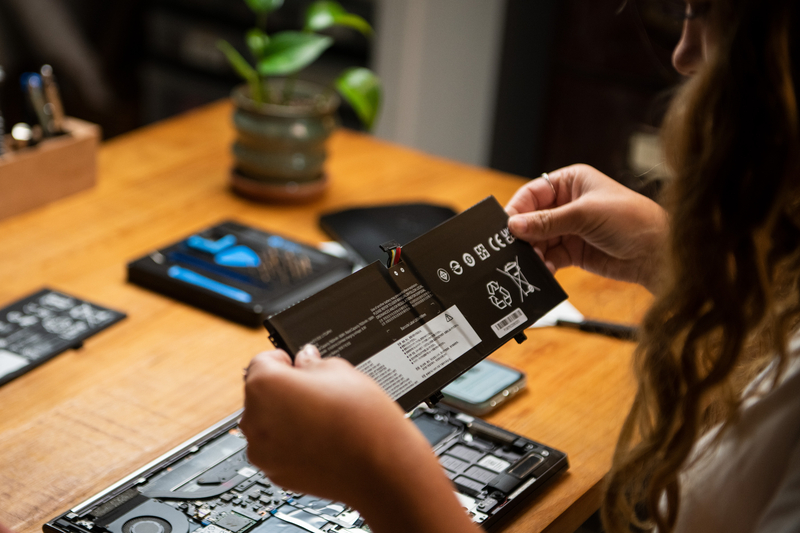
Battery life is often the first thing to decline. After years of use, you may only get one hour instead of five. Replacing the battery restores the original backup. Some laptops also support extended batteries, which last longer than the standard type. A new battery is an affordable upgrade that improves mobility. It is especially useful for people who travel or attend long meetings without a charger.
5. Add an External Drive for Extra Space
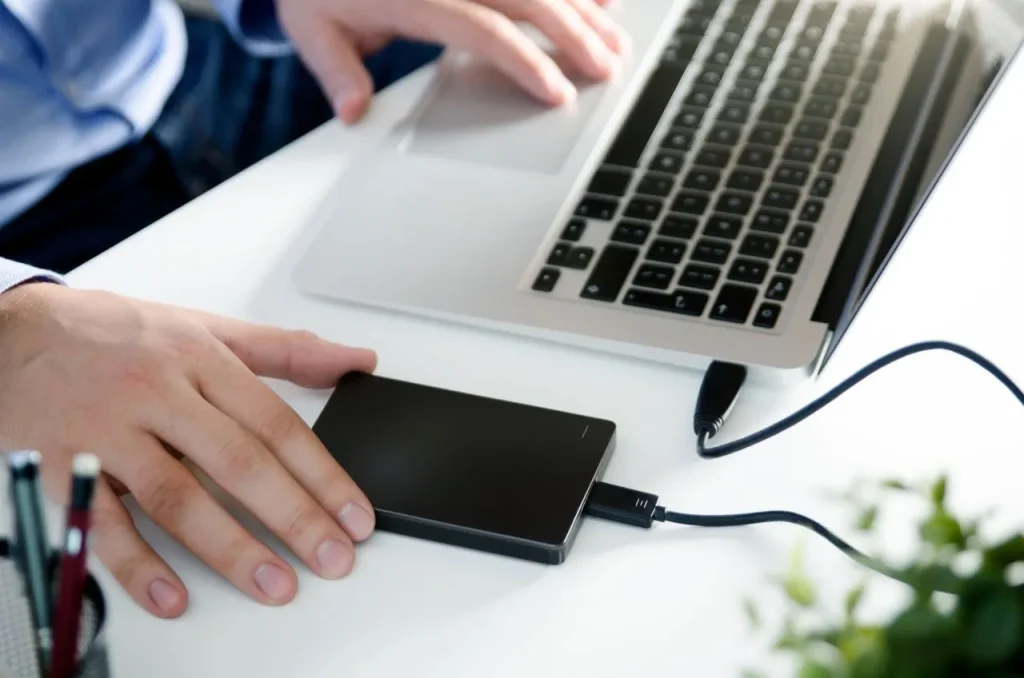
If you do not want to open the laptop, try external storage. Portable hard drives and SSDs provide extra space for large files. They connect through USB and are easy to carry. Cloud storage is another option, but external drives are faster and work without the internet. This is a simple way to manage heavy data like movies, music, and backups.
6. Improve Cooling for Better Performance

Heat is a hidden enemy of laptops. It slows down the processor and reduces the part’s life. Overheating also makes fans noisy. Upgrading the cooling can fix this.
Start by reapplying fresh thermal paste to the CPU and GPU to improve heat transfer. Next, clear out any dust buildup from the air vents to restore proper airflow. Then, consider using a cooling pad with built-in fans beneath your laptop for extra ventilation. Some laptop models even support fan upgrades for enhanced cooling. These steps help maintain system stability during demanding tasks like gaming or video editing.
7. Upgrade the Display for a Clearer View
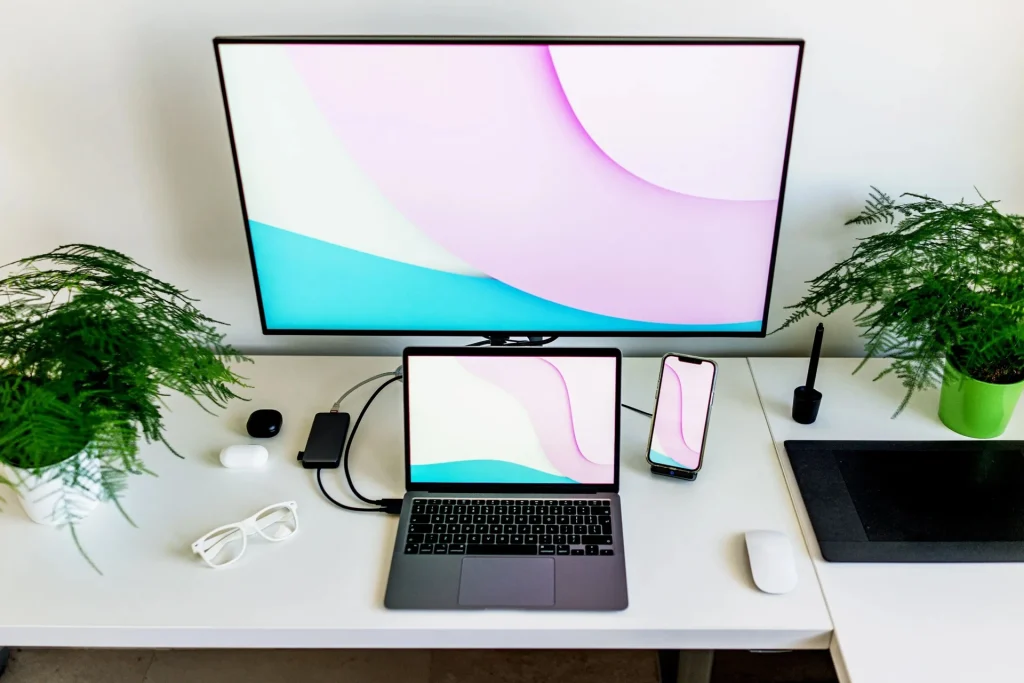
A better display changes the whole experience. Some laptops allow you to replace the screen with a higher resolution or brighter panel. If adding a second internal display isn’t an option, consider connecting an external monitor. This setup is especially beneficial for designers, photographers, and gamers who need more screen space and visual clarity.
A dual-screen arrangement also boosts productivity by allowing you to multitask more efficiently—spreading your work across two displays makes everything more manageable.
8. Replace the Keyboard for Comfort

Typing is a daily task, and a worn keyboard slows you down. Keys may stick, fade, or stop working. Many laptops allow keyboard replacement. You can upgrade to a backlit keyboard. It makes typing easier in dim lighting. Some models resist spills. That’s helpful for students and office workers.
9. Upgrade Wi-Fi Card for Faster Internet
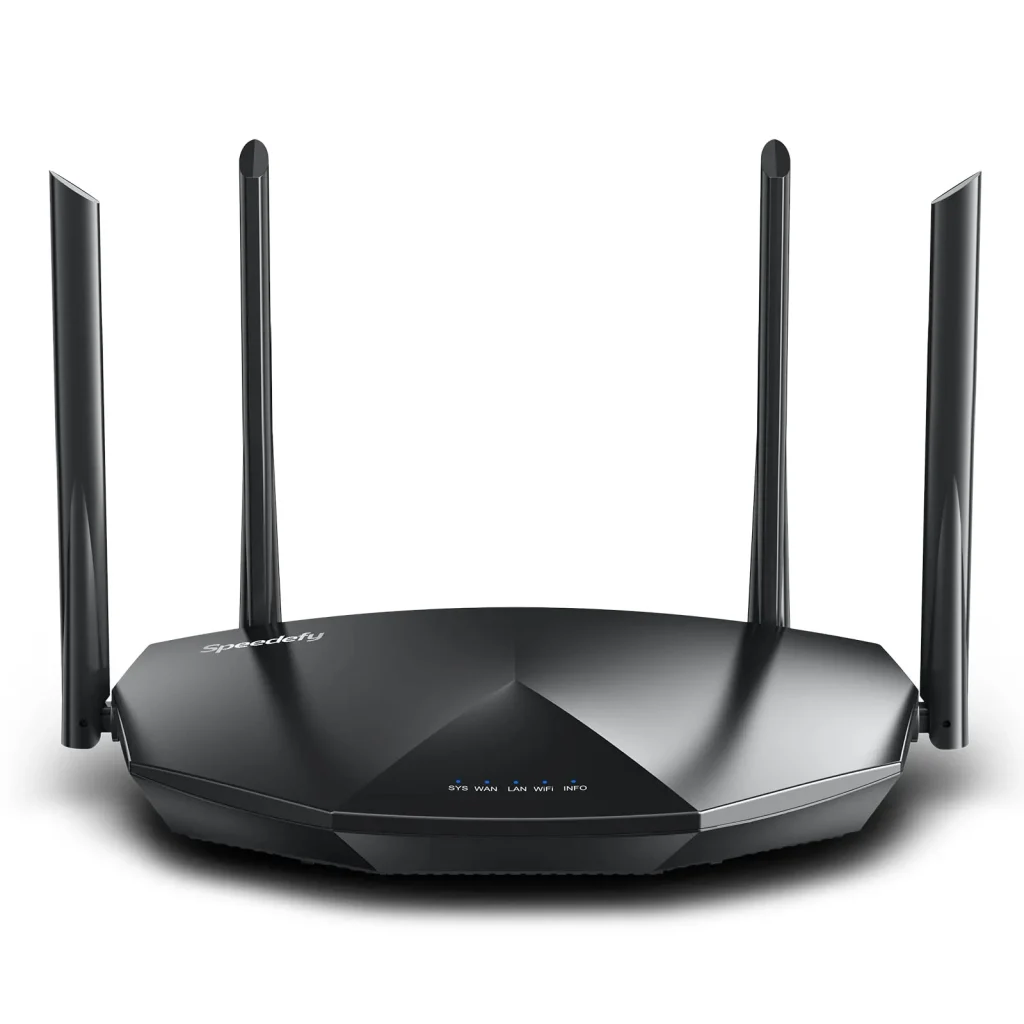
Slow internet isn’t always your provider’s fault. Old Wi-Fi cards can hold back your speed. New ones support Wi-Fi 5 or Wi-Fi 6. They’re faster and more reliable. Upgrading helps with calls, classes, and streaming. Gamers get smoother play with less lag. It’s a small change with big everyday benefits.
10. Add an External Graphics Unit (eGPU)
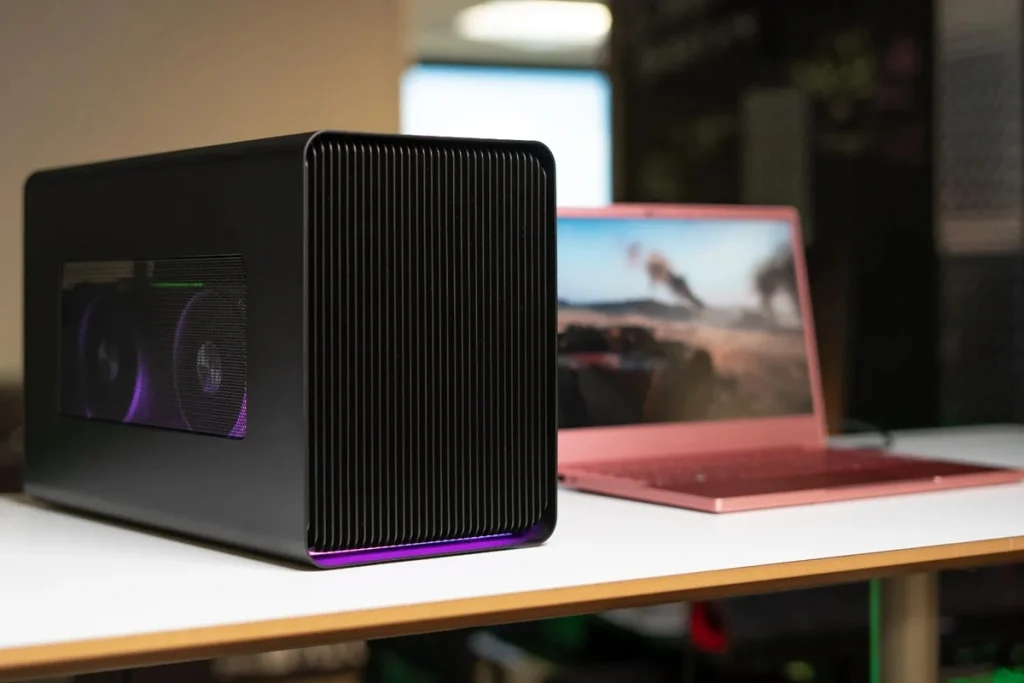
Most laptops do not allow internal GPU changes. But you can connect an external graphics card using a special dock. This setup is called eGPU. It gives desktop-level graphics power to a laptop. Video editors and gamers often use this. Though costly, it saves you from buying a new gaming laptop.
11. Update Software and Drivers
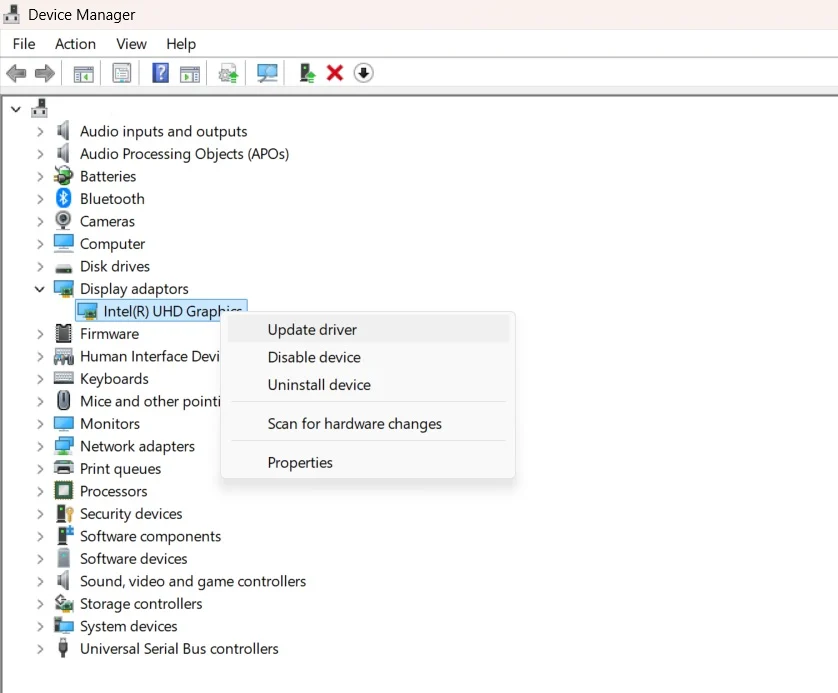
Not all upgrades are physical. Keeping the operating system updated ensures smooth performance and security. New drivers fix bugs and improve hardware use. Removing junk files and disabling startup apps also helps. Sometimes, software cleaning feels like a full upgrade because it frees resources and makes the system fast.
12. Upgrade the Operating System
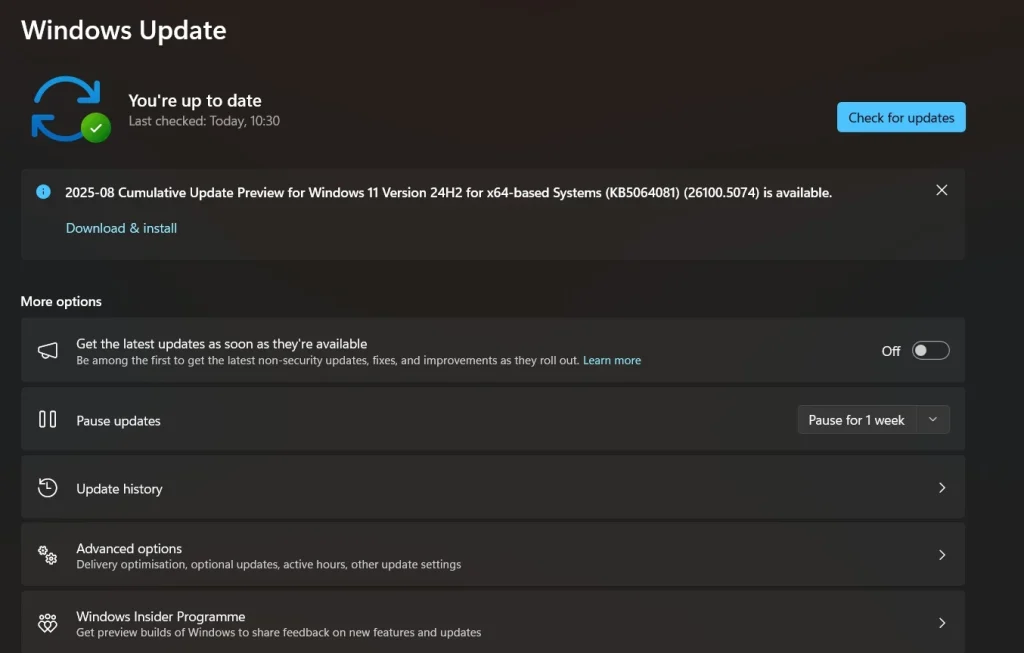
If your laptop runs an old system like Windows 7, upgrading to Windows 10 or 11 makes a big difference. New systems use hardware better and offer more features. However, check if your laptop meets the requirements before upgrading.
13. Improve Sound Quality with Audio Upgrades

Built-in speakers are often weak. For better sound, you can connect external speakers or quality headphones. Some laptops allow the replacement of internal speakers. If you work with audio, an external sound card improves clarity and recording quality.
14. Boost Security with Better Parts
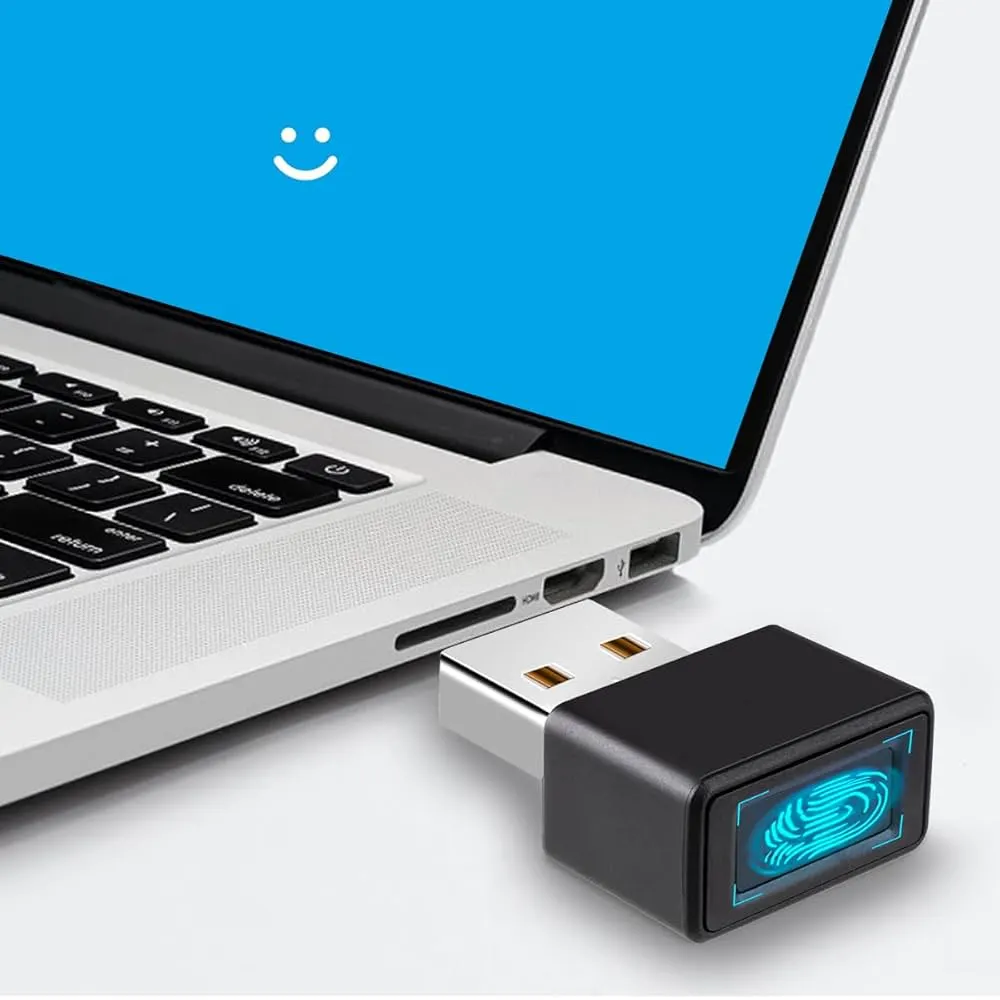
Security is also an upgrade. You can add a fingerprint scanner if your laptop supports it. Some webcams can be replaced with better ones for clearer video calls. Small changes like these improve safety and communication.
15. Upgrade Ports with Docking Stations
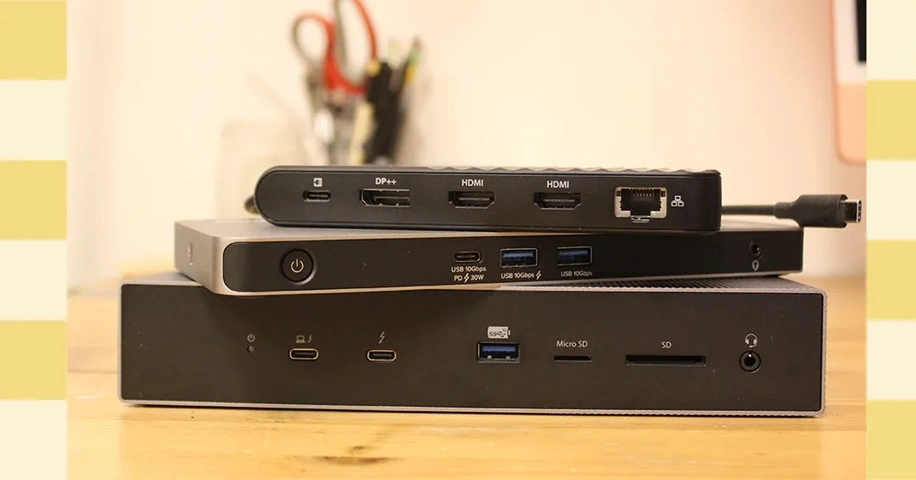
If your laptop lacks enough ports, use a docking station. It adds USB, HDMI, Ethernet, and card readers. This is useful for offices where many devices connect to the laptop. It makes the laptop more flexible without replacing hardware.
Author’s Tip
When planning upgrades, do not try everything at once. Start with the most effective steps like RAM and SSD. These changes are safe, low-cost, and easy to install. They give the fastest results.
Always research before buying parts. Not every laptop supports every upgrade. Look at the model guide or maker’s website. Watch tutorials to learn how to replace parts safely. If you are not confident, ask a technician for help. Avoid forcing parts that do not fit.
Set a clear budget. Compare the upgrade cost with the price of a new laptop. If upgrades cost more than half the price of a new machine, it may not be worth it. But if upgrades are cheap, you get better value. This balance helps you spend money wisely.
Conclusion
You do not need to buy a new device when your laptop slows down. With the right laptop upgrade ideas, you can make it run like new. Small steps often bring big results.
Focus on upgrades that give the most benefit. RAM, SSD, and battery upgrades help almost everyone. For special needs, you can add an eGPU, new screens, or better Wi-Fi cards. Choose based on what you use your laptop for each day.
Upgrading is also good for the planet. Instead of throwing away old machines, you give them new life. This reduces waste and saves resources. In the end, upgrades bring value, comfort, and sustainability.
FAQs:
1. Is it safe to upgrade a laptop on my own?
Yes, it is safe if you follow the right steps. Many upgrades, like adding RAM or replacing a hard drive, are simple. You only need basic tools like a screwdriver. Always power off the laptop and remove the battery before starting. Watch a video guide or read the manual if you are unsure. For advanced upgrades, such as replacing a graphics card or screen, it may be better to ask a professional. Doing upgrades on your own saves money, but care and patience are very important.
2. How much does a laptop upgrade cost?
The cost depends on the parts you choose. A RAM stick can be cheap, while a large SSD costs more. Batteries are usually affordable, but an external GPU can be expensive. On average, small upgrades cost less than buying a new laptop.
3. Can every laptop be upgraded?
Not every laptop supports upgrades. Older models often allow RAM, storage, and battery changes. Many modern thin laptops have parts fixed to the board. This makes upgrades limited or impossible. Gaming laptops and business laptops usually give more freedom for upgrades. Always check the user manual or the maker’s website for details. If you cannot find information, search for your laptop model online. Knowing what can be upgraded saves time and avoids mistakes.
Dinesh Lakhwani
Author Bio:
Dinesh Lakhwani 

Dinesh Lakhwani, the entrepreneurial brain behind “TechCommuters,” achieved big things in the tech world. He started the company to make smart and user-friendly tech solutions. Thanks to his sharp thinking, focus on quality and the motto of never giving up, TechCommuters became a top player in the industry. His commitment to excellence has propelled the company to a leading position in the industry.
Popular Post
Recent Post

5 Best Data Recovery Software For Windows 11 and Windows 10
A crashed drive can ruin a whole day. One minute your photos, work files, and tax records sit safe on your PC. The next minute they are gone. A power cut, a bad update, or one wrong click can wipe out years of memories and months of work in seconds. That sinking feeling is why […]

How To Update NVIDIA Drivers On Windows 11/10 PC
Learn how to update NVIDIA drivers on Windows 11/10 with simple methods, safety tips, and easy steps for smoother gaming and better PC performance.

Top AI Features Hidden Inside Windows 11
Explore the top AI features in Windows 11, from Copilot to Recall, plus safety tips and simple steps to use each tool the right way.

Customize Your Screen Saver Settings in Windows [Easy Steps]
Learn how to customize screen saver settings in Windows 11 with easy steps, safety tips, and simple tricks to personalize your PC screen.

Driver Easy Windows Driver Updater Tool Review: Tried & Tested
In-depth information about Driver Easy’s functions and features can be found in our review. Learn how to update drivers more easily with this tool for a more seamless computer experience.

Is Avast Driver Updater Worth It? A Hands-On Analysis
A full review of Avast Driver Updater covering features, setup steps, pricing, pros and cons, and real PC results, to help you decide if it is worth buying.

IObit Driver Booster 13 (PRO) Review: [Tried & Tested]
IObit Driver Booster 13 is built for one purpose: keeping your PC drivers up to date. Well, yes! Outdated drivers can cause crashes, slowdowns, and hardware issues. This tool scans fast and updates with one click. The interface is simple. Even beginners can use it without confusion. Updates are pulled from a huge database, covering […]

Auslogics Driver Updater: A Detailed Walkthrough [2026]
This comprehensive review covers the key features, pros, and cons, pricing, and a final verdict on Auslogics’ driver update utility. Learn how it stacks up against manual driver maintenance.

5 Best Driver Updater Tools for Windows to Use (Free and Paid)
Introduction: Most people blame their PC for problems that a driver caused. A driver works like a bridge between your hardware and your operating system. When this bridge cracks, strange things start to happen. Screens flicker without reason. Printers go silent mid-task. Games freeze or crash out of nowhere. Manually finding the right driver is […]

