











Imagine this. You spend hours perfecting a video project. You hit save. Then your laptop freezes, reboots, and when the screen comes back. The file is gone. Your stomach sinks. It’s not just you. Lost files happen all the time. A dropped hard drive, a bad update, an accidental delete, or a corrupted partition can […]
How To Connect AirPods To Laptop: Pair AirPods to PC
AirPods are small wireless earphones made by Apple. They are light, fast, and easy to use. Most people buy them for iPhones or MacBooks. But many users also want to connect them to Windows laptops. The good news is that you can do this. AirPods use Bluetooth, which works on almost every modern laptop.
Learning how to connect AirPods to laptop is very useful. It helps you listen to music, join meetings, or watch videos with clear sound. You can also pair AirPods to a PC if you want freedom from wires. No more tangled cables or broken headphone jacks. Just smooth, wireless audio.
This guide will show you the steps in detail, the things to watch out for, and extra tips to make your AirPods work better with a laptop.
Why People Use AirPods With Laptops?
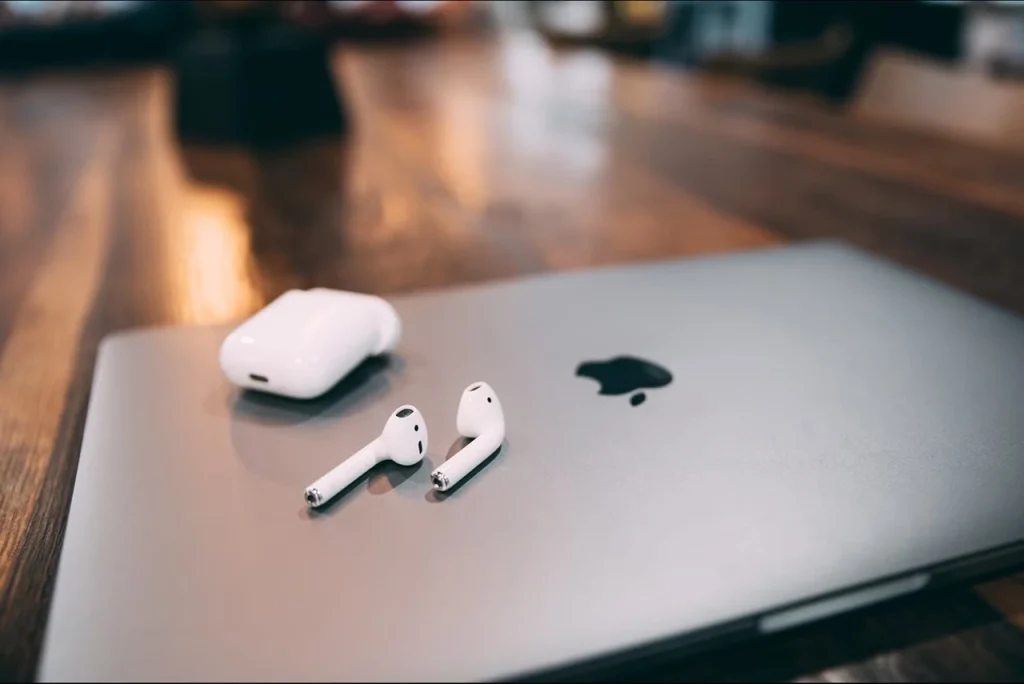
AirPods are not only stylish. They also bring comfort and quality. Many students, workers, and casual users now choose them over wired headphones. When you pair AirPods to a laptop, you get:
- Wireless freedom: You can walk around the room without pulling a wire.
- Fast pairing: AirPods connect quickly with Bluetooth.
- Clear sound: They are good for both music and calls.
- Smart design: The case keeps them safe and charged.
- Noise control: AirPods Pro have noise canceling for a quiet focus.
Whether you use Zoom, Teams, YouTube, or Spotify, learning how to connect AirPods to a Laptop helps in your daily tasks.
Precautions to Take: When You Pair AirPods to a PC
Before you begin pairing, there are a few things to keep in mind. These steps make the process smoother and prevent problems later. Skipping them may cause failed connections or weak sound.
- Charge your AirPods: A Low battery can stop them from pairing. Always start with charged earbuds.
- Charge your laptop: Pairing may use more power. Avoid sudden shutdowns.
- Keep devices close: AirPods should be within a few feet of the laptop.
- Turn off other Bluetooth devices: If AirPods are linked to another phone or tablet, they may not connect to your PC.
- Update Windows: Old versions may have bugs in Bluetooth drivers.
- Check Bluetooth support: Some older laptops do not have built-in Bluetooth. You may need a USB dongle.
- Keep them clean: Dust in the case or earbuds can cause errors.
- Reset if needed: If nothing works, reset your AirPods and try again.
These simple points help you connect AirPods to a PC without stress.
How to Connect AirPods to a Laptop
You can pair AirPods to laptop in a few minutes. The process is easy, but you must follow the steps in the right order.
Steps to Connect AirPods to PC: (Windows)
Step 1. Click the Start menu and go to “Settings.”. Select “Bluetooth & other devices.”. Make sure your laptop is discoverable. If it is off, slide it to “On.”
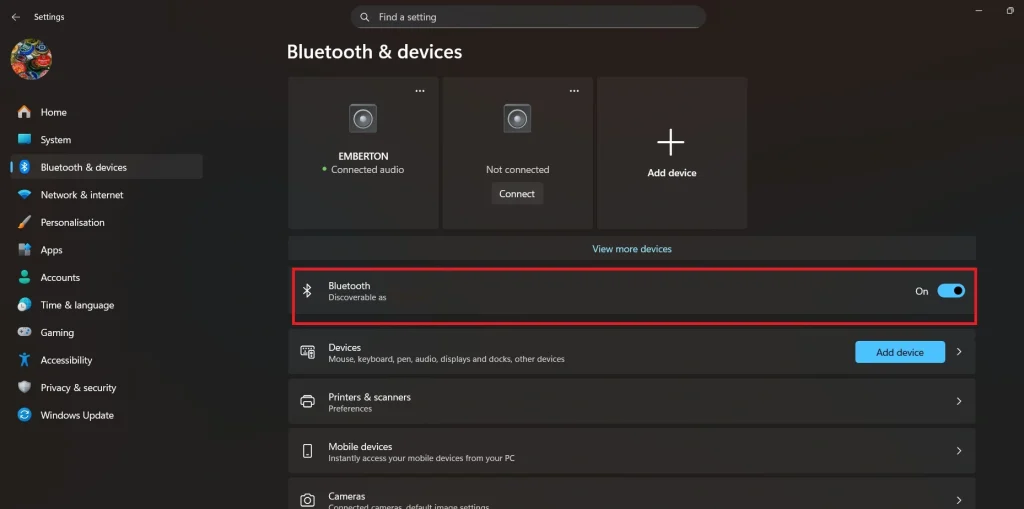
Step 2. Prepare AirPods. Put them in the case and keep the lid open. Press the setup button. It is on the back of the case. Hold it until the white light flashes.

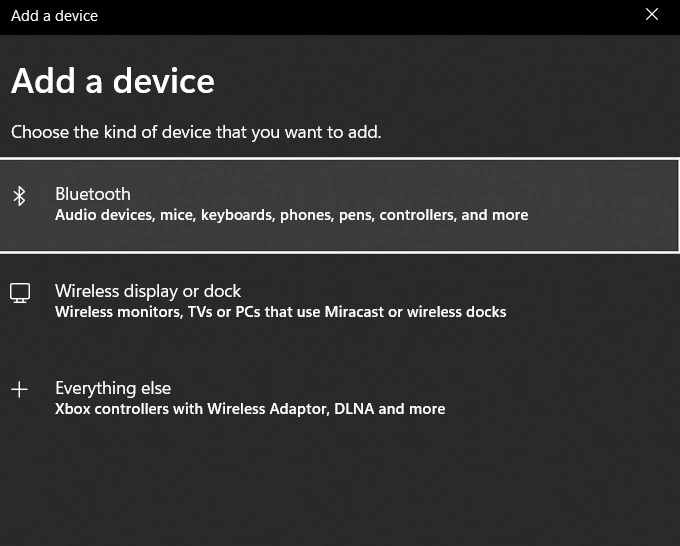
Step 3. On your laptop, click “Add Device.” Select AirPods. They should appear in the list. Click them. Wait for pairing: The PC will say “Connected.”
Steps to Connect AirPods to Mac:
Step 1: Open your AirPods case and leave the lid open. On your Mac, go to the top-left corner and click the Apple icon. Choose System Preferences or System Settings, depending on your macOS version. Find and select Bluetooth. Ensure that Bluetooth is switched on.
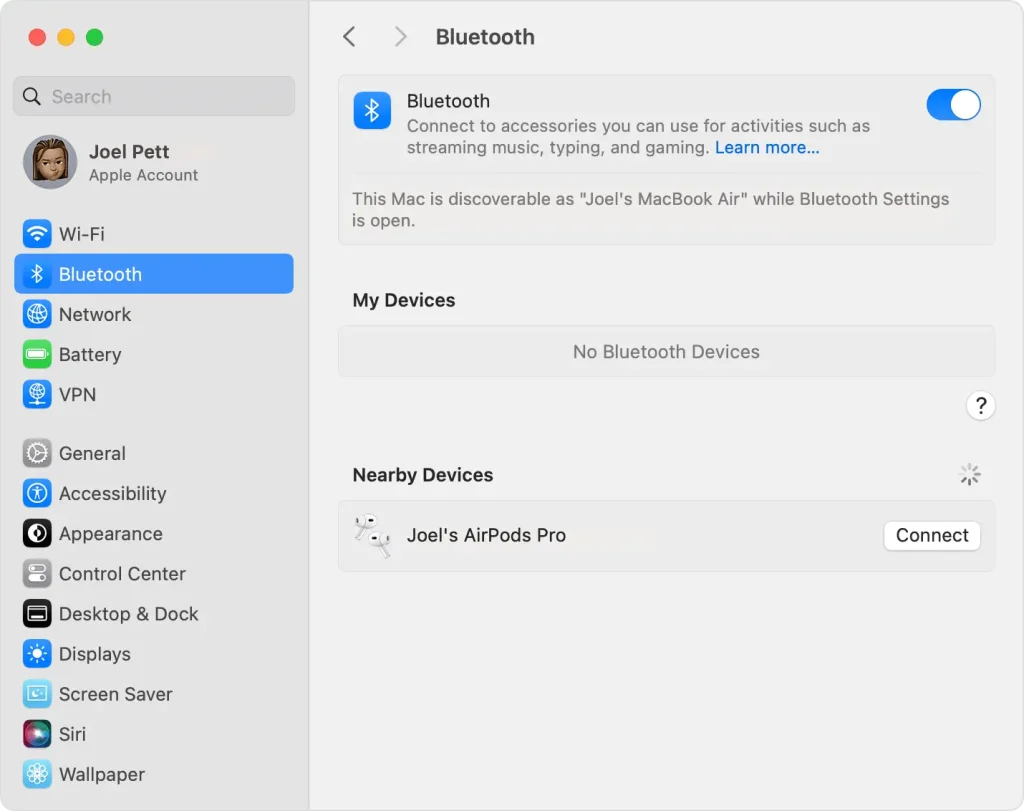
Step 2. Look through the list of available Bluetooth devices. Locate your AirPods in the list. Click the Connect button beside their name. Once the connection is successful, the status will show Connected. To confirm everything is working, try playing music or join a video call.
This is the easy way to pair AirPods to PC if your PC is a MacBook.
And that’s it! Play music or a video to check if sound comes through. That is all. Now you know how to connect AirPods to a laptop step by step.
What To Do If AirPods Do Not Connect?
Sometimes you may face problems while trying to connect AirPods to PC. Do not worry. These are common fixes:
- Turn Bluetooth off and on again.
- Restart your laptop.
- Put AirPods back in the case and try again.
- Forget the AirPods from the device list and re-add them.
- Update your Bluetooth drivers.
- Reset AirPods by holding the setup button longer until the amber then the white light flashes.
With these fixes, you can pair AirPods to PC even if the first attempt fails.
Author’s Tip
When using AirPods with a laptop, always stay within range. Bluetooth usually works best within 30 feet. If you move too far, the sound will cut off or stop.
If you pair AirPods to laptop and the sound still plays from the laptop speaker, you need to change the audio device. Right-click the speaker icon, go to “Playback devices,” and choose AirPods.
Also, keep your AirPods software updated. Apple updates improve performance and fix bugs. Even if you use them on a PC, keeping firmware fresh helps them run better. This is one smart way to enjoy better sound once you connect AirPods to PC.
Extra Tips for Smooth Use:
- Keep your AirPods in their charging case when you’re not using them. This protects them from dust and damage. It also keeps them charged and ready for the next use.
- Avoid placing your AirPods near Wi-Fi routers. Wireless signals from routers can interfere with Bluetooth connections. This may cause audio dropouts or unstable pairing. Keep a reasonable distance to ensure smooth performance.
- Turn off power-saving mode on your PC if you notice frequent Bluetooth disconnections. Power-saving settings can limit Bluetooth performance to conserve battery. Go to your system’s power options and switch to a balanced or high-performance plan. This helps maintain a stable connection with your AirPods.
- For a stable connection, pair your AirPods with only one device at a time. Connecting to multiple devices can cause audio glitches or switching issues. Disconnect from other devices before pairing with a new one. This ensures smoother performance and fewer interruptions.
- If you’re using AirPods for calls, make sure the microphone settings are correct. Go to your PC’s sound settings and check the input device. Select your AirPods as the default microphone. This ensures your voice is clear during calls and video meetings.
These extra steps make how to connect AirPods to a Laptop even easier for daily life.
Conclusion
AirPods are not just for Apple products. You can pair AirPods to a laptop on Windows, too. The process is simple if you follow the steps correctly.
Knowing how to connect AirPods to a Laptop saves you time. You can use them for music, video calls, or online classes. They are light, smart, and wireless.
If pairing fails, remember the fixes. Restart devices, reset AirPods, or update drivers. Once set, it is simple to connect AirPods to a PC anytime.
FAQs
Q1. Can I use AirPods with any laptop?
Yes. You can use AirPods with any laptop that has Bluetooth. Almost all modern laptops support Bluetooth, so pairing is simple. If your laptop is older and does not have Bluetooth, you can still connect by using a USB Bluetooth adapter. These adapters are small, cheap, and easy to set up. Once added, the adapter allows you to pair AirPods to a laptop the same way you would on a newer device. This makes AirPods flexible and usable with many kinds of laptops.
Q2. Why won’t my AirPods pair with my PC?
Sometimes AirPods may not connect to your PC on the first try. The problem may be that Bluetooth is off or disabled in settings. It could also be due to old drivers that need an update. Another reason is that AirPods are already linked to another phone or tablet nearby. In this case, remove them from the other device and try again. If nothing works, reset your AirPods by holding the case button until the light flashes amber, then white. After that, you should be able to connect AirPods to a PC without trouble.
Q3. Do AirPods work for Zoom or Teams on a laptop?
Yes. AirPods work very well with video call apps like Zoom or Teams. Once you pair AirPods to PC, you can use them as both a speaker and a microphone. This makes them perfect for meetings, online classes, or quick chats with friends. But sometimes you must go into the audio settings of Zoom or Teams and choose AirPods as the active device. Without this step, the app may still use the laptop’s default mic or speaker. Selecting AirPods ensures clear sound and smooth calls.
Dinesh Lakhwani
Author Bio:
Dinesh Lakhwani 

Dinesh Lakhwani, the entrepreneurial brain behind “TechCommuters,” achieved big things in the tech world. He started the company to make smart and user-friendly tech solutions. Thanks to his sharp thinking, focus on quality and the motto of never giving up, TechCommuters became a top player in the industry. His commitment to excellence has propelled the company to a leading position in the industry.
Popular Post
Recent Post

5 Best Data Recovery Software For Windows 11 and Windows 10
A crashed drive can ruin a whole day. One minute your photos, work files, and tax records sit safe on your PC. The next minute they are gone. A power cut, a bad update, or one wrong click can wipe out years of memories and months of work in seconds. That sinking feeling is why […]

How To Update NVIDIA Drivers On Windows 11/10 PC
Learn how to update NVIDIA drivers on Windows 11/10 with simple methods, safety tips, and easy steps for smoother gaming and better PC performance.

Top AI Features Hidden Inside Windows 11
Explore the top AI features in Windows 11, from Copilot to Recall, plus safety tips and simple steps to use each tool the right way.

Customize Your Screen Saver Settings in Windows [Easy Steps]
Learn how to customize screen saver settings in Windows 11 with easy steps, safety tips, and simple tricks to personalize your PC screen.

Driver Easy Windows Driver Updater Tool Review: Tried & Tested
In-depth information about Driver Easy’s functions and features can be found in our review. Learn how to update drivers more easily with this tool for a more seamless computer experience.

Is Avast Driver Updater Worth It? A Hands-On Analysis
A full review of Avast Driver Updater covering features, setup steps, pricing, pros and cons, and real PC results, to help you decide if it is worth buying.

IObit Driver Booster 13 (PRO) Review: [Tried & Tested]
IObit Driver Booster 13 is built for one purpose: keeping your PC drivers up to date. Well, yes! Outdated drivers can cause crashes, slowdowns, and hardware issues. This tool scans fast and updates with one click. The interface is simple. Even beginners can use it without confusion. Updates are pulled from a huge database, covering […]

Auslogics Driver Updater: A Detailed Walkthrough [2026]
This comprehensive review covers the key features, pros, and cons, pricing, and a final verdict on Auslogics’ driver update utility. Learn how it stacks up against manual driver maintenance.

5 Best Driver Updater Tools for Windows to Use (Free and Paid)
Introduction: Most people blame their PC for problems that a driver caused. A driver works like a bridge between your hardware and your operating system. When this bridge cracks, strange things start to happen. Screens flicker without reason. Printers go silent mid-task. Games freeze or crash out of nowhere. Manually finding the right driver is […]

