










It can be frustrating when a Word document suddenly disappears. You may have spent hours writing a report, assignment, or letter. Then your computer crashes, the power cuts out, or Word closes before you save the file. In that moment, it may seem like all your work is gone. This happens more often than most […]
How To Speed Up An Old Laptop [Windows 11/10]: Complte Guide
Is your old laptop running slowly? You’re not alone. Many people face this issue as their computers age. Learning how to speed up an old laptop is easier than you think.
Over time, older laptops tend to slow down for a variety of reasons. Fortunately, with a few smart tweaks, you can significantly boost their performance. This guide walks you through practical, easy-to-follow steps that work seamlessly on both Windows 10 and Windows 11.
Part 1: Difference Between Methods to Speed Up an Old Computer and a New Computer
Old computers need different care than new ones. New computers usually just need basic maintenance. Old computers require deeper fixes. The approach changes based on your laptop’s age and condition.
New computers respond well to simple cleanups. Old computers often need hardware upgrades or major software changes. You must be more careful with old systems. They can’t handle aggressive optimization methods that work on newer machines.
Comparison Table: Old vs New Computer Speed-Up Methods:
| Aspect | New Computer | Old Computer |
| Focus | Prevention and maintenance | Repair and optimization |
| Methods | Light cleanup, startup management | Deep cleaning, hardware upgrades |
| Risk Level | Low risk | Higher risk, needs caution |
| Hardware Changes | Rarely needed | Often necessary (RAM, SSD) |
| Software Approach | Regular updates | Selective updates, older versions |
| Time Investment | 30-60 minutes | 2-4 hours |
| Success Rate | 90%+ | 70-80% |
Part 2: Why an Old Computer Gets Slow – Top Reasons
Understanding why your laptop slows down helps you fix it better. Age affects every part of your computer. Multiple factors work together to reduce performance. Knowing these causes helps you target the right solutions.
- Hard drive wear – Old hard drives develop bad sectors and run slower
- Outdated software – Old programs use more resources than needed
- Registry errors – Windows registry gets cluttered over time
- Too many startup programs – More programs starting means slower boot times
- Insufficient RAM – Old laptops often have too little memory for modern tasks
- Malware infections – Viruses and spyware consume system resources
- Fragmented files – Data gets scattered across the hard drive
Part 3: Precautions to Take When Speeding Up an Old PC
Old laptops are fragile. One wrong move can break them completely. Taking precautions protects your data and hardware. Always prepare before making changes to your system.
- Back up all important files – Use external drives or cloud storage
- Create a system restore point – This lets you undo changes if needed
- Check laptop temperature – Overheating can damage old components
- Use the original power adapter – Wrong adapters can harm your laptop
- Test changes one at a time – This helps identify what works and what doesn’t
- Keep installation discs handy – You might need to reinstall software
- Document current settings – Write down current configurations
- Have professional help ready – Know a tech expert in case things go wrong
Part 4: How to Speed Up an Old Laptop?
Multiple methods can boost your old laptop’s performance. Each method targets different speed issues. Combining several methods gives the best results. Start with the easiest options first.
Method 1: Clean Up Disk Space
Disk cleanup removes unnecessary files from your system. Old files take up valuable space. This space is needed for your laptop to run smoothly. How to speed up an old laptop starts with this basic step.
Freeing up disk space improves performance immediately. Your laptop has more room to work. Temporary files and cache slow down your system. Removing them gives instant results.
Why use this method:
- Frees up storage space for better performance
- Removes temporary files that slow down your system
- Costs nothing and works on all Windows versions
- Takes only 10-15 minutes to complete
Step 1: Press Windows + R keys. Type “cleanmgr” and press Enter. Select your main drive (usually C:). Check all boxes except the “Downloads” folder.
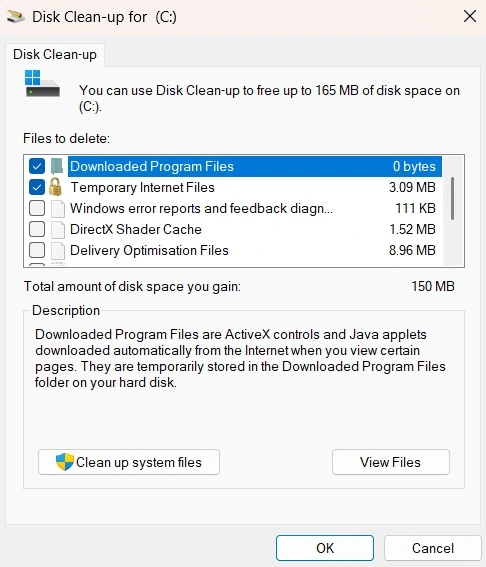
Step 2: Click “Clean up system files” for more options. Click “OK” and “Delete Files” to finish.
Method 2: Disable Startup Programs
Too many programs starting with Windows slows your boot time. Many programs add themselves to the startup without asking. Disabling unnecessary ones speeds up your laptop significantly.
Many startup programs are unnecessary and quietly run in the background, consuming valuable memory. When too many are active, your laptop has to work overtime, which slows everything down. Disabling them puts you back in control and helps your system run more efficiently.
Why use this method:
- Reduces boot time from minutes to seconds
- Frees up RAM for programs you actually use
- Stops unwanted programs from running automatically
- Easy to reverse if you change your mind
Step 1: Press Ctrl + Shift + Esc. Open Task Manager. Click the “Startup” tab to see all startup programs.
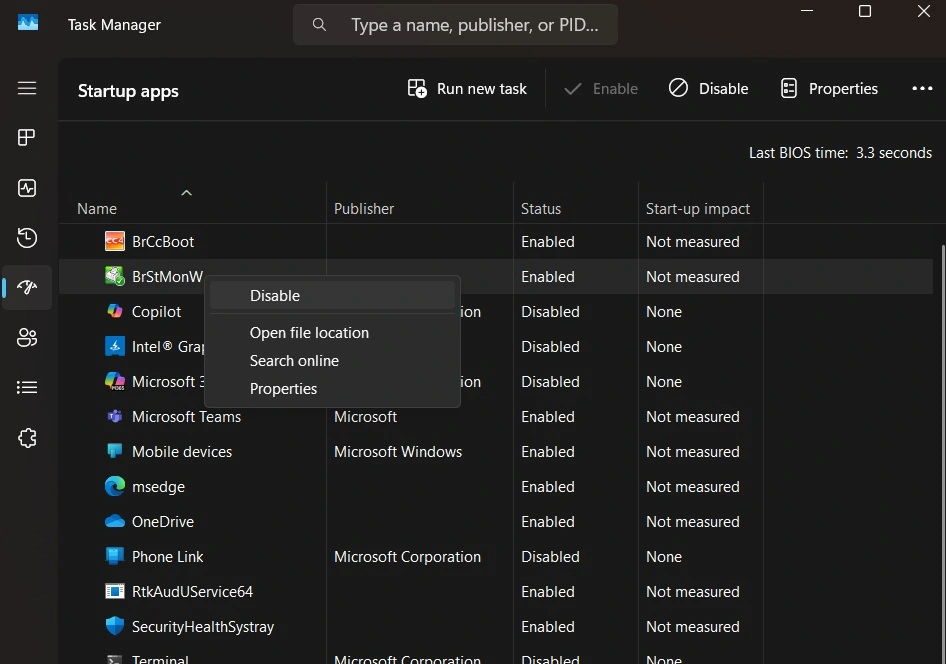
Step 2: Right-click programs. Select “Disable” for each one. Focus on high-impact programs first.
Method 3: Update or Replace Your Hard Drive
Old hard drives are the biggest speed bottleneck. They have moving parts that wear out. Solid State Drives (SSDs) are much faster. This upgrade gives the biggest performance boost.
Traditional hard drives read data slowly. SSDs access data almost instantly. The difference is dramatic on old laptops. This single change can make your laptop feel new again.
Why use this method:
- Provides the biggest speed improvement possible
- Reduces boot time from 2 minutes to 30 seconds
- Makes all programs open much faster
- Increases laptop reliability and lifespan
Step 1: Check your current hard drive type in Device Manager. Select “Disk drives”. Click Properties.
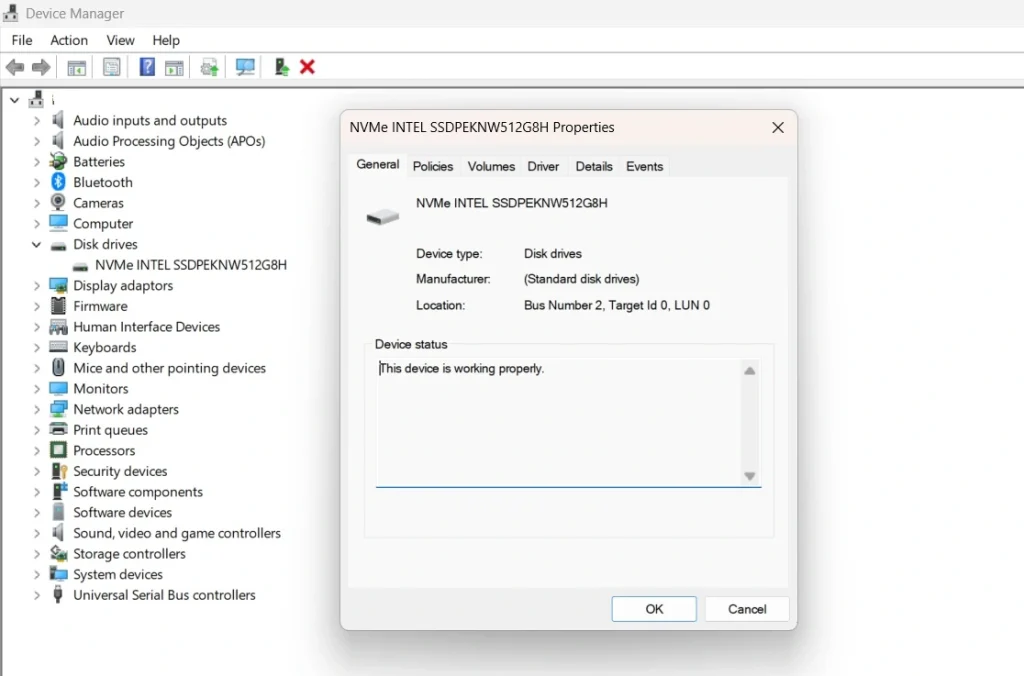
Step 2: Buy a compatible SSD for your laptop model.
Method 4: Add More RAM Memory
RAM (memory) is crucial for multitasking. Old laptops often have too little RAM for modern use. Adding more memory lets your laptop handle multiple programs better.
When you run out of RAM, Windows uses your hard drive instead. Hard drives are much slower than RAM. More RAM means less waiting and smoother performance.
Why use this method:
- Allows running more programs at the same time
- Reduces system freezing and crashes
- Improves overall system responsiveness
- Relatively inexpensive upgrade option
Step 1: Check how much RAM you have in Task Manager. Look at memory usage under the “Performance” tab.
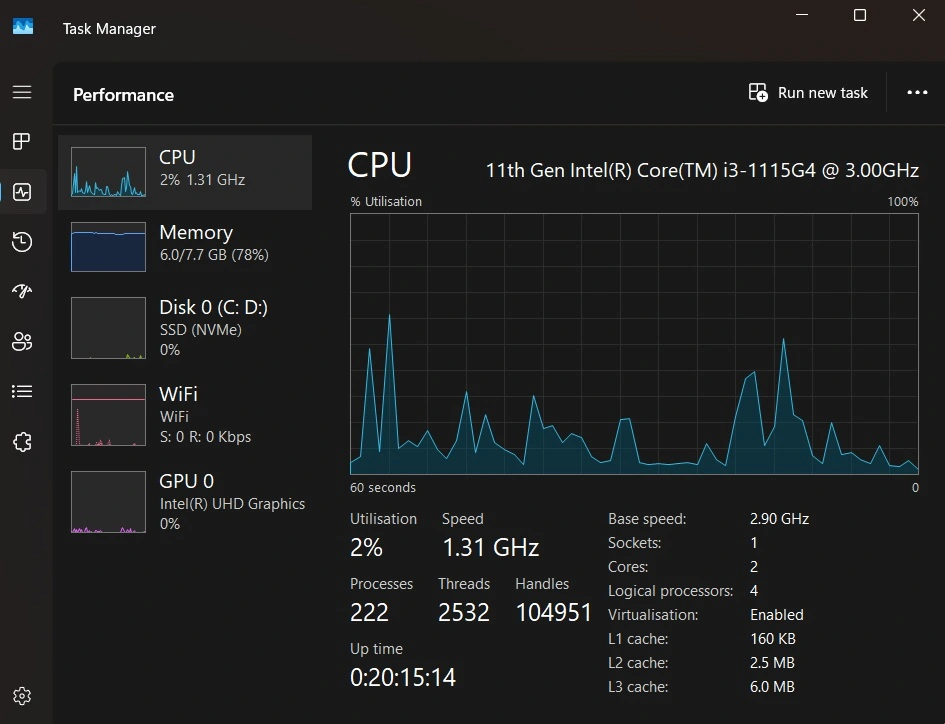
Step 2: Find compatible RAM for your laptop model. Install it carefully or have a professional do it. Most laptops have accessible RAM slots.
Method 5: Adjust Visual Effects
Windows uses fancy visual effects that look nice but slow old laptops. Turning these off improves performance. Your laptop will look more basic but run faster.
Visual effects use processing power and memory. Old laptops need these resources for actual work. Reducing eye candy gives you better performance where it counts.
Why use this method:
- Frees up processing power for important tasks
- Works immediately without any downloads
- Completely free and easily reversible
- Especially helpful for very old laptops
Step 1: Right-click “This PC” and select “Properties.” Click “Advanced system settings” on the left side.
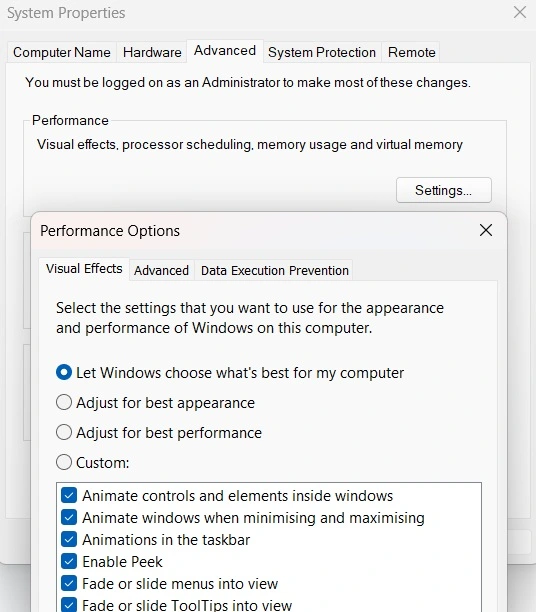
Step 2: Under Performance, click “Settings.” Choose “Adjust for best performance” and click “Apply.”
Method 6: Run Antivirus Scan
Malware secretly runs on many old laptops. These programs slow down your system while hiding in the background. A thorough antivirus scan finds and removes them.
Viruses and spyware consume your laptop’s resources. They also steal your personal information. Removing them improves speed and protects your data. This step is essential for security.
Why use this method:
- Removes hidden programs slowing your system
- Protects your personal information and files
- Often provides immediate speed improvements
- Prevents future infections with real-time protection
Step 1: Update your antivirus software to the latest version. If you don’t have one, download Windows Defender or a free antivirus.
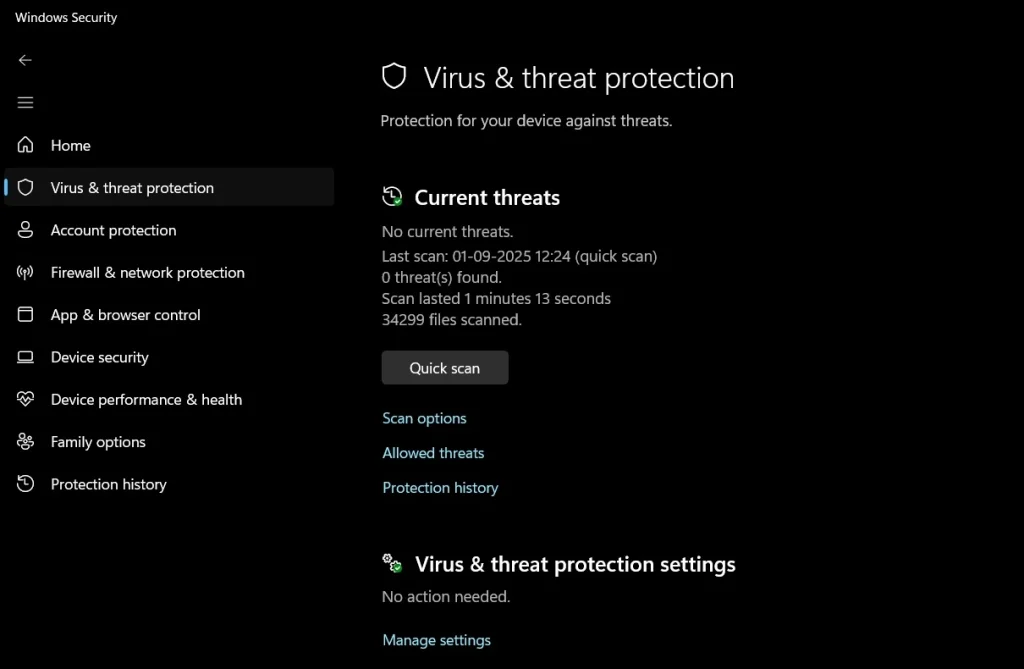
Step 2: Run a full system scan. This may take 1-2 hours. Remove any threats found and restart your laptop.
Method 7: Clean Install Windows
A fresh Windows installation removes years of digital clutter. Old installations accumulate junk files and registry errors. Starting fresh gives you a clean, fast system.
This method requires time and preparation. You’ll need to reinstall your programs and restore your files. But the speed improvement is dramatic. It’s like getting a new laptop.
Why use this method:
- Removes all accumulated digital clutter
- Fixes registry errors and system conflicts
- Provides maximum possible speed improvement
- Eliminates unknown malware and problems
Step 1: Back up all your important files to external storage. Write down all programs you need to reinstall.
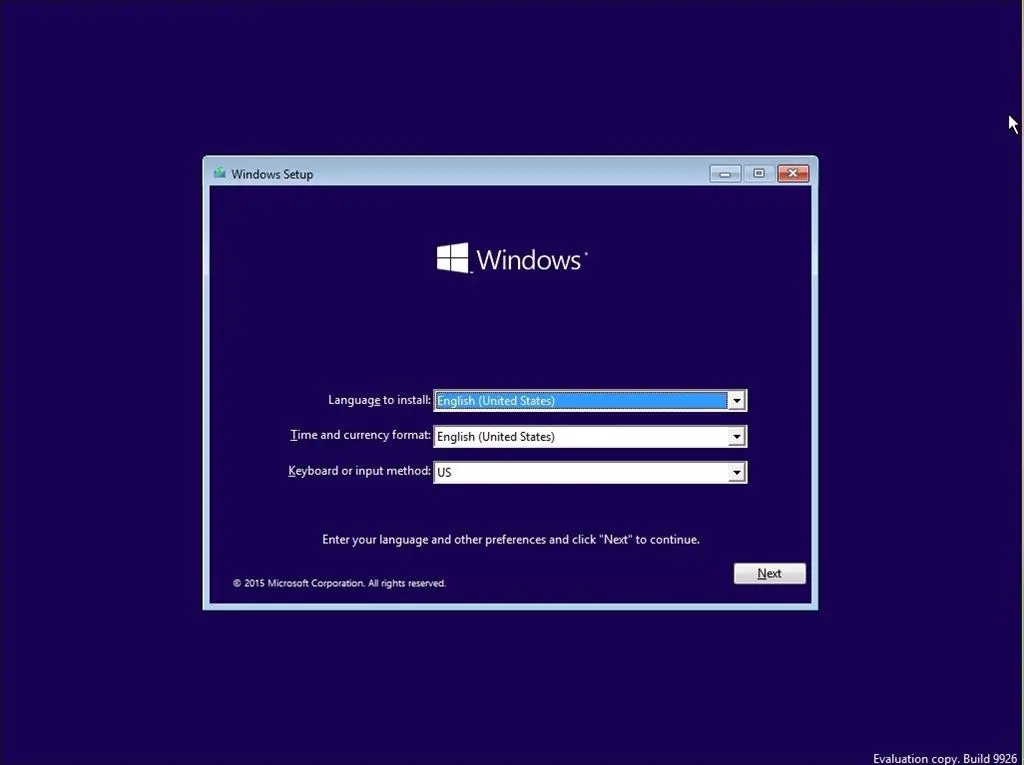
Step 2: Use the Windows Media Creation Tool to create installation media. Boot from it and choose “Custom installation” to format your drive.
Method 8: Optimize Power Settings
Windows power settings affect performance significantly. Old laptops often default to power-saving modes. These modes reduce speed to save battery. Changing to high-performance mode helps speed.
Power-saving modes slow down your processor and other components. This saves battery but hurts performance. If you mostly use your laptop plugged in, high-performance mode is better.
Why use this method:
- Unlocks your processor’s full potential
- Improves responsiveness for all tasks
- Works immediately without any installation
- Can be easily changed back if needed
Step 1: Click the battery icon in your system tray. Move the slider to “Best performance” or “High performance.”
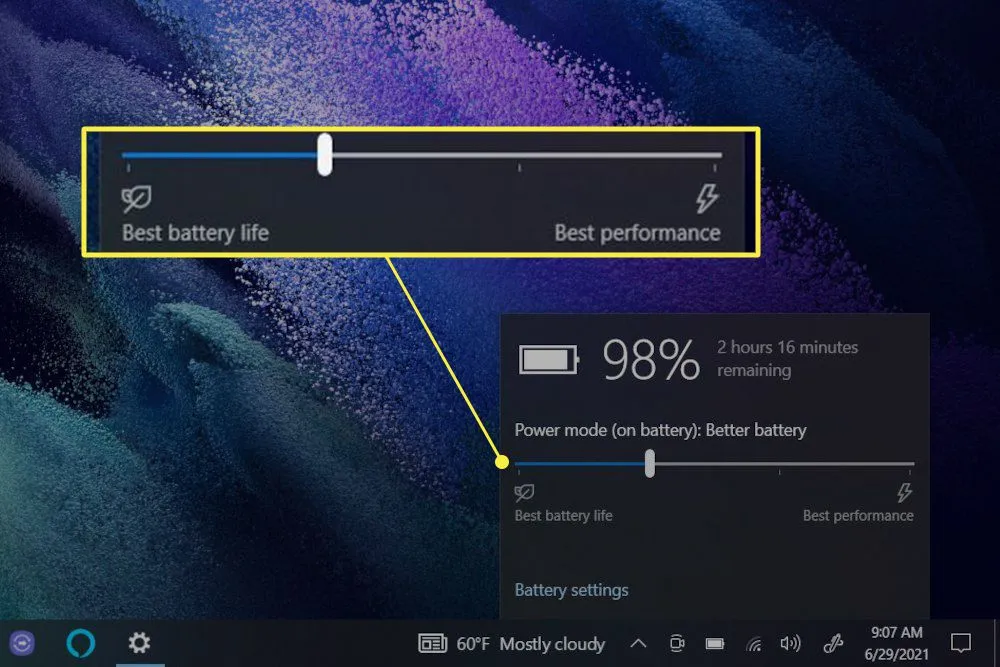
Step 2: For more options, go to Control Panel > Power Options. Select “High performance” or create a custom plan.
Part 5: Expert’s Tips: How To Speed Up An Old Laptop
Professional technicians have special tricks for old laptops. These tips come from years of experience. They work when standard methods aren’t enough. Use these advanced techniques carefully.
- Disable Windows Search indexing – This service constantly scans files and slows down old hard drives
- Use ReadyBoost with a USB drive – This adds extra virtual memory using a USB stick
- Change virtual memory settings – Increase page file size if you can’t add more RAM
- Disable Windows animations – Turn off fade effects and sliding menus for instant response
- Use lightweight alternatives – Replace heavy software with faster, simpler versions
- Clean laptop vents regularly – Use compressed air monthly to prevent overheating
- Check for driver updates – Old drivers often cause performance issues
- Monitor CPU temperature – Overheating throttles performance on old laptops
Conclusion
How to speed up an old laptop requires patience and the right approach. Old computers can run fast again with proper care. The methods in this guide work for most Windows laptops. Start with the easiest fixes first.
Remember that old laptops have limits. They won’t match new computer speeds. But they can run much better than they do now. With these tips, your old laptop can serve you for years more. Take your time and follow the steps carefully for the best results.
FAQs
Q: How long does it take to speed up an old laptop?
Basic methods take 1-2 hours to complete. Hardware upgrades like adding RAM or an SSD take longer. A complete Windows reinstall needs 3-4 hours plus setup time. Most people see improvements within the first hour of basic cleanup and optimization.
Q: Will these methods work on very old laptops?
Yes, but results vary based on laptop age. Laptops over 8 years old benefit most from hardware upgrades. Very old laptops (10+ years) might need professional help. Some methods work better than others depending on your specific laptop model and condition.
Q: Can I speed up my laptop without spending money?
Absolutely. Many free methods provide significant improvements. Disk cleanup, disabling startup programs, and adjusting settings cost nothing. These free methods often solve most speed problems. Hardware upgrades cost money but give the biggest improvements.
Author Bio:
Dinesh Lakhwani 

Dinesh Lakhwani, the entrepreneurial brain behind “TechCommuters,” achieved big things in the tech world. He started the company to make smart and user-friendly tech solutions. Thanks to his sharp thinking, focus on quality and the motto of never giving up, TechCommuters became a top player in the industry. His commitment to excellence has propelled the company to a leading position in the industry.
Popular Post
Recent Post

What Is A Zero-Day Attack And How Can You Defend Against One?
Picture this. A hacker finds a secret crack in your favorite app. You don’t know it’s there. The company that built the app doesn’t know either. But the hacker does. And they use it right away, before anyone can stop them. This is the heart of a zero-day attack. It strikes when a flaw is […]
Iolo System Mechanic PC Cleanup Software: Hands-On Performance Review
PCs feel fast on the first day. Every click is quick. Apps open right away. With time, things slow down. Programs take longer to load. Files open slowly. Fans get loud even during light use. This happens to almost every computer, no matter how careful you are. The reason is clear. Junk files build up […]

Advanced SystemCare PC Cleanup Tool: A Detailed Review
You turn on your PC and wait. And wait. The same laptop that once opened apps in a snap now feels tired. This is not bad luck. It just happens over time. Files pile up. The registry gets messy. Old drivers stay installed long after they are useful. Junk data quietly eats up space on […]

Avast Cleanup PC Cleaner and Optimizer: Everything You Need to Know
A slow computer makes it hard to focus. Programs take too long to open. Free space keeps shrinking until the disk is almost full. This happens to most PC owners at some point. Even new machines can slow down after a while. That is the exact problem cleanup tools are built to solve. They comb […]

Fortect Software Review: The Ultimate PC & Mobile Cleaning, Optimization & Security Tool
Slow computers are a common problem for almost every Windows user. Well, yes! Over time, your PC picks up junk files. These files sit quietly in the background. They take up space and slow things down. Programs open slower. Windows takes longer to boot. Even simple tasks like opening a folder can feel sluggish. There […]

CCleaner PC Optimizer Review: A Complete Guide for Windows Users
If your computer has started to feel slow, you are not alone. Most Windows PCs slow down over time. Junk files pile up. The registry gets messy. Too many apps open when you start your PC. All this adds up and makes even a good machine feel tired. This is where a PC cleaner tool […]

5 Best PC Cleaners for Windows 11 & 10 | Top PC Optimizers
Remember when your PC felt fast? Every click was quick. Every app opened in seconds. Now it feels like a different machine. Windows takes forever to boot. Programs freeze for no reason. Even opening a browser feels like a chore. You are not alone in this. Almost every PC slows down over time. Files pile […]

Auslogics Duplicate File Finder: Full Review and User Guide
A computer quietly gathers clutter over time. This includes duplicate photos, repeated downloads, and forgotten backups hiding in random folders. This buildup slowly eats away at storage and can make even a fast PC feel sluggish. Manually finding and deleting duplicates is tedious. It means checking every folder, comparing file names, and guessing which copies […]

CCleaner Duplicate File Finder: Key Features, Pricing, Step-by-Step Guide and More
Every computer collects junk over time. Right? Well, yes! Photos often get copied twice. Documents get saved in two folders by mistake. Old downloads pile up and never get deleted. This slowly eats up your storage space, and most people do not even notice until their drive is almost full. That is where a duplicate […]

