











Imagine this. You spend hours perfecting a video project. You hit save. Then your laptop freezes, reboots, and when the screen comes back. The file is gone. Your stomach sinks. It’s not just you. Lost files happen all the time. A dropped hard drive, a bad update, an accidental delete, or a corrupted partition can […]
Top 8 Best Methods To Backup Windows 11: Complete Guide
Windows 11 is Microsoft’s latest operating system. It brings new features and better security. But like any computer system, it can face problems. Your files might get lost. Your system might crash. Viruses can attack your computer. This is why you need to know how to backup Windows 11.
Creating backups is like having insurance for your computer. It protects your important files. It saves your personal photos. It keeps your work documents safe. When something goes wrong, you can restore everything quickly. You won’t lose years of memories or important work.
Learning the best methods to back up Windows 11 is essential. There are many ways to do it. Some are built into Windows 11. Others use third-party tools. Each method has its own benefits. Some are automatic. Others give you more control. In this guide, we’ll explore all the top options.
Part 1: Why Backup Windows 11? How Does It Help?
Backing up your Windows 11 system is one of the smartest things you can do. It protects you from many problems that can happen to any computer user.
- Hardware Failure Protection: Hard drives can fail without warning. SSDs can stop working suddenly. When this happens, all your data disappears. A backup saves everything safely.
- Virus and Malware Defense: Malicious software can destroy your files. Some viruses encrypt your data and demand money. With backups, you can restore clean files easily.
- Accidental Deletion Recovery: Everyone makes mistakes. You might delete important files by accident. You might format the wrong drive. Backups let you get everything back.
- System Corruption Fix: Windows 11 can get corrupted. Updates might fail. Registry errors can occur. A system backup helps you restore a working version.
- Quick System Recovery: When your computer won’t start, backups save time. You can restore everything in hours instead of days.
- Version Control Benefits: Backups let you go back to older versions of files. This helps when you need previous versions of documents or projects.
- Peace of Mind: Knowing your data is safe reduces stress. You can use your computer without worrying about losing everything.
- Business Continuity: For work computers, backups prevent downtime. Your business keeps running even when problems occur.
Part 2: Top 9 Best Methods to Backup Windows 11
Method 1: Windows File History (Built-in Windows Feature)
Windows 11 includes File History, a built-in tool that quietly backs up your personal files in the background. It’s designed to automatically preserve your important documents, photos, and other key files without disrupting your workflow.
File History is perfect for regular users. It’s simple to set up and use. You don’t need technical knowledge. It saves multiple versions of your files. If you change a document and want the old version back, File History has it.
How File History Helps:
- Automatic backup of personal folders
- Saves multiple versions of files
- Easy to restore individual files
- No technical skills required
- Works continuously in the background
Steps to Set Up File History:
- Connect an external drive (USB or external hard disk) to your PC. Press Windows + S. Type File History. Click Turn on.
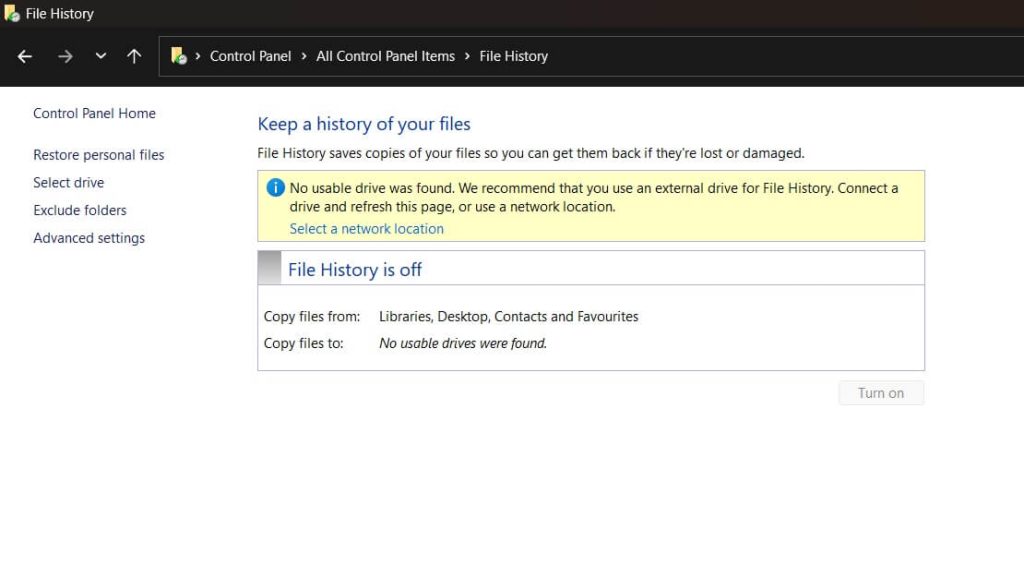
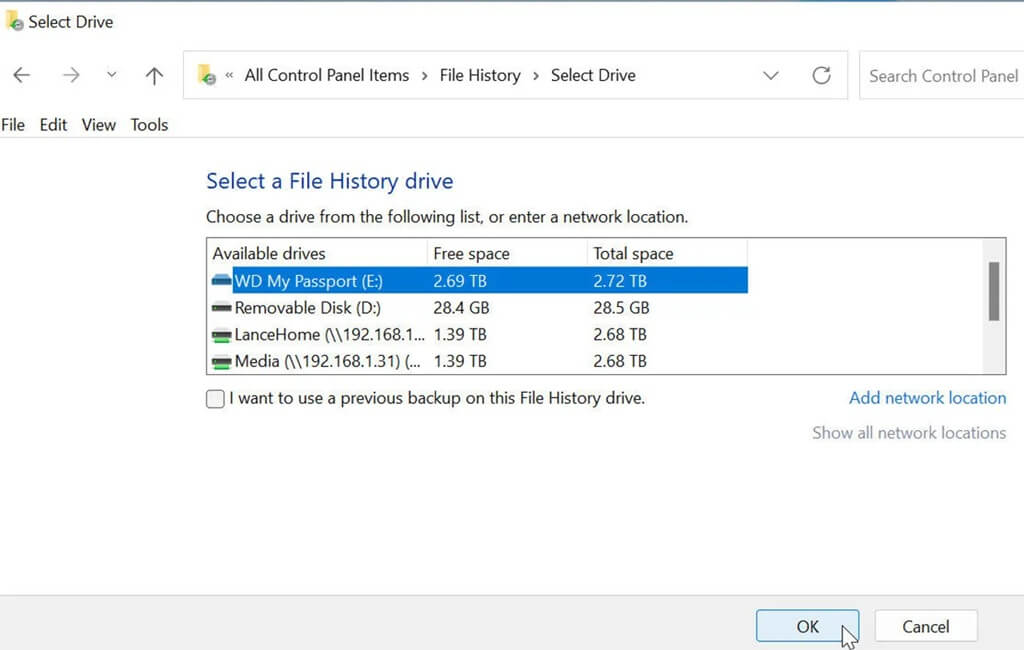
- Click Select drive first. Choose your external drive. Once turned on, Windows will automatically back up files from your Libraries, Desktop, Contacts, and Favorites.
Method 2: Windows 11 Backup and Restore
This is the classic backup tool from older Windows versions. Windows 11 still includes it for compatibility. It creates complete system images. This means it copies everything on your computer exactly as it is.
Backup and Restore is a robust option that takes a bit more effort to set up, but it’s ideal when you need a full system backup. In the event of a complete system failure, it lets you recover everything—your applications, settings, and personal files—just as they were.
How Backup and Restore Help:
- Creates complete system images
- Backs up the entire hard drive
- Restores the whole system at once
- Includes all programs and settings
- Works with different storage types
Steps to Use Backup and Restore:
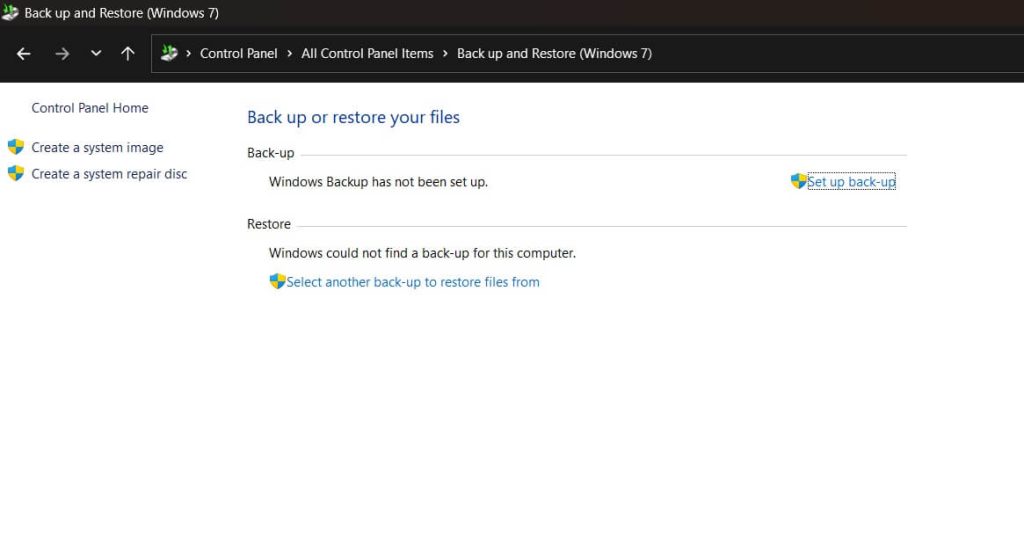
- Type “Control Panel” in the search box. Open Control Panel. Select “Backup and Restore (Windows 7)”. Click “Set up backup”.
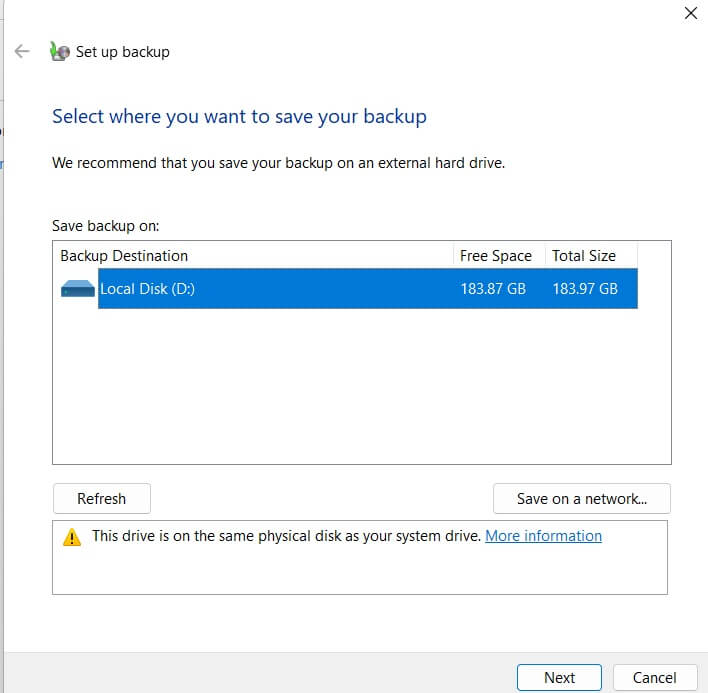
- Choose where to save the backup. Pick what to backup. Follow the prompts.
Method 3: System Restore Points
System Restore creates snapshots of your Windows 11 system. These snapshots save your system settings and program files. They don’t back up your personal files. But they help when Windows 11 stops working properly.
System Restore Points are automatic in most cases. Windows 11 creates them before big changes. Before installing new programs. Before system updates. If something goes wrong, you can go back to when everything worked.
How System Restore Helps:
- Fixes system problems quickly
- Undoes problematic changes
- Automatic creation before updates
- No personal file backup needed
- Fast restoration process
Steps to Create Restore Points:
- Right-click “This PC” on the desktop. Select “Properties”. Click “System protection”.
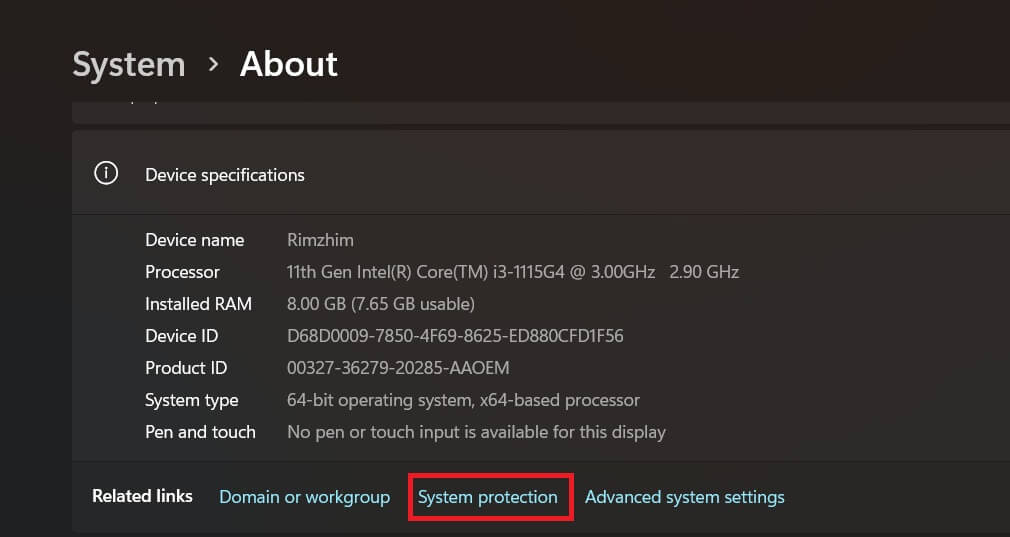
- Select your main drive. Click “Configure”. Choose “Turn on system protection.” Set disk space usage.
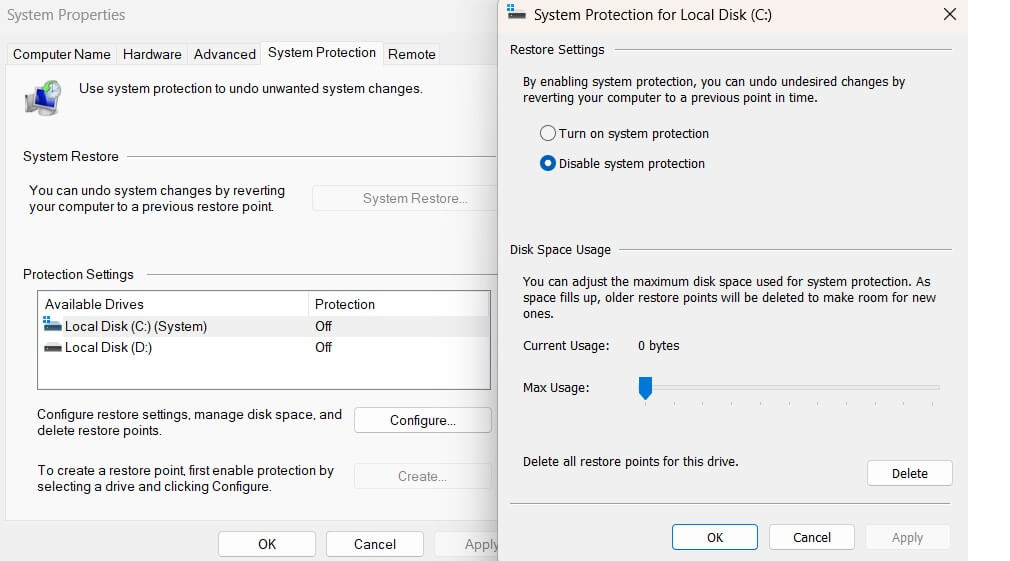
- Click “Create” for a manual restore point. Name your restore point.
Method 4: OneDrive Cloud Backup
OneDrive, Microsoft’s integrated cloud storage solution in Windows 11, automatically syncs your files to the cloud—providing a seamless online backup of your essential data.
Cloud backup with OneDrive has many advantages. Your files are safe even if your computer burns down. You can access them from any device. You can share files easily with others. OneDrive also keeps older versions of your files.
How OneDrive Helps:
- Automatic cloud synchronization
- Access files from anywhere
- Protection from physical damage
- File versioning capabilities
- Easy sharing with others
Steps to Set Up OneDrive Backup:
- Click the OneDrive icon in the system tray. Sign in with a Microsoft account. Choose folders to sync. Go to OneDrive settings. Click the “Backup” tab. Select “Manage backup”.
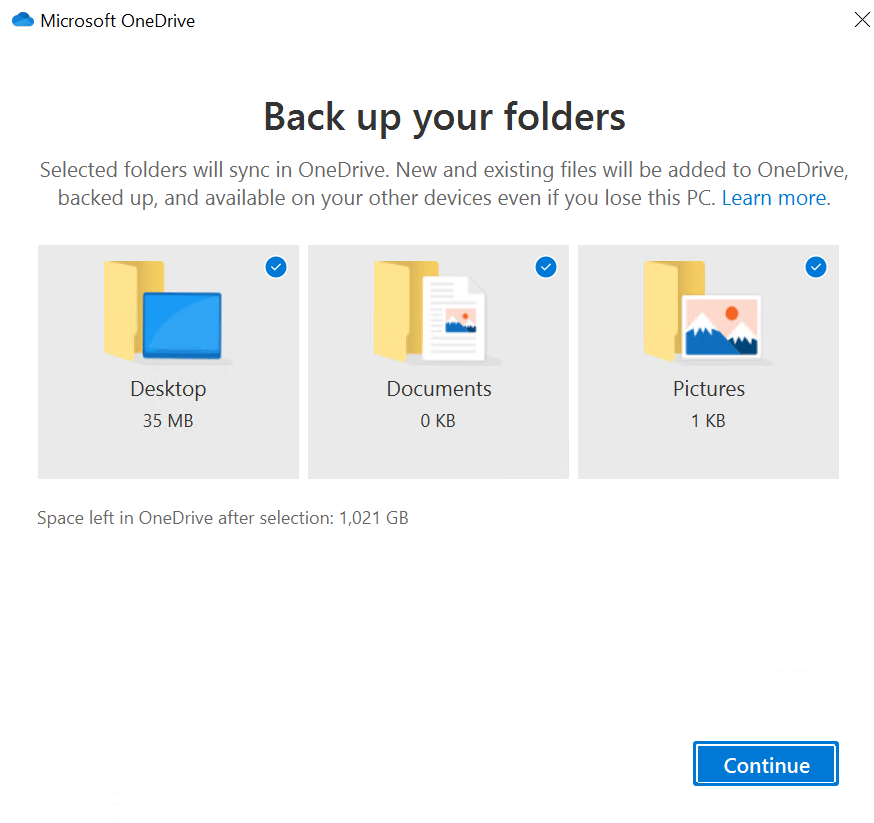
- Choose Desktop, Documents, Pictures. Click “Start backup.”
Method 5: Third-Party Backup Software
Many companies make backup software for Windows 11. These programs often have more features than built-in tools. Popular options include Acronis True Image, EaseUS Todo Backup, and AOMEI Backupper.
Third-party tools give you more control. They can back up to different locations. Some offer better compression. Others have scheduling options. Many include additional security features like encryption.
How Third-Party Software Helps:
- More backup options and features
- Better compression saves space
- Advanced scheduling capabilities
- Encryption for security
- Support for multiple destinations
Steps for Third-Party Backup:
- Research and choose backup software like Perfect Backup. Install the software. Launch the program.
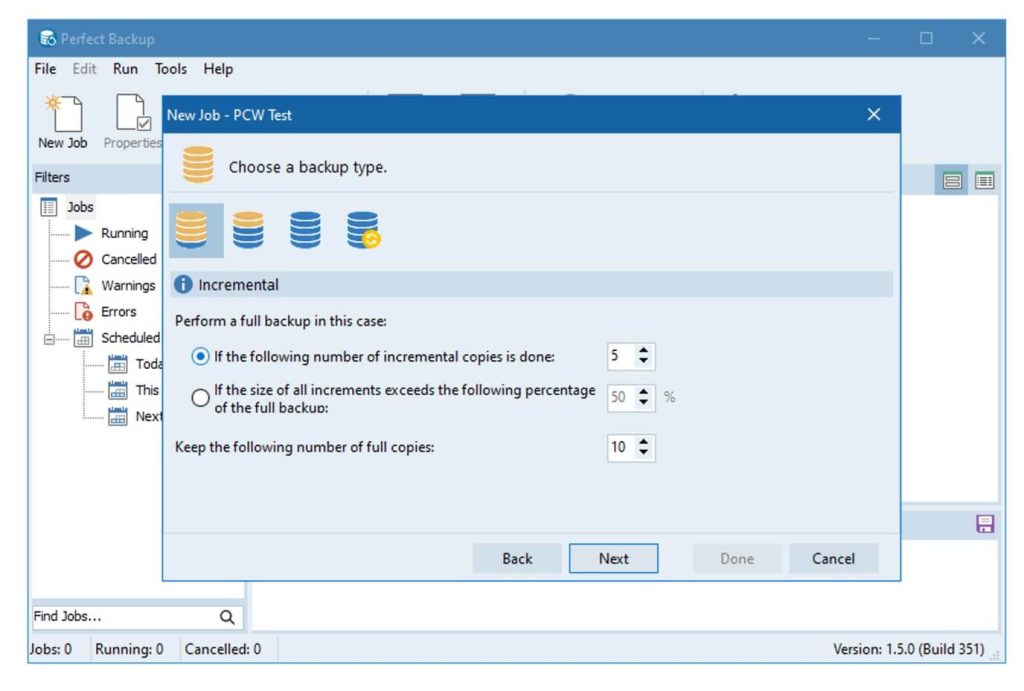
- Create a new backup task. Select files or the entire system. Choose a backup destination. Set backup schedule. Start initial backup
Method 6: External Hard Drive Backup
External hard drives are popular for backups. They’re portable and affordable. You can store them safely away from your computer. This protects against fire, theft, or other disasters.
Using external drives gives you full control. You decide when to backup. You choose what to backup. Many external drives come with backup software. Some can backup automatically when connected.
How External Drive Backup Helps:
- Physical separation from the computer
- Large storage capacity
- One-time purchase cost
- Complete control over the process
- Portable for off-site storage
Steps for External Drive Backup:
- Buy an external hard drive. Connect it to your computer. Format if needed. Install any included software.

- Choose files to copy. Store the drive safely
Method 7: Cloud Storage Services
Besides OneDrive, many cloud services exist. Google Drive, Dropbox, and iCloud are popular choices. Each has different features and pricing. Some focus on photos. Others work better for documents.
Cloud services protect against local disasters. Even if your house burns down, your files are safe. Most services work on all devices. You can access files from phones, tablets, and computers.
How Cloud Storage Helps:
- Protection from local disasters
- Multi-device access
- Automatic synchronization
- File sharing capabilities
- Version history features
Steps for Cloud Storage Backup:
- Choose a cloud storage service like Google or Dropbox. Create an account. Download the desktop app. Install and sign in. Upload your files.
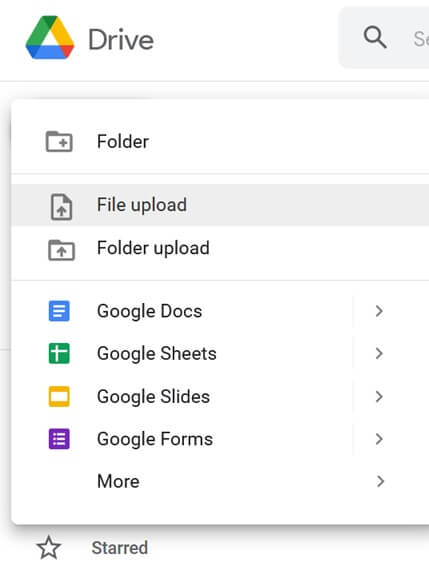
- Configure sync settings. Set up automatic sync
Method 8: Disk Cloning
Disk cloning creates exact copies of your hard drive. Every file, every setting, everything gets copied. If your main drive fails, you can use the clone immediately. It’s like having an identical twin of your drive.
Cloning is perfect for quick recovery. You can swap drives and keep working. No need to restore files or reinstall programs. Everything works exactly as before. Many people clone their drives before major changes.
How Disk Cloning Helps:
- Exact copy of the entire drive
- Instant recovery capability
- No reinstallation needed
- Perfect for hardware upgrades
- Complete system duplication
Steps for Disk Cloning:
- Get cloning software like Acronis. Connect the destination drive. Launch cloning program. Select the source drive. Choose the destination drive.
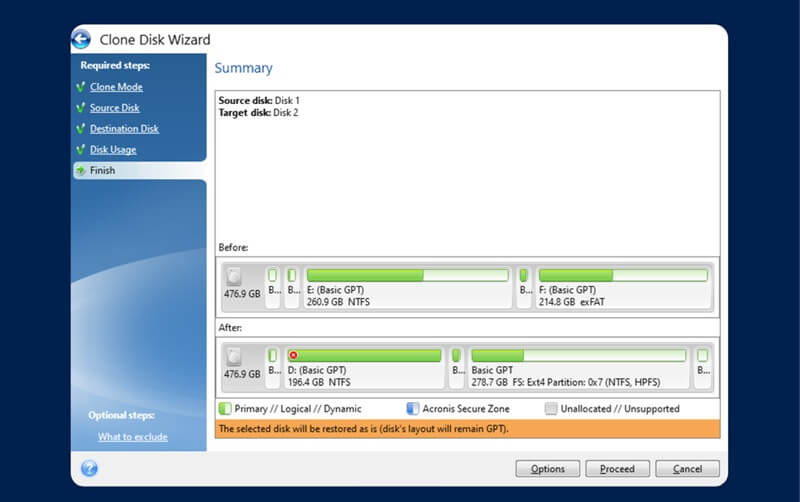
- Start the cloning process. Wait for completion. Test the cloned drive. Store safely
Part 3: Pro Tips to Backup Windows 11
Creating backups is just the first step. Following these professional tips will make your backup strategy more effective and reliable.
- Follow the 3-2-1 Rule: Keep 3 copies of important data. Store them on 2 different types of media. Keep 1 copy offsite. This protects against all types of disasters.
- Test Your Backups Regularly: Don’t assume backups work. Test them monthly. Try restoring files. Make sure everything works properly. A backup that doesn’t work is useless.
- Automate When Possible: Manual backups often get forgotten. Set up automatic backups. Schedule them for times when you don’t use your computer. This ensures regular backups happen.
- Encrypt Sensitive Data: Protect private information with encryption. This keeps your data safe if backup media gets stolen. Most backup software includes encryption options.
- Keep Multiple Generations: Don’t just keep the latest backup. Save several versions. Sometimes you need files from weeks or months ago. Multiple generations give you more options.
- Document Your Backup Plan: Write down your backup procedures. Include passwords and recovery steps. If you’re not available, others can restore your data. Documentation prevents confusion.
- Update Backup Plans Regularly: Your backup needs change over time. New files require backing up. Old backups might not be needed. Review and update your plan quarterly.
- Consider Backup Speed: Large backups take time. Plan for this. Incremental backups are faster than full backups. Schedule large backups for overnight or weekends.
Author’s Tip
After years of helping people recover lost data, I’ve learned that the best methods to backup Windows 11 combine multiple approaches. Don’t rely on just one method. Use File History for daily file changes. Create system images monthly. Keep cloud backups for important documents. This layered approach provides maximum protection.
Remember that knowing how to backup Windows 11 is only half the battle. You also need to know how to restore. Practice the restore process when you don’t need it. Familiarize yourself with the steps. When disaster strikes, you’ll be ready to act quickly and confidently.
Conclusion
Protecting your Windows 11 computer requires planning and action. The best methods to backup Windows 11 give you multiple ways to keep your data safe. From built-in tools like File History to advanced solutions like NAS systems, you have many options to choose from.
The key is starting now. Don’t wait for problems to occur. Set up at least one backup method today. Add more methods as you learn and grow. Remember that the best backup is the one you actually use regularly.
Your data is irreplaceable. Photos of family moments can’t be recreated. Years of work documents represent countless hours. Knowing how to backup Windows 11 properly protects all of this. Take action today. Your future self will thank you for the protection you provide now.
FAQs
Q: How often should I backup my Windows 11 computer?
The frequency depends on how much you use your computer and how important your data is. For most users, daily automatic backups work well for personal files. System image backups can be weekly or monthly. If you work with critical data, consider real-time backup solutions. The more often you create backups, the less data you risk losing if something goes wrong.
Q: What’s the difference between backup and sync?
Backup creates copies of your files at specific times. If you delete a file, it still exists in your backup until you create a new one. Sync keeps files identical across devices. When you delete a synced file, it disappears everywhere. For protection, backup is better because it preserves files even after deletion. Sync is better for accessing files across multiple devices.
Q: How much storage space do I need for Windows 11 backups?
Storage needs vary based on your data and backup method. File History needs space equal to your personal files, plus room for multiple versions. System image backups need space equal to your entire drive. Start with storage that’s twice the size of what you’re backing up. Monitor usage and add more storage as needed. Cloud services offer unlimited options for a monthly fee.
Dinesh Lakhwani
Author Bio:
Dinesh Lakhwani 

Dinesh Lakhwani, the entrepreneurial brain behind “TechCommuters,” achieved big things in the tech world. He started the company to make smart and user-friendly tech solutions. Thanks to his sharp thinking, focus on quality and the motto of never giving up, TechCommuters became a top player in the industry. His commitment to excellence has propelled the company to a leading position in the industry.
Popular Post
Recent Post

5 Best Data Recovery Software For Windows 11 and Windows 10
A crashed drive can ruin a whole day. One minute your photos, work files, and tax records sit safe on your PC. The next minute they are gone. A power cut, a bad update, or one wrong click can wipe out years of memories and months of work in seconds. That sinking feeling is why […]

How To Update NVIDIA Drivers On Windows 11/10 PC
Learn how to update NVIDIA drivers on Windows 11/10 with simple methods, safety tips, and easy steps for smoother gaming and better PC performance.

Top AI Features Hidden Inside Windows 11
Explore the top AI features in Windows 11, from Copilot to Recall, plus safety tips and simple steps to use each tool the right way.

Customize Your Screen Saver Settings in Windows [Easy Steps]
Learn how to customize screen saver settings in Windows 11 with easy steps, safety tips, and simple tricks to personalize your PC screen.

Driver Easy Windows Driver Updater Tool Review: Tried & Tested
In-depth information about Driver Easy’s functions and features can be found in our review. Learn how to update drivers more easily with this tool for a more seamless computer experience.

Is Avast Driver Updater Worth It? A Hands-On Analysis
A full review of Avast Driver Updater covering features, setup steps, pricing, pros and cons, and real PC results, to help you decide if it is worth buying.

IObit Driver Booster 13 (PRO) Review: [Tried & Tested]
IObit Driver Booster 13 is built for one purpose: keeping your PC drivers up to date. Well, yes! Outdated drivers can cause crashes, slowdowns, and hardware issues. This tool scans fast and updates with one click. The interface is simple. Even beginners can use it without confusion. Updates are pulled from a huge database, covering […]

Auslogics Driver Updater: A Detailed Walkthrough [2026]
This comprehensive review covers the key features, pros, and cons, pricing, and a final verdict on Auslogics’ driver update utility. Learn how it stacks up against manual driver maintenance.

5 Best Driver Updater Tools for Windows to Use (Free and Paid)
Introduction: Most people blame their PC for problems that a driver caused. A driver works like a bridge between your hardware and your operating system. When this bridge cracks, strange things start to happen. Screens flicker without reason. Printers go silent mid-task. Games freeze or crash out of nowhere. Manually finding the right driver is […]

