












So, search for a pair of shoes once online. Close the tab. By evening, those same shoes are sitting on your news site, your video app, and even your recipe blog. Nobody placed them there by chance. A cookie did. Well, yes! Cookies are small files that websites place on your device while you browse. […]
Windows 10 Disk Management: Complete Guide
To keep your computer running smoothly, it’s important to maintain and organize your storage drives. Windows 10 includes a handy built-in utility for this purpose called Disk Management.
Many users don’t know about this powerful feature. They struggle with storage problems. They can’t create new partitions. They don’t know how to resize drives. This guide will change that.
Windows 10 Disk Management makes storage tasks simple. You can split drives into parts. You can merge them back together. You can assign drive letters. You can format drives safely. All of this happens without extra software.
Part 1: What is Windows 10 Disk Management?
Windows 10 Disk Management is a system utility. It comes built into Windows 10. You don’t need to download anything extra. Microsoft created this tool to help users manage their storage drives.
This tool lets you control your hard drives and SSDs. You can create partitions. You can delete them. You can change their sizes. You can also assign drive letters like C:, D:, or E:. The tool shows all your drives in one place. It displays their health status too.
Part 2: Essential Features of Windows 10 Disk Management
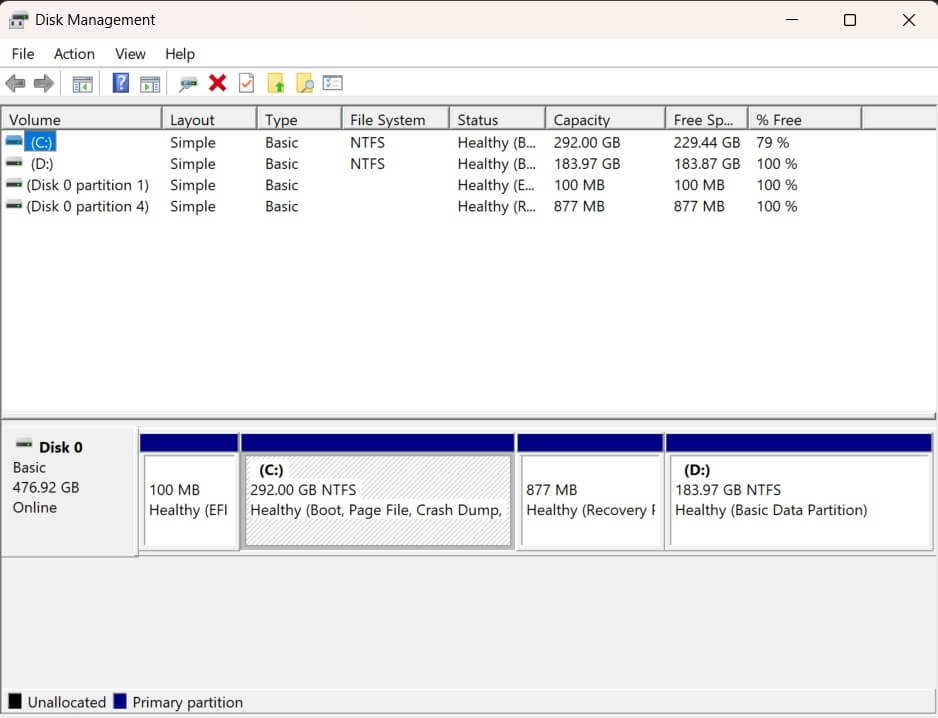
Windows 10 Disk Management offers many useful features. These tools help you organize your storage space better. Here are the most important ones you should know about.
The interface is simple and clean. Even beginners can use it without problems. All features work through right-click menus. This makes the tool very user-friendly.
Key features include:
- Create Partitions – Split your drive into separate sections for better organization
- Delete Partitions – Remove unwanted drive sections to free up space
- Resize Partitions – Make partitions bigger or smaller as needed
- Format Drives – Prepare new drives for use or clean existing ones
- Assign Drive Letters – Give each partition a letter name like D: or E:
- Change File Systems – Convert between NTFS, FAT32, and other formats
- Set Active Partitions – Mark which partition your computer boots from
- View Disk Information – See drive health, size, and usage details
Part 3: Why Use Windows 10 Disk Management?
Using Windows 10 Disk Management brings many benefits. It solves common storage problems.
Main advantages include:
- Free Tool – No need to buy expensive third-party software
- Safe Operations – Built-in safety checks prevent data loss
- Easy Access – Available from Windows settings or right-click menu
- Real-time Updates – Shows current disk status immediately
- Multiple File Systems – Supports NTFS, FAT32, exFAT, and more
- Partition Recovery – Can sometimes recover deleted partitions
- Drive Health Monitoring – Alerts you to potential drive problems
- Space Optimization – Helps you use storage space more efficiently
Part 4: How to Use Windows 10 Disk Management
Accessing Windows 10 Disk Management is easy. There are several ways to open it. The quickest method uses a keyboard shortcut.
After launching the tool, you’ll find a list of all your drives along with their respective partitions. It also displays the storage space used by each partition. Different colors in the interface help you distinguish between various partition types.
Steps to Access Disk Management:
- Press Windows key + X on your keyboard. Click “Disk Management” from the menu that appears.
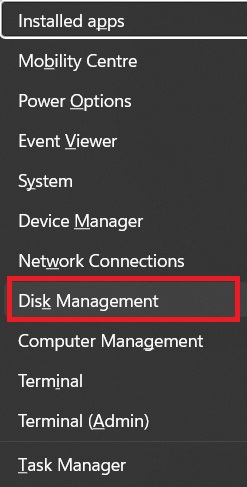
- Wait for the tool to load – this may take a few seconds. View your drives in the bottom panel. See partition details in the top panel.
Alternative Access Methods:
- Right-click “This PC” on your desktop. Select “Manage” from the context menu. Click “Disk Management” in the left sidebar.
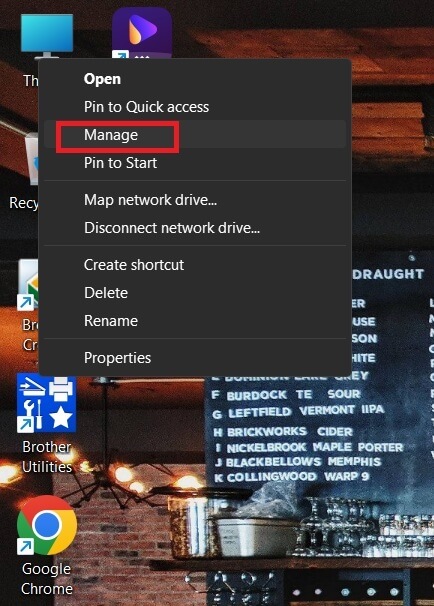
- Wait for the interface to load.
Creating a New Partition:
- Right-click unallocated space on your drive. Select “New Simple Volume”.
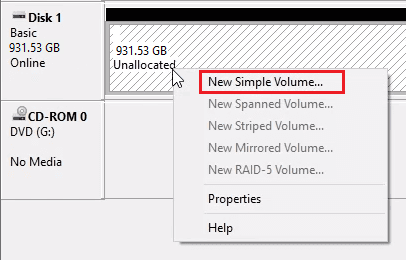
- Follow the wizard steps that appear. Choose partition size in megabytes. Assign a drive letter ( like D: or E:). Select file system (usually NTFS).
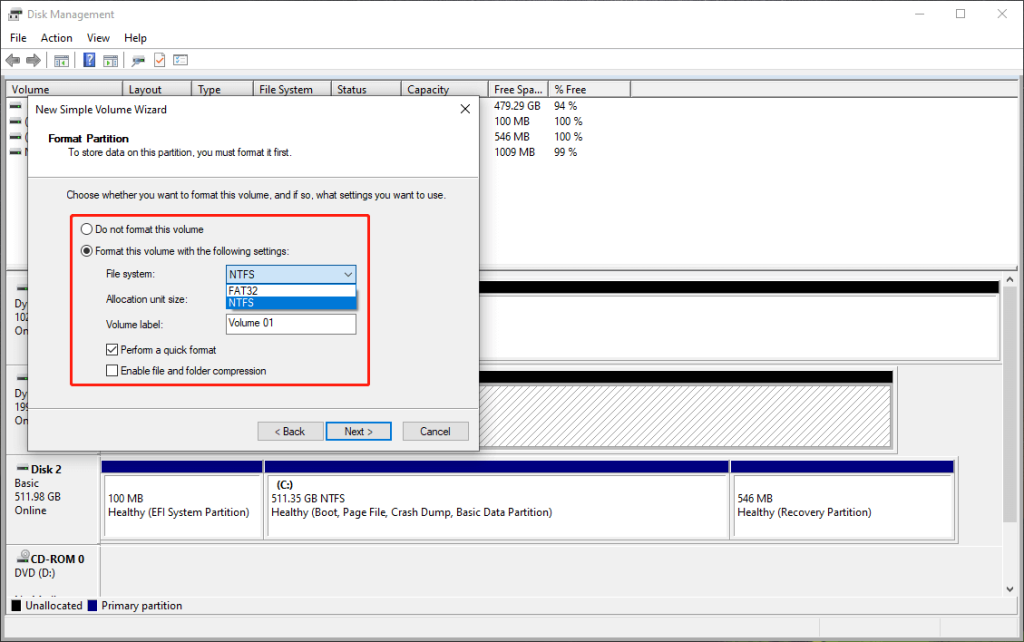
- Click “Finish” to create the partition
Part 5: Common Problems and Solutions
Many users face similar issues with disk management. These problems have simple solutions. Knowing them saves time and frustration.
Most problems happen during partition creation or resizing. Sometimes, drives don’t appear correctly. Other times, operations fail halfway through. Here are the most common issues.
Common problems include:
- Drive Not Showing – You can either restart Disk Management or simply refresh the view to update the display.
- Can’t Extend Volume – Check if free space is adjacent to the partition
- Format Failed – Run as administrator or check for disk errors first
- Partition Won’t Delete – Make sure no programs are using files on that partition
- Disk Shows as Offline – Right-click the disk. Select “Online”
- Access Denied Error – Run Disk Management as administrator
- Operation Takes Too Long – Large drives need more time, be patient
Part 6: Advanced Disk Management Features
Windows 10 Disk Management has hidden advanced features. Most users never discover these options. They provide powerful control over your storage system.
These features help with complex storage setups. They’re useful for power users and IT professionals. However, beginners can learn them too with practice.
Advanced features explained:
- Dynamic Disks – Upgrade basic disks to dynamic to access advanced volume configurations.
- Striped Volumes – Spread data across multiple disks for speed
- Mirrored Volumes – Create exact copies for data protection
- RAID-5 Volumes – Implement fault tolerance by configuring three or more disks to work together reliably.
- Mount Points – Mount drives as folders instead of drive letters
- Disk Conversion – Change between MBR and GPT partition styles
- Virtual Hard Disks – Create and manage VHD files as drives
Part 7: Disk Management Security Best Practices
Security matters when managing disks. Your data could be at risk without proper precautions. Follow these security guidelines always.
Bad actors can access unsecured drives easily. Deleted files can often be recovered. Proper security prevents unauthorized access to your information.
Security practices to follow:
- Use BitLocker Encryption – Encrypt sensitive partitions with BitLocker
- Secure Erase Before Disposal – Properly wipe drives before throwing them away
- Regular Permission Checks – Review who can access each partition
- Backup Encryption Keys – Store BitLocker keys in safe locations
- Monitor Disk Access – Check Event Viewer for suspicious disk activity
- Use Strong Passwords – Protect encrypted volumes with complex passwords
- Disable AutoPlay – Prevent automatic execution from external drives
- Regular Security Scans – Scan drives for malware and threats
Part 8: Troubleshooting Disk Management Issues
Sometimes Disk Management doesn’t work as expected. Errors occur during operations. The interface might freeze or crash. These troubleshooting steps help resolve most issues.
System conflicts cause many disk management problems. Outdated drivers create compatibility issues. Corrupt system files interfere with operations. Here’s how to fix them.
Troubleshooting steps:
- Restart as Administrator – Close and reopen with admin rights
- Update Disk Drivers – Get the latest drivers from Device Manager or use a tool to update drivers automatically.
- Run Disk Check – Use chkdsk command to fix file system errors
- Disable Antivirus Temporarily – Some security software blocks disk operations
- Check System Files – Run sfc /scannow to repair Windows files
- Clear Temporary Files – Free up space that might be causing conflicts
- Boot from Safe Mode – Try disk operations in Safe Mode if normal mode fails
- Use Command Line Tools – Try diskpart command for advanced operations
Part 9: Performance Optimization Through Disk Management
Proper disk management improves computer performance significantly. Well-organized partitions run faster. Optimized storage reduces system lag and boot times.
Performance depends on how you structure your drives. Multiple partitions can speed up file access. Proper alignment improves SSD performance. Regular maintenance prevents slowdowns.
Optimization techniques:
- Separate System and Data – Keep OS files separate from personal files
- Align Partitions Properly – Ensure 4KB alignment for SSDs
- Use Fast File Systems – Choose NTFS over FAT32 for better performance
- Defragment HDDs Regularly – Schedule automatic defragmentation for hard drives
- Optimize SSD Settings – Enable TRIM and disable defragmentation for SSDs
- Monitor Free Space – Keep partitions under 80% full for best performance
- Use Disk Cleanup – Remove temporary files that slow down operations
- Check Drive Health – Replace failing drives before they cause slowdowns
Part 10: Pro Tips to Make the Most of Windows 10 Disk Management
Getting the most from Windows 10 Disk Management requires insider knowledge. These tips help you work faster. They also help you avoid common mistakes.
Expert users follow specific workflows. They prepare carefully before making changes. They understand the limitations of each feature. Learning these habits improves your success rate.
Professional tips for better results:
- Always Backup First – Create backups before making major changes to partitions
- Use NTFS Format – Choose NTFS for drives larger than 32GB for better performance
- Leave Free Space – Keep at least 15% of each partition empty for optimal performance
- Check Drive Health – Monitor disk status regularly to catch problems early
- Plan Partition Sizes – Think about future storage needs before creating partitions
- Use Descriptive Labels – Give partitions clear names like “Documents” or “Games”
- Avoid System Partition Changes – Be careful when modifying your C: drive
- Update Regularly – Keep Windows updated for the latest Disk Management features
Author’s Tip
We’ve used Windows 10 Disk Management for years. It’s saved me countless hours and money. The key is to start with small changes. Don’t try to reorganize everything at once.
The biggest tip is to practice disk management steps on a test drive first. Use an external USB drive or an old internal drive. This lets you learn without risking your main data. Once you’re comfortable, you can work on your primary drives.
Remember that some operations can’t be undone easily. Always have a backup plan. This might mean copying important files first. Or it might mean creating a system restore point. Better safe than sorry when dealing with storage.
Part 12: Integration with Other Windows Tools
Disk Management works well with other Windows utilities. File Explorer shows your partitions. Device Manager handles drive hardware. Windows PowerShell provides command-line control.
These tools complement each other perfectly. You can start tasks in one tool. Then finish them in another. This flexibility makes disk management more powerful.
Tool integration examples:
- File Explorer – View partition contents and properties easily
- Device Manager – Update drivers and check hardware status
- PowerShell/CMD – Use diskpart for advanced scripting operations
- Event Viewer – Monitor disk-related errors and warnings
- Performance Monitor – Track disk usage and performance metrics
- System Configuration – Manage startup programs that affect disk performance
- Registry Editor – Modify advanced disk and partition settings
- Task Scheduler – Automate disk maintenance and backup tasks
Conclusion
Windows 10 Disk Management is a powerful tool that every user should know. It solves storage problems without costing extra money. The interface is simple enough for beginners. Yet it’s powerful enough for advanced users.
This comprehensive guide covered all essential features and advanced techniques. You learned how to access the tool. You discovered its key features. You got step-by-step instructions for common tasks. You also received pro tips for better results.
Start using Disk Management today for better storage organization. Your computer will run smoother. Your files will be better organized. You’ll have more control over your storage space. Most importantly, you’ll save money on third-party disk utilities.
FAQs
Q1: Is Windows 10 Disk Management safe to use?
Yes, Windows 10 Disk Management is very safe when used properly. Microsoft built safety checks into the tool. It warns you before making permanent changes. However, always backup important data before making major partition changes. The tool can’t recover accidentally deleted partitions in all cases.
Q2: Can I resize my C: drive using Disk Management?
You can shrink your C: drive if there’s free space available. However, you cannot extend it easily if there’s no adjacent free space. Disk Management can only extend partitions into unallocated space that comes immediately after the partition. For complex C: drive changes, consider using third-party tools.
Q3: Can Windows 10 Disk Management recover deleted partitions?
Windows 10 Disk Management has limited partition recovery abilities. It can sometimes restore recently deleted partitions if the space hasn’t been overwritten. However, it’s not designed as a recovery tool. For serious partition recovery, use specialized software like TestDisk or PhotoRec. These tools have better success rates for recovering lost data and partitions.
Author Bio:
Dinesh Lakhwani 

Dinesh Lakhwani, the entrepreneurial brain behind “TechCommuters,” achieved big things in the tech world. He started the company to make smart and user-friendly tech solutions. Thanks to his sharp thinking, focus on quality and the motto of never giving up, TechCommuters became a top player in the industry. His commitment to excellence has propelled the company to a leading position in the industry.
Popular Post
Recent Post

How To Disable Background Apps In Windows: 4 Quick Methods
A slow PC rarely gives a warning. One day, it simply takes longer to start. Apps open late. The fan runs loud, even when the screen is almost empty. Most people blame old hardware. Often, that is not the real reason. The real reason is hiding in plain sight. Windows keeps many apps active in […]

How to Activate Windows with a Product Key for Windows 11 & Windows 10
It always shows up at the worst time. You are halfway through a report, or about to join a video call. Then you spot it in the bottom right corner of the screen. Activate Windows. Go to Settings to activate Windows. Initially, an unactivated copy of Windows may seem like a minor inconvenience. Over time, […]

Is Easy Duplicate Finder Worth It? Honest Review
The photos folder looked normal at first glance. Then the storage warning popped up. One trip photo appeared four times. A tax PDF sat in three different folders. Two old setup files were still in Downloads, and each one was over 500 MB. Nobody plans this mess. Copies pile up slowly. A download runs twice. […]

Wise Duplicate Finder Review: Real Results from Wise Duplicate Finder
Read my honest Wise Duplicate Finder review. See features, pricing, pros and cons, and real PC test results. Find out if this free duplicate cleaner can free up your Windows storage.

How to Recover Deleted Files from Pen drive, USB Drive, SD Card
Introduction: On tech forums, you’ll often see posts like this: “I connected my pen drive to my laptop this morning, but the folder was empty. All my college project files had vanished. I don’t have a backup. Can someone help me?” Stories like this are very common. Pen drives, USB drives and SD cards are […]

How To Recover Files Deleted from the Recycle Bin [Windows 11]
Losing a file can happen in seconds. You clear your desktop, hit Delete, and empty the Recycle Bin. Then, just when you need that file again, it seems to have vanished. This guide will walk you through ways to restore files removed from the Recycle Bin. We will begin with simple fixes, then look at […]

Disk Drill Data Recovery Tool Explained: Full Review and Guide
It happens in a split second. You delete a folder by mistake. Your drive stops showing up. A photo album from your last trip just vanishes. And your stomach drops. Lost files feel personal. They are not just data. They are memories, work hours, and sometimes years of effort packed into a few gigabytes. When […]

Recover Deleted Files In Windows 11 With Software & Without
Introduction What is the first thing that goes through your mind the second an important file vanishes from a Windows 11 PC? For most people, it is a mix of panic and disbelief, followed by a frantic click through every folder that file could possibly be hiding in. It happens in a split second: one […]

EaseUS Data Recovery Wizard: Everything To Know
Data loss does not always come from a big disaster either. Most cases start small and boring. A drive gets formatted by mistake. A laptop freezes mid-save and restarts on its own. A memory card stops showing up after being pulled out too fast. None of these feel like emergencies at first, until you realize […]

