










Imagine this. You spend hours perfecting a video project. You hit save. Then your laptop freezes, reboots, and when the screen comes back. The file is gone. Your stomach sinks. It’s not just you. Lost files happen all the time. A dropped hard drive, a bad update, an accidental delete, or a corrupted partition can […]
Adjusting Volume Balance Settings On Windows 11: Complete Guide
Introduction:
Sound is an important part of using a computer every day. You may watch videos, listen to music, attend online meetings, or play games. In all these tasks, clear and balanced sound makes a big difference. Sometimes, audio may not feel right. One side may sound louder than the other. This can make listening uncomfortable. It can also reduce the overall quality of your experience. This is where adjusting volume balance settings becomes useful. It helps you control how sound is distributed between the left and right channels.
Many users do not explore sound settings in detail. They often assume that audio problems are complex. In reality, most issues are simple to fix. Windows 11 provides built-in options that make this process easy. You do not need any advanced skills.
This guide explains how to adjust audio balance on Windows in a clear and structured way. It also covers different methods that suit different needs. Once you understand adjusting audio balance settings, you can fix sound issues quickly and improve your listening experience.
Things to Check Before You Start
Before changing any system settings, it is important to go through a few basic checks. These steps help you confirm whether the issue is related to software or hardware. They also prevent unnecessary changes and save time.
- Check your headphones or speakers
Test your audio device on another system or phone. If the issue remains, the device may be faulty. - Inspect cable connections
Ensure that all cables are properly connected. Loose connections often cause uneven sound. - Clean audio ports carefully
Dust or debris inside ports can disturb sound output. Clean gently using safe tools. - Restart your computer
A restart refreshes system processes. It can fix temporary sound issues. - Check audio drivers
Audio performance on your computer depends on drivers. If they’re outdated, they can cause sound issues or imbalance. - Test sound in different applications
Try playing audio in different apps. This helps you check if the issue is app-specific. - Check mono audio settings
Mono audio combines both channels. This can affect how balance feels. - Install the latest updates
System updates often fix bugs. Keeping your system updated improves performance.
FLUQs
1. Why is my audio louder in one ear on Windows 11?
This issue usually happens when the left and right balance levels are not set equally. It can also be caused by faulty headphones, loose connections, or outdated audio drivers. In some cases, certain apps may control sound differently and create an imbalance. Checking your system settings, testing another device, and updating drivers can help you find and fix the problem.
2. Can I fix audio balance without installing software?
Yes, you can fix audio balance using built-in Windows settings. Windows 11 provides simple options in both the Settings app and Control Panel. These tools allow you to adjust left and right sound levels easily. Most users can solve balance issues without using any third-party software.
3. Does mono audio change sound balance?
Yes, mono audio combines both left and right channels into one single output. This removes the difference between both sides and can make the sound feel flat or uneven in some cases. If you want proper stereo balance, it is better to keep mono audio turned off.
4. Is it safe to change audio balance settings?
Yes, it is completely safe to change these settings. Audio balance controls only affect how sound is played through your device. They do not impact system performance or damage any files. You can adjust them freely and reset them anytime if needed.
4 Methods to Adjust Volume Balance Settings on Windows 11
Windows 11 offers multiple ways to adjust audio balance. Each approach is straightforward, though they vary in how much control they provide. Some methods are quick and simple, while others let you fine‑tune settings. You can choose whichever option feels most comfortable, and these step‑by‑step techniques will guide you through balancing sound effectively.
Method 1: Using Windows Settings
The Settings app is the easiest place to start when adjusting sound. Its clear layout brings most audio controls together, making it ideal for quick changes. Once you open the sound settings, you will see your active output device, such as speakers or headphones, along with balance sliders that let you adjust the left and right channels separately while audio is playing.
This simple method is perfect for everyday users, requires no technical expertise, and saves time since everything is located in one section. If you want a fast solution, this option is the most practical.
Steps:
Step 1: Open Settings, go to System, and click Sound. Select your output device to view its properties.
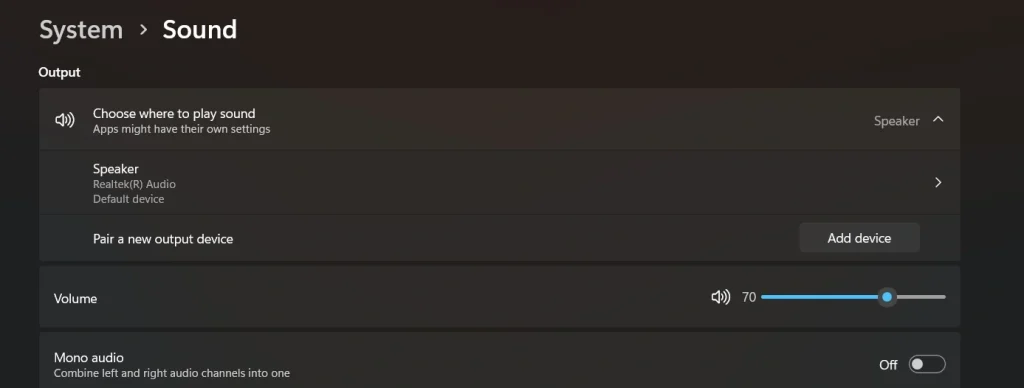
Step 2: Locate the balance sliders and adjust both channels until the sound feels equal.
Method 2: Using Control Panel
The Control Panel provides more detailed audio settings. Many users still prefer it because it offers deeper control. It allows you to manage multiple devices and view advanced options.
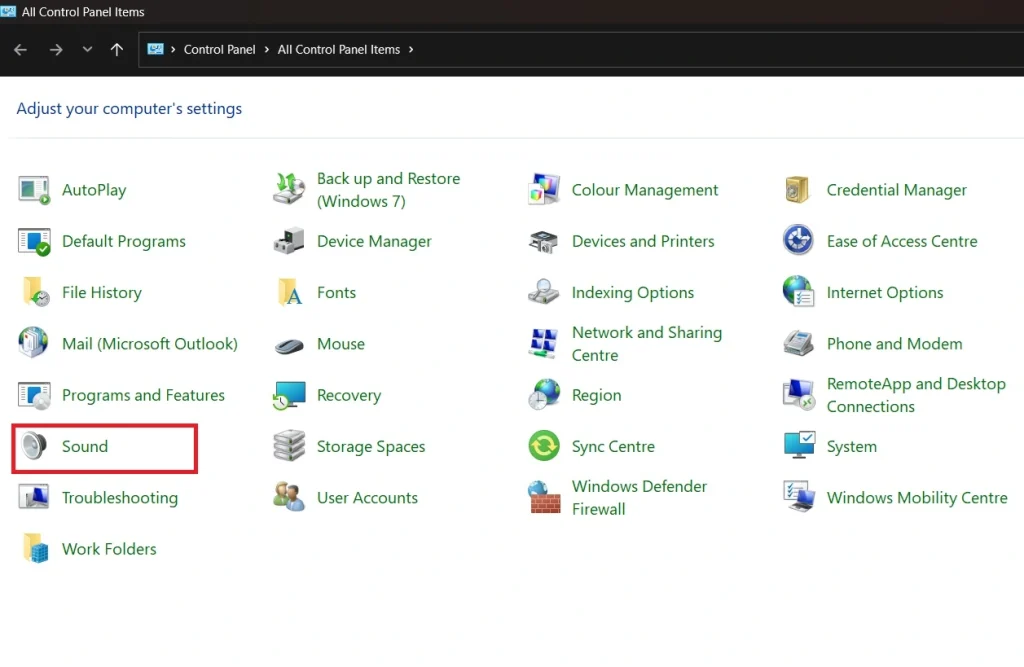
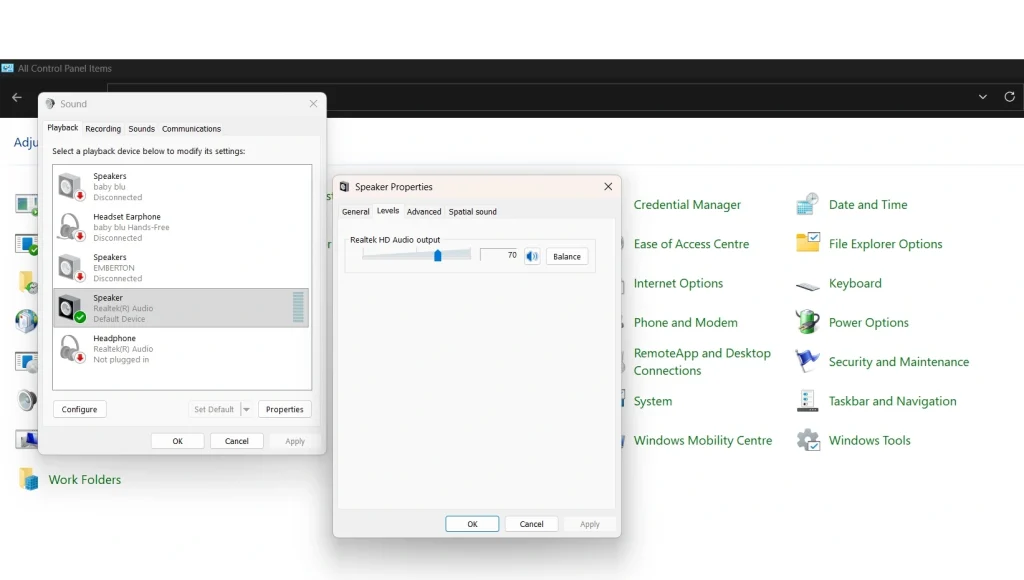
In this method, you can select the exact playback device. Once selected, you can open its properties. The balance option is available under the Levels section. You can change left and right values with precision.
This method is helpful when you need more accuracy. It also includes testing options. You can test each channel separately to ensure proper balance.
Steps:
Step 1: Open Control Panel, go to Sound, and select your playback device. Click Properties.
Step 2: Open the Levels tab, click Balance, and adjust both channels as required.
Method 3: Using Accessibility Settings
Windows 11 includes accessibility features that improve usability. These features also include simple sound controls. This method is useful for users who want a quick and clear option.
The accessibility section provides options like mono audio. You can also make small adjustments based on your needs. It keeps the interface simple and easy to understand.
This method is helpful for quick checks. It is also useful for users who prefer fewer steps. You can make changes without navigating through many menus.
Steps:
Step 1: Open Settings, go to Accessibility, and select Audio.
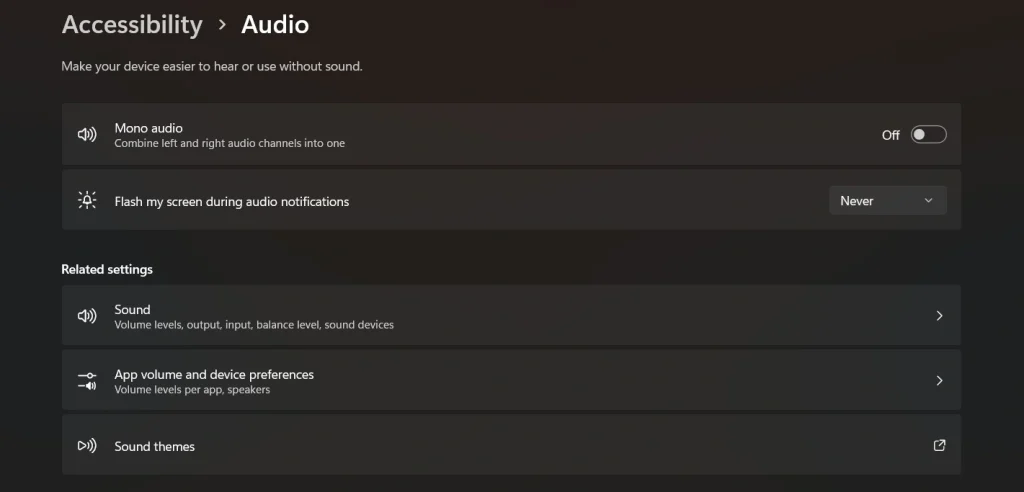
Step 2: Adjust the available options or disable mono audio if it affects balance.
Method 4: Using Audio Driver Software
Some systems include audio software from the manufacturer. These tools provide extra sound controls. They may include equalizers, presets, and balance settings.
This method is useful for advanced users. It allows more detailed control over sound output. You can fine-tune audio according to your preference. The interface may vary depending on the software.
Even though it is more advanced, it is still easy to use. Most tools provide simple sliders and options. You can adjust settings and test sound in real time.
Steps:
Step 1: Open the audio software provided by your system or sound card.
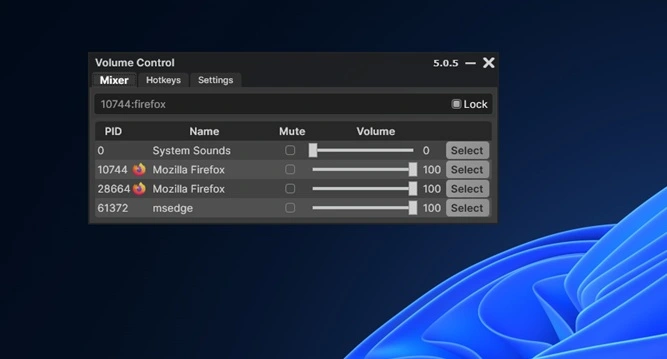
Step 2: Find the balance control and adjust the left and right channels carefully.
Author’s Tip
Always make changes step by step. Avoid adjusting everything at once. Small changes help you understand what works best. Play audio while adjusting settings. This makes it easier to notice differences. Use content that you are familiar with. It helps you judge balance more accurately. If possible, test with both speakers and headphones. This gives you a clearer idea of the issue.
It is also important to keep your system in good condition. Update drivers regularly and check your devices from time to time. Do not use extreme balance levels. Try to keep the sound as natural as possible. If the issue continues, consider checking the hardware again. A simple device issue can often look like a system problem.
Conclusion
Balanced sound improves your overall experience. It makes listening more comfortable and clear. Even a small imbalance can affect how audio feels. That is why adjusting volume balance settings is important. It allows you to fix uneven sound in a simple way.
This guide explained how to adjust audio balance on Windows using different methods. Each method is easy and effective. You can choose the one that suits your needs. With a basic understanding of adjusting audio balance settings, you can solve sound issues quickly. Regular checks and small adjustments will help maintain good audio quality over time.
FAQs
1. Where are audio balance settings located in Windows 11?
You can find audio balance settings in the Sound section of the Settings app. Open Settings, go to System, then click Sound and select your output device to access balance controls. You can also use the Control Panel, open Sound, choose your playback device, and check its properties to adjust the balance.
2. Why does my sound feel unbalanced after an update?
This can happen because system updates sometimes reset sound settings or change driver behavior. Audio drivers may also become outdated or incompatible after an update. Checking your balance settings and updating or reinstalling audio drivers usually helps restore normal sound.
3. Can Bluetooth devices affect audio balance?
Yes, Bluetooth devices can affect audio balance if the connection is unstable or not properly configured. Signal interference or a low battery can also cause uneven sound. Disconnecting and reconnecting the device, or pairing it again, often fixes the issue.
Author Bio:
Dinesh Lakhwani 

Dinesh Lakhwani, the entrepreneurial brain behind “TechCommuters,” achieved big things in the tech world. He started the company to make smart and user-friendly tech solutions. Thanks to his sharp thinking, focus on quality and the motto of never giving up, TechCommuters became a top player in the industry. His commitment to excellence has propelled the company to a leading position in the industry.
Popular Post
Recent Post

5 Best Data Recovery Software For Windows 11 and Windows 10
A crashed drive can ruin a whole day. One minute your photos, work files, and tax records sit safe on your PC. The next minute they are gone. A power cut, a bad update, or one wrong click can wipe out years of memories and months of work in seconds. That sinking feeling is why […]
How To Update NVIDIA Drivers On Windows 11/10 PC
Learn how to update NVIDIA drivers on Windows 11/10 with simple methods, safety tips, and easy steps for smoother gaming and better PC performance.

Top AI Features Hidden Inside Windows 11
Explore the top AI features in Windows 11, from Copilot to Recall, plus safety tips and simple steps to use each tool the right way.

Customize Your Screen Saver Settings in Windows [Easy Steps]
Learn how to customize screen saver settings in Windows 11 with easy steps, safety tips, and simple tricks to personalize your PC screen.
Driver Easy Windows Driver Updater Tool Review: Tried & Tested
In-depth information about Driver Easy’s functions and features can be found in our review. Learn how to update drivers more easily with this tool for a more seamless computer experience.

Is Avast Driver Updater Worth It? A Hands-On Analysis
A full review of Avast Driver Updater covering features, setup steps, pricing, pros and cons, and real PC results, to help you decide if it is worth buying.
IObit Driver Booster 13 (PRO) Review: [Tried & Tested]
IObit Driver Booster 13 is built for one purpose: keeping your PC drivers up to date. Well, yes! Outdated drivers can cause crashes, slowdowns, and hardware issues. This tool scans fast and updates with one click. The interface is simple. Even beginners can use it without confusion. Updates are pulled from a huge database, covering […]

Auslogics Driver Updater: A Detailed Walkthrough [2026]
This comprehensive review covers the key features, pros, and cons, pricing, and a final verdict on Auslogics’ driver update utility. Learn how it stacks up against manual driver maintenance.

5 Best Driver Updater Tools for Windows to Use (Free and Paid)
Introduction: Most people blame their PC for problems that a driver caused. A driver works like a bridge between your hardware and your operating system. When this bridge cracks, strange things start to happen. Screens flicker without reason. Printers go silent mid-task. Games freeze or crash out of nowhere. Manually finding the right driver is […]

