











Imagine this. You spend hours perfecting a video project. You hit save. Then your laptop freezes, reboots, and when the screen comes back. The file is gone. Your stomach sinks. It’s not just you. Lost files happen all the time. A dropped hard drive, a bad update, an accidental delete, or a corrupted partition can […]
Resetting Audio Settings: How To Reset Sound Settings [2026]
Introduction
Sound issues can affect your daily work and entertainment. You may notice that your speakers stop working, or your headphones produce unclear audio. In some cases, the sound may suddenly drop or become uneven. These problems can be frustrating, especially when you do not know the cause. Many users try random fixes, but that often leads to more confusion. A better approach is to understand the root of the problem and apply a proper solution.
One of the most effective ways to fix such problems is resetting audio settings. This process clears incorrect configurations and restores the system to its default sound setup. It helps remove conflicts caused by apps, updates, or driver errors.
When you reset sound settings, the system gets a fresh start. This guide explains everything in a simple and clear manner so that you can fix sound issues without difficulty.
Important Checks Before You Begin
Before you begin resetting audio settings, it is important to review a few basic checks. These steps help prevent unnecessary changes. They also ensure that you are not overlooking a simple issue.
- Check volume levels
Make sure the system volume is not muted or set too low. Also, check the volume inside individual apps, as some apps have their own controls. A low or muted setting in either place can stop sound completely. - Inspect the audio device
Make sure your headphones or speakers are firmly plugged in. Double‑check all cables and ports, since even a small looseness in the connection can stop the sound from working properly. - Select the correct output device
Open sound settings and verify that the correct output device is selected. Sometimes the system switches to another device without notice, such as a monitor or Bluetooth device. - Restart your device
Restarting your system helps clear temporary glitches. It refreshes background processes and can fix minor sound issues without any extra steps. - Close background apps
Some apps manage sound settings on their own. Running too many apps at the same time can create conflicts. Close any unnecessary apps and check if the issue improves. - Update audio drivers
Outdated or faulty drivers can cause sound problems. Check for the latest driver updates and install them. Updated drivers often fix bugs and improve performance. - Backup custom settings
If you use special audio profiles or manual adjustments, note them down before making changes. Resetting will remove all custom settings, and you may need to set them again. - Check hardware condition
Test your audio device on another system to confirm it is working properly. This helps you understand whether the issue is with the device or your system settings.
Common Questions Users Often Ask
What happens when I reset sound settings?
When you reset sound settings, your system clears all custom audio changes and returns everything to its default state. This includes input and output device settings, volume levels, and enhancements. It helps remove conflicts, incorrect configurations, and errors that may be affecting sound performance.
Will resetting audio settings delete my files?
No, resetting audio settings does not delete your personal files. It only changes system-level sound configurations. Your documents, photos, videos, and other data remain completely safe during the process.
Why do sound issues return after some time?
Sound issues may return due to outdated or faulty drivers, background apps that change audio settings, or system updates that create conflicts. In such cases, you may need to update drivers, review installed software, or check for recurring issues that affect sound stability.
Is resetting audio settings safe?
Yes, resetting audio settings is safe. It only affects sound-related options and does not harm your system. It simply restores default settings, which often helps resolve common audio problems without any risk to your data.
4 Quick Methods to Reset Audio Settings
There are multiple ways to resolve sound issues, and each approach is useful in different situations. Try them step by step. Start with the easiest option and moving forward if the problem persists. The instructions are straightforward and don’t require any technical expertise.
Method 1: Reset Sound Through Settings
This is the easiest method to try when you face basic sound problems. It works well for common issues that do not require advanced fixes. The system includes a built-in option that allows you to restore default audio settings in just a few clicks. When you use this option, it removes incorrect configurations that may have built up over time. It also resets both input and output devices, so your system can start fresh with proper settings.
This method is especially helpful when your sound device stops working without a clear reason. It can fix problems such as no sound, low volume, or the system selecting the wrong device. It also clears unwanted changes made by apps or updates that may interfere with normal audio performance. Since it is simple and quick, it should always be your first step before trying more advanced solutions.
Step 1: Open Settings and go to System, then Sound. Click Volume Mixer.
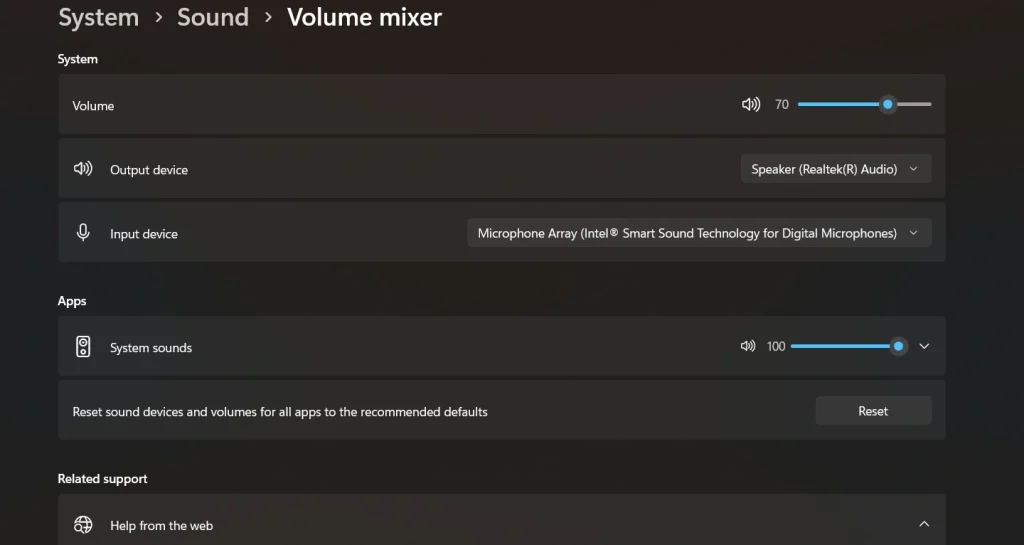
Step 2: Scroll down and click on Reset under advanced sound options.
Method 2: Use Device Manager
Device Manager is a built-in tool that helps you control and manage hardware devices on your system. It allows you to update, disable, or reinstall drivers as needed. Many sound problems are linked to driver issues, such as outdated versions or corrupted files. In such cases, simply reinstalling the audio driver can restore proper function and improve sound performance.
This method is useful when basic fixes do not solve the problem. If resetting audio settings does not bring back normal sound, driver reinstallation can help address deeper issues. It removes damaged or conflicting drivers and replaces them with fresh ones. This process often fixes problems like distorted audio, missing sound devices, or sudden sound failure.
Step 1: Open Device Manager. Expand Sound, video, and game controllers.
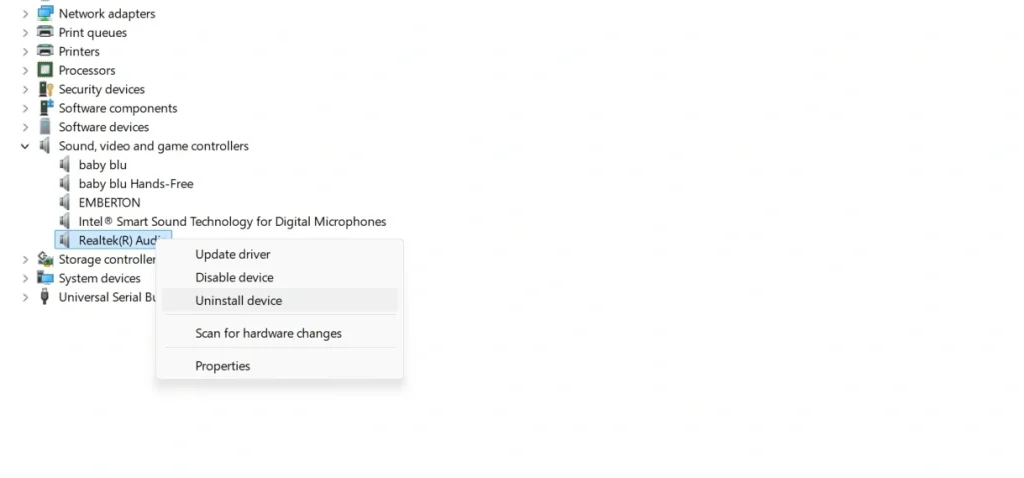
Step 2: Right-click your audio device, uninstall it, and restart your system.
Method 3: Restart Audio Services
Audio services run quietly in the background and handle all sound-related tasks on your system. They control how audio is processed and delivered to your speakers or headphones. If these services stop working or become unresponsive, you may notice problems like no sound, delayed audio, or sudden interruptions. Restarting these services can help bring everything back to normal.
This method is simple, quick, and effective for many common issues. It does not remove or change your existing settings. Instead, it refreshes the audio system and clears temporary glitches. This makes it a useful step when your sound stops working without any clear reason.
Step 1: Press Win + R, type services.msc, and press Enter.
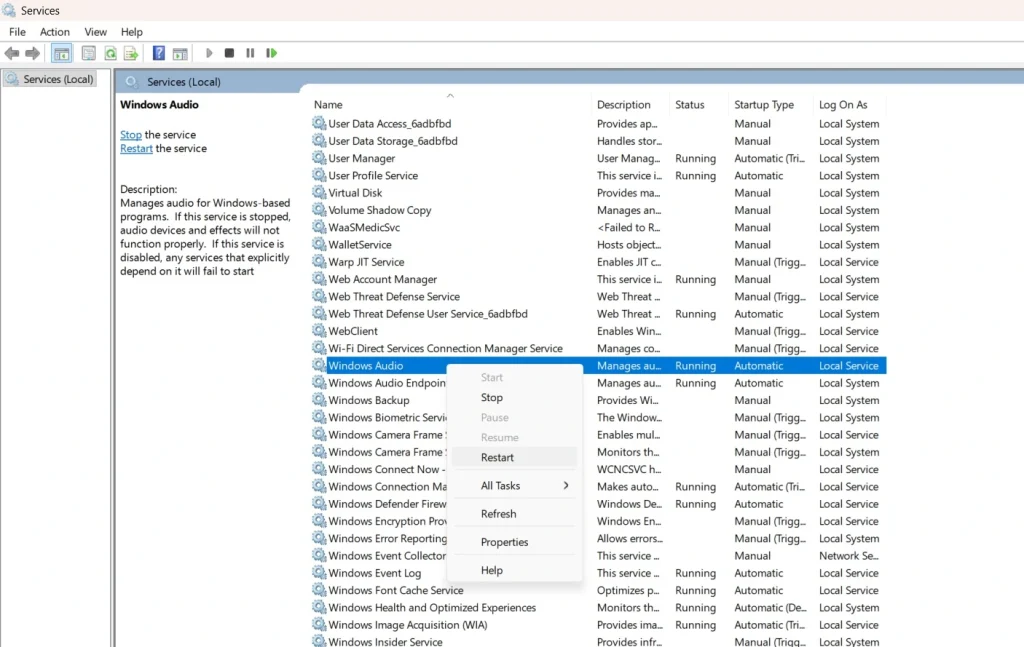
Step 2: Find Windows Audio, right-click, and select Restart.
Method 4: Use Troubleshooter
The system includes a built-in troubleshooter that helps detect and fix sound problems. It scans your system for common issues and provides simple suggestions to resolve them. This tool is easy to use, which makes it suitable for beginners. You do not need technical knowledge to run it, and it can quickly point out what is going wrong.
It can identify problems such as muted devices, incorrect output selection, or disabled audio services. In some cases, it may also guide you with steps to reset sound settings if required. Since it works automatically, it saves time and reduces the need for manual troubleshooting.
Step 1: Open Settings (Win + I). Go to System → Troubleshoot → Other troubleshooters.
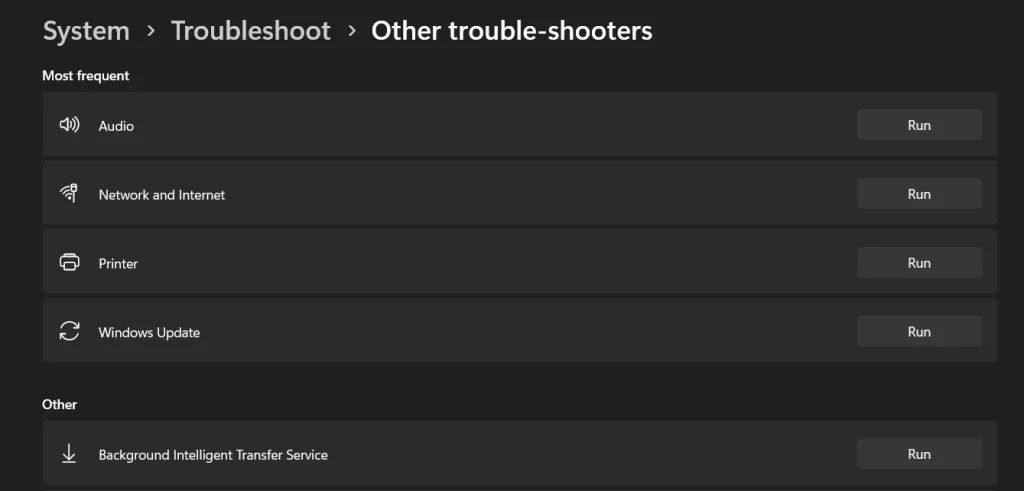
Step 2: Find Audio and click Run.
Author’s Tip
Start with the basics when you face sound problems. Many people jump to advanced fixes without checking simple settings. This often leads to wasted time and more confusion. A clear step-by-step method works better and helps you find the real cause. Check the volume level, confirm the device connection, and make sure the correct output is selected. These small checks can fix many issues quickly.
Keep your system updated as part of regular use. Updates improve stability and fix known bugs that may affect sound. If the same problem appears again, review the apps installed on your system. Some apps can change audio settings in the background without clear notice. A clean and updated system is less likely to face repeated sound issues.
Conclusion
Sound problems may seem difficult at first, especially when the cause is not clear. However, most issues can be resolved with a simple and structured approach. Resetting audio settings is one of the easiest and most effective solutions. It clears incorrect configurations and restores the system to its default sound setup. This helps bring back normal audio output and resolves many common problems without much effort.
If the issue still remains, you can move on to other methods such as updating drivers or restarting audio services. Each step helps you narrow down the exact cause of the problem. When you reset sound settings correctly, it improves overall system stability and reduces the chance of repeated errors. With regular checks and timely updates, you can prevent most sound issues from happening again.
FAQs:
How often should I reset audio settings?
You should reset audio settings only when you face sound problems that do not get fixed with basic checks. If your audio is working properly, there is no need to reset anything. Frequent resetting is not required and may remove useful custom settings.
Can resetting audio settings fix microphone issues?
Yes, resetting audio settings can help fix many microphone problems. It restores default input settings and removes conflicts caused by apps or incorrect configurations. This can improve microphone detection and sound clarity.
What should I do if reset sound settings does not work?
If resetting sound settings does not solve the issue, you can try updating or reinstalling audio drivers. You should also check your hardware connections and test your device on another system. Running the built-in troubleshooter can also help find and fix deeper problems.
Author Bio:
Dinesh Lakhwani 

Dinesh Lakhwani, the entrepreneurial brain behind “TechCommuters,” achieved big things in the tech world. He started the company to make smart and user-friendly tech solutions. Thanks to his sharp thinking, focus on quality and the motto of never giving up, TechCommuters became a top player in the industry. His commitment to excellence has propelled the company to a leading position in the industry.
Popular Post
Recent Post

5 Best Data Recovery Software For Windows 11 and Windows 10
A crashed drive can ruin a whole day. One minute your photos, work files, and tax records sit safe on your PC. The next minute they are gone. A power cut, a bad update, or one wrong click can wipe out years of memories and months of work in seconds. That sinking feeling is why […]

How To Update NVIDIA Drivers On Windows 11/10 PC
Learn how to update NVIDIA drivers on Windows 11/10 with simple methods, safety tips, and easy steps for smoother gaming and better PC performance.

Top AI Features Hidden Inside Windows 11
Explore the top AI features in Windows 11, from Copilot to Recall, plus safety tips and simple steps to use each tool the right way.

Customize Your Screen Saver Settings in Windows [Easy Steps]
Learn how to customize screen saver settings in Windows 11 with easy steps, safety tips, and simple tricks to personalize your PC screen.

Driver Easy Windows Driver Updater Tool Review: Tried & Tested
In-depth information about Driver Easy’s functions and features can be found in our review. Learn how to update drivers more easily with this tool for a more seamless computer experience.

Is Avast Driver Updater Worth It? A Hands-On Analysis
A full review of Avast Driver Updater covering features, setup steps, pricing, pros and cons, and real PC results, to help you decide if it is worth buying.

IObit Driver Booster 13 (PRO) Review: [Tried & Tested]
IObit Driver Booster 13 is built for one purpose: keeping your PC drivers up to date. Well, yes! Outdated drivers can cause crashes, slowdowns, and hardware issues. This tool scans fast and updates with one click. The interface is simple. Even beginners can use it without confusion. Updates are pulled from a huge database, covering […]

Auslogics Driver Updater: A Detailed Walkthrough [2026]
This comprehensive review covers the key features, pros, and cons, pricing, and a final verdict on Auslogics’ driver update utility. Learn how it stacks up against manual driver maintenance.

5 Best Driver Updater Tools for Windows to Use (Free and Paid)
Introduction: Most people blame their PC for problems that a driver caused. A driver works like a bridge between your hardware and your operating system. When this bridge cracks, strange things start to happen. Screens flicker without reason. Printers go silent mid-task. Games freeze or crash out of nowhere. Manually finding the right driver is […]

