












So, search for a pair of shoes once online. Close the tab. By evening, those same shoes are sitting on your news site, your video app, and even your recipe blog. Nobody placed them there by chance. A cookie did. Well, yes! Cookies are small files that websites place on your device while you browse. […]
How To Fix Windows Update Issues Easily On Windows [2026]
Introduction
Windows updates play an important role in keeping a computer stable and secure. They bring new features, fix known bugs, and improve overall performance. When updates work as expected, the system runs smoothly. However, when they fail, users often face slow performance, missing features, or security risks. This is why it becomes important to understand how to fix Windows update issues easily on Windows and keep the system in good condition.
Many users feel unsure when update errors appear. The process looks simple, but even a small issue can stop updates from installing. Sometimes updates get stuck at a certain percentage. In other cases, they fail again and again without a clear reason. These situations can be frustrating, especially when time is limited. The good part is that most update problems are not complex.
With a calm approach and the right steps, you can fix Windows update issues easily on Windows and avoid repeated errors in the future.
Important Precautions Before Fixing Update Issues
Before you begin fixing update problems, it is important to prepare your system. These simple precautions reduce risk and make the process smoother. Many update errors happen because basic checks are ignored. Taking a few minutes to review these points can prevent bigger issues later.
- Check your internet connection
Ensure your internet connection is steady and reliable. Updates need a constant flow of data to complete properly. If the connection becomes unstable or disconnects, the update process may stop or fail. - Keep your device plugged in
Keep your device plugged into a power source while updating. The process can take time, and an unexpected shutdown may harm important system files. - Create a backup of important files
Store your important documents and media files in a safe place. Update fixes are generally safe, but keeping a backup helps you stay prepared for any unexpected issue. - Free up storage space
Updates need enough space to download and install. Remove temporary files or unused apps if storage is low. - Disable third-party antivirus temporarily
Some antivirus programs may block update processes. Turning them off for a short time can help complete the update. - Close unnecessary apps
Running applications can slow down the update process. Close all extra programs before starting. - Check date and time settings
An incorrect system time can cause update errors. Make sure your date and time are set correctly. - Restart your system once
A simple restart clears temporary glitches. It can solve minor issues before you begin deeper fixes.
Quick Answers to Common Doubts
1. Why do Windows updates fail?
Windows updates may fail for different reasons. A weak internet connection, low storage space, or damaged system files are common causes. At times, update services stop running in the background. In some cases, old update files become corrupted and prevent new ones from installing. While these problems may look serious, they can usually be fixed with simple troubleshooting steps.
2. Is it safe to fix update issues manually?
Yes, it is safe to fix update issues manually if you follow proper instructions. Windows provides built-in tools that are designed to repair common problems. These tools do not harm your system when used correctly. However, it is important to avoid random changes in advanced settings. Always follow trusted steps and proceed carefully.
3. How long does it take to fix update errors?
The time required depends on the type of issue. Simple problems can be fixed in a few minutes. More complex issues may take longer, especially if system files need repair or if components must be reset. In most situations, you can fix Windows update issues easily on Windows within a reasonable time if you follow the right method.
4 Quick Methods To Fix Windows Update Issues Easily On Windows
Fixing update problems becomes easier when you understand the right approach. Each method targets a specific issue. Some methods are quick and simple, while others take a bit more time. It is best to start with basic solutions and move to advanced ones only if needed.
By following these methods in order, you can identify the problem and resolve it effectively.
Method 1: Run Windows Update Troubleshooter
The Windows Update Troubleshooter is the first tool you should use. It is built into the system and designed to detect common update problems. This tool scans important settings and services related to updates. It can automatically fix many issues without manual effort.
When the troubleshooter runs, it checks for missing files, incorrect configurations, and service errors. It also repairs problems related to update downloads. This makes it a reliable starting point for most users.
Using this method is safe and quick. It does not change important system settings. Even if it does not fix the issue completely, it often provides useful information about the problem.
Step 1: Click the Start button and open Settings. Navigate to System > Troubleshoot > Other troubleshooters. Find Windows Update in the list.
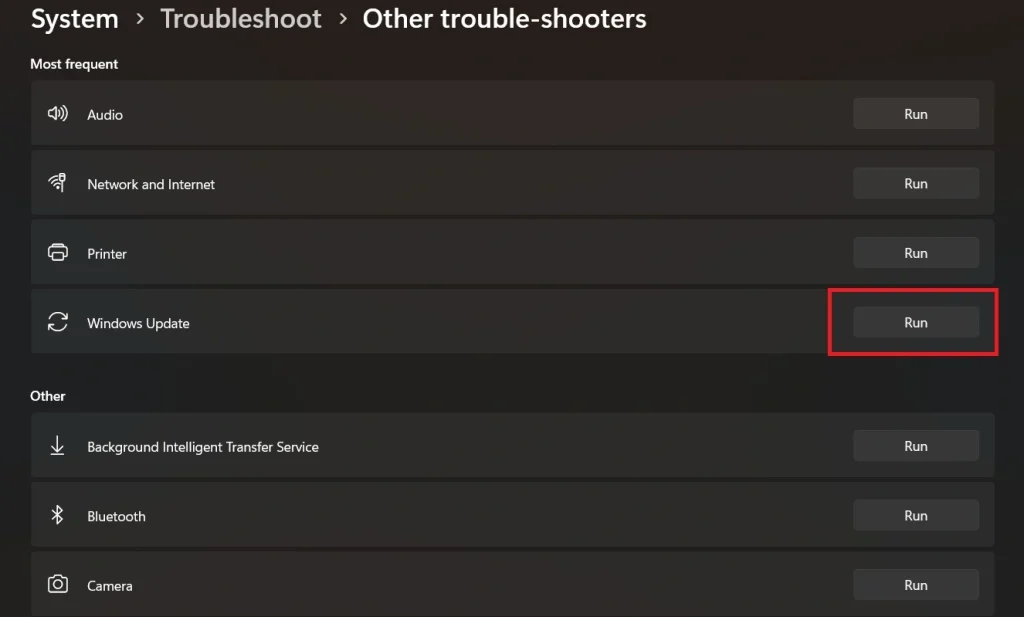
Step 2: Select the Run option beside Windows Update. The troubleshooter will start checking for problems. Follow the instructions on the screen to fix any issues it finds.
After completion, it’s recommended to restart your PC and check for updates again via Settings > Windows Update
Method 2: Restart Windows Update Services
Windows updates depend on several background services. These services manage downloading, installing, and verifying updates. If any of these services stop or freeze, the update process will fail.
Restarting these services refreshes their function. It clears temporary errors and allows the system to start the update process again. This method is simple but often very effective.
Sometimes services appear active but do not respond correctly. Restarting them ensures that they work properly. It also helps resolve hidden issues that are not visible to the user.
Step 1: Press Windows + R. Type services.msc. Press Enter. Locate Windows Update in the list of services.
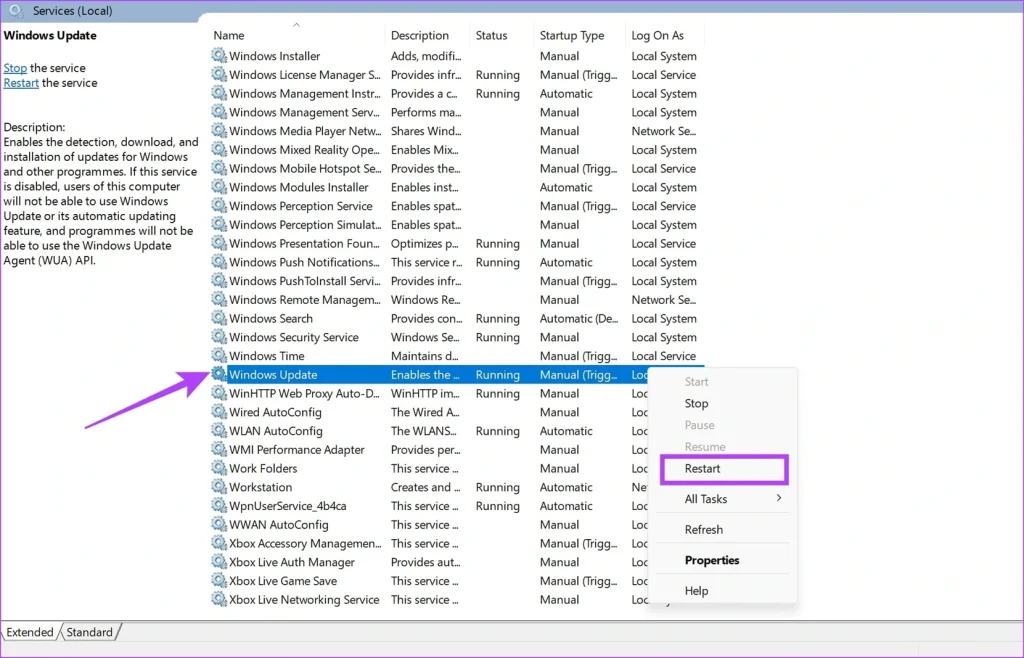
Step 2: Right-click on it and choose Restart. Repeat the same for the Background Intelligent Transfer Service.
Method 3: Clear Update Cache Files
Windows stores update files in a dedicated folder. These files help manage downloads and installations. However, if they become corrupted, they can block new updates from installing.
Clearing the update cache removes these damaged files. This forces the system to download fresh copies. It often resolves issues where updates get stuck or fail repeatedly.
This method is especially useful when updates stop at a certain percentage or show the same error multiple times. Removing old files gives the update process a clean start.
Step 1: Open Command Prompt as administrator. Stop Windows Update services using the appropriate commands. Here are the commands:
net stop wuauserv
net stop bits
net stop cryptsvc
net stop msiserver
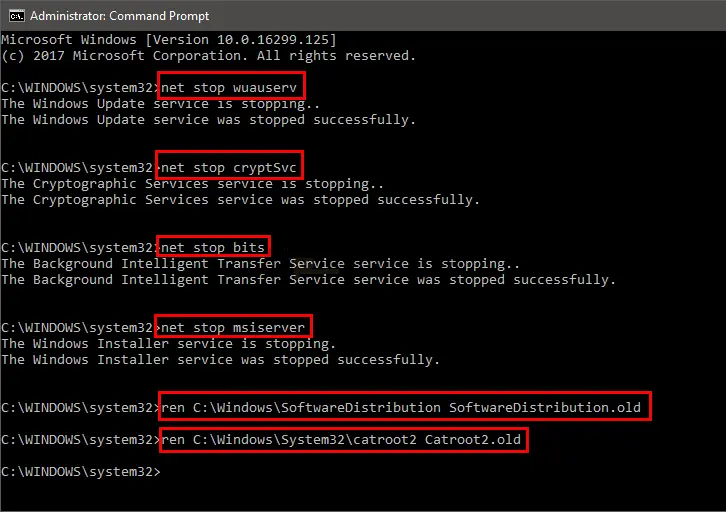
Step 2: Navigate to the SoftwareDistribution folder and delete its contents. Restart the services after this step.
Method 4: Check System Files Using SFC Scan
System files are essential for the proper functioning of updates. If these files are missing or damaged, updates may not install correctly. The System File Checker tool scans and repairs these files.
When you run this scan, the system checks each protected file. If it finds any corruption, it replaces the file with a correct version. This improves system stability and supports successful updates.
This method is useful when errors appear without a clear reason. It helps fix deep issues that may not be visible at first.
Step 1: Open Command Prompt as administrator. Type sfc /scannow and press Enter.
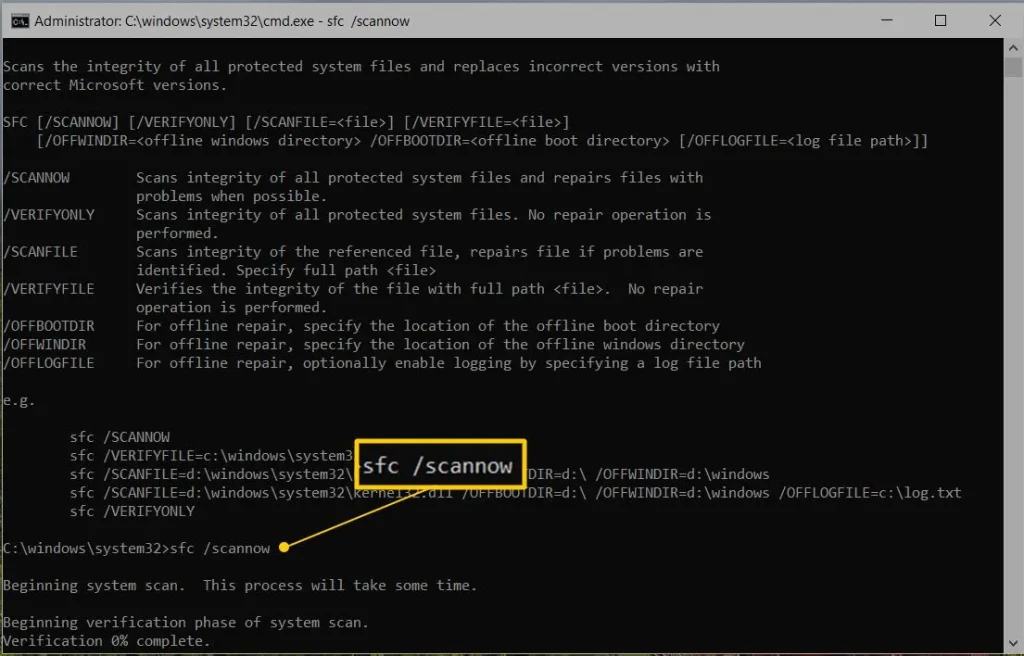
Step 2: Allow the scan to complete. Restart your system once the process finishes.
Author’s Tip
Regular system care can prevent most update problems. Keep your storage clean and avoid filling it with unnecessary files. Make it a habit to check updates from time to time instead of delaying them for long periods. This reduces the chance of large updates failing all at once.
It is also helpful to keep your system simple. Avoid installing too many third-party tools that interfere with system processes. Built-in Windows tools are designed to handle updates safely. When you rely on them, it becomes easier to fix Windows update issues easily on Windows without confusion or risk.
Conclusion
Windows update problems are common, but they are usually easy to solve. Most issues come from small causes such as weak internet, low storage, or inactive services. Once you identify the reason, the solution becomes much clearer. Following a step-by-step approach helps you avoid mistakes and saves time.
You do not need advanced skills to handle these problems. Simple tools and methods are enough in most cases. By staying patient and careful, you can fix Windows update issues easily on Windows and maintain a smooth and secure system. Regular updates and basic maintenance will also reduce the chances of facing similar problems again.
FAQs
Can I skip Windows updates?
You can delay Windows updates for a short time, but skipping them is not a good idea. Updates help protect your system from security risks and also improve performance. When updates are ignored for a long period, the system may become more vulnerable to threats and may not run as smoothly as expected.
What should I do if updates are stuck?
If a Windows update gets stuck, wait for some time to see if it resumes on its own. If there is no progress, restart your system and try again. You can also run the Windows Update troubleshooter or clear the update cache to fix the problem and allow the update to complete properly.
Will fixing update issues delete my data?
Fixing Windows update issues usually does not delete your personal files or data. Most methods focus on system settings and update components. Even so, it is always a good practice to keep a backup of important files so that your data remains safe in any situation.
Author Bio:
Dinesh Lakhwani 

Dinesh Lakhwani, the entrepreneurial brain behind “TechCommuters,” achieved big things in the tech world. He started the company to make smart and user-friendly tech solutions. Thanks to his sharp thinking, focus on quality and the motto of never giving up, TechCommuters became a top player in the industry. His commitment to excellence has propelled the company to a leading position in the industry.
Popular Post
Recent Post

How To Disable Background Apps In Windows: 4 Quick Methods
A slow PC rarely gives a warning. One day, it simply takes longer to start. Apps open late. The fan runs loud, even when the screen is almost empty. Most people blame old hardware. Often, that is not the real reason. The real reason is hiding in plain sight. Windows keeps many apps active in […]

How to Activate Windows with a Product Key for Windows 11 & Windows 10
It always shows up at the worst time. You are halfway through a report, or about to join a video call. Then you spot it in the bottom right corner of the screen. Activate Windows. Go to Settings to activate Windows. Initially, an unactivated copy of Windows may seem like a minor inconvenience. Over time, […]

Is Easy Duplicate Finder Worth It? Honest Review
The photos folder looked normal at first glance. Then the storage warning popped up. One trip photo appeared four times. A tax PDF sat in three different folders. Two old setup files were still in Downloads, and each one was over 500 MB. Nobody plans this mess. Copies pile up slowly. A download runs twice. […]

Wise Duplicate Finder Review: Real Results from Wise Duplicate Finder
Read my honest Wise Duplicate Finder review. See features, pricing, pros and cons, and real PC test results. Find out if this free duplicate cleaner can free up your Windows storage.

How to Recover Deleted Files from Pen drive, USB Drive, SD Card
Introduction: On tech forums, you’ll often see posts like this: “I connected my pen drive to my laptop this morning, but the folder was empty. All my college project files had vanished. I don’t have a backup. Can someone help me?” Stories like this are very common. Pen drives, USB drives and SD cards are […]

How To Recover Files Deleted from the Recycle Bin [Windows 11]
Losing a file can happen in seconds. You clear your desktop, hit Delete, and empty the Recycle Bin. Then, just when you need that file again, it seems to have vanished. This guide will walk you through ways to restore files removed from the Recycle Bin. We will begin with simple fixes, then look at […]

Disk Drill Data Recovery Tool Explained: Full Review and Guide
It happens in a split second. You delete a folder by mistake. Your drive stops showing up. A photo album from your last trip just vanishes. And your stomach drops. Lost files feel personal. They are not just data. They are memories, work hours, and sometimes years of effort packed into a few gigabytes. When […]

Recover Deleted Files In Windows 11 With Software & Without
Introduction What is the first thing that goes through your mind the second an important file vanishes from a Windows 11 PC? For most people, it is a mix of panic and disbelief, followed by a frantic click through every folder that file could possibly be hiding in. It happens in a split second: one […]

EaseUS Data Recovery Wizard: Everything To Know
Data loss does not always come from a big disaster either. Most cases start small and boring. A drive gets formatted by mistake. A laptop freezes mid-save and restarts on its own. A memory card stops showing up after being pulled out too fast. None of these feel like emergencies at first, until you realize […]

