











Imagine this. You spend hours perfecting a video project. You hit save. Then your laptop freezes, reboots, and when the screen comes back. The file is gone. Your stomach sinks. It’s not just you. Lost files happen all the time. A dropped hard drive, a bad update, an accidental delete, or a corrupted partition can […]
Resolving Screen Flickering Problems On Windows 11/10: Complete Guide
Introduction
Screen flickering is a common issue in both Windows 10 and Windows 11 systems. It may appear as quick flashes, blinking lines, or unstable brightness on the screen. This problem can interrupt your work and make it difficult to focus for long periods. Many users notice this issue after installing updates, changing drivers, or connecting new hardware. In some cases, the cause is very small and easy to fix. In other cases, it may take a few steps to identify the exact reason.
This guide focuses on resolving screen flickering problems in a clear and structured way. The goal is to keep everything simple and easy to follow. You do not need advanced technical knowledge to understand these steps.
Each method is explained in a direct and practical manner. If you want to fix screen flickering on Windows 11/10, this guide will help you take the right approach. You will also learn how to resolve screen flickering on Windows 11/10 step by step without confusion.
Important Precautions Before You Start
Before you begin fixing the issue, it is important to take a few safety steps. These precautions help protect your system and prevent further problems. A careful start can save time and reduce risk.
- Create a system restore point
This lets you return your system to an earlier state if any problem occurs. It is a safe step to begin with. Here is the complete guide - Check the power supply
An unstable power source can affect screen performance. Make sure your device is properly connected. - Save all open files
Some steps may require a restart. Always save your work before continuing. - Disconnect external devices
Remove extra monitors, USB devices, or adapters. They can sometimes cause display issues. - Update Windows
Keeping your system updated improves stability. Updates often fix hidden problems. - Review recent changes
Check any new apps or updates you installed. They may be related to the issue. - Use quality cables
Damaged or poor cables can cause flickering. Always use reliable ones. - Avoid unknown software tools
Do not install random repair tools. They may cause more harm than good.
Common Questions You Should Know
1. Why does screen flickering happen in Windows?
Screen flickering can happen due to several reasons. The most common cause is an outdated or faulty display driver. Drivers act as a bridge between your system and hardware. If they stop working properly, the display may behave abnormally. Another common reason is incorrect display settings, such as an unsupported refresh rate. In some situations, recently installed software can also interfere with system processes. Hardware issues like loose cables or a failing monitor may also be responsible. When you focus on resolving screen flickering problems, it is important to check both software and hardware factors carefully.
2. Can apps cause flickering on Windows?
Yes, certain applications can cause screen flickering. Programs that interact with graphics settings or system display often create conflicts. Examples include screen recording tools, antivirus software, and custom theme applications. If the issue starts after installing a new app, there is a strong chance that the app is causing the problem. In such cases, removing or disabling the app can help. To fix screen flickering on Windows 11/10, it is always useful to review recently installed applications and test the system after removing them.
3. Is screen flickering always caused by hardware issues?
No, screen flickering is not always related to hardware. In many cases, the issue comes from software problems such as driver errors or system bugs. However, hardware should not be ignored. A damaged display panel, faulty graphics card, or loose cable can also lead to flickering. If the problem continues after trying all software fixes, then hardware inspection becomes necessary. When you try to resolve screen flickering on Windows 11/10, testing with another monitor can help confirm whether the issue is hardware-related.
4. Can system updates solve flickering issues?
System updates can often fix flickering problems. Updates include patches that improve system performance and fix known bugs. If flickering starts due to a system glitch, an update may resolve it. However, there are cases where an update introduces new issues. In such situations, rolling back to a previous version may help. Resolving screen flickering problems often requires checking both recent updates and system history to identify the root cause.
5 Methods to Resolve Screen Flickering Issues on Windows 11
Screen flickering problems can often be resolved using simple methods. Begin with basic solutions and move to advanced ones only when necessary. Each method below is explained in a clear and practical way to help you fix screen flickering on Windows 11/10.
Method 1: Update Display Drivers
Display drivers are essential for proper screen performance. They manage the connection between the operating system and the graphics hardware. If a driver becomes outdated, damaged, or incompatible, it can cause screen flickering. This is one of the most common reasons behind display problems.
At times, drivers may not function correctly after a system update. In other cases, they may not support newer features. Updating the driver helps maintain smooth system operation. It also improves display stability and overall performance.
It is always recommended to use official sources when updating drivers. Avoid unknown third-party tools. Built-in Windows tools are usually enough for this process and are safer to use.
Step 1: Open Device Manager. Find Display adapters. Right-click on your graphics device. Select Update driver.
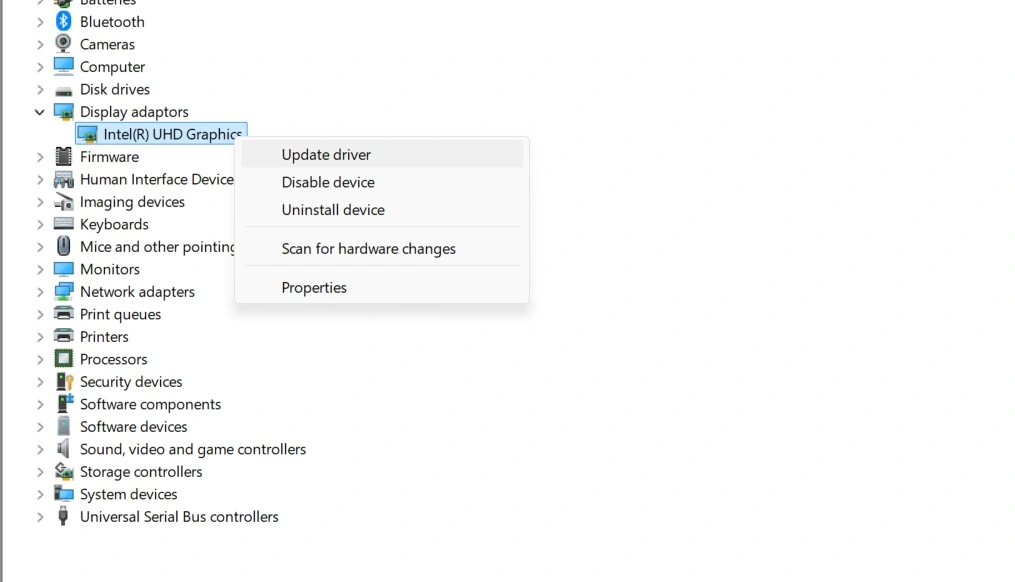
Step 2: Select the automatic search option. Allow Windows to locate and install the latest driver. Restart your system once the update is complete.
Method 2: Check Refresh Rate Settings
The refresh rate determines how often your screen updates each second. If this setting is not correct, it can cause flickering or unstable visuals. Many users overlook this setting, even though it plays a key role in display performance.
Different monitors support different refresh rates. If your system is set to a value that the monitor does not fully support, flickering may occur. Adjusting the setting to the correct value often solves the problem quickly.
This method is simple and does not require much time. It is one of the easiest ways to improve display stability without making major changes to the system.
Step 1: Open Settings. Go to System, then Display. Click on Advanced display settings.
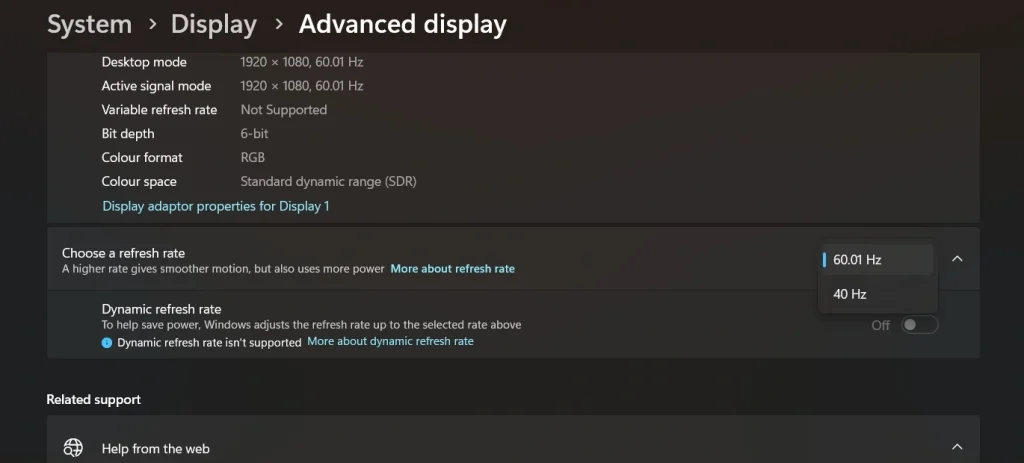
Step 2: Select a suitable refresh rate for your monitor. Apply the changes and observe the result.
Method 3: Remove Problematic Applications
Some applications can interfere with display settings. These conflicts may lead to screen flickering, especially after installing new software. Programs that modify system visuals or use graphics resources are more likely to cause such issues.
If flickering started recently, think about what changed on your system. New installations are often the reason. Removing these applications can help restore normal display behavior.
It is best to remove one app at a time. This allows you to identify the exact cause without confusion. After each removal, restart your system and check if the problem is fixed.
Step 1: Open Settings. Go to Apps and then Installed apps. Look for recently added programs.
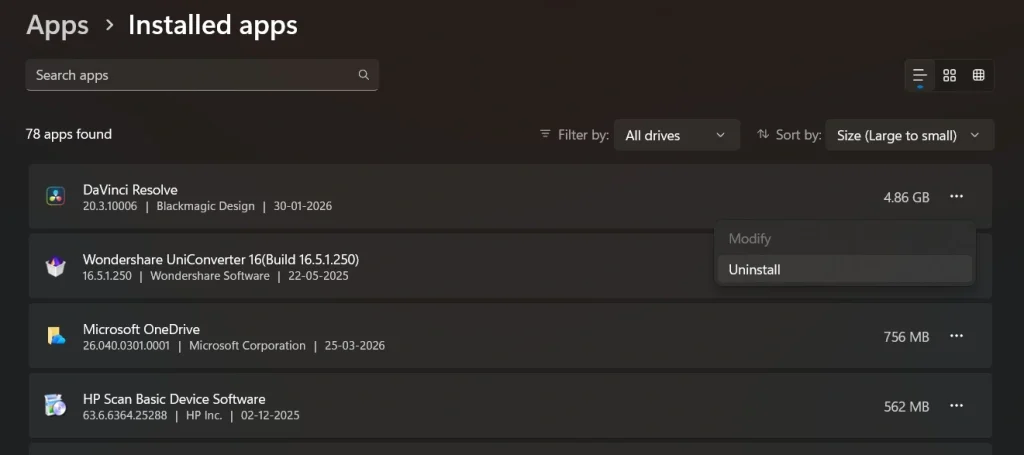
Step 2: Uninstall the suspected application. Restart your system and check if the flickering stops.
Method 4: Turn Off Hardware Acceleration
Hardware acceleration helps improve performance by using the graphics card for certain tasks. However, in some cases, it can create compatibility issues with software. This may result in flickering, especially within specific applications.
This issue is commonly seen in web browsers and media applications. If flickering appears only in one app, hardware acceleration may be the cause. Disabling it can often fix the issue without affecting overall performance.
The process is simple and does not require advanced knowledge. You only need to access the settings of the affected application.
Step 1: Open the application where flickering occurs. Go to its settings or preferences section.
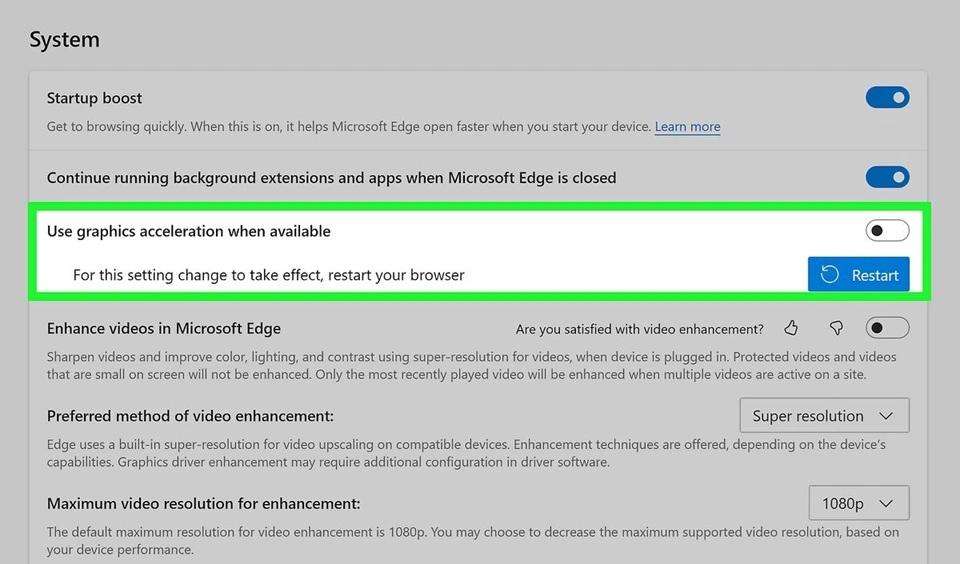
Step 2: Locate the hardware acceleration option. Disable it and restart the application.
Method 5: Use System File Checker
System files are essential for the proper functioning of Windows. If these files become corrupted, various issues can appear, including screen flickering. The System File Checker tool helps detect and repair such problems.
This tool scans all protected system files and replaces damaged ones with correct versions. It works in the background and does not require complex steps. It is a safe and reliable method to improve system stability.
Using this tool can also help fix other hidden issues. It is a useful step when basic fixes do not solve the problem.
Step 1: Open Command Prompt with administrator rights. Type sfc /scannow and press Enter.
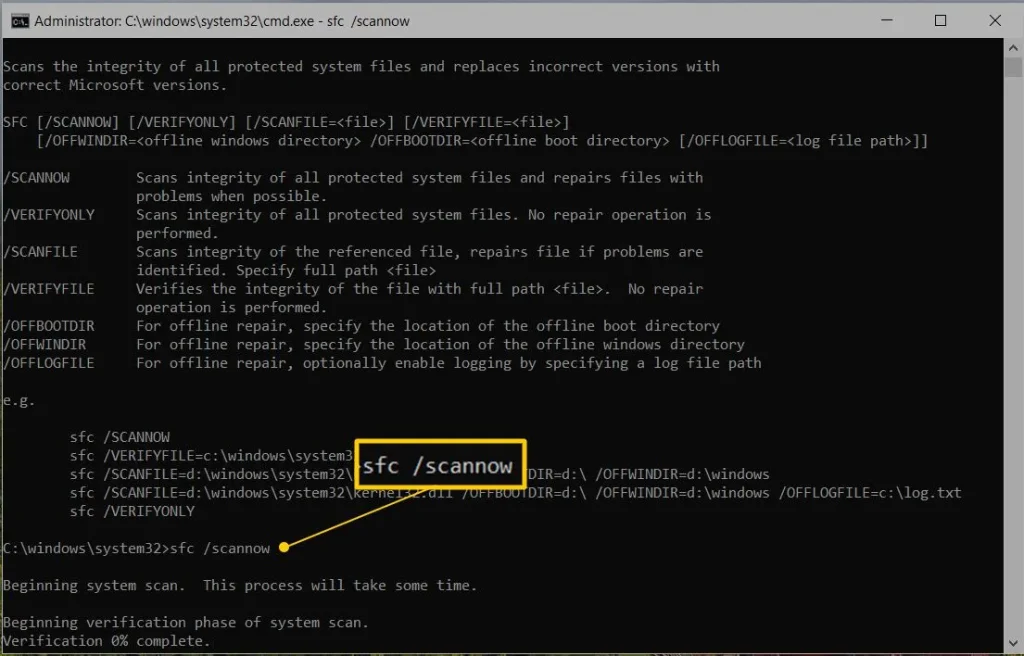
Step 2: Wait for the scan to complete. Restart your system once the process is finished.
Author’s Tip
It is always better to follow a simple and steady approach when dealing with system issues. Many users try multiple fixes at once, which can create confusion. Instead, take one step at a time and observe the result. This method helps you understand what actually works. When you focus on resolving screen flickering problems in an organized way, you reduce the chances of making mistakes.
Regular system maintenance also plays an important role. Keep your drivers updated and avoid installing unnecessary software. Clean your system from time to time and monitor its performance. If you often need to fix screen flickering on Windows 11/10, it may be a sign that your system needs attention. When you try to resolve screen flickering on Windows 11/10, patience and careful steps always give better results.
Conclusion
Screen flickering can be annoying, but it is usually not a serious problem. In most cases, it can be fixed with simple adjustments. Drivers, settings, and software conflicts are the main reasons behind this issue. By following the correct steps, you can restore your display without much effort.
Always start with basic methods and move forward only if needed. This approach saves time and keeps your system safe. This guide on resolving screen flickering problems provides a clear path to follow. Whether you want to fix screen flickering on Windows 11/10 or fully resolve screen flickering on Windows 11/10, the steps shared here will help you achieve a stable and smooth display.
FAQs:
Can I fix screen flickering on my own?
Yes, in most cases, you can fix it without expert help. The steps are simple and do not require advanced knowledge. Basic checks like updating drivers, adjusting settings, and removing problem apps often solve the issue. Resolving screen flickering problems usually involves careful observation and a step-by-step approach. If you follow the right methods, you can restore normal display performance on your own.
What should I try first?
You should begin with the most common and simple solutions. Start by updating your display driver, as outdated drivers often cause flickering. Then check your screen refresh rate and make sure it matches your monitor’s supported value. These steps are quick and effective. They are often enough to fix screen flickering on Windows 11/10 without needing more advanced fixes.
When should I check hardware?
You should consider checking hardware only after trying all software-related solutions. If the flickering continues despite updates, settings changes, and app removal, there may be a physical issue. Problems like a damaged screen, faulty cable, or graphics card failure can cause flickering. To fully resolve screen flickering on Windows 11/10, testing with another monitor or checking internal components may be required in rare cases.
Author Bio:
Dinesh Lakhwani 

Dinesh Lakhwani, the entrepreneurial brain behind “TechCommuters,” achieved big things in the tech world. He started the company to make smart and user-friendly tech solutions. Thanks to his sharp thinking, focus on quality and the motto of never giving up, TechCommuters became a top player in the industry. His commitment to excellence has propelled the company to a leading position in the industry.
Popular Post
Recent Post

5 Best Data Recovery Software For Windows 11 and Windows 10
A crashed drive can ruin a whole day. One minute your photos, work files, and tax records sit safe on your PC. The next minute they are gone. A power cut, a bad update, or one wrong click can wipe out years of memories and months of work in seconds. That sinking feeling is why […]

How To Update NVIDIA Drivers On Windows 11/10 PC
Learn how to update NVIDIA drivers on Windows 11/10 with simple methods, safety tips, and easy steps for smoother gaming and better PC performance.

Top AI Features Hidden Inside Windows 11
Explore the top AI features in Windows 11, from Copilot to Recall, plus safety tips and simple steps to use each tool the right way.

Customize Your Screen Saver Settings in Windows [Easy Steps]
Learn how to customize screen saver settings in Windows 11 with easy steps, safety tips, and simple tricks to personalize your PC screen.

Driver Easy Windows Driver Updater Tool Review: Tried & Tested
In-depth information about Driver Easy’s functions and features can be found in our review. Learn how to update drivers more easily with this tool for a more seamless computer experience.

Is Avast Driver Updater Worth It? A Hands-On Analysis
A full review of Avast Driver Updater covering features, setup steps, pricing, pros and cons, and real PC results, to help you decide if it is worth buying.

IObit Driver Booster 13 (PRO) Review: [Tried & Tested]
IObit Driver Booster 13 is built for one purpose: keeping your PC drivers up to date. Well, yes! Outdated drivers can cause crashes, slowdowns, and hardware issues. This tool scans fast and updates with one click. The interface is simple. Even beginners can use it without confusion. Updates are pulled from a huge database, covering […]

Auslogics Driver Updater: A Detailed Walkthrough [2026]
This comprehensive review covers the key features, pros, and cons, pricing, and a final verdict on Auslogics’ driver update utility. Learn how it stacks up against manual driver maintenance.

5 Best Driver Updater Tools for Windows to Use (Free and Paid)
Introduction: Most people blame their PC for problems that a driver caused. A driver works like a bridge between your hardware and your operating system. When this bridge cracks, strange things start to happen. Screens flicker without reason. Printers go silent mid-task. Games freeze or crash out of nowhere. Manually finding the right driver is […]

