












A slow computer makes it hard to focus. Programs take too long to open. Free space keeps shrinking until the disk is almost full. This happens to most PC owners at some point. Even new machines can slow down after a while. That is the exact problem cleanup tools are built to solve. They comb […]
Resolving App-Specific GPU Problems: Complete Guide (8 Quick Methods)
Introduction:
Modern computers rely heavily on the GPU for smooth performance. Well, yes! It helps run games, design software, video editing tools, and many other apps. When the GPU works well, everything feels fast and stable. But when issues appear in a single app, it can become confusing and frustrating.
Many users face cases where one app crashes, lags, or shows visual errors, while other apps run perfectly fine. This situation often points to app-level conflicts rather than full system failure. That is why resolving app-specific GPU problems requires a focused and careful approach. You must understand what is causing the issue before trying random fixes.
In this guide, you will learn how to identify, troubleshoot, and fix such issues step by step. We will also explain how to fix app-specific GPU problems using safe and simple methods.
Safety First: Things to Check Before You Start
Before you begin fixing GPU issues, it is important to take a few precautions. These steps help you avoid further damage and keep your system safe during troubleshooting.
- Restart your system
A basic restart can clear temporary issues. It resets system memory and loads the drivers again. It is always best to begin with this step. - Close background apps
Too many running apps can stress the GPU. Close all unnecessary programs before testing the problem app again. - Check system temperature
Overheating can affect GPU performance. Make sure your system is not too hot. Clean fans if needed. - Update your operating system
An older system version can lead to compatibility problems. Make sure you install the latest updates before proceeding. - Create a restore point
This step protects your system. If something goes wrong, you can return to a previous state. - Use trusted software only
Avoid unknown tools or random downloads. They can harm your system or create new issues. - Check power supply stability
Low or unstable power can affect GPU behavior. Make sure your device is properly powered. - Backup important files
Some fixes involve changes to settings or drivers. Always keep a backup.
8 Methods to Resolve App-Specific GPU Problems
This section explains practical ways to fix GPU issues that affect only one app.
These methods are simple and safe. They are useful for both beginners and regular users dealing with resolving app-specific GPU problems.
1. Update GPU Drivers
Outdated GPU drivers are a very common cause of app-related issues. Apps are updated often, and they need the latest driver support to run properly. If your driver is old, the app may crash, lag, or show visual errors.
Driver updates also fix bugs and improve stability. Many users ignore this step, but it is one of the most effective solutions. It ensures proper communication between your system and the app.
If you are learning how to fix app-specific GPU problems, this should always be your first action. It solves a large number of cases without any complex effort.
Step 1: Press Windows + X, choose Device Manager, expand Display adapters, right‑click your GPU, and select Update driver. Either let Windows search automatically or point it to the driver you downloaded from your GPU brand’s official website.
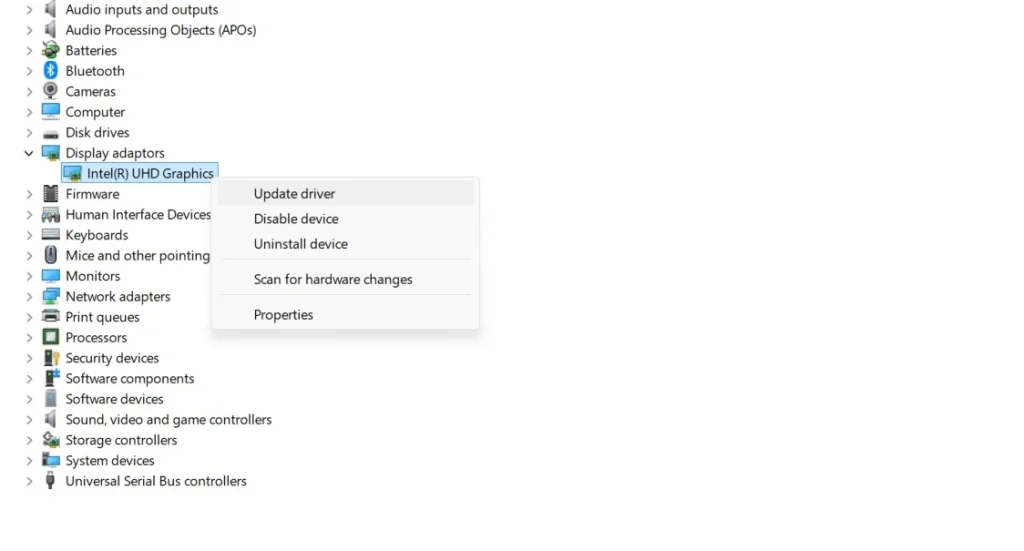
Step 2: Once the driver is installed, restart your computer and try running the app again to check if the issue is fixed.
2. Reinstall the Problem App
Sometimes the issue is not with the GPU but with the app itself. Files can get corrupted during installation or updates. Missing files can also cause crashes and display problems.
Reinstalling the app allows it to start clean. It removes damaged files and installs fresh ones in their place. This step is simple, yet many users ignore it.
In many cases, problems get fixed quickly with this method while resolving app-specific GPU problems. It works well, especially when the issue begins after an update.
Step 1: Uninstall the app completely using system settings or the control panel.
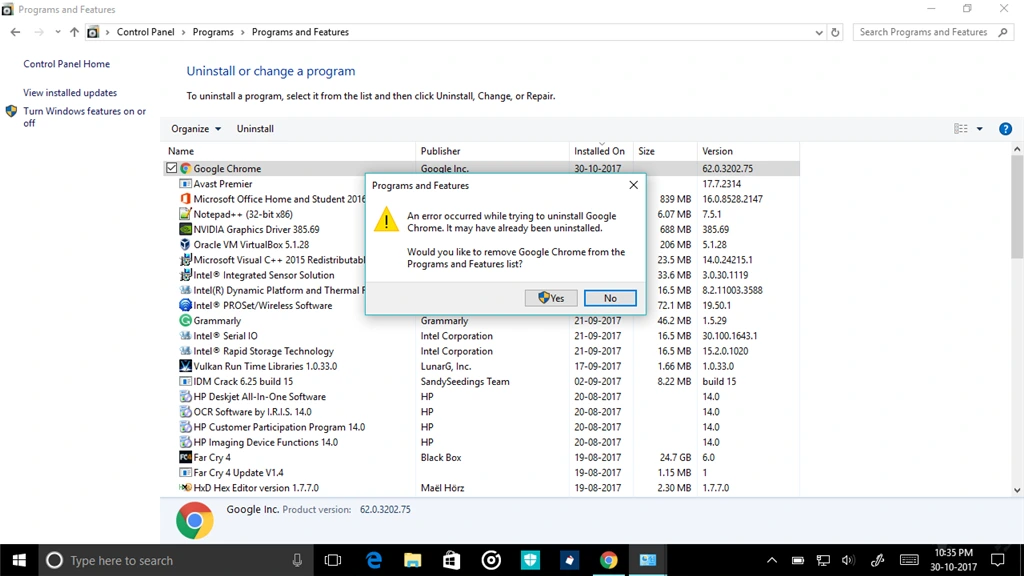
Step 2: Download the latest version from the official source and install it again before testing.
3. Adjust Graphics Settings
High graphics settings can overload your GPU, especially in heavy apps like games or editing tools. This can lead to lag, freezing, or crashes.
Lowering settings helps reduce the load. It allows the app to run more smoothly within your system limits. This is a safe way to test if performance is the issue.
Understanding how to fix app-specific GPU problems often requires finding the right balance between quality and performance.
Step 1: Open Windows Settings. Go to System> Display. Click Graphics. Select the app. Adjust the GPU preference. Reduce options like resolution, shadows, and texture quality.
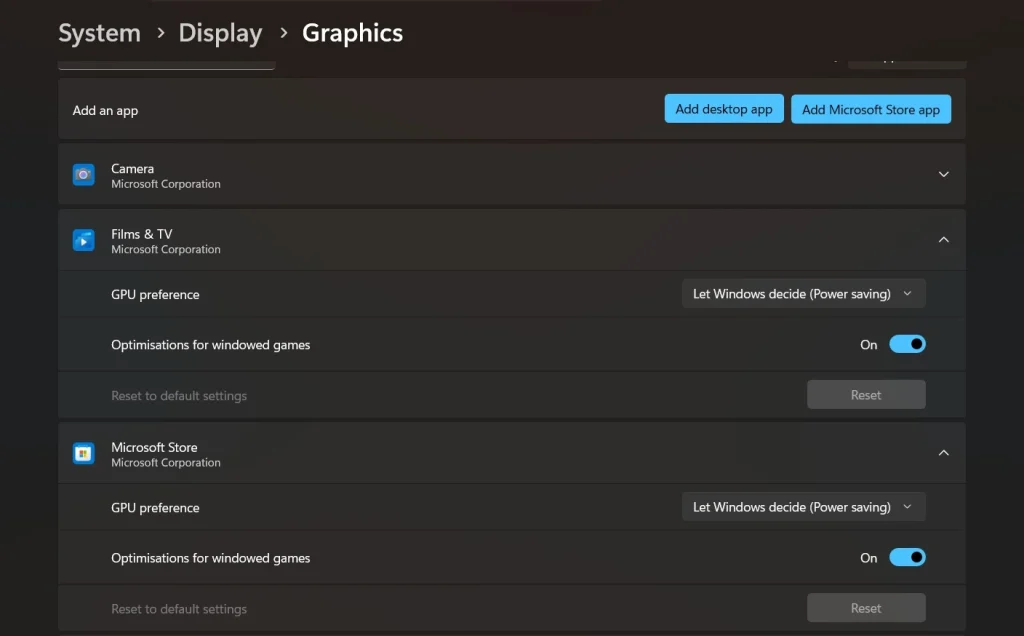
Step 2: Apply changes, restart the app, and check if performance improves.
4. Check GPU Usage
Monitoring GPU usage helps you understand how the app is using your hardware. It shows whether the GPU is overloaded or underused.
If usage is too high, the app may be too demanding. If it is too low, the app may not be using the GPU properly. Both cases can cause issues.
This method gives clear direction while resolving app-specific GPU problems. It helps you decide what to fix next.
Step 1: Open Task Manager and go to the performance tab to view GPU usage while the app is running.
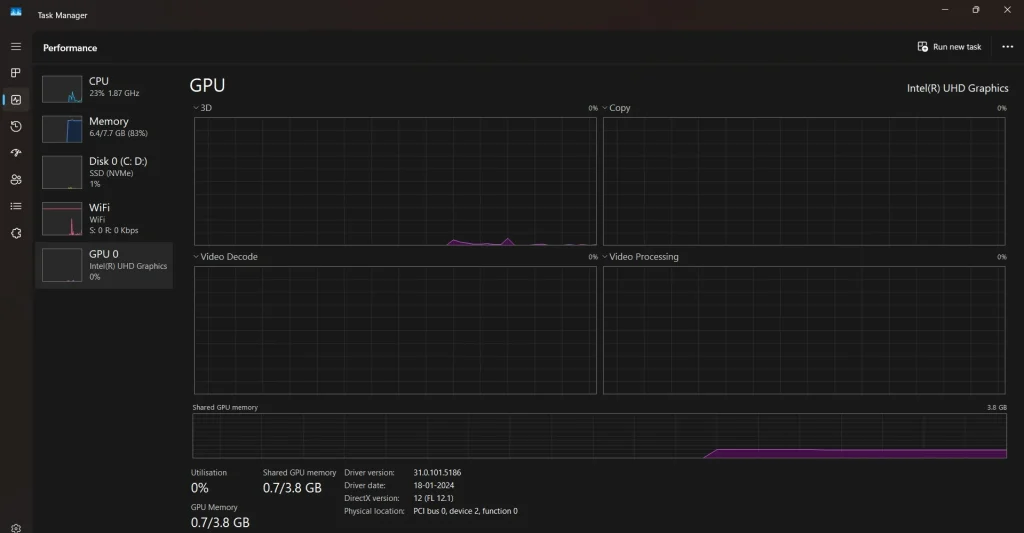
Step 2: Observe patterns and compare usage when the app works well and when it fails.
5. Disable Hardware Acceleration
Hardware acceleration allows apps to use the GPU for better performance. However, it can sometimes create compatibility issues.
Turning it off helps check if the feature is causing conflicts. Many apps run more stable without it in certain systems.
This is a useful test step during resolving app-specific GPU problems.
Step 1: Open the app settings and locate the hardware acceleration option.
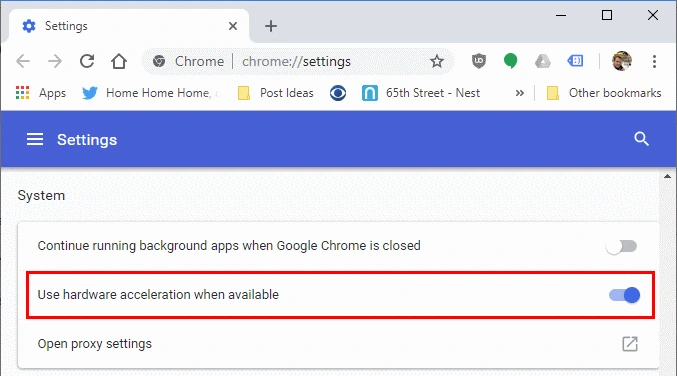
Step 2: Disable it, restart the app, and observe if the issue is resolved.
6. Update DirectX and Visual Components
Apps rely on system libraries like DirectX and Visual C++ to communicate with the GPU. If these are outdated, problems can occur.
Updating these components ensures better compatibility. It helps apps function properly with your GPU.
This step supports stability when you work on how to fix app-specific GPU problems.
Step 1: Download the latest DirectX version from the official source.
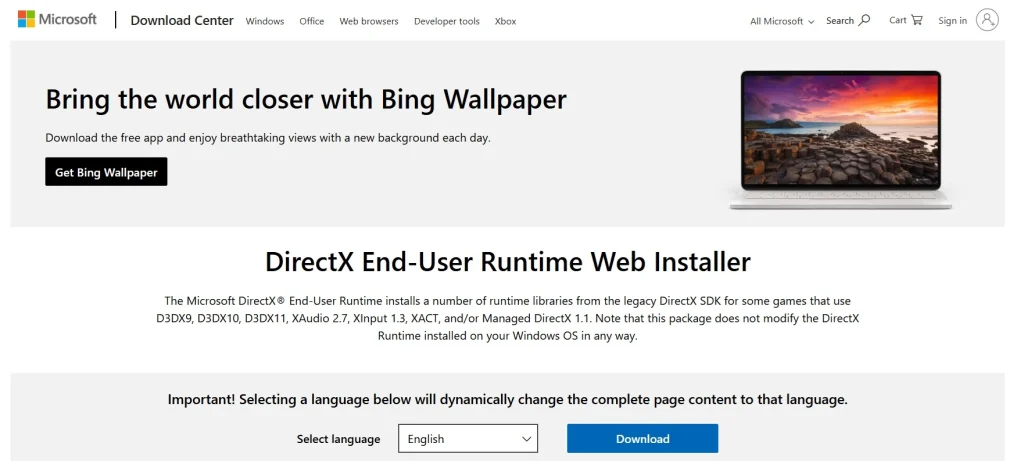
Step 2: Install updated Visual C++ packages and restart your system.
7. Check for App Updates
Developers release updates to fix bugs and improve performance. GPU-related issues are often fixed in newer versions.
Running an outdated app can lead to avoidable errors. Keeping it updated ensures better compatibility.
This is a basic but important step in resolving app-specific GPU problems.
Step 1: Open the app and go to its update or settings section.
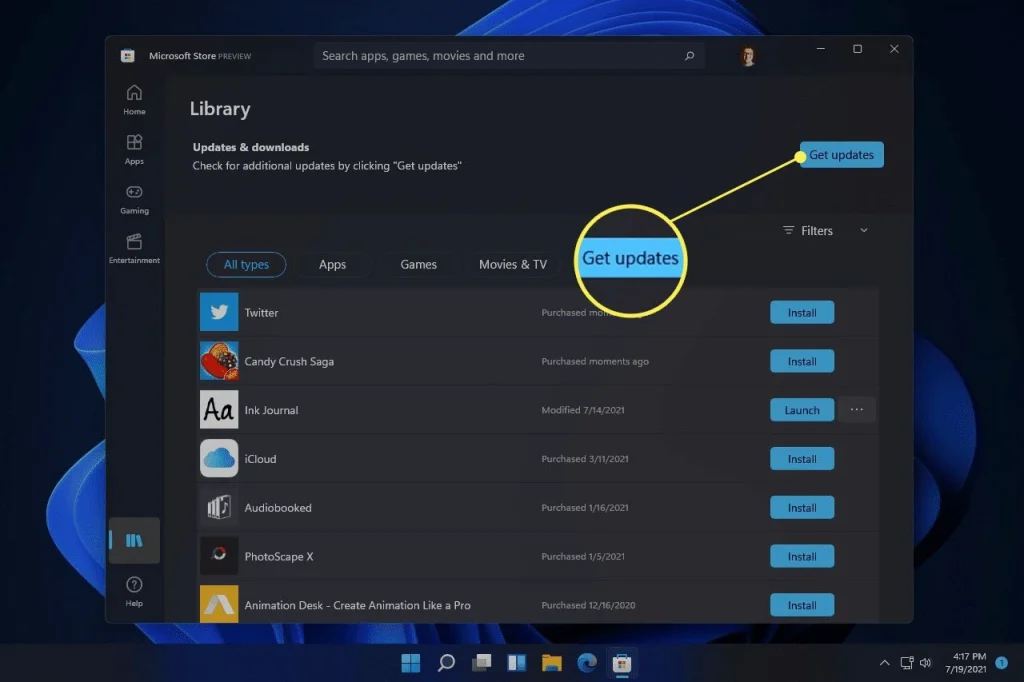
Step 2: Install any available updates and restart the app.
8. Reinstall Operating System (Last Option)
If all methods fail, the issue may be deep within the system. A fresh install removes all software conflicts.
This step should be used only when nothing else works. It takes time, but it can fully reset your system.
It is the final step in resolving app-specific GPU problems.
Step 1: Back up all important data before starting the process.
Step 2: Reinstall the operating system and install drivers and apps again carefully.
FLUQs
1. Why does only one app have GPU problems?
This usually happens because of app-specific bugs, settings, or compatibility issues. The rest of the system may continue to work normally because those apps use the GPU in a different way. Some apps depend on certain features, drivers, or configurations that others do not require. That is why resolving app-specific GPU problems focuses only on the affected app instead of changing the entire system.
2. Can outdated drivers affect one app only?
Yes, this is possible. Some apps rely on newer driver features or updates to function properly. If your drivers are outdated, those apps may show errors, crashes, or poor performance. At the same time, other apps may continue to run without any issue because they do not need the latest features. This is a common reason behind app-level GPU problems.
3. Is hardware damage a common cause?
No, hardware damage is not a common cause when only one app is affected. If the GPU hardware is damaged, you will usually see problems across multiple apps, games, or even during normal system use. When the issue is limited to a single app, it is more likely related to software, settings, or compatibility rather than physical damage.
4. Do all apps use the GPU the same way?
No, all apps do not use the GPU in the same way. Some apps, like games or video editing tools, use the GPU heavily for rendering and performance. Others may use it only for basic tasks or not at all. Because of this difference, one app may face GPU issues while others continue to run smoothly without any problem.
Author’s Tip
Always move step by step when fixing GPU issues. Do not rush into advanced solutions. Start with simple checks like restarting your system or updating drivers. These steps often solve the problem quickly.
Pay attention to patterns. Notice when the problem appears. Does it happen during heavy tasks or right after launching the app? These details help you find the exact cause.
Also, keep your system clean and updated. Regular maintenance reduces the chances of facing such issues again. Learning how to fix app-specific GPU problems becomes easier when your system is in good condition.
Conclusion
GPU problems can feel complex at first. But most issues are easy to fix when you take a calm and structured approach. Focus on the specific app instead of changing everything at once.
Use the methods shared in this guide. Start with basic steps and move slowly toward advanced solutions. This helps you avoid unnecessary changes and saves time.
With the right steps, resolving app-specific GPU problems becomes simple. You do not need advanced skills. You only need patience and a clear method to follow.
FAQs
1. Can I fix GPU issues without technical knowledge?
Yes, you can fix many GPU issues without having technical knowledge. Most basic steps are simple and easy to follow, such as updating drivers, restarting the system, or adjusting app settings. These actions do not require advanced skills. With a careful approach and clear instructions, even beginners can solve common GPU problems without difficulty.
2. How long does it take to fix these issues?
The time required depends on the cause of the problem. Simple fixes like restarting the system or updating drivers may take only a few minutes. However, more complex issues, such as reinstalling drivers or checking system conflicts, can take more time. In most cases, the problem can be resolved within a short period if you follow the steps properly.
3. Should I replace my GPU if one app fails?
No, replacing your GPU is usually not necessary if only one app is failing. Hardware problems typically affect multiple apps and overall system performance. When the issue is limited to a single app, it is more likely caused by software errors, settings, or compatibility issues. It is always better to try all software-related fixes before considering hardware replacement.
Author Bio:
Dinesh Lakhwani 

Dinesh Lakhwani, the entrepreneurial brain behind “TechCommuters,” achieved big things in the tech world. He started the company to make smart and user-friendly tech solutions. Thanks to his sharp thinking, focus on quality and the motto of never giving up, TechCommuters became a top player in the industry. His commitment to excellence has propelled the company to a leading position in the industry.
Popular Post
Recent Post

Fortect Software Review: The Ultimate PC & Mobile Cleaning, Optimization & Security Tool
Slow computers are a common problem for almost every Windows user. Well, yes! Over time, your PC picks up junk files. These files sit quietly in the background. They take up space and slow things down. Programs open slower. Windows takes longer to boot. Even simple tasks like opening a folder can feel sluggish. There […]

CCleaner PC Optimizer Review: A Complete Guide for Windows Users
If your computer has started to feel slow, you are not alone. Most Windows PCs slow down over time. Junk files pile up. The registry gets messy. Too many apps open when you start your PC. All this adds up and makes even a good machine feel tired. This is where a PC cleaner tool […]

Auslogics Duplicate File Finder: Full Review and User Guide
A computer quietly gathers clutter over time. This includes duplicate photos, repeated downloads, and forgotten backups hiding in random folders. This buildup slowly eats away at storage and can make even a fast PC feel sluggish. Manually finding and deleting duplicates is tedious. It means checking every folder, comparing file names, and guessing which copies […]

CCleaner Duplicate File Finder: Key Features, Pricing, Step-by-Step Guide and More
Every computer collects junk over time. Right? Well, yes! Photos often get copied twice. Documents get saved in two folders by mistake. Old downloads pile up and never get deleted. This slowly eats up your storage space, and most people do not even notice until their drive is almost full. That is where a duplicate […]

Duplicate File Finder Pro: A Complete Review, Everything You Should Know
Computers collect thousands of files over time. Well, yes! Many of them end up being duplicates created by backups, downloads, or accidental copies. These extra files take up valuable storage space and make it harder to keep everything organized. Finding and removing them manually can take hours. Right? Duplicate File Finder Pro is a tool […]

Top 3 Duplicate File Finder for Windows 11 & Windows 10
If your PC storage keeps filling up even after you delete big files, duplicate files could be the real reason. Most of us save the same photo twice, download a document more than once, or copy a whole folder by mistake. Over months and years, these duplicate files pile up quietly. You do not even […]

Monitor Screen Calibration Guide: Everything You Should Know
Your monitor shows colors every single day. But are those colors actually correct? Most people never stop to check this. They just use the screen as it comes out of the box. This habit can lead to wrong colors in photos, videos, and work files. Colors may look too warm or too cold without you […]

How To Check Installed RAM and RAM Slots [Complete Guide]
RAM plays an important role in how smoothly a computer runs. Short for Random Access Memory, it stores the data and instructions that Windows and active applications need at any given moment. From opening multiple browser tabs to running games and productivity software, RAM helps keep everything responsive. A system with limited memory may experience […]

What is Microsoft Autopilot Everything You Need To Know
Technology has changed the way companies manage computers. Well, yes! Employees now work from offices, homes, and remote locations. Setting up devices manually for every worker takes time and effort. It can also create mistakes that slow down productivity. This is where Microsoft Autopilot becomes useful. It helps businesses prepare and deploy Windows devices with […]

