












So, search for a pair of shoes once online. Close the tab. By evening, those same shoes are sitting on your news site, your video app, and even your recipe blog. Nobody placed them there by chance. A cookie did. Well, yes! Cookies are small files that websites place on your device while you browse. […]
5 Best Data Recovery Software For Windows 11 and Windows 10
Introduction:
A crashed drive can ruin a whole day. One minute your photos, work files, and tax records sit safe on your PC. The next minute they are gone. A power cut, a bad update, or one wrong click can wipe out years of memories and months of work in seconds. That sinking feeling is why so many people search for data recovery software the moment their files vanish.
Losing files does not always mean losing them for good. Windows does not erase data right away when you delete it. It just hides the file and marks that space as free. Until new data overwrites that space, a good program to retrieve lost files can often pull your data back from the brink. This is the whole idea behind file recovery software, and it is a simple concept once you see it in action.
This guide looks at the five best tools for Windows 11 and Windows 10 users in 2026. We tested each app to restore lost data on pc on real drives with real files, timed the scans, checked the recovery rates, and noted what worked and what did not.
Why Use Data Recovery Software?
Here are six common reasons to keep one on hand.
- Accidental deletion: A single wrong click in File Explorer can send important files to a place you never meant them to go, and a permanent delete with Shift and Delete skips the Recycle Bin entirely, leaving no easy undo option.
- Formatted drives: A quick format can wipe a drive letter clean in seconds, but the actual data often remains on the physical disk until it gets overwritten by something new, which gives a recovery scan a real chance to succeed.
- Virus or malware attacks: Some malware hides, encrypts, or deletes files as part of an attack, and recovery software can sometimes pull the originals back before the damage becomes permanent, especially if you act before running a full system wipe.
- Corrupted partitions: A partition can turn unreadable after a bad shutdown or a failed update, locking you out of files that are still sitting on the disk, waiting for a tool that can read past the damaged file table.
- System crashes: A blue screen or a failed boot can leave a drive in a strange state where Windows cannot see the files anymore, even though they still exist, which is where a bootable recovery option becomes useful.
- Failed transfers: A copy job that gets interrupted halfway through can leave files missing on both the source and the destination, and the right software to recover deleted data can often close that gap and rebuild what got lost mid-transfer.
Top 5 Data Recovery Tools Compared at a Glance to Undelete Files
Choosing the right tool gets easier once you see the main details side by side. Below, the table lines up the top five picks on price, ease of use, and what kind of user each one suits best.
| Tool | Free Version | Starting Price | Best For | Windows Support |
| Windows File Recovery | Yes, fully free | Free | Tech-comfortable users, command-line tasks | Windows 10 and 11 |
| GetData Recover My Files | Trial with preview only | 69.95 dollars | Users who want deep scan options | Windows 7 through 11 |
| Recuva | Yes, with limits | 19.95 dollars | Beginners, quick recycle bin recovery | Windows 7 through 11 |
| Disk Drill by Cleverfiles | Yes, up to 500 MB | 89 dollars | Users who want a clean, modern interface | Windows 7 through 11 |
| EaseUS Data Recovery Wizard | Yes, up to 2 GB | 69.95 dollars | Most home users and small offices | Windows 7 through 11 |
A quick look at this table already tells you something useful. Free tools like Windows File Recovery and Recuva suit small, simple recovery jobs, while paid options like Disk Drill and GetData Recover My Files make more sense for larger drives or business use.
Price alone should never decide which tool you pick, since a cheaper option that misses your files costs you more time in the long run than a slightly pricier one that works the first time.
How We Tested These Tools
We ran every test on a single Windows 11 machine to keep results consistent and easy to compare. Each tool on this list was downloaded and installed directly on the PC, following the same setup steps a regular user would follow at home. We did not rely on manufacturer claims or old review data. Instead, we loaded a spare 500 GB drive with a wide mix of files and folders of different types, including photos, videos, work documents, compressed folders, and small project files, so each program had a realistic amount of data to work with.
Once everything was in place, we tested each tool thoroughly across several data loss situations on the same Windows 11 setup. This meant deleting files through File Explorer, formatting sections of the drive, and simulating a corrupted partition using built-in Windows 11 disk tools.
Every program to retrieve lost files went through the same steps, on the same files and folders, so the results you see later in this guide reflect a fair, side-by-side comparison rather than a rushed first impression.
Before You Hit Install: Precautions to Take
A recovery tool works best when you treat the problem with a bit of care from the very first minute. Even the best software to recover deleted files cannot undo damage caused by careless steps taken before the scan even starts. These seven steps can raise your odds of a full recovery before you even open the software.
- Stop using the drive right away: Every new file you save can overwrite the space where your lost data still sits, so pause any downloads, saves, or installs on that drive, and close any apps that write to it automatically.
- Do not install the recovery tool on the affected drive: Installing new software onto the same drive you are trying to recover from can overwrite the very files you want back, so keep the installer on a different disk or a USB stick.
- Work from a USB drive or a second disk when possible: Save any recovered files to a different drive, never back onto the original one, until the recovery job is fully done and you have confirmed every file opens correctly.
- Check the drive for physical damage first: Odd clicking sounds or a drive that will not spin up, point to a hardware issue that software alone cannot fix, and running a scan on damaged hardware can make things worse.
- Note down what you lost: A short list of file names, folders, or approximate dates helps you search faster once the scan results come in, especially when a deep scan returns thousands of recovered items.
- Read reviews before you buy a license: A quick search can save you from a tool that looks good on paper but performs poorly in real tests, so check recent reviews rather than old ones from several years back.
- Back up what is left: Copy any files you can still access to a safe location before you start any deep scan, in case the process causes further strain on a failing drive, since a scan does put extra read cycles on the hardware.
Top 5 Data Recovery Software for Windows 11/10 To Restore Deleted Files
This part is the core of this guide which will help you retrieve or undelete files. We go tool by tool through the top five picks, covering the key features, the steps to use each one, our honest take on pricing, and what it felt like to use each program on a real PC.
1. Windows File Recovery
Windows File Recovery is a free tool built by Microsoft itself. It runs from the command line, which sounds intimidating at first, but the process is more straightforward than it looks once you get past the first few commands. As far as file recovery software goes, this one has the advantage of coming from the same company that built the operating system, which means it understands NTFS and ReFS at a very deep level.
Key Features
- Built directly into Windows, so there is no separate download needed beyond the Microsoft Store app, and the app itself takes up only a small amount of storage space
- Supports FAT, exFAT, NTFS, and ReFS file systems, which covers nearly every drive format a typical Windows user will ever encounter
- Offers three recovery modes: Default, Segment, and Signature, for different types of data loss, each suited to a slightly different scenario
- Works on internal drives, external drives, and USB sticks, making it flexible enough for both desktop and portable storage recovery jobs
Steps to Use It
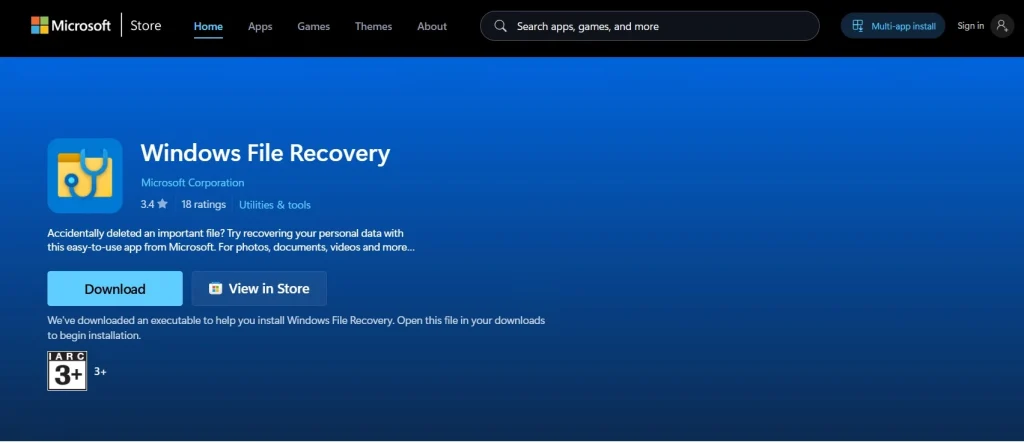
Step 1: Open the Microsoft Store, search for Windows File Recovery, and install the free app.
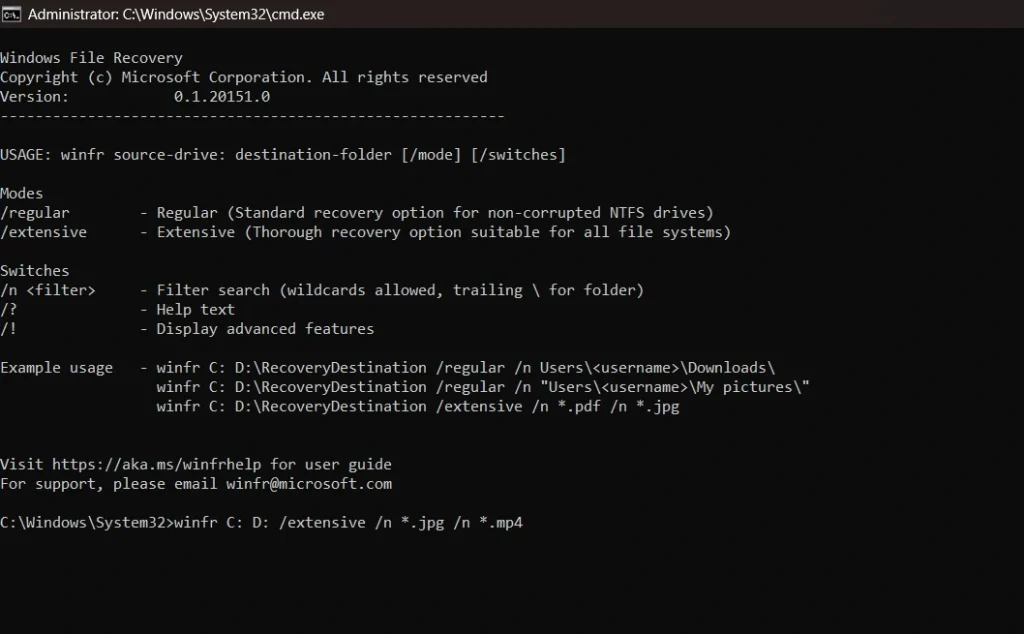
Step 2: Open a command prompt as an administrator and type the recovery command with your source and destination drive letters.
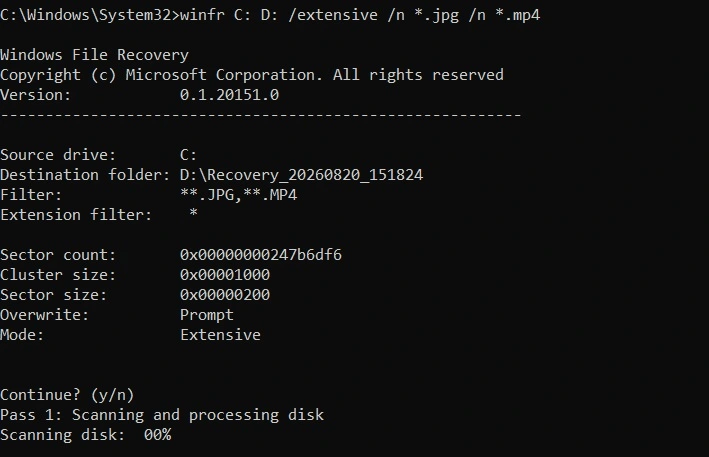
Step 3: Wait for the scan to finish, then check the destination folder for your recovered files.
Why This Tool Is on Our List
It made the list because it comes straight from Microsoft and costs nothing. For anyone who does not mind typing a few commands, this is one of the most trustworthy options around, since it works at a very deep level with Windows file systems.
Pricing Plans Explained
- Fully free with no trial limits
- No premium tier or paid upgrade
- No subscription or license fee of any kind
Firsthand Experience
Typing commands felt clunky at first, and the lack of a preview screen made it hard to know what we were about to recover. Once we got the syntax right, though, the scan worked well and pulled back a solid share of our test files without any cost at all.
We did have to look up the exact command syntax more than once, which is the one real hurdle for anyone new to using a terminal window. Still, for a completely free tool built right into Windows, it earned its place through sheer reliability rather than flashy design.
2. Recuva
Recuva comes from Piriform, the same team behind CCleaner. It aims squarely at beginners who need a fast, no-fuss way to bring back a few missing files without a steep learning curve. Among the free tools on this list, it remains one of the most downloaded pieces of file recovery software for a good reason.
Key Features
- A wizard mode that walks new users through each step, so no prior experience with recovery tools is needed
- A deep scan option for tougher recovery jobs, tucked away for when the quick scan does not find what you need
- Secure overwrite feature to permanently erase sensitive files once you no longer need them recoverable
- Support for recovering files from the Recycle Bin, memory cards, and USB drives, covering most everyday storage devices
Steps to Use It
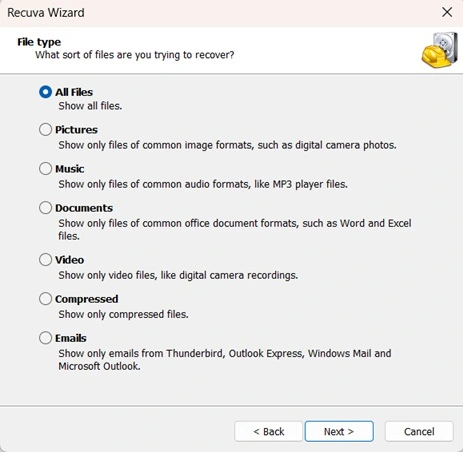
Step 1: Install Recuva and launch the wizard, then pick the file type you are looking for.
Step 2: Select the location where the files went missing, such as a specific folder or drive.
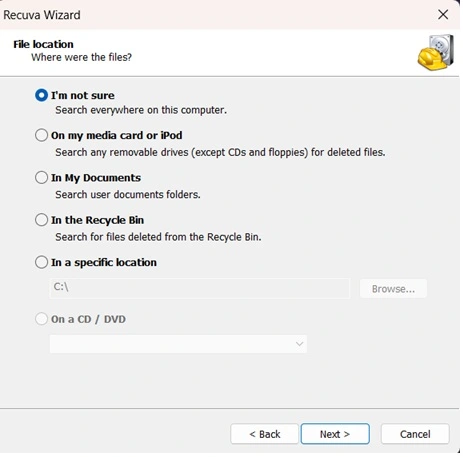
Step 3: Click Start. Run the scan.
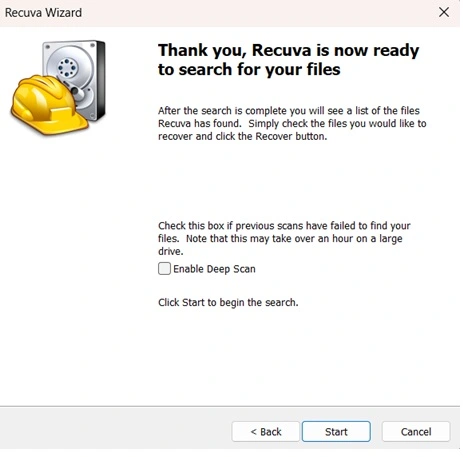
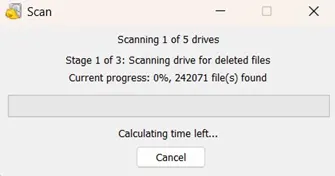
Step 4: Wait for the scanning process.
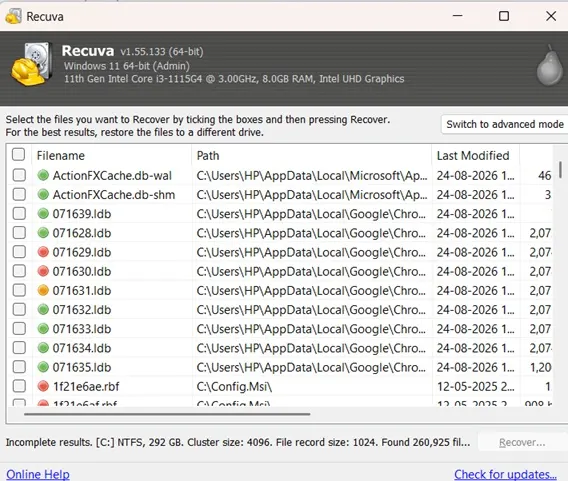
Step 5: Check the boxes next to the files you want, and recover them to a new location.
Why This Tool Is on Our List
Recuva made the list because it keeps things simple without losing power. Beginners can rely on the wizard, while more advanced users can skip straight to the deep scan and manual filters.
Pricing Plans Explained
- Free version covers most basic recovery needs
- Professional version adds automatic updates and virtual hard drive support
- One-time purchase, not a recurring subscription
| Plan | Price | File Size Limit | Support |
| Free | 0 dollars | No limit | Forum support |
| Professional | 19.95 dollars | No limit | Email support |
Firsthand Experience
This felt like the easiest software to recover deleted data on our entire list. The wizard mode meant we barely had to think about settings, and the scan speed on simple recycle bin cases was hard to beat.
Where it fell a little short was on our tougher formatted drive test. For everyday accidental deletions, though, it remains hard to beat, and the price makes it an easy first tool to try.
3. Disk Drill by Cleverfiles
Disk Drill stands out for its clean design and its extra utilities beyond plain recovery, such as disk health checks and free space cleanup. It suits users who want reliable software to recover deleted data along with a few bonus tools built into the same package.
Key Features
- Modern, easy-to-read interface with clear scan progress, which made it the least confusing tool for a first-time user in our group
- Extra tools for disk health monitoring and duplicate file cleanup, features that go well beyond basic recovery
- Recovery vault feature that protects files against future accidental deletion by quietly backing up file records in advance
- Support for over 400 file formats, covering everything from common photo types to niche project files
Steps to Use It
Step 1: Download Disk Drill, install it, and select the drive that lost its files.
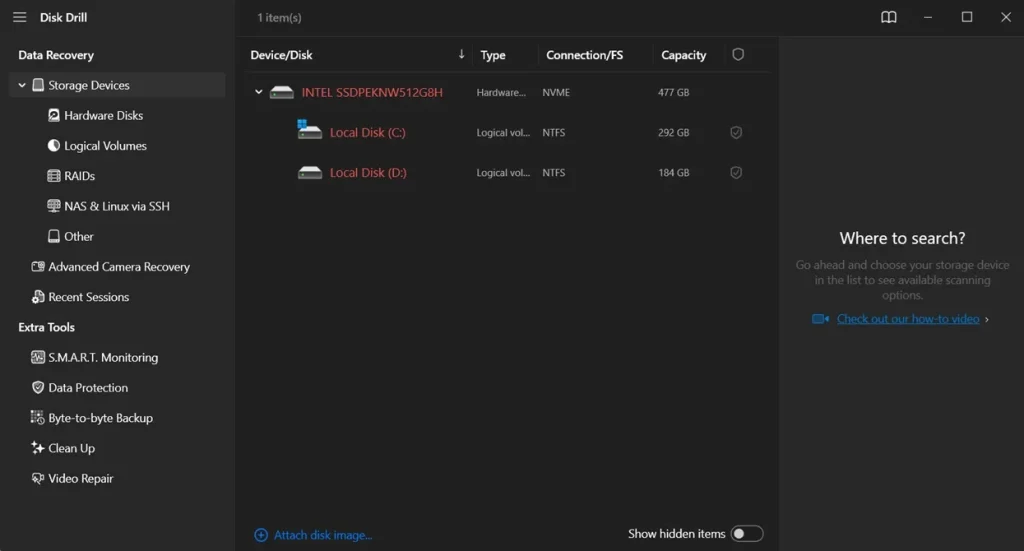
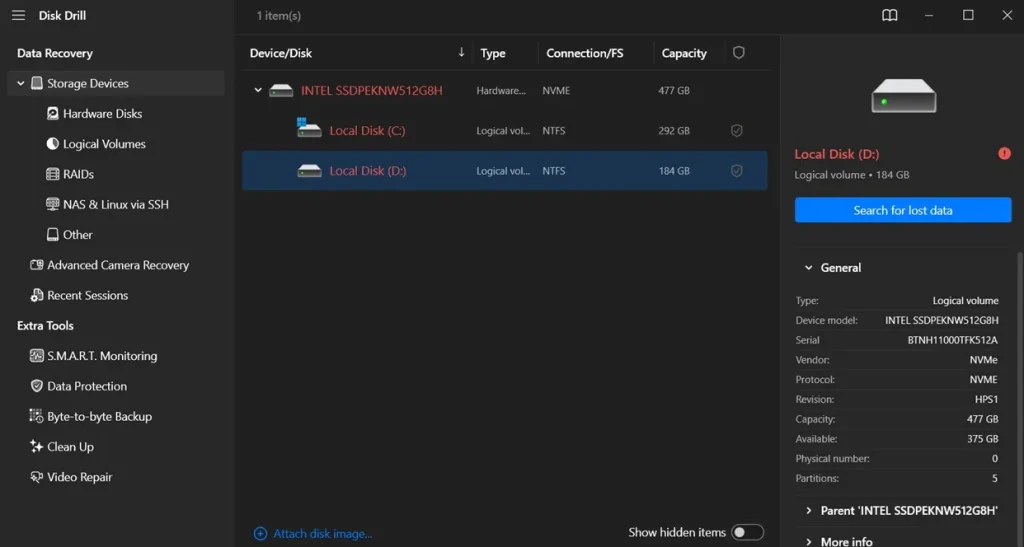
Step 2: Click Search for lost data and let the app scan the full drive.
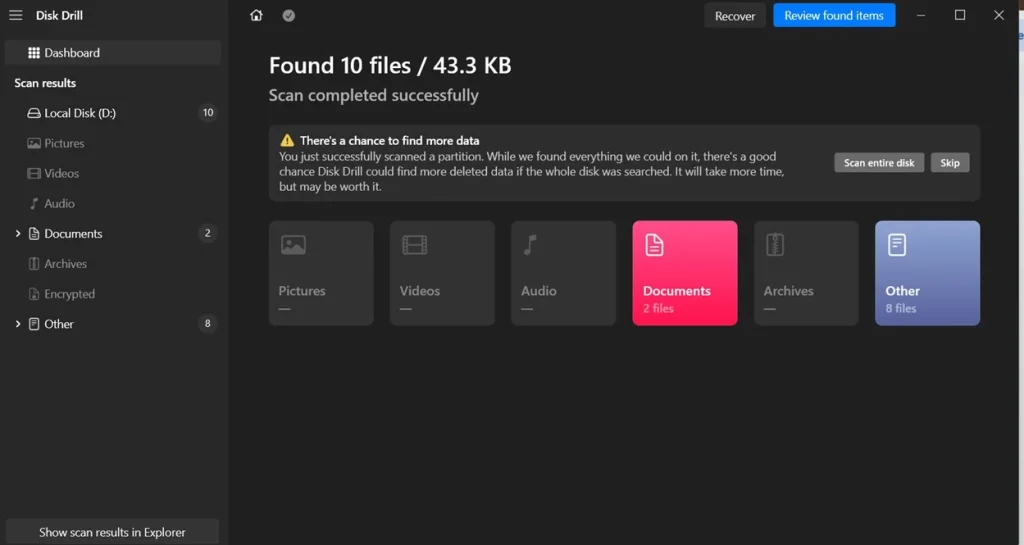
Step 3: Filter the results by file type, preview them, and recover the ones you need.
Why This Tool Is on Our List
Disk Drill earned its place through sheer polish. Few programs on this list feel as pleasant to use, and the added disk tools make it feel like more than a one-trick app.
Pricing Plans Explained
- Free version recovers up to 500 MB of data
- Pro version unlocks unlimited recovery for one PC
- Enterprise version covers multiple machines under one license
| Plan | Price | File Size Limit | Support |
| Free | 0 dollars | 500 MB | Email support |
| Pro | 89 dollars | No limit | Priority email support |
| Enterprise | 499 dollars | No limit | Priority email and phone support |
Firsthand Experience
Everything about this program felt smooth, from the install to the final export screen. The recovery vault feature is a nice touch too, since it works quietly in the background to prevent future data loss before it even happens. As a well-rounded app to restore lost data on pc, it earns points for thinking beyond just the recovery step itself.
4. EaseUS Data Recovery Wizard
EaseUS Data Recovery Wizard is one of the most well-known names among all the software to recover deleted files that we came across during our research, and our test results showed why.
Key Features
- Deep scan and quick scan modes that cover both simple and complex data loss
- Preview support for photos, videos, documents, and audio files
- Recovery support for crashed systems through a bootable USB option
- Filters for file type, date, and size to speed up large scans
Steps to Use It
Step 1: Install EaseUS Data Recovery Wizard and choose the drive or folder to scan.
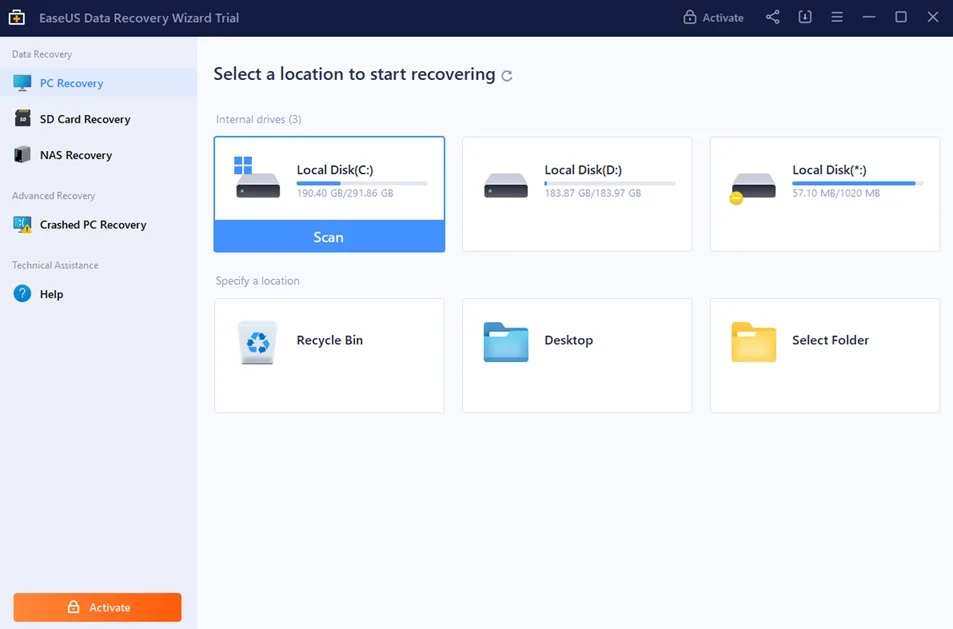
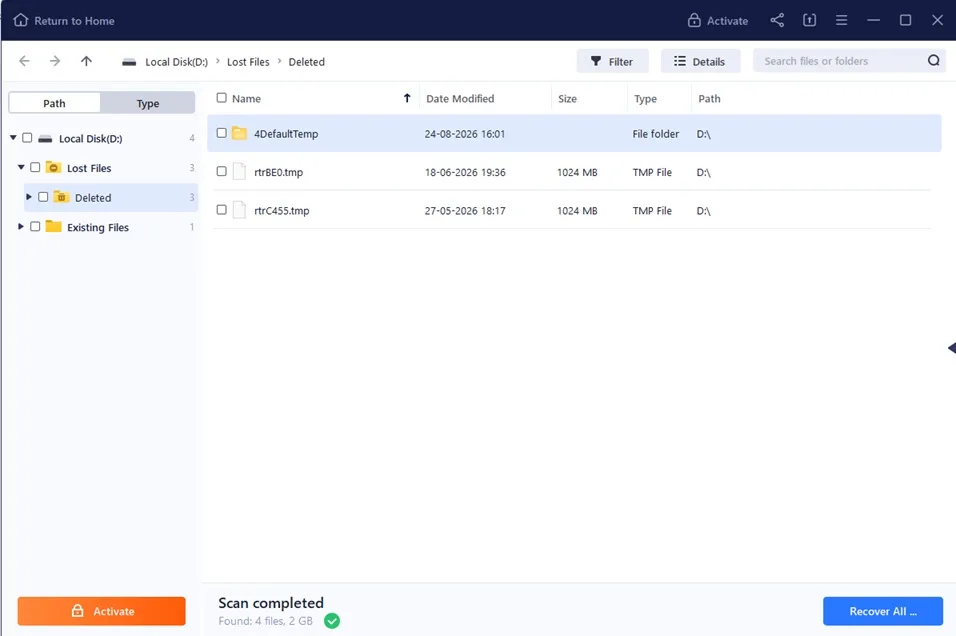
Step 2: Let the quick scan run first, then move to a deep scan if the files you need do not show up.
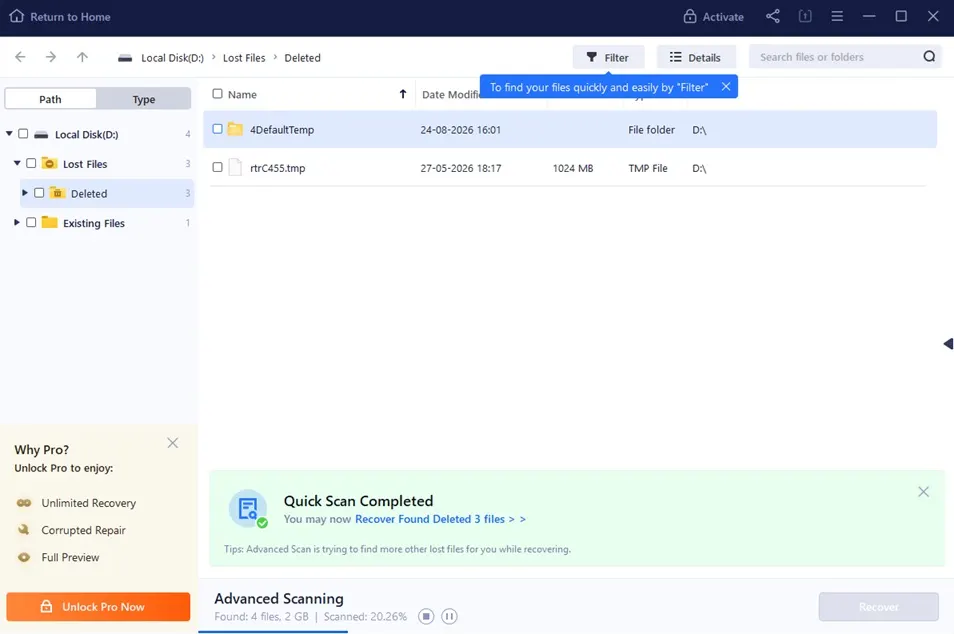
Step 3: Preview the found files, select what you need, and save them to a different drive.
Why This Tool Is on Our List
This tool rounded out the top five because it performed consistently well across every single test case.
Pricing Plans Explained
- Free version covers up to 2 GB of recovered data
- Pro version offers unlimited recovery with a monthly or yearly plan
- Lifetime plan gives a one-time payment for permanent access
| Plan | Price | File Size Limit | Support |
| Free | 0 dollars | 2 GB | Email support |
| Pro Monthly | 69.95 dollars | No limit | Priority email support |
| Pro Lifetime | 149.95 dollars | No limit | Priority email support |
Firsthand Experience
I tried EaseUS Data Recovery Wizard on my own PC after accidentally deleting a folder with some work files, and honestly it felt like a lifesaver. The interface was simple. I just picked the drive, hit scan, and within minutes it showed me a long list of deleted items, even ones I’d lost weeks ago. I liked that it let me preview files before recovering, so I didn’t waste time restoring junk.
The recovery itself was smooth, though the deep scan took a while. Overall, it really did feel like I was pulling my files back from the dead, and I’d trust it again if I mess up and delete something important.
5. GetData Recover My Files
Recover My Files comes from GetData, a company that has built recovery tools for many years. It leans toward users who want a lot of scan options and do not mind a slightly dated interface in exchange for strong results.
Key Features
- Deep scan mode that rebuilds file structures even after a format, which helped it stand out during our toughest test case
- Filters that sort found files by type, size, and date, useful when a scan turns up thousands of results at once
- Support for RAID arrays and dynamic disks, a feature most beginner tools skip entirely
- A preview pane for many common file types before you recover them, so you are not guessing which file is the right one
Steps to Use It
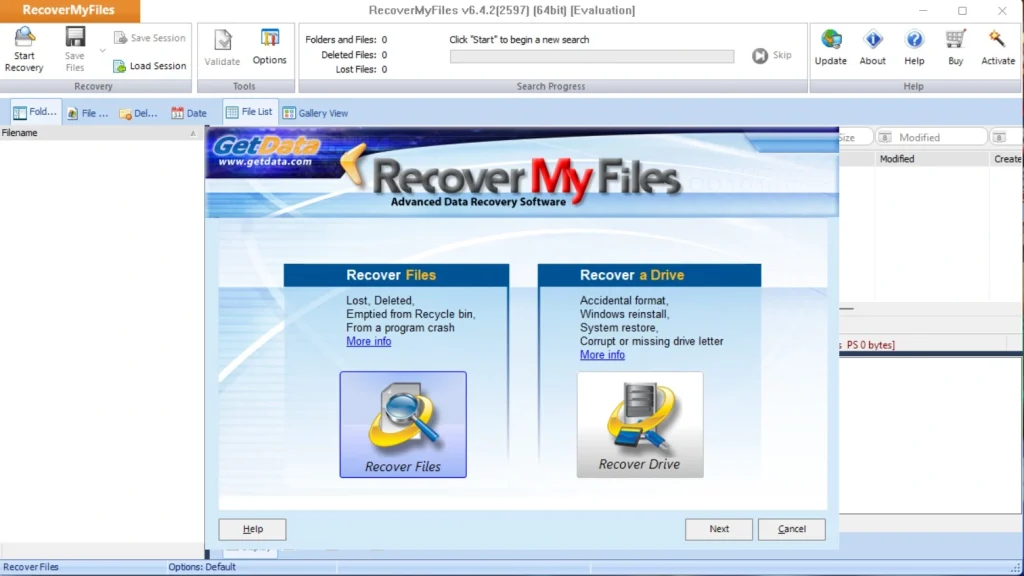
Step 1: Download and install Recover My Files, then launch the app and pick whether you want to recover a file or an entire drive.
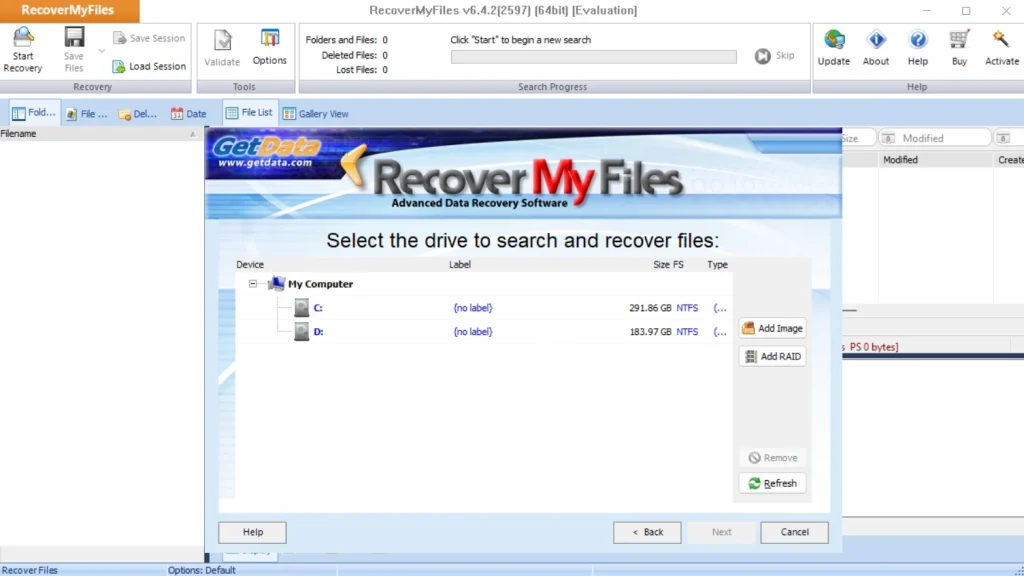
Step 2: Select the drive for scanning. Click Next.
Step 3: Select the preferred file recovery option and how you want to search for deleted files. Click the “Start” button.
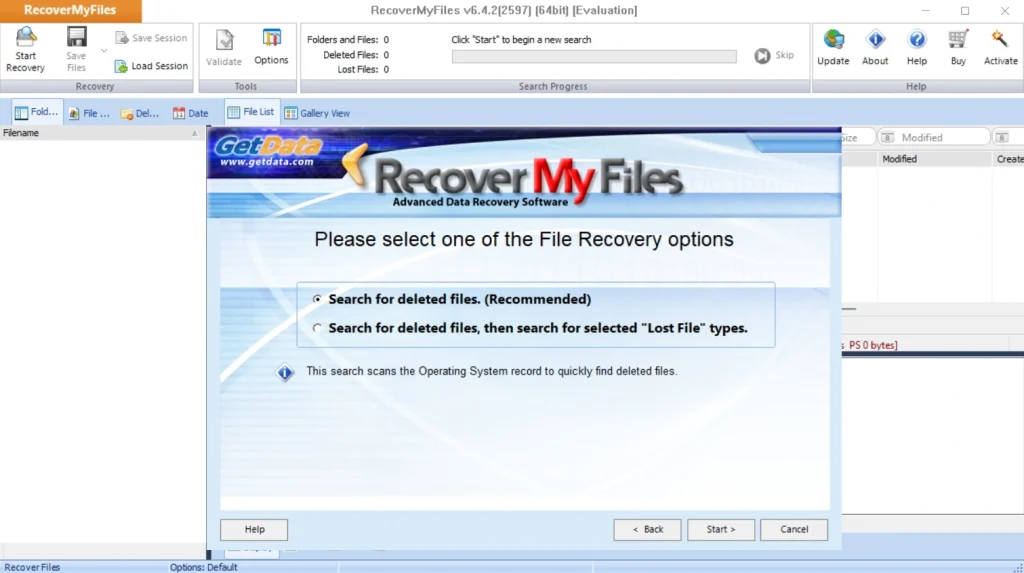
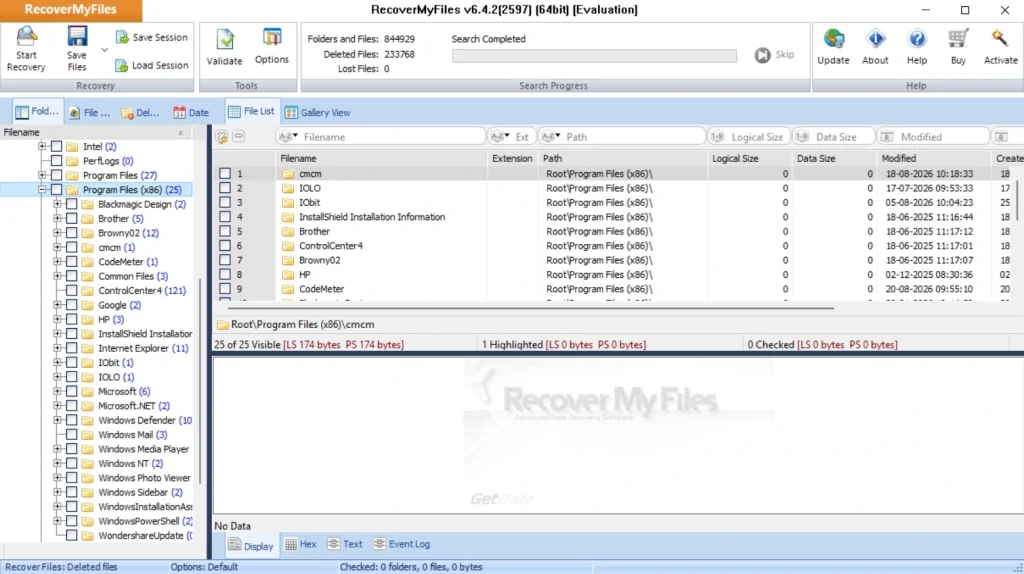
Step 4: Preview the results, select the files you need, and save them to a separate drive.
Why This Tool Is on Our List
This program earned its spot because of how well it handles tricky cases like RAID setups and severely formatted drives. It is one of the few tools here built with power users and small IT teams in mind.
Pricing Plans Explained
- Free trial lets you scan and preview but not save files
- Standard license unlocks full recovery for a single PC
- Professional license adds support for servers and RAID recovery
| Plan | Price | File Size Limit | Support |
| Trial | 0 dollars | Preview only | Email support |
| Standard | 69.95 dollars | No limit | Email support |
| Professional | 129.95 dollars | No limit | Priority email support |
Firsthand Experience
The interface looked a bit old-fashioned next to newer apps, but the results spoke for themselves on our toughest test case, the formatted drive. It is not the prettiest program to retrieve lost files on this list, but it earned real trust from us during testing.
Pro Tips to Use a Data Recovery Software
A few small habits can make a real difference in how much you get back after a data loss event. Keep these eight tips in mind the next time you need to recover something important.
- Act fast: The sooner you start a scan after noticing lost files, the better your odds of a clean recovery.
- Always save to a separate drive: Never recover files back onto the same drive you scanned.
- Try a quick scan before a deep scan: A quick scan often finds recently deleted files fast.
- Keep your recovery software updated: Updates often improve scan accuracy and add support for newer file systems.
- Do not skip the preview step: Checking a file before recovery confirms it is not corrupted.
- Test the free version first: Most tools let you scan and preview for free.
- Set up regular backups going forward: A reliable backup routine reduces how often you will ever need to search for a recovery tool again.
- Keep a spare external drive on hand: Having a spare drive ready means you can begin recovery the moment something goes wrong.
Conclusion
Losing files never feels good, but the right tool can turn a stressful afternoon into a manageable fix. Each of the five programs covered here brings something different to the table, from the free and simple approach of Windows File Recovery to the well-rounded power of EaseUS Data Recovery Wizard.
Our testing showed that no single tool wins every category. Recuva led on speed for simple recycle bin cases, while GetData Recover My Files handled the toughest formatted drive scenario better than most. Disk Drill added extra polish, and EaseUS balanced strong recovery rates with a friendly interface across the board.
Whichever option you choose, remember that speed and caution both matter. A calm, careful approach paired with the right app to restore lost data on pc gives your files the best chance of coming home safely.
FAQs:
Can deleted files really be recovered after they are gone from the Recycle Bin?
Yes, in most cases. Windows does not erase the actual data right away; it only removes the pointer to that data. As long as nothing new gets saved over that space, a good program to retrieve lost files can often bring the file back.
Is it safe to use free data recovery tools?
Free versions from well-known names are generally safe, though most place a limit on how much data you can recover before you need a paid license. Always download from the official website to avoid bundled malware.
What should I do if my hard drive makes strange noises before I try to recover files?
Stop using it immediately and do not attempt a software-based recovery. Unusual clicking or grinding sounds usually point to a physical hardware failure. In that case, a professional data recovery service is the safer route.
Author Bio:
Dinesh Lakhwani 

Dinesh Lakhwani, the entrepreneurial brain behind “TechCommuters,” achieved big things in the tech world. He started the company to make smart and user-friendly tech solutions. Thanks to his sharp thinking, focus on quality and the motto of never giving up, TechCommuters became a top player in the industry. His commitment to excellence has propelled the company to a leading position in the industry.
Popular Post
Recent Post

How To Disable Background Apps In Windows: 4 Quick Methods
A slow PC rarely gives a warning. One day, it simply takes longer to start. Apps open late. The fan runs loud, even when the screen is almost empty. Most people blame old hardware. Often, that is not the real reason. The real reason is hiding in plain sight. Windows keeps many apps active in […]

How to Activate Windows with a Product Key for Windows 11 & Windows 10
It always shows up at the worst time. You are halfway through a report, or about to join a video call. Then you spot it in the bottom right corner of the screen. Activate Windows. Go to Settings to activate Windows. Initially, an unactivated copy of Windows may seem like a minor inconvenience. Over time, […]

Is Easy Duplicate Finder Worth It? Honest Review
The photos folder looked normal at first glance. Then the storage warning popped up. One trip photo appeared four times. A tax PDF sat in three different folders. Two old setup files were still in Downloads, and each one was over 500 MB. Nobody plans this mess. Copies pile up slowly. A download runs twice. […]

Wise Duplicate Finder Review: Real Results from Wise Duplicate Finder
Read my honest Wise Duplicate Finder review. See features, pricing, pros and cons, and real PC test results. Find out if this free duplicate cleaner can free up your Windows storage.

How to Recover Deleted Files from Pen drive, USB Drive, SD Card
Introduction: On tech forums, you’ll often see posts like this: “I connected my pen drive to my laptop this morning, but the folder was empty. All my college project files had vanished. I don’t have a backup. Can someone help me?” Stories like this are very common. Pen drives, USB drives and SD cards are […]

How To Recover Files Deleted from the Recycle Bin [Windows 11]
Losing a file can happen in seconds. You clear your desktop, hit Delete, and empty the Recycle Bin. Then, just when you need that file again, it seems to have vanished. This guide will walk you through ways to restore files removed from the Recycle Bin. We will begin with simple fixes, then look at […]

Disk Drill Data Recovery Tool Explained: Full Review and Guide
It happens in a split second. You delete a folder by mistake. Your drive stops showing up. A photo album from your last trip just vanishes. And your stomach drops. Lost files feel personal. They are not just data. They are memories, work hours, and sometimes years of effort packed into a few gigabytes. When […]

Recover Deleted Files In Windows 11 With Software & Without
Introduction What is the first thing that goes through your mind the second an important file vanishes from a Windows 11 PC? For most people, it is a mix of panic and disbelief, followed by a frantic click through every folder that file could possibly be hiding in. It happens in a split second: one […]

EaseUS Data Recovery Wizard: Everything To Know
Data loss does not always come from a big disaster either. Most cases start small and boring. A drive gets formatted by mistake. A laptop freezes mid-save and restarts on its own. A memory card stops showing up after being pulled out too fast. None of these feel like emergencies at first, until you realize […]

