












Introduction: On tech forums, you’ll often see posts like this: “I connected my pen drive to my laptop this morning, but the folder was empty. All my college project files had vanished. I don’t have a backup. Can someone help me?” Stories like this are very common. Pen drives, USB drives and SD cards are […]
How to Fix No Startup Disk on Mac? [8 Methods]
In computers, the startup disks are one of the most important parts of the device. Also known as the internal hard drive, the startup disks hold most of the OS data and system files. However, in some cases, the issue of no startup disk on a Mac can come up, which may affect the steady performance of the Mac device.
You should use different methods to fix the Mac OS startup disk not showing problem before losing any data or files. That is what we discuss in this post. Read to know more.
Ways to Fix the No Startup Disk Error on Mac/Macbook
The problem of no startup disk on Mac can appear in the Desktop/Finder or during the booting period. It is difficult to access the stored data without fixing the issue, or it can stop the device from switching on. We went through the various methods that can rectify this issue and presented the right methodologies here.
Fix 1: Reset the NVRAM
One of the common signs of an issue of no startup disk on Mac is the appearance of the question mark for some seconds. You can reset the NVRAM in Mac devices to fix the problem when you see this part. That would rectify the issue.
How to do this?
Step 1: Shut your Mac device down.
Step 2: Click the power button and then hold your finger down on Command-Options-P-R on the keyboard.
Step 3: The Mac device would start playing the sound for the startup. You should stop pressing down on the keys before the second sound replay when it does so.
For models with a T2 Security chip, wait for the Apple logo to appear twice. After the second time that it disappears, release your hold on the keys.

Step 4: Choose the right startup disk after the system boots up.
Fix 2: Use the Disk Utility to boot Mac in the Recovery mode
It is possible to use the Disk Utility to repair the startup disk. If the question mark for the startup disk keeps appearing continuously, it should boot up the device in the pre-set Recovery Mode.
With no startup disk on Mac, likely, you cannot access the Disk Utility tab through the Applications folder at all. Here, you can use the Recovery Mode function of MacOS to access the Disk Utility option.
How to do this?
Step 1: Shut your system down.
Step 2: Click on the Power button while also holding down the Command-R keys.
Step 3: The Apple logo, a spinning globe, or a secondary startup screen can appear. Release the keys and type your pre-set admin password in the text field when they do.
Step 4: Open the Utilities tab and select Disk Utility. Then, press your cursor on the “View” option.
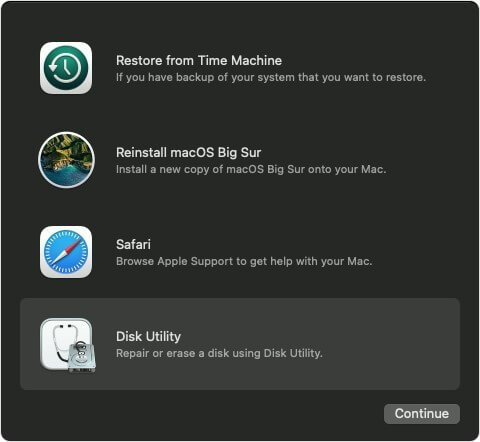
Step 5: Select the option- Show all Devices.
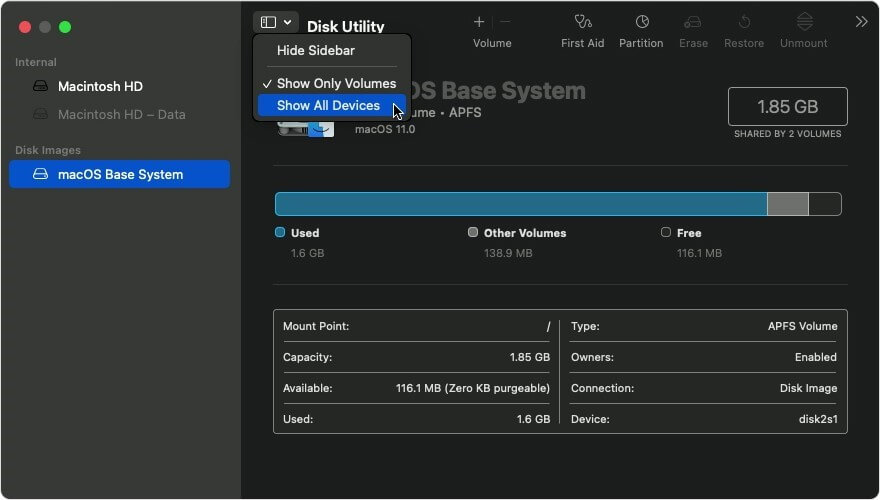
Step 6: When you see Macintosh HD, click your cursor on top of the arrow beside. Choose the volume and then opt for the First Aid option from the toolbar.
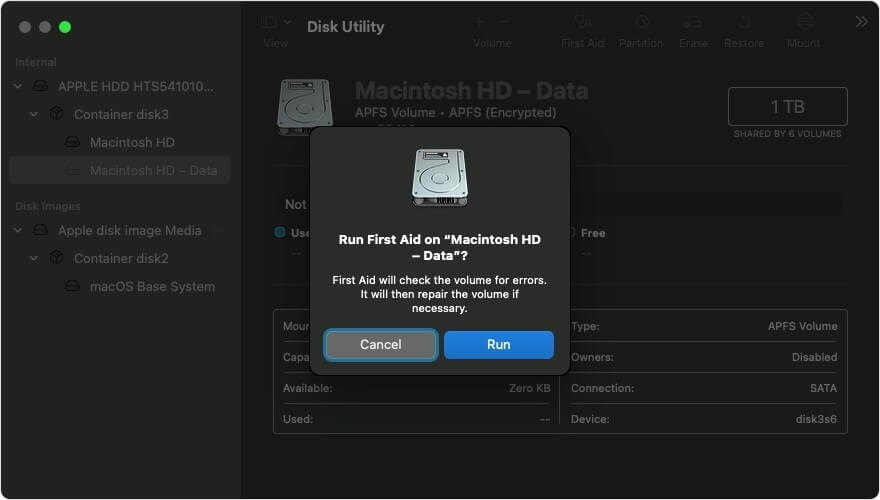
Step 7: Select Run.
Do these steps for the following volume as well. If this process is successful and the disk repairs, you should restart the Mac device. Then, the Mac OS startup disk missing prompt or the question mark would not appear.
However, if it does not work, you have to reinstall the macOS on your device.
Fix 3: Adjust The Internal Hard Drive with Another Startup Disk
One of the reasons for the Mac OS startup disk missing issue is that the existing startup disk is damaged or does not work. Therefore, the MacOS software cannot recognize it. If you do not have external storage material at the time, like another disk, one network volume, or a CD/DVD, you change the startup disk.
How to do this?
Step 1: Switch your Mac device off.
Step 2: Then, press down and keep your hold on the Mac power button to start the device up.
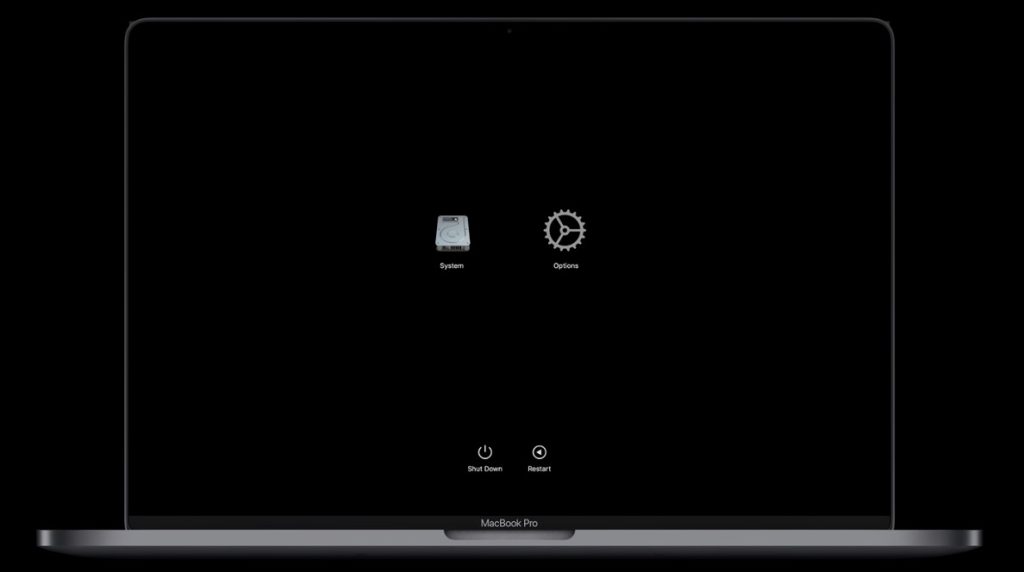
For users operating with Apple silicon, it is better to press down on the power button until they see the “Loading Startup Options” dialog box.
Step 3: Click on the Up arrow on your device. Or press the Continue button (Apple silicon devices).
Step 4: Choose the new startup disk to add from the next list.
Fix 4: Change settings on the Mac device to fix the issue on Desktop/Finder.
Sometimes, the no startup disk on Mac prompt comes up where the users cannot see the startup disk on the Finder/Desktop. In this situation, there is no error in the system performance of the Mac device. The startup up is not set for showing the hard drive content on desktop or Finder. Users must change the settings to rectify this problem.
How to do this?
Step 1: Open the “Finder” section. Click on the Apple icon for the menu bar on the top left part of the screen. Choose the Finder option.
Step 2: Then, click on the Preferences option and then choose General from the next list that appears.
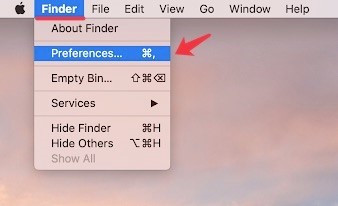
Step 3: Press the checkmark beside the “Hard Disks” choice under the General tag.
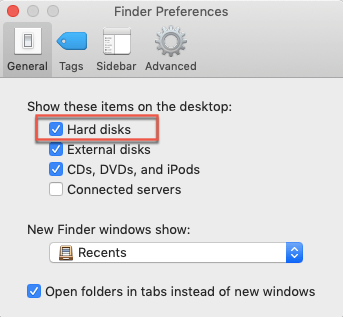
Step 4: Then, open Finder Preferences > Sidebar > Hard Disks (check the choices).
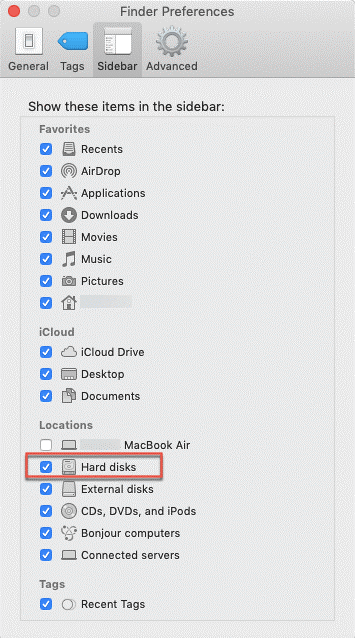
Step 5: If there “Hard Disks” selection is already ticked, but still the internal hard drive is not opening, you should open the “Finder” option.
Step 6: On the left-hand sidebar, you will see Locations. Put the mouse on top of it. It might show the “Hide” or “Show” terms.
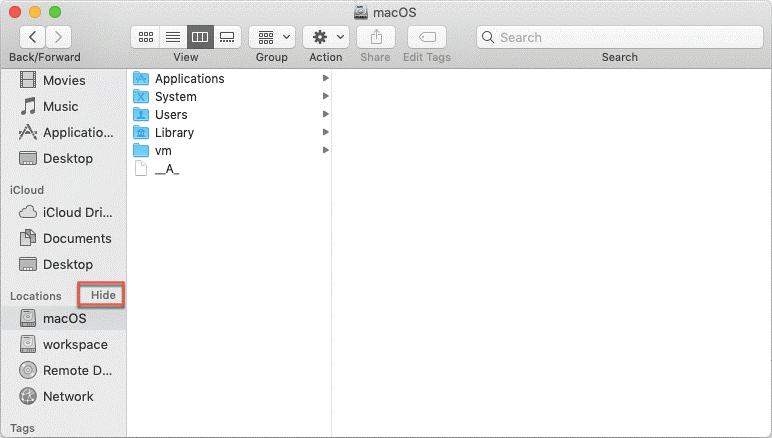
Click on it and adjust the state. You would know if the Finder is hiding the startup disk/internal hard drive or not.
Fix 5: Check for Software Updates to fix Startup Disk Not Showing on Mac
Regularly checking for software updates ensures your Mac’s operating system and installed apps are equipped with the latest enhancements, security patches, and bug fixes. This practice helps maintain system stability and resolves potential conflicts caused by outdated software versions.
How to do this?
Here are the steps to check for software updates to fix the No startup disk Mac issue:
Step 1: Click on the Apple menu in the top left corner of the screen.
Step 2: Select “System Preferences” from the menu.
Step 3: Click on the “Software Update” icon in System Preferences.
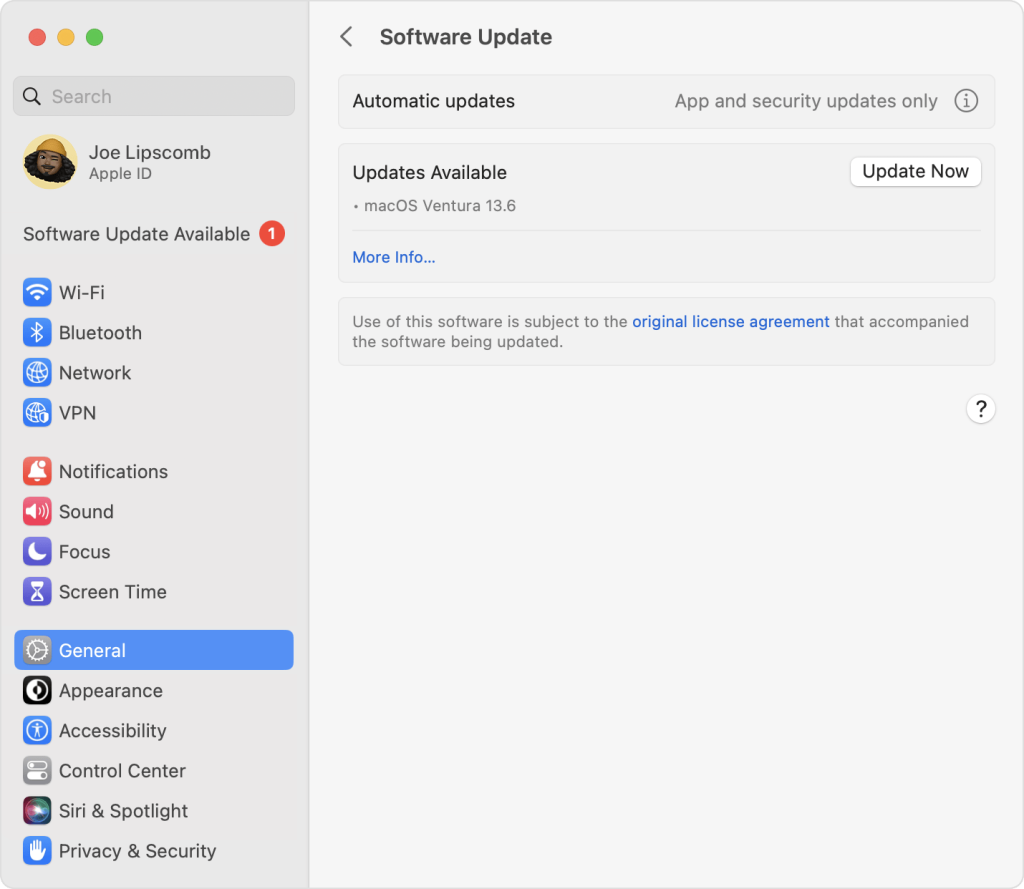
Step 5: If any updates are available, they will appear with an option to install them. Click the “Update Now” or “Install Now” button to install any available updates.
Step 6: Enter your administrator password if prompted to authorize the installation of the update.
Step 7: Allow your Mac to restart if required to complete the installation of the updates.
Fix 6: Check for Hardware Issues
Conducting hardware diagnostics is crucial to identify and address potential underlying hardware problems affecting your Mac’s performance. Running comprehensive tests enables the detection of faulty components, ensuring timely maintenance or replacement to maintain optimal system functionality. Checking hardware issue could fix no startup disk on Mac.
How to do this?
Here are the steps to check for hardware issues to fix the MacBook no startup disk issue:
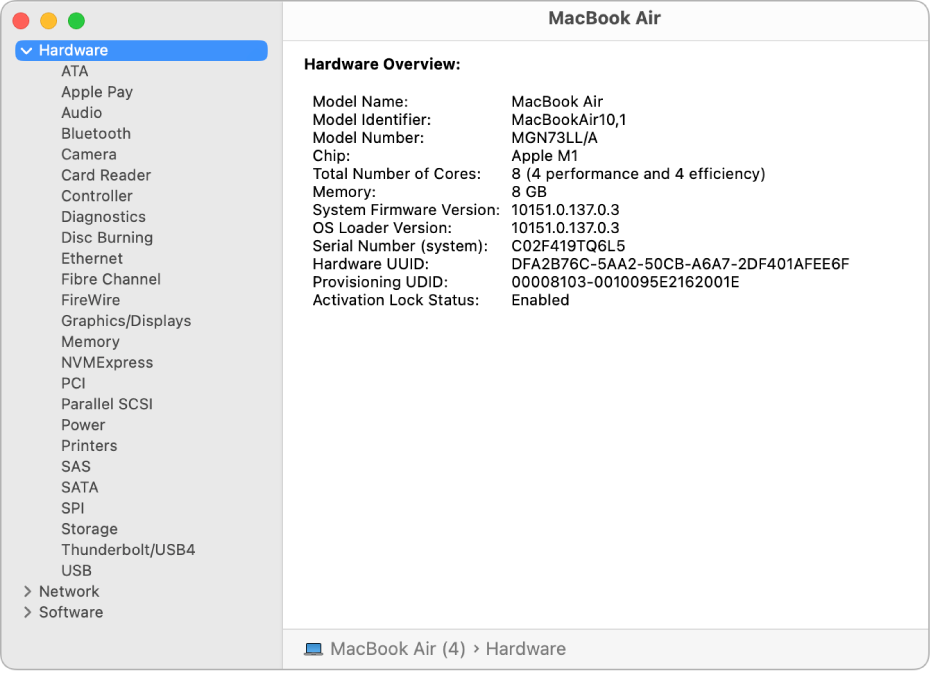
Step 1: Click the Apple menu and select “About This Mac.”
Step 2: Click the “System Report” button.
Step 3: In the sidebar of System Information, select “Hardware.”
Step 4: Review the information about your Mac’s hardware components such as memory, storage, USB devices, and graphics.
Step 5: Check for issues like not enough RAM, low disk space, problems with connected devices, overheating, etc.
Step 6: Run checks on hardware components like storage drives and memory by clicking the “Check S.M.A.R.T. Status” or “Scan for Problems” buttons.
Step 7: If any hardware issues are detected, make a note of the alert messages and details provided.
Step 8: Compare the reported hardware configuration against expected or intended hardware to detect faults, mismatches or changes.
Step 9: If hardware faults are suspected, get further troubleshooting or repairs done by an Apple technician.
Fix 7: Boot your Mac in Safe Mode
Safe Mode provides a troubleshooting environment, allowing your Mac to start with essential software and drivers only. By bypassing non-essential elements, Safe Mode helps isolate software-related issues, facilitating the identification and resolution of conflicts or problematic software causing startup difficulties.
How to do this?
Here are the steps to boot a Mac in Safe Mode:
Step 1: Restart your Mac. As it reboots, press and hold the Shift key immediately after you hear the startup sound.
Step 2: Keep holding Shift until you see the login window or your desktop appear with “Safe Boot” text in the upper right corner.
Step 3: Enter your admin name and password to log in like normal.
Step 4: Use your Mac carefully while in Safe Mode. Don’t save anything important as some features/apps won’t work.
Step 5: Check if issues persist in Safe Mode. If they don’t, it may be related to software/login items.
Step 6: To exit Safe Mode, restart your Mac as normal without holding any keys during boot.
Step 7: Once logged back in normally, troubleshoot software and login items further.
Step 8: If issues still occur outside Safe Mode, they are likely hardware or system-related. Seek Apple Support for the next troubleshooting step.
Fix 8: Re-install macOS
Reinstalling macOS involves refreshing the entire operating system, and resolving persistent software-related issues that might be impacting your Mac’s startup. This process reinstalls the system files and software components, offering a clean slate and potentially resolving underlying software conflicts or corruption causing the no startup disk issue on mac.
How to do this?
Here are the step-by-step instructions to reinstall macOS:
Step 1: Back up your Mac data, including photos, documents, etc. to ensure you don’t lose important files.
Step 2: Restart your Mac and press the Command + R keys simultaneously after you hear the startup chime. This will boot your Mac into Recovery mode.
Step 3: When the macOS utilities window appears, select and click on the “Reinstall macOS” option.
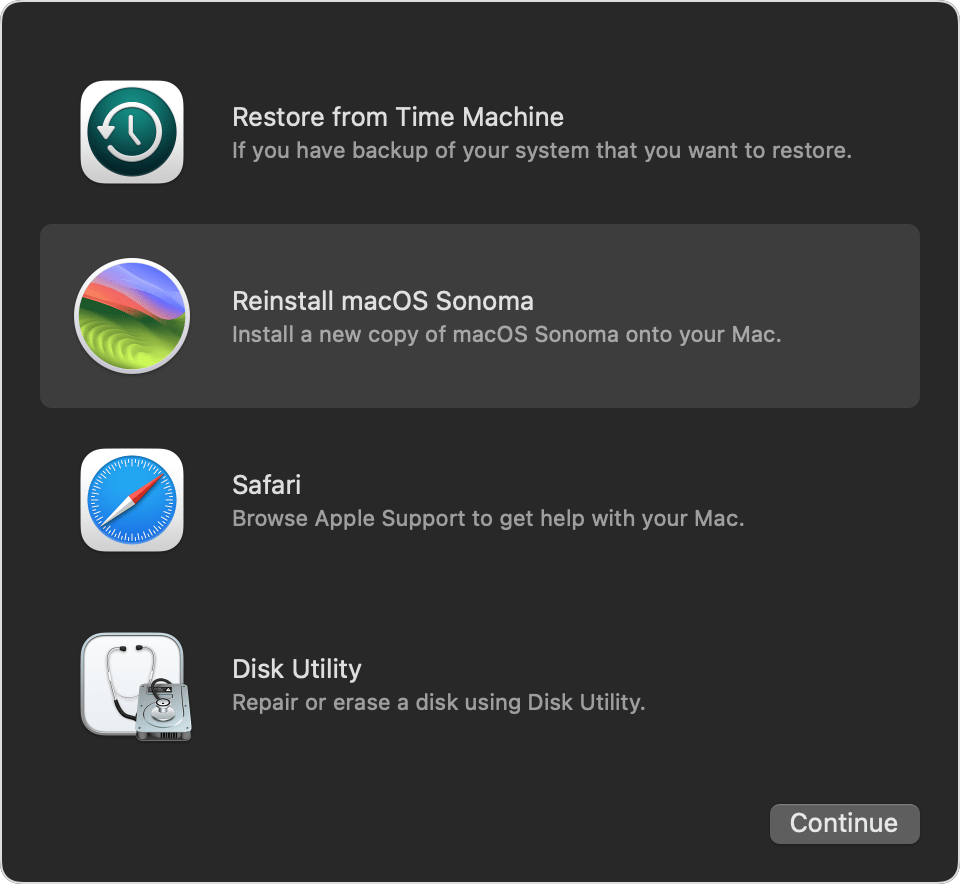
Step 4: On the next screen, click “Continue” and follow the onscreen instructions to commence the installation process.
Step 5: Agree to the software license agreement by clicking “Agree” to proceed.
Step 6: Select the disk where you want to install macOS. Typically, you’ll see only one disk option.
Step 7: Click “Install” to continue with the installation. This process may take a while to complete.
Step 8: After installation, your Mac will restart. Set it up as new or restore data from your backup.
Step 9: Once done, install other software programs you need and restore data as desired.
Conclusion
Use these methods to fix the issue of no startup disk on your Mac device. You can directly change the startup disk option or go through the MacOS Recovery function to configure the settings accurately. Before choosing any of the steps, you should understand the main cause for the error and select accordingly.
Additionally, use the CleanMyMac X software to optimize the condition of your device and remove any malware that may cause this issue. With this app, you can handle continuous maintenance of your system ahead of time.
FAQs:
1. What to do if my Mac doesn’t have a startup disk?
If your Mac doesn’t have a startup disk, it could indicate a serious issue with your internal drive or operating system. Try troubleshooting steps like resetting the NVRAM/PRAM, running Disk Utility to check for disk errors, or reinstalling macOS using Recovery Mode.
2. How do I install a startup disk on a Mac?
A startup disk is typically the internal drive that contains your macOS. To install or reinstall it, use macOS Recovery by restarting your Mac while holding Command + R keys. From there, follow the prompts to reinstall macOS on your startup disk.
3. How to fix “startup disk is no longer available” or “doesn’t contain a working Mac operating system”?
If you encounter these errors, it might mean your Mac cannot find a valid startup disk. Check your connections, ensure the drive is properly connected and recognized, and consider using Disk Utility or macOS Recovery to repair or reinstall the operating system on the startup disk.
4. What does it mean if my startup disk is no longer available?
If your startup disk is no longer available, it indicates that your Mac cannot locate a valid macOS installation to boot from. This could be due to disk failure, disconnection, or corruption. Troubleshoot by checking the drive’s connection, repairing the disk using Disk Utility or macOS Recovery, or reinstalling macOS on the startup disk.
Author Bio:
Dinesh Lakhwani 

Dinesh Lakhwani, the entrepreneurial brain behind “TechCommuters,” achieved big things in the tech world. He started the company to make smart and user-friendly tech solutions. Thanks to his sharp thinking, focus on quality and the motto of never giving up, TechCommuters became a top player in the industry. His commitment to excellence has propelled the company to a leading position in the industry.
Popular Post
Recent Post

How To Recover Files Deleted from the Recycle Bin [Windows 11]
Losing a file can happen in seconds. You clear your desktop, hit Delete, and empty the Recycle Bin. Then, just when you need that file again, it seems to have vanished. This guide will walk you through ways to restore files removed from the Recycle Bin. We will begin with simple fixes, then look at […]

Disk Drill Data Recovery Tool Explained: Full Review and Guide
It happens in a split second. You delete a folder by mistake. Your drive stops showing up. A photo album from your last trip just vanishes. And your stomach drops. Lost files feel personal. They are not just data. They are memories, work hours, and sometimes years of effort packed into a few gigabytes. When […]

Recover Deleted Files In Windows 11 With Software & Without
Introduction What is the first thing that goes through your mind the second an important file vanishes from a Windows 11 PC? For most people, it is a mix of panic and disbelief, followed by a frantic click through every folder that file could possibly be hiding in. It happens in a split second: one […]

EaseUS Data Recovery Wizard: Everything To Know
Data loss does not always come from a big disaster either. Most cases start small and boring. A drive gets formatted by mistake. A laptop freezes mid-save and restarts on its own. A memory card stops showing up after being pulled out too fast. None of these feel like emergencies at first, until you realize […]

Recuva Data Recovery Tool: Is it Actually Worth it?
When I first tried Recuva Data Recovery, I wanted to see if it could really bring back lost files. The tool is free, small in size, and promises quick recovery, which made me curious enough to test it on my own PC. The setup was fast, and the wizard guided me step by step. I […]

GetData Recover My Files Data Recovery Tool: Honest Review
A hard drive error brings a special kind of silence. Well, yes! The screen freezes, then a message appears saying the drive can’t be found or must be formatted. In that moment, years of photos and work files feel at risk. It never happens at a good time. Coffee spills near a laptop, a memory […]

Windows File Recovery: A Complete Review [Tried & Tested]
Imagine this. You spend hours perfecting a video project. You hit save. Then your laptop freezes, reboots, and when the screen comes back. The file is gone. Your stomach sinks. It’s not just you. Lost files happen all the time. A dropped hard drive, a bad update, an accidental delete, or a corrupted partition can […]

5 Best Data Recovery Software For Windows 11 and Windows 10
Introduction: A crashed drive can ruin a whole day. One minute your photos, work files, and tax records sit safe on your PC. The next minute they are gone. A power cut, a bad update, or one wrong click can wipe out years of memories and months of work in seconds. That sinking feeling is […]

How To Update NVIDIA Drivers On Windows 11/10 PC
Learn how to update NVIDIA drivers on Windows 11/10 with simple methods, safety tips, and easy steps for smoother gaming and better PC performance.

