











Imagine this. You spend hours perfecting a video project. You hit save. Then your laptop freezes, reboots, and when the screen comes back. The file is gone. Your stomach sinks. It’s not just you. Lost files happen all the time. A dropped hard drive, a bad update, an accidental delete, or a corrupted partition can […]
Screen Mirroring | Screen Cast Phone to Laptop Windows 11
screencast phone to laptopScreen mirroring is a great way to show your phone’s screen on a laptop. Right? Whatever you see on your phone, videos, games, apps, it shows up on the bigger screen too. It’s great for watching with friends, sharing ideas, or just getting a better view.
Lots of people think it’s hard to do, but it’s actually super easy. With the right app or a simple setting, your phone and laptop can connect in seconds. No tech skills needed.
Windows 11 has made screen mirroring phone to laptop very easy. You can use built-in apps, third-party tools, or even a USB cable. Whether you have an Android or iPhone, this guide will explain step by step how to mirror your phone.
By the end, you will know how to cast your phone to your laptop smoothly.
Part 1: What is Screen Mirroring?
Screen mirroring lets you display your phone’s screen on another device. It shows everything in real time. You can view apps, videos, and photos on a larger screen.
It works wirelessly or with a cable. Many devices support it, like laptops, TVs, and tablets. It’s useful for presentations, gaming, or sharing media. You control everything from your phone.
Part 2: Requirements for Screen Mirroring
Before starting to screencast phone to laptop, you need some requirements. This ensures a smooth connection and avoids errors.
- Your Windows 11 laptop must be on the same Wi-Fi network as your phone. Wireless screen mirroring will not work on different networks.
- Android phones must support Miracast or wireless display. Most modern Android phones have this feature.
- iPhones require AirPlay or compatible apps to cast to Windows laptops.
- Make sure the Connect app is installed on your Windows 11 laptop. It comes pre-installed, but check if it is working.
- Keep your phone and laptop updated to the latest software versions. Outdated versions can cause connection issues.
- If you plan to use a USB cable, ensure you have a working cable compatible with your phone and laptop.
- Close unnecessary apps on your phone to prevent lag during screen mirroring phone to laptop.
- Ensure a strong Wi-Fi signal for wireless mirroring. Weak Wi-Fi causes lag and disconnection.
Following these requirements saves time and prevents frustration. Once you check everything, you are ready to start casting to your phone.
Part 3: 4 Simple Methods: How to Screencast Phone to Laptop
There are several ways to screen mirror phone to a laptop. You can choose wireless methods, third-party apps, or wired connections. Each method has its benefits.
Method 1: Using the Connect App on Windows 11 (Wireless)
The Connect app comes pre-installed with Windows 11. You don’t need to download or install anything extra. It’s ready to use right away.
This app lets you mirror your phone screen to your laptop wirelessly. No cables are required. It works especially well with Android devices. Just open the app and connect your phone. It’s one of the simplest ways to share your screen.
Why use it:
- Free and already available on Windows 11.
- No need for USB cables.
- Quick connection for most Android devices.
- Works well for short-distance mirroring.
Steps:
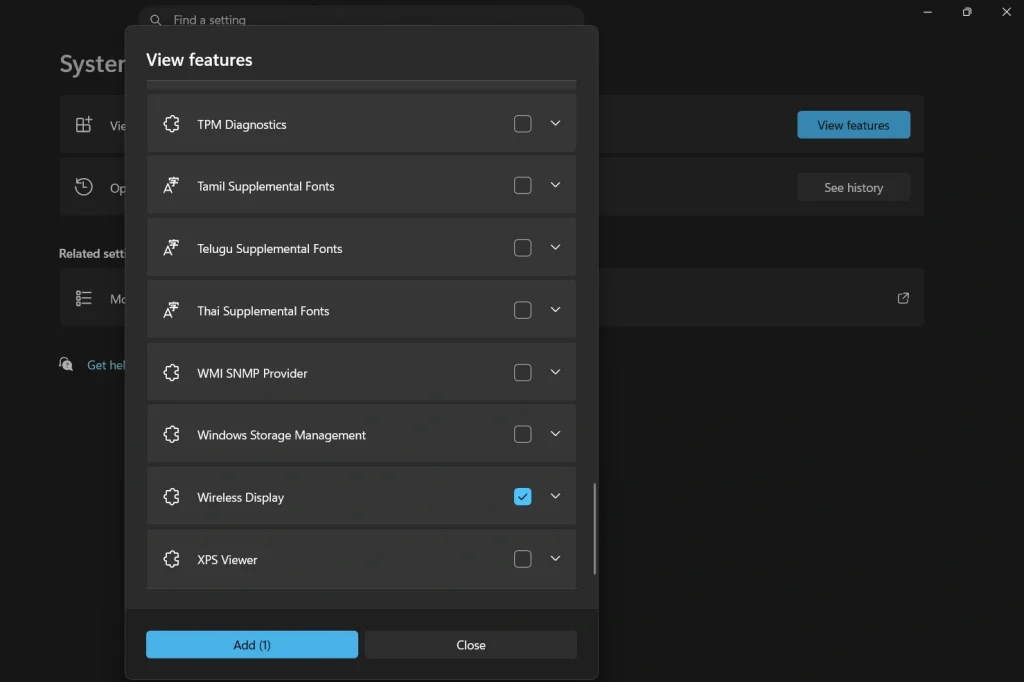
Step 1. Press Windows + I to open Settings. Go to System > Optional features. Click View features. Search for Wireless Display. Check the box and click Next, then Add. Wait for the installation to finish.
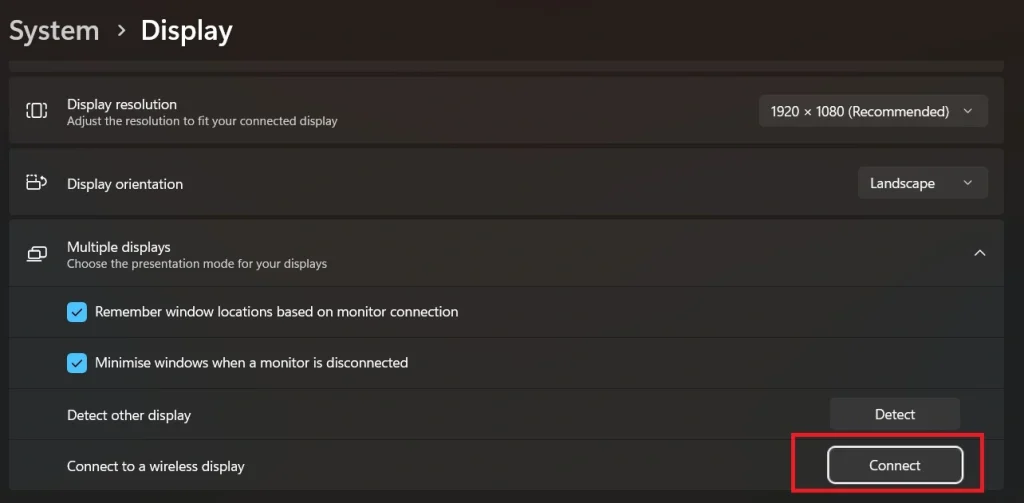
Step 2. Now, open the Connect app on your Windows 11 laptop. You can find it by typing “Connect” in the Start menu search bar.
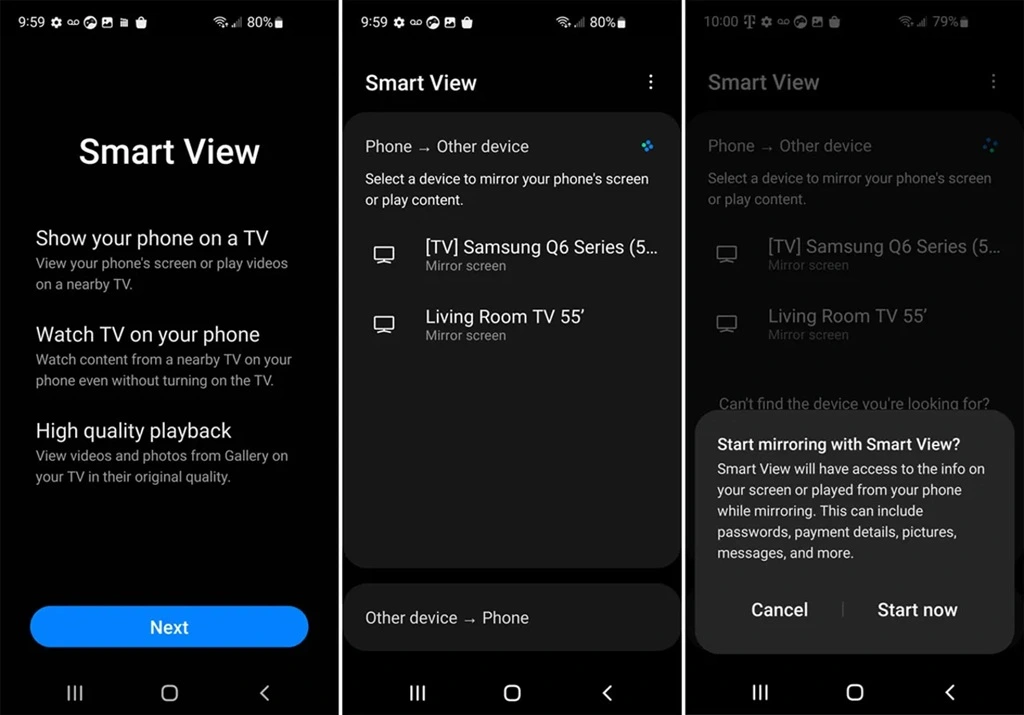
Step 3. On your phone, enable screen casting or wireless display. Look for your laptop name and select it. Your phone screen will appear on your laptop.
Tips: Make sure both devices are on the same Wi-Fi network. Keep your phone close to the laptop for a stable connection.
Method 2: Using Third-Party Apps (e.g., ApowerMirror)
Third-party apps support both Android and iPhone. They offer more than just screen mirroring.
Many apps include screen recording tools. Some let you control your phone from your laptop. Others allow you to change the resolution or quality. These features make them useful for advanced tasks.
Why use it:
- Compatible with Android and iPhone.
- Allows screen recording while casting.
- Works over Wi-Fi or USB connection.
- Extra tools for presentations or gaming.
Steps:
Step 1. Install the Apowermirror app on both your phone and your Windows 11 laptop. Most apps are free with limited features.
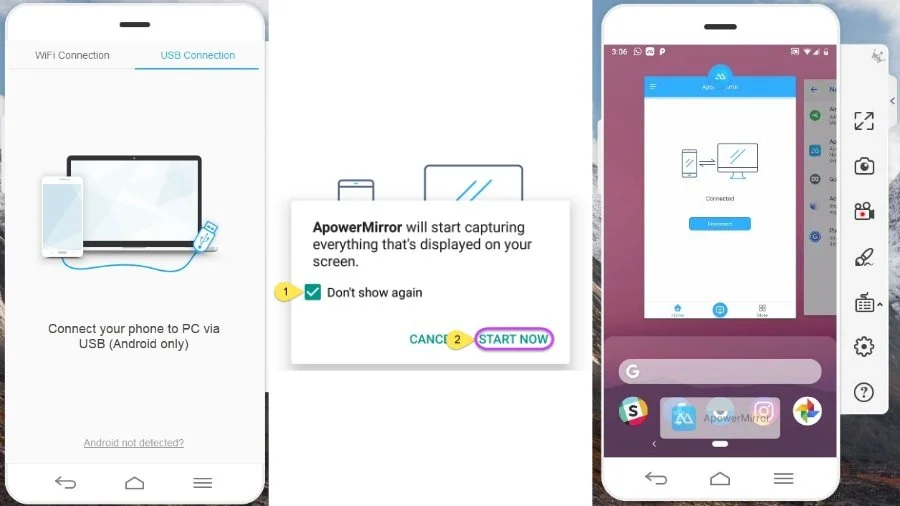
Step 2. Open the app on both devices. Connect using the app instructions and start screen mirroring phone to laptop.
Tips: Check the app’s settings to optimize resolution. Some apps allow keyboard or mouse control for better productivity.
Method 3: Using a USB Cable (Android Only)
Using a USB cable creates a direct link between your phone and laptop. This wired connection is more stable than wireless options.
It helps avoid lag or delays during use. That makes it perfect for long sessions. Presentations, gaming, or streaming benefit from this smooth performance.
Why use it:
- Stable connection without Wi-Fi.
- Minimal lag for videos and games.
- Works even if the phone is far from the laptop.
- Best for work or school presentations.
Steps:
Step 1. Enable Developer Options on your Android phone. Go to Settings > About Phone > Tap “Build Number” seven times. Then enable USB Debugging in Developer Options.
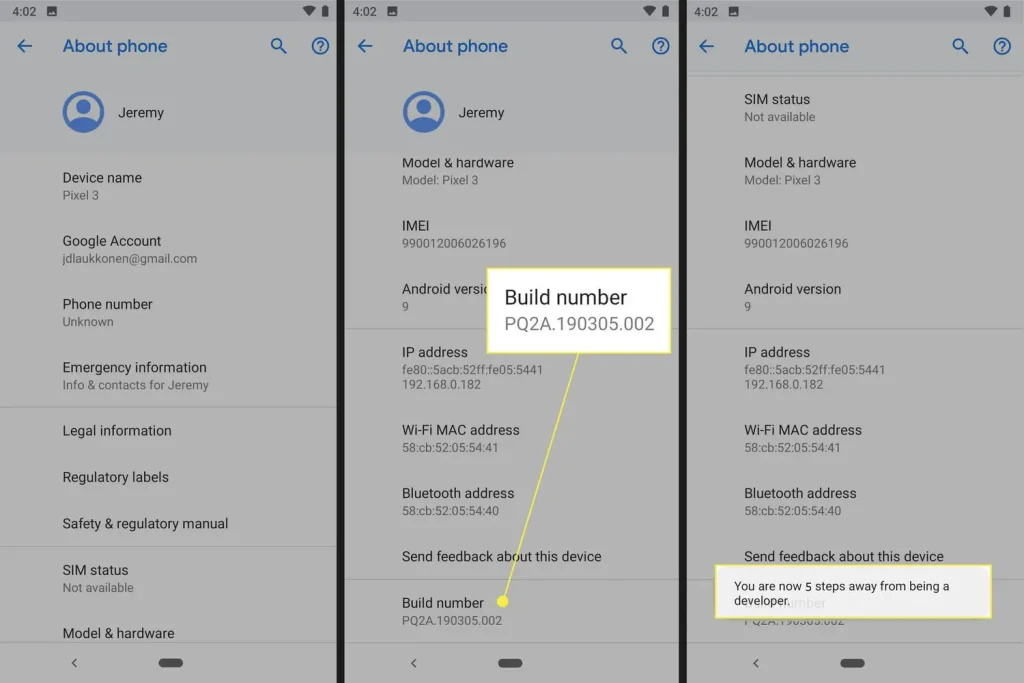
Step 2. Connect your phone to the laptop using a USB cable. Open the casting app (like ApowerMirror or LetsView) to mirror the screen.
Tips: Use the original cable for better connection. Keep the phone unlocked while casting.
Method 4: Using AirPlay for iPhone
AirPlay is Apple’s screen mirroring feature. It lets you share your iPhone screen with other devices.
Windows 11 doesn’t support AirPlay by default. To use it, you need a third-party app. These apps make your laptop act like an AirPlay receiver. Once installed, you can mirror your iPhone screen easily.
Why use it:
- Designed for iPhone and iPad.
- High-quality display with low lag.
- Works over Wi-Fi without cables.
- Easy for beginners to use.
Steps:
Step 1. Ensure your iPhone and laptop are on the same Wi-Fi network.
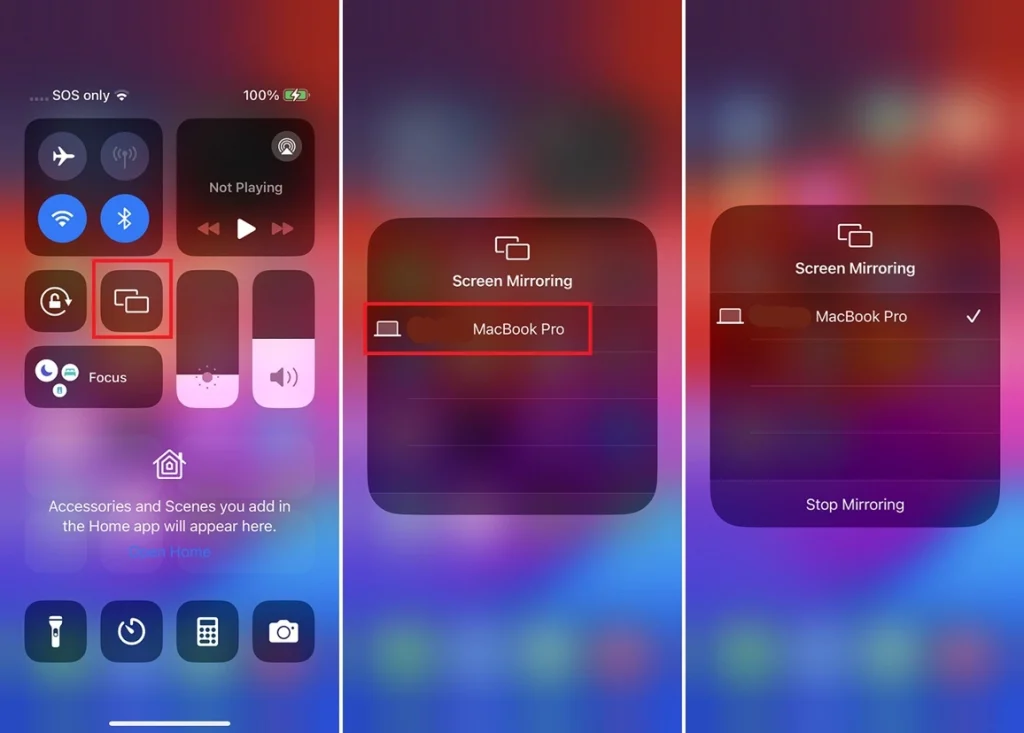
Step 2. Install an AirPlay-compatible software on Windows 11. Open the app and select your laptop on the iPhone AirPlay menu. Your iPhone screen will appear on your laptop.
Tips: Close other apps on the laptop to improve performance. Adjust resolution for smoother display.
Part 4: Troubleshooting Common Issues: When Screen Mirroring Phone to Laptop
Sometimes, screen mirroring a phone to a laptop does not work. These tips help fix common issues.
- Wi-Fi problems: Weak or disconnected Wi-Fi can prevent casting. Ensure both devices are on the same network.
- Restart devices: Sometimes a simple restart fixes connection issues.
- Software updates: Outdated OS or app versions can cause errors. Update both phone and laptop.
- Casting disabled: Check that screen casting or AirPlay is enabled on your phone.
- Reinstall apps: Reinstall the Connect app or third-party software if it fails.
- Use USB if wireless fails: Wired connections are more stable.
- Distance: Keep phone and laptop close to maintain a strong signal.
- Background apps: Close apps using Wi-Fi or CPU resources to reduce lag.
By following these steps, most issues can be resolved easily.
Author’s Tip
Always keep your phone and laptop updated. Outdated software often causes mirroring problems.
If you notice lag during wireless casting, try a USB connection. It is more stable and reliable.
For iPhone users, using AirPlay apps provides better quality. Third-party apps can work, but AirPlay is smoother and faster.
Part 5: Tips for a Better Screen Mirroring Experience
These tips help you get the best results when you screencast phone to laptop.
- Use a 5GHz Wi-Fi network for faster speed.
- Keep your devices close to avoid signal loss.
- Close apps running in the background to reduce lag.
- Lower screen resolution if video or games lag.
- Avoid large downloads while mirroring.
- Use original USB cables for wired connection.
- Turn off battery saver on your phone to avoid interruptions.
- Place your laptop on a stable surface to avoid accidental disconnection.
Conclusion
Screen mirroring phone to laptop is simple with Windows 11. You can use the Connect app, third-party apps, USB cable, or AirPlay. Each method has its advantages.
Wireless mirroring is convenient for quick tasks. USB or AirPlay provides a stable and high-quality experience. Following the troubleshooting tips ensures smooth casting every time.
Screen mirroring a phone to a laptop is useful for work, school, or entertainment. You can watch videos, play games, or give presentations on a bigger screen. With the right method, casting becomes easy and reliable.
FAQs:
Q1: Can I screencast my phone to a laptop without Wi-Fi?
Yes, you can. For Android phones, using a USB cable allows you to mirror your screen without Wi-Fi. Some third-party apps, like ApowerMirror or LetsView, also support wired connections. This is useful if your Wi-Fi is slow or unreliable. Wired connections are more stable and have almost no lag. You just need a working USB cable and the phone unlocked.
Q2: Why does screen mirroring lag sometimes?
Lag is common during screen mirroring phone to a laptop. The main reasons are weak Wi-Fi, distance between devices, or too many apps running. Using 5GHz Wi-Fi instead of 2.4GHz often reduces lag. Closing background apps on your phone and laptop also helps. Wired USB connections have almost no lag, so they are better for gaming or streaming videos.
Q3: Can I control my phone from Windows 11 while mirroring?
Yes, certain apps let you control your phone from your laptop. Apps like ApowerMirror and LetsView allow keyboard and mouse control. You can tap, type, or open apps directly from the laptop. This is useful for presentations, typing messages, or navigating your phone without touching it. For iPhone users, control options are limited, but you can still mirror and interact with some apps.
Dinesh Lakhwani
Author Bio:
Dinesh Lakhwani 

Dinesh Lakhwani, the entrepreneurial brain behind “TechCommuters,” achieved big things in the tech world. He started the company to make smart and user-friendly tech solutions. Thanks to his sharp thinking, focus on quality and the motto of never giving up, TechCommuters became a top player in the industry. His commitment to excellence has propelled the company to a leading position in the industry.
Popular Post
Recent Post

5 Best Data Recovery Software For Windows 11 and Windows 10
A crashed drive can ruin a whole day. One minute your photos, work files, and tax records sit safe on your PC. The next minute they are gone. A power cut, a bad update, or one wrong click can wipe out years of memories and months of work in seconds. That sinking feeling is why […]

How To Update NVIDIA Drivers On Windows 11/10 PC
Learn how to update NVIDIA drivers on Windows 11/10 with simple methods, safety tips, and easy steps for smoother gaming and better PC performance.

Top AI Features Hidden Inside Windows 11
Explore the top AI features in Windows 11, from Copilot to Recall, plus safety tips and simple steps to use each tool the right way.

Customize Your Screen Saver Settings in Windows [Easy Steps]
Learn how to customize screen saver settings in Windows 11 with easy steps, safety tips, and simple tricks to personalize your PC screen.

Driver Easy Windows Driver Updater Tool Review: Tried & Tested
In-depth information about Driver Easy’s functions and features can be found in our review. Learn how to update drivers more easily with this tool for a more seamless computer experience.

Is Avast Driver Updater Worth It? A Hands-On Analysis
A full review of Avast Driver Updater covering features, setup steps, pricing, pros and cons, and real PC results, to help you decide if it is worth buying.

IObit Driver Booster 13 (PRO) Review: [Tried & Tested]
IObit Driver Booster 13 is built for one purpose: keeping your PC drivers up to date. Well, yes! Outdated drivers can cause crashes, slowdowns, and hardware issues. This tool scans fast and updates with one click. The interface is simple. Even beginners can use it without confusion. Updates are pulled from a huge database, covering […]

Auslogics Driver Updater: A Detailed Walkthrough [2026]
This comprehensive review covers the key features, pros, and cons, pricing, and a final verdict on Auslogics’ driver update utility. Learn how it stacks up against manual driver maintenance.

5 Best Driver Updater Tools for Windows to Use (Free and Paid)
Introduction: Most people blame their PC for problems that a driver caused. A driver works like a bridge between your hardware and your operating system. When this bridge cracks, strange things start to happen. Screens flicker without reason. Printers go silent mid-task. Games freeze or crash out of nowhere. Manually finding the right driver is […]

