How to Fix Printer Problems in macOS Big Sur
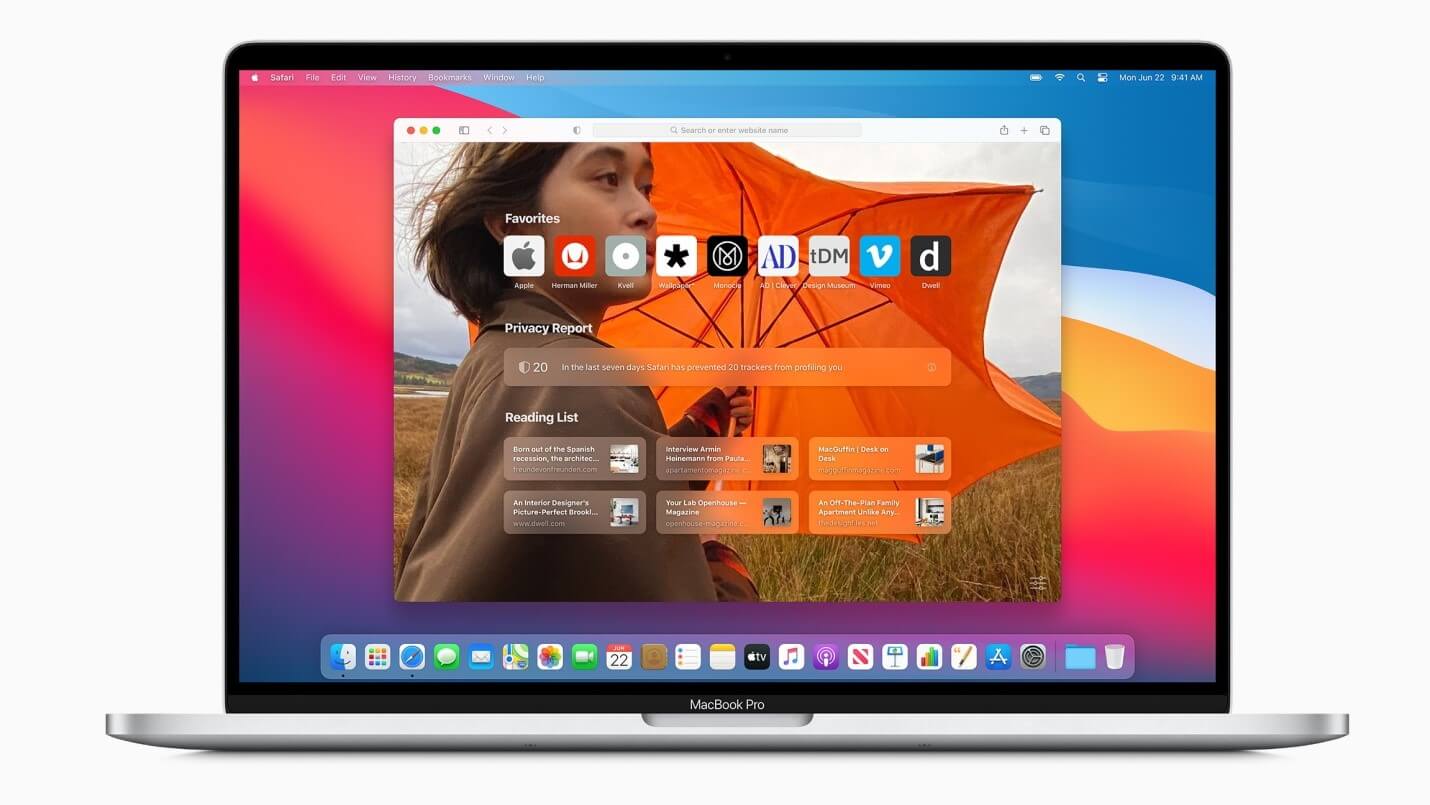
While upgrade from macOS Catalina to Big Sur has been effortless for most users, some users have witnessed certain issues. Printer related problems are one such issue that affected many users. Now if your printer has stopped working after upgrading to macOS Big Sur, then you need to follow the steps mentioned in this article to fix this issue.
Why has the printer stopped working?
The primary reasons behind printer problems on macOS Big Sur include:
- Connection has lost between your printer and Mac. Possibly the printer has lost its connection to your Wi-Fi network.
- The driver software needs to be updated to work with macOS Big Sur.
How to fix printer not working in macOS Big Sur?
There are different steps you should follow to fix printer not working in macOS Big Sur. Let’s discuss some of these quick solutions.
1. Try a different application to print
You should start with the simplest solutions first. Try printing using different application as there could be some issue with the application you are using to print. If you are able to print fro another application and still want to print from the original application, then try these steps:
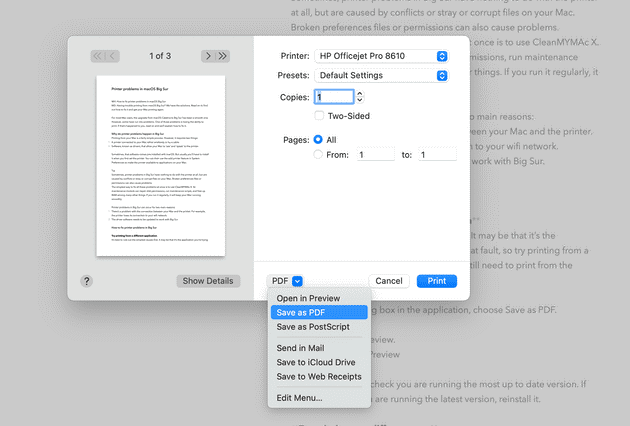
- From the Print dialog box in the app, click Save as PDF.
- Tap Save.
- Open the PDF in Preview.
- Simply print the PDF document from Preview.
To fix the problem with the existing application try to get the latest version of the app. If you are running the latest version already, then try to reinstall it.
2. Try printing as a different user
The next solution you can try to fix printer problems on Big Sur is to try printing as a different user. For this, you should have an account set up already. If you are able to print from a different user account, then the problem is some corrupt files that lie in your main user account. You can clean those junk files using the best Mac cleaner software like CleanMyMac X. It is a comprehensive Mac cleaner & optimization tool that helps you free up GBs of disk space while boosting your overall system performance.
3. Make sure the printer is connected properly
If the printer is connected by a USB cable, check if it is connected properly. You can unplug and replug it to see if it works. If you have a wireless printer, then you should check the connectivity using control panel. You should check if the printer and Mac are connected to the same wireless network. You can check the printer’s instruction manual to fix this if you have any confusion on how to do it. Also make sure your Mac is connected to Wi-Fi.
4. Check the printer is selected
You need to check that the printer is selected in System Preferences. To do this, follow these steps:
- Select Apple menu > System Preferences.
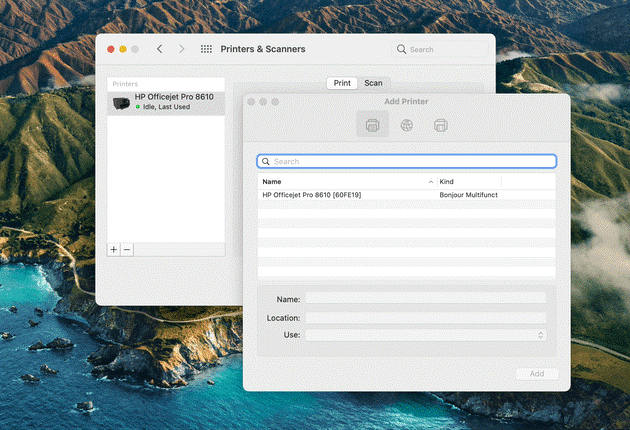
- Choose Printers & Scanners. Here, check that the printer is displayed in the sidebar and selected.
- If not, press ‘+’ to add it.
- That’s it.
5. Reinstall the driver software
If you are unable to add printer from System Preferences, drivers might be at fault. It is possible the driver software isn’t compatible to the latest macOS Big Sur. You need to check the system requirement for the driver to make sure it supports Big Sur. To reinstall the latest driver software, follow these steps:
- Launch Safari and navigate to the printer manufacturer’s website.
- Open driver download section and download the latest driver version for your printer compatible to Big Sur.
- From the installer, double-click to launch it and follow the on-screen instructions to complete the process.
- Now that you have the latest printer drivers on your system, go to System Preferences > Printers & Scanners and add your printer.
Conclusion
Printing problems are as old as the printers themselves. Try steps mentioned above to fix printer not working or printer problems on macOS Big Sur. Do share your experience in the comments below.
Author Bio:
Dinesh Lakhwani 

Dinesh Lakhwani, the entrepreneurial brain behind “TechCommuters,” achieved big things in the tech world. He started the company to make smart and user-friendly tech solutions. Thanks to his sharp thinking, focus on quality and the motto of never giving up, TechCommuters became a top player in the industry. His commitment to excellence has propelled the company to a leading position in the industry.
Popular Post











Recent Post
How To Get Help With Notepad in Windows [2026]
Notepad has been part of Windows for many years. And people still use it for quick notes, lists, and simple edits. Its clean layout helps new users, while its small set of tools supports everyday tasks. Yet problems can appear when features behave in unexpected ways or when users try something new, so clear guidance […]

Software Performance Optimization Tips: Complete Guide
Software often slows down over time, turning once-fast programs into frustrating delays. While many assume their device is outdated, the real issue often lies in how the software runs. With a few simple habits and checks, users can restore speed and avoid costly upgrades. This guide offers clear, beginner-friendly software performance optimization tips. It covers […]
How To Connect a Scanner to Your Device Windows 11 In 2026
Have you ever needed to scan a document in a hurry and did not know how to begin? Many people face this problem when they buy a new scanner or a new computer. Windows 11 includes helpful tools that make the process easy, but you must know the right steps. This guide explains each method […]

How To Connect to Your PC Remotely Windows [Complete Guide]
Many people need to reach their computer from far away. Well, yes! It may be for work, study, or personal use. Remote access helps you open files, use your apps, and control your system even when you are not near the device. It gives you the comfort of using your computer anywhere through the internet. […]
How To Connect to a Wi Fi Using a QR Code: Latest Guide
Wi-Fi is now a basic part of our lives. We use it at home, in offices, schools, and public places. But typing long passwords every time you connect can be annoying. Sometimes you might even forget your Wi-Fi password. That is where QR codes come in handy. With QR codes, you can connect to any […]
How To Connect a Wireless Printer Easily to Windows 11/10 PC
Printing tasks are part of most home and office work today. Isn’t it? Well, yes! Using a wireless printer makes printing easier and faster because you don’t need cables. It allows you to print documents and images from any corner of your room as long as your device and printer are connected to the same […]
How To Connect Your Windows 11 PC to a Projector or Another PC
A bigger screen can help you share your work with others. When you connect your Windows 11 PC to a projector, your screen becomes easier to view in a meeting room, classroom, or home. You can show slides, videos, notes, or entertainment. Most people do this for work or study, but it is also helpful […]

How To Set Up Dual Monitors Easily Windows 11/10: Complete Guide
Working with one screen can feel limiting. You switch between apps constantly. Your workflow slows down. A dual monitor setup changes everything. It gives you more space to work. You can see multiple things at once. This guide shows you how to set up dual monitors easily on Windows systems support. Windows 11 and Windows […]
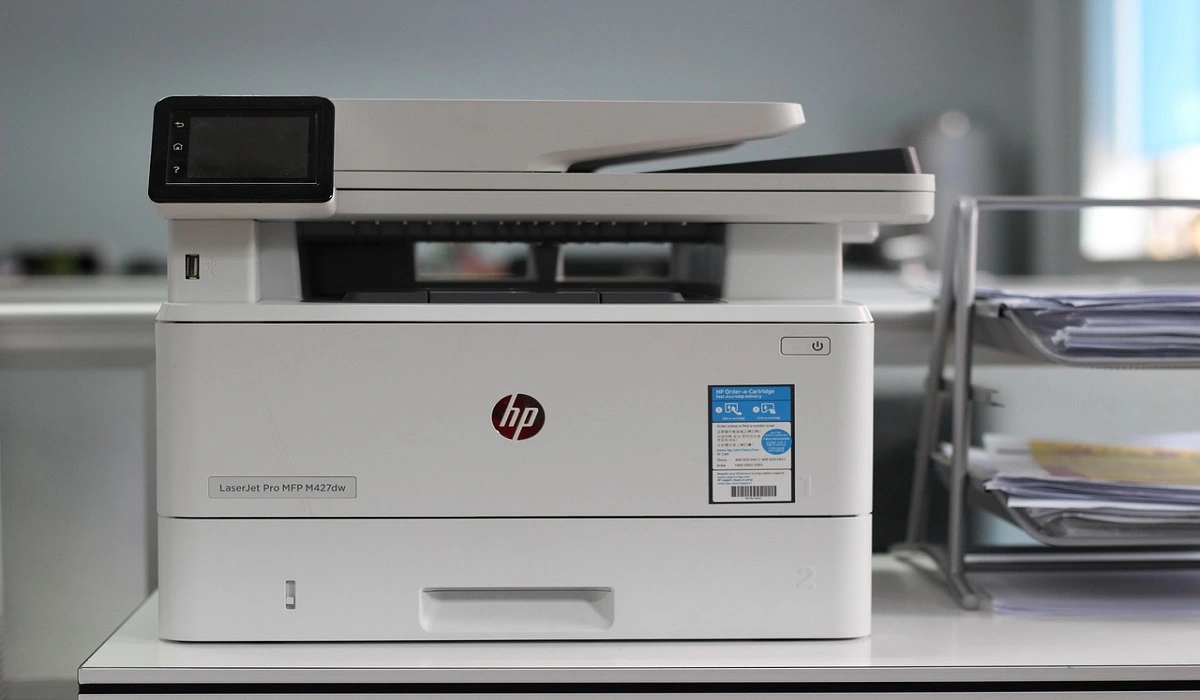
How to Set Your Preferred Default Printer On Windows 11/10: Complete Guide
Printing documents should be simple. But many users struggle with their printer settings. Windows often picks the wrong printer as the default. This creates delays and wastes paper. Setting up your preferred printer as the default saves time. It prevents printing errors. This guide shows you how to set your preferred default printer Windows systems […]
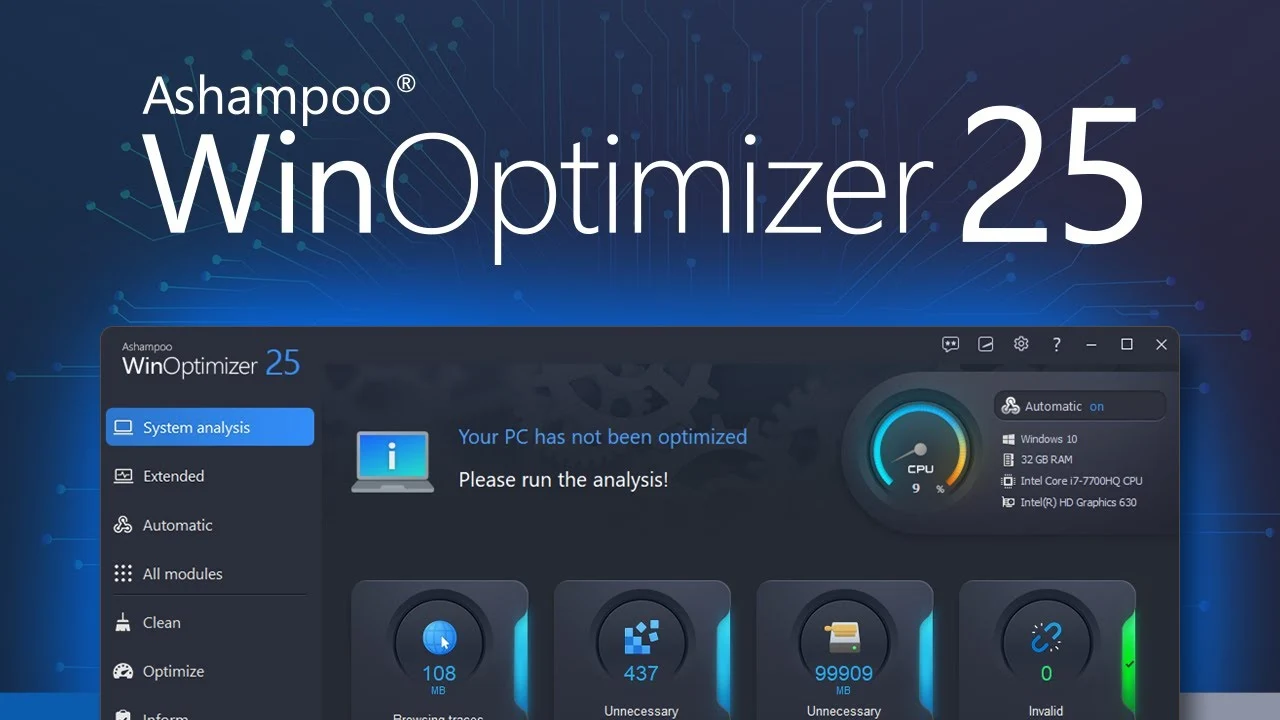
Ashampoo WinOptimizer Review: Can It Really Speed Up Your PC?
Is your computer running slowly? Do programs take forever to load? You’re not alone. Millions of PC users face this problem daily. Ashampoo WinOptimizer claims it can fix these issues. This software promises to clean junk files, boost speed, and make your computer run like new. But does it really work? Or is it just […]

