












So, search for a pair of shoes once online. Close the tab. By evening, those same shoes are sitting on your news site, your video app, and even your recipe blog. Nobody placed them there by chance. A cookie did. Well, yes! Cookies are small files that websites place on your device while you browse. […]
How To Connect a Wireless Printer Easily to Windows 11/10 PC
No cables. No hunting for a free USB port. Just send the file and walk away while the printer does the work. That’s the promise of a wireless printer, and it holds up once the setup is done right: print from any corner of the room, from any device on the same network.
Getting there trips people up more than it should. The process looks technical on the surface, but it comes down to a handful of clear steps once you know where to look.
This guide runs through them in order, from the easiest method to the most advanced, so you can stop as soon as your printer starts working. It also flags which steps apply only to Bluetooth-capable printers versus regular Wi-Fi printers, so you don’t waste time on a method your printer doesn’t support.
What Does This Article Cover?
- Before You Begin: Eight checks that prevent most setup failures.
- Method 1 — Connect the Printer to Wi-Fi Network: Join your printer to your network directly from its own control panel.
- Method 2 — Add the Printer via Windows Settings: Add an already-networked printer in under two minutes.
- Method 3 — Install Manufacturer’s Printer Software: Brand-specific setup for HP, Canon, Epson, Brother, Samsung, and Xerox.
- Method 4 — Use the WPS Button: The fastest, password-free connection option. Wi-Fi only, not Bluetooth.
- Installing or Updating the Wi-Fi/Network Driver: For when Windows detects the printer but can’t talk to it properly.
- Troubleshooting: Solutions for the most common wireless printer problems.
- FAQs
A quick clarification before you start: Wi-Fi printing and Bluetooth printing are not the same thing. Wi-Fi connects your printer to your home network through your router, so any device on that network can print to it. Bluetooth connects your printer directly to one nearby device, with no router involved and a much shorter range.
Most of the methods below are Wi-Fi methods. Anywhere a step is Bluetooth-specific, this guide calls it out clearly.
Before You Begin: Everything Your Setup Needs to Succeed
Skipping prep steps is the number one reason printer setup fails. Here is what each check actually means and why it matters.
1. Same Wi-Fi network:
Your printer and PC must join the exact same network, not just the same router. Many routers broadcast two separate networks, a 2.4GHz one and a 5GHz one, often with similar names. Most printers only support 2.4GHz, so if your PC is on the 5GHz band, they won’t find each other. Check your printer’s spec sheet or box to confirm which bands it supports, and connect your PC to the matching band during setup.
2. Printer is powered on:
This sounds obvious, but many printers enter a deep sleep mode after sitting idle. A sleeping printer often doesn’t respond to network discovery. Press any button on the panel to wake it, and confirm the display or status light is fully active before you continue.
3. Wi-Fi is enabled on the printer:
Owning a wireless-capable printer doesn’t mean its Wi-Fi radio is switched on. Look for a Wi-Fi button (often shown as a signal icon) or a wireless menu in the printer’s settings, and make sure it shows “On” or “Connected,” not “Off” or “Disabled.”
4. Windows is up to date:
Go to Settings > Windows Update and install any pending updates. Windows Update carries the driver database that helps your PC recognize new printers automatically. An outdated system sometimes fails to detect modern printer models at all.
5. Printer drivers are available:
Before you begin, visit your printer manufacturer’s support page and search for your exact model number. Download the driver package, even if you plan to use automatic detection first. Having it ready saves you a second trip if automatic setup doesn’t work. You can refer to this guide for printer drivers.
6. Firewall is not blocking the printer:
Firewalls sometimes treat printer discovery traffic as suspicious and block it. If your PC can’t find the printer, temporarily turn off any third-party antivirus firewall (Windows Defender Firewall usually behaves correctly on its own), attempt the setup, then turn the firewall back on afterward.
7. Printer is within router range:
Wireless signal weakens with distance and drops further behind walls, metal cabinets, and large appliances. For setup, keep the printer within about 15–20 feet of the router with a clear path between them. You can move it further away once the connection is stable, provided the signal stays strong.
8. No pending printer errors:
Check the printer’s display panel or status lights for warnings like a paper jam, low ink, or an open cover. Printers often refuse to complete network setup while an error is active, even if the error seems unrelated to Wi-Fi.
4 Methods To Connect a Wireless Printer Easily to Windows 11/10 PC
Method 1: Connect the Printer to Wi-Fi Network
Applies to: Any Wi-Fi printer that hasn’t yet joined your network. This is the foundation step — your printer needs to be on your Wi-Fi network before Windows can find it, so start here if you’re setting up for the first time.
This step happens entirely on the printer itself, not on your PC.
Where to find the control panel: This differs by printer type, so check which one matches yours.
- Touchscreen printers: Look for a Settings icon (usually a gear symbol) on the home screen. Tap it, then look for Network Settings, Wireless Settings, or Wi-Fi Setup.
- Button-and-LCD printers: These have a small screen with physical buttons around it (arrows, OK, Menu). Press Menu, then use the arrow buttons to scroll to Network or Wireless Setup, and press OK to select it.
- Printers with no screen: These typically only support the WPS button (Method 4) or setup through a manufacturer app or USB cable (Method 3). If your printer has no display, skip ahead to one of those methods instead.
Step 1: On your printer screen, open Wi‑Fi/Network Settings and pick your Wi‑Fi name.
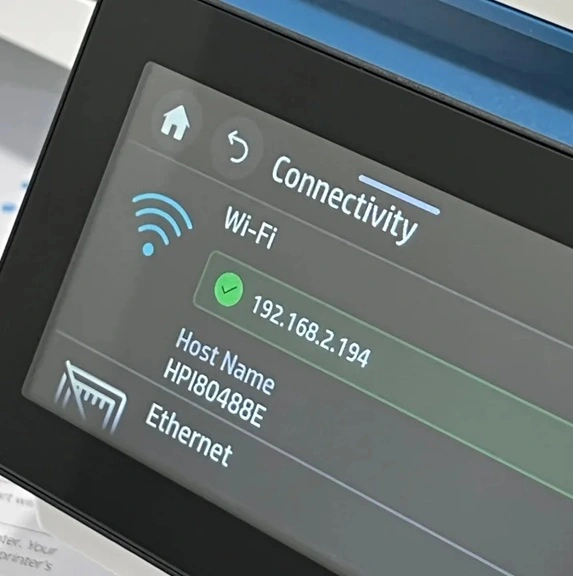
Step 2: Type your Wi‑Fi password, press Connect/OK, and wait until the Wi‑Fi light stays on.
Method 2: Add the Printer via Windows Settings
Applies to: Printers that are already connected to your Wi-Fi network. If your printer hasn’t joined your network yet, complete Method 1 or Method 4 first, then come back here.
This method lets Windows search for and install the printer automatically, without needing separate software.
Step 1: Click the Start menu, open Settings, and select Bluetooth & devices from the left sidebar.
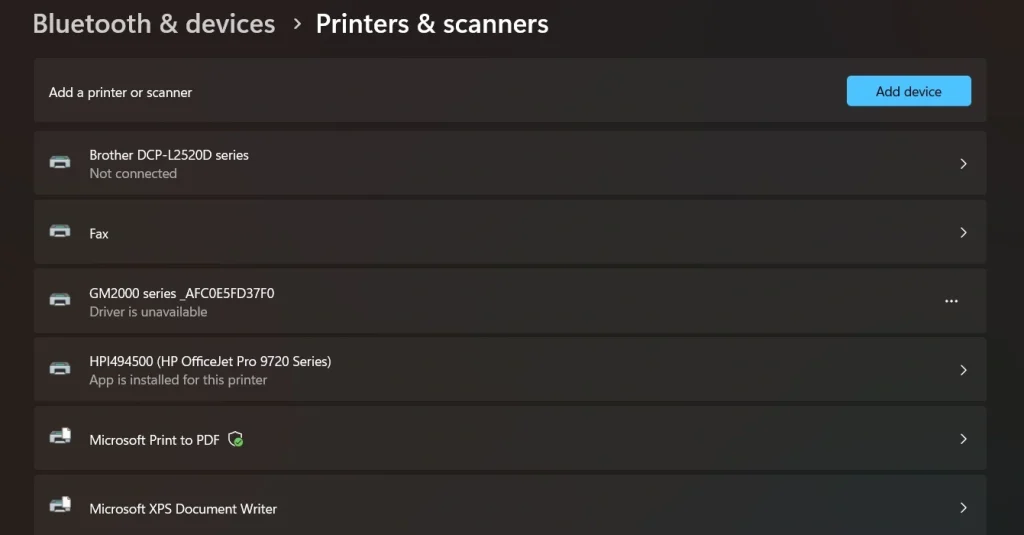
Step 2: Click Printers & scanners, then select Add device at the top of the page. Windows scans your network for available printers. When your printer’s name appears in the list, click it, then click Add device again to confirm.
Windows downloads and installs the driver automatically, and the printer appears in your device list once it’s ready.
Method 3: Install Manufacturer’s Printer Software
Applies to: Any Wi-Fi printer, especially useful when Windows can’t detect your printer automatically, or when you want extra features like scanning, ink monitoring, and firmware updates.
Manufacturer software walks you through setup with on-screen prompts and installs the fullest, most reliable version of the driver. Below are the specific tools and steps for the most common printer brands.
HP Printers
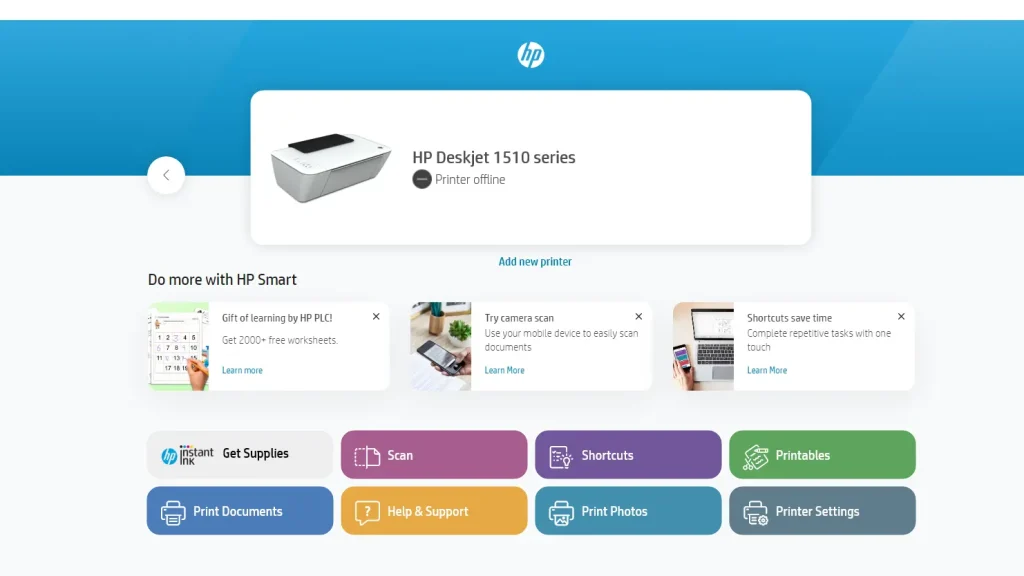
Download and install the HP Smart app (available on Windows and also as a mobile app). Open it, sign in or create a free HP account, and tap Add Printer. HP Smart searches for the printer over Wi-Fi and, on some models, Bluetooth, then walks you through connecting it to your network. If HP Smart doesn’t detect the printer, put it into setup mode by holding the wireless button on the panel until it blinks, then search again.
Canon Printers
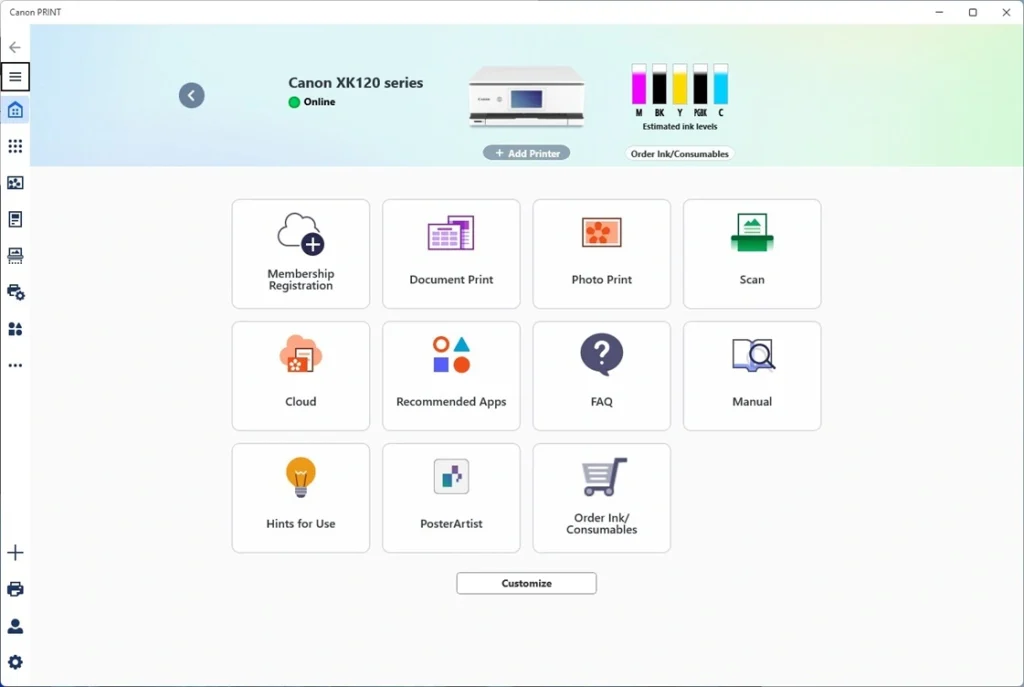
Canon’s process is called Easy Wireless Connect or Cableless Setup, depending on the model. Download the Canon PRINT app or the setup utility from Canon’s support site. You’ll be asked to put the printer into pairing mode, usually by pressing and holding the Wi-Fi or Direct button until the network icon blinks. Follow the prompts to select your network and enter your password.
Epson Printers
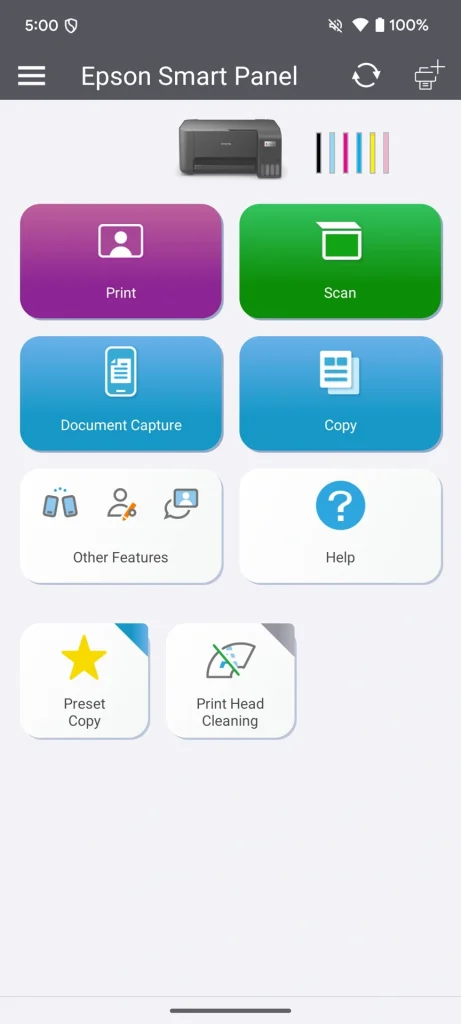
Install the Epson Smart Panel app. Power on the printer, open the app, and it walks you through connecting to your network step by step. Epson printers with a control panel screen can also use the Wi-Fi Setup Wizard under Network Settings. Nearly all Epson models also support the WPS method covered in Method 4.
Brother Printers
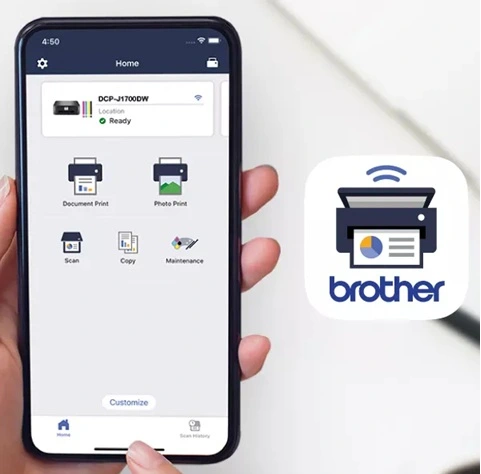
Use the Brother Mobile Connect app on your phone, or the Brother Installation Driver package on your computer. Brother printers with an LCD panel also have a built-in WLAN Setup Wizard under the Menu button. Many Brother models include a dedicated WPS button directly on the control panel, making Method 4 especially easy on this brand.
Samsung Printers
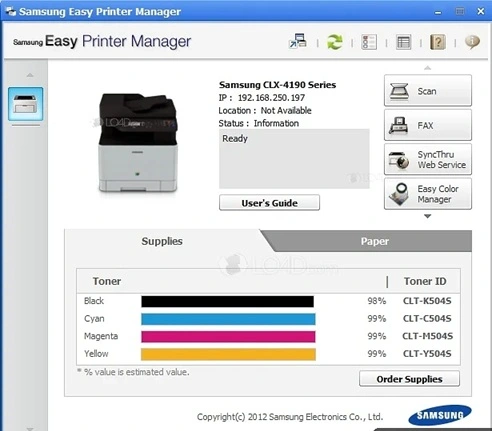
Most current Samsung printer lines are serviced under HP, since HP acquired Samsung’s printer division. For these models, use the HP Smart app as described above. For older, standalone Samsung-branded printers, download Samsung Easy Printer Manager from the support archive on HP’s site, install it, and follow its wireless setup wizard.
Xerox Printers
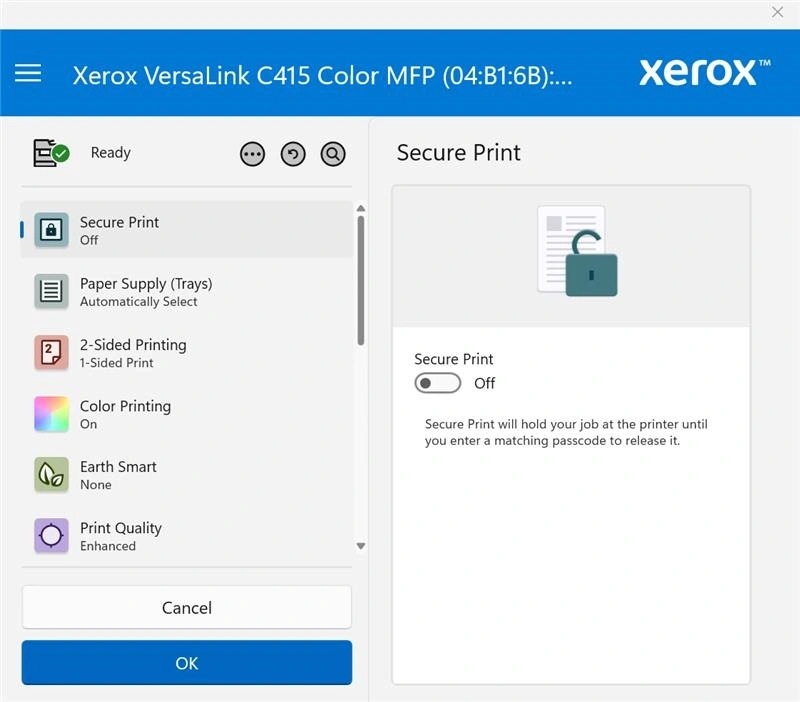
Download the Xerox Print and Scan Experience app, or the full driver package from Xerox’s support site for your exact model. Run the installer, choose Wireless as the connection type when prompted, and follow the on-screen steps. Some Xerox office models also offer a Wireless Setup Wizard directly on the control panel, similar to Method 1.
General tip: Always download software from the manufacturer’s official site. Third-party driver download sites often bundle outdated or unwanted software along with the driver.
Method 4: Use the WPS Button (Fastest, No Password Needed)
Applies to: Wi-Fi networks only. This method has nothing to do with Bluetooth, and it only works if both your router and your printer support WPS (Wi-Fi Protected Setup).
This is the fastest way to connect a wireless printer easily to your network because you never type a password. You press one button on the router, and one button on the printer, and the two devices exchange the connection details automatically.
Step 1: Find the small button labeled WPS on your router. Press and hold it for 3–5 seconds.
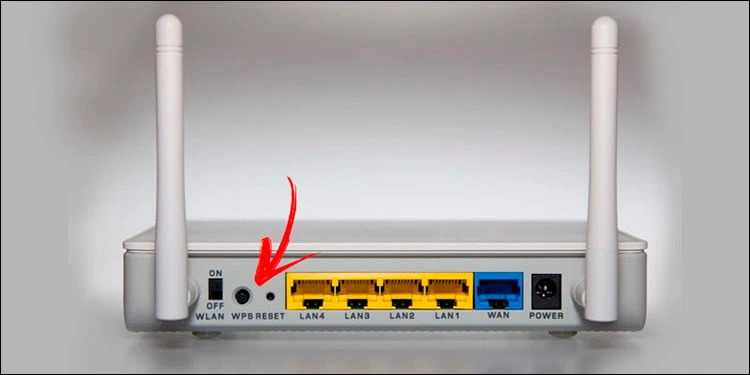
Step 2: On the printer screen, open the Wi‑Fi/Network menu. Select WPS/Wi‑Fi Protected Setup. Wait until the Wi‑Fi light turns solid
If it doesn’t work: Some routers ship with WPS disabled for security reasons. Log into your router’s admin page and confirm WPS is turned on. If your printer has no visible WPS light or button at all, it likely doesn’t support this method, and you should use Method 1 or Method 3 instead.
BONUS: Installing or Updating the Wi-Fi/Network Driver on Windows
Use this section when: Your printer is already connected to Wi-Fi and shows up in Windows, but it prints slowly, shows as “offline” without reason, disconnects often, or Windows installed only a generic driver instead of the full manufacturer one. This is different from Methods 1–4, which get the printer onto the network. This section makes sure your PC communicates with it correctly once it’s there.
Step 1: Open Device Manager by right-clicking the Start button and selecting it from the list. Expand Print queues or Printers, right-click your printer’s name, and select Update driver.
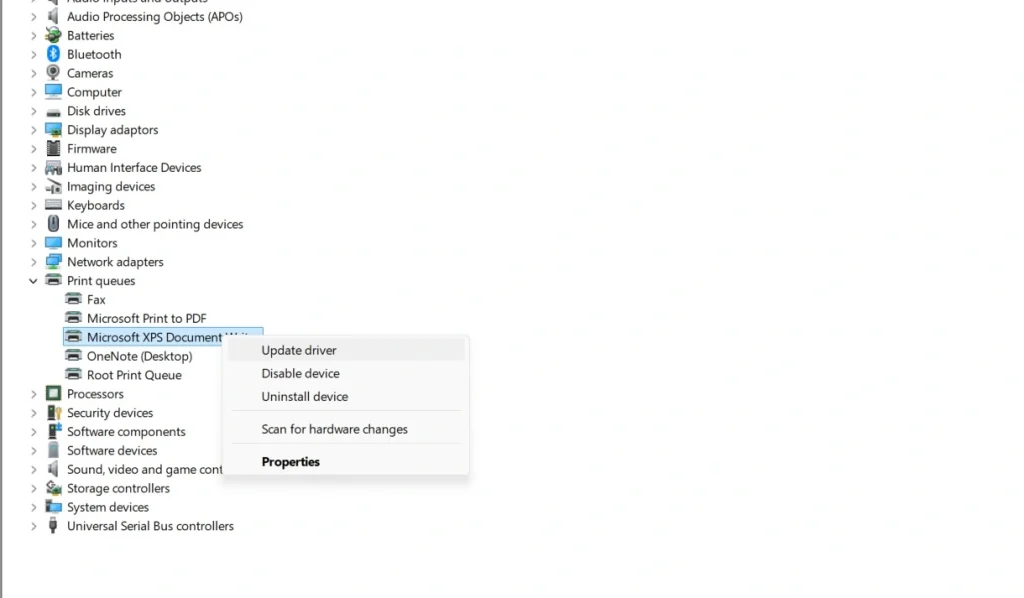
Step 2: Choose Search automatically for drivers first. If Windows reports it already has the best driver but you’re still having issues, choose Uninstall device instead, restart your PC, then reinstall using the full driver package from the manufacturer’s website rather than the Windows default.
Step 3: After installing the manufacturer’s driver, restart the Windows Print Spooler service. Search for Services in the Start menu, find Print Spooler in the list, right-click it, and select Restart. This clears any stuck communication between Windows and the printer.
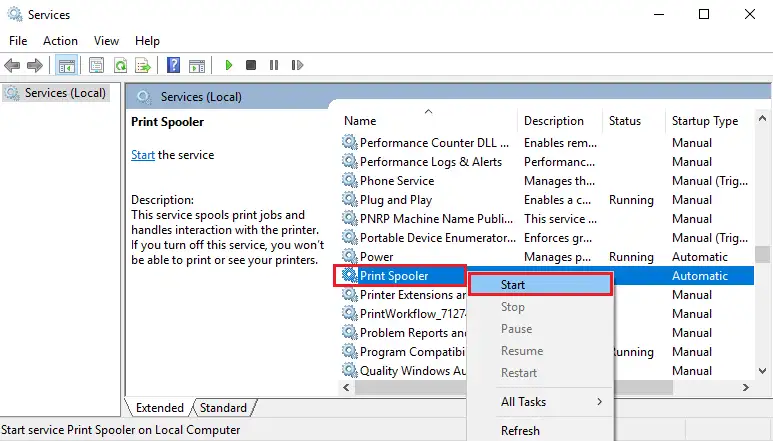
This step resolves a large share of “connected but not working properly” complaints, since the built-in Windows driver often supports basic printing but leaves out network-specific features the manufacturer’s driver includes.
Helpful Tips for Beginners and Advanced Users
- Restart the router and printer occasionally. It clears the cache and fixes minor connection problems.
- Assign a static IP address to the printer through your router’s DHCP reservation settings. This prevents the printer from losing its connection when the router restarts.
- Use the Windows Troubleshooter (Settings > System > Troubleshoot > Printer) to fix many issues automatically.
- Keep drivers updated, especially after a Windows feature update, since these sometimes reset default printer settings.
- Avoid network congestion. If many devices share the same Wi-Fi, disconnect unused ones during setup to reduce interference.
- Add the printer as a trusted device in your firewall settings once setup is complete, so future connections aren’t blocked.
- Print a test page after every change to confirm the setup actually works before you rely on it.
Troubleshooting: Common Problems and How to Fix Them
| Problem | Likely Cause | Fix |
| Printer not detected by Windows | PC and printer on different networks or bands | Confirm both are on the same 2.4GHz network, restart both devices, and try Method 2 again |
| Printer shows as “offline” | Stuck print queue or sleep mode | Clear the print queue, restart the Print Spooler service, and disable aggressive sleep settings on the printer |
| Driver installation fails | Corrupted or outdated driver files | Uninstall the printer from Device Manager, download a fresh driver from the manufacturer’s site, and reinstall |
| Printer connects but won’t print | Jobs stuck in the queue | Open the print queue, cancel all pending jobs, and send a new test print |
| Wi-Fi connection keeps dropping | Weak signal or dynamic IP changes | Move the printer closer to the router and assign it a static IP address |
| WPS button method fails | WPS disabled on the router | Log into the router’s settings and enable WPS, or use Method 1 instead |
| Printer prints gibberish or blank pages | Wrong or corrupted driver | Remove the printer completely, reinstall the correct manufacturer driver, and add it again |
| Duplicate printer entries appear | Multiple failed add attempts | Delete all duplicate entries in Printers & scanners, keep only the one showing “Ready,” and retest |
| Printer works on one device but not another | Missing driver or blocked firewall on that device | Install the manufacturer driver on the affected device and check its firewall settings |
| Prints fine over USB but not Wi-Fi | Weak signal or driver mismatch | Check signal strength on the printer’s network menu, and reinstall the driver using the wireless setup option specifically |
Conclusion
Connecting a wireless printer to a Windows 11 or Windows 10 PC might seem complicated, but with the right approach, it becomes quick and simple. Start by joining the printer to your Wi-Fi network through its control panel or, if both devices support it, the one-button WPS method.
From there, Windows Settings gets it onto your PC in minutes, and the manufacturer’s software fills in any extra features you want. If something still isn’t working right after the printer joins your network, updating the Wi-Fi driver on your PC often solves it.
Once connected, you get smooth, cable-free printing across multiple devices, along with a workspace that stays neat and modern.
FAQs
1. Why is my wireless printer not showing on Windows?
Windows might fail to detect the printer if both devices aren’t on the same Wi-Fi network or the same frequency band. Reconnect both your PC and printer to the same 2.4GHz network and try adding it again from Printers & scanners.
2. Can I connect my wireless printer to more than one computer?
Yes. Once the printer joins your Wi-Fi network, every PC on that same network can add it through Printers & scanners without repeating the wireless setup.
3. What should I do if my printer keeps disconnecting from Wi-Fi?
This usually happens because of changing IP addresses or a weak signal. Assign a static IP to the printer through your router and keep it close to the router for stable connectivity.
Author Bio:
Dinesh Lakhwani 

Dinesh Lakhwani, the entrepreneurial brain behind “TechCommuters,” achieved big things in the tech world. He started the company to make smart and user-friendly tech solutions. Thanks to his sharp thinking, focus on quality and the motto of never giving up, TechCommuters became a top player in the industry. His commitment to excellence has propelled the company to a leading position in the industry.
Popular Post
Recent Post

How To Disable Background Apps In Windows: 4 Quick Methods
A slow PC rarely gives a warning. One day, it simply takes longer to start. Apps open late. The fan runs loud, even when the screen is almost empty. Most people blame old hardware. Often, that is not the real reason. The real reason is hiding in plain sight. Windows keeps many apps active in […]

How to Activate Windows with a Product Key for Windows 11 & Windows 10
It always shows up at the worst time. You are halfway through a report, or about to join a video call. Then you spot it in the bottom right corner of the screen. Activate Windows. Go to Settings to activate Windows. Initially, an unactivated copy of Windows may seem like a minor inconvenience. Over time, […]

Is Easy Duplicate Finder Worth It? Honest Review
The photos folder looked normal at first glance. Then the storage warning popped up. One trip photo appeared four times. A tax PDF sat in three different folders. Two old setup files were still in Downloads, and each one was over 500 MB. Nobody plans this mess. Copies pile up slowly. A download runs twice. […]

Wise Duplicate Finder Review: Real Results from Wise Duplicate Finder
Read my honest Wise Duplicate Finder review. See features, pricing, pros and cons, and real PC test results. Find out if this free duplicate cleaner can free up your Windows storage.

How to Recover Deleted Files from Pen drive, USB Drive, SD Card
Introduction: On tech forums, you’ll often see posts like this: “I connected my pen drive to my laptop this morning, but the folder was empty. All my college project files had vanished. I don’t have a backup. Can someone help me?” Stories like this are very common. Pen drives, USB drives and SD cards are […]

How To Recover Files Deleted from the Recycle Bin [Windows 11]
Losing a file can happen in seconds. You clear your desktop, hit Delete, and empty the Recycle Bin. Then, just when you need that file again, it seems to have vanished. This guide will walk you through ways to restore files removed from the Recycle Bin. We will begin with simple fixes, then look at […]

Disk Drill Data Recovery Tool Explained: Full Review and Guide
It happens in a split second. You delete a folder by mistake. Your drive stops showing up. A photo album from your last trip just vanishes. And your stomach drops. Lost files feel personal. They are not just data. They are memories, work hours, and sometimes years of effort packed into a few gigabytes. When […]

Recover Deleted Files In Windows 11 With Software & Without
Introduction What is the first thing that goes through your mind the second an important file vanishes from a Windows 11 PC? For most people, it is a mix of panic and disbelief, followed by a frantic click through every folder that file could possibly be hiding in. It happens in a split second: one […]

EaseUS Data Recovery Wizard: Everything To Know
Data loss does not always come from a big disaster either. Most cases start small and boring. A drive gets formatted by mistake. A laptop freezes mid-save and restarts on its own. A memory card stops showing up after being pulled out too fast. None of these feel like emergencies at first, until you realize […]

