











Imagine this. You spend hours perfecting a video project. You hit save. Then your laptop freezes, reboots, and when the screen comes back. The file is gone. Your stomach sinks. It’s not just you. Lost files happen all the time. A dropped hard drive, a bad update, an accidental delete, or a corrupted partition can […]
How to Protect Your System from Malware Threats
The perennial truth behind vulnerable cybersecurity today is the exorbitant threat that arises in the form of malware. Here, the world has seen some serious malware threats in recent years in different forms. These threats include virus attacks, spyware, scareware, Ransomware, rogue software, Trojan Horses, Keyloggers, Rootkits, Worms and lot more.
While malware attacks were limited and new when information technology was in its infancy days now it has become a menace to the cyber world. As technology has evolved so have the malware threats and there is need to protect your system from malware threats.
A lot has been changed in the cyber world since the time some notable malware attacks had appeared. Now Macs are equally vulnerable to virus threats from the time first computer virus was found on a Mac in 1982 called Elk Cloner. Here, Windows are known for their susceptibility towards malware threats and it has definitely increased from the time some noted malware threats including Brain (1986) and Lehigh (1987) appeared.
Further, as the decade progressed, users were now more prone to these malicious threats as malware has become a profit motivated tool for cybercriminals around the world. Now when we know the malware threat is real and looming large, it becomes important to place some reliable counter-measures against this threat.
Ways to Protect Your System from Malware Threats
There are a number of effective steps you can put in place to avoid a cyber threat to your system. It may include some behavior changes or using reliable anti-malware tools and lot more. In this article, we have discussed some of these useful steps to help you protect your system from malware threats.
Update Software
This is the primary and one of the most effective steps that help you keep your system protected against all malware threats. Whenever you update your system software or your applications, it brings you certain bug fixes, security patches, and other useful features.
All these additional features create additional security layer for your system that becomes hard to break. To update software, go to system settings and find for latest updates. You should also be attentive towards update notifications you receive at regular intervals. For applications updates, you should visit the respective app website or their app store.
Source: adedancomptech
Enable Firewall
Firewall comes pre-installed on all systems that help you secure your system from malicious content coming through the Internet. Here, you need to enable Firewall by heading to settings of your system. This simple trick will offer you dual security against malware in addition to reliable anti-malware program on your system.
Source: makeuseof
Use Strong Passwords
This is one of the simplest and effective steps that also work as a preventive measure to protect your system from malware threats. To keep your data safe, you should always prefer strong password for better security.
To do this, you can use strong password with a combination of letters, words, numbers, and special characters. It will not only help you secure your system from malware threats but it will also secure your data from curious onlookers.

Source: michellgroup
Avoid Suspicious Links
This is more like a preventive step that keeps you system security intact. Cybercriminals prefer to spread viruses and malware through malicious links & attachments in emails and through other mediums. Here, they try to dupe you with some attractive offer or ask you for urgency where they force you to click on given link or attachment.
Here, they masquerade that link or attachment with malicious content to infect your device. Thus, it is advisable to avoid suspicious or unknown links & attachments for better security.

Source: appslova
Download from Reliable Sources
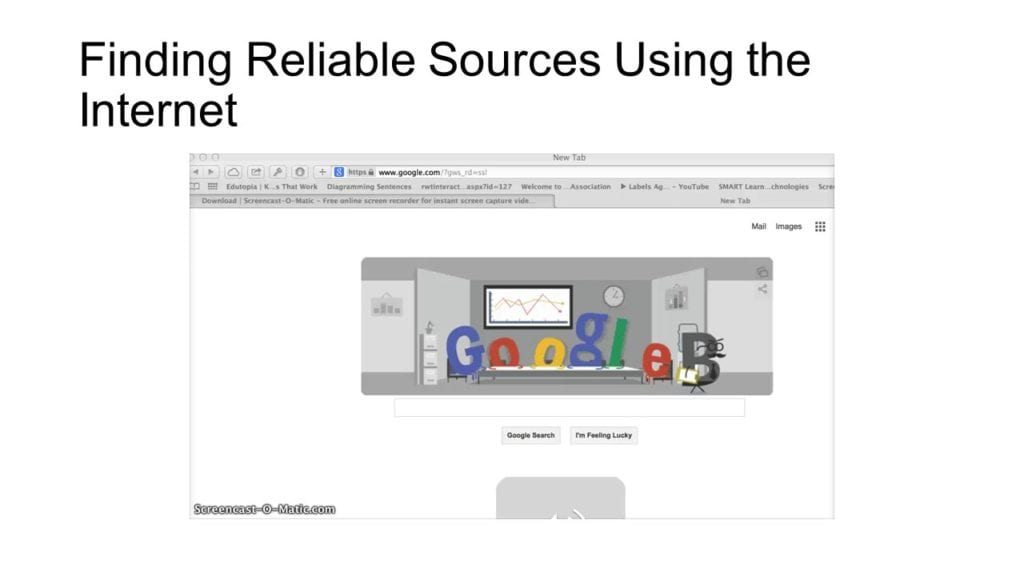
This is another effective step that helps you protect your system from malware threats. Here, you should prefer downloading from official websites or app stores to download any data or application. Further, don’t ever click on random links or attachments that you receive in emails or anywhere else to download apps or files as it could carry malicious content with it.
Source: slideplayer
Install Reliable Security Suite
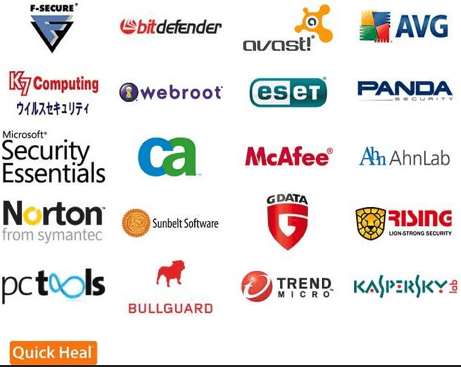
Once you install reliable security suite on your system in addition to Firewall, it will provide you a complete security against all existing and latest malware threats. These smart tools work on advanced algorithms to find and remove all malicious content from your system and quarantine it for better performance.
Here, you can check for better reviews before you download and install any anti-malware software on your system.
Source: topsecuritysoftware
Avoid Open Network
This is another effective step to protect your system from malware threats. Here, open or free Wi-Fi network may sound attractive deal but it carries its own threats and limitations.
Here, it is absolutely easy to break your system security with small piece of malicious code on the open network. Thus, we suggest you to avoid using free Wi-Fi or open network to share or download sensitive and important data.

Source: trangcongnghe
Enable Guest Account
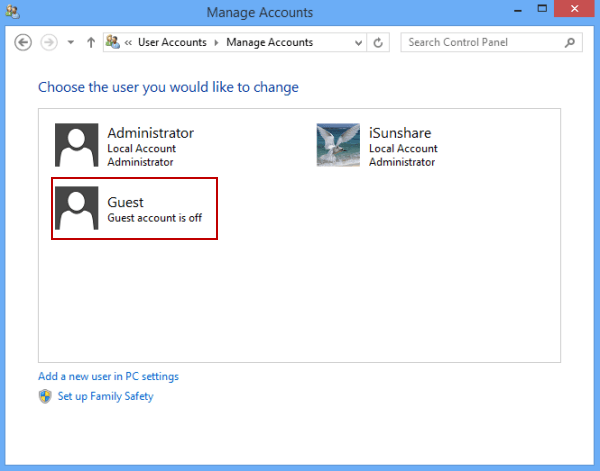
Cybercriminals try to access administrative privileges on your system through malware attacks to make changes or break the security of your system. When you use your primary account with administrative privileges for all the work it becomes prone to cyber threats all the time.
Here, we suggest you enable secondary account for daily work in addition to guest account for people who share your system.
Source: isunshare
Disconnect from Network
No matter you have tried your best to protect your system from malware threats, in case your system is under attack, the first thing you should do is to disconnect from the network.
It will block malware content spreading on your system and affecting other devices. Once you come to know you are under attack, you should be quick to disconnect your system from the network for better security.

.
Source: modworkshop
Data Backup
Data backup is the best solution to all the problems you could face on your system including sudden crashes, malware attacks or anything else. Here, we suggest you keep a second copy of your data on other location preferably external hard disk/USB stick etc. For better security, you can also try data backup on secured online platforms.
While searching for best online backup tools, you should check whether the tool offers you encryption services or not. Here, you should prefer encryption based password protected online backup tools for better security.
Source: compushiponline
Conclusion
While there could be numerous other ways to protect your system from malware threats, here we have tried to discuss most effective ones. If you know more of these steps, feel free to comment below.
Dinesh Lakhwani
Author Bio:
Dinesh Lakhwani 

Dinesh Lakhwani, the entrepreneurial brain behind “TechCommuters,” achieved big things in the tech world. He started the company to make smart and user-friendly tech solutions. Thanks to his sharp thinking, focus on quality and the motto of never giving up, TechCommuters became a top player in the industry. His commitment to excellence has propelled the company to a leading position in the industry.
Popular Post
Recent Post

5 Best Data Recovery Software For Windows 11 and Windows 10
A crashed drive can ruin a whole day. One minute your photos, work files, and tax records sit safe on your PC. The next minute they are gone. A power cut, a bad update, or one wrong click can wipe out years of memories and months of work in seconds. That sinking feeling is why […]

How To Update NVIDIA Drivers On Windows 11/10 PC
Learn how to update NVIDIA drivers on Windows 11/10 with simple methods, safety tips, and easy steps for smoother gaming and better PC performance.

Top AI Features Hidden Inside Windows 11
Explore the top AI features in Windows 11, from Copilot to Recall, plus safety tips and simple steps to use each tool the right way.

Customize Your Screen Saver Settings in Windows [Easy Steps]
Learn how to customize screen saver settings in Windows 11 with easy steps, safety tips, and simple tricks to personalize your PC screen.

Driver Easy Windows Driver Updater Tool Review: Tried & Tested
In-depth information about Driver Easy’s functions and features can be found in our review. Learn how to update drivers more easily with this tool for a more seamless computer experience.

Is Avast Driver Updater Worth It? A Hands-On Analysis
A full review of Avast Driver Updater covering features, setup steps, pricing, pros and cons, and real PC results, to help you decide if it is worth buying.

IObit Driver Booster 13 (PRO) Review: [Tried & Tested]
IObit Driver Booster 13 is built for one purpose: keeping your PC drivers up to date. Well, yes! Outdated drivers can cause crashes, slowdowns, and hardware issues. This tool scans fast and updates with one click. The interface is simple. Even beginners can use it without confusion. Updates are pulled from a huge database, covering […]

Auslogics Driver Updater: A Detailed Walkthrough [2026]
This comprehensive review covers the key features, pros, and cons, pricing, and a final verdict on Auslogics’ driver update utility. Learn how it stacks up against manual driver maintenance.

5 Best Driver Updater Tools for Windows to Use (Free and Paid)
Introduction: Most people blame their PC for problems that a driver caused. A driver works like a bridge between your hardware and your operating system. When this bridge cracks, strange things start to happen. Screens flicker without reason. Printers go silent mid-task. Games freeze or crash out of nowhere. Manually finding the right driver is […]

