












So, search for a pair of shoes once online. Close the tab. By evening, those same shoes are sitting on your news site, your video app, and even your recipe blog. Nobody placed them there by chance. A cookie did. Well, yes! Cookies are small files that websites place on your device while you browse. […]
Devices and Printers Settings In Windows 11: Open/Setup/Manage
Introduction:
Have you ever sat in front of your computer, unsure of how to link up a new printer or handle your devices in Windows 11? It’s a common issue. A lot of people get confused when trying to figure out all the settings and choices in Microsoft’s newest system. But don’t worry! Windows 11 has tools to help you with your devices and printers.
In this detailed guide, we’ll go through everything about the devices and printers settings in Windows 11. We’ll show you how to access, set up, and manage these settings, so you can get the best use out of your connected equipment.
Whether you’re new to technology or very experienced, this guide will give you the skills to handle any problem with your devices.
Overview of Devices and Printers Settings in Windows 11: How Useful Is It?
Before we get into the detailed specifics, let’s pause to recognize the usefulness of the device and printer options in Windows 11. This well-equipped area provides many advantages for users:
- One Place for Everything: The device and printer options give you a single place to see and handle all your connected equipment, making it easy to manage everything from one spot.
- Simple Device Setup: Setting up new devices, like printers, cameras, or extra storage drives, is straightforward thanks to the user-friendly interface.
- Help with Problems: If a device has issues, the options include tools to help you find and fix the problems quickly.
- Control Over Printing: For people who print a lot, being able to manage print jobs and printer settings is very helpful.
- Quick Access to Device Info: You can easily view and change device information, drivers, and settings without searching through various menus.
- Bluetooth Device Pairing: Seamlessly connect and manage Bluetooth devices directly from the settings interface.
- Network Device Discovery: Easily find and connect to network printers and other shared devices on your local network.
How to Open Devices and Printers Settings in Windows 11
Now that we understand the importance of devices and printer settings in Windows 11, let’s explore the various methods to access this crucial feature:
Method 1: Using the Start Menu:
Step 1: Open the Start menu search bar. Type “Printers and Scanners” in the search bar.

Step 2: Click on the “Printers and Scanners” option that appears in the search results.
Method 2: Through the Settings App:
Step 1: Press Win + I to open the Settings app. On the left menu pane, click on the “Bluetooth & devices” category

Step 2: Scroll down and click on “Printers & scanners.“
Method 3: Via Control Panel:
Step 1: Right-click on the Start button and select “Run.” Type “control” and press Enter to open the Control Panel.

Step 2: Click on “Devices and Printers.”
Method 4: Using the Run Command:
Step 1: Press Win + R to open the Run dialog.

Step 2: Type “control printers” and press Enter.
By mastering these methods, you’ll always have quick access to the printers settings in Windows 11, regardless of your preferred navigation style.
How to Set Up Devices and Printer Settings in Windows 11
Setting up devices and printers in Windows 11 is a straightforward process, but it’s essential to understand the steps involved to ensure a smooth experience. Here’s a comprehensive guide to help you set up various devices:
Adding a New Printer:
Step 1: Open the devices and printers settings in Windows 11 using one of the methods described earlier. Click on “Add Device” at the top of the window.

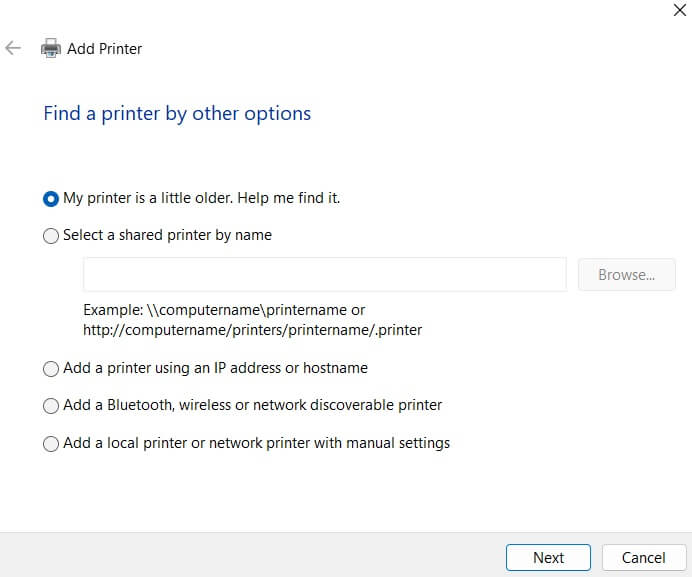
Step 2: Windows will automatically search for available printers on your network. If your printer is found, click on it and follow the on-screen instructions to install it. If your printer isn’t found, click on “The printer that I want isn’t listed” and follow the wizard to add it manually.
Setting Up a Bluetooth Device:
Step 1: Ensure your Bluetooth device is in pairing mode. In the devices and printers settings, click on “Add a device” at the top of the window.

Step 2: Select your Bluetooth device from the list of available devices. Follow the on-screen instructions.

Remember, the devices settings in Windows 11 provide a centralized location for managing all your connected hardware. Take the time to familiarize yourself with this interface, as it will be your go-to spot for device management.
How to Manage Devices and Printer Settings in Windows 11
Once you’ve set up your devices, the next step is learning how to manage them effectively. The devices and printer settings in Windows 11 offer a wealth of options for managing your hardware.
Let’s explore some key management tasks:
Viewing Connected Devices:
Step 1: Open the devices and printers settings in Windows 11.
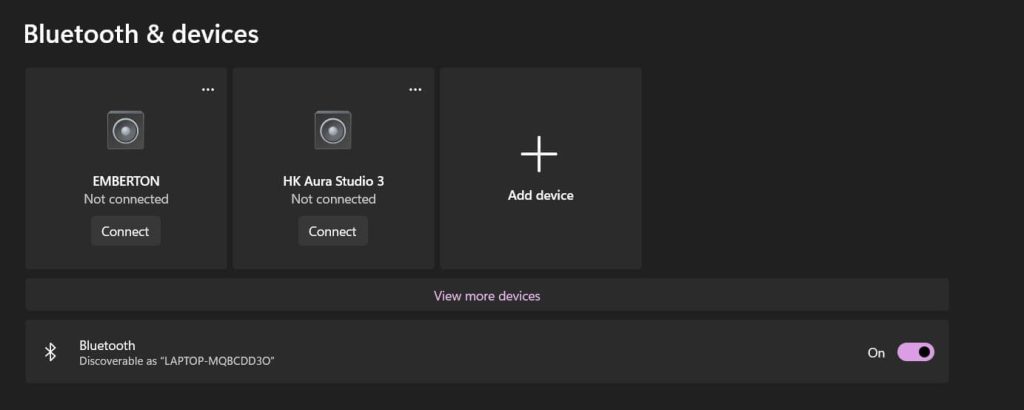
Step 2: You’ll see a list of all connected devices, categorized by type (printers, cameras, audio devices, etc.). This overview allows you to quickly assess which devices are currently connected and functional.
Updating Device Drivers:
Step 1: Open the Device Manager app on your Windows PC. You can either use the Start menu search bar. Alternatively, press the Win + R key combination to open the Run dialog box. Type “Devmgmt.msc” and hit Enter.
Step 2: In the Device Manager window, you will see various options. Double-click on “Printers” category. Select your printer, right-click on it, and select the “Update Driver” option.

Step 3: Choose whether to search automatically for updated driver software or browse your computer for driver software.
Troubleshooting Device Issues:
Step 1: Open the Settings app on your Windows 11 PC. Switch to the “System” tab. Scroll down and select “Troubleshoot”. Hit the “Other Troubleshooters” button.

Step 2: You will now see a list of various built-in troubleshooters offered by Windows. Pick a troubleshooter from the list, say Bluetooth or Printer. Hit the “Run” button placed next to it to run the troubleshooter.

Step 3: Windows 11 will run a series of diagnostic tests and attempt to resolve any issues automatically. Follow the on-screen instructions to complete the troubleshooting process.
Managing Printer Queues:
Step 1: Double-click on a printer in the devices and printers settings. Select “Open Print Queue”. This opens the print queue, showing all current and pending print jobs.

Step 2: You can pause, resume, or cancel print jobs from this interface.
Removing Devices:
Step 1: To remove a device that you no longer use, right-click on it in the devices and printers settings.

Step 2: Select “Remove device” from the context menu. Confirm the action when prompted.
Setting Default Devices:
Step 1: Navigate to Bluetooth and Devices> Printers and Scanners. Select any printer from the list. Now hit the “Printer Properties” option.

Step 2: For printers, you can also set a default printer by right-clicking and choosing “Set as default printer.”
Configuring Device-Specific Settings:
Step 1: Right-click on a device and select “Properties.” Explore the various tabs to adjust settings specific to that device.

Step 2: For example, you can change print quality for printers, adjust color settings for displays, or configure power management for USB devices.
By mastering these management techniques, you’ll be able to keep your devices running smoothly and troubleshoot any issues that arise. The devices and printer settings in Windows 11 are designed to give you comprehensive control over your hardware ecosystem.
Tips and Tricks to Make the Most of Devices and Printer Settings in Windows 11
To effectively manage your devices and printers in Windows 11, try these helpful tips:
- View Your Network Map: In the devices and printers settings, click “View network map” on the toolbar. This shows you a picture of all the devices connected to your network, making it easier to see how everything is set up in your home or office.
- Share Your Printer: Right-click on a printer in the devices and printers settings, then choose “Printer properties.” Click on the “Sharing” tab and check “Share this printer.” This lets other computers on your network use the printer.
- Enhance Device Functionality with Device Stage: Some devices have a feature called Device Stage, which offers specific tasks and information for that device. Double-click on a compatible device to see its Device Stage interface. You can find shortcuts to common tasks, support details, and more here.
- Set Up Automatic Driver Updates: Press Win + I to open Settings, then go to “Windows Update”. Here you can choose to automatically download and install driver updates for your devices.
- Use the Devices and Printers Troubleshooter: If you’re experiencing general issues with devices, use the built-in troubleshooter. Press Win + I, go to “System” > “Troubleshoot” > “Other troubleshooters.” Run the “Hardware and Devices” troubleshooter to diagnose and fix common problems.
- Use Windows Key Shortcuts: Press Win + K to quickly open the Connect pane for adding wireless displays and audio devices. Press Win + P to manage multiple displays quickly.
- Use the Microsoft Print to PDF Feature: When adding a new printer, select “Microsoft Print to PDF” as the printer. This allows you to create PDF files from any application that supports printing.
By implementing these tips and tricks, you’ll be able to leverage the full potential of the devices and printers’ settings in Windows 11. These advanced techniques can help streamline your workflow, improve device management, and enhance your overall computing experience.
Conclusion
Throughout this detailed guide, we’ve looked at how the device and printer settings in Windows 11 are a strong tool for handling your connected hardware. This includes everything from printers and scanners to Bluetooth devices and external storage. This main area offers a user-friendly interface for setting up, managing, and fixing various devices.
By learning the methods we’ve covered—from simple setup steps to more complex management skills—you’ll be ready to tackle any task related to devices. Remember, the secret to managing devices effectively is knowing the tools available to you. Spend time exploring the device and printer settings in Windows 11, try out different features, and don’t hesitate to look into advanced settings when necessary.
FAQs:
Q: How often should I update my device drivers?
It’s generally a good practice to check for driver updates every few months or whenever you experience device issues. Windows 11 can automatically update many drivers, but for optimal performance, it’s worth checking manually, especially for critical devices like graphics cards.
Q: Can I access the devices and printers settings in Windows 11 remotely?
Yes, if you have remote access to a Windows 11 computer, you can navigate to the devices and printers settings just as you would locally. This can be particularly useful for IT support or managing devices on a network.
Q: What should I do if Windows 11 doesn’t recognize my device?
First, ensure the device is properly connected and powered on. Try disconnecting and reconnecting it, or using a different port if possible. If the issue persists, check the manufacturer’s website for updated drivers or use the Windows troubleshooter in the devices and printers settings.
Q: Can I manage my smartphone through the devices and printers settings in Windows 11?
While you can’t fully manage smartphones through this interface, you can often see connected phones and perform basic tasks like file transfer. For more comprehensive management, use the Your Phone app in Windows 11 or device-specific software provided by the phone manufacturer.
Author Bio:
Dinesh Lakhwani 

Dinesh Lakhwani, the entrepreneurial brain behind “TechCommuters,” achieved big things in the tech world. He started the company to make smart and user-friendly tech solutions. Thanks to his sharp thinking, focus on quality and the motto of never giving up, TechCommuters became a top player in the industry. His commitment to excellence has propelled the company to a leading position in the industry.
Popular Post
Recent Post

How To Disable Background Apps In Windows: 4 Quick Methods
A slow PC rarely gives a warning. One day, it simply takes longer to start. Apps open late. The fan runs loud, even when the screen is almost empty. Most people blame old hardware. Often, that is not the real reason. The real reason is hiding in plain sight. Windows keeps many apps active in […]

How to Activate Windows with a Product Key for Windows 11 & Windows 10
It always shows up at the worst time. You are halfway through a report, or about to join a video call. Then you spot it in the bottom right corner of the screen. Activate Windows. Go to Settings to activate Windows. Initially, an unactivated copy of Windows may seem like a minor inconvenience. Over time, […]

Is Easy Duplicate Finder Worth It? Honest Review
The photos folder looked normal at first glance. Then the storage warning popped up. One trip photo appeared four times. A tax PDF sat in three different folders. Two old setup files were still in Downloads, and each one was over 500 MB. Nobody plans this mess. Copies pile up slowly. A download runs twice. […]

Wise Duplicate Finder Review: Real Results from Wise Duplicate Finder
Read my honest Wise Duplicate Finder review. See features, pricing, pros and cons, and real PC test results. Find out if this free duplicate cleaner can free up your Windows storage.

How to Recover Deleted Files from Pen drive, USB Drive, SD Card
Introduction: On tech forums, you’ll often see posts like this: “I connected my pen drive to my laptop this morning, but the folder was empty. All my college project files had vanished. I don’t have a backup. Can someone help me?” Stories like this are very common. Pen drives, USB drives and SD cards are […]

How To Recover Files Deleted from the Recycle Bin [Windows 11]
Losing a file can happen in seconds. You clear your desktop, hit Delete, and empty the Recycle Bin. Then, just when you need that file again, it seems to have vanished. This guide will walk you through ways to restore files removed from the Recycle Bin. We will begin with simple fixes, then look at […]

Disk Drill Data Recovery Tool Explained: Full Review and Guide
It happens in a split second. You delete a folder by mistake. Your drive stops showing up. A photo album from your last trip just vanishes. And your stomach drops. Lost files feel personal. They are not just data. They are memories, work hours, and sometimes years of effort packed into a few gigabytes. When […]

Recover Deleted Files In Windows 11 With Software & Without
Introduction What is the first thing that goes through your mind the second an important file vanishes from a Windows 11 PC? For most people, it is a mix of panic and disbelief, followed by a frantic click through every folder that file could possibly be hiding in. It happens in a split second: one […]

EaseUS Data Recovery Wizard: Everything To Know
Data loss does not always come from a big disaster either. Most cases start small and boring. A drive gets formatted by mistake. A laptop freezes mid-save and restarts on its own. A memory card stops showing up after being pulled out too fast. None of these feel like emergencies at first, until you realize […]

