












A slow computer makes it hard to focus. Programs take too long to open. Free space keeps shrinking until the disk is almost full. This happens to most PC owners at some point. Even new machines can slow down after a while. That is the exact problem cleanup tools are built to solve. They comb […]
How to Check SSD or HDD in Laptop [Windows 11/10]
Solid State Drives (SSD) and Hard Disk Drives (HDD) are the two main hard drive types that rule the laptop storage industry. Although they both store data, they are very different in terms of durability, speed, and performance. Knowing whether the SSD or HDD in your laptop is important since it may help you better grasp the capabilities and limits of your computer.
Here, we’ll look at many methods, specifically for Windows 11 and 10, for determining if the hard disk in your laptop is an SSD or an HDD. Therefore, if you are wondering how to check SSD or HHD in laptop, keep reading.
Differences between SSD and HDD Hard Drives in Laptops
There are several key differences between SSD and HDD hard drives in laptops. Some of these differences are:
1. Speed and Performance
The speed and performance of SSD and HDD hard drives vary significantly from one another. Compared to HDDs, SSDs are recognized for having quicker read and write rates. This is so that files and applications may be accessed more quickly.
SSDs store data on flash memory. HDDs, on the other hand, operate more slowly overall because they read and write data using spinning disks and a mechanical arm.
2. Durability and Reliability
When it comes to robustness and dependability, SSDs outperform HDDs.SSDs are more robust for use in laptops since they don’t have moving components, which makes them less prone to physical damage from drops or bumps.
This is especially true for users who are always on the go. Furthermore, because HDDs include moving parts, SSDs are less vulnerable to mechanical problems like disk crashes.
3. Power Consumption
The power consumption of SSD and HDD hard drives in laptops is another important distinction. Because SSDs don’t need electricity to spin up disks or operate mechanical arms, they use less energy than HDDs.
Because of this, laptops with SSDs have longer battery lives, which makes them perfect for customers who need to use them for lengthy periods of time but don’t have access to power outlets.
4. Noise and Heat
Due to its rotating disks and moving components, HDDs produce heat and noise when they are in use. SSDs, on the other hand, generate little to no heat or noise, which helps to make laptop environments quieter and colder.
Users who value a silent and thermally efficient laptop experience, such as professionals who operate in quiet areas or content creators, will find this to be very helpful.
5. Storage Capacity
Traditionally, HDDs have been more cost-effective per gigabyte when it comes to storage capacity than SSDs. Although SSDs have become more accessible recently, HDDs continue to offer greater storage capacities, which makes them a good option for users who need a lot of storage for multimedia, big files, and data-intensive applications.
6. Affordability
For many laptop users, the price difference between SSD and HDD hard drives is a major consideration.
In the past, SSDs have cost more for equivalent storage capacity than HDDs. But since manufacturing and technological advances have closed the price difference, SSDs are now more accessible than ever. Even while SSDs are still often more expensive per gigabyte than HDDs, the total cost of laptops with SSDs has started to decline.
7. Boot and Load Times
Faster boot and load times are among the obvious benefits of SSDsover HDDs. Laptops with SSDs have fast read and write speeds, which enable them to start apps rapidly and boot up quickly. The overall user experience can be greatly enhanced by this, especially for jobs requiring frequent system restarts and program launches.
How to Understand Whether an SSD or an HDD is Better for Your Laptop
To understand whether an SSD or HDD is better for your laptop, some necessary considerations should be kept in mind. Some of these necessary considerations are:
1. Capacity
The drive’s storage capacity is one important consideration. When opposed to SSDs, HDDs usually provide greater storage capabilities at a lesser price. An HDD can be a better choice if you need a lot of storage for papers, media files, and other types of data. It’s crucial to remember that SSDs are now more affordable per gigabyte of storage and that they are accessible in bigger sizes than ever before.
2. Battery Life
Power consumption and battery life are important considerations for laptop users. Since SSDs don’t need a motor to spin up the disks or move the read/write heads, they utilize less power than HDDs. Consequently, laptops with SSDs often have better overall energy economy, quicker wake times, and longer battery lives.
3. Cost
For many laptop users, choosing between an SSD and an HDD is mostly based on cost. Historically, the cost of an SSD has been more per gigabyte than that of an HDD. Nonetheless, the difference in price between the two has been closing recently. Even though HDDs and SSDs still often cost more for the same amount of storage space, SSD prices have generally decreased, especially for smaller-capacity drives.
4. Future Upgradability
It’s critical to take into account the possibility of future updates, particularly given how quickly technology is developing. Although most laptops’ HDDs and SSDs may be updated or changed, it’s important to remember that many contemporary laptops are built with SSDs in mind and might not have room for conventional HDDs.
How to Check SSD or HDD in Laptop [Windows 11/10]
For those who want to know how to check SSD or HHD in laptop, there are numerous methods. Some of the most effective methods are discussed below:
Method 1: Check the Laptop Specifications
The first and easiest way to determine your laptop’s storage type is by checking the specifications. Here’s how:
Step 1: Open the Start menu and click on the “Settings” icon.
Step 2: In the Settings window, select the “System” option.
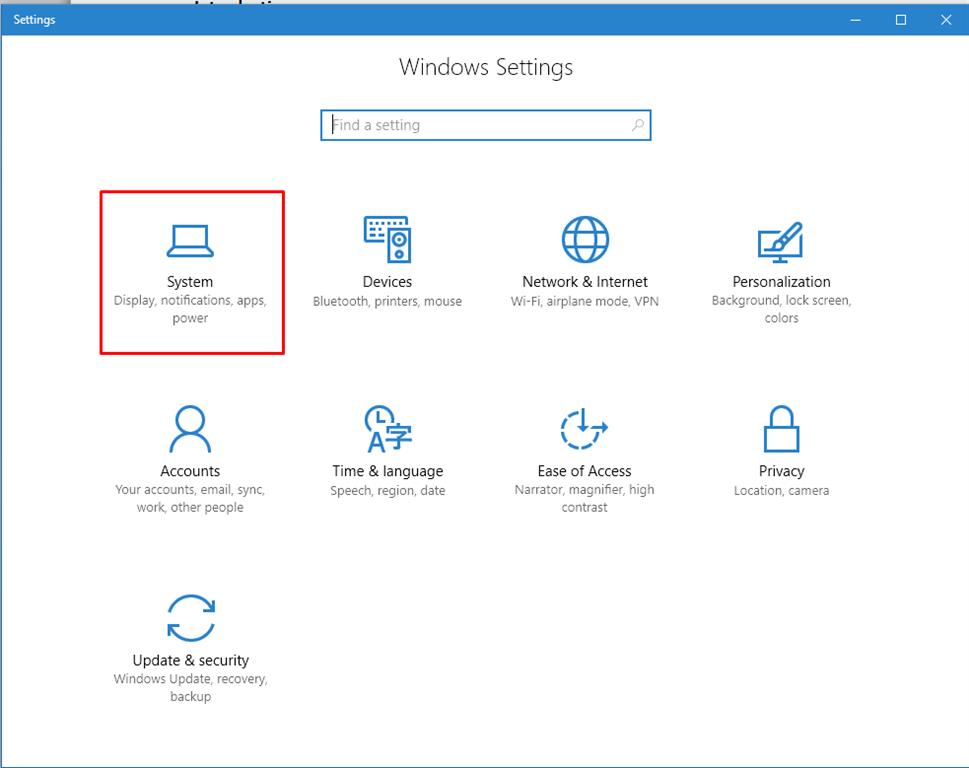
Step 3: Click on the “About” tab from the left sidebar.
Step 4: Scroll down to the “Device specifications” section.
Step 5: Look for the “Device type” or “Storage” information. If it mentions “SSD” or “Solid State Drive,” you have an SSD. If it says “HDD” or “Hard Disk Drive,” you have an HDD.
Method 2: Analyze the Drive Label
Another method for those thinking about how to check SSD or HHD in laptops is examining the drive label. Here’s how:
Step 1: Open the File Explorer by pressing the Windows key + E.
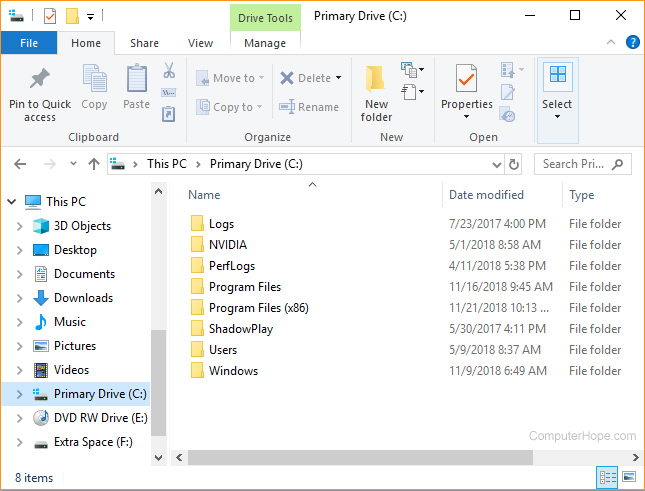
Step 2: Locate and right-click on the drive you want to check.
Step 3: Select “Properties” from the context menu.
Step 4: In the General tab, look for the “Type” field. If it says “Local Disk” or “Solid-state drive,” you have an SSD. If it mentions “Local Disk” or “Hard Disk Drive,” you have an HDD.
Method 3: Use the Disk Management Tool
Windows provides a built-in Disk Management tool that can help you identify your laptop’s storage type. Here’s how:
Step 1: Press the Windows key + X and select “Disk Management” from the menu.
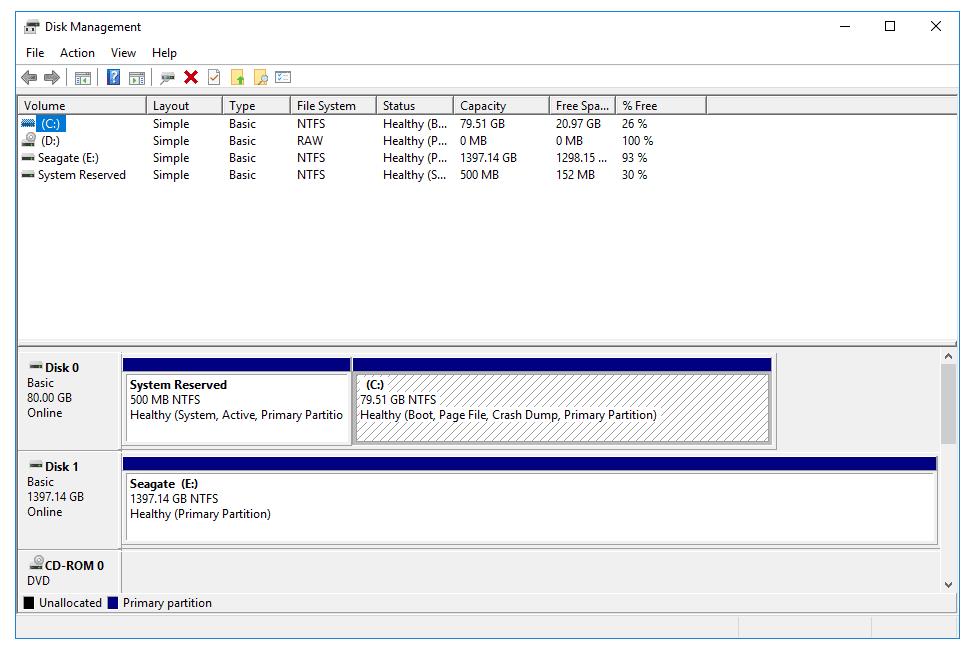
Step 2: In the Disk Management window, locate your primary drive.
Step 3: Right-click on the drive and select “Properties.”
Step 4: In the Properties window, navigate to the “Volumes” tab.
Step 5: Look for the “File System” field. If it says “NTFS” or “FAT32,” you likely have an HDD. If it mentions “NTFS” or “ReFS,” you likely have an SSD.
Method 4: Check the Drive Performance
The performance of your laptop’s storage can also provide insights into the type of drive installed. Here’s how to check SSD or HHD in laptop using this method:
Step 1: Press the Windows key + X and select “Task Manager” from the menu.
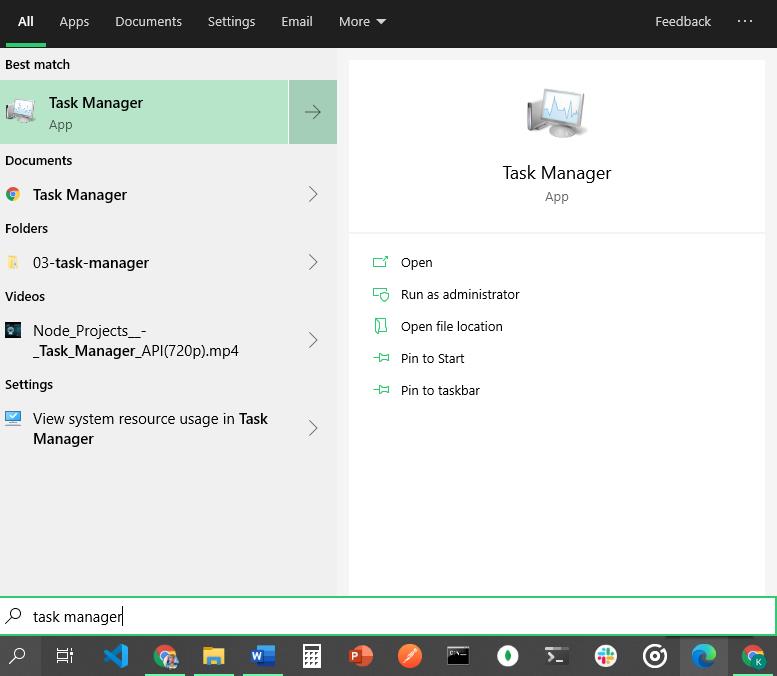
Step 2: In the Task Manager window, navigate to the “Performance” tab.
Step 3: Click on “Disk” in the left sidebar.
Step 4: Look for the “Model” or “Media Type” column. If it mentions “SSD” or “Solid State Drive,” you have an SSD. If it says “HDD” or “Hard Disk Drive,” you have an HDD.
Method 5: Use the Command Prompt
The Command Prompt is a powerful tool that can provide detailed information about your laptop’s storage type. Here’s how to check SSD or HHD in laptop with the help of this method:
Step 1: Press the Windows key + X and select “Command Prompt” (Admin) from the menu.
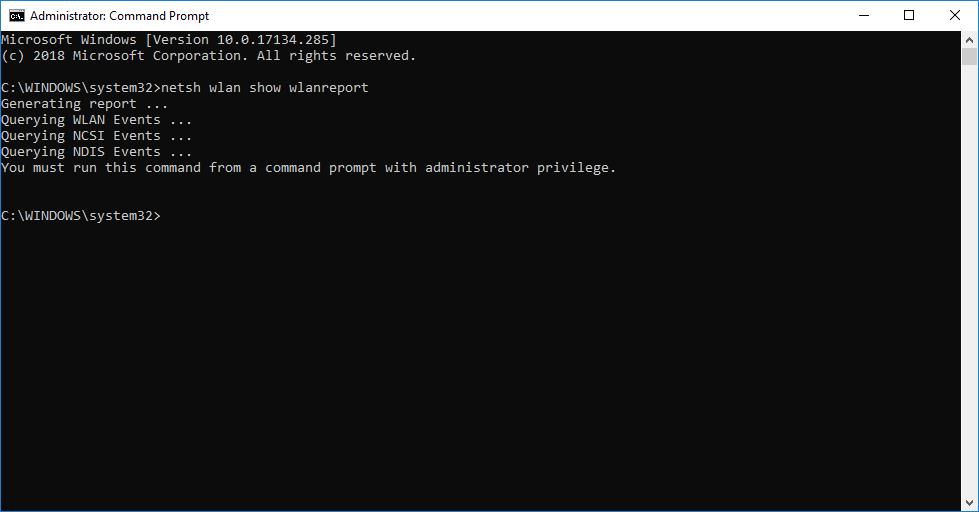
Step 2: In the Command Prompt window, type “wmicdiskdrive get MediaType” and press Enter.
Step 3: Look for the output. If it says “External Fixed Disk Media” or “Fixed hard disk media,” you have an HDD. If it mentions “SSD” or “Solid State Drive,” you have an SSD.
Method 6: Check Device Manager
Device Manager allows you to view and manage the hardware devices connected to your laptop, including the storage drives. Here’s how to access it:
Step 1: Press the Windows key + X and select “Device Manager” from the menu.
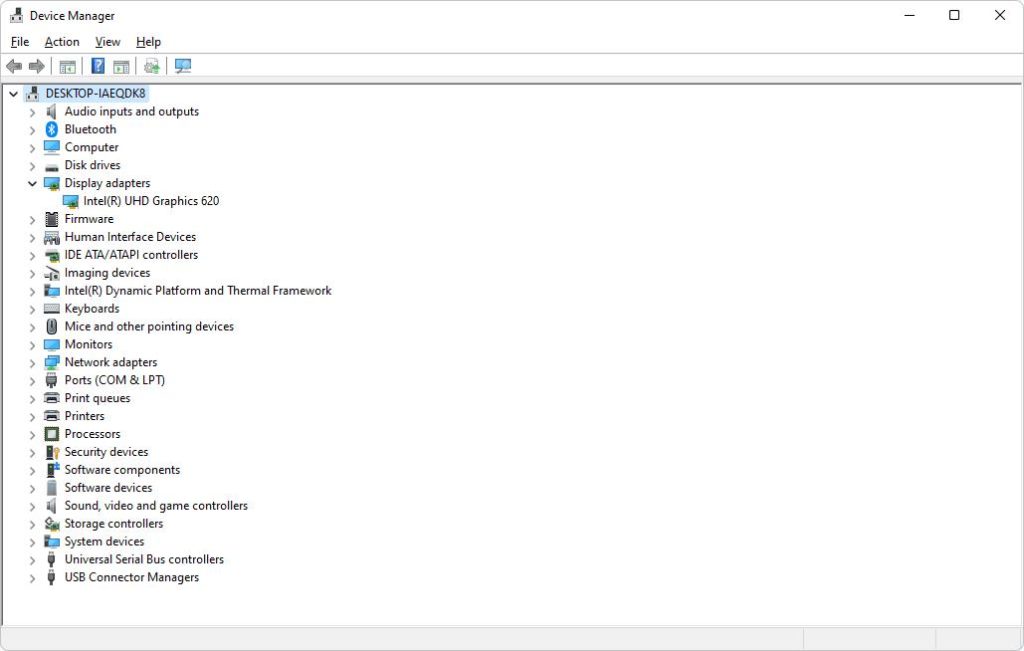
Step 2: In the Device Manager window, expand the “Disk drives” category.
Step 3: Look for your primary drive (usually labeled with the manufacturer’s name).
Step 4: Right-click on the drive and select “Properties.”
Step 5: In the Properties window, navigate to the “Details” tab.
Step 6: Select “Hardware Ids” from the Property dropdown menu.
Step 7: Look for “SSD” or “HDD” in the Value field. If it mentions “SSD,” you have an SSD. If it says “HDD,” you have an HDD.
Method 7: Seek Professional Assistance
If you are still uncertain about your laptop’s storage type, it might be best to seek professional assistance. A computer technician can help you identify the drive type accurately.
Method 8: Physical Examination
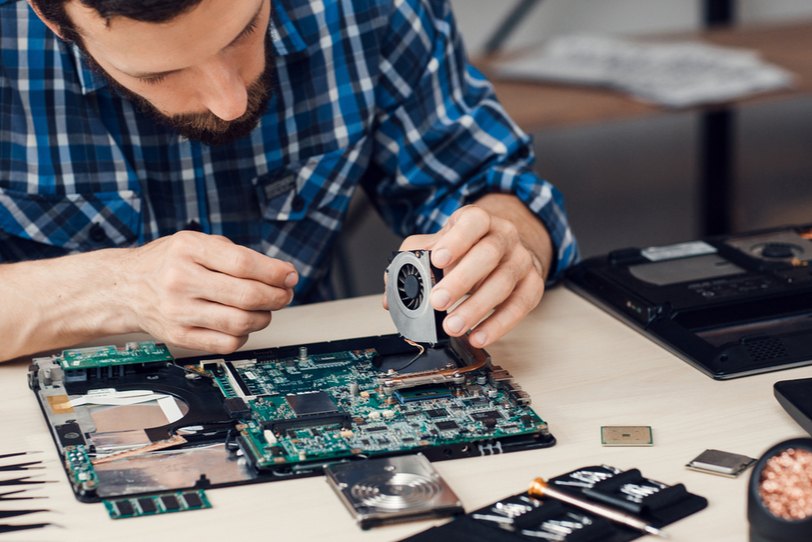
As a last resort, you can physically examine your laptop to determine the storage type. However, this method requires you to open your laptop, which may void the warranty or cause damage if not done correctly. It is recommended to proceed with caution or seek professional help if needed.
Conclusion
Knowing whether your laptop has an SSD or HDD hard drive is essential for understanding its capabilities and limitations. By following the methods outlined here, you can easily identify the type of storage device in your Windows 11 or 10 laptop. Hopefully, you have now understood how to check SSD or HHD in laptop.
FAQs
1. How can I determine if my laptop has an SSD or HDD hard drive?
Identifying the type of hard drive in a laptop can be done through several methods. One of the most straightforward ways is to check the sepecifications of the laptop provided by the manufacturer. This information is often available on the product packaging, user manual, or the manufacturer’s website.
2. What are the performance benefits of an SSD over an HDD in a laptop?
The performance advantages of an SSD over an HDD are significant and can greatly enhance the overall user experience. SSDs offer faster boot times, quicker application launches, and speedier file transfers compared to HDDs. Their superior data access speeds and low latency contribute to a more responsive and snappy computing environment.
3. Can I upgrade my laptop from an HDD to an SSD?
Yes, it is possible to upgrade a laptop from an HDD to an SSD, and doing so can yield substantial performance improvements. The process involves physically replacing the existing hard drive with a compatible SSD and transferring the operating system and data to the new drive.
4. What factors should I consider when choosing between an SSD and an HDD for my laptop?
When deciding between an SSD and an HDD for a laptop, several factors should be taken into account. These include budget constraints, storage requirements, performance expectations, and intended usage patterns. Users who prioritize speed, responsiveness, and energy efficiency may lean towards an SSD, while those with large storage needs and a limited budget may opt for an HDD.
Author Bio:
Dinesh Lakhwani 

Dinesh Lakhwani, the entrepreneurial brain behind “TechCommuters,” achieved big things in the tech world. He started the company to make smart and user-friendly tech solutions. Thanks to his sharp thinking, focus on quality and the motto of never giving up, TechCommuters became a top player in the industry. His commitment to excellence has propelled the company to a leading position in the industry.
Popular Post
Recent Post

Fortect Software Review: The Ultimate PC & Mobile Cleaning, Optimization & Security Tool
Slow computers are a common problem for almost every Windows user. Well, yes! Over time, your PC picks up junk files. These files sit quietly in the background. They take up space and slow things down. Programs open slower. Windows takes longer to boot. Even simple tasks like opening a folder can feel sluggish. There […]

CCleaner PC Optimizer Review: A Complete Guide for Windows Users
If your computer has started to feel slow, you are not alone. Most Windows PCs slow down over time. Junk files pile up. The registry gets messy. Too many apps open when you start your PC. All this adds up and makes even a good machine feel tired. This is where a PC cleaner tool […]

Auslogics Duplicate File Finder: Full Review and User Guide
A computer quietly gathers clutter over time. This includes duplicate photos, repeated downloads, and forgotten backups hiding in random folders. This buildup slowly eats away at storage and can make even a fast PC feel sluggish. Manually finding and deleting duplicates is tedious. It means checking every folder, comparing file names, and guessing which copies […]

CCleaner Duplicate File Finder: Key Features, Pricing, Step-by-Step Guide and More
Every computer collects junk over time. Right? Well, yes! Photos often get copied twice. Documents get saved in two folders by mistake. Old downloads pile up and never get deleted. This slowly eats up your storage space, and most people do not even notice until their drive is almost full. That is where a duplicate […]

Duplicate File Finder Pro: A Complete Review, Everything You Should Know
Computers collect thousands of files over time. Well, yes! Many of them end up being duplicates created by backups, downloads, or accidental copies. These extra files take up valuable storage space and make it harder to keep everything organized. Finding and removing them manually can take hours. Right? Duplicate File Finder Pro is a tool […]

Top 3 Duplicate File Finder for Windows 11 & Windows 10
If your PC storage keeps filling up even after you delete big files, duplicate files could be the real reason. Most of us save the same photo twice, download a document more than once, or copy a whole folder by mistake. Over months and years, these duplicate files pile up quietly. You do not even […]

Monitor Screen Calibration Guide: Everything You Should Know
Your monitor shows colors every single day. But are those colors actually correct? Most people never stop to check this. They just use the screen as it comes out of the box. This habit can lead to wrong colors in photos, videos, and work files. Colors may look too warm or too cold without you […]

How To Check Installed RAM and RAM Slots [Complete Guide]
RAM plays an important role in how smoothly a computer runs. Short for Random Access Memory, it stores the data and instructions that Windows and active applications need at any given moment. From opening multiple browser tabs to running games and productivity software, RAM helps keep everything responsive. A system with limited memory may experience […]

What is Microsoft Autopilot Everything You Need To Know
Technology has changed the way companies manage computers. Well, yes! Employees now work from offices, homes, and remote locations. Setting up devices manually for every worker takes time and effort. It can also create mistakes that slow down productivity. This is where Microsoft Autopilot becomes useful. It helps businesses prepare and deploy Windows devices with […]

