












A slow PC rarely gives a warning. One day, it simply takes longer to start. Apps open late. The fan runs loud, even when the screen is almost empty. Most people blame old hardware. Often, that is not the real reason. The real reason is hiding in plain sight. Windows keeps many apps active in […]
CCleaner Vs Advanced Systemcare: Complete Comparison Guide
Introduction:
Keeping your Windows PC running fast and smooth is important. Over time, unused files, browser caches, and other temporary data can build up and slow down system performance. That’s where system optimization and cleaning utilities like CCleaner and Advanced SystemCare come in. These tools help remove unneeded files and optimize settings for improved speed.
But how exactly do CCleaner and Advanced SystemCare compare? Which one is better for routine PC maintenance and cleaning? Don’t worry. We have got you covered. In this comprehensive guide, we’ll explain the key similarities and differences between CCleaner VS Advanced SystemCare to help you decide which software is best for getting the most out of your Windows computer.
What is CCleaner?
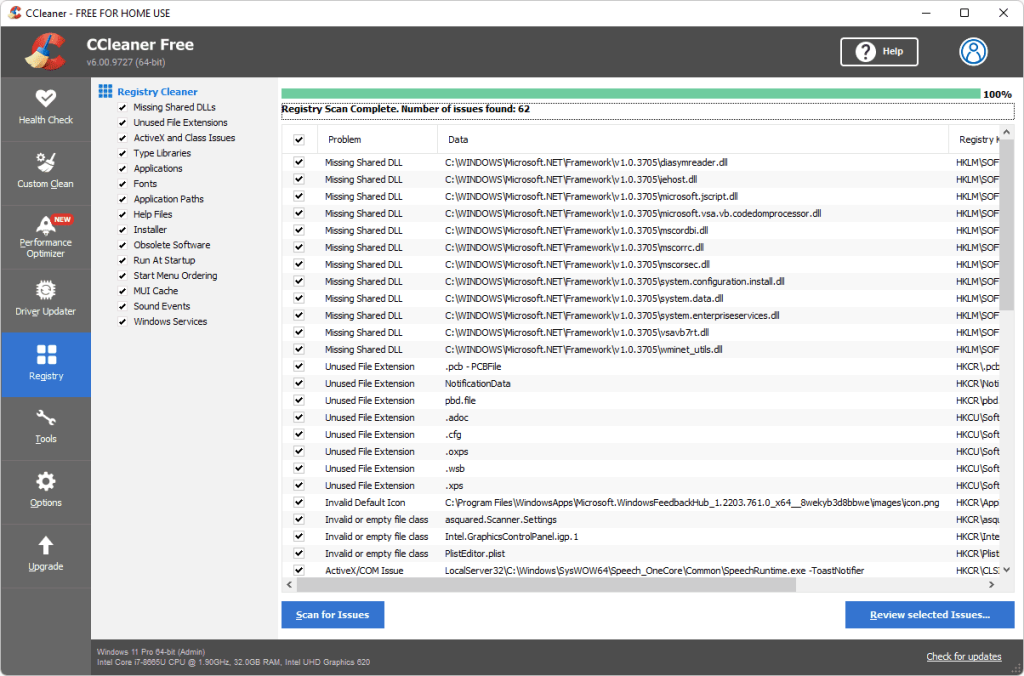
CCleaner is a popular freemium cleaning and optimization utility for Windows from Piriform. The software focuses on removing unwanted junk files, browsing data, caches, logs, and other unused system data to free up storage space and enhance PC performance.
Key features of CCleaner include:
- Disk Cleaner: Removes temporary Windows files, old backups, logs, error reports, and more from your hard drive.
- Registry Cleaner: Scans for and fixes invalid, obsolete, and corrupted entries in the Windows registry to prevent crashes and stability issues.
- Browser Cleaner: Clears browsing history, cookies, caches, form auto-fill data, and other temporary internet files from all major web browsers.
- Startup Manager: Stops unnecessary programs from launching at Windows startup to speed up boot times.
- Additional tools: Includes secure file deletion, real-time monitoring, system restore point creation, and more.
CCleaner offers a basic free version along with a paid Pro version ($24.95/year) that includes added security features like Drive Wiper, Real-Time Monitoring, and Automatic Updates.
What is Advanced SystemCare?
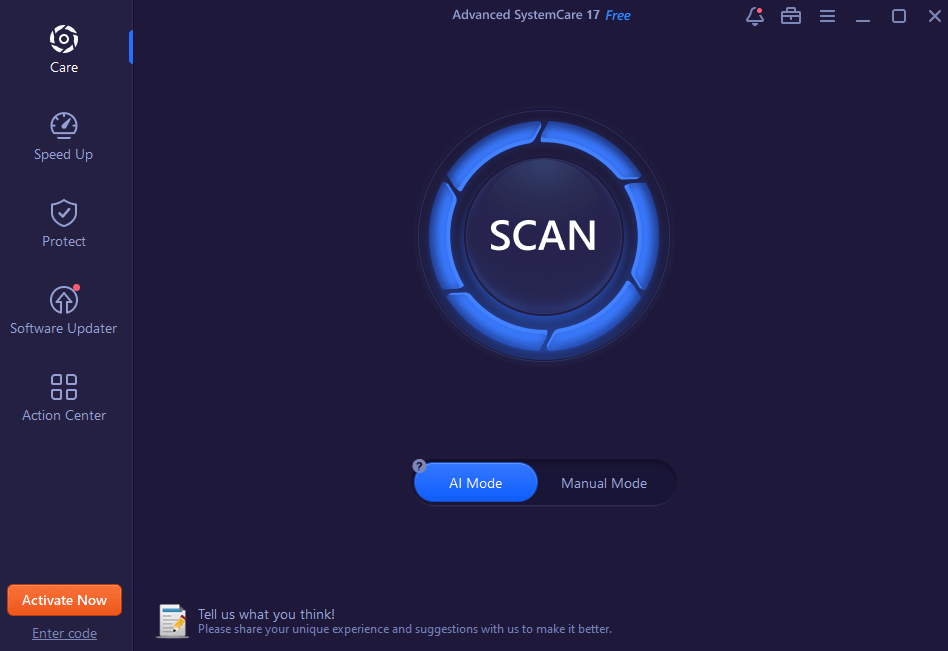
Advanced SystemCare is a suite of system performance, security, and utility software from IObit. In addition to many of the same Windows and browser cleaning functions as CCleaner, Advanced SystemCare provides a broader set of tune-up and optimization tools for keeping your PC running smoothly.
Some key components of Advanced SystemCare include:
- Disk Cleaner: Cleans junk files, invalid shortcuts, old Windows patch data, useless .dll files, and other storage-hogging system files.
- Registry Cleaner: Detects and fixes issues with invalid registry entries.
- Internet Booster: Manages browser add-ons, plugins, and connections for faster web browsing.
- Privacy Sweep: Wipes browsing history, surfing traces, Windows recent items, and more.
- Startup Optimizer: Disables unnecessary auto-start programs to reduce boot times.
- Smart Defrag: Consolidates fragmented files and folders for quicker data access times.
- Hardware Accelerate: Improves CPU, RAM, and hard drive performance.
- Wi-Fi Optimizer: Analyzes network settings and signal strength to stabilize internet connections.
Advanced SystemCare is available in a Free forever option along with paid Pro and Ultimate plans that offer additional optimization tools and features.
CCleaner VS Advanced SystemCare: Side-by-Side Comparison
Let’s begin our detailed comparison on Advanced SystemCare VS CCleaner based on various factors:
1. Overall System Cleaning Performance
The core cleaning functionality of CCleaner and Advanced SystemCare is quite similar. Both programs will effectively scan your system for junk files left over by Windows, various software programs, and general computer use. They will then allow you to safely delete cached files, browser histories, unwanted Windows logs, and other temporary data that accumulate over time and take up drive space.
However, Advanced SystemCare conducts somewhat more comprehensive scans and finds a wider range of removable system artifacts. Tests indicate it can often recover significantly more disk space by cleaning excess clutter and obsolete folders that CCleaner may overlook.
So if you want the deepest clean for recovering storage capacity and eliminating useless technical clutter, Advanced SystemCare tends to lead in overall cleaning effectiveness and efficiency.
2. Registry Cleaning and Repair
When it comes to analyzing and fixing issues in the Windows registry, CCleaner arguably has a slight edge over Advanced SystemCare. Its Registry Cleaner is widely regarded as one of the safest and most effective in terms of eliminating orphaned keys, fixing incorrect file associations, and resolving other registry problems that can negatively impact system stability.
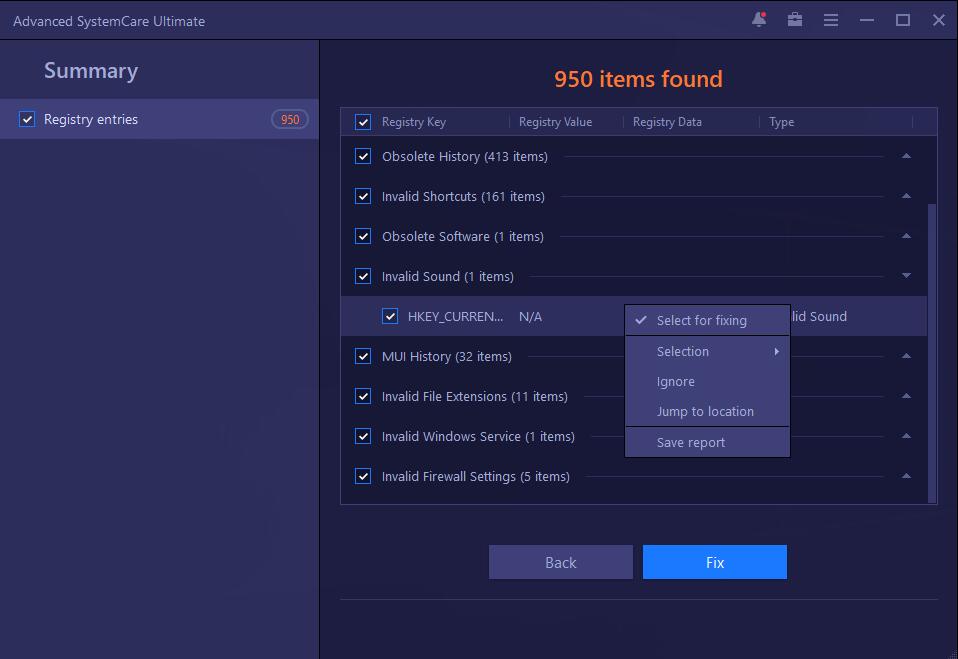
Advanced SystemCare’s registry tool also does a decent job detecting registry issues and has improved greatly over time. However, some experts still view CCleaner as cleaners with more established expertise when working at the registry level. So for the most surgical focus on enhancing registry performance, CCleaner remains a top choice.
3. Additional Optimization and Maintenance Tools
Where Advanced SystemCare excels beyond CCleaner is in the area of general system optimization, configuration tweaking, real-time monitoring, and overall maintenance capabilities.
Aside from junk file removal, many of CCleaner’s extra tools focus on basics like securely deleting files, uninstalling programs, or updating installed software. Useful features, but fairly limited in scope.
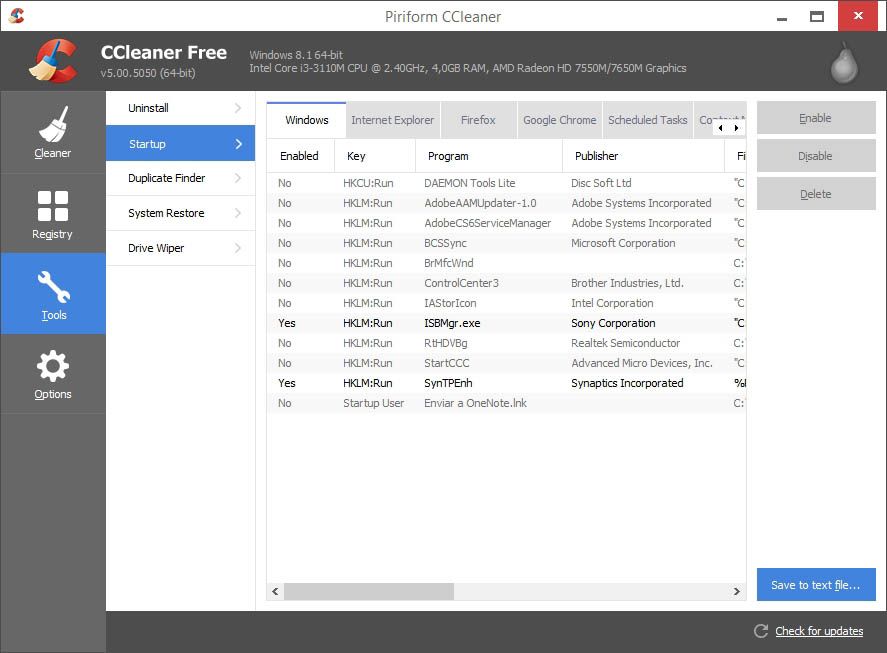
Advanced SystemCare goes much deeper by including system utilities to automatically stop unnecessary background processes, manage startup programs, optimize internet settings for faster browsing, analyze wifi connections, consolidate fragmented system files, monitor disk and CPU usage, boost memory allocation performance, enhance gaming graphics, and much more.
So as a general tune-up suite for achieving peak Windows computer performance, configuring system settings, monitoring resources, updating drivers, and squeezing max speed from your specific hardware setup, Advanced SystemCare is considerably more robust and comprehensive.
4. Security Features
Beginning with version 5, CCleaner now integrates various endpoint security capabilities like Antivirus, VPN, and Password Manager directly into its paid software packages. So CCleaner arguably offers greater security protections out of the box than Advanced SystemCare – albeit for an additional cost.
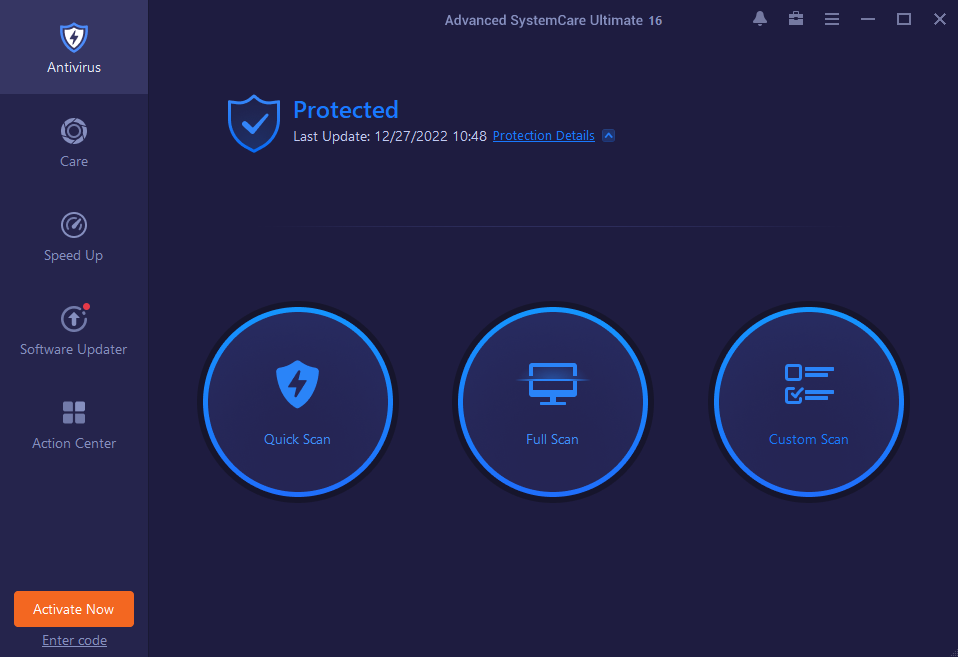
However, the IObit Malware Fighter module included in Advanced SystemCare Ultimate also delivers very reliable real-time anti-malware protection when dealing with ransomware, spyware, keyloggers, and various other cyber threats that often evade standard antivirus software.
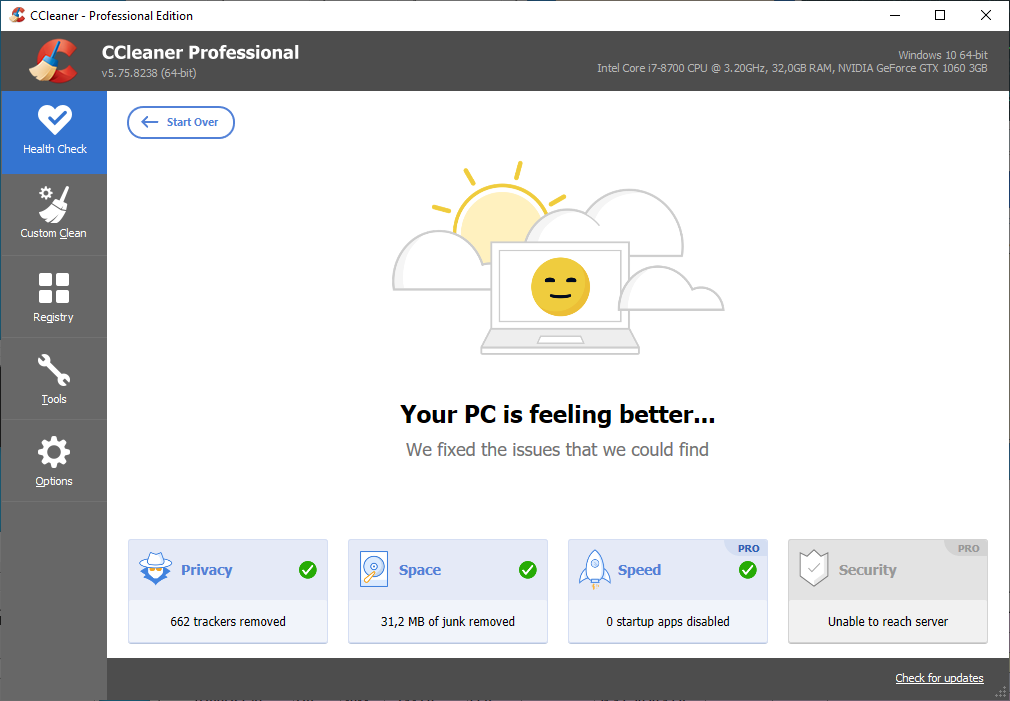
So security is a strength of both platforms. CCleaner may have a small edge for users wanting an all-in-one solution that combines cleaning with antivirus and bundled security tools. But Advanced SystemCare offers competitive malware protection at the top tier, along with the full breadth of its performance optimization toolkit.
5. User Interface and Ease of Use
CCleaner and Advanced SystemCare take slightly different approaches when it comes to usability and user experience design. CCleaner opts for simplicity and limited actionable information in most of its scan results and cleaning reports. The interface is clean and intuitive but doesn’t provide extremely granular detail or tweakability for advanced users.
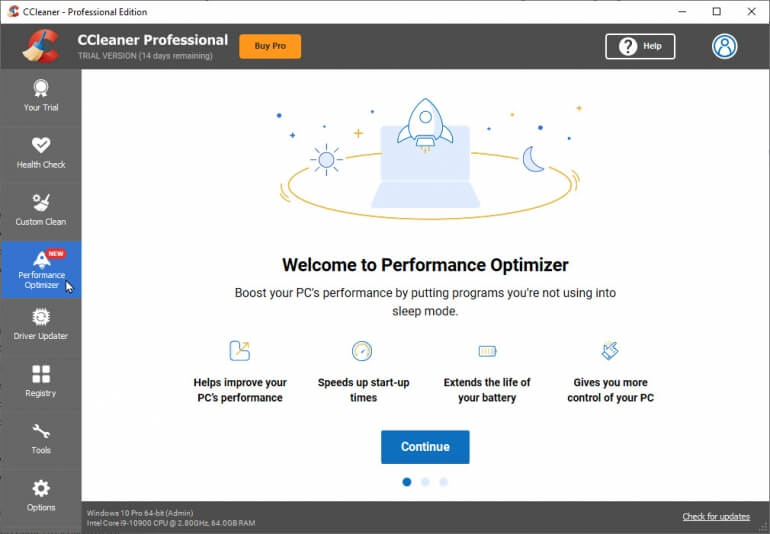
Advanced SystemCare has significantly more configuration options and detailed stats in areas like startup manager, performance monitors, threat detection, wi-fi analysis, etc. However, the broad set of tools and customization settings also increases overall interface complexity compared to CCleaner. Specific areas allow very precise tweaking and customization capability for power users – which adds a learning curve.
So CCleaner generally favors simplicity and ease of use, while the more expansive capabilities of Advanced SystemCare add interface complexity across certain advanced utilities and informational sections.
6. Performance Impact
CCleaner VS Advanced SystemCare are both designed to be lightweight software that improves system resource efficiency rather than taxing CPU and RAM. In fact, by removing clutter and improving configuration settings, most users experience reduced memory usage and faster performance after properly running either cleaner.
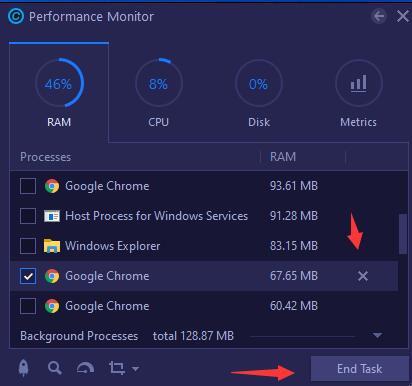
However, in excessive or misconfigured use cases, some CCleaner and Advanced SystemCare tools have the potential to negatively impact performance. For example, overaggressive registry cleaning can sometimes do more harm than good despite best intentions. Various hardware acceleration or game-boosting features may not play well across all PC configurations.
When used judiciously and kept at default settings for baseline system cleaning needs though, both CCleaner and Advanced SystemCare can safely clean and optimize a Windows 10 PC with very minimal side effects or consumption of processing overhead.
7. Compatibility
In terms of what devices and operating systems CCleaner and Advanced SystemCare support, both cleaners have wide compatibility but some differences in coverage.
CCleaner is compatible with all consumer Windows versions from Windows XP Service Pack 2 onward. This includes XP, Vista, 7, 8, 8.1, 10 and Windows 11. The latest CCleaner 5 also added support for Microsoft Windows servers including 2003, 2008, and 2012 editions.
Meanwhile, Advanced SystemCare supports Windows platforms from Vista forward including 7, 8, 8.1, 10, and Windows 11 as well. Although a version does exist for Windows XP, support is no longer updated. The makers of Advanced SystemCare, IObit, also offer a separate SystemCare cleaner tailored for Mac operating systems.
So in terms of desktop operating system compatibility, CCleaner has the edge for continued support of legacy Windows XP systems. But Advanced SystemCare offers flexibility for those that also need to optimize Mac machines.
8. Pricing and Value
Both CCleaner and Advanced SystemCare offer free stripped-down versions of their software with options to upgrade to paid Pro or Premium packages.
Here is a quick comparison of pricing tiers across CCleaner vs Advanced SystemCare:
CCleaner Pricing:
- Free
- Professional ($29.95 per year)
- Adds automatic updates, drive wiper, real-time monitoring, priority support
Advanced SystemCare Pricing:
- Free.
- Pro: 1 PC Plan ($16.99 per year)
Adds deeper junk cleaning, maximum internet boost, sensitive data shield, disk optimization, etc - Ultimate ($39.99 per year) Includes automatic maintenance features, and AI-powered scanning. IObit antivirus engine, malware remover, ad block, performance monitor, etc
The pricing is generally comparable across both platforms. CCleaner charges slightly more than Advanced SystemCare Pro – but bundles in additional security tools. Meanwhile, Advanced SystemCare Ultimate delivers maximum system utilities and customization capabilities for around the same price as CCleaner Pro on an annual subscription basis.
So, neither solution beats the other outright when accounting for capabilities gained relative to dollar investment. Both offer at least a basic free option for budget users focused strictly on basic PC cleaning. Overall the pricing scales up reasonably based on capabilities and extra features added at each tier.
Bottom Line: Which is Better for You?
Well, CCleaner and Advanced SystemCare take somewhat different approaches to optimizing Windows PCs, but each has merits depending on your needs:
Choose CCleaner if you:
- Want to be simplified, set-and-forget system cleaning.
- Care mostly about storage space recovery.
- Value proven, surgical registry repair capabilities.
- Prefer antivirus protection bundled directly into the platform.
Choose Advanced SystemCare if you:
- Need expanded system analysis and troubleshooting.
- Are comfortable tweaking deeper configuration settings.
- Want broader system tune-up and maintenance tools.
- Prefer a free forever core option with optional paid upgrades.
While their toolkit designs differ, both CCleaner and Advanced SystemCare present flexible options for removing junk, reclaiming drive space, and improving Windows computer efficiency. Regular use of either software as part of a performance enhancement regimen can yield significant speed boosts and stabilized operation over time.
The optimal utility ultimately depends on your comfort level managing software complexity, interest in extra power-user utilities, and budget for purchasing optional paid versions to supplement the base freeware offerings. But you can’t go wrong keeping your Windows PC cleanly optimized with help from either CCleaner or Advanced SystemCare.
Conclusion
This wraps up our detailed comparison of CCleaner VS Advanced SystemCare. In conclusion, both CCleaner and Advanced SystemCare offer robust features aimed at optimizing system performance and enhancing overall efficiency. While CCleaner excels in its simplicity, focused cleaning capabilities, and long-standing reputation, Advanced SystemCare stands out with its extensive toolkit, including deep system optimization and security features.
Ultimately, the choice between these two powerful tools depends on individual preferences, specific system needs, and the desired level of functionality. Evaluating their features, ease of use, and compatibility with your system will help determine the ideal solution for maximizing your computer’s performance and maintaining its health.
Author Bio:
Dinesh Lakhwani 

Dinesh Lakhwani, the entrepreneurial brain behind “TechCommuters,” achieved big things in the tech world. He started the company to make smart and user-friendly tech solutions. Thanks to his sharp thinking, focus on quality and the motto of never giving up, TechCommuters became a top player in the industry. His commitment to excellence has propelled the company to a leading position in the industry.
Popular Post
Recent Post

How to Activate Windows with a Product Key for Windows 11 & Windows 10
It always shows up at the worst time. You are halfway through a report, or about to join a video call. Then you spot it in the bottom right corner of the screen. Activate Windows. Go to Settings to activate Windows. Initially, an unactivated copy of Windows may seem like a minor inconvenience. Over time, […]

Is Easy Duplicate Finder Worth It? Honest Review
The photos folder looked normal at first glance. Then the storage warning popped up. One trip photo appeared four times. A tax PDF sat in three different folders. Two old setup files were still in Downloads, and each one was over 500 MB. Nobody plans this mess. Copies pile up slowly. A download runs twice. […]

Wise Duplicate Finder Review: Real Results from Wise Duplicate Finder
Read my honest Wise Duplicate Finder review. See features, pricing, pros and cons, and real PC test results. Find out if this free duplicate cleaner can free up your Windows storage.

How to Recover Deleted Files from Pen drive, USB Drive, SD Card
Introduction: On tech forums, you’ll often see posts like this: “I connected my pen drive to my laptop this morning, but the folder was empty. All my college project files had vanished. I don’t have a backup. Can someone help me?” Stories like this are very common. Pen drives, USB drives and SD cards are […]

How To Recover Files Deleted from the Recycle Bin [Windows 11]
Losing a file can happen in seconds. You clear your desktop, hit Delete, and empty the Recycle Bin. Then, just when you need that file again, it seems to have vanished. This guide will walk you through ways to restore files removed from the Recycle Bin. We will begin with simple fixes, then look at […]

Disk Drill Data Recovery Tool Explained: Full Review and Guide
It happens in a split second. You delete a folder by mistake. Your drive stops showing up. A photo album from your last trip just vanishes. And your stomach drops. Lost files feel personal. They are not just data. They are memories, work hours, and sometimes years of effort packed into a few gigabytes. When […]

Recover Deleted Files In Windows 11 With Software & Without
Introduction What is the first thing that goes through your mind the second an important file vanishes from a Windows 11 PC? For most people, it is a mix of panic and disbelief, followed by a frantic click through every folder that file could possibly be hiding in. It happens in a split second: one […]

EaseUS Data Recovery Wizard: Everything To Know
Data loss does not always come from a big disaster either. Most cases start small and boring. A drive gets formatted by mistake. A laptop freezes mid-save and restarts on its own. A memory card stops showing up after being pulled out too fast. None of these feel like emergencies at first, until you realize […]

Recuva Data Recovery Tool: Is it Actually Worth it?
When I first tried Recuva Data Recovery, I wanted to see if it could really bring back lost files. The tool is free, small in size, and promises quick recovery, which made me curious enough to test it on my own PC. The setup was fast, and the wizard guided me step by step. I […]

