












So, search for a pair of shoes once online. Close the tab. By evening, those same shoes are sitting on your news site, your video app, and even your recipe blog. Nobody placed them there by chance. A cookie did. Well, yes! Cookies are small files that websites place on your device while you browse. […]
Unknown USB Device (Device Descriptor Request Failed) [Fixed]
USB devices have become an integral part of our daily lives, allowing us to connect and transfer data between various devices effortlessly. However, encountering issues like the “Unknown USB Device (Device Descriptor Request Failed)” error can be frustrating and hinder our productivity.
This error occurs when your computer fails to recognize or communicate with a connected USB device. Here, we will explore 11 effective ways to fix this problem and get your USB device up and running again.
Understanding the Error
The error message “Device Descriptor Request Failed” indicates that the USB device connected to the computer is not being recognized properly. When a USB device is plugged in, the computer sends a request for the device’s descriptor, which contains information about the device, such as its manufacturer, product ID, and other details. If the computer is unable to retrieve this information, it will display the error message.
Unknown USB Device (Device Descriptor Request Failed) On Windows 11 and Windows 10
There are many methods to effectively resolve the “Unknown USB Device” error. Here are some of the most effective methods:
Method 1: Restart Your Computer
Sometimes, a simple restart can resolve many technical glitches, including the “Unknown USB Device” error. Restarting your computer allows the system to refresh and reset any temporary configurations that might be causing the issue. After the restart, reconnect the USB device and check if the error persists.
Method 2: Unplug and Reconnect the USB Device
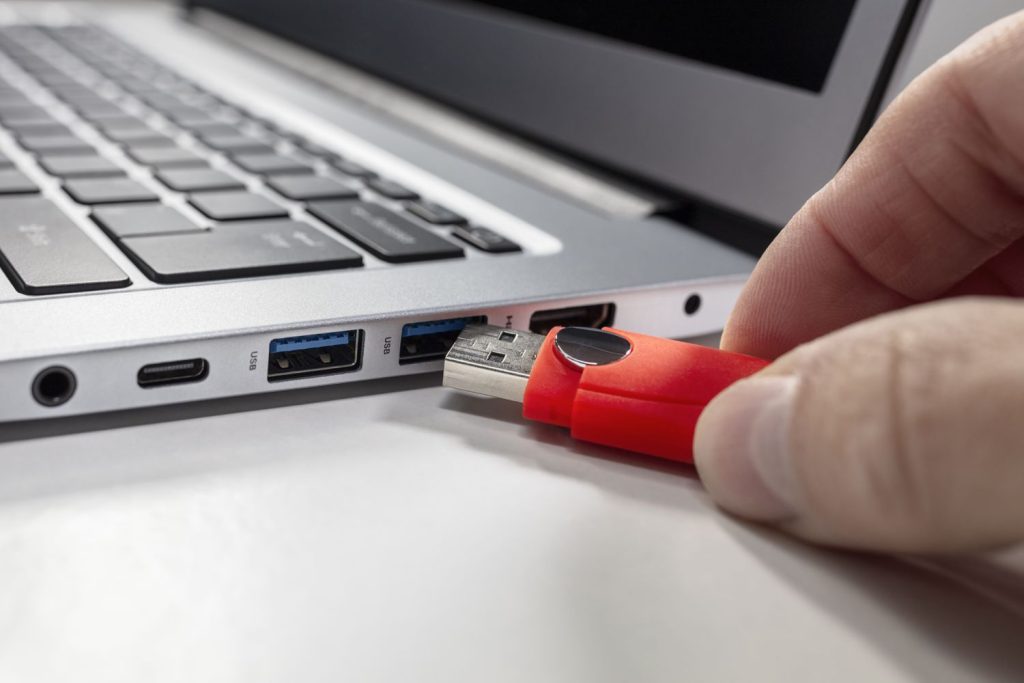
In some cases, the error could be due to a loose connection between the USB port and the device. Unplug the USB device and reconnect it firmly to a different USB port on your computer. This simple step can often fix the issue and establish a proper connection.
Method 3: Update the Driver
Outdated or incompatible USB drivers can also trigger the “Device Descriptor Request Failed” error. To update the drivers, follow these steps:
Step 1: Press the Windows key + X and select Device Manager from the menu.
Step 2: Expand the Universal Serial Bus controllers category.
Step 3: Right-click on the unknown USB device and choose Update driver.
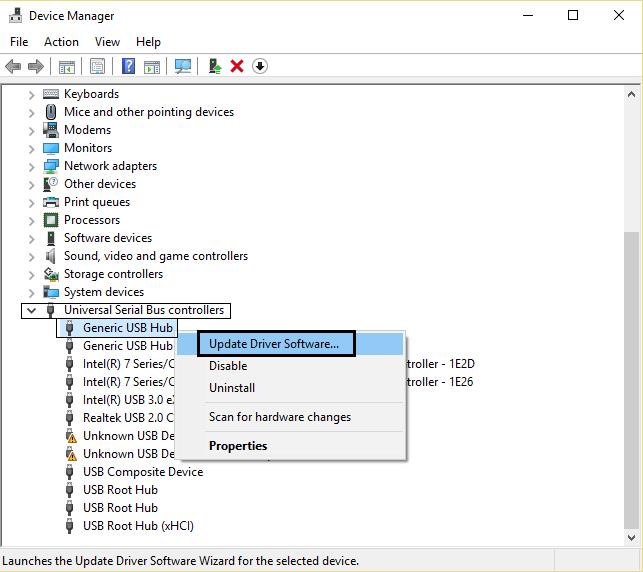
Step 4: Select “Search automatically for updated driver software” and let Windows find and install the latest driver.
Method 4: Uninstall and Reinstall USB Drivers
If updating the drivers doesn’t resolve the”Unknown USB Device” error, try uninstalling and reinstalling them. Follow these steps:
Step 1: Open Device Manager (Windows key + X and select Device Manager).
Step 2: Expand the Universal Serial Bus controllers category.
Step 3: Right-click on the unknown USB device and select Uninstall device.
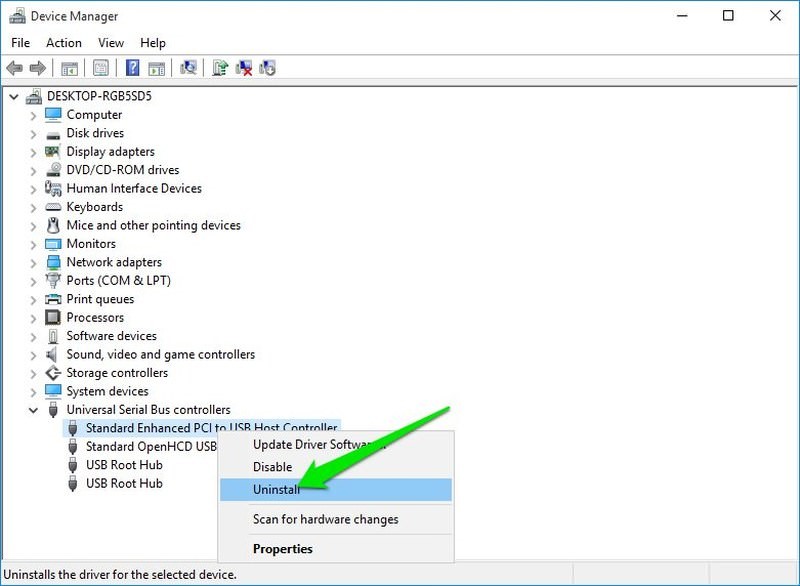
Step 4: Restart your computer, and Windows will automatically reinstall the USB drivers.
Method 5: Disable Fast Startup
Fast Startup is a feature in Windows that allows your computer to boot up quickly. However, this feature can sometimes conflict with USB devices, resulting in the “Device Descriptor Request Failed” error. Disabling Fast Startup may help resolve the issue. Here’s how:
Step 1: Press the Windows key + X and select Power Options.
Step 2: Click on “Choose what the power buttons do” from the left panel.
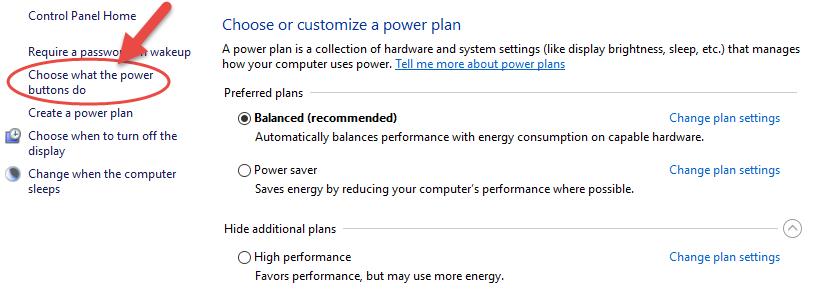
Step 3: Click on “Change settings that are currently unavailable.”
Step 4: Under the “Shutdown settings” section, uncheck “Turn on fast startup.”
Step 5: Save the changes and restart your computer.
Method 6: Run Hardware and Devices Troubleshooter
Windows provides a built-in tool called the Hardware and Devices troubleshooter that can automatically detect and fix common hardware issues. To run the troubleshooter, follow these steps:
Step 1: Press the Windows key + I to open the Settings menu.
Step 2: Click on Update & Security, then select Troubleshoot from the left panel.
Step 3: Click on Additional Troubleshooters.
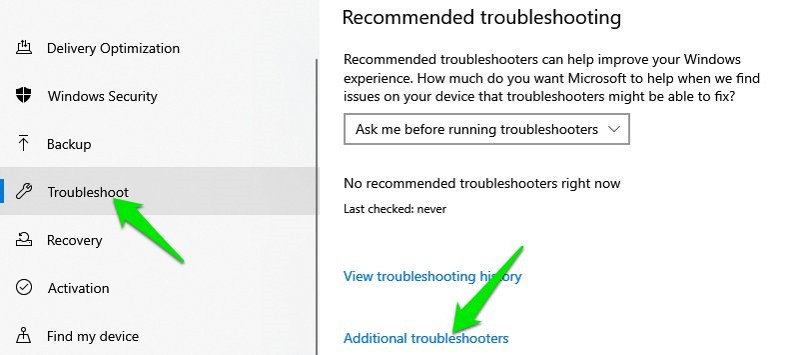
Step 4: Select “Hardware and Devices” and click on Run the troubleshooter.
Step 5: Follow the on-screen instructions and let the troubleshooter diagnose and fix any issues.
Method 7: Disable USB Selective Suspend
USB Selective Suspend is a power-saving feature that allows Windows to turn off USB devices when they are not in use. However, this feature can sometimes interfere with proper USB device recognition. Disabling the USB Selective Suspend can help resolve the “Device Descriptor Request Failed” error. Here’s how:
Step 1: Open the Power Options window (Windows key + X and select Power Options).
Step 2: Click on “Change plan settings” next to your selected power plan.
Step 3: Click on “Change advanced power settings.”
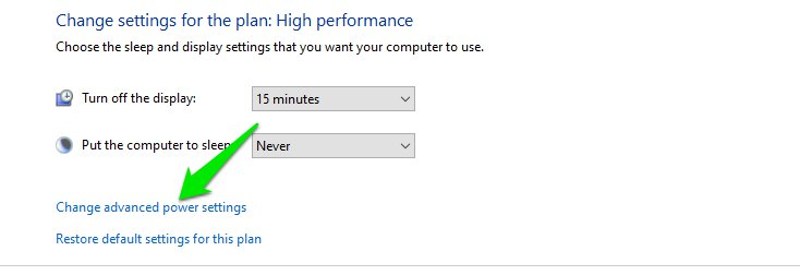
Step 4: Expand the USB settings and USB selective suspend setting.
Step 5: Set both “On battery” and “Plugged in” options to Disabled.
Step 6: Click Apply and OK, then restart your computer.
Method 8: Check for Windows Updates
Microsoft regularly releases updates to improve the stability and performance of the operating system. Updating your Windows to the latest version can sometimes fix USB-related issues. To check for updates, follow these steps:
Step 1: Press the Windows key + I to open the Settings menu.
Step 2: Click on Update & Security and select Windows Update from the left panel.
Step 3: Click on “Check for updates” and let Windows search for available updates.
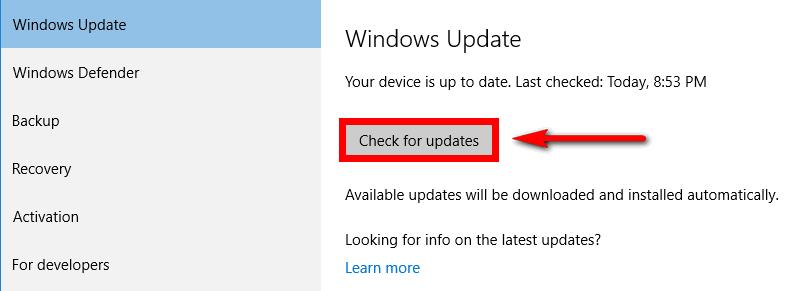
Step 4: If any updates are found, click on Install to download and install them.
Method 9: Disable USB Root Hubs
Disabling USB Root Hubs can help refresh the USB ports and resolve any conflicts causing the “Device Descriptor Request Failed” error. Here’s how:
Step 1: Open Device Manager (Windows key + X and select Device Manager).
Step 2: Expand the Universal Serial Bus controllers category.
Step 3: Right-click on each USB Root Hub and select Disable device.
Step 4: After disabling all the USB Root Hubs, restart your computer.
Step 5: Windows will automatically reinstall the USB Root Hubs upon restart.
Method 10: Use USB Troubleshooting Tools
There are several third-party USB troubleshooting tools available that can help diagnose and fix USB-related issues. These tools scan your system for any errors or conflicts and provide solutions accordingly.
Method 11: Test the USB Device on Another Computer
If none of the above methods work, it’s possible that the USB device itself is faulty. To confirm this, try connecting the device to another computer or laptop. If the device works fine on another system, the issue lies with your computer. In such cases, seeking professional help or contacting the device manufacturer’s support may be necessary.
Common Causes of the Error (Device Descriptor Request Failed)
There are several common causes of the “Device Descriptor Request Failed” error, including:
1. Driver Issues
One of the most common causes of the “Unknown USB Device” error is related to driver issues. When a USB device is connected to a computer, the operating system relies on the device’s drivers to communicate and establish a connection.
If the drivers are outdated, corrupted, or incompatible with the operating system, the device descriptor request may fail, resulting in an error message. To address driver issues, users can try updating the drivers for the USB device through the Device Manager or by visiting the manufacturer’s website to download and install the latest drivers.
2. Power Supply Problems
Another potential cause of the error is related to power supply problems. USB devices require a certain amount of power to function properly, and if the computer’s USB port is unable to provide adequate power, the device descriptor request may fail. This can happen if the USB port is damaged, the power management settings are not configured correctly, or if multiple high-power USB devices are connected simultaneously, drawing more power than the system can provide.
To troubleshoot power supply problems, users can try connecting the USB device to a different USB port, using a powered USB hub, or adjusting the power management settings in the operating system.
3. USB PortIssues
The USB port itself can be a source of the error. If the port is physically damaged, dirty, or experiencing a hardware malfunction, it may fail to properly recognize and communicate with the connected USB device.
Users can inspect the USB port for any visible damage or debris and attempt to clean the port with compressed air or a soft brush. If the port appears to be damaged, it may require professional repair or replacement.
4. Corrupted USB Controller
The USB controller, which manages the operation of the USB ports on the computer can become corrupted or experience a malfunction, leading to the “Device Descriptor Request Failed” error.
Users can attempt to resolve this issue by uninstalling and reinstalling the USB controller drivers through the Device Manager or by using built-in troubleshooting tools provided by the operating system to repair the controller.
5. Faulty USB cable
In some cases, the USB cable used to connect the USB device to the computer may be faulty, damaged, or of low quality, leading to communication errors and the “Unknown USB Device” error.
Users can try using a different USB cable to rule out cable-related issues, ensuring that the replacement cable is compatible with the device and capable of transmitting data effectively.
6. Compatibility Issues
Compatibility issues between the USB device and the hardware or operating system can also result in the “Device Descriptor Request Failed” error. This can occur if the USB device is designed for a different operating system if it requires specific drivers that are not available or if it is not fully compliant with the USB standards supported by the computer.
To address compatibility issues, users can check the device specifications and ensure that it is compatible with their system, as well as seek out any necessary drivers or updates provided by the device manufacturer.
7. Software Conflicts
Software conflicts within the operating system or third-party applications can interfere with the proper recognition and functioning of USB devices, leading to the “Unknown USB Device” error.
Users can attempt to identify and resolve software conflicts by performing a clean boot, disabling unnecessary startup programs and services, and updating or uninstalling any recently installed software that may be causing the issue.
8. SystemUpdates
System updates, including Windows updates and driver updates, can sometimes introduce changes that affect the behavior of USB devices and lead to the “Device Descriptor Request Failed” error.
In such cases, users can try rolling back recent updates to see if the issue is resolved or installing additional updates that address known compatibility issues and bugs related to USB devices.
9. HardwareMalfunctions
Underlying hardware malfunctions within the computer, such as problems with the motherboard, USB controller, or other components can contribute to the occurrence of the “Unknown USB Device” error.
Diagnosing and resolving hardware malfunctions typically requires professional expertise and may involve component replacement or repair.
10. FirmwareIssues
The firmware of the USB device itself, including its internal software and settings can impact its ability to communicate with the computer and lead to the “Device Descriptor RequestFailed” error.
Users can check for firmware updates provided by the device manufacturer and follow any instructions for updating the device’s firmware to potentially resolve the issue.
Best Practices to Prevent the Error
There are some best practices that can be implemented to prevent the “Unknown USB Device” error. Some of them are:
1. Use High-Quality USB Cables and Devices: The quality of USB cables and devices can significantly impact their performance and compatibility with the computer. Using high-quality, certified USB cables and devices can reduce the likelihood of encountering connectivity issues and device descriptor failures.
2. Keep DeviceDrivers Updated: Regularly updating device drivers is essential for ensuring compatibility and optimal performance of USB devices. Manufacturers often release driver updates to address known issues and improve compatibility with the latest operating systems.
3. Avoid Using USB Hubs with Multiple Devices: While USB hubs provide additional connectivity options, using multiple devices through a single hub can lead to power and data transfer issues. Whenever possible, connect USB devices directly to the computer’s USB ports to minimize potential conflicts.
4. Disable USB selective Suspend: USB Selective Suspend is a power-saving feature in Windows that can sometimes interfere with the proper functioning of USB devices. Disabling this feature, through the Power Options settings, can prevent power-related issues that may trigger the “Device Descriptor RequestFailed” error.
5. Scan for Malware and Viruses: Malware and viruses can disrupt the normal operation of USB devices and cause errors such as the “Unknown USB Device (DeviceDescriptor Request Failed)” error. Regularly scanning the computer for malware and viruses using reputable antivirus software can help maintain the integrity of USB connectivity.
6. Utilize USBPort Cleaning and Maintenance: Over time, USB ports can accumulate dust and debris, leading to poor connectivity and potential errors. Periodically cleaning the USB ports using compressed air or specialized cleaning tools can ensure reliable connections and minimize the risk of errors.
7. MonitorSystem Event Logs for USB-Related Errors: System event logs can provide valuable insights into USB-related errors and issues. Regularly monitoring the event logs for any recurring USB-related errors can help identify potential issues before they escalate into major errors.
8. Implement System Updates and Patches: Operating system updates and patches often include fixes for USB-related issues and vulnerabilities. Keeping the operating system up to date with the latest updates from the respective vendors can help mitigate potential causes of the “Device DescriptorRequest Failed” error.
9. Utilize USB device Compatibility Lists: Some manufacturers provide compatibility lists for their USB devices, detailing the supported operating systems and hardware configurations. Consulting these compatibility lists before purchasing or using USB devices can help ensure seamless compatibility and reduce the risk of encountering errors.
Conclusion
The “Unknown USB Device” error can be frustrating, but with the right troubleshooting steps, it can be resolved. Here, we highlighted 11 effective ways to fix the issue, ranging from simple restarts and driver updates to more advanced solutions like disabling USB Selective Suspend and USB Root Hubs. By following these methods, you should be able to get your USB device recognized and functioning properly once again.
FAQs
1. What causes the “Device Descriptor Request Failed” error?
There are several potential causes for the “Device Descriptor Request Failed” error. One common reason is a malfunctioning or incompatible USB device. This can occur if the device is defective or damaged or if its drivers are not properly installed. Additionally, issues with the USB port, driver conflicts, or outdated system software can also lead to this error.
2. What should I do if none of the troubleshooting steps resolve the error?
If the “Device Descriptor Request Failed” error persists despite troubleshooting efforts, it may indicate a more complex hardware or software issue. In such cases, seeking assistance from a professional technician or contacting the device manufacturer’s support may be necessary.
3. What should I do if the USB device works on another computer but not on mine?
If the USB device functions properly on another computer, the issue may be specific to your computer’s configuration. Try updating the USB drivers, checking for system updates, or using a different USB port.
Author Bio:
Dinesh Lakhwani 

Dinesh Lakhwani, the entrepreneurial brain behind “TechCommuters,” achieved big things in the tech world. He started the company to make smart and user-friendly tech solutions. Thanks to his sharp thinking, focus on quality and the motto of never giving up, TechCommuters became a top player in the industry. His commitment to excellence has propelled the company to a leading position in the industry.
Popular Post
Recent Post

How To Disable Background Apps In Windows: 4 Quick Methods
A slow PC rarely gives a warning. One day, it simply takes longer to start. Apps open late. The fan runs loud, even when the screen is almost empty. Most people blame old hardware. Often, that is not the real reason. The real reason is hiding in plain sight. Windows keeps many apps active in […]

How to Activate Windows with a Product Key for Windows 11 & Windows 10
It always shows up at the worst time. You are halfway through a report, or about to join a video call. Then you spot it in the bottom right corner of the screen. Activate Windows. Go to Settings to activate Windows. Initially, an unactivated copy of Windows may seem like a minor inconvenience. Over time, […]

Is Easy Duplicate Finder Worth It? Honest Review
The photos folder looked normal at first glance. Then the storage warning popped up. One trip photo appeared four times. A tax PDF sat in three different folders. Two old setup files were still in Downloads, and each one was over 500 MB. Nobody plans this mess. Copies pile up slowly. A download runs twice. […]

Wise Duplicate Finder Review: Real Results from Wise Duplicate Finder
Read my honest Wise Duplicate Finder review. See features, pricing, pros and cons, and real PC test results. Find out if this free duplicate cleaner can free up your Windows storage.

How to Recover Deleted Files from Pen drive, USB Drive, SD Card
Introduction: On tech forums, you’ll often see posts like this: “I connected my pen drive to my laptop this morning, but the folder was empty. All my college project files had vanished. I don’t have a backup. Can someone help me?” Stories like this are very common. Pen drives, USB drives and SD cards are […]

How To Recover Files Deleted from the Recycle Bin [Windows 11]
Losing a file can happen in seconds. You clear your desktop, hit Delete, and empty the Recycle Bin. Then, just when you need that file again, it seems to have vanished. This guide will walk you through ways to restore files removed from the Recycle Bin. We will begin with simple fixes, then look at […]

Disk Drill Data Recovery Tool Explained: Full Review and Guide
It happens in a split second. You delete a folder by mistake. Your drive stops showing up. A photo album from your last trip just vanishes. And your stomach drops. Lost files feel personal. They are not just data. They are memories, work hours, and sometimes years of effort packed into a few gigabytes. When […]

Recover Deleted Files In Windows 11 With Software & Without
Introduction What is the first thing that goes through your mind the second an important file vanishes from a Windows 11 PC? For most people, it is a mix of panic and disbelief, followed by a frantic click through every folder that file could possibly be hiding in. It happens in a split second: one […]

EaseUS Data Recovery Wizard: Everything To Know
Data loss does not always come from a big disaster either. Most cases start small and boring. A drive gets formatted by mistake. A laptop freezes mid-save and restarts on its own. A memory card stops showing up after being pulled out too fast. None of these feel like emergencies at first, until you realize […]

