












So, search for a pair of shoes once online. Close the tab. By evening, those same shoes are sitting on your news site, your video app, and even your recipe blog. Nobody placed them there by chance. A cookie did. Well, yes! Cookies are small files that websites place on your device while you browse. […]
“The Request Could not be Performed Because of an I/O Device Error” [9 ways To Fix]
The error message “The request could not be performed because of an I/O device error” is one that computer users frequently run into.I/O device error is a typical problem that can arise on a variety of electronic devices, such as PCs, USB drives, SD cards, and external hard drives. This error might result in data loss and system instability if the computer is unable to execute an input/output operation on a specific device. We’ll look at nine possible solutions to this problem here.
Understanding I/O Device Error
It is crucial to realize the nature of an I/O device error and its possible causes in order to appreciate the need to resolve it as soon as possible. There are several ways that an I/O device error might appear, including error messages that include “I/O error,” “I/O device error,” or “cannot read from the device.” These signals suggest that the device in question is having trouble reading or writing, which may be interfering with the system’s ability to operate normally.
Addressing an I/O device error at the earliest is crucial for several reasons. First off, timely resolution might lessen the chance of corrupted or lost data. The integrity of the data stored on the impacted device can be protected, and access can be restored by determining and fixing the root cause of the issue.
The implementation of preventative measures is necessary in order to decrease the possibility of encountering an I/O device issue. Regularly updating and maintaining device drivers, conducting routine maintenance on hardware devices, and using surge protectors or uninterrupted power supplies (UPS) to safeguard against electrical issues can help minimize the likelihood of I/O device errors. Furthermore, backing up important data to multiple storage locations can mitigate the impact of potential hardware failures.
Consequences of Ignoring I/O Device Error
I/O device errors can have serious repercussions if they are ignored, especially when it comes to data integrity and system stability. AnI/O device fault might cause data loss or corruption since it could render the impacted device unusable. Ignoring the mistake may result in the permanent loss of vital data, for example, if it affects an external hard drive that holds files.
Furthermore, the general stability and performance of the system may be impacted by an unresolved I/O device issue. Frequent system crashes, sluggish read/write rates, and, in certain situations, total system unresponsiveness might result from the problem. These consequences can significantly disrupt productivity and hinder the normal operation of the affected device.
Timely resolution can help prevent further system instability and performance degradation. By addressing the error promptly, the affected device can be restored to normal functionality, minimizing the risk of system crashes and data access issues. This is particularly important in professional or academic settings where system reliability and data integrity are paramount.
Common Reasons for I/O Device Error
The error message “The request could not be performed because of an I/O device error” can occur due to a variety of reasons. A few of the most common reasons for this type of error are discussed below:
1. Hardware Malfunction
Hardware failure is one of the most frequent causes of I/O device faults. When there is an issue with the hard disk, USB drive, or CD/DVD drive—among the physical components of the input/output devices—this might happen. I/O device faults can arise from malfunctioning hardware that causes communication problems between the device and the computer.
2. Outdated or Corrupted Drivers
Another common cause of I/O device errors is outdated or corrupted device drivers. Device drivers are essential software components that facilitate communication between the operating system and the hardware devices. When drivers are outdated or corrupted, they can cause communication errors and lead to I/O device errors.
3. Incompatible Hardware
I/O device problems might also result from hardware component incompatibilities. Communication problems and mistakes may arise when a device is incompatible with the hardware or operating system of the computer. Users need to make sure the hardware they are using fits the specifications of their computer system and is compatible with it. Using obsolete or incompatible hardware with a contemporary operating system can also result in I/O device failures and compatibility problems.
4. File System Corruption
File system corruption can be a significant factor in I/O device errors. Data loss and communication problems may arise from a damaged file system on a storage device. Software problems, unexpected power outages, or incorrect ejection of the storage device can all cause this.
5. Physical Damage to Storage Media
Physical damage to storage media, such as hard drives or USB drives, can result in I/O device errors. This can include damage to the drive’s platters, read/write heads, or external casing. Physical damage to a device can result in read/write failures and stop the computer from accessing the data on it. Users should refrain from trying to access the device if they suspect physical damage in order to stop additional data loss.
6. Virus or Malware Infection
Virus or malware infections can also cause i/o device errors by corrupting the data on storage devices or interfering with the connection between the device and the computer. Users must use reliable antivirus software to routinely check their computer system for malware and viruses.
If there is an infection, the impacted storage devices need to be thoroughly cleaned and scanned to get rid of any dangerous malware. In order to guard against virus and malware infestations in the future, users should also think about putting proactive measures in place, such as firewall protection and safe surfing techniques.
7. Overheating
Hardware component overheating can result in i/o device errors and unstable systems. Data corruption and communication issues can occur when hardware components, like the USB controller or hard disk, overheat.
Users should make sure their computer system is properly ventilated and clear of dust accumulation to avoid overheating. Moreover, maintaining the ideal operating temperatures for hardware components through the use of cooling pads or fans helps lower the chance of overheating-related i/o device errors.
8. Power Supply Issues
Inadequate or unstable power supply to the computer system can also contribute to I/O device errors. Voltage fluctuations brought on by low power might interfere with hardware components’ ability to perform properly, resulting in data loss and communication problems.
To defend against power surges and outages, users should make sure their computer system is linked to a steady power source and think about utilizing an uninterruptible power supply (UPS) or surge protector. Regular maintenance of the power supply unit and connections can also aid in preventing power-related problems that could lead to mistakes in I/O devices.
9. Software Conflicts
I/O device problems can be caused by third-party programs or software conflicts inside the operating system. Software that is incompatible or conflicting with hardware components can obstruct communication between the computer and hardware, leading to failures and unstable systems. It is recommended that users update their installed apps and operating systems on a regular basis to guarantee compatibility and fix any known software problems.
10. User Error
User error may occasionally play a role in I/O device issues. Inadequate management of storage devices, such as yanking out a USB drive without properly ejecting it, can result in i/o device errors and data damage. Users should practice safe handling and proper ejection of storage devices to prevent data loss and errors. Additionally, following best practices for data backup and storage can help mitigate the impact of user errors on I/O device functionality.
“The Request Could not be performed because of an i/o device error” [9 ways To Fix]
I/O device errors can be resolved in a lot of ways. Some of the tried-and-tested methods for resolving I/O device errors are:
Method 1: Check the Physical Connections
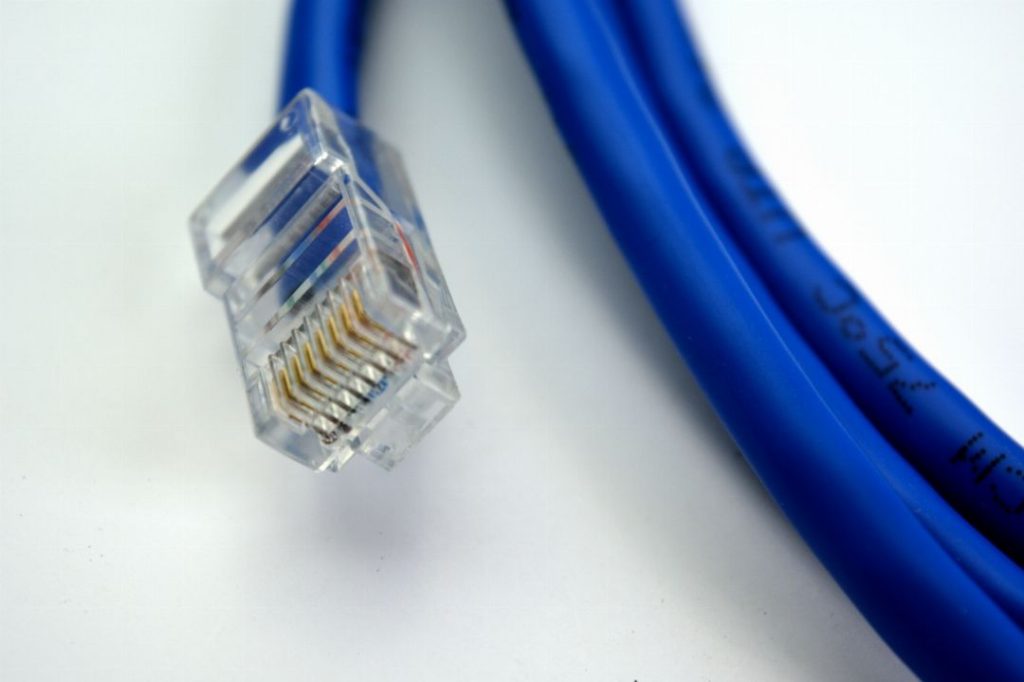
The first step in troubleshooting an I/O device error is to ensure that all physical connections are intact. Disconnect and reconnect the affected device, ensuring a secure connection. Ensure that cables are not damaged or loosely connected, as this can cause communication issues between the device and the computer.
Method 2: Restart Your Computer
Sometimes, the error message “The request could not be performed because of an I/O device error” could be a temporary glitch caused by a conflict between the device and the computer’s operating system. Restarting your computer can help resolve such issues by resetting the system configuration. After the restart, attempt to access the device again to check if the error persists.
Method 3: Run the Hardware Troubleshooter
Windows operating systems have built-in hardware troubleshooters that can automatically detect and fix common device-related issues. Here’s how to use it:
Step 1: Press the Windows key + I to open the Settings app.
Step 2: Click on “Update & Security” and select “Troubleshoot” from the left sidebar.
Step 3: Scroll down and click on “Hardware and Devices.”
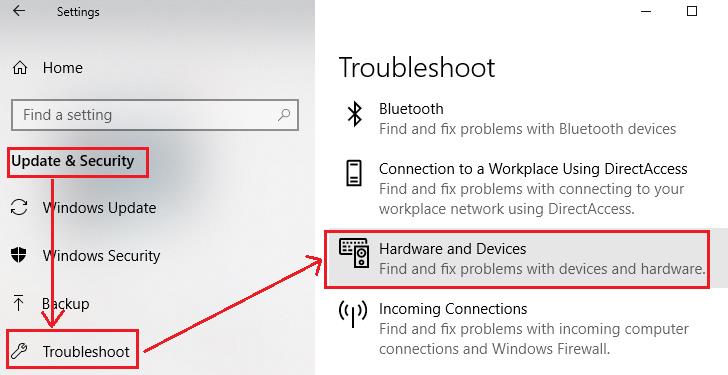
Step 4: Click on “Run the troubleshooter” and follow the on-screen instructions.
Step 5:Restart the computer and check if the error is resolved.
Method 4: Update Device Drivers
Outdated or incompatible device drivers can cause I/O device errors. Updating the drivers often resolves the issue. Follow these steps:
Step 1: Press the Windows key + X and select “Device Manager” from the menu.
Step 2: Expand the category corresponding to the problematic device.
Step 3: Right-click on the device and choose “Update driver”.
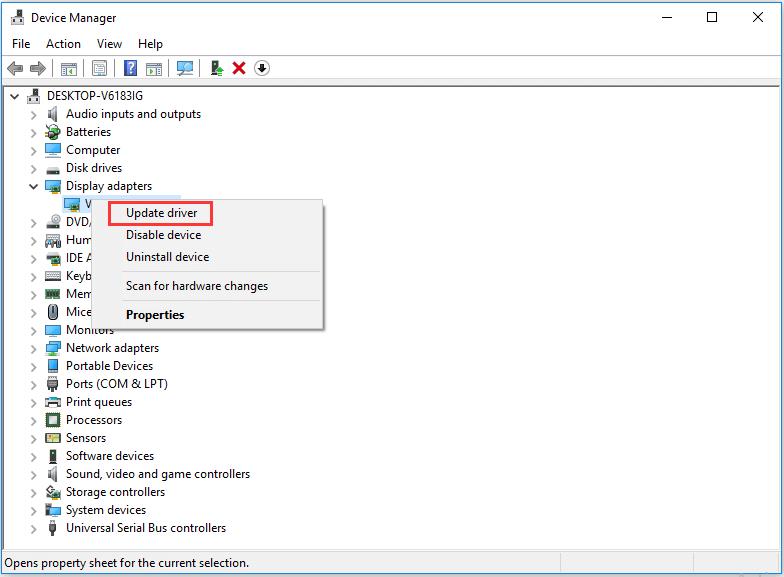
Step 4: Select the option to search automatically for updated driver software.
Step 5: Check if the error is resolved.
Method 5: Change the Drive Letter
Assigning a different drive letter to the affected device can sometimes fix the input-output device error. Here’s how to do it:
Step 1: Press the Windows key + X and select “Disk Management” from the menu.
Step 2: Locate the device with the I/O device error and right-click on it.
Step 3: Select “Change Drive Letter and Paths.”
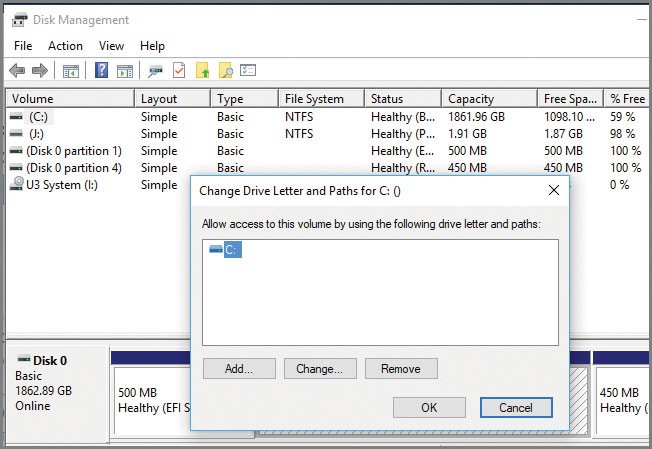
Step 4: Click on “Change” and choose an available drive letter from the drop-down menu.
Step 5: Click “OK” and restart the computer.
Step 6: Check if the error is resolved.
Method 6: Disable or Update Security Software
Sometimes, security software can interfere with the proper functioning of I/O devices. Temporarily disabling or updating the security software can help resolve the issue. Follow these steps:
Step 1: Open the security software installed on your computer.
Step 2: Look for options to temporarily disable the software or its specific features related to device access.
Step 3: If disabling the software resolves the error, consider updating it to the latest version or contacting the software vendor for further assistance.
Step 4: Restart the computer and check if the error persists.
Method 7: Use CHKDSK Utility
The CHKDSK (Check Disk) utility is a built-in Windows tool that scans and repairs file system errors on storage devices. Running CHKDSK can potentially fix the I/O device error. Here’s how to use it:
Step 1: Press the Windows key + X and select “Command Prompt (Admin)” from the menu.
Step 2: In the command prompt window, type “chkdsk [drive letter]: /f /r” (e.g., chkdsk D: /f /r) and press Enter.
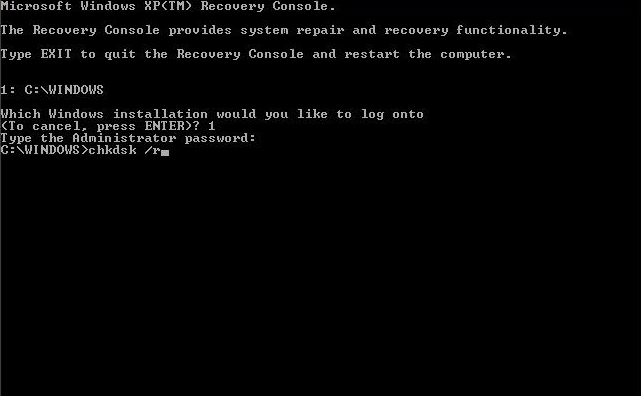
Step 3: If prompted, type “Y” to schedule the disk check for the next system restart.
Step 4: Restart the computer and let CHKDSK scan and repair the drive.
Step 5: After the process completes, check if the error is resolved.
Method 8: Format the Device
If the above methods fail to fix the I/O device error, formatting the device might be the last resort. However, keep in mind that formatting erases all data on the device. Follow these steps:
Step 1: Back up any important data from the affected device.
Step 2: Open “Disk Management”.
Step 3: Right-click on the device and select “Format.”
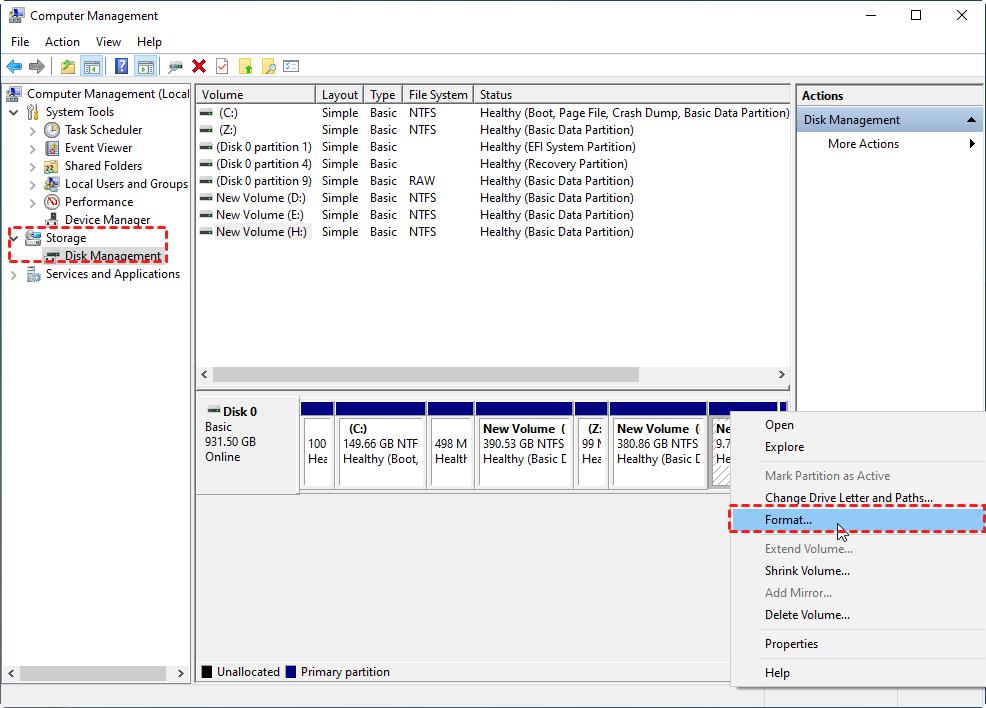
Step 4: Choose the desired file system (e.g., NTFS, exFAT) and allocate unit size.
Step 5: Click “OK” to start the formatting process.
Step 6: After formatting, check if the error is resolved.
Method 9: Test the Device on another Computer
To determine whether the input-output device error is specific to your computer or the device itself, try connecting the device to another computer. If the device works without any issues on a different computer, it indicates that the problem lies with your system. In such cases, consider reinstalling the operating system or seeking professional assistance.
Conclusion
Encountering an I/O device error can be a frustrating experience, but by employing the aforementioned methods, users can effectively troubleshoot and resolve this issue. By understanding the potential causes and implementing the appropriate solutions, users can mitigate the impact of I/O device errors and restore the functionality of their external devices.
FAQs
1. What does the error message “The request could not be performed because of an I/O device error” mean?
The error message “The request could not be performed because of an I/O device error” indicates that the input/output (I/O)operation initiated by the computer has failed due to an issue with the storage device. This can occur when the computer is unable to read from or write to the storage device, and it often points to a hardware or connectivity problem.
2. How can I determine if the I/O device error is caused by a hardware or software issue?
To determine whether the I/O device error is caused by a hardware or software issue, you can perform a series of diagnostic tests. Start by checking the physical connections between the storage device and the computer, ensuring that cables are secure and undamaged. Test the storage device on another computer to see if the error persists, which can help identify if the issue is specific to the device or the computer itself.
3. Is it possible to recover data from a storage device that is experiencing an I/O device error?
In some cases, it is possible to recover data from a storage device that is experiencing an I/O device error. However, the success of data recovery efforts depends on the extent of the damage to the storage device and the underlying cause of the I/O error. If the issue is related to file system corruption or software errors, data recovery software and services may be able to retrieve lost data. In case of hardware failure, such as a failing hard drive or SSD, data recovery may require the assistance of professional services.
4. How does the I/O device error impact the performance and usability of the affected storage device?
When the I/O device error occurs, it can significantly impact the performance and usability of the affected storage device. Users may experience slow read and write speeds, intermittent connectivity issues, and, in severe cases, complete data loss or inaccessibility of the storage device. The error can render the affected device unusable until the underlying cause is identified and resolved.
Author Bio:
Dinesh Lakhwani 

Dinesh Lakhwani, the entrepreneurial brain behind “TechCommuters,” achieved big things in the tech world. He started the company to make smart and user-friendly tech solutions. Thanks to his sharp thinking, focus on quality and the motto of never giving up, TechCommuters became a top player in the industry. His commitment to excellence has propelled the company to a leading position in the industry.
Popular Post
Recent Post

How To Disable Background Apps In Windows: 4 Quick Methods
A slow PC rarely gives a warning. One day, it simply takes longer to start. Apps open late. The fan runs loud, even when the screen is almost empty. Most people blame old hardware. Often, that is not the real reason. The real reason is hiding in plain sight. Windows keeps many apps active in […]

How to Activate Windows with a Product Key for Windows 11 & Windows 10
It always shows up at the worst time. You are halfway through a report, or about to join a video call. Then you spot it in the bottom right corner of the screen. Activate Windows. Go to Settings to activate Windows. Initially, an unactivated copy of Windows may seem like a minor inconvenience. Over time, […]

Is Easy Duplicate Finder Worth It? Honest Review
The photos folder looked normal at first glance. Then the storage warning popped up. One trip photo appeared four times. A tax PDF sat in three different folders. Two old setup files were still in Downloads, and each one was over 500 MB. Nobody plans this mess. Copies pile up slowly. A download runs twice. […]

Wise Duplicate Finder Review: Real Results from Wise Duplicate Finder
Read my honest Wise Duplicate Finder review. See features, pricing, pros and cons, and real PC test results. Find out if this free duplicate cleaner can free up your Windows storage.

How to Recover Deleted Files from Pen drive, USB Drive, SD Card
Introduction: On tech forums, you’ll often see posts like this: “I connected my pen drive to my laptop this morning, but the folder was empty. All my college project files had vanished. I don’t have a backup. Can someone help me?” Stories like this are very common. Pen drives, USB drives and SD cards are […]

How To Recover Files Deleted from the Recycle Bin [Windows 11]
Losing a file can happen in seconds. You clear your desktop, hit Delete, and empty the Recycle Bin. Then, just when you need that file again, it seems to have vanished. This guide will walk you through ways to restore files removed from the Recycle Bin. We will begin with simple fixes, then look at […]

Disk Drill Data Recovery Tool Explained: Full Review and Guide
It happens in a split second. You delete a folder by mistake. Your drive stops showing up. A photo album from your last trip just vanishes. And your stomach drops. Lost files feel personal. They are not just data. They are memories, work hours, and sometimes years of effort packed into a few gigabytes. When […]

Recover Deleted Files In Windows 11 With Software & Without
Introduction What is the first thing that goes through your mind the second an important file vanishes from a Windows 11 PC? For most people, it is a mix of panic and disbelief, followed by a frantic click through every folder that file could possibly be hiding in. It happens in a split second: one […]

EaseUS Data Recovery Wizard: Everything To Know
Data loss does not always come from a big disaster either. Most cases start small and boring. A drive gets formatted by mistake. A laptop freezes mid-save and restarts on its own. A memory card stops showing up after being pulled out too fast. None of these feel like emergencies at first, until you realize […]

