










A slow computer makes it hard to focus. Programs take too long to open. Free space keeps shrinking until the disk is almost full. This happens to most PC owners at some point. Even new machines can slow down after a while. That is the exact problem cleanup tools are built to solve. They comb […]
9 Ways To Fix Valorant VAN9003 Error On Windows 11 & 10
Introduction:
Encountering the VAN9003 error in Valorant can be a frustrating roadblock for any player eager to dive into the tactical action. This elusive error often signals connection issues between your system and Valorant’s servers, disrupting your gameplay and causing undue frustration. Fortunately, there are effective strategies to tackle this error head-on.
By exploring nine reliable methods, you can navigate around the Valorant VAN9003 error and get back into the game with minimal hassle, ensuring smoother and uninterrupted gameplay sessions.
What is the Valorant VAN9003 Error on Windows 11/10?
The Valorant VAN9003 error is a common issue encountered by players, often disrupting their gameplay experience. This error typically signifies a problem with the connection between the player’s system and Valorant’s servers. It can manifest due to various reasons, including server maintenance or issues, internet connectivity problems on the player’s end (such as unstable or weak connections, router or modem issues, or ISP-related issues), firewall or antivirus interference blocking Valorant’s access to the internet, or even corrupted game files.
When this error occurs, players may find themselves unable to connect to the game servers, resulting in being unable to join matches or experiencing sudden disconnections during ongoing games.
Resolving the VAN9003 error often involves troubleshooting steps like checking for server status, ensuring a stable internet connection, adjusting firewall or antivirus settings, and verifying the integrity of game files to rectify any potential issues causing the disruption.
What triggers the VAN9003 error in Valorant?
There are various potential reasons behind the van9003 error in Valorant. Some of the most frequent causes include:
- Server problems: If Valorant’s servers are down or facing issues, the van9003 error might appear. Typically beyond user control, the best course of action is to wait for the servers to return to normal or for the problem to be fixed.
- Internet connection issues: An unstable or weak internet connection can lead to the van9003 error. It could stem from router or modem problems, interference from other devices, or a poor link to your internet service provider (ISP).
- Firewall or antivirus interference: If your firewall or antivirus software blocks Valorant’s internet connection, the van9003 error might arise due to incorrect settings or software conflicts.
- Game file corruption: Sometimes, corrupted game files cause the van9003 error. This can occur during installation or if files are altered in some manner.
How to Fix the VAN9003 Error in Valorant [Windows 11 and Windows 10]
Method 1: Restart the Router or Mode
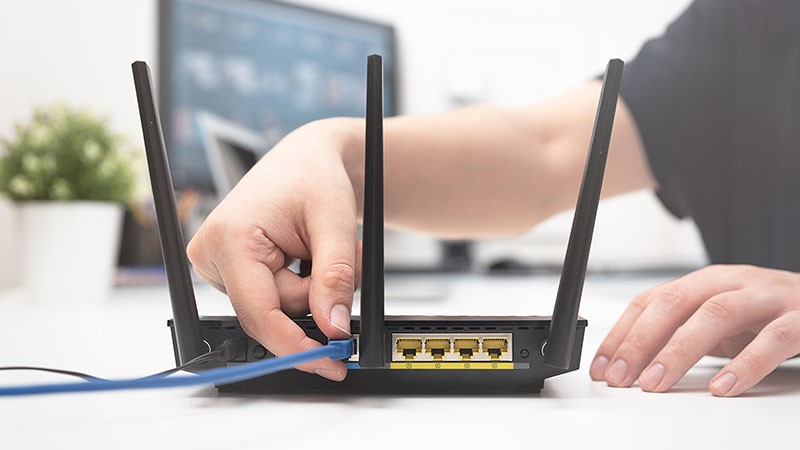
Resetting your router or modem can often alleviate connectivity issues causing the VAN9003 error in Valorant. Simply power off the device, wait for a few minutes, then turn it back on. This refreshes the connection, potentially resolving any temporary glitches affecting your gameplay experience.
Method 2: Check the Internet Connection
If rebooting your router and modem doesn’t resolve the issue, proceed by inspecting your internet connectivity. Confirm a robust and consistent connection by conducting a speed test to ascertain if you’re receiving the anticipated speeds. Should your connection prove weak or erratic, consider relocating your router or modem to an alternative spot.
Alternatively, seek assistance from your Internet Service Provider (ISP) to troubleshoot and improve your connection stability.
Method 3: Verify the Valorant Server Status
Before you move towards complete troubleshooting methods to tweak the settings, here is something you can try.
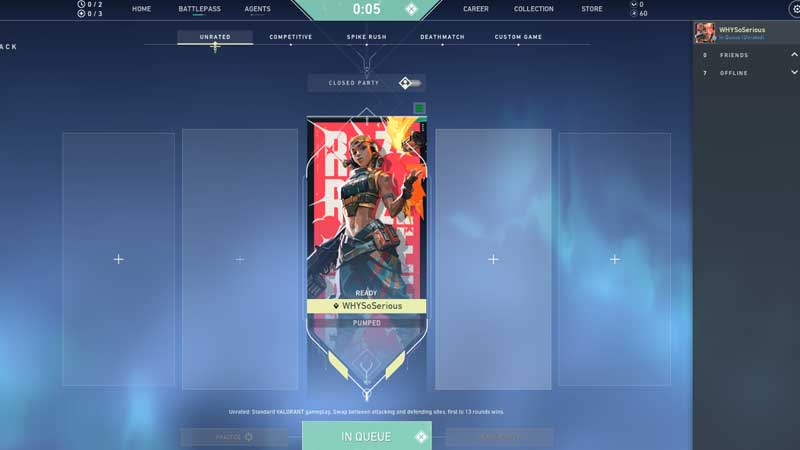
Begin by verifying the current status of Valorant servers to identify any reported issues or disruptions. Access the Valorant website or review social media platforms for official updates. In case of server downtime, your options are limited, and the most viable course of action is to patiently await their restoration.
Method 4: Validate the Game Files
If the van9003 error on Windows 11 stems from corrupted game files, it’s crucial to ensure the integrity of these files. To execute this in Valorant, adhere to these steps:
Step 1: Open the Valorant client and locate the gear icon positioned in the top right corner.
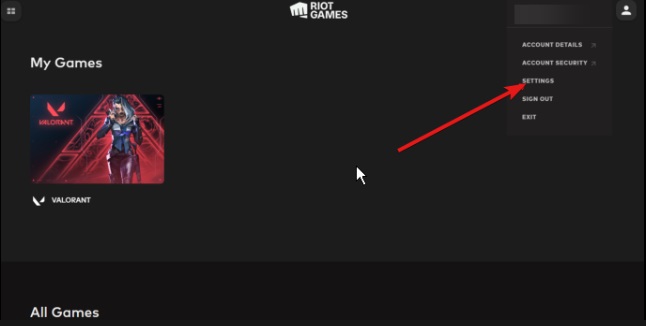
Step 2: Choose “Verify” from the menu options.
Step 3: Allow the process to finalize, which might take several minutes.
Step 4: Any identified corrupt files will be automatically re-downloaded and replaced to restore proper functionality.
Method 5: Review Firewall and Antivirus Configurations
If your firewall or antivirus software blocks Valorant’s internet access, it’s necessary to modify the settings to allow the game connection. Refer to the documentation provided with your firewall or antivirus software for instructions.
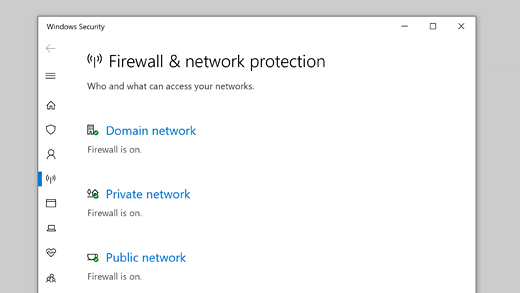
Additionally, consider adding Valorant to the list of permitted programs for uninterrupted connectivity.
Method 6: Check if TPM is Enabled
To access the TPM settings on Windows, follow these steps:
Step 1: Press the Windows key + R to open the Run window.
Step 2: In the Run window, type “TPM.MSC” and press Enter to launch the TPM window.
Upon execution of the command:
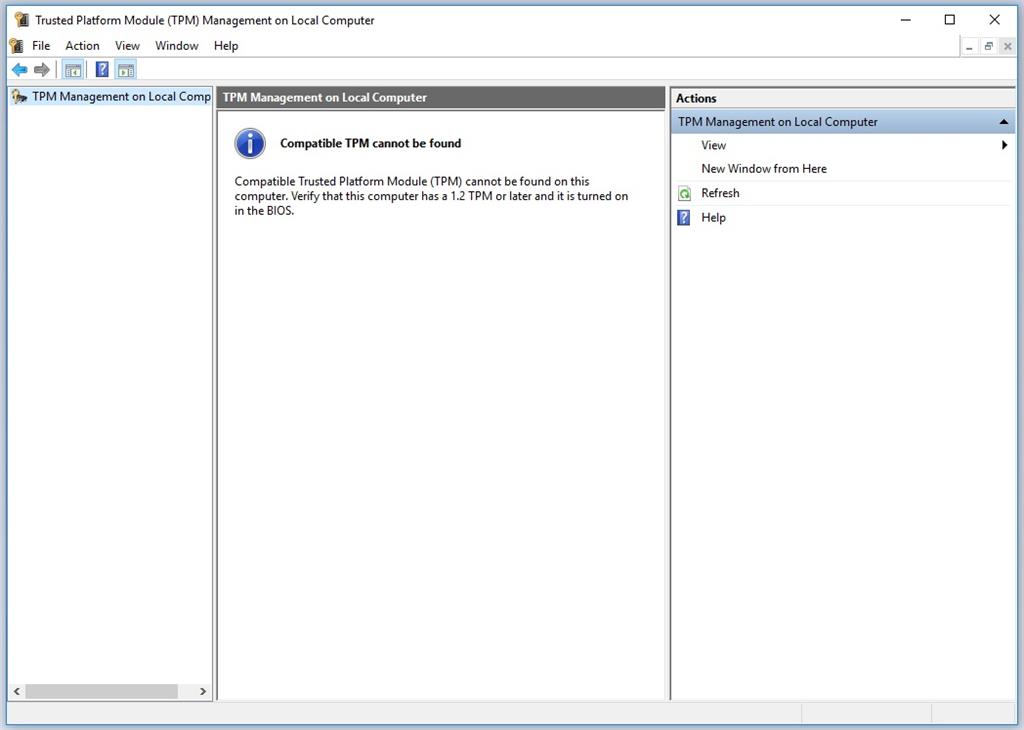
If the TPM module isn’t present, an error message stating “Compatible TPM cannot be found” will appear. In case the TPM module exists and is activated, the TPM settings window will display, indicating “The TPM is ready for use” in the Status section.
Method 7: Enable Secure Boot
Enhancing your system’s security through Secure Boot can address potential compatibility issues, such as the VAN9003 error in Valorant. Follow these steps:
Step 1: Access your computer’s BIOS/UEFI settings by restarting and pressing the designated key (F2, F10, Del, Esc, etc.) during startup.
Step 2: Navigate to the Security or Boot options within the BIOS/UEFI interface.
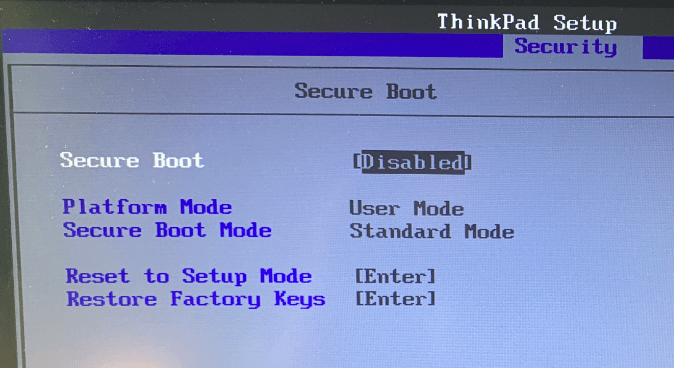
Step 3: Locate and enable the Secure Boot feature, ensuring only verified components are initiated during system startup.
Step 4: Save changes and exit the BIOS/UEFI settings, allowing your computer to restart and implement the alterations.
Method 8: Run Valorant in Compatibility Mode
Enhance Valorant’s compatibility by utilizing Compatibility Mode in Windows 11 and Windows 10. Follow these steps:
Step 1: Locate the Valorant executable file within its installation folder.
Step 2: Right-click on the Valorant executable and select “Properties”.
Step 3: Access the “Compatibility” tab within the Properties window.
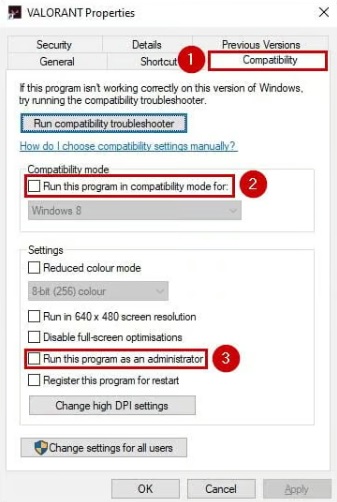
Step 4: Check “Run this program in compatibility mode for:” and choose an earlier Windows version from the dropdown menu.
Step 5: Optionally, enable “Run this program as an administrator” in the same Compatibility tab.
Step 6: Apply the changes and exit the Properties window.
Running Valorant in Compatibility Mode may rectify compatibility conflicts that trigger errors such as VAN9003 during gameplay.
Method 9: Uninstall and Reinstall Valorant
If persistent issues like the VAN9003 error persist on your Windows 11/10, consider reinstalling Valorant. Follow these steps:
Step 1: Open the “Control Panel” or access “Settings” in Windows 10/11. Navigate to “Programs” or “Apps.”
Step 2: Locate “Valorant” among the installed programs or apps.
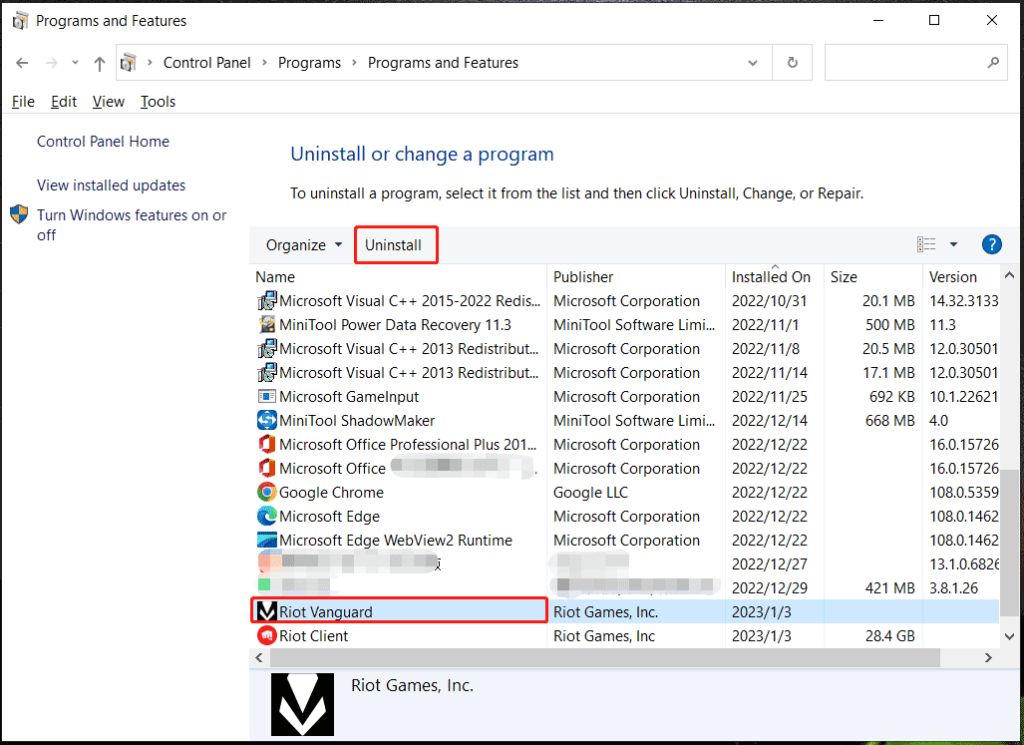
Step 3: Select “Uninstall” for Valorant and proceed with the uninstallation prompts to remove it completely from your system.
Step 4: After uninstallation, visit the official Valorant website and download the game installer.
Step 5: Run the installer and follow the instructions to reinstall Valorant from scratch.
Reinstalling Valorant ensures a clean and updated installation, often resolving persistent errors like VAN9003 that may stem from corrupted files or configurations.
Conclusion
Encountering the VAN9003 error in Valorant can be a frustrating hurdle for players seeking seamless gaming experiences. However, armed with these nine effective methods, you can troubleshoot and resolve this issue swiftly. From checking connectivity and verifying game files to adjusting system settings and performing a clean reinstall, these steps offer comprehensive solutions to tackle the VAN9003 error in Windows 11 and Windows 10.
Implementing these troubleshooting techniques empowers you to get back into the game and enjoy Valorant without interruptions.
FAQs:
Q1: Why does the VAN9003 error occur in Valorant?
The VAN9003 error in Valorant can arise due to various factors, including server issues, internet connection problems, firewall/antivirus conflicts, corrupted game files, or system compatibility issues.
Q2: Can server downtime cause the VAN9003 error?
Yes, if Valorant servers are down or experiencing issues, it can trigger the VAN9003 error, preventing players from connecting to the game.
Q3: How can I check Valorant server status?
You can check Valorant server status by visiting the official Valorant website or monitoring their social media channels for updates on server status and maintenance.
Q4: Is reinstalling Valorant the ultimate solution for the VAN9003 error?
Reinstalling Valorant can often resolve persistent issues like VAN9003 by providing a fresh installation, but it’s recommended to try other troubleshooting steps first, as they might solve the problem without the need for a full reinstallation.
Author Bio:
Dinesh Lakhwani 

Dinesh Lakhwani, the entrepreneurial brain behind “TechCommuters,” achieved big things in the tech world. He started the company to make smart and user-friendly tech solutions. Thanks to his sharp thinking, focus on quality and the motto of never giving up, TechCommuters became a top player in the industry. His commitment to excellence has propelled the company to a leading position in the industry.
Popular Post
Recent Post

Fortect Software Review: The Ultimate PC & Mobile Cleaning, Optimization & Security Tool
Slow computers are a common problem for almost every Windows user. Well, yes! Over time, your PC picks up junk files. These files sit quietly in the background. They take up space and slow things down. Programs open slower. Windows takes longer to boot. Even simple tasks like opening a folder can feel sluggish. There […]

CCleaner PC Optimizer Review: A Complete Guide for Windows Users
If your computer has started to feel slow, you are not alone. Most Windows PCs slow down over time. Junk files pile up. The registry gets messy. Too many apps open when you start your PC. All this adds up and makes even a good machine feel tired. This is where a PC cleaner tool […]

5 Best PC Cleaners for Windows 11 & 10 | Top PC Optimizers
Remember when your PC felt fast? Every click was quick. Every app opened in seconds. Now it feels like a different machine. Windows takes forever to boot. Programs freeze for no reason. Even opening a browser feels like a chore. You are not alone in this. Almost every PC slows down over time. Files pile […]

Auslogics Duplicate File Finder: Full Review and User Guide
A computer quietly gathers clutter over time. This includes duplicate photos, repeated downloads, and forgotten backups hiding in random folders. This buildup slowly eats away at storage and can make even a fast PC feel sluggish. Manually finding and deleting duplicates is tedious. It means checking every folder, comparing file names, and guessing which copies […]

CCleaner Duplicate File Finder: Key Features, Pricing, Step-by-Step Guide and More
Every computer collects junk over time. Right? Well, yes! Photos often get copied twice. Documents get saved in two folders by mistake. Old downloads pile up and never get deleted. This slowly eats up your storage space, and most people do not even notice until their drive is almost full. That is where a duplicate […]

Duplicate File Finder Pro: A Complete Review, Everything You Should Know
Computers collect thousands of files over time. Well, yes! Many of them end up being duplicates created by backups, downloads, or accidental copies. These extra files take up valuable storage space and make it harder to keep everything organized. Finding and removing them manually can take hours. Right? Duplicate File Finder Pro is a tool […]
Top 3 Duplicate File Finder for Windows 11 & Windows 10
If your PC storage keeps filling up even after you delete big files, duplicate files could be the real reason. Most of us save the same photo twice, download a document more than once, or copy a whole folder by mistake. Over months and years, these duplicate files pile up quietly. You do not even […]
Monitor Screen Calibration Guide: Everything You Should Know
Your monitor shows colors every single day. But are those colors actually correct? Most people never stop to check this. They just use the screen as it comes out of the box. This habit can lead to wrong colors in photos, videos, and work files. Colors may look too warm or too cold without you […]
How To Check Installed RAM and RAM Slots [Complete Guide]
RAM plays an important role in how smoothly a computer runs. Short for Random Access Memory, it stores the data and instructions that Windows and active applications need at any given moment. From opening multiple browser tabs to running games and productivity software, RAM helps keep everything responsive. A system with limited memory may experience […]

