












So, search for a pair of shoes once online. Close the tab. By evening, those same shoes are sitting on your news site, your video app, and even your recipe blog. Nobody placed them there by chance. A cookie did. Well, yes! Cookies are small files that websites place on your device while you browse. […]
Driver Easy Windows Driver Updater Tool Review: Tried & Tested
Windows machines slow down for many reasons. But one cause gets overlooked more than any other. Drivers quietly age in the background. Most people never think to check them until something breaks. A crackling speaker, a graphics card that stutters mid-game, a printer that refuses to connect. These are classic signs of a driver gone stale.
Manually chasing down the right driver is a headache. You need the exact hardware model number, the right Windows build, and a download from a source you can actually trust. Get any of that wrong, and you risk a device that stops working entirely, or worse, a file bundled with junk software. This is exactly the kind of problem driver update tools were built to solve.
This review breaks down the Driver Easy Windows Driver Updater Tool from every angle that matters. I will walk through what it does, how it works, what it costs, where it shines, where it falls short, and how it performed when I actually used it on my own PC.
Driver Easy Windows Driver Update Tool: Complete Guide
Part 1: Introduction: Driver Easy Windows Driver Updater

Driver Easy is a driver updater tool for Windows PC. It scans your system, spots drivers that are outdated, missing, or broken, and pulls matching replacements from a large driver database. The company behind it has been in this space since 2009, which gives the tool a longer track record than many newer names in the same category.
The software comes in two versions. The free version lets you scan your system and download drivers one at a time, which is perfect for fixing a single issue. The Pro version adds full automation, allowing you to update all outdated drivers in one go and includes backup tools that provide a safety net before any changes are made. Both versions use the same detection engine, so the scan quality stays the same no matter which one you choose.
Key features:
- Scans your PC for outdated, missing, or faulty drivers in under two minutes
- Matches each driver to your exact hardware model and Windows version
- Pulls files from official manufacturer sources or certified copies
- Offers one-click updates for every flagged driver in the Pro version
- Lets you back up current drivers before installing anything new
- Supports driver rollback if a fresh install causes trouble
- Works across most modern Windows versions, including Windows 10 and 11
- Includes an offline scan mode for PCs without a live internet connection.
Quick Info: Driver Easy Windows Driver Updater Tool
- Latest Version: 7.1.5 Build 5695
- Release Date: July 25, 2026
- File Size: ~6.8 MB (DriverEasy_Setup.exe)
- Supported OS: Windows 7, 8, 10, 11 (32/64‑bit)
- Developer: Easeware Technology Limited
- License: Freemium (Free + Paid Pro plan)
- Driver Database: Over 3 million drivers, updated daily
Part 2: Top Reasons to Use Driver Easy Windows Driver Updater Tool
Driver tools are not rare software. The market has plenty of them, from free utilities to bundled system cleaners. So what keeps pulling people toward this particular one? Below are eight reasons that come up again and again from long-term users and first-time testers alike.
- Simple scan process. Open the program, click scan, and within a minute you get a full list of driver problems on your machine.
- Safe download sources. Files come from official manufacturer pages or pass a certification check before they reach you. This lowers the odds of grabbing a corrupted or fake driver file.
- Time-saving automation. The Pro version updates every flagged driver in a single pass. Instead of hunting down ten separate downloads, you click once and let the tool handle the rest.
- Built-in backup option. Before any update goes live, you can save a copy of your current driver set. If a new driver misbehaves, restoring the old one takes only a few clicks.
- Frequent database updates. The driver library gets refreshed often, so newly released hardware and fresh driver versions tend to show up without a long wait.
- Offline scanning support. No internet on the target PC? You can still scan it, save the results to a file, then move that file to a connected machine to fetch what you need.
- Broad hardware coverage. From sound cards to USB controllers to network chips, the tool spans a wide range of brands and device types, not just the big-name manufacturers.
Part 3: Key Features Explained: Driver Easy Windows Driver Updater Tool
Beyond the basic scan and download loop, this tool packs a handful of features that shape how it actually feels to use day to day. Here is a closer look.
One Click Update
Once a scan finishes, Pro users get the option to update every flagged driver at once. Instead of opening ten browser tabs and comparing file versions by hand, you press a single button and the tool works through the list on its own. This is probably the single biggest reason people choose to pay for the upgrade.
Driver Backup and Restore
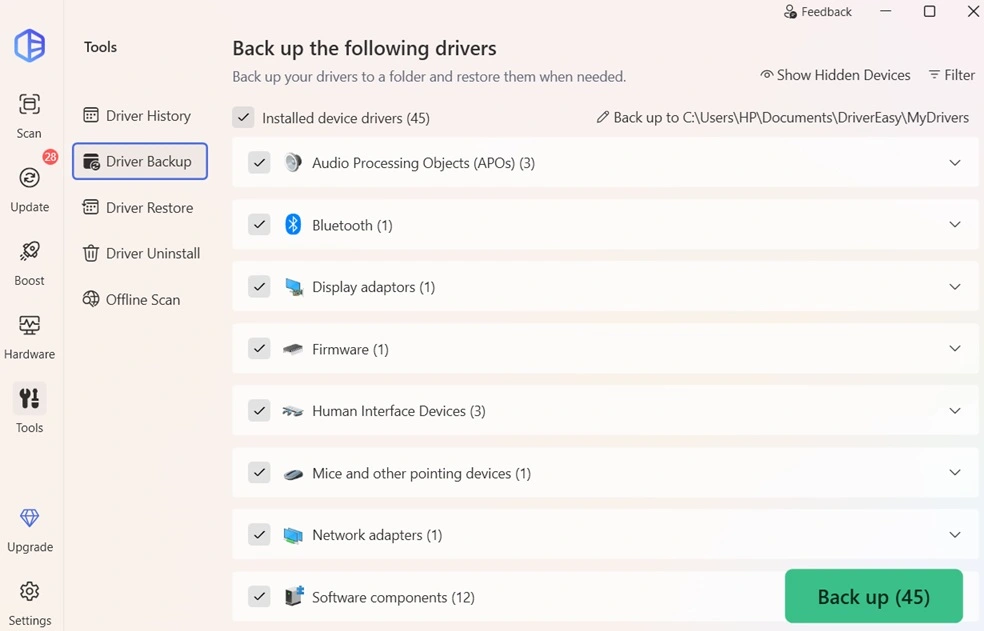
Before any new driver gets installed, you can save the current version first. This matters more than it sounds, because a fresh driver does not always play nicely with every setup. Having a backup means you can undo a bad update in minutes instead of digging through Windows settings trying to fix a broken display or dead network card.
Automatic Scan Scheduler
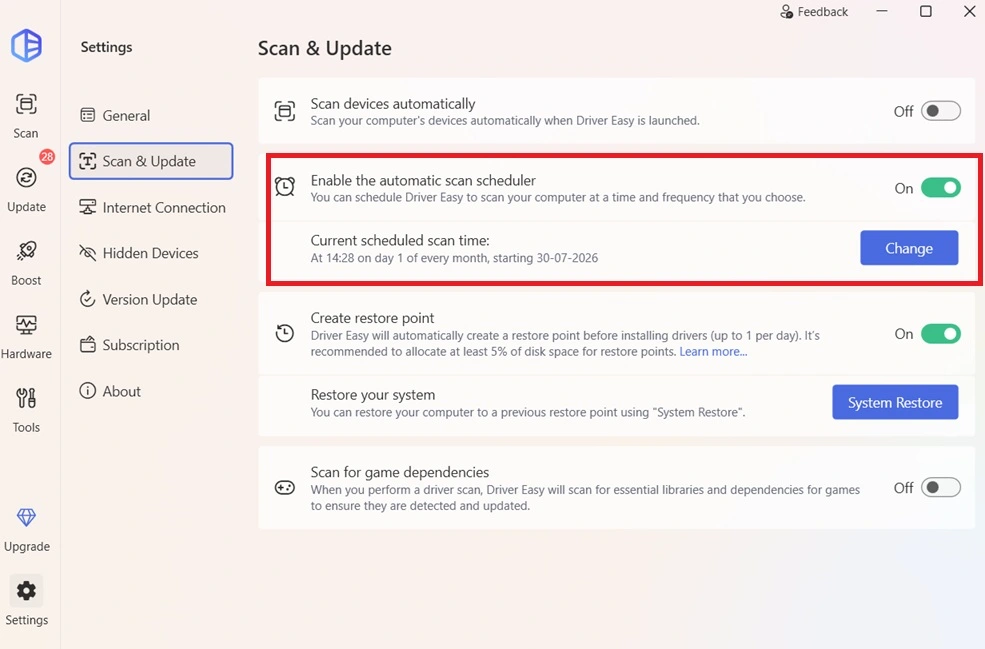
Rather than remembering to open the program every so often, you can set it to scan on its own at fixed times. This runs quietly in the background and catches new driver problems before they turn into bigger issues, which suits anyone who tends to forget routine maintenance.
System Restore Point Creation
Before major driver changes go through, the tool can create a Windows restore point automatically. This adds a second layer of protection beyond the driver backup itself, since a restore point lets you roll your entire system back if something goes seriously wrong after an update.
Hidden Devices Option
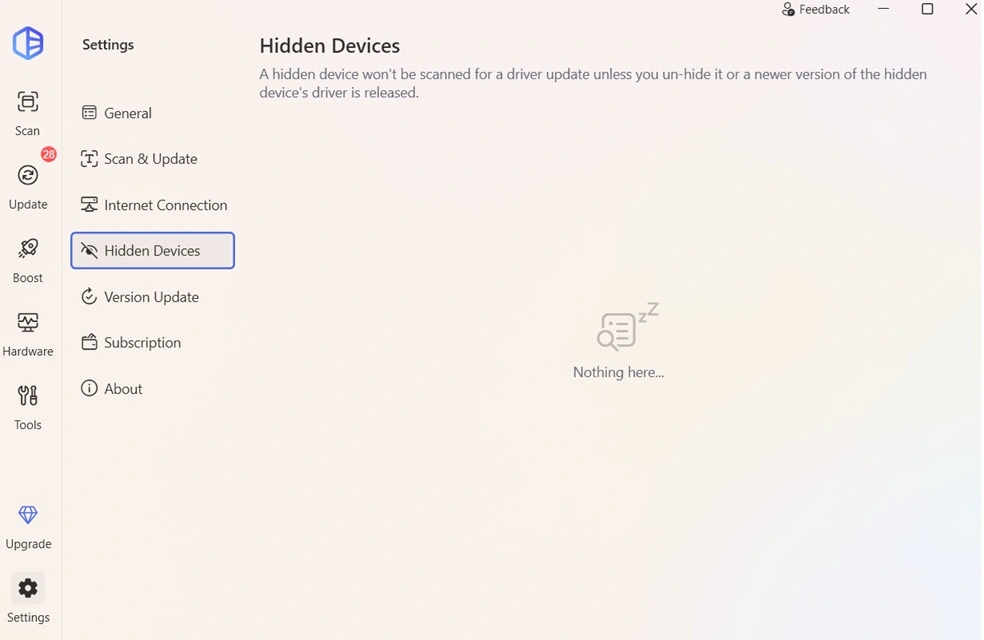
Some devices stay hidden in Windows because they are disconnected or rarely used, yet their drivers can still cause conflicts. This option reveals those hidden devices during a scan, so outdated drivers tied to them do not slip past unnoticed.
Game Boost
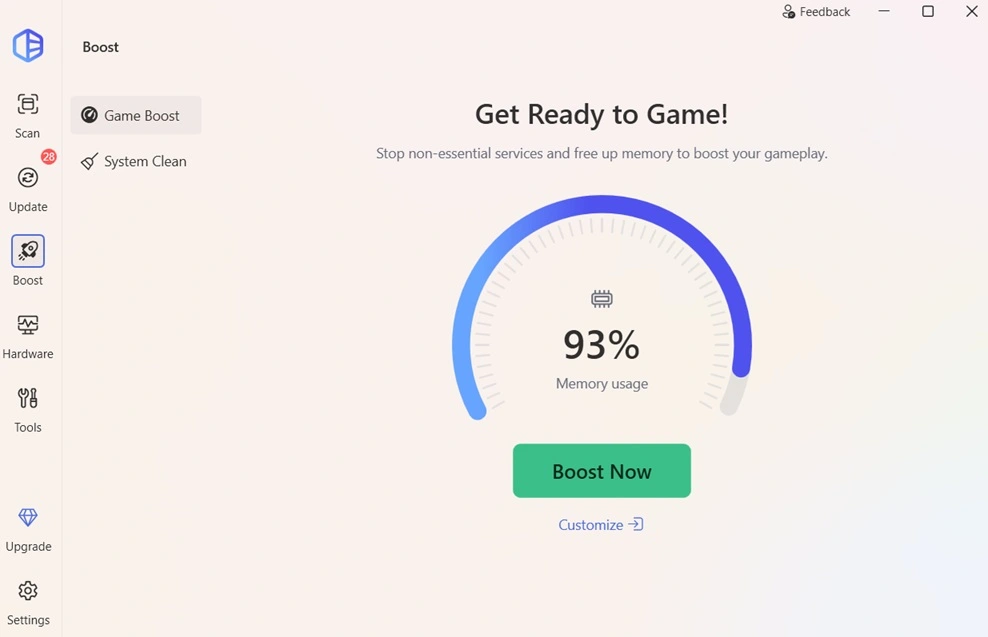
This feature closes unnecessary background processes and frees up system resources right before you launch a game. It will not replace a hardware upgrade, but it can smooth out minor stutters caused by a cluttered system running in the background.
Hardware Info Panel
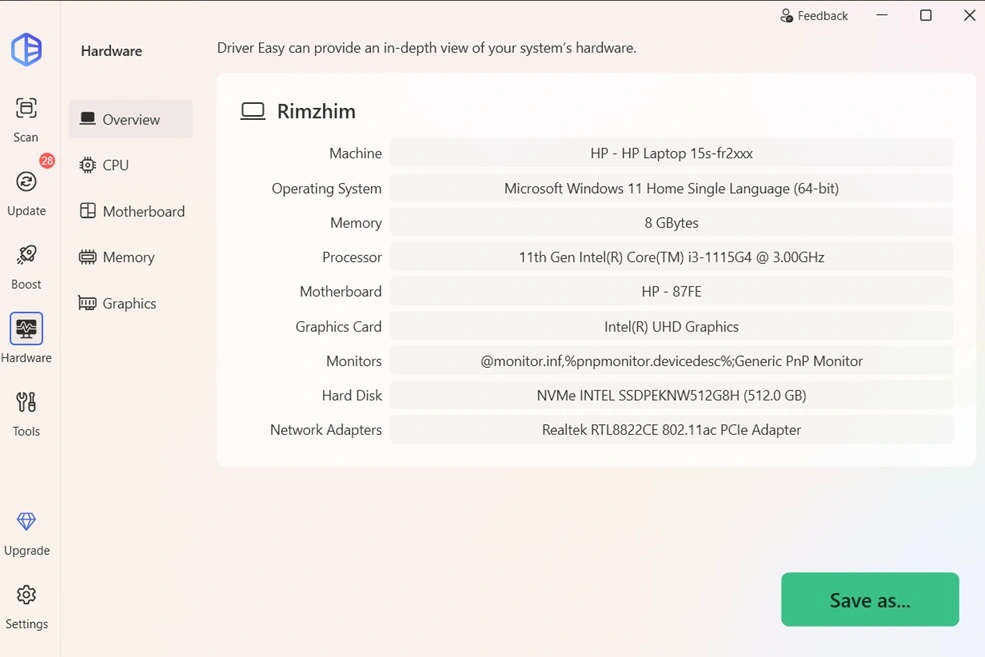
The tool includes a built-in panel that lists detailed specs for your PC, covering things like processor, memory, graphics card, and motherboard. This is handy when you need to check exact hardware details without opening a separate system information tool.
Priority Customer Support
Pro subscribers get faster access to the support team. This becomes important when a driver problem is actively blocking work, since a quick answer can mean the difference between losing an hour and losing a whole afternoon.
Part 4: How to Use Driver Easy Windows Driver Updater Tool: Step-by-Step Guide
Getting this tool running does not take long, and the setup is friendly enough for someone who has never touched driver software before. There is no complicated configuration screen or confusing settings menu to sort through first.
The whole process, from install to a finished update, usually takes under ten minutes on a normal home connection. Below are the three main steps you will follow from start to finish.
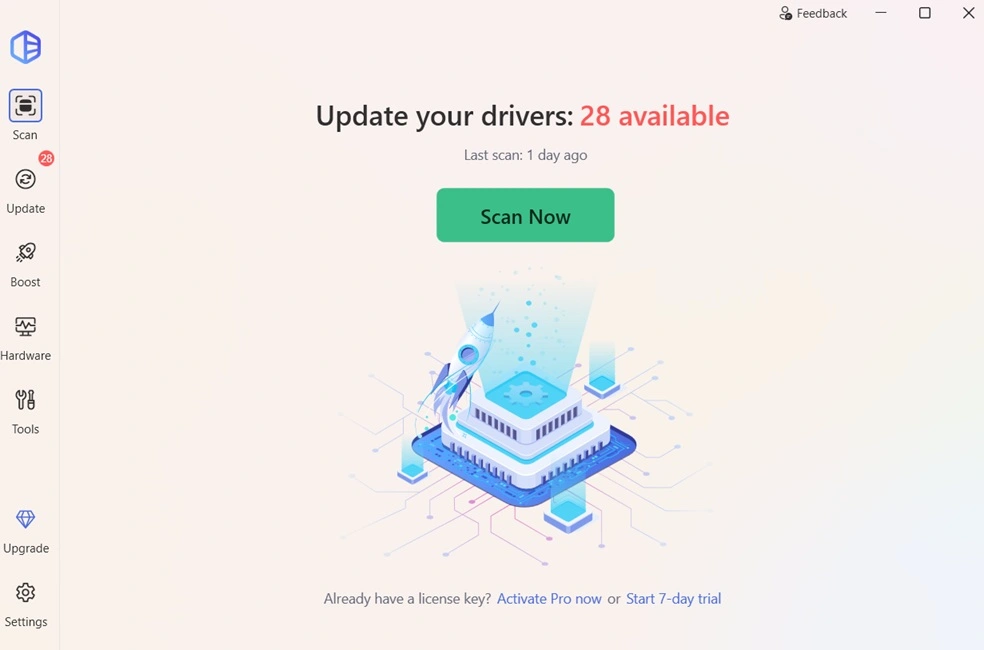
Step 1: Head to the official website of the Driver Easy tool and grab the setup file. Run it and follow the on-screen prompts, which mostly involve clicking Next a few times and choosing an install folder. The program installs quickly on most systems, even ones running older hardware. Open the program once the install finishes and click the Scan Now button on the main screen.
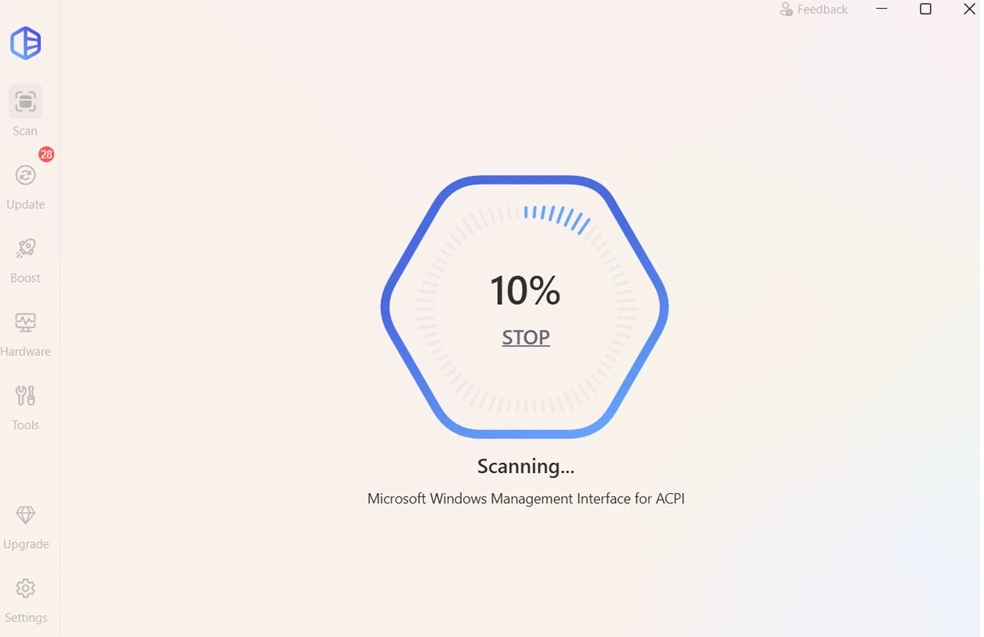
Step 2: The tool checks every piece of connected hardware and builds a list of drivers that are outdated, missing, or flagged with errors. Give it a minute or two to fully complete before moving on.
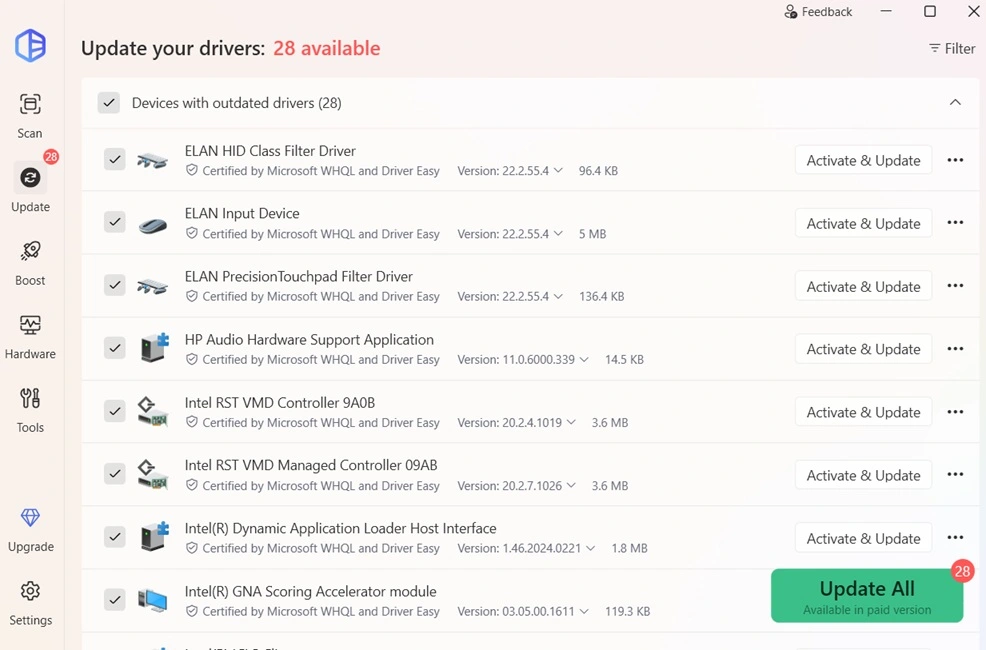
Step 3: Once the scan list is ready, pick which drivers to update. Free users can download and install one driver at a time, while Pro users get the option to update the entire list in a single click. After the update finishes, restart your PC so the new drivers load properly and any lingering issues clear up.
Part 5: Pros and Cons Explained: Driver Easy
No software checks every box perfectly, and this tool is no exception. Below is a balanced look at what works well and what could use improvement, based on general use and common feedback from long-term users.
Pros
- Simple interface – I didn’t need a manual; scanning for outdated drivers was straightforward.
- Accurate detection – It flagged several drivers I hadn’t realized were outdated, including my audio and network adapters.
- One‑click updates – With the Pro version, I updated everything in one go instead of hunting drivers manually.
- Backup and restore – Before changes, it created restore points, which gave me peace of mind.
- Offline scan – Useful when I tested it on a PC without internet; I could export the scan results and download drivers elsewhere.
- Improved performance – After updating, my graphics driver ran smoother, and I noticed fewer system hiccups.
Cons
- Slow free version – Download speeds were capped, and installing drivers one by one felt tedious.
- Subscription cost – The Pro plan isn’t expensive, but compared to free alternatives, it feels like a commitment.
- No real‑time monitoring – It doesn’t run in the background, so you have to remember to scan manually.
- Support response time – I reached out with a query, and while they did reply, it wasn’t immediate.
Part 6: Pricing Plans: Driver Easy Windows Driver Updater Tool
Driver Easy offers a free trial and a paid Pro plan. The Pro plan is currently priced at $29.95 per year for up to 3 PCs, with a 7‑day free trial available before purchase.
- Free Trial
- 7‑day trial of Driver Easy Pro
- Full access to all features during trial
- No upfront payment required
- Cancel anytime before trial ends to avoid charges
- After trial, subscription continues at $39.95 unless canceled
- Driver Easy Pro
- Price: $29.95 per year (discounted from $59.90)
- License covers 3 PCs for 1 year
- Features:
- One‑click update for all drivers
- Offline scan and download support
- Automatic restore points and rollback safety
- Faster download speeds (dedicated servers)
- Certified drivers from manufacturers and Microsoft WHQL
- Backup and restore tools for added security
- Commercial use allowed
- Refund Policy
- 30‑day money‑back guarantee
- Full refund if not satisfied, no questions asked
Key Notes
- The free version only allows scanning and downloading drivers one by one.
- The Pro version unlocks automation, faster downloads, and safety features.
- Both versions use the same detection engine, so scan accuracy is identical.
Free VS Paid Plan: Driver Easy
| Feature | Free Plan | Pro Plan |
| Driver Scan | Detects outdated/missing drivers | Detects outdated/missing drivers |
| Driver Updates | Update drivers one by one | Update all drivers in one click |
| Installation | Manual installation required | Automatic installation |
| Download Speed | Limited (40–80 KB/s) | High speed (500 KB/s – 20 MB/s) |
| Backup & Restore | No backup tools | Automatic driver backup and restore |
| System Restore Point | Manual setup required | Automatically created before updates |
| Support | No dedicated support | Free computer tech support |
| Update History | View history only | Full update history with rollback |
| Offline Scan | Limited | Full offline scan and download |
| Commercial Use | Not allowed | Allowed |
| Pricing | Free (scan only, manual updates) | $29.95 per year for 3 PCs (after 7‑day free trial) |
| Refund Policy | Not applicable | 30‑day money‑back guarantee |
Key Takeaways
- The Free plan is suitable if you only need to fix one or two drivers manually.
- The Pro plan is designed for convenience, speed, and safety, especially if you manage multiple devices or want automated backups.
- Both plans use the same detection engine, so scan accuracy is identical.
Part 7: Honest Feedback of Using Driver Easy Windows Driver Updater On My PC
I installed Driver Easy and ran a full scan on my PC. The process was quick, and it immediately highlighted 28 outdated drivers, including audio and network components. The interface felt clean and easy to understand, so I didn’t have to spend time figuring things out.
Downloading and applying updates worked, though it required some patience. The tool gave me clear details about each driver, and I liked that it showed the version differences before updating. After updates, I noticed smoother performance in everyday tasks, especially with sound and connectivity.
The filter option was especially useful. It let me sort drivers by category, so I could focus on critical updates first, like network and graphics. This saved time and made the process feel more organized compared to scrolling through a long list.
Part 8: Trust, Reviews, and Ratings of Driver Easy Windows Driver Updater Worldwide
Driver Easy enjoys strong global adoption with millions of users, but reviews are mixed: Trustpilot shows a high satisfaction score (4.3/5 from over 22,000 reviews), while G2 ratings are more modest (3.3/5).
Users praise ease of use and driver coverage, but concerns include pricing and occasional update issues.
Worldwide Trust, Reviews, and Ratings of Driver Easy
Trustpilot (Global Consumer Reviews)
- Rating: 4.3/5 (22,300+ reviews)
- Strengths:
- Easy to use, simple interface
- Reliable detection of outdated drivers
- Automated updates save time
- Many users report improved PC performance
- Weaknesses:
- Pricing feels high compared to free alternatives
- Some users report failed updates or missing components
- Occasional frustration with subscription management
G2 (Professional/Business Reviews)
- Rating: 3.3/5 (2026 data)
- Strengths:
- Trusted by over 3 million users worldwide Access to 29 million+ drivers
- Features like offline scan, backup/restore, scheduled scans
- Weaknesses:
- Limited number of reviews (only 2 recent ratings) Lower score compared to consumer platforms
- Some users prefer alternatives with higher ratings
Summary Table
| Platform | Rating | Strengths | Weaknesses |
| Trustpilot Global | 4.3/5 (22,300+ reviews) | Ease of use, reliable detection, automation | Pricing concerns, occasional failed updates |
| G2 Professional | 3.3/5 | Large driver database, offline scan, backups | Few reviews, lower score, alternatives rated higher |
| Trustpilot Germany | 4.3/5 | Long-term satisfaction, strong support | Rare auto-start issues, occasional instability |
Key Takeaways
- Trust is stronger among everyday PC users (high Trustpilot ratings) than in professional IT circles (lower G2 ratings).
- Global reach: Over 3 million users worldwide rely on Driver Easy.
- Best suited for casual users who want quick, automated driver updates.
- Pricing and occasional glitches remain the main drawbacks.
Conclusion
Driver Easy earns its reputation as a straightforward way to keep Windows drivers current without digging through manufacturer websites one device at a time. The free plan handles basic needs well, while the Pro plan adds real convenience for anyone juggling more than one computer, backed by safety features like backup and rollback that many rival tools skip entirely.
If outdated drivers have been causing you trouble, whether that is a laggy graphics card or a printer that refuses to cooperate, this tool is worth a try. Start with the free version to see how it handles your setup, then weigh the Pro upgrade if you find yourself wanting that one-click convenience across several devices.
FAQs
Is Driver Easy safe to use on my computer?
Yes. The tool sources drivers from official manufacturer pages or certified copies, and it carries certification from recognized security firms, which makes it a reasonably safe choice for most Windows users looking to update their system.
Do I need the Pro version to update my drivers?
No. The free version lets you scan without limits and download one driver at a time. The Pro version simply adds one-click updates for the whole list, along with backup and rollback tools for extra peace of mind.
Does Driver Easy work on Windows 11?
Yes. The software supports Windows 11 alongside older versions like Windows 10, so it remains a solid option regardless of which Windows build your PC is currently running.
Author Bio:
Dinesh Lakhwani 

Dinesh Lakhwani, the entrepreneurial brain behind “TechCommuters,” achieved big things in the tech world. He started the company to make smart and user-friendly tech solutions. Thanks to his sharp thinking, focus on quality and the motto of never giving up, TechCommuters became a top player in the industry. His commitment to excellence has propelled the company to a leading position in the industry.
Popular Post
Recent Post

How To Disable Background Apps In Windows: 4 Quick Methods
A slow PC rarely gives a warning. One day, it simply takes longer to start. Apps open late. The fan runs loud, even when the screen is almost empty. Most people blame old hardware. Often, that is not the real reason. The real reason is hiding in plain sight. Windows keeps many apps active in […]

How to Activate Windows with a Product Key for Windows 11 & Windows 10
It always shows up at the worst time. You are halfway through a report, or about to join a video call. Then you spot it in the bottom right corner of the screen. Activate Windows. Go to Settings to activate Windows. Initially, an unactivated copy of Windows may seem like a minor inconvenience. Over time, […]

Is Easy Duplicate Finder Worth It? Honest Review
The photos folder looked normal at first glance. Then the storage warning popped up. One trip photo appeared four times. A tax PDF sat in three different folders. Two old setup files were still in Downloads, and each one was over 500 MB. Nobody plans this mess. Copies pile up slowly. A download runs twice. […]

Wise Duplicate Finder Review: Real Results from Wise Duplicate Finder
Read my honest Wise Duplicate Finder review. See features, pricing, pros and cons, and real PC test results. Find out if this free duplicate cleaner can free up your Windows storage.

How to Recover Deleted Files from Pen drive, USB Drive, SD Card
Introduction: On tech forums, you’ll often see posts like this: “I connected my pen drive to my laptop this morning, but the folder was empty. All my college project files had vanished. I don’t have a backup. Can someone help me?” Stories like this are very common. Pen drives, USB drives and SD cards are […]

How To Recover Files Deleted from the Recycle Bin [Windows 11]
Losing a file can happen in seconds. You clear your desktop, hit Delete, and empty the Recycle Bin. Then, just when you need that file again, it seems to have vanished. This guide will walk you through ways to restore files removed from the Recycle Bin. We will begin with simple fixes, then look at […]

Disk Drill Data Recovery Tool Explained: Full Review and Guide
It happens in a split second. You delete a folder by mistake. Your drive stops showing up. A photo album from your last trip just vanishes. And your stomach drops. Lost files feel personal. They are not just data. They are memories, work hours, and sometimes years of effort packed into a few gigabytes. When […]

Recover Deleted Files In Windows 11 With Software & Without
Introduction What is the first thing that goes through your mind the second an important file vanishes from a Windows 11 PC? For most people, it is a mix of panic and disbelief, followed by a frantic click through every folder that file could possibly be hiding in. It happens in a split second: one […]

EaseUS Data Recovery Wizard: Everything To Know
Data loss does not always come from a big disaster either. Most cases start small and boring. A drive gets formatted by mistake. A laptop freezes mid-save and restarts on its own. A memory card stops showing up after being pulled out too fast. None of these feel like emergencies at first, until you realize […]

