












So, search for a pair of shoes once online. Close the tab. By evening, those same shoes are sitting on your news site, your video app, and even your recipe blog. Nobody placed them there by chance. A cookie did. Well, yes! Cookies are small files that websites place on your device while you browse. […]
PS4 Controller Charging But Not Connecting? 7 Ways To Fix
Introduction
The PlayStation 4 (PS4) offers an immersive gaming experience with an extensive library of titles and is undoubtedly a game-changer in the gaming industry. Even the most trustworthy gaming systems may occasionally have issues.
A common problem for many PS4 users is the PS4 controller charging but not connected issue. When your Controller is charging, it is annoying to see the LEDs flicker, just to find out later that it still won’t connect to your console. Fortunately, several fixes for this issue will allow you to resume playing. Here are seven best fixes for the PS4 controller charging but not connecting issue.
Why Did the PS4 Not Connecting Issue Occur?
Gamers may find it irritating to deal with the PS4 controller connection issue, in which the Controller does not connect while displaying charging indicators. To adequately address this issue, it is critical to identify the probable reasons. In this post, we’ll look at the causes of this problem and the elements that contribute to it.
● Defective USB Cables and Ports: Damaged or broken USB cables and ports are one of the most typical causes of the PS4 controller not connecting but charging problems. USB cables can deteriorate over time due to regular use, bending, or twisting. Similarly, the USB ports on the Controller or the PS4 console might become loose or broken, making appropriate connectivity impossible.
● Firmware and software issues with controllers: Outdated or defective firmware and software might disrupt the connection between the Controller and the PS4 console. The Controller’s out-of-date firmware might make it difficult to establish a reliable connection, which would cause the charging but unconnected problem.
● Interference from Wireless Networks: The PS4 controller connects to the console through Bluetooth power technology. However, additional wireless interference from electrical equipment, like Wi-Fi routers, microwave ovens, or Bluetooth devices, might obstruct this connection. PS4 controller not connecting but charging because of the interference; the connection could be poor or unstable and cause the issue.
● Trouble with controller synchronization: The Controller and PS4 console can sometimes lose connection. Some causes are power fluctuations, system failures, interference, and other factors can all contribute to this synchronization loss. Even after charging, a controller that has not been adequately synchronized may not work with the console.
● Hardware defects: Charger problems in the PS4 controller might be caused by hardware defects. The Controller may charge but not connect or maintain a constant connection due to internal component problems, including those in the battery, charging circuitry, or Bluetooth module.
● Issues with the power supply: If your PS4 controller charges but won’t connect, this can occur if the PS4 console does not get enough power or the USB port cannot provide the Controller with sufficient voltage and current.
● Corrupted Controller Profiles: All PS4 controllers have their own user profiles and settings. In rare scenarios, corrupted or conflicting controller profiles might disrupt the connection between the Controller and the console.
● Environmental Aspects: The performance of the PS4 controller may be compromised by severe environmental variables such as high temperatures or humidity. Heat may damage components and cause battery deterioration, while moisture can create short circuits.
7 Troubleshooting Tips for PS4 Controller Charging But Won’t Connect Issues
PS4 is people’s favorite gaming console, but users frequently experience problems such as the PS4 controller charging but not connecting correctly. You may take measures to address this annoying issue and restore the proper operation of your Controller if you’re experiencing it.
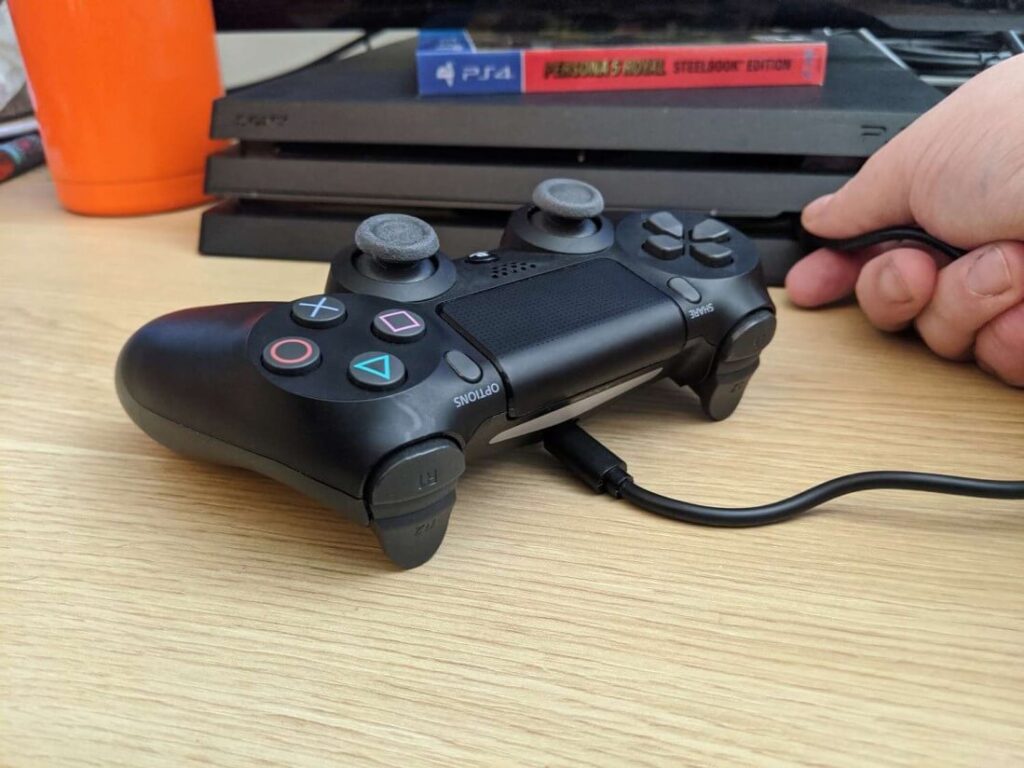
1. Examine the USB Cable and Port:
Eliminate the most straightforward potential issues before moving on to more involved troubleshooting techniques. Begin by inspecting the USB cord and the USB port through which you are charging the Controller. Try attaching a separate USB cable to another USB port on your PS4 or PC. A defective cable or port might sometimes prevent the Controller from charging and connecting correctly.
2. Factory Reset the Controller:
If your PS4 controller charges but won’t connect, here is a quick way to fix it. You will need a small instrument, such as a paperclip or a pin, to reset a PS4 controller. Find the little hole near the L2 button on the back of the Controller. Insert a paperclip or a pin into the hole and press the reset button lightly for a few seconds. This will clear the Controller’s settings and allow it to connect correctly.
3. Reset the controller:
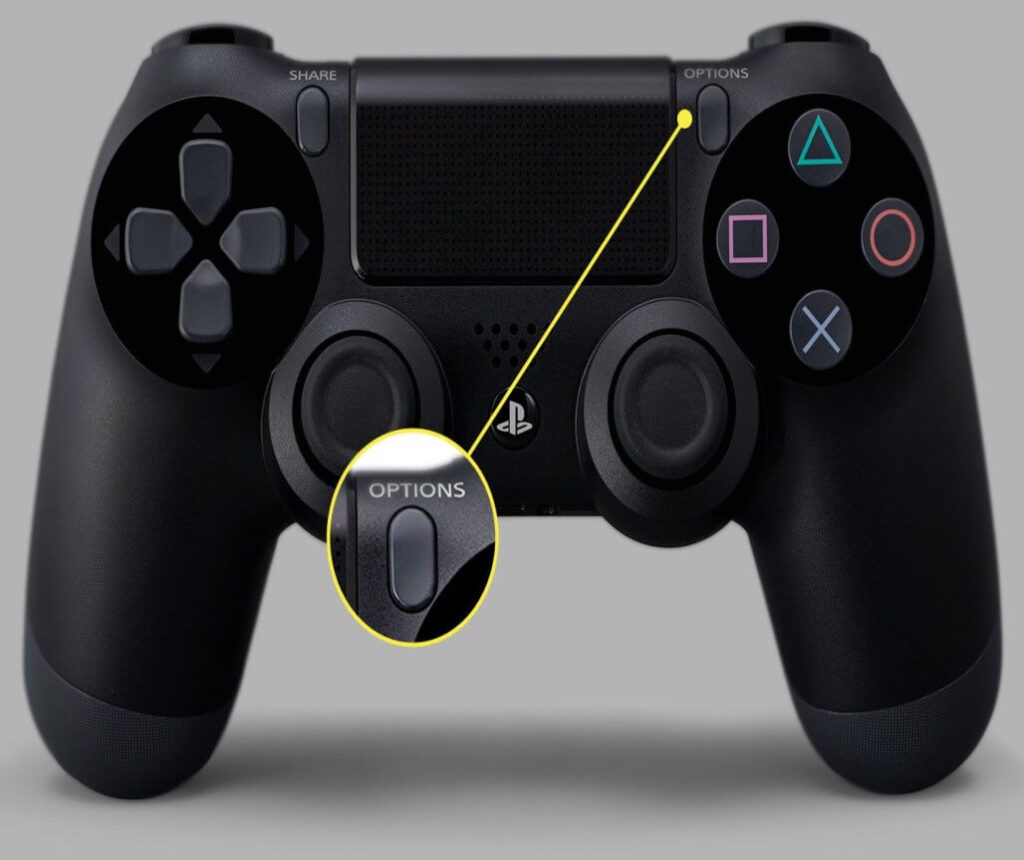
If your PS4 controller is charging but not connecting properly, it can cause you trouble while gaming. You can follow the below steps to solve this frustrating issue.
● Connect the controller to the PS4 through a USB connection.
● Turn off the PS4 system.
● Hold down the PS button and the share button on the controller at the same time until the light bar starts blinking.
● The controller should now be in pairing mode.
● When you turn on the PS4 console, it should identify the controller and establish a connection.
4. Examine for Interference:
Wireless interference might potentially cause connectivity problems. Check for any adjacent wireless devices or electronic appliances that could interfere with the Bluetooth signal between the Controller and the PS4.
Remove any potential sources of interference from your gaming setup to see whether the problem is resolved.
5. Update the Firmware on the Controller:
Outdated firmware can sometimes cause connectivity problems. Follow these procedures to upgrade the firmware on your PS4 controller.
● Connect the Controller to the PS4 with a USB connection.
● Start the PS4 console.
● Navigate to “Settings” > “Devices” > “Controllers.”
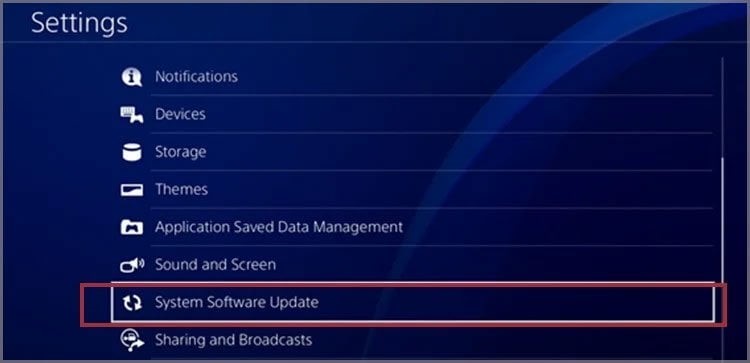
● Check the box next to “Update the controller.”
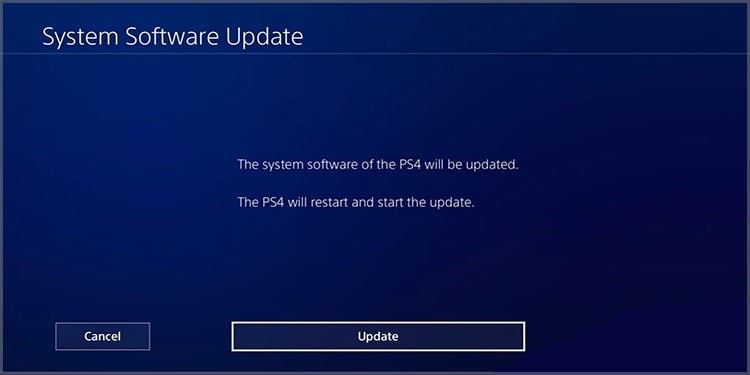
● Follow the on-screen directions to install any available firmware updates.
6. Rebuild the PlayStation 4 Database:
You canconsider rebuilding the PS4 database to resolve software issues if prior fixes are not working.
● Turn off the PS4 entirely.
● Hold down the power button until you hear two beeps: one when you press it and one roughly seven seconds afterward.
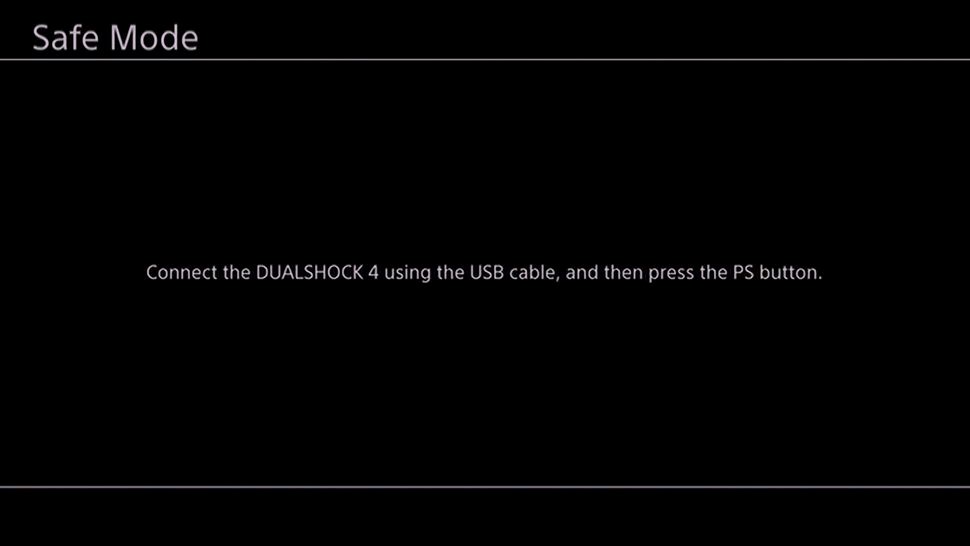
● Use a USB cord to connect the Controller to the PS4 and hit the PS button on the Controller.
● Choose “Rebuild Database” from the Safe Mode menu.
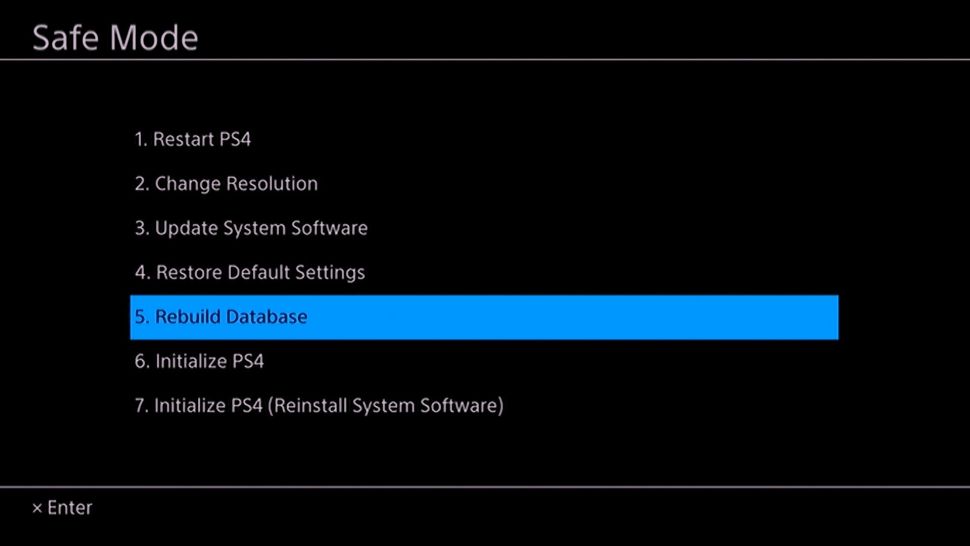
● Allow the process to finish.
● When it’s finished, the PS4 will restart, and you are done.
7. Experiment with a Different Controller:
You can try with a different PS4 controller if your PS4 controller is charging but not connecting. This can help you establish whether the problem is particular to one Controller or a problem with the console itself. If the second Controller connects without issue, the original Controller will likely malfunction and should be repaired or replaced.
Conclusion
So if now your PS4 controller charges but won’t connect, which we all know is too much frustrating. It is usually hardware failure but frequently it can be solved with some easy troubleshooting methods mentioned above. Check the cord and port first, then reset the Controller and re-sync it with the console.
If those procedures don’t work, try changing the firmware on the Controller, checking for interference, and rebuilding the PS4 database. Finally, experimenting with a different controller might help narrow down the problem. With these solutions, you should be able to solve the issue and resume enjoying your PS4 gaming experience.
Frequently Asked Questions
Here are some Frequently Asked Questions that can help you to fix your PS4 controller not connecting but charging problem.
1. Why is my PS4 controller charging but not connecting?
Your PS4 controller may charge but not connect. Faulty USB cables or ports, as well as outdated firmware, are common causes. Disturbance from other devices, hardware problems, power supply difficulties, damaged controller profiles, or environmental conditions can all be a problem.
2. How do I fix my PS4 controller connection?
Begin by checking your USB cord and ports for damage. If it doesn’t work, try a factory reset and re-synchronize the Controller. You can also stop possible sources of interference, update the Controller’s firmware, or rebuild your PS4’s database. If none of these procedures work, a new controller might help identify if the problem is controller-specific.
3. How do I fix my PS4 controller not responding?
If your PS4 controller isn’t responding, ensure it’s charged and correctly attached. Check the Controller and console for software upgrades. To rule out hardware concerns, try the Controller on another PS4. If the problem persists, contact Sony’s customer service or seek expert repair.
4. Can a PS4 controller be repaired?
Yes, PS4 controllers are frequently repairable. If your Controller is still under warranty, please get in touch with Sony customer care for help. If not, authorized service centers or third-party repair professionals may diagnose and repair various problems, including unresponsive buttons, broken ports, and connectivity difficulties. However, if the repair cost exceeds the Controller’s worth, you can buy a new PS4 controller.
Author Bio:
Dinesh Lakhwani 

Dinesh Lakhwani, the entrepreneurial brain behind “TechCommuters,” achieved big things in the tech world. He started the company to make smart and user-friendly tech solutions. Thanks to his sharp thinking, focus on quality and the motto of never giving up, TechCommuters became a top player in the industry. His commitment to excellence has propelled the company to a leading position in the industry.
Popular Post
Recent Post

How To Disable Background Apps In Windows: 4 Quick Methods
A slow PC rarely gives a warning. One day, it simply takes longer to start. Apps open late. The fan runs loud, even when the screen is almost empty. Most people blame old hardware. Often, that is not the real reason. The real reason is hiding in plain sight. Windows keeps many apps active in […]

How to Activate Windows with a Product Key for Windows 11 & Windows 10
It always shows up at the worst time. You are halfway through a report, or about to join a video call. Then you spot it in the bottom right corner of the screen. Activate Windows. Go to Settings to activate Windows. Initially, an unactivated copy of Windows may seem like a minor inconvenience. Over time, […]

Is Easy Duplicate Finder Worth It? Honest Review
The photos folder looked normal at first glance. Then the storage warning popped up. One trip photo appeared four times. A tax PDF sat in three different folders. Two old setup files were still in Downloads, and each one was over 500 MB. Nobody plans this mess. Copies pile up slowly. A download runs twice. […]

Wise Duplicate Finder Review: Real Results from Wise Duplicate Finder
Read my honest Wise Duplicate Finder review. See features, pricing, pros and cons, and real PC test results. Find out if this free duplicate cleaner can free up your Windows storage.

How to Recover Deleted Files from Pen drive, USB Drive, SD Card
Introduction: On tech forums, you’ll often see posts like this: “I connected my pen drive to my laptop this morning, but the folder was empty. All my college project files had vanished. I don’t have a backup. Can someone help me?” Stories like this are very common. Pen drives, USB drives and SD cards are […]

How To Recover Files Deleted from the Recycle Bin [Windows 11]
Losing a file can happen in seconds. You clear your desktop, hit Delete, and empty the Recycle Bin. Then, just when you need that file again, it seems to have vanished. This guide will walk you through ways to restore files removed from the Recycle Bin. We will begin with simple fixes, then look at […]

Disk Drill Data Recovery Tool Explained: Full Review and Guide
It happens in a split second. You delete a folder by mistake. Your drive stops showing up. A photo album from your last trip just vanishes. And your stomach drops. Lost files feel personal. They are not just data. They are memories, work hours, and sometimes years of effort packed into a few gigabytes. When […]

Recover Deleted Files In Windows 11 With Software & Without
Introduction What is the first thing that goes through your mind the second an important file vanishes from a Windows 11 PC? For most people, it is a mix of panic and disbelief, followed by a frantic click through every folder that file could possibly be hiding in. It happens in a split second: one […]

EaseUS Data Recovery Wizard: Everything To Know
Data loss does not always come from a big disaster either. Most cases start small and boring. A drive gets formatted by mistake. A laptop freezes mid-save and restarts on its own. A memory card stops showing up after being pulled out too fast. None of these feel like emergencies at first, until you realize […]

