












Read my honest Wise Duplicate Finder review. See features, pricing, pros and cons, and real PC test results. Find out if this free duplicate cleaner can free up your Windows storage.
EaseUS RecExperts Review – The Smart Screen Recorder for Windows & macOS
Are you looking for a screen recording tool with screen capture, auto stop, auto split recording, and other extraordinary features? EaseUS RecExperts is the answer to your quest. With features like 4k resolution, recording up to 60 fps, and audio capture, it is the ultimate screen recording tool for both Windows and Mac users. To understand more about the screen capturing & recording tool, read the review below.
Screen recording software is becoming increasingly important for creating and capturing material. However, to record high-quality content such as webinars, classes, or tutorials, you will undoubtedly require the finest screen recorder from which Gamers, YouTubers, and broadcasters may benefit.
What is EaseUS RecExperts?
EaseUS RecExperts is a multi-purpose yet user-friendly screen recorder that can record and capture everything on your PC screen. Because of its simple and intuitive interface, you can get started quickly. You can record your screen, audio, or webcam independently or concurrently. In addition, the game recording option allows you to record games.
Also, with EaseUS RecExperts, you can record the entire screen, a specific region, or even a locked window. Furthermore, you can annotate your screen, label an area, and do other editing activities while recording.
| Pros | Cons |
| Automated recording is supported. | Shortage of editing features. |
| Capture audio while recording. | There’s no cloud storage or file sharing option available. |
| Record Webcam video. | |
| Customized settings to capture any area of the screen. | |
| Record screen, webcam, audio, and gameplay. | |
| Schedule recording, trim video length, auto split, and auto stop recording. | |
| A 30-day money-back guarantee | |
| Allows users to record video in 10 different formats. | |
| Supports GPU-assisted hardware acceleration | |
Highlights:
- Capture any area of the PC screen with customized settings.
- Record screen, audio, webcam, and gameplay.
- Schedule screen recording.
- During recording, add text, lines, and arrows.
- Advanced settings to trim video length, add a watermark, and more.
- Boost audio and remove background noise.
- Allows compressing video without losing the quality.
- Save recorded video/audio to 10 optional formats
- Record screen with internal audio and your voice on Mac/Windows
Supported OS
- Windows 7/Windows 8.1/Windows 10/Windows 11
- macOS 10.13 or later
Supported Output Formats
- MP4, MOV, FLV, MKV, AVI
- MP3, AAC, WAV, OGG, WMA, FLAC
- GIF, PNG
EaseUS RecExperts Outstanding Features
Interface
Unlike other screen recorders using EaseUS RecExperts is easy. The screen recorder auto-detects the microphone, webcam, and other add-on recording devices that are connected via USB or audio jack.
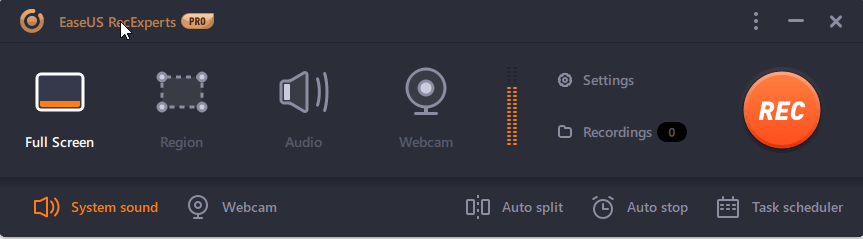
The equalizer you see next to the Webcam option explains that EaseUS RecExperts was able to detect system sound. In addition, from the home screen, you can select Full Screen, Region, or reorder Webcam using the given options. To change the Settings, just click the Settings options and make changes.
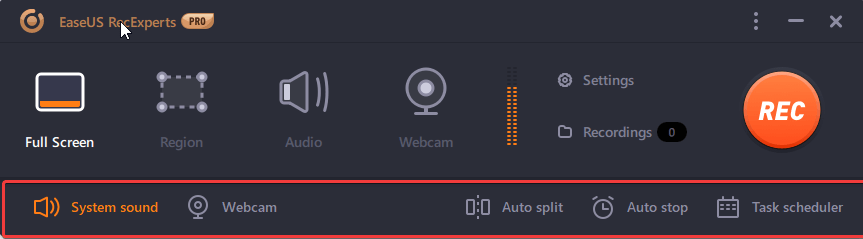
Moreover, you can set Auto split, Auto stop, and schedule a Task by using the options in the bottom bar.
Before the recording starts, EaseUS RecExperts, by default, gives a five-second countdown to get ready. Suppose if you want to change the settings, you can do so during recording. Also, you can annotate the recording by clicking the gear icon > select annotate and use the different options as shown below to make the recording interactive.
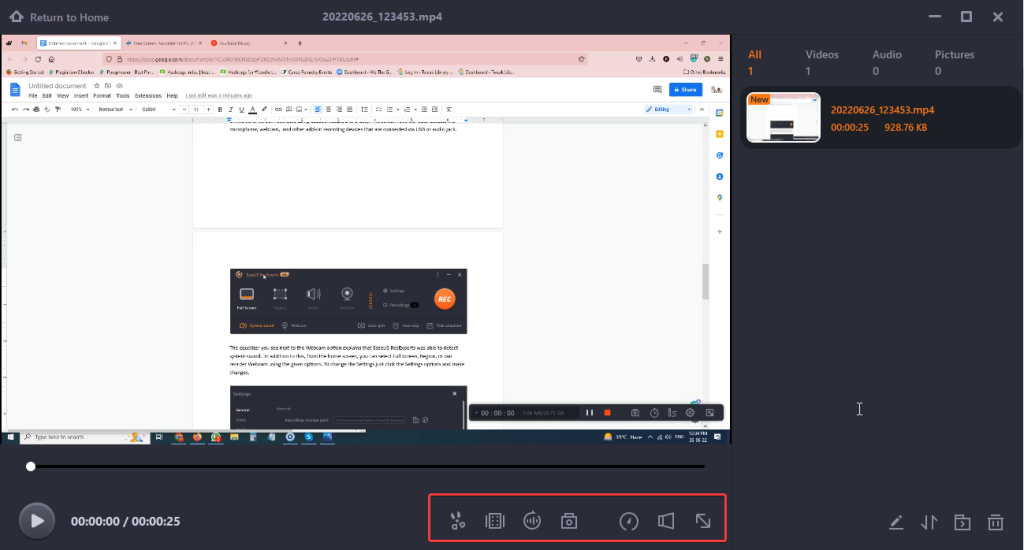
Once you are done with the recording, you can trim it, extract audio, take a screenshot of anything important, add credits, and do a lot more.
Record Screen
To make screen recording simple and easy, EaseUs RecExperts offers a user-friendly interface and easy-to-understand options. There are four different modes to record the screen. You can record a screen with or without sound, record gameplay and webcam, and also capture the screen.
Customizable Screen Capture
If you’re looking for screen recording software that allows you to record any part of your screen as per your choice, the EaseUS RecExperts screen recorder is the right choice. The screen recording software allows you to record full-screen and selected regions. Also, you can decide whether or not to record system sound or not.
Record both Audio and Video
EaseUS RecExperts allow you to record background sounds and your speech using a microphone simultaneously. This is a fantastic tool that will assist you in creating high-quality, interactive material. Also, you can save an extra file while recording and change the audio’s output format.
Webcam Recording
Webcam recording is a valuable option for gamers and those who create tutorials. You can also get a webcam overlay option that helps in better content delivery. Using this feature when recording the screen, you can also add yourself; this will give a more personal touch to the video.
Capture to GIF
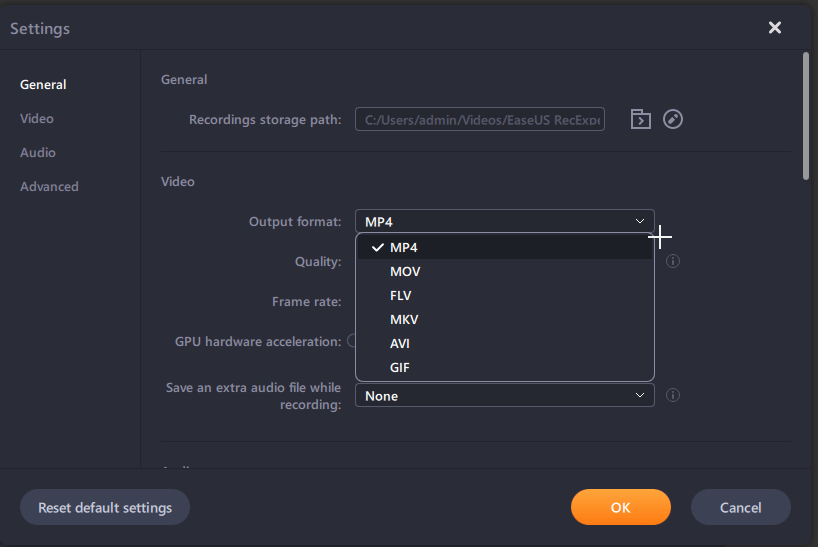
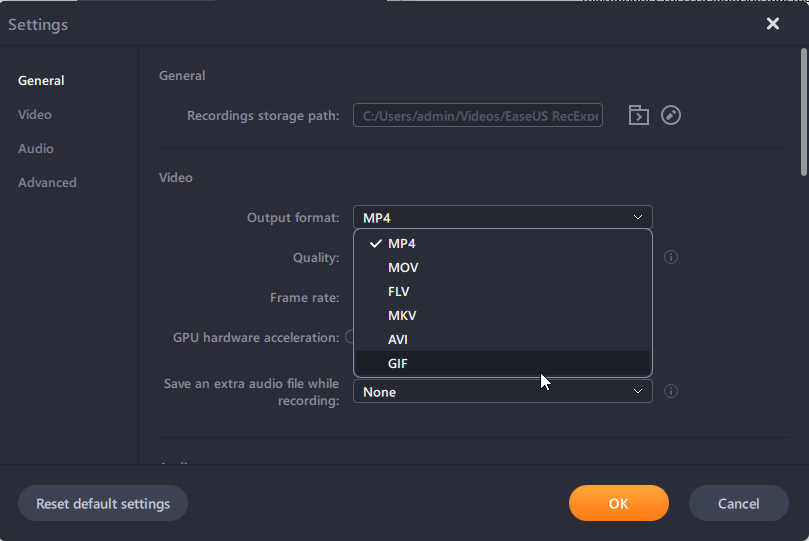
Capture any video, movie, website, or desktop and save it to GIF to create funny videos, tutorials, etc. Go to settings > Video option > under Output format select GIF > click Ok to apply settings. Now record the screen; it will be in GIF format.
Task Scheduler
Set a time to start and stop recording. You can also create multiple tasks.
Auto-Stop
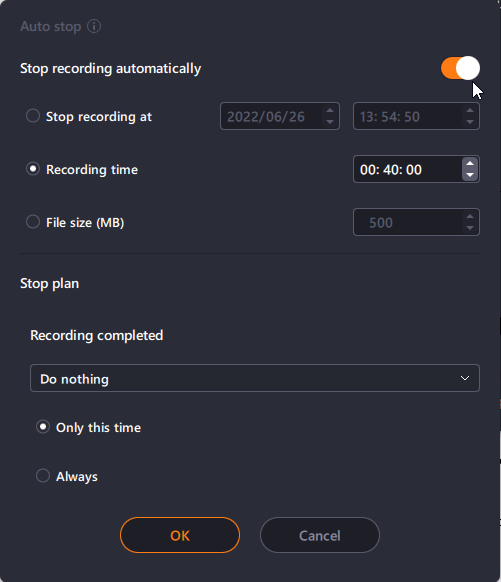
Stop recording when it exceeds a predefined time, length, or file size.
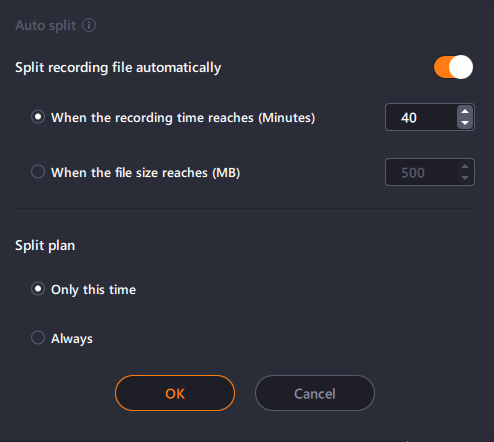
Auto-Split
is a feature that automatically divides the video recording at a predefined time, length and size. Say, for example; you want the video to split every time it reaches a file size of 500MB; you can do so without even sitting in front of the PC.
Settings
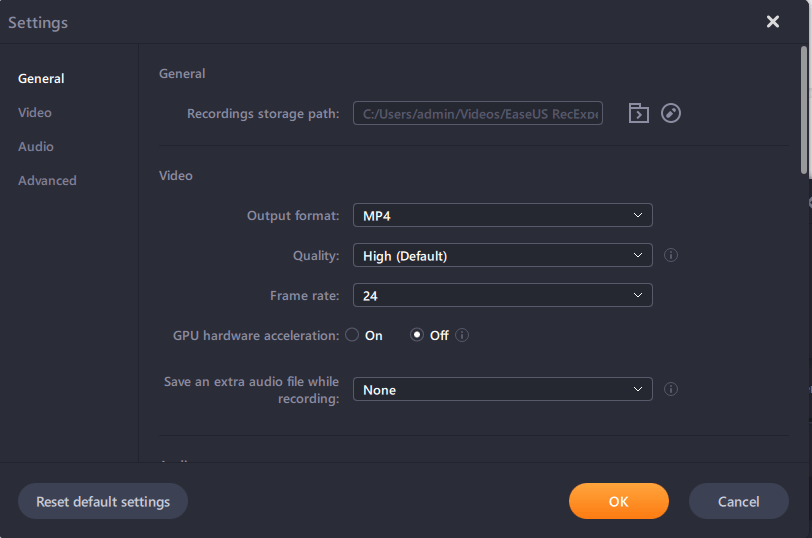
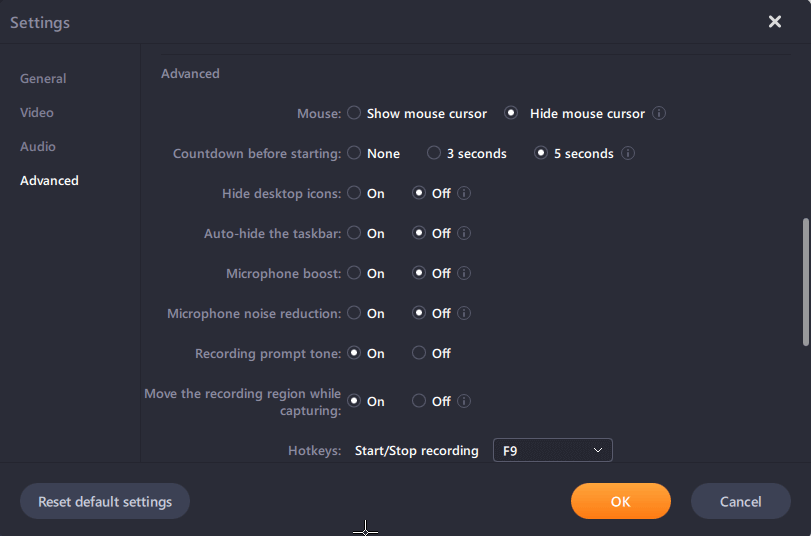
To make changes to the default settings of RecExperts, click the main settings page. On this page, you can define the file format for any recordings, the default recording quality, the frame rate, and GPU acceleration settings, and you can also decide where you want to save the recordings.
An advanced settings section also gives you more control over the application. For example, you can choose to hide the mouse cursor and floating toolbar during recordings and specify which hotkeys and pre-recording countdowns to use.
Security
There are no security-related features in EaseUS RecExperts.
Technical Support
EaseUS provides a comprehensive and informative support site with an online user manual, video lessons, knowledge base, and FAQ section. You can also contact the EaseUS support team through email or live chat.
Alternatives of EaseUS RecExperts
- Loom
- Snagit
- Vmaker
- Screencastify
- Fluvid
Final Words
With new software releasing every minute, staying at par with the changing trends is not easy. However, it seems EaseUS RecExperts have changed things. As it is the most sophisticated screen recorder, one can have. With its help, there’s nothing that you can’t achieve. The tool allows you to record games, capture movies, capture screens, record audio, and much more. Even if you are using the free version, there’s a lot you can achieve within 2 minutes as the recording is limited to 2 minutes. You need to upgrade to the full version to enjoy the full benefits. We hope you found the information helpful.
Please share your thoughts in the comments section.
Author Bio:
Dinesh Lakhwani 

Dinesh Lakhwani, the entrepreneurial brain behind “TechCommuters,” achieved big things in the tech world. He started the company to make smart and user-friendly tech solutions. Thanks to his sharp thinking, focus on quality and the motto of never giving up, TechCommuters became a top player in the industry. His commitment to excellence has propelled the company to a leading position in the industry.
Popular Post
Recent Post

How to Recover Deleted Files from Pen drive, USB Drive, SD Card
Introduction: On tech forums, you’ll often see posts like this: “I connected my pen drive to my laptop this morning, but the folder was empty. All my college project files had vanished. I don’t have a backup. Can someone help me?” Stories like this are very common. Pen drives, USB drives and SD cards are […]

How To Recover Files Deleted from the Recycle Bin [Windows 11]
Losing a file can happen in seconds. You clear your desktop, hit Delete, and empty the Recycle Bin. Then, just when you need that file again, it seems to have vanished. This guide will walk you through ways to restore files removed from the Recycle Bin. We will begin with simple fixes, then look at […]

Disk Drill Data Recovery Tool Explained: Full Review and Guide
It happens in a split second. You delete a folder by mistake. Your drive stops showing up. A photo album from your last trip just vanishes. And your stomach drops. Lost files feel personal. They are not just data. They are memories, work hours, and sometimes years of effort packed into a few gigabytes. When […]

Recover Deleted Files In Windows 11 With Software & Without
Introduction What is the first thing that goes through your mind the second an important file vanishes from a Windows 11 PC? For most people, it is a mix of panic and disbelief, followed by a frantic click through every folder that file could possibly be hiding in. It happens in a split second: one […]

EaseUS Data Recovery Wizard: Everything To Know
Data loss does not always come from a big disaster either. Most cases start small and boring. A drive gets formatted by mistake. A laptop freezes mid-save and restarts on its own. A memory card stops showing up after being pulled out too fast. None of these feel like emergencies at first, until you realize […]

Recuva Data Recovery Tool: Is it Actually Worth it?
When I first tried Recuva Data Recovery, I wanted to see if it could really bring back lost files. The tool is free, small in size, and promises quick recovery, which made me curious enough to test it on my own PC. The setup was fast, and the wizard guided me step by step. I […]

GetData Recover My Files Data Recovery Tool: Honest Review
A hard drive error brings a special kind of silence. Well, yes! The screen freezes, then a message appears saying the drive can’t be found or must be formatted. In that moment, years of photos and work files feel at risk. It never happens at a good time. Coffee spills near a laptop, a memory […]

Windows File Recovery: A Complete Review [Tried & Tested]
Imagine this. You spend hours perfecting a video project. You hit save. Then your laptop freezes, reboots, and when the screen comes back. The file is gone. Your stomach sinks. It’s not just you. Lost files happen all the time. A dropped hard drive, a bad update, an accidental delete, or a corrupted partition can […]

5 Best Data Recovery Software For Windows 11 and Windows 10
Introduction: A crashed drive can ruin a whole day. One minute your photos, work files, and tax records sit safe on your PC. The next minute they are gone. A power cut, a bad update, or one wrong click can wipe out years of memories and months of work in seconds. That sinking feeling is […]

