How to Set a Sleep Timer Shutdown in Windows?
At some point in an individual’s work life, we all had to stay up late to complete a project assignment. However, with the exhaustion of working so much, we doze off after some time, leaving our work and computer on.
When this occurs, you awaken several hours afterwards to find that the pc has been running the entire time. This might drain all the battery and could even slow down your computer’s performance. Scheduling a sleep timer windows 10, on your windows computer, to a period when you think you ought to be sleeping will assist you in keeping your laptop in good condition. Therefore, let us see all the ways in which you can set a sleep timer shutdown in Windows are.
Setting up a sleep timer shutdown in Windows
There are several ways in which you can set a sleep timer pc so that your computer would shut down automatically after a certain period of time. Let us learn about all the ways in which it can be done.
Using the Command Prompt
One of the simplest ways of setting a timer for shutdown is through a Command Prompt. This is done by employing the shutdown command of Windows. Here are the steps to setting up a sleep timer for shutdown using the command prompt.
- First, you would have to open the command prompt.
- Go to the Windows search box, in the start menu, and type Command prompt or CMD.
- A list of applications would appear, select Command Prompt, and open the application.
- Once you see the command prompt application window, type the following command.
Shutdown -s -t -3600
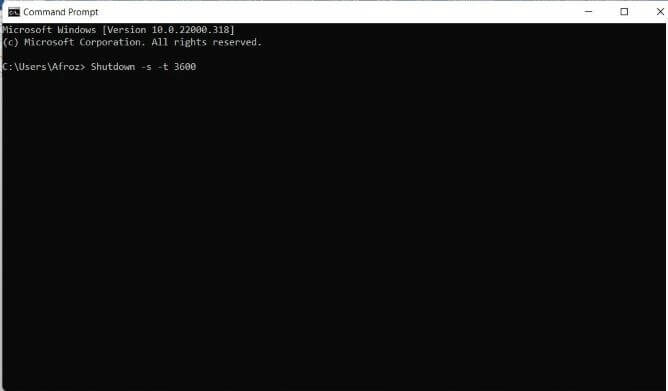
The -s argument specifies that the computer must be closed down, and also the -t 3600 command specifies there ought to be a timeout of 3600 seconds, which approximately is one hour.
Therefore, if you wish to increase or decrease the timeout, you can make the necessary alterations to the time duration. It is essential to note that the least count for the sleep timer pc is in seconds. Hence, if you wish to set a timer for 2 hours, then the command should be -s -t -7200, where 7200 is 7200 seconds, which is approximately 2 hours.
Therefore, by employing the following command, you may rapidly arrange a one-time shutdown by executing this command. This is considered an ideal sleep timer.
Creating a desktop shortcut for sleep timer
Another way of setting up the sleep timer computer for shutdown is by creating a desktop shortcut. It is a fast and simple way and only requires a single click to shut down the computer. If you’re using the sleep timer frequently, you may spare yourself several seconds by creating a sleep timer desktop shortcut. You can make a shortcut that initiates the sleep timer without opening the Command Prompt.
Additionally, you can construct a shortcut that stops the sleep timer in Windows 10 when you discover you haven’t finished. Let us see what the steps to create a desktop shortcut for a sleep timer are.
- Go to your windows screen and right-click on an empty space. A list of options would be available to you.
- Scroll down to the New option, and follow the directional arrow to open a menu. From the new menu, click on the Shortcut option.
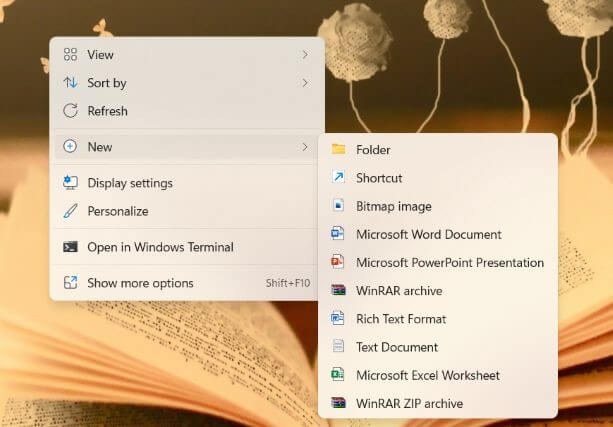
3. A create shortcut wizard window will appear on the screen. The Create Shortcut window would ask the user to find the item for which the shortcut has to be created.
4. In the Type the location of the item box, type the following command:
Shutdown -s -t 3600
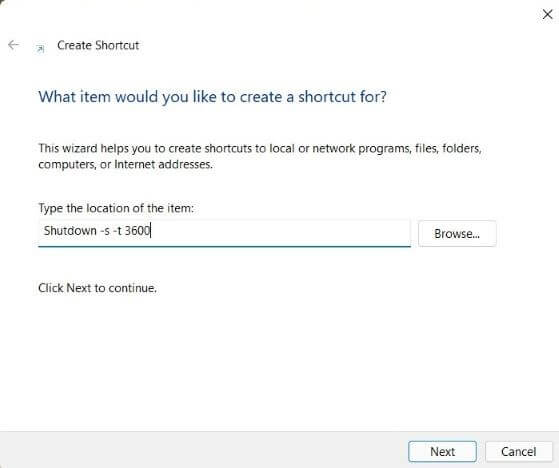
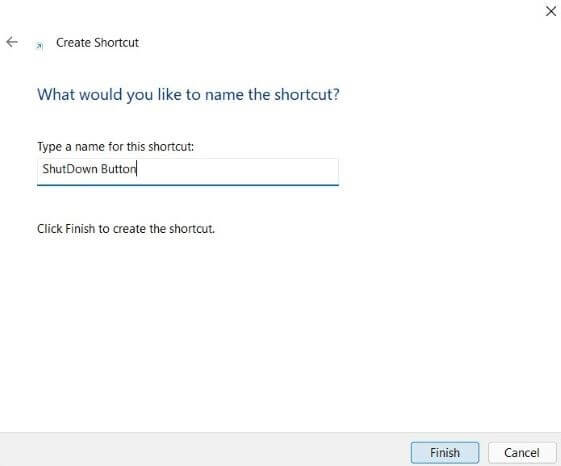
5. After you have entered the command, click Next. Now enter the name for your shortcut, and click on the Finish option. Your sleep timer window shortcut will be created.
6. To finish, right-click the sleep timer shortcut, go to Properties, and choose Change Icon. After you click through the alert, you may choose a personalized icon of the sleep timer.
After you have successfully created a shortcut for the sleep timer Windows 10, you must now create a cancellation shortcut as well so that you can cancel your sleep timer in case you have to work more on the computer.
What about if users start the sleep timer countdown and then discover that they have to use the computer for more than 60 minutes? Fortunately, users can simply build a shortcut that disables the sleep timer.
- Go to your windows screen and right-click on an empty space. A list of options would be available to you.
- Scroll down to the New option, and follow the directional arrow to open a menu. From the new menu, click on the Shortcut option.
- A create shortcut wizard window will appear on the screen. The Create Shortcut window would ask the user to find the item for which the shortcut has to be created.
- In the Type the location of the item box, type the following command:
Shutdown -a
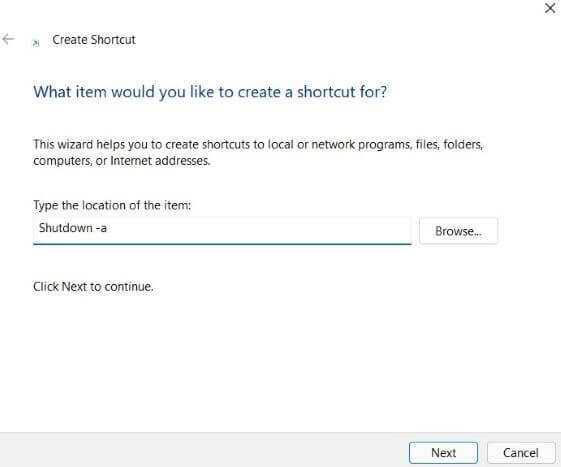
5. After you’ve input the command, press the Next button. Now, give your cancellation shortcut a name and click the Finish button.
6. A Windows cancellation shortcut for your sleep timer will be generated.
7. To complete, right-click the cancellation sleep timer shortcut, select Properties, and then Change Icon.
After you click through to the alert, you may customize the sleep timer icon and make it a distinct icon so you can tell them apart.
Adjusting The Laptop’s Sleep Timer
Windows includes a sleep timer, which you are most likely already using. When users leave their computer, laptop, or device unattended for an extended period of time, then that device will enter sleep mode naturally.
To change the period of time before sleeping, type sleep into the Start Screen search window and choose the Best Match. After this option, you may change the sleep times.
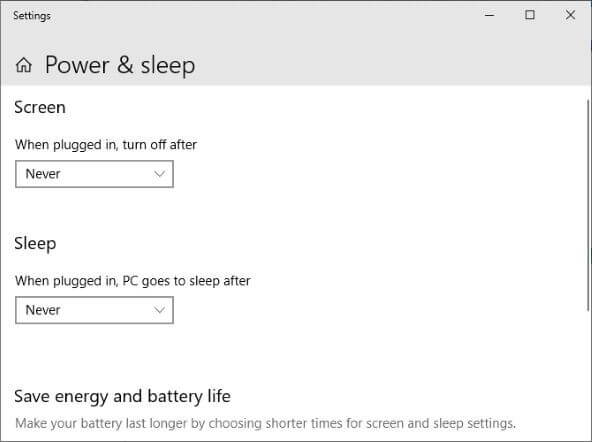
There are two factors you should be aware of while considering these alternatives:
- Screen: Set the time when the computer turns to sleep.
- Sleep: Set the time at which the machine goes into hibernation.
The first choice, however, does not put your complete laptop to sleep. Consequently, only the screen is turned off. The next “Sleep” option allows users to specify the duration of hours before the machine enters hibernation mode.
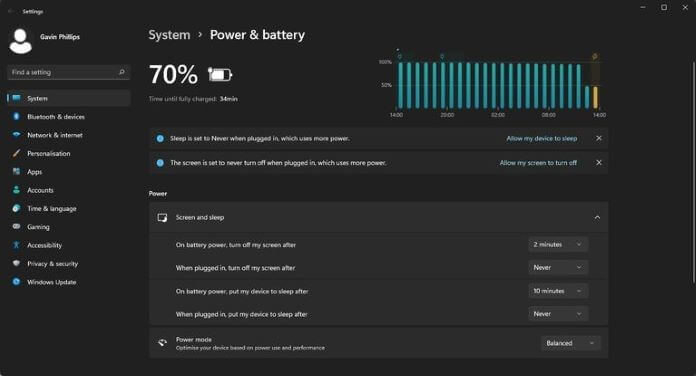
If you’re using a portable computer, you’ll see additional options for running on batteries or plugging into a power outlet. Other alternatives include utilizing the computer’s power switch as a sleep controller.
Conclusion
Your system, too, requires rest and setting a sleep timer would aid in its upkeep. You may now establish a sleep timer on Windows in a variety of ways. The shortcut option gives a rudimentary sleep timer, but specialist Windows sleep timer programs provide complete shutdown timer features.
Whenever you just want the children to use the PC for a certain length of time, the sleep timer feature comes in handy. Sure, they can switch it back on, but they’ll lose whatever they were accomplishing because they didn’t stop while you ordered them to.
Author Bio:
Dinesh Lakhwani 

Dinesh Lakhwani, the entrepreneurial brain behind “TechCommuters,” achieved big things in the tech world. He started the company to make smart and user-friendly tech solutions. Thanks to his sharp thinking, focus on quality and the motto of never giving up, TechCommuters became a top player in the industry. His commitment to excellence has propelled the company to a leading position in the industry.
Popular Post











Recent Post
How to Update Wireless Network Driver in Windows 11 and 10
Your Wi-Fi keeps dropping. Pages load slowly. The connection feels unstable? Well, you are not alone. Most of the time, the problem is not with your internet plan. It is with your wireless network driver. A driver is a small piece of software that helps your computer talk to its hardware. When it gets outdated, […]
Common Windows 11 Problems and Solutions (2026 Version)
Windows 11 has become more polished over the years, but it is still not completely free from problems. Even after regular updates from Microsoft, many users continue to face issues like lagging performance, failed updates, audio troubles, random crashes, and network errors. Some problems appear after installing new features, while others develop gradually as the […]

Fortect Driver Updater Review: Features, Steps, Pros, and Cons.
A new PC usually feels quick and responsive. Applications open instantly, games run smoothly, and everything works as expected. As time passes, however, you may notice slower performance, system crashes, hardware glitches, or devices that stop working properly. While many people assume malware or low storage space is to blame, outdated drivers are often the […]

New Features Coming in Windows 11 This Year [2026]
Microsoft is always working to make Windows better. This year is no exception. The company has announced and rolled out several exciting updates for its users. These updates touch almost every part of the operating system. From the Start menu to system settings, changes are arriving fast. If you use Windows daily, you will want […]

Top 14 Duplicate Photo Finder and Remover For Windows [2026]
Introduction: Photos pile up fast. Well, yes! You take ten shots of the same moment. You download the same image twice. You back up your folder and forget you already did it. Before you know it, your storage is packed with copies. A good duplicate photo finder helps you take back that space without losing […]
Advanced System Settings on Windows 11: Complete Guide
Windows 11 is a powerful operating system. It comes with many features that most users never explore. One of the most useful areas is the System Properties panel. This is where you can control how your computer performs, starts up, and handles memory. Many users only change basic settings like wallpaper or display options. But […]

21 Advanced Windows Security Settings: Latest Updates
Introduction: Your computer holds a lot of important data. From personal photos to work files, everything sits on your Windows system. That is why protecting it properly matters more than ever. Windows security settings have come a long way. Microsoft keeps adding stronger layers of protection with every update. Most users never go beyond the […]

Security Upgrades of Microsoft Windows in This Decade [Complete Guide]
Introduction Microsoft has been working hard to make Windows safer every year. Cyberattacks are growing fast. Hackers are smarter now. They target millions of Windows users every single day. That is why Microsoft has added many powerful new security upgrades of Microsoft Windows since 2020. These upgrades protect your data, your identity, and your device […]

How To Link a Microsoft Account to a Digital License on Windows [2026]
Most people never think about Windows activation until it suddenly stops working. Something as simple as replacing hardware or reinstalling Windows can cause the system to lose its activated status. Linking your Microsoft account to your digital license beforehand helps prevent unnecessary trouble and makes activation recovery much easier later on. Many people using Windows […]
Monthly Round Up: All Big Incidents Happened for Windows Users in The Month of April 2026
Windows users had a turbulent April 2026. On April 14, Microsoft rolled out its scheduled Patch Tuesday security updates, a routine release meant to close vulnerabilities and resolve known issues. What followed was anything but routine. Rather than strengthening systems, the updates triggered a cascade of fresh problems across Windows 10, Windows 11, and Windows […]

