











Imagine this. You spend hours perfecting a video project. You hit save. Then your laptop freezes, reboots, and when the screen comes back. The file is gone. Your stomach sinks. It’s not just you. Lost files happen all the time. A dropped hard drive, a bad update, an accidental delete, or a corrupted partition can […]
How to Reinstall Windows 10 for a Fresh Start [New Guide]
When your Windows 10 won’t stop troubling you, it’s time to wipe out the hard drive and have a fresh start. You can quickly reinstall Windows 10 to eliminate apps, startup, shut down, and performance issues.
Additionally, if you are getting a new computer or replacing a hard drive, it’s good to have a clean start. Plus, the fresh install can improve battery life and eliminate all types of malware from your device.
In short, if you have tried everything to fix your computer and nothing worked, reinstalling Windows OS is your last resort. But, it isn’t an easy process.
However, in this guide, we will show you how to reinstall Windows 10 without losing your data in the way. Let’s start fresh.
Pre-process: How to Reinstall Windows 10
Before getting to the main how to reinstall Windows 10 process, you have to prepare your computer for it. For a smooth reinstall Windows 10, first do follow things:
Create Backup
Creating a backup of your entire system is very important before you reinstall Windows 10. That’s because the process can delete everything on your hard drive. Plus, anything could go wrong during the reinstallation process, and you need backup to restore your system when things go down the hill. You can backup the entire system in multiple ways, such as:
System Image Backup Tool — MiniTool ShadowMaker
The easiest way to create an entire system’s backup is to use the legacy System Image Backup tools. For this guide, we are using MiniTool ShadowMake. It is complete data protection and disaster recovery solution that lets you create bootable media to restore your system. This free backup software can help you as:
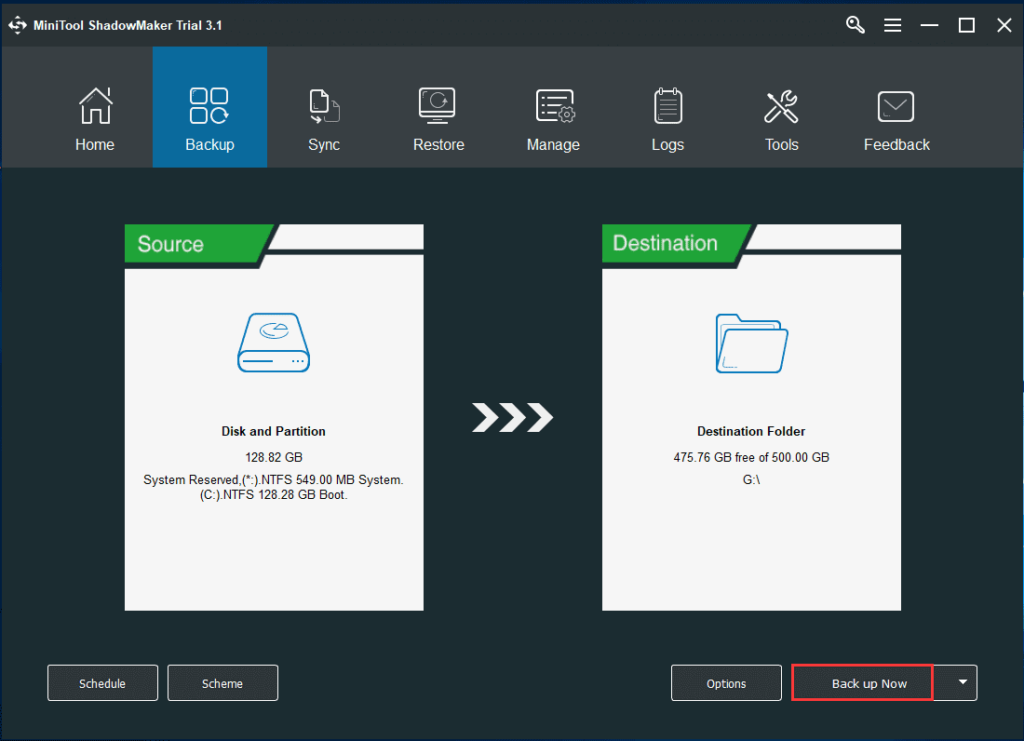
- Launch MiniTool ShadowMaker and select Local Backup to start.
- Under the Backup tab, system partitions are already chosen as the backup source. You just have to select the hard drive of the non-working PC as the destination storage path.
- Now, click on Backup Now, and within a few minutes, your entire system will be backed up.
Other Backup Mediums
You can also back up your files on numerous other mediums like external storage, cloud storage, etc.
Windows 10 Activation
Once Windows 10 OS is activated, you don’t have to use the product key on the same device. The system automatically reactivates the product key once connected to the internet. However, if you are setting up Windows 10 on a new device, you need the product key. Thus, we recommend you note down your product key before starting to reinstall Windows 10. To do so, open Settings > Update & Security > Activation.
Update Vital Drivers
Windows 10 can automatically detect and install your device drivers. However, you should update essential drivers before the process on the safe side, such as the network adapter, graphics card, etc.
Confirm Windows 10 Requirements
If you are already on Windows 10, reinstallation will automatically meet all the hardware requirements. But, if you upgrade from Windows 7 or 8.1, you have to ensure that the device meets the minimum requirements.
Application Configuration
Even if you have already backed up all your apps, there are still a few things you should consider before reinstalling:
- Deregister any app that needs reactivation after you install Windows 10.
- Save progress in your games, so you don’t have to start fresh.
- Save web bookmarks, etc.
Main Process: How to Reinstall Windows 10
Once you have created a backup, recorded the product key, and updated essential drivers, you can reinstall Windows 10 in the following ways:
Reinstall Windows 10 Using the Reset Option
Windows 10 has a feature called Reset This PC. Using this feature, you can keep your personal files or remove them to reinstall Windows 10. It is the simplest method that doesn’t require any additional downloads. The process is as:
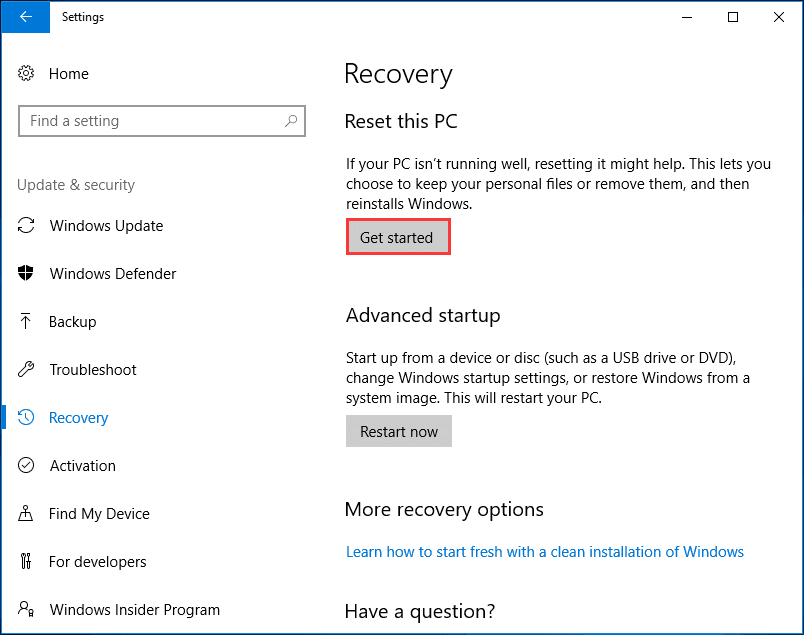
- Go to Start > Settings > Update & Security > Recovery.
- Under Reset This PC section, click on the Get Started.
- Now, you have two options to select from — Keep my files and Remove everything.
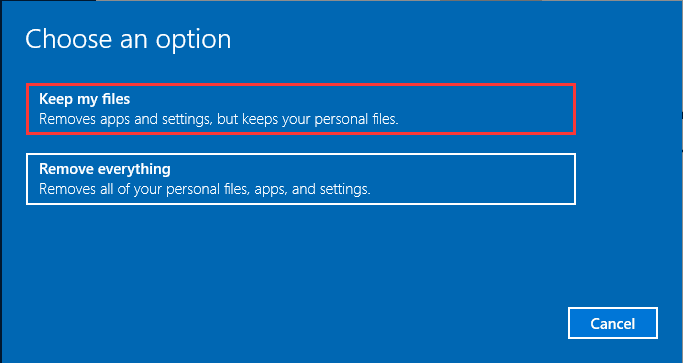
- If you select the Keep my files option, you can reinstall Windows 10 without losing data. Once the process is prepared, click on the Next to go on.
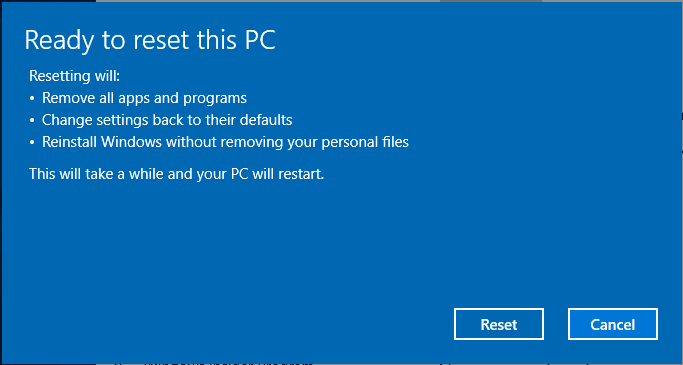
- In Ready to reset this PC, click the Reset button and wait for a few minutes to complete the process.
Reinstall Windows 10 Using Media Creation Tool
Microsoft offers a Media Creation Tool that can upgrade Windows 10 by creating an installation media or using the ISO file. This process works like this:
- From the Microsoft Store, download the Media Creation Tool.
- Open the tool and select the Create installation media for another PC. If your PC is already running on Windows 10, use the Upgrade this PC now option.
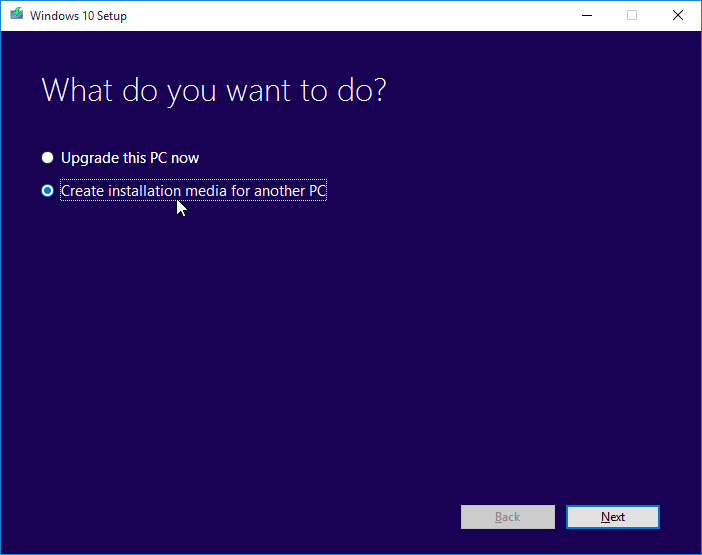
- Select the language, architecture, and editing.
- Check the ISO file option to create an installation ISO.
- If you need to install Windows 10 from the ISO file without a USB driver. You have to mount the ISO file:
- Locate the ISO file, right-click and select the Properties.
- Under the General tab, click on the Change > Windows Explorer to open this file > OK.
- Right-click this file and select Mount.
- Double-click the ISO file to view the included files, then click on the setup.exe to start Windows 10 setup.
- Once the setup is ready, you have to decide whether to download and install updates or not. Here, we suggest selecting the first option to install important fixes and drivers.
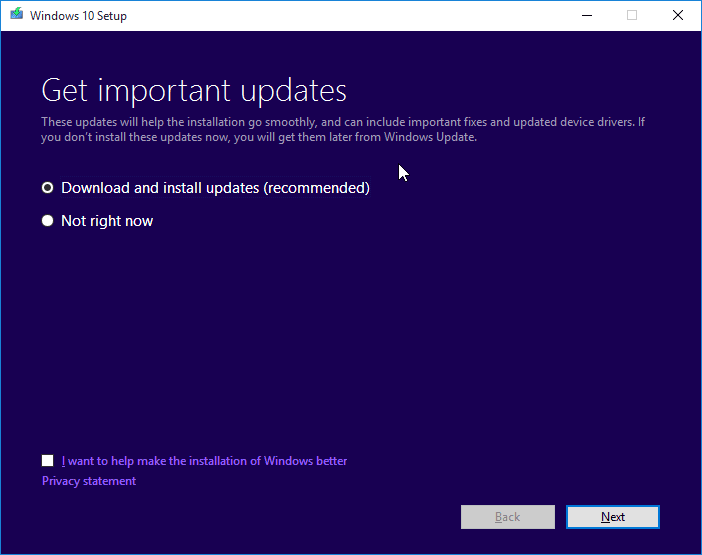
- It will take a few minutes to check all available updates for your system.
- Click on the Accept button.
- Once all is done, the Ready to install screen will appear on your screen, where you can click on the link Change what to keep.
- Now, you have three options to select from — Keep personal files, apps, and Windows settings, Keep personal files only, and Nothing.
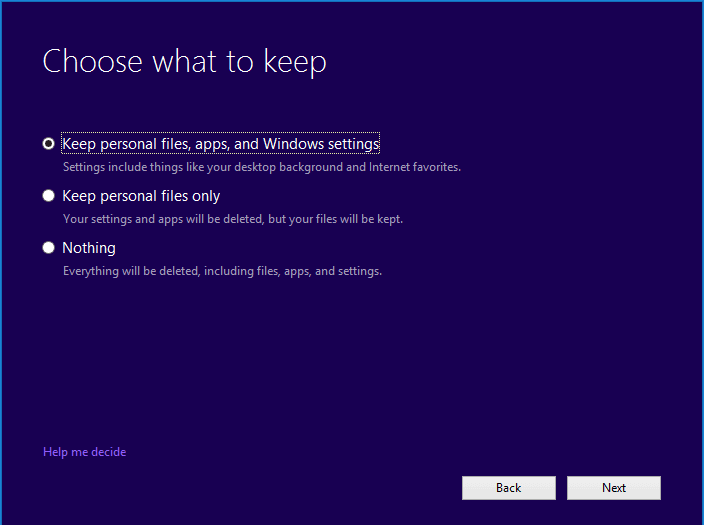
- Select your option, click Next, and the reinstallation process will start on your Windows 10. Just follow the on-screen instructions to customize your settings.
If you want to reinstall Windows 10 using a USB cable, follow this process:
- Connect a USB device (minimum 8 GB) or DVD to a working PC.
- Run the Media Creation Tool and select Create installation media for another PC and USB flash drive. You can directly burn the ISO files to the USB.
- Insert the USB to a non-working PC and change the boot order.
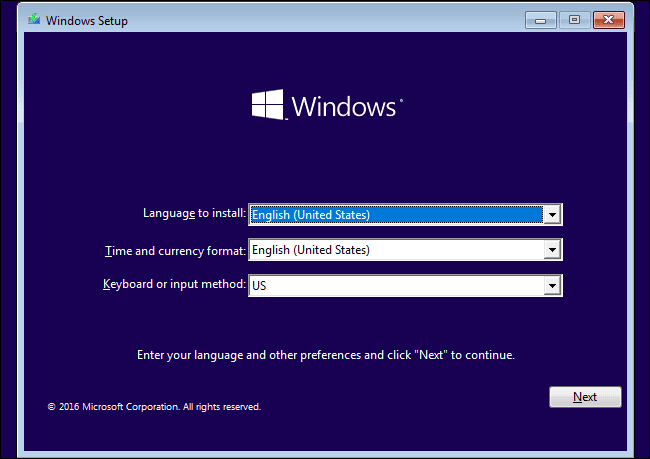
- Start a clean install by following the wizards.
Post-process: How to Reinstall Windows 10
Once you have reinstalled Windows 10, you have a brand new system in your hands. To customize your computer, you have to reinstall apps, restore backed-up data, and apply preferences. The post steps after reinstalling Windows 10 include:
Restore Settings
You have to log in to your Microsoft account to restore your system settings and apps. First of all, you have to verify your account on the new device. Go to Start > Settings > Accounts > Your account and click on the Verify link.
Restore Applications
After restoring settings, you have to restore apps installed on your PC. Open Windows Store, click on your user photo, and click on the Library to access all the previously installed apps. Now, click on the download next to each app and restore all your favorite apps. Once done, click on your user photo again, click on the Downloads to update all the built-in apps.
Restore Files
Finally, you have to restore your files using File History. Attach your backup device to your PC, navigate to Start > Settings > Update & Security > Backup. Click on the Add a drive to select your backup device, next click on More Options and Restore files from a current backup. Just click on the Settings cog and select Restore to recover your data and wait for a few minutes to complete the process.
Author’s Tip
Take your time. Do not rush the process. Small mistakes can create problems later. Always check your backups. Make sure files open correctly. Keep copies in more than one place. Gather your software and login details early. This keeps things simple after reinstalling.
After reinstalling, go step by step. Do not install everything at once. Start with basic programs. Check system performance. This helps you notice issues early. Keep your system clean. Install updates on time. Avoid ignoring small slowdowns. They grow over time. A fresh system needs regular care.
Parting Thoughts
After reading this guide, you are fully ready to reinstall Windows 10 and have a fresh start. You can select any method to reinstall Windows 10 at your convenience. But, never forget to take a backup before reinstalling your system.
Further, if you have any questions related to ‘how to reinstall Windows 10’, you can reach us. Our team is always ready to help you!
FAQs
1. Will reinstalling Windows 10 delete everything on my computer?
Yes. A full reinstall removes files, apps, and settings from your system drive. This is why a backup is important. Save your data to an external drive or cloud storage. There is an option called “Reset this PC.” It may keep personal files. But apps will still be removed. A clean reinstall gives a true fresh start. It clears hidden errors. It also removes unwanted software and possible malware.
2. How long does it take to reinstall Windows 10?
The time depends on your system. Faster systems finish sooner. A system with an SSD may take 20 to 45 minutes. Older systems may take longer. Sometimes up to an hour or more. Extra time is needed for updates and setup. Using a USB installer can make it faster. Keep your device plugged in. Do not interrupt the process.
3. Do I need a product key to reinstall Windows 10?
Usually, no. If Windows 10 was already activated, it will activate again. This works through a digital license. It is linked to your hardware. You only need the internet to complete activation. If the hardware is changed, activation may be needed again. Keep your product key saved. It helps in case of any issue.
Dinesh Lakhwani
Author Bio:
Dinesh Lakhwani 

Dinesh Lakhwani, the entrepreneurial brain behind “TechCommuters,” achieved big things in the tech world. He started the company to make smart and user-friendly tech solutions. Thanks to his sharp thinking, focus on quality and the motto of never giving up, TechCommuters became a top player in the industry. His commitment to excellence has propelled the company to a leading position in the industry.
Popular Post
Recent Post

5 Best Data Recovery Software For Windows 11 and Windows 10
A crashed drive can ruin a whole day. One minute your photos, work files, and tax records sit safe on your PC. The next minute they are gone. A power cut, a bad update, or one wrong click can wipe out years of memories and months of work in seconds. That sinking feeling is why […]

How To Update NVIDIA Drivers On Windows 11/10 PC
Learn how to update NVIDIA drivers on Windows 11/10 with simple methods, safety tips, and easy steps for smoother gaming and better PC performance.

Top AI Features Hidden Inside Windows 11
Explore the top AI features in Windows 11, from Copilot to Recall, plus safety tips and simple steps to use each tool the right way.

Customize Your Screen Saver Settings in Windows [Easy Steps]
Learn how to customize screen saver settings in Windows 11 with easy steps, safety tips, and simple tricks to personalize your PC screen.

Driver Easy Windows Driver Updater Tool Review: Tried & Tested
In-depth information about Driver Easy’s functions and features can be found in our review. Learn how to update drivers more easily with this tool for a more seamless computer experience.

Is Avast Driver Updater Worth It? A Hands-On Analysis
A full review of Avast Driver Updater covering features, setup steps, pricing, pros and cons, and real PC results, to help you decide if it is worth buying.

IObit Driver Booster 13 (PRO) Review: [Tried & Tested]
IObit Driver Booster 13 is built for one purpose: keeping your PC drivers up to date. Well, yes! Outdated drivers can cause crashes, slowdowns, and hardware issues. This tool scans fast and updates with one click. The interface is simple. Even beginners can use it without confusion. Updates are pulled from a huge database, covering […]

Auslogics Driver Updater: A Detailed Walkthrough [2026]
This comprehensive review covers the key features, pros, and cons, pricing, and a final verdict on Auslogics’ driver update utility. Learn how it stacks up against manual driver maintenance.

5 Best Driver Updater Tools for Windows to Use (Free and Paid)
Introduction: Most people blame their PC for problems that a driver caused. A driver works like a bridge between your hardware and your operating system. When this bridge cracks, strange things start to happen. Screens flicker without reason. Printers go silent mid-task. Games freeze or crash out of nowhere. Manually finding the right driver is […]

