












Introduction: On tech forums, you’ll often see posts like this: “I connected my pen drive to my laptop this morning, but the folder was empty. All my college project files had vanished. I don’t have a backup. Can someone help me?” Stories like this are very common. Pen drives, USB drives and SD cards are […]
How to Transfer Photos from iPhone to PC
iPhone is one of the largest smartphone brands in the world. The stylish and sleek design combined with the powerful hardware configurations makes iPhone hard to beat. When it comes to the features, one of the best in the iPhone is, none other than the camera.
People adore this brand for the quality of photos it can take. But, there’s a problem here, faced by masses, which is not knowing how exactly to transfer photos from iPhone to PC. Actually, there are several procedures which you can use to easily do the job.
Transfer Photos from iPhone to Windows
When it comes to PC, Windows is the most prominent one among the people all around the globe. Here are a few ways that you can transfer photos from iPhone to PC that runs on Windows operating system:
iCloud
Since iOS and Windows are two completely different software frameworks, it can get quite hectic to do any type of file transfers, let alone photo transfers. This is exactly why Apple has released the iCloud software, in order to assist people in transferring photos from their iPhone to Windows PC.
You can download the iCloud software from here for absolutely free of cost. As soon as you install and launch this software, log in to the app with your Apple ID.
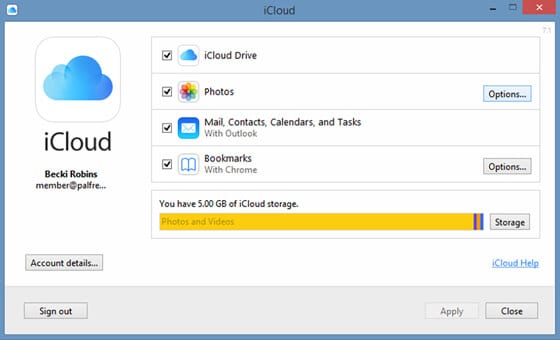
After doing this, you’ll be sent a verification code which you need to enter it in the software. Then, it’s time to proceed with the photo transfer by clicking options of the Photos label. Then select the checkbox of My Photo Stream and click on Done.
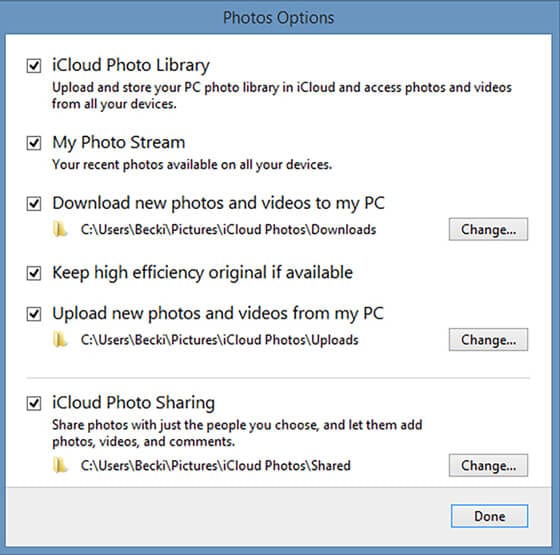
Now, go to your iPhone and go to your profile in settings. Then, go to iCloud -> Photos -> My Photo Stream and then enable it. After doing this, go to the Shared option in your Photos app and give a name to your shared photos.
Now, you can go back to your Windows PC and visit file manager where you will see an option iCloud Photos, from where you can transfer photos from iPhone to PC.
AutoPlay
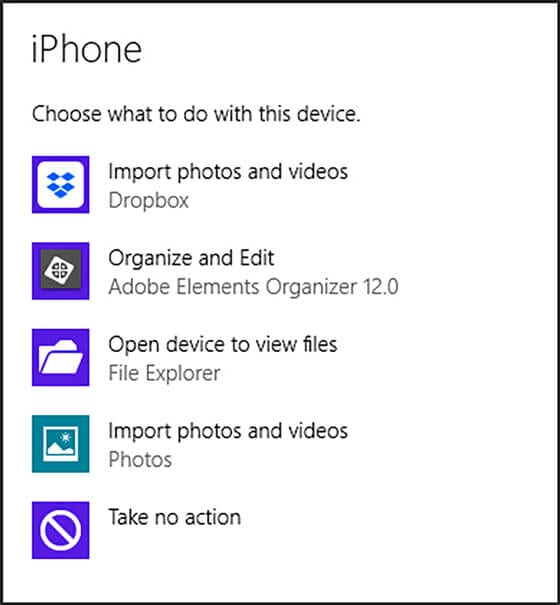
One of the simplest ways to transfer photos from iPhone to PC windows is by using AutoPlay. Connect your iPhone to your Windows PC through the data cable. Then you’ll notice a prompt in your computer asking if it’s okay to trust this device, for which you should click on Trust.
You’ll be give several options to select, among which you should click on either ‘Import Photos and Videos’ or ‘Open device to view files’. Now, you will be able to easily transfer photos from iPhone to PC without any hassles.
Windows Photo App
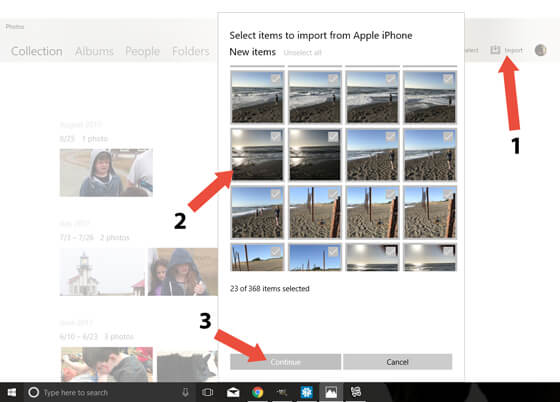
This is another method where you can easily transfer photos from iPhone to PC just with a few clicks. All you need here is, your devices, a data cable, and the Windows photo app. Now, attach your iPhone to PC through data cable.
Then, open the Photos app on your PC and click on ‘Import’, which will eventually show you all the thumbnails of your iPhone photos. You can select and deselect these photos according to your preference and finally transfer them.
Transfer Photos from iPhone to Mac
iPhone and Mac are from the same parent company, Apple, which is why they run on very similar software frameworks. There are several ways through which you can transfer photos from iPhone to PC running on Mac.
Since, one of such methods is through iCloud, which has already been explained above, here’s a look at some other methods for the photo transfer:
Photos App
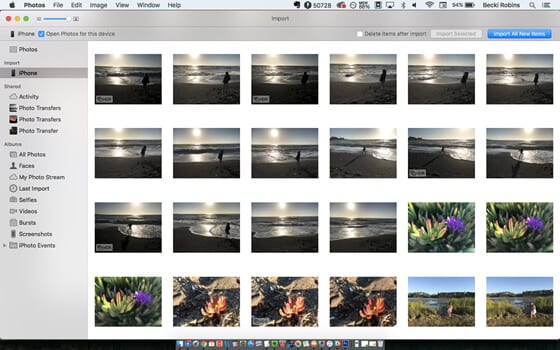
Also used to be known as iPhoto app, you can transfer photos from your iPhone to your Mac seamlessly through the Photos App, which is a built-in Mac application. Connect your iPhone to Mac and open the Photos app.
On the left side of navigation bar, you should see ‘Import’, which you should click. Then, select your iPhone and select the images you want to transfer to your Mac. Wait for a couple of minutes for the photo transfer to complete.
AirDrop
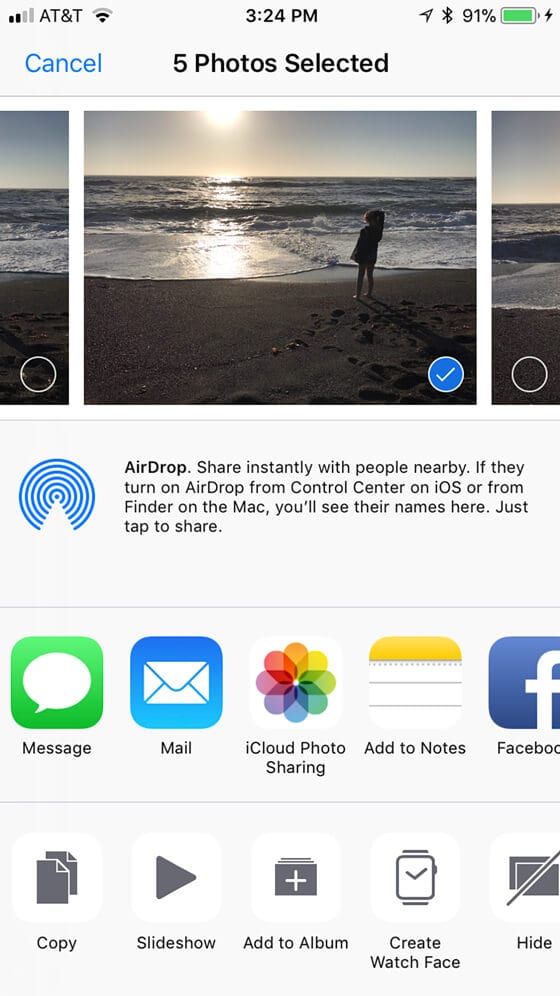
One of the latest models of file transfer and share apps, AirDrop is a revolutionary file transferring application, with which you can transfer files through WiFi direct. Connect your iPhone and Mac to your WiFi network and open your Photos app on your iPhone.
Select the photos that you would like to transfer and click on the Share option, which gives you AirDrop as the option. After a couple of minutes, you’ll be able to see a notification on your Mac saying that photos have been received.
You can find these photos in the Downloads section of your Mac, from where you can move photos to the desired location on your PC.
Conclusion
By now, you may have a complete understanding of several ways through which you can transfer photos from iPhone to PC. It’s very important to ensure that you maintain regular backups of your iPhone data on your PC, so that if any mishap happens, you’ll always have an alternative place where you can still have your important files and information.
Image Source: iphonephotographyschool
Author Bio:
Dinesh Lakhwani 

Dinesh Lakhwani, the entrepreneurial brain behind “TechCommuters,” achieved big things in the tech world. He started the company to make smart and user-friendly tech solutions. Thanks to his sharp thinking, focus on quality and the motto of never giving up, TechCommuters became a top player in the industry. His commitment to excellence has propelled the company to a leading position in the industry.
Popular Post
Recent Post

How To Recover Files Deleted from the Recycle Bin [Windows 11]
Losing a file can happen in seconds. You clear your desktop, hit Delete, and empty the Recycle Bin. Then, just when you need that file again, it seems to have vanished. This guide will walk you through ways to restore files removed from the Recycle Bin. We will begin with simple fixes, then look at […]

Disk Drill Data Recovery Tool Explained: Full Review and Guide
It happens in a split second. You delete a folder by mistake. Your drive stops showing up. A photo album from your last trip just vanishes. And your stomach drops. Lost files feel personal. They are not just data. They are memories, work hours, and sometimes years of effort packed into a few gigabytes. When […]

Recover Deleted Files In Windows 11 With Software & Without
Introduction What is the first thing that goes through your mind the second an important file vanishes from a Windows 11 PC? For most people, it is a mix of panic and disbelief, followed by a frantic click through every folder that file could possibly be hiding in. It happens in a split second: one […]

EaseUS Data Recovery Wizard: Everything To Know
Data loss does not always come from a big disaster either. Most cases start small and boring. A drive gets formatted by mistake. A laptop freezes mid-save and restarts on its own. A memory card stops showing up after being pulled out too fast. None of these feel like emergencies at first, until you realize […]

Recuva Data Recovery Tool: Is it Actually Worth it?
When I first tried Recuva Data Recovery, I wanted to see if it could really bring back lost files. The tool is free, small in size, and promises quick recovery, which made me curious enough to test it on my own PC. The setup was fast, and the wizard guided me step by step. I […]

GetData Recover My Files Data Recovery Tool: Honest Review
A hard drive error brings a special kind of silence. Well, yes! The screen freezes, then a message appears saying the drive can’t be found or must be formatted. In that moment, years of photos and work files feel at risk. It never happens at a good time. Coffee spills near a laptop, a memory […]

Windows File Recovery: A Complete Review [Tried & Tested]
Imagine this. You spend hours perfecting a video project. You hit save. Then your laptop freezes, reboots, and when the screen comes back. The file is gone. Your stomach sinks. It’s not just you. Lost files happen all the time. A dropped hard drive, a bad update, an accidental delete, or a corrupted partition can […]

5 Best Data Recovery Software For Windows 11 and Windows 10
Introduction: A crashed drive can ruin a whole day. One minute your photos, work files, and tax records sit safe on your PC. The next minute they are gone. A power cut, a bad update, or one wrong click can wipe out years of memories and months of work in seconds. That sinking feeling is […]

How To Update NVIDIA Drivers On Windows 11/10 PC
Learn how to update NVIDIA drivers on Windows 11/10 with simple methods, safety tips, and easy steps for smoother gaming and better PC performance.

