How To Run 2 or 3 WhatsApp Accounts On One iPhone – (Updated)

Last updated on September 1st, 2025 at 4:57 pm
So, do you want dual WhatsApp on one iPhone?
Well, this is possible!
In this detailed dual WhatsApp guide, we will discuss ways to run two or third WhatsApp on one iPhone.
How to run 2 or 3 WhatsApp accounts on one iPhone Without Jailbreak
The first thing that comes to one’s mind when they think about multiple or dual WhatsApp accounts is, ‘Won’t my phone crash? Jailbreak? Security Issues?’ Not to worry.
These tips are from experts who have successfully tried running two or multiple WhatsApp accounts on one iPhone Without Jailbreak. Read on to find out how you can do it too.
Method 1: How to Run 3 WhatsApp Accounts on iPhone
Here comes the final method of our post. We will now learn how you can use 3 different WhatsApp accounts on iPhone.
By utilizing two separate phone numbers for business and personal use, both WhatsApp Business and WhatsApp Messenger can coexist on the same device. This makes it a convenient choice for managing multiple WhatsApp accounts on your iPhone effortlessly. Follow these steps to get started.
Step 1: On your iPhone, open the App Store and search for “WhatsApp Business.”
Step 2: Download and install the WhatsApp Business app on your device.
Step 3: Once installed, open the WhatsApp Business app and proceed with the initial setup by verifying your business phone number.
Select “Use a different number” from the pop-up window. Input the new number and the OTP code to create a separate WhatsApp account on your iPhone.
Step 4: Set up your business profile by providing relevant details such as business name, description, profile picture, and contact information.
So, you finally have two separate WhatsApp accounts running on your iPhone, right? Here’s how you can add the third account.
Step 1: Open the Safari browser on your iPhone and visit the “Duplicator Store Official Website”.
Step 2: Scroll down and select “WhatsApp” to install a duplicate application on your device for using the third WhatsApp account.
Step 3: Follow the on-screen instructions and hit the “Install” button.
Step 4: The installation process will begin right away. Open the duplicate WhatsApp on your iPhone and log in with the third number you wish to use.
And that’s it! Here’s how you can use 3 different WhatsApp accounts on your iPhone using WhatsApp, WhatsApp Business, and a duplicate app.
Method 2: Use this method to run two WhatsApp accounts on one iPhone
The first solution we explain will work on iPhone without a jailbreak. To learn how to install two WhatsApp accounts on one iPhone without jailbreak. Follow these steps.
- Set up a regular WhatsApp account by installing it from the App Store on iPhone.
- Open your web browser and type iOS.Othman.tv in the address bar.
- Tap WhatsApp 2 and download it.
- Once installed go to Settings > General > Profile.
- Here, enable ‘Trust VNE software’
- Next, follow the steps and you are good to go.
The biggest advantage of using this method is that you don’t have to keep signing in and out of both accounts.
Also Read: Top 10 Secret WhatsApp Tips and Tricks You Should Know
Additional Information:
Sometimes when installing multiple WhatsApp accounts on an iPhone you might end up corrupting certain messages. So, to avoid such unforeseen situations we should have a backup of WhatsApp messages.
Note: If you plan to use any such software avoid using or switching off the iPhone before recovery because it might create new data or might probably overwrite deleted data. All this reduces the chance of data recovery.
Method 3: How to use one WhatsApp account on two devices
For this method, we will need to install an app called Dual Messenger for WhatsApp – Chats. This application allows using 2 WhatsApp accounts without needing to jailbreak them. The app is extremely easy to use and you can use it without paying anything. To use this method, follow the steps below:
1. Visit the App Store and type ‘Dual Messenger for WhatsApp – Chats’
2. Once installed, scan a QR code using another iPhone. You can get it by tapping the three dots > WhatsApp Web/Desktop > Scan QR Code.
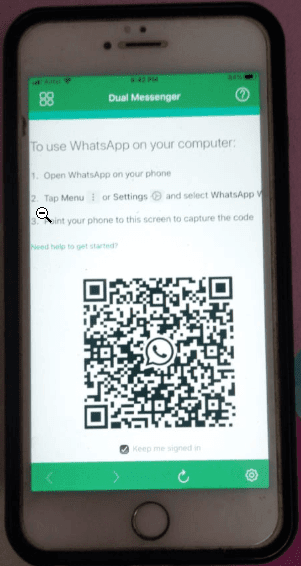
3. Scan the QR code. Once done you will have two WhatsApp account on your phone.
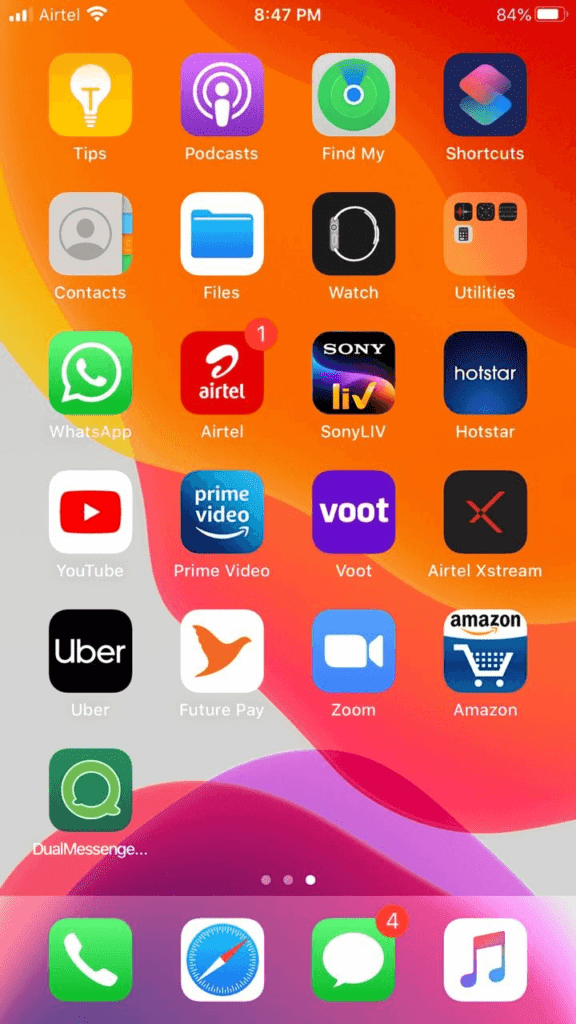
4. Tap the DualMessenger icon and start using the second WhatsApp on the same iPhone on which you already have one.
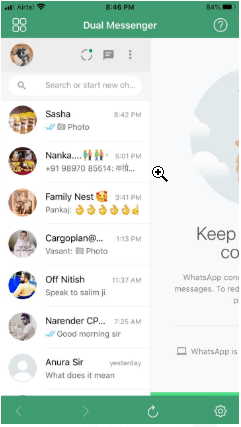
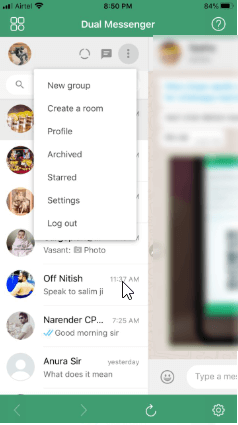
Note: You can now view your messages on both devices.
Method 4: How to install two or more WhatsApp accounts
What if you require more than two accounts? Don’t worry, that is covered too! Here are the steps to run multiple WhatsApp accounts on iPhone (more than two).
Uninstall your WhatsApp account after you have backed up all your data.
Once uninstalled, go to the App Store, and download the Tutu Helper App which is a third-party application that will facilitate the use of multiple accounts.
To install the application, go to http://tutuapp.vip/ and use the QR code below.
You will see that there are two options – the regular and the VIP. Choose the regular option.
Download and install the app. You can now see it in your menu. However, you cannot access it as your iPhone deems it to be an untrusted enterprise developer. The following steps are to mitigate this.
Step 1: tutu-app
Step 2: Go to Settings
Step 3: Click on General and choose Profile and Device Management
Step 4: You will notice a new icon with the name Winner Media Co. Ltd.
Step 5: Click on the ‘trust’ option beside the same. This will allow you to use the application.
Step 6: Open the app and you will realize that it is like the official version.
Step 7: Type ‘WhatsApp++’ in the search bar.
Step 8: Download and install the app as usual.
To let your iOS device, trust this app, follow the same steps as stated above. Click on the trust option for ‘suzhou ding chi network technology co. Ltd’.
Your almost done! Simply open the second app and use it.
For the third and fourth accounts, follow the same process and install them as ‘Watsusilver’ and ‘Watusigold’ and again enable your device to trust these two accounts.
You can now use your four WhatsApp accounts!
Method 5: How to use one WhatsApp account on two devices.
This is a method for sharing 1 account on two devices. Here are the steps to do so.
- Go to the App Store.
- Type ‘Dual Messenger for WhatsApp – Chats’
- Download and install this application
- Once installed, you will need to scan a QR code using another iPhone.
- Use the first WhatsApp account you have created on the original iPhone to scan the code.
- You can now view your messages on both devices.
The only catch here is that the application is paid. However, this was worth mentioning since the app is super easy to use and sometimes you might be required to use one account on two devices.
That’s it you can now have multiple WhatsApp accounts installed on your iPhone.
Note: You would require multiple phone numbers to verify WhatsApp accounts. The third-party software only allows your phone to act as multiple devices while downloading WhatsApp and it doesn’t clone the software. Hence, you require multiple phone numbers.
Use this guide to install 2 or 3 WhatsApp accounts on one iPhone without jailbreak; since these methods have been tried by experts, you don’t need to worry about their success!
Author Bio:
Dinesh Lakhwani 

Dinesh Lakhwani, the entrepreneurial brain behind “TechCommuters,” achieved big things in the tech world. He started the company to make smart and user-friendly tech solutions. Thanks to his sharp thinking, focus on quality and the motto of never giving up, TechCommuters became a top player in the industry. His commitment to excellence has propelled the company to a leading position in the industry.
Popular Post











Recent Post

Monthly Round-up: All big cybersecurity incidents happened in the Month of April 2026
April 2026 was one of the most eventful months in recent cybersecurity history. Well, yes. Attackers did not just target one industry or one country. They went after hospitals, government bodies, travel platforms, water utilities, education companies, and healthcare technology firms. The scale and variety of these attacks made it clear that no organization is […]
How To Change Your Default Web Browser Windows 11 And 10 [Complete Guide]
Your web browser is the gateway to everything you do online. It opens your emails, plays your videos, and loads your favorite websites. But what if the browser that opens every time is not the one you like? That is a small problem with a very easy fix. You can change your default web browser […]
Change Time Format On Windows: Complete Guide
Windows show time in different ways. Some people prefer the 12-hour clock with AM and PM. Others like the 24-hour format, also called military time. Knowing how to change time format on your Windows PC is a simple but useful skill. It helps you stay comfortable with your display and avoid confusion. Many users never […]
How To Get Help With Paint In Windows [2026]
Microsoft Paint has been around for decades. It comes with every version of Windows and is one of the easiest tools to use. But even simple tools can cause trouble. If you have ever felt stuck while drawing or editing an image, you are not alone. Many people look for help with Paint in Windows […]
How To Toggle Bluetooth Settings Easily on Windows [2026]
Bluetooth is a key feature on any Windows computer. It allows you to connect devices like headphones, keyboards, mice, and speakers without using wires. Many users rely on it daily, so it helps to know how to switch Bluetooth on or off quickly whenever needed. Sometimes you just want to turn Bluetooth on or off […]

System Restore: Complete Guide for Windows 11
Introduction: Your Windows 11 PC can run into problems at any time. A bad update, a new app, or a wrong setting can break things fast. When that happens, you need a quick fix. System Restore is one of the best built-in tools Windows offers for these moments. It helps you roll back your PC […]

Setting Up Default Audio Device: Complete Guide [2026]
Introduction: Sound is a big part of how we use computers every day. Whether you are watching a movie, joining a video call, or listening to music, your audio needs to work properly. Setting up default audio device is one of the first things you should do when you connect new speakers, headphones, or a […]

Emptying the Recycle Bin In Windows: Complete Guide
Introduction: When a file is deleted in Windows, it is not erased immediately. It is first sent to the Recycle Bin, where it stays until it is removed permanently. Clearing the Recycle Bin is a quick way to regain storage space. Many users do this often to keep their system clean and working properly. Knowing […]

How To Close Games Assist: Simple Methods to Try
Introduction Do you have a feature on your device that keeps popping up while you play games? Many users want to know how to close Games Assist because it shows up at the wrong time. It can be distracting. It can slow down your game. And sometimes, you just do not need it running in […]

Optimizing Graphics Performance: Complete Guide [2026]
Introduction: If your games stutter or your videos look choppy, your graphics might need some help. Optimizing graphics performance is one of the best things you can do for your PC. It makes everything look better and run faster without buying new hardware. Many people think better visuals require expensive upgrades. But that is not […]

