












The photos folder looked normal at first glance. Then the storage warning popped up. One trip photo appeared four times. A tax PDF sat in three different folders. Two old setup files were still in Downloads, and each one was over 500 MB. Nobody plans this mess. Copies pile up slowly. A download runs twice. […]
How To Get Help With Paint In Windows [2026]
Microsoft Paint has been around for decades. It comes with every version of Windows and is one of the easiest tools to use. But even simple tools can cause trouble. If you have ever felt stuck while drawing or editing an image, you are not alone. Many people look for help with Paint in Windows every single day.
The good news is that finding support is easier than you think. There are many options available, both inside Windows and across the internet. You do not need to be a tech expert. All you need is to know where to look and what to do.
This article will walk you through everything. From official Microsoft resources to helpful online communities, you will find the right answer for your problem. Whether you are a beginner or just hit a small snag, this guide will show you exactly how to get help with Paint in Windows quickly and without stress.
Before You Ask for Help: Smart Steps to Take First
Before you reach out to anyone or start searching online, it is worth checking a few things on your own. These small steps can save you a lot of time. They also help you explain your problem more clearly when you do need to ask someone for support.
- Restart Paint first. Close the app completely and reopen it. Most small glitches fix themselves after a fresh restart.
- Check your Windows version. Go to Settings → System → About. Not all Paint features work the same on every Windows version, so know what you are running.
- Update Windows. Go to Settings → Windows Update and install any pending updates. Many Paint bugs are quietly fixed through system updates.
- Write down the exact problem. Note what is going wrong before you search. A clear description helps you find answers faster and explain the issue better to others.
- Try a different file format. Having trouble saving or opening a file? Switch between JPG, PNG, and BMP to see if the format is the cause.
- Check if the file is read-only. Right-click the file → Properties → uncheck Read-only. Then try saving again. This fixes many “cannot save” issues instantly.
- Read the error message carefully. Do not close error popups too fast. Write down the exact words. Those details are very useful when searching for a fix online.
- Run Paint as administrator. Right-click the Paint app → Run as administrator. This resolves many permission-related problems with saving or accessing files.
Important Questions You May Have Missed
Can I use Paint to edit photos taken on my phone?
Yes, you can. As long as you transfer the photo from your phone to your Windows computer, Paint can open and edit it. You can crop, resize, rotate, or add text to the photo. It works best with JPG and PNG files. Keep in mind that Paint is a basic editor, so it does not have advanced tools like layers or filters. Still, for simple edits, it gets the job done well. Many people who need help with Paint in Windows discover this feature and find it surprisingly useful for quick everyday photo tasks.
Why does Paint open very slowly on my computer?
Paint is a lightweight app and should open fast in most cases. If it is slow, the issue is usually not Paint itself but the computer. Low memory, too many apps running in the background, or a fragmented hard drive can all cause slowdowns. Try closing other apps before opening Paint. You can also restart your computer and then try again. Keeping Windows updated also helps because updates often include performance improvements that make apps like Paint run smoother and faster than before.
Is the new Paint app different from the old one?
Yes, it is. Microsoft updated Paint with a fresh look and added some new tools over the years. The newer version has a cleaner interface and includes features like a background remover and layers support on some Windows 11 builds. The core tools like pencil, brush, fill, and shapes are still the same. If you are used to the old version, the new one may feel slightly different at first. But once you explore it, you will find it easy to use and more capable than before when you need help with Paint in Windows.
Can I get Paint back if I accidentally uninstalled it?
Yes, you can. Paint is a Microsoft Store app on Windows 10 and Windows 11. If you removed it by mistake, just open the Microsoft Store, search for “Paint,” and install it again for free. It will be back in your apps list within minutes. On older versions of Windows, it is built into the system and cannot really be removed. So if you are on an older system and cannot find it, try searching in the Start menu using the word “Paint” and it should appear right away.
How To Get Help With Paint in Windows: 3 Official Ways
When something goes wrong with Paint, the best place to start is always with Microsoft itself. Official resources are free, reliable, and built specifically for Windows users. You do not need to sign up for anything or pay anyone. The three methods below are the easiest and most trusted ways to get help with Paint in Windows straight from the source.
1. Microsoft Support Website
The Microsoft Support website is one of the most complete help centers on the internet. It has thousands of articles covering every Windows app, including Paint. The guides are written in simple language and walk you through fixes step by step. Whether your issue is big or small, this site almost always has an answer ready for you.
- Step 1: Open your browser and go to support.microsoft.com. Type your Paint problem in the search bar, for example, “Paint not saving files” or “Paint keeps crashing.”
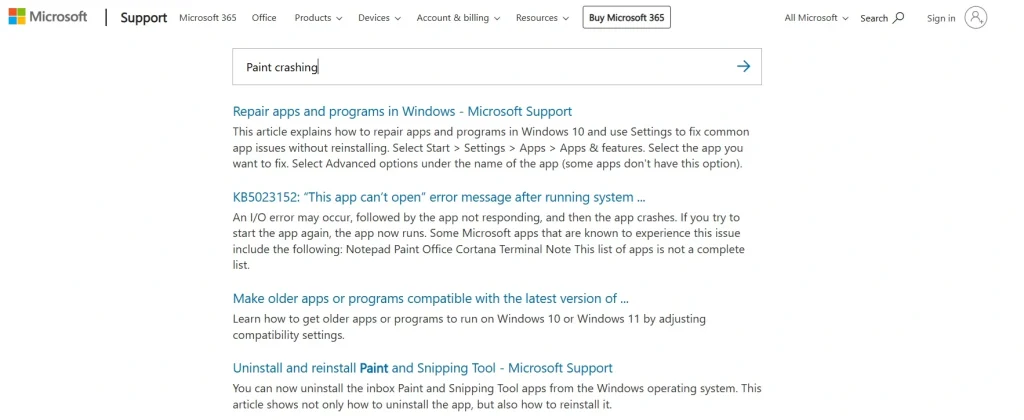
- Step 2: Browse the results and click the article that matches your issue. Follow the steps listed in the guide to fix your problem.
2. Windows Built-in Get Help App
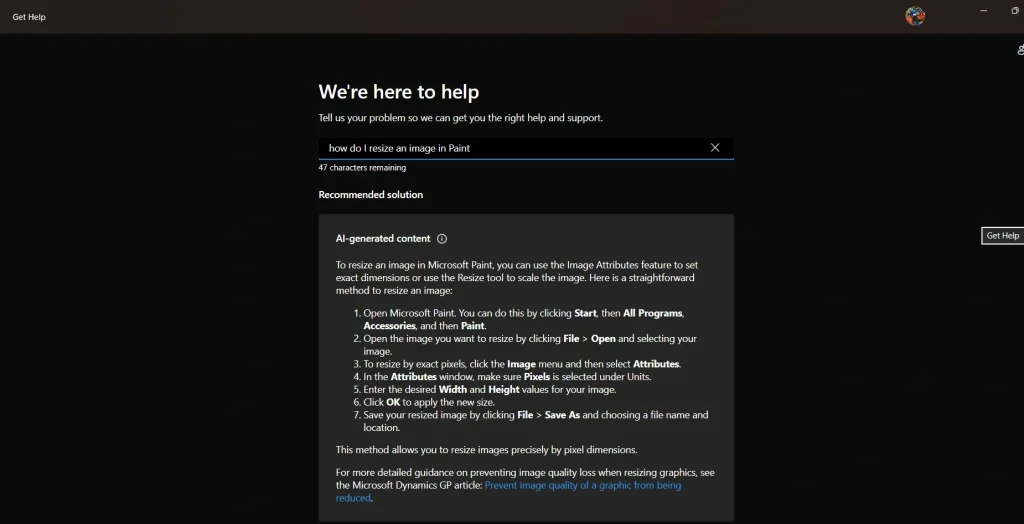
The Get Help app is built right into Windows, so you do not need to open a browser or search the web. It connects you to Microsoft support articles and, if needed, a live support agent. It is one of the most convenient tools available because everything happens inside your own computer. This is a great option if you prefer a guided experience over searching on your own.
- Step 1: Click the Start menu and type “Get Help” in the search bar. Open the app when it appears in the results.
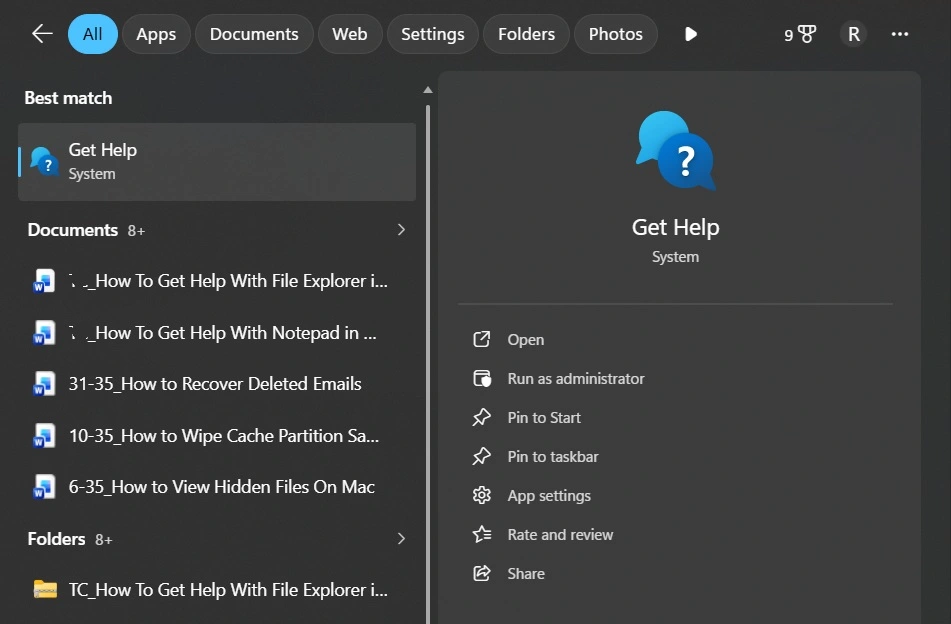
- Step 2: Type your Paint question in the chat box, for example, “how do I resize an image in Paint.” The app will show you relevant guides and give you the option to chat with a Microsoft agent if the articles do not solve your issue.
3. Microsoft Community Forum
The Microsoft Community Forum is a free public space where real users and Microsoft experts answer questions together. It has been active for years and has millions of posts covering almost every Windows issue you can think of. Many Paint problems have already been asked and answered there, so your solution may already be waiting. It is especially helpful when you want advice from someone who has personally dealt with the same problem.
- Step 1: Open your browser and go to answers.microsoft.com. Type your Paint issue in the search bar to see if it has already been answered in an existing thread.

- Step 2: If you do not find a matching answer, click “Ask a question” and describe your problem clearly. An expert or fellow Windows user will usually reply within a day.
Beyond Windows: Outside Resources Worth Bookmarking
Official support is great, but sometimes the best answers come from outside sources. The internet is full of helpful communities and content creators who explain Paint in ways that are easy to understand.
- YouTube tutorials. YouTube has thousands of videos about using Paint on Windows. Just type your question in the YouTube search bar, and you will find clear visual guides. Watching someone else do the steps makes it much easier to follow along. Channels focused on Windows tips often cover Paint in detail and are a great source when you need help with Paint in Windows through video format.
- Reddit communities. Reddit has groups like r/windows and r/techsupport where people help each other with Windows problems. You can post your Paint issue and get responses from real users who may have already solved the same problem. The community is generally friendly and quick to respond. Search the subreddit before posting to see if your question has already been answered.
- Tech blogs and how-to websites. Websites like How-To Geek, MakeUseOf, and TechRadar publish detailed articles on Paint features and fixes. Experienced tech writers write these and make them easy to follow. A quick Google search for your specific problem will often bring up one of these trusted sites near the top of the results.
- Windows Facebook groups. There are many Facebook groups dedicated to Windows users. These are informal communities where people share tips, fixes, and tutorials. Search for “Windows help” or “Windows tips” on Facebook and join a group with a large number of active members. It is a more casual way to get help with Paint in Windows from everyday users.
Author’s Tip
Paint may look simple, but it can do more than expected. Most issues are easy to fix in minutes, often by restarting the app or updating Windows.
When you need help, be specific about the problem. Clear searches give better answers. Start with Microsoft’s official resources, then check other sources if needed. With the right approach, you can quickly solve most Paint issues.
Conclusion
Paint may be a simple app, but it still has a learning curve for new users and occasional hiccups for everyone. The important thing to remember is that you are never stuck for long. There are always options available, whether through official Microsoft channels, community forums, or helpful websites and videos found outside of Windows. Help is always closer than it seems.
No matter what problem you are facing, the steps in this guide will point you in the right direction. Start with the simple checks, use the official resources, and explore outside help when needed. With so many ways to find help with Paint in Windows, there is no reason to stay stuck. Take it one step at a time, and you will have your answer sooner than you think.
FAQs
Q1: Is Microsoft Paint free to use on Windows?
Yes, Microsoft Paint is completely free. It comes pre-installed on all versions of Windows, including Windows 10 and Windows 11. You do not need to pay for it or sign up for anything. If you ever remove it by accident, you can download it again from the Microsoft Store at no cost. It is one of the few apps that has always been free and available to every Windows user without any subscription or extra steps required.
Q2: Can Paint handle large image files without crashing?
Paint can open large image files, but it may slow down or become unresponsive if the file is very large and your computer does not have much memory. For best results, use Paint with standard-sized images like photos from a phone or web graphics. If you regularly work with large or high-resolution files, consider using a more powerful free tool like GIMP or Paint.NET alongside Paint. These apps are designed for heavier workloads while still being free to download and use on Windows.
Q3: Why can’t I find some tools in Paint that I saw in a tutorial?
This usually happens because the tutorial was made using a different version of Windows or a newer update of Paint. Microsoft has added new features to Paint in recent updates, like layers and background removal, which only appear in certain Windows 11 builds. If your Paint looks different, check for Windows updates and install any that are available. After updating, restart your computer and open Paint again. The missing tools may appear once your system is fully up to date and running the latest version of the app.
Author Bio:
Dinesh Lakhwani 

Dinesh Lakhwani, the entrepreneurial brain behind “TechCommuters,” achieved big things in the tech world. He started the company to make smart and user-friendly tech solutions. Thanks to his sharp thinking, focus on quality and the motto of never giving up, TechCommuters became a top player in the industry. His commitment to excellence has propelled the company to a leading position in the industry.
Popular Post
Recent Post

Wise Duplicate Finder Review: Real Results from Wise Duplicate Finder
Read my honest Wise Duplicate Finder review. See features, pricing, pros and cons, and real PC test results. Find out if this free duplicate cleaner can free up your Windows storage.

How to Recover Deleted Files from Pen drive, USB Drive, SD Card
Introduction: On tech forums, you’ll often see posts like this: “I connected my pen drive to my laptop this morning, but the folder was empty. All my college project files had vanished. I don’t have a backup. Can someone help me?” Stories like this are very common. Pen drives, USB drives and SD cards are […]

How To Recover Files Deleted from the Recycle Bin [Windows 11]
Losing a file can happen in seconds. You clear your desktop, hit Delete, and empty the Recycle Bin. Then, just when you need that file again, it seems to have vanished. This guide will walk you through ways to restore files removed from the Recycle Bin. We will begin with simple fixes, then look at […]

Disk Drill Data Recovery Tool Explained: Full Review and Guide
It happens in a split second. You delete a folder by mistake. Your drive stops showing up. A photo album from your last trip just vanishes. And your stomach drops. Lost files feel personal. They are not just data. They are memories, work hours, and sometimes years of effort packed into a few gigabytes. When […]

Recover Deleted Files In Windows 11 With Software & Without
Introduction What is the first thing that goes through your mind the second an important file vanishes from a Windows 11 PC? For most people, it is a mix of panic and disbelief, followed by a frantic click through every folder that file could possibly be hiding in. It happens in a split second: one […]

EaseUS Data Recovery Wizard: Everything To Know
Data loss does not always come from a big disaster either. Most cases start small and boring. A drive gets formatted by mistake. A laptop freezes mid-save and restarts on its own. A memory card stops showing up after being pulled out too fast. None of these feel like emergencies at first, until you realize […]

Recuva Data Recovery Tool: Is it Actually Worth it?
When I first tried Recuva Data Recovery, I wanted to see if it could really bring back lost files. The tool is free, small in size, and promises quick recovery, which made me curious enough to test it on my own PC. The setup was fast, and the wizard guided me step by step. I […]

GetData Recover My Files Data Recovery Tool: Honest Review
A hard drive error brings a special kind of silence. Well, yes! The screen freezes, then a message appears saying the drive can’t be found or must be formatted. In that moment, years of photos and work files feel at risk. It never happens at a good time. Coffee spills near a laptop, a memory […]

Windows File Recovery: A Complete Review [Tried & Tested]
Imagine this. You spend hours perfecting a video project. You hit save. Then your laptop freezes, reboots, and when the screen comes back. The file is gone. Your stomach sinks. It’s not just you. Lost files happen all the time. A dropped hard drive, a bad update, an accidental delete, or a corrupted partition can […]

