












The photos folder looked normal at first glance. Then the storage warning popped up. One trip photo appeared four times. A tax PDF sat in three different folders. Two old setup files were still in Downloads, and each one was over 500 MB. Nobody plans this mess. Copies pile up slowly. A download runs twice. […]
How To Toggle Bluetooth Settings Easily on Windows [2026]
Bluetooth is a key feature on any Windows computer. It allows you to connect devices like headphones, keyboards, mice, and speakers without using wires. Many users rely on it daily, so it helps to know how to switch Bluetooth on or off quickly whenever needed.
Sometimes you just want to turn Bluetooth on or off quickly. Maybe your device is not connecting. Maybe you are trying to save battery life. Or maybe you just got a new wireless gadget and need to pair it fast. Knowing how to toggle Bluetooth settings easily on Windows saves you a lot of time and frustration. It is a skill that every Windows user should have.
But not everything always works perfectly. There are times when you open your Settings and the Bluetooth switch is just not there. This is a very common problem. Many users face it after a Windows update or a driver issue. In that case, you need to know how to fix the Bluetooth toggle missing problem right away. This article covers everything you need — from safe practices to step-by-step methods.
Stay Safe Before You Start: Key Precautions to Follow
Before you change any settings on your computer, it is always smart to take a few precautions. Even simple tasks like turning Bluetooth on or off can go wrong if your system has an underlying issue. Following these steps will help you avoid any problems along the way.
- Back up your system first. Before making any driver or settings changes, create a restore point. Go to the Start menu, type “Create a restore point,” and follow the steps. This lets you undo any changes if something goes wrong.
- Make sure Windows is up to date. Outdated Windows versions often cause Bluetooth problems. Go to Settings > Windows Update and install any pending updates. This alone can fix many issues, including the need to fix the Bluetooth toggle missing error.
- Check if Bluetooth is supported on your device. Not all computers have Bluetooth hardware built in. Before troubleshooting, confirm your device actually has a Bluetooth adapter listed in the Device Manager.
- Do not change multiple settings at once. If you are troubleshooting, change one thing at a time. That way, you know exactly what fixed the problem. Changing too many things at once makes it hard to track what worked.
- Keep your drivers from a trusted source. Only download Bluetooth drivers from the official manufacturer’s website or through Windows Update. Downloading from random websites can introduce malware to your system.
- Do not force-restart during a driver update. If you are installing or updating a Bluetooth driver, wait for it to finish completely. Force-restarting in the middle of an update can corrupt your system files.
Advantages and Disadvantages: Understanding Bluetooth on Windows
Bluetooth on Windows is a powerful feature, but like anything else, it comes with both benefits and drawbacks. Understanding both sides helps you use it more wisely and troubleshoot problems with a clearer head.
Knowing the advantages and disadvantages of Bluetooth on Windows also helps you decide when to use it and when to turn it off. Let us look at both sides clearly.
Advantages
- Wireless convenience. Bluetooth lets you connect devices without using cables. You can pair a mouse, keyboard, or speaker easily, which helps keep your workspace neat and clutter-free.
- Wide device compatibility. Bluetooth works with hundreds of devices. From headphones to fitness trackers to game controllers, Windows supports a huge range of Bluetooth gadgets out of the box.
- Easy to toggle Bluetooth settings on Windows. With just a few clicks or a keyboard shortcut, you can turn Bluetooth on or off. It is fast, simple, and does not require any special knowledge.
- Low power consumption. Bluetooth uses very little power compared to Wi-Fi. Turning it on when needed and off when not in use helps extend your laptop’s battery life.
Disadvantages
- Limited range. Bluetooth has a short range, usually around 10 meters. If you move too far from your PC, your device will disconnect. This can be annoying when working in a larger space.
- Interference with other wireless signals. Bluetooth and Wi-Fi share the 2.4 GHz band. When many devices use it at the same time, you may notice slower speeds or weaker connections.
- The Bluetooth toggle can go missing. This is a known issue on Windows. After an update or a driver problem, the toggle simply disappears. When you need to fix the Bluetooth toggle missing issue, it can take time and effort to resolve.
Frequently Lifted Questions: What People Ask Most (FLUQs)
Why is my Bluetooth toggle not showing up in Windows Settings?
This usually happens because of a missing or outdated driver. Windows needs the right Bluetooth driver installed to show the toggle in Settings. It can also happen after a major Windows update resets or removes certain drivers. To fix the Bluetooth toggle missing problem, you should open Device Manager and check if your Bluetooth adapter is listed there. If it shows a warning icon, the driver likely needs to be updated or reinstalled.
Can I toggle Bluetooth settings easily on Windows without opening Settings?
Yes, you can. The Action Center in Windows 10 and 11 gives you quick access to Bluetooth without going into full Settings. You can click the notification icon in the bottom-right corner of the taskbar. From there, click the Bluetooth tile to turn it on or off instantly. This is one of the fastest ways to toggle Bluetooth settings easily on Windows without navigating through menus.
What should I do if Bluetooth keeps turning off by itself?
This is often caused by power management settings. Windows may be set to turn off Bluetooth to save power. To fix this, go to Device Manager, find your Bluetooth adapter, right-click it, and open Properties. Under the Power Management tab, uncheck the option that says “Allow the computer to turn off this device to save power.” This usually stops the automatic shut-off for good.
Is it safe to keep Bluetooth on all the time?
It is generally safe, but it does come with small security and battery risks. Leaving Bluetooth on when you are in a public place can expose your device to unwanted pairing attempts. It also uses a small amount of battery continuously. A good habit is to turn it off when you are not actively using a Bluetooth device. Knowing how to toggle Bluetooth settings easily on Windows makes this quick and easy to do anytime.
3 Methods to Toggle Bluetooth Settings on Windows
There is more than one way to manage Bluetooth on a Windows computer. Different methods work better in different situations. If one does not work for you, another one likely will. Below are three clear, reliable methods. Each one is beginner-friendly and requires no technical background.
Method 1: Using Windows Settings
This is the most common and straightforward way. Windows Settings gives you full control over your Bluetooth connections. It is the go-to method for most users who want to toggle Bluetooth settings easily on Windows without using any extra tools. It works on both Windows 10 and Windows 11, though the layout looks slightly different between the two versions.
Step 1: Press the Windows key and open Settings, or use Windows + I. Go to “Bluetooth & devices” (Windows 11) or “Devices” (Windows 10).
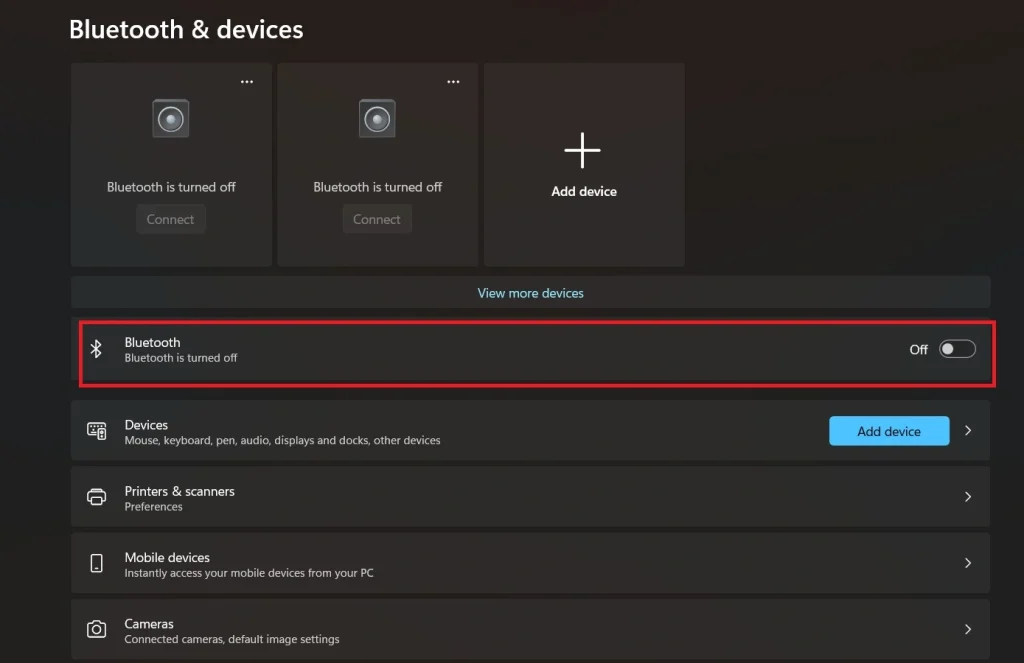
Step 2: Use the Bluetooth toggle at the top to turn it on or off. If it is missing, you may need to fix the issue first.
Method 2: Using the Action Center (Quick Settings)
The Action Center is the fastest way to switch Bluetooth on or off. It sits in the bottom-right corner of your taskbar and gives you one-click access to common settings. This method is perfect when you are in the middle of work and do not want to open full Settings. It helps you toggle Bluetooth settings easily on Windows in just one click, which is much faster than navigating through the full Settings menu.
Step 1: Click the icons near the clock on the taskbar. In Windows 10, open the Action Center.
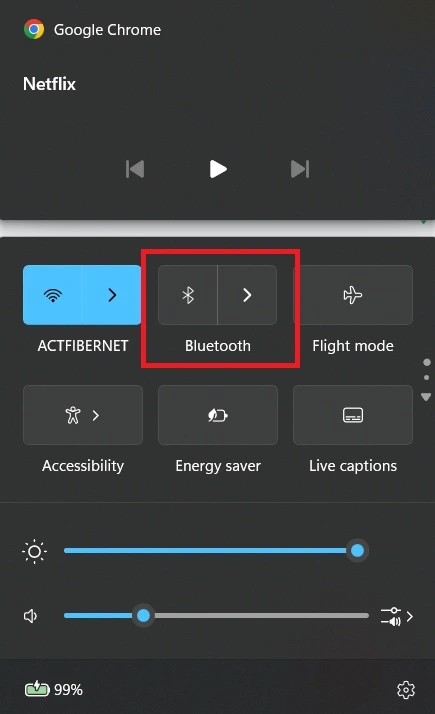
Step 2: Find the Bluetooth tile and click to turn it on or off. Use “Expand” if you do not see it.
Method 3: Using Device Manager to Fix the Bluetooth Toggle Missing Issue
This method is specifically for users who cannot see the Bluetooth toggle at all. When you need to fix the Bluetooth toggle missing problem, Device Manager is your best tool. It lets you manage hardware drivers directly. The most common cause of a missing toggle is a corrupted or outdated driver, and this method addresses that directly. It works on Windows 10 and Windows 11.
Step 1: Right-click Start and open Device Manager. Expand Bluetooth. If it is missing, enable “Show hidden devices.” Check for any warning icons.
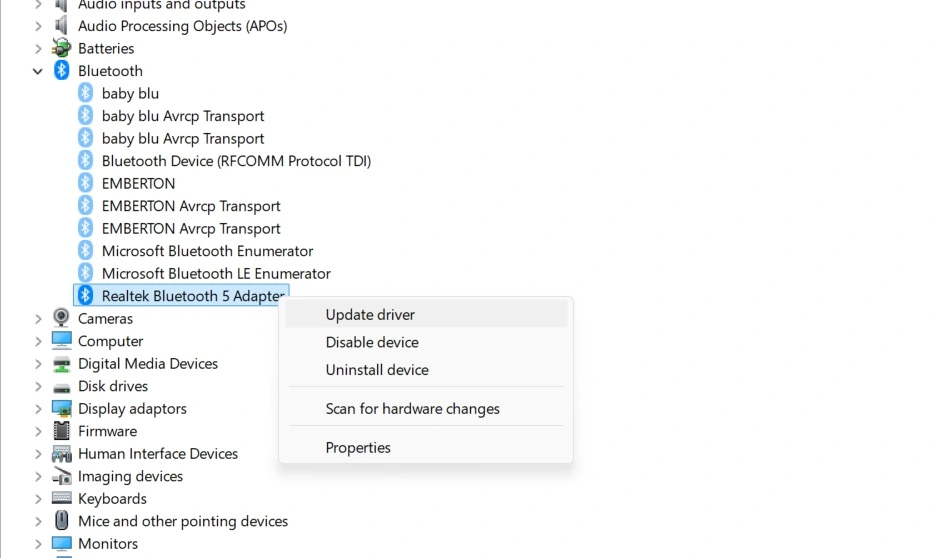
Step 2: Right-click the adapter and choose “Update driver.” Let Windows install it, then restart your PC. Check if the toggle is back.
Author’s Tip
One habit that will save you a lot of headaches is checking your Bluetooth driver every time Windows does a major update. Big Windows updates sometimes replace or reset drivers without telling you. If your Bluetooth toggle suddenly vanishes after an update, the driver is almost always the reason. Head straight to Device Manager and check for issues before trying anything else.
Another tip that many people overlook is using the Windows Troubleshooter. Go to Settings > System > Troubleshoot > Other troubleshooters and run the Bluetooth troubleshooter. Windows will automatically detect common problems and fix them for you. This tool can resolve many issues instantly, including some cases where you need to fix the Bluetooth toggle missing error, without you doing anything manually.
Conclusion
Bluetooth is a simple but essential feature on any Windows PC. Knowing how to manage it properly makes your daily tech life much smoother. Whether you are connecting headphones, a wireless mouse, or a speaker, being able to toggle Bluetooth settings easily on Windows is something every user benefits from knowing.
Take a moment to try out these methods on your own computer. Bookmark this article so you can come back to it anytime something goes wrong. Bluetooth issues are common, but they are almost always fixable. With the right steps, you can toggle Bluetooth settings easily on Windows and fix the Bluetooth toggle missing problem without stress every single time.
FAQs:
Q1: How do I turn on Bluetooth in Windows 11 quickly?
Open Quick Settings from the bottom-right of the taskbar near the clock. Click the Bluetooth tile to turn it on or off. The tile will highlight when active. If it is missing, click “Edit” and add Bluetooth to the panel for quick access.
Q2: Why does my Bluetooth toggle disappear after updates?
Windows updates can replace or remove drivers, which may cause the toggle to disappear. Open Device Manager, find your Bluetooth adapter, and reinstall or update the driver from the manufacturer’s website. You can also run the Bluetooth troubleshooter in Settings to fix the issue.
Q3: Can I add a Bluetooth toggle to the desktop or taskbar?
You cannot pin it as a standalone button, but you can keep it within easy reach. Add the Bluetooth tile to Quick Settings by editing the panel. This way, you can turn Bluetooth on or off anytime from the taskbar area in one click.
Author Bio:
Dinesh Lakhwani 

Dinesh Lakhwani, the entrepreneurial brain behind “TechCommuters,” achieved big things in the tech world. He started the company to make smart and user-friendly tech solutions. Thanks to his sharp thinking, focus on quality and the motto of never giving up, TechCommuters became a top player in the industry. His commitment to excellence has propelled the company to a leading position in the industry.
Popular Post
Recent Post

Wise Duplicate Finder Review: Real Results from Wise Duplicate Finder
Read my honest Wise Duplicate Finder review. See features, pricing, pros and cons, and real PC test results. Find out if this free duplicate cleaner can free up your Windows storage.

How to Recover Deleted Files from Pen drive, USB Drive, SD Card
Introduction: On tech forums, you’ll often see posts like this: “I connected my pen drive to my laptop this morning, but the folder was empty. All my college project files had vanished. I don’t have a backup. Can someone help me?” Stories like this are very common. Pen drives, USB drives and SD cards are […]

How To Recover Files Deleted from the Recycle Bin [Windows 11]
Losing a file can happen in seconds. You clear your desktop, hit Delete, and empty the Recycle Bin. Then, just when you need that file again, it seems to have vanished. This guide will walk you through ways to restore files removed from the Recycle Bin. We will begin with simple fixes, then look at […]

Disk Drill Data Recovery Tool Explained: Full Review and Guide
It happens in a split second. You delete a folder by mistake. Your drive stops showing up. A photo album from your last trip just vanishes. And your stomach drops. Lost files feel personal. They are not just data. They are memories, work hours, and sometimes years of effort packed into a few gigabytes. When […]

Recover Deleted Files In Windows 11 With Software & Without
Introduction What is the first thing that goes through your mind the second an important file vanishes from a Windows 11 PC? For most people, it is a mix of panic and disbelief, followed by a frantic click through every folder that file could possibly be hiding in. It happens in a split second: one […]

EaseUS Data Recovery Wizard: Everything To Know
Data loss does not always come from a big disaster either. Most cases start small and boring. A drive gets formatted by mistake. A laptop freezes mid-save and restarts on its own. A memory card stops showing up after being pulled out too fast. None of these feel like emergencies at first, until you realize […]

Recuva Data Recovery Tool: Is it Actually Worth it?
When I first tried Recuva Data Recovery, I wanted to see if it could really bring back lost files. The tool is free, small in size, and promises quick recovery, which made me curious enough to test it on my own PC. The setup was fast, and the wizard guided me step by step. I […]

GetData Recover My Files Data Recovery Tool: Honest Review
A hard drive error brings a special kind of silence. Well, yes! The screen freezes, then a message appears saying the drive can’t be found or must be formatted. In that moment, years of photos and work files feel at risk. It never happens at a good time. Coffee spills near a laptop, a memory […]

Windows File Recovery: A Complete Review [Tried & Tested]
Imagine this. You spend hours perfecting a video project. You hit save. Then your laptop freezes, reboots, and when the screen comes back. The file is gone. Your stomach sinks. It’s not just you. Lost files happen all the time. A dropped hard drive, a bad update, an accidental delete, or a corrupted partition can […]

